View Cameras
The View Cameras feature allows administrators to access integrated security camera feeds directly from the OPS-COM portal. Its primary purpose is to help security personnel and dispatchers monitor live activity and gather visual context for incident management. This article is intended for OPS-COM administrators.
Setup and Configuration
Accessing the camera feeds requires your organization to have an active, configured security camera integration within the OPS-COM system.
Additionally, administrators must have the appropriate incident and camera viewing permissions assigned to their user role to see the menu option. No additional user-side configuration is required once the system integration is complete.
Using this Feature
Administrators can launch the external camera viewer directly from the primary navigation menu.
ToviewHover over the
cameras,Incidentsgo to Incidents icon,icon and clickonViewCameraCameras.
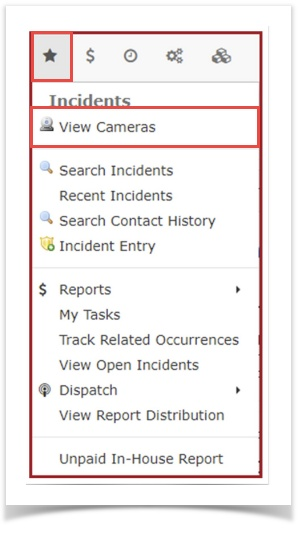
the
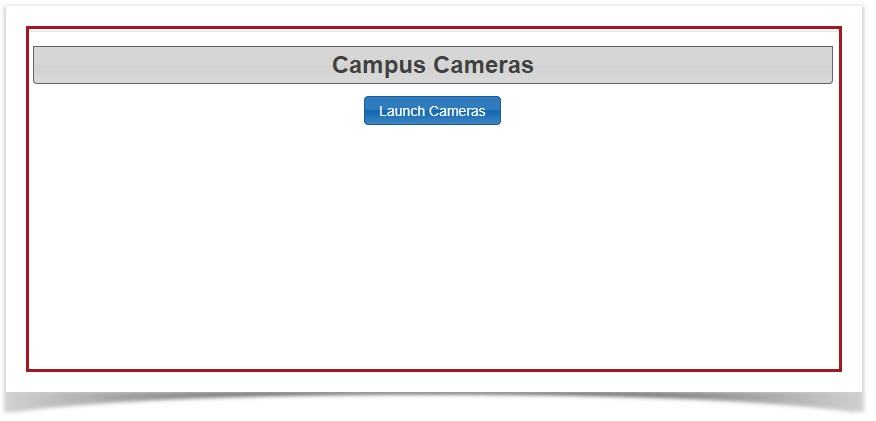
2. Next, you will see a page that has a button that says "Launch Cameras". button on the center of the page.
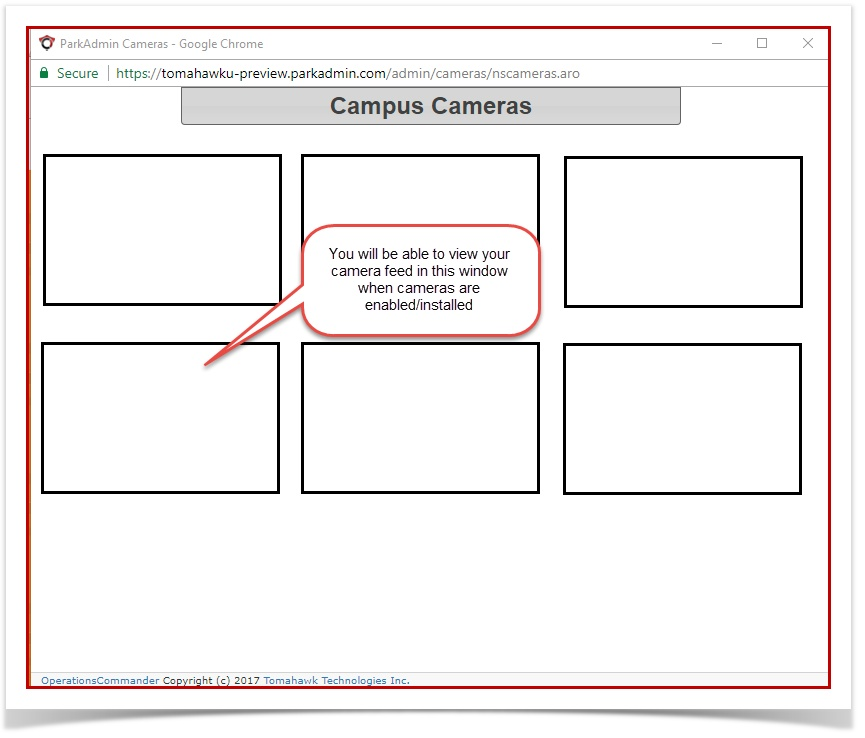
View and manage the camera feeds in the new browser window that opens.
Available Action and Button
-
Launch Cameras: Click
onthisitbutton to initiate the connection to your organization's camera integration. It forces the camera interface to open in a completely separate window, allowing you to keep your main OPS-COM dashboard active.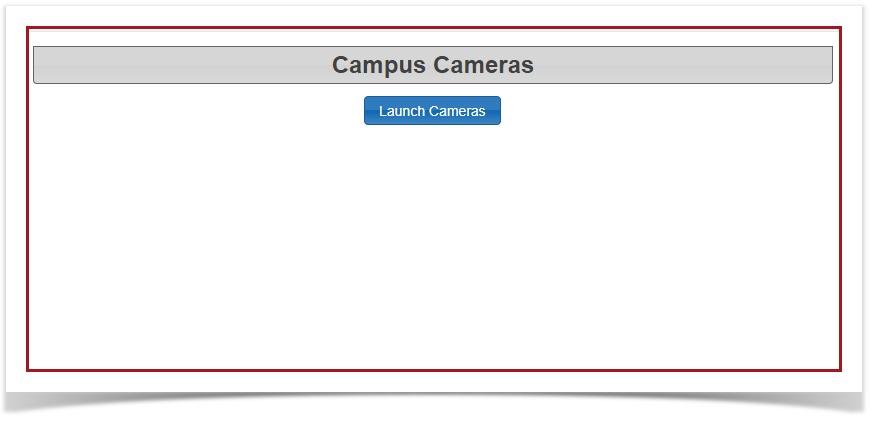
If you 3.click Athe Launch Cameras button and the new window willfails opento soload the video feeds, verify that your active session with your external camera provider has not timed out or require a separate login.
Best Practices and Considerations
-
Configure your browser settings: Ensure your web browser is configured to allow pop-ups from the OPS-COM portal. Because the camera viewer launches in a new window, strict pop-up blockers may prevent the feeds from opening when you
can seeclick theCamerasbutton. -