Viewing an Incident
YouThe canView getIncident screen allows OPS-COM administrators to thereview, viewedit, and manage comprehensive details of a security event. Its primary purpose is to provide a centralized hub for tracking dispatch logs, linked individuals, related vehicles, and assigned tasks associated with a specific incident. This article is intended for OPS-COM administrators and dispatch personnel responsible for incident management.
Setup and Configuration
Accessing and interacting with the View Incident screen fromrelies multipleheavily areas.on Searches,the reports,administrative linksroles fromand otherpermissions places.configured within the system.
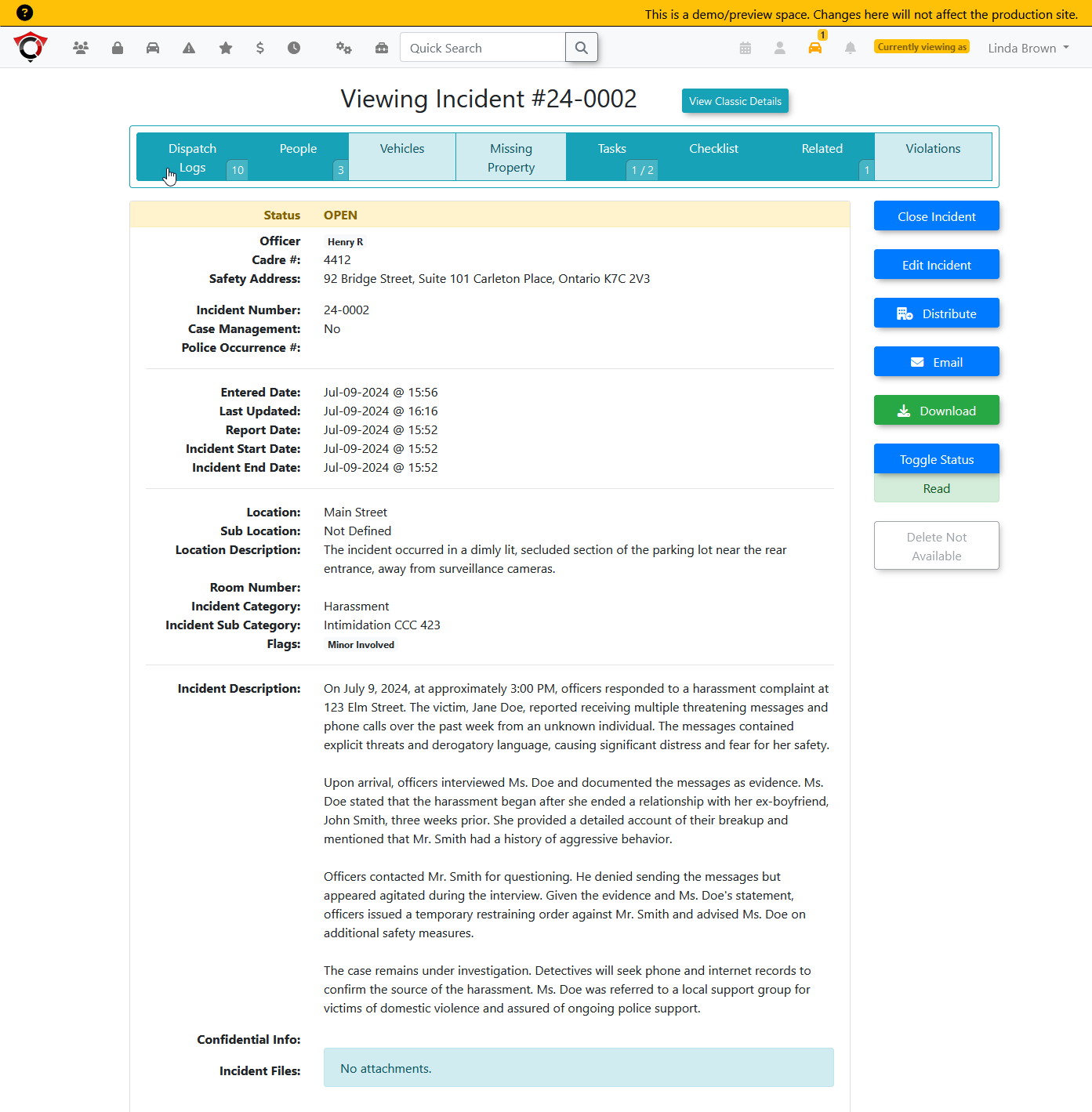
OnceTo there,review youand canmodify viewthese somethingsettings, similarhover toover this:
Viewing Permissions
To simply view thean incident page, youan administrator must have one of the following baseline permissions:
-
View All Incidents
-
View Incidents - Self
- (Must
AND you mustalso beonethe reporter, Primary Investigator, Case Manager, part oftheanfollowing:The reporterPrimary InvestigatorCase ManagerBe on aassigned taskgroupgroup,that’s assigned in the tasksBeor assigned directly to atask.task).
If
The edit option is only available if you have one of the following permissions:
Custom Permission - Open AllEdit IncidentsView Incidents - SelfAND you are the reporting admin
locked,AND thean incident isOpenadministrators
reasonIfwith theincidentIncidentis locked and the admin has theAdministrator permission"incident_admin" - Incident Administrator, then theycan view thelockspecificreason.Iffor theadminlock.hasAdministrators with thepermission "View/Edit ConfidentialInformation,"Informationtheypermissioncanwill seeaan additional Confidential Info section near the bottomaboveoffiles.the page.Editing Permissions
To access the edit options for an incident, the administrator must meet one of the following requirements:
-
Possess the Custom Permission - Open All permission.
-
Possess the Edit Incidents permission.
-
Possess the View Incidents - Self permission, be the reporting admin, AND the incident must be in an Open state.
Using this Feature
Administrators can navigate to the View Incident screen from multiple areas in the system, including search results, reports, and active dispatch logs. Once on the page, the interface is divided into functional tabs and side buttons.
Managing Tabs and Details
-
Dispatch
LogsLogs:Anyone who can view the incident can view
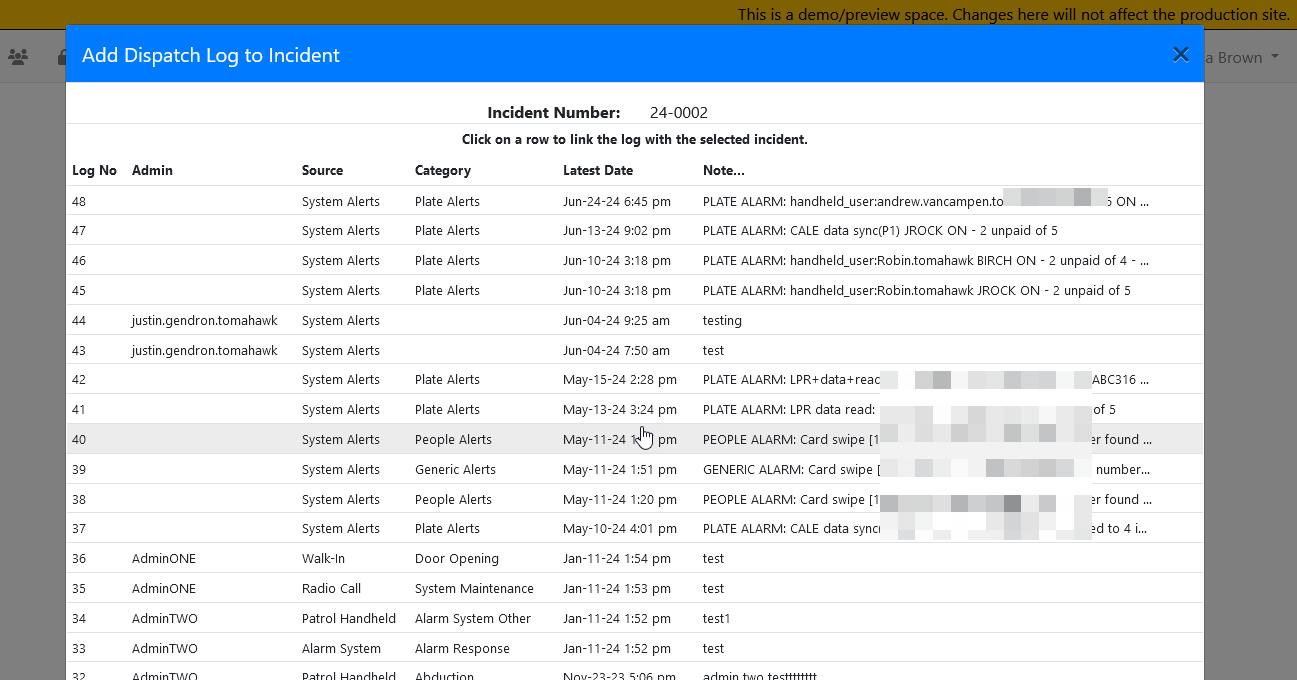
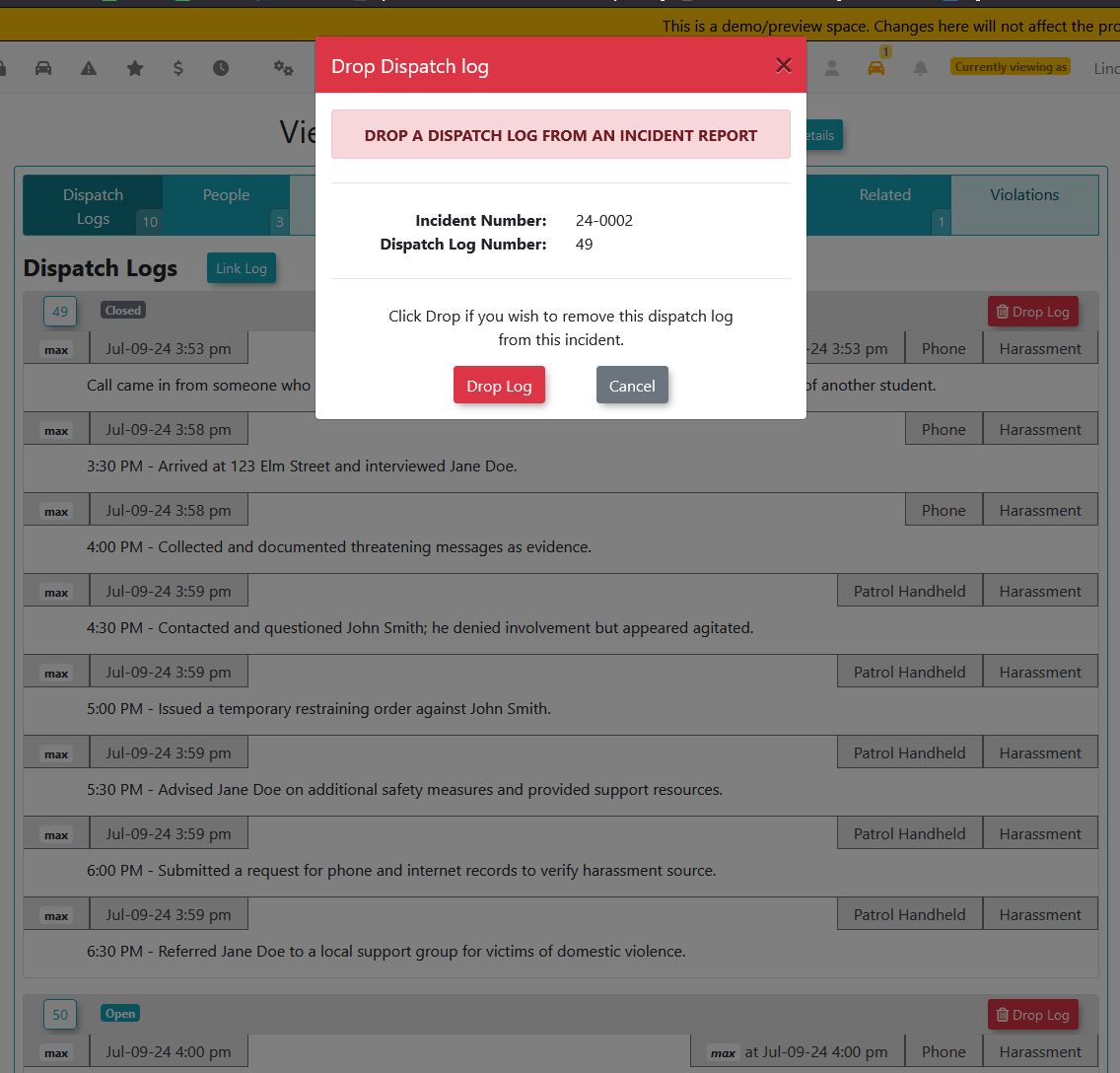
theits dispatch logs.ToClickaddthe Log button to manually link a new dispatch entry, ordropnavigatedispatch logs from this incident,to theadminDispatch Logs tab to drop a log. You must have thepermission “Add/Drop DispatchLogs.”
Logs permission to perform these actions. -
Linking
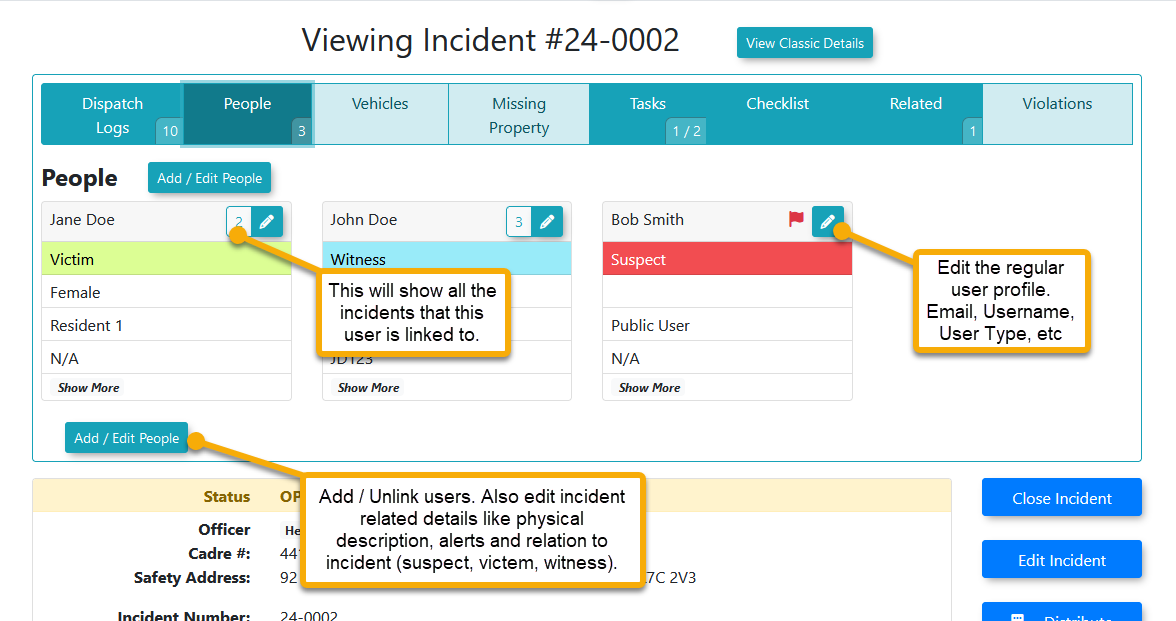
dispatchPeople:logsUsecanthisbetabdonetofromassociateeitherindividuals with thedispatchincident.entryClickscreenshowor from the link Log button: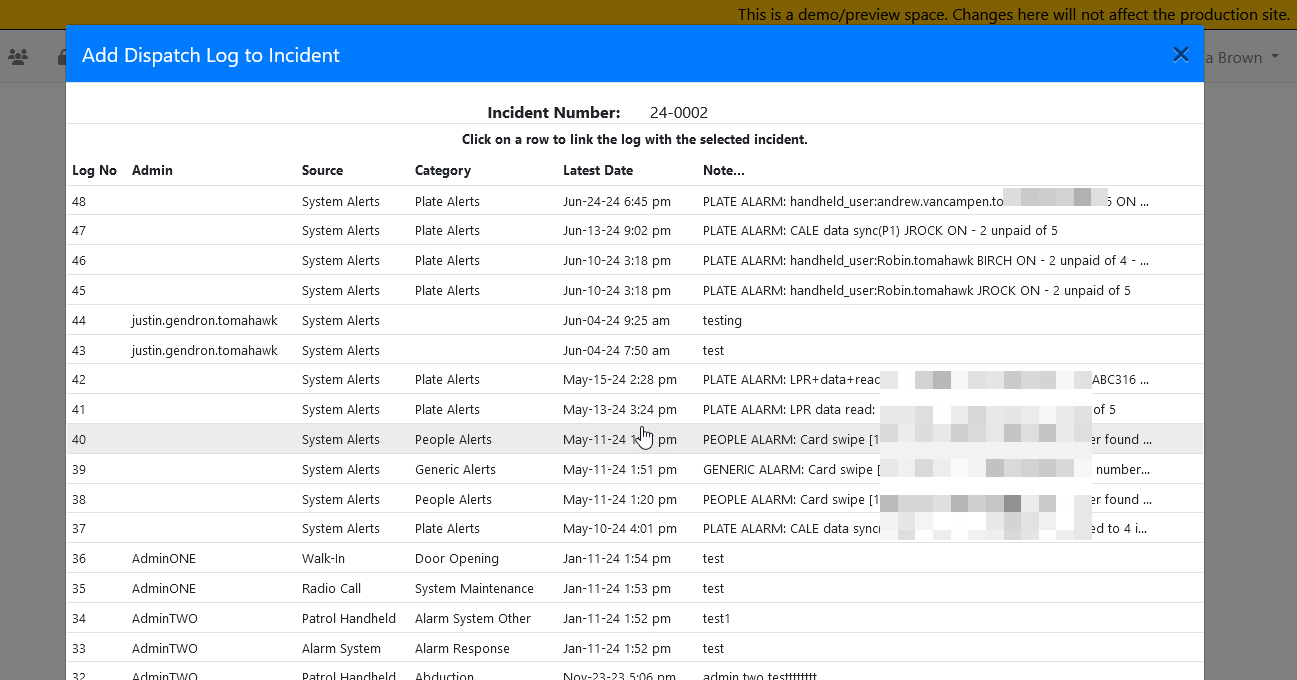
Dropping a log can be done from the Dispatch Logs tab. It will prompt the admin priormore todropping the log: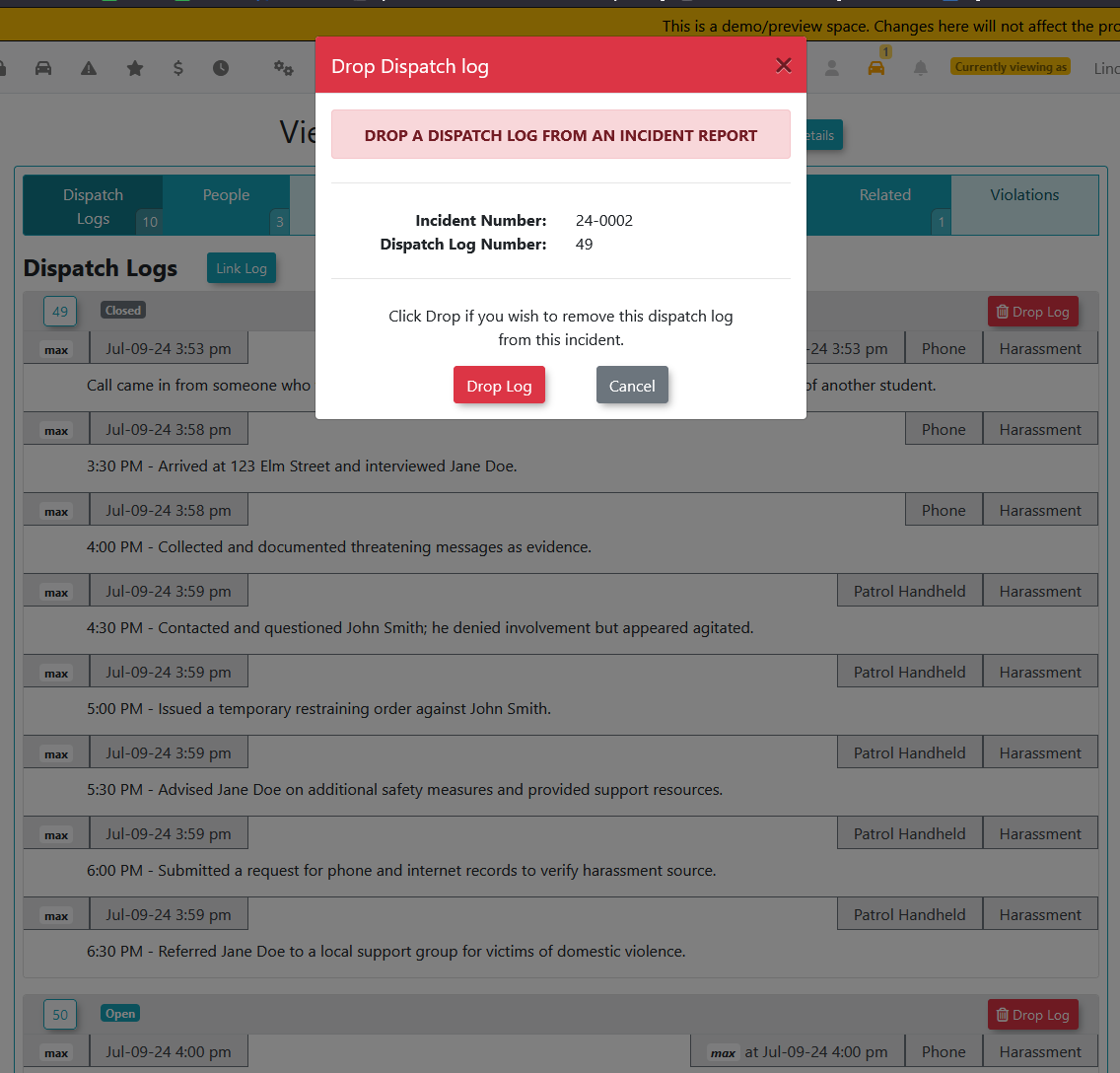
Linking People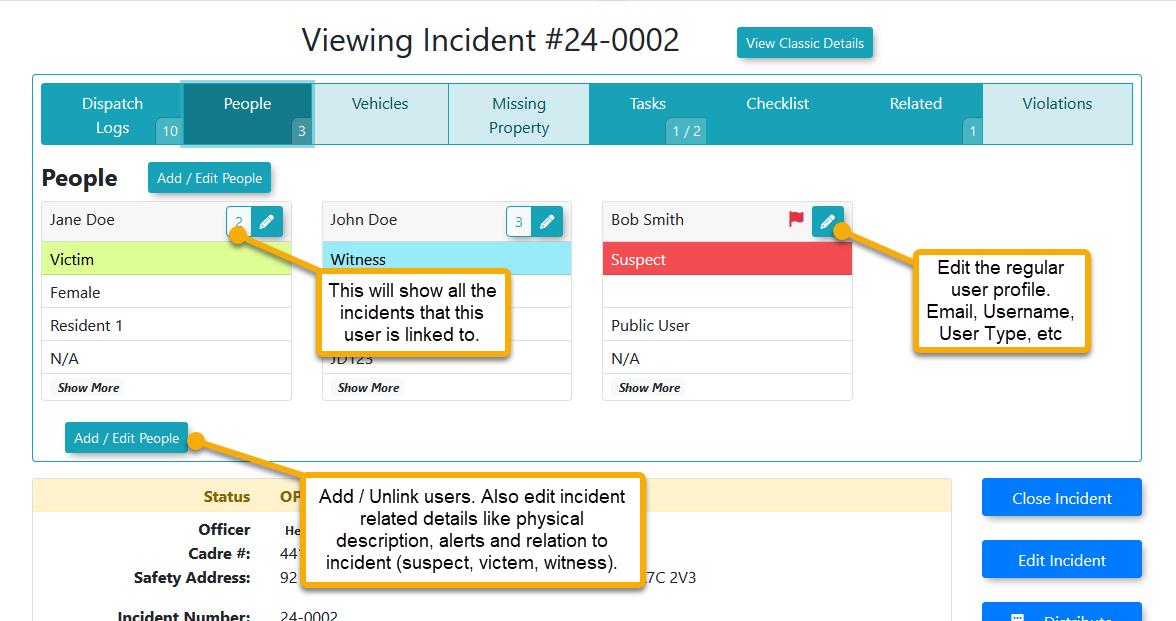
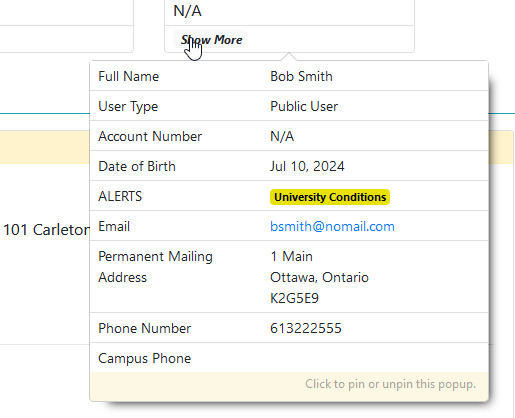
The show more section will show all theview extended details about a user thatisn’tare not displayed on thescreenprimaryabove:screen. -
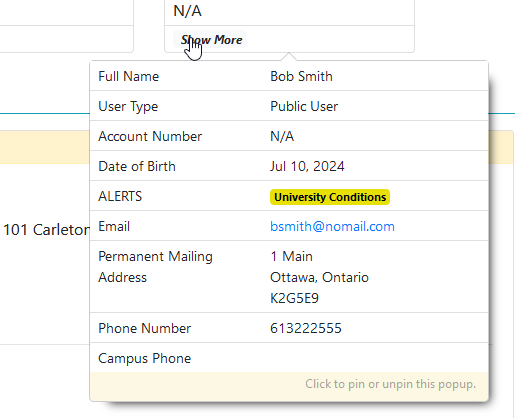
Linking Other
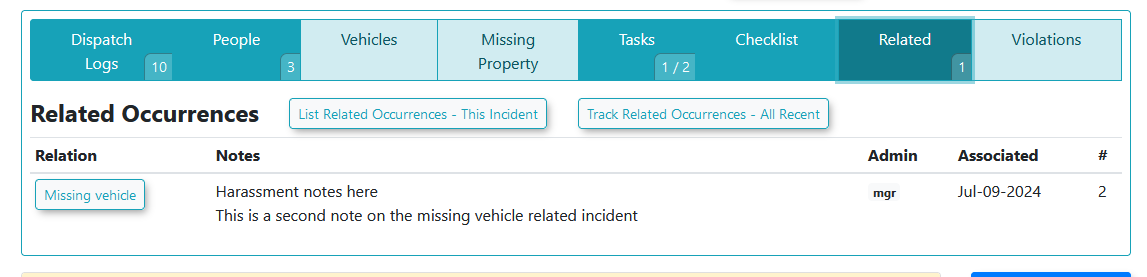
ItemsItems:LinkingUseothertheitemsrespectivesuchtabsasto attach vehicles, missingpropertyproperty, and violationscantoalsothebeincidentdonerecord.from -
There’sRelated
lessIncidents:informationView this section toshow than with users.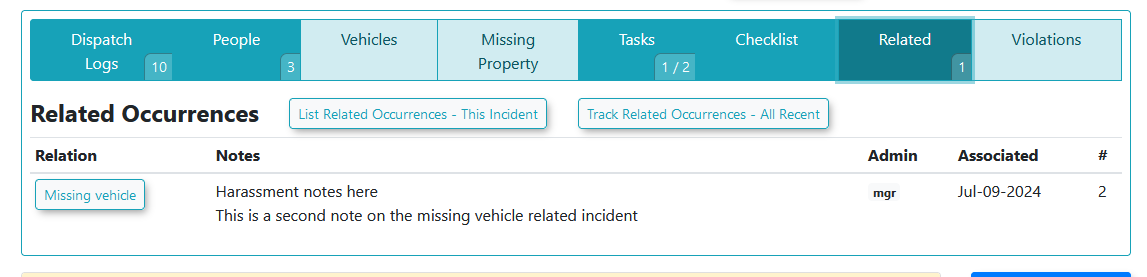
Useful for when several incidents are all related in some way. How these are linkedsee andmanagedconnectaremultipledoneoccurrenceselsewhere.that share common elements.Checklists -
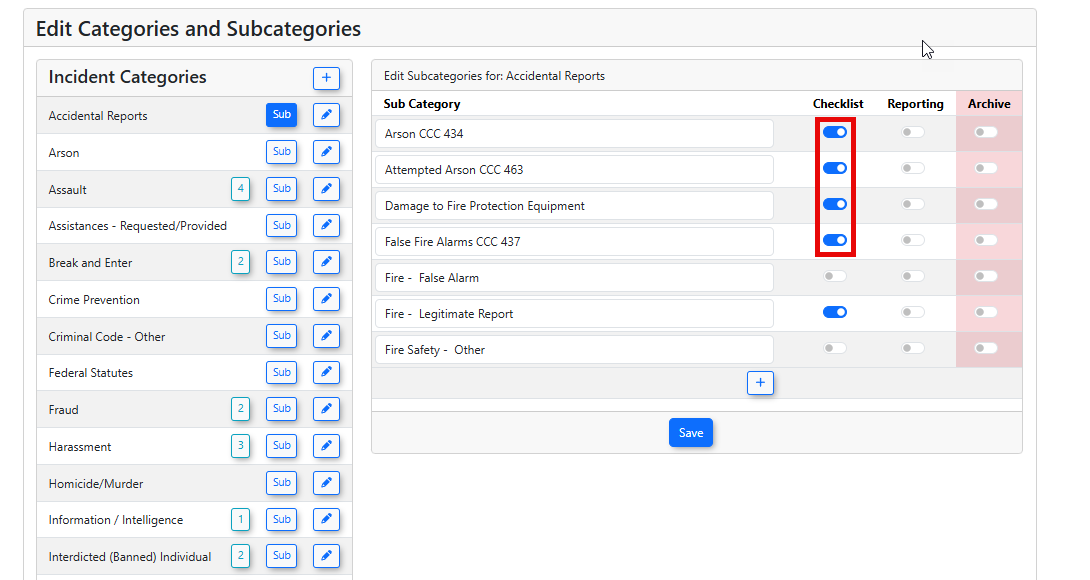
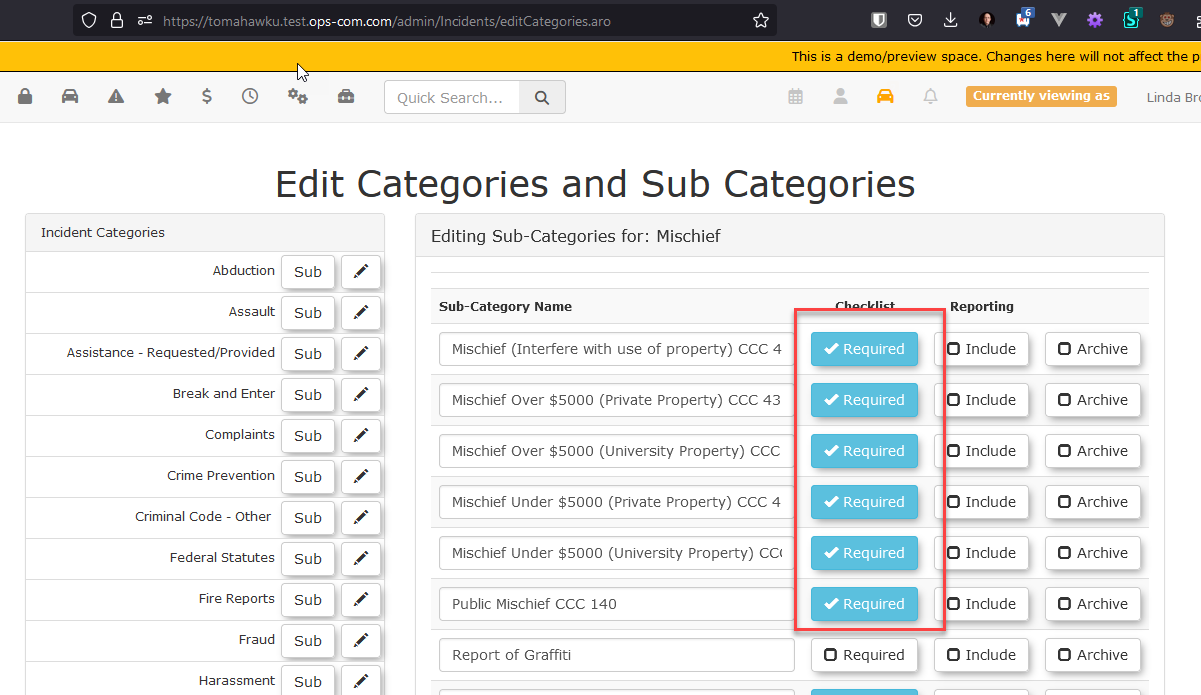
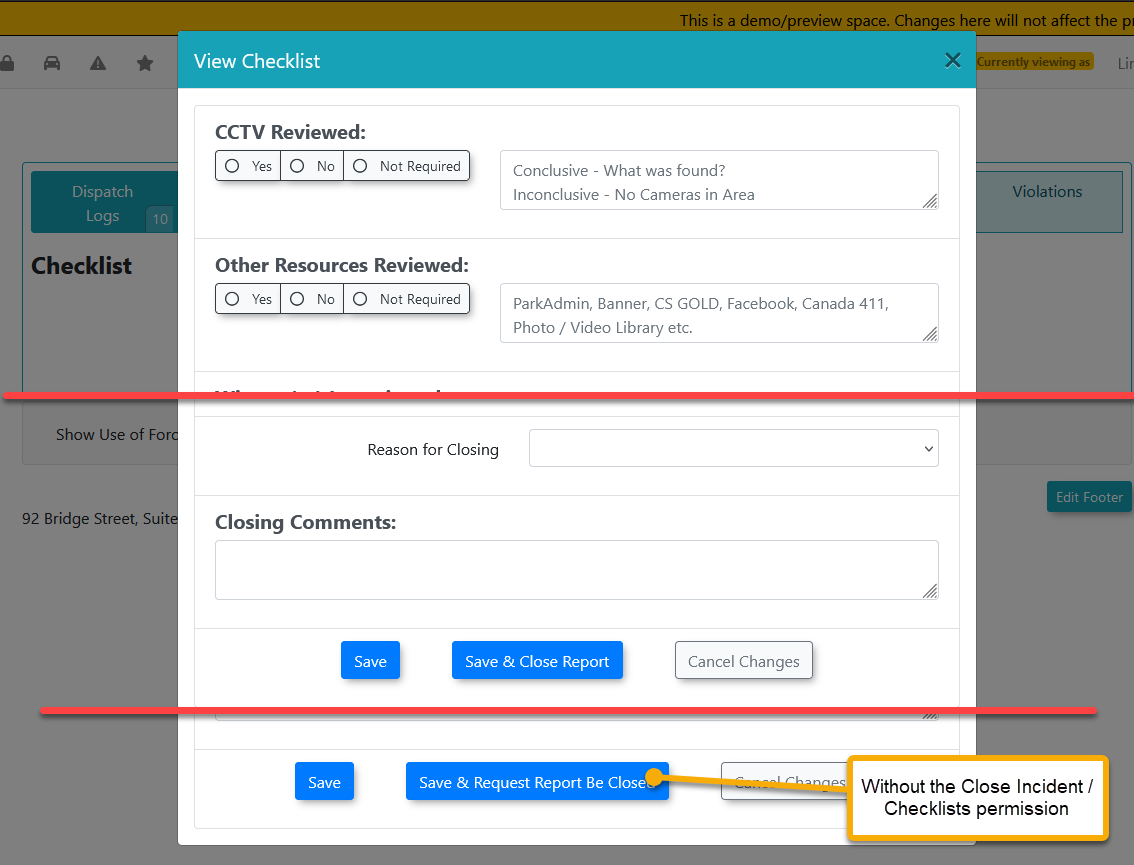
SomeChecklists:incidentsCertain subcategories require a checklist to befilledcompletedout prior to closing or requestingbefore the incident can be closed.TheIfsubcategoryrequired,isawhatwarningdefineswillthisappearrequirement: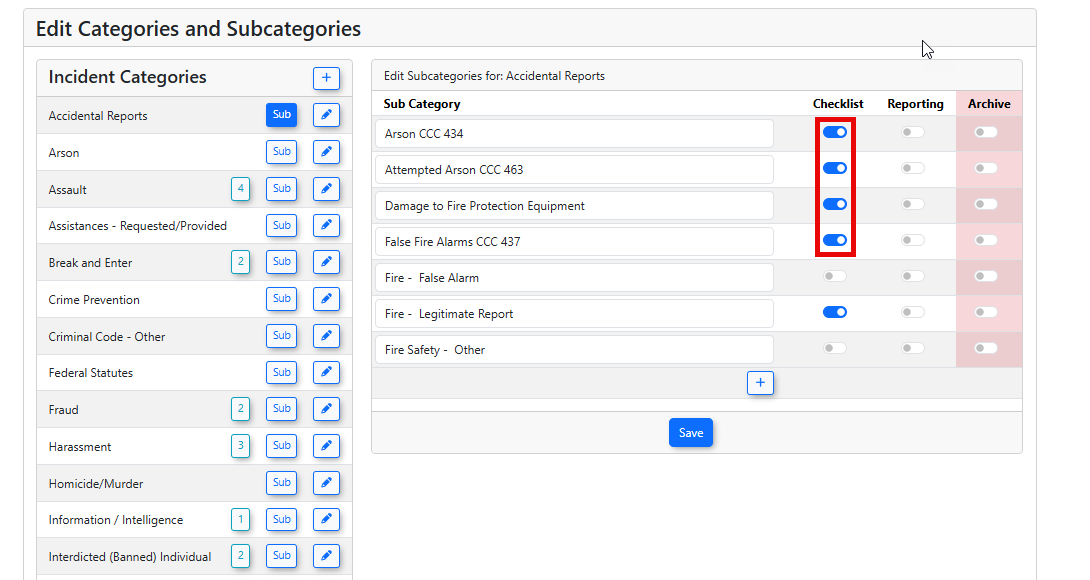
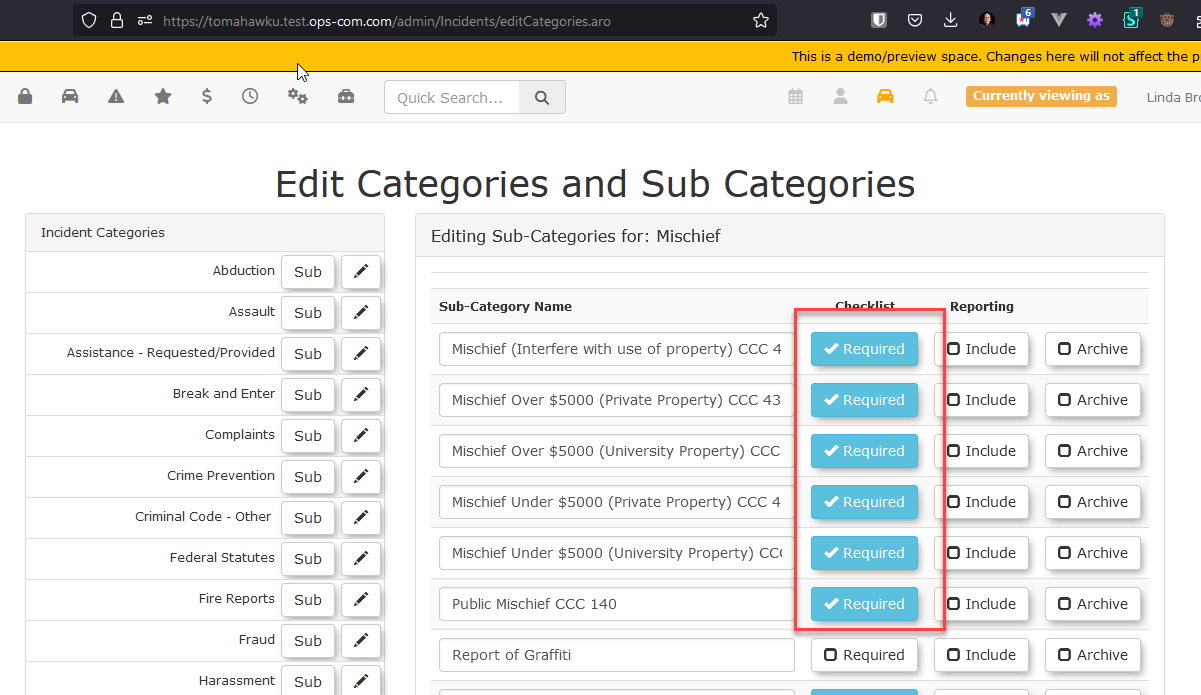
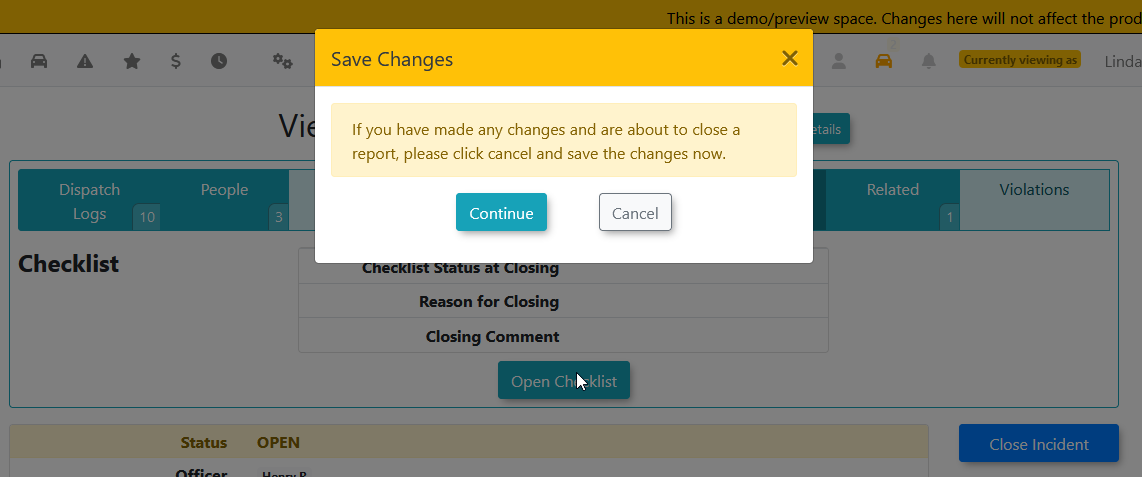
To view the checklist, the admin must have one of the following permissions "View All Incidents or Incident Administrator."Whenwhile the issue isstillopen.open, a warning will appear: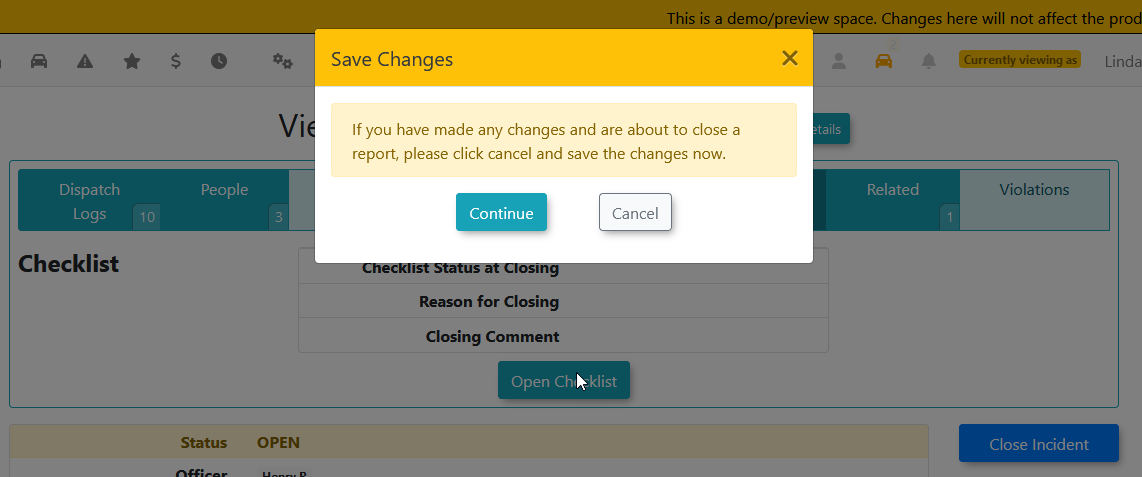
Then they can fillFill out the detailsandtodependingproceedifwiththeyclosing the incident. You must have therightViewpermission,AllcloseIncidents orrequestIncident Administrator permission to view these checklists. -
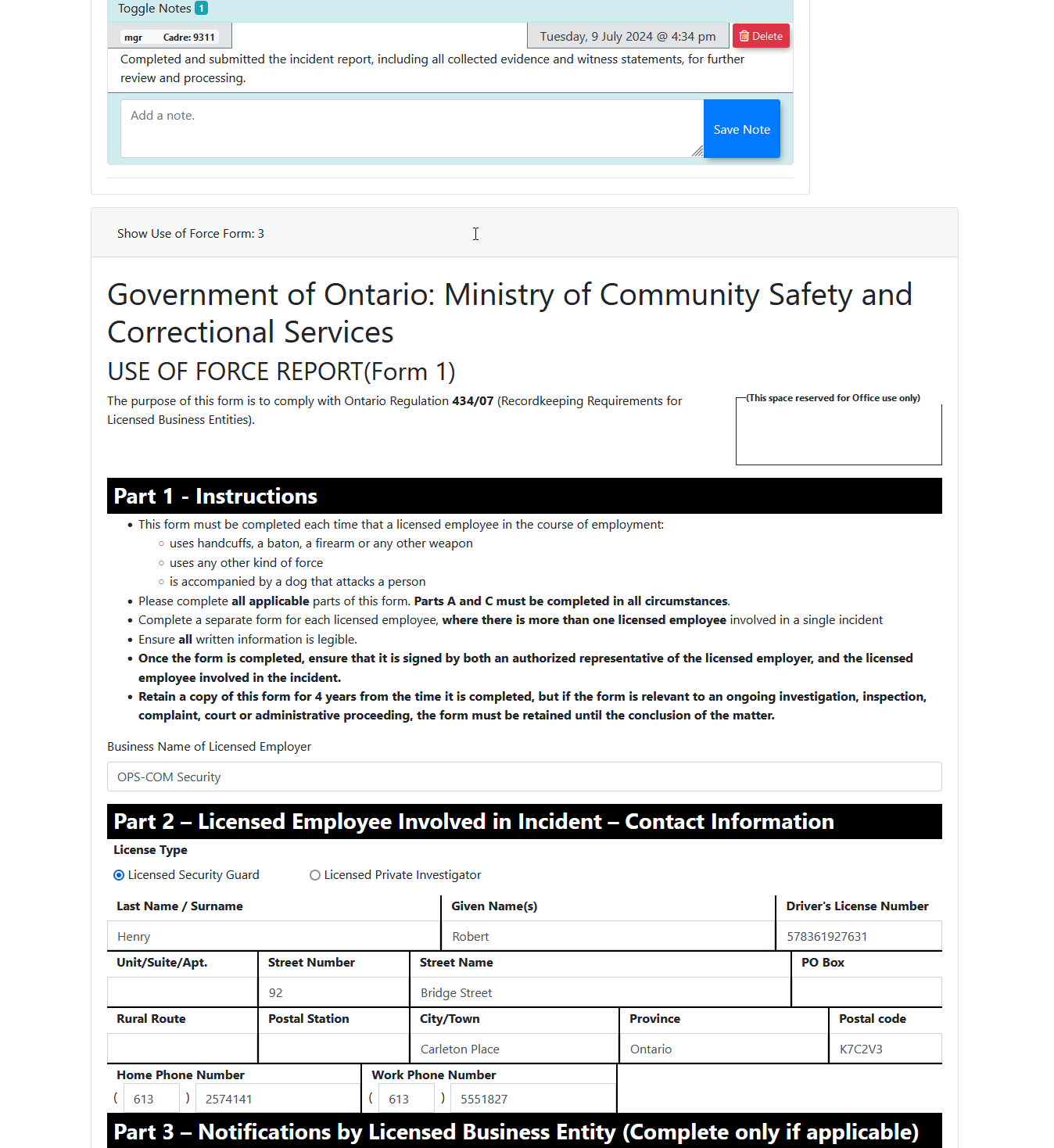
Use of Force Forms: If the
incidentUse of Force setting is enabled (applicable for clients in Ontario), the government-mandated Use of Force forms will beclosed:displayed as read-only documents on this page.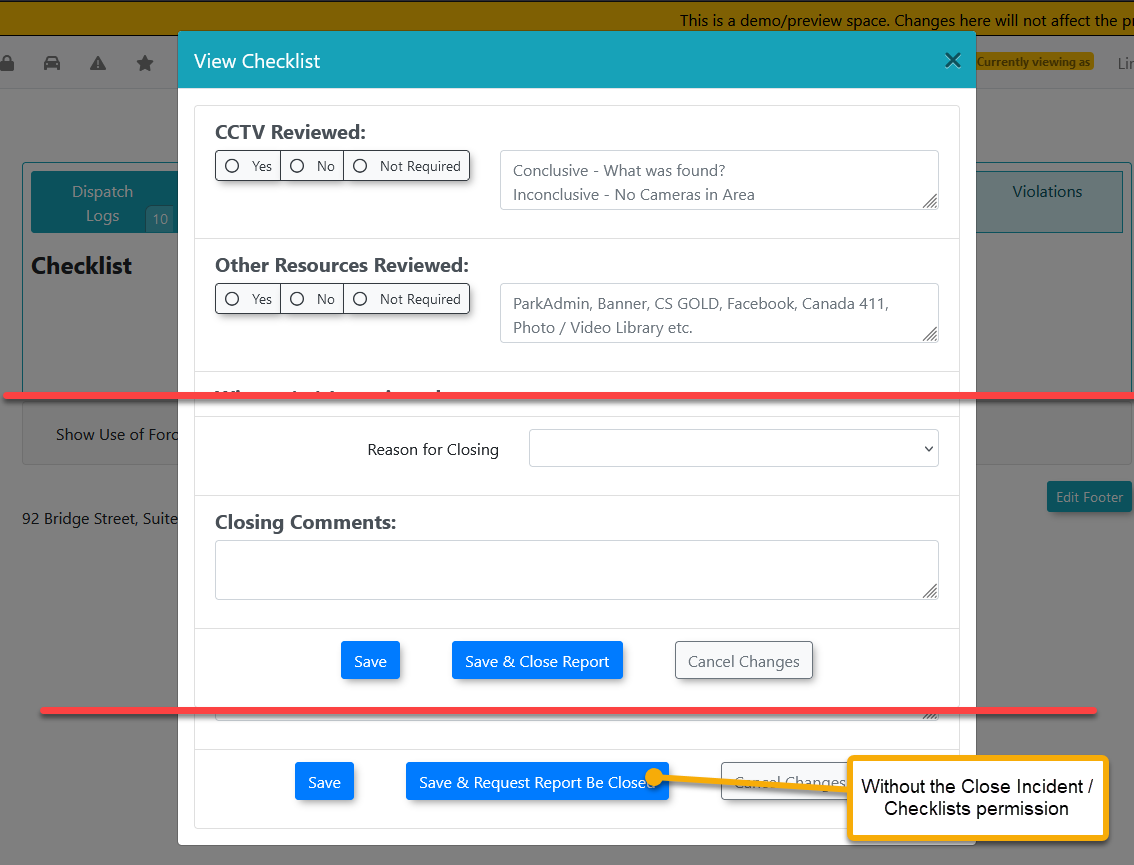
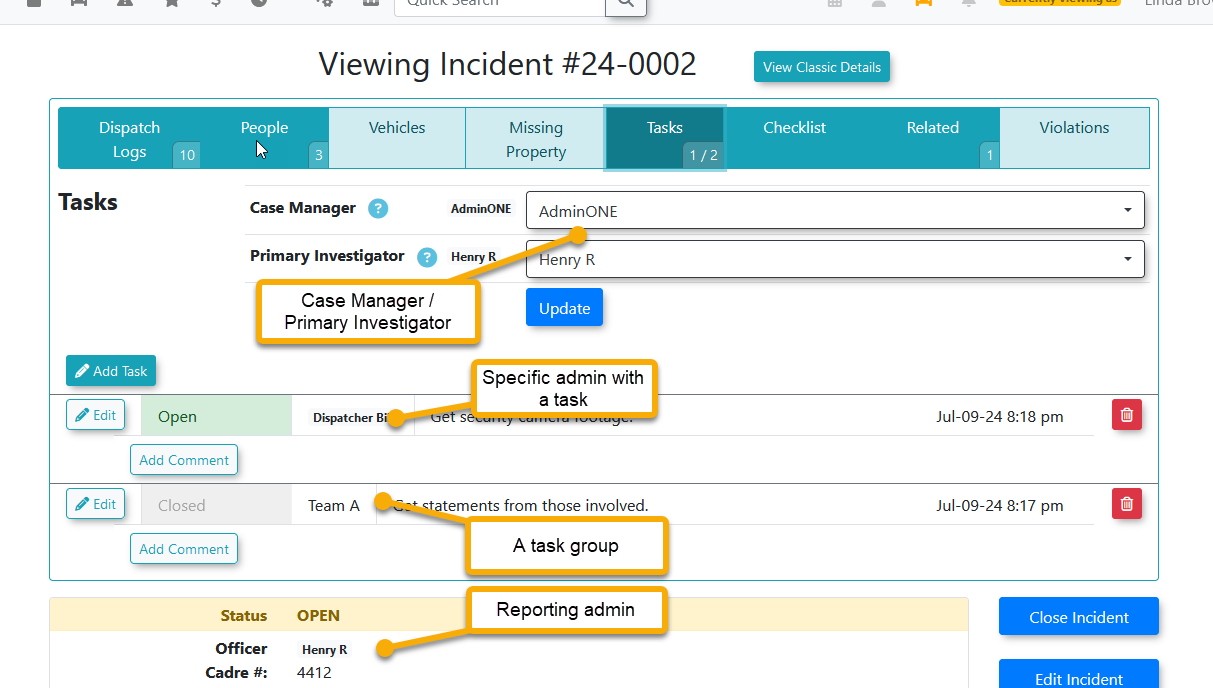
here.Managing Tasks and
assignmentAssignments-
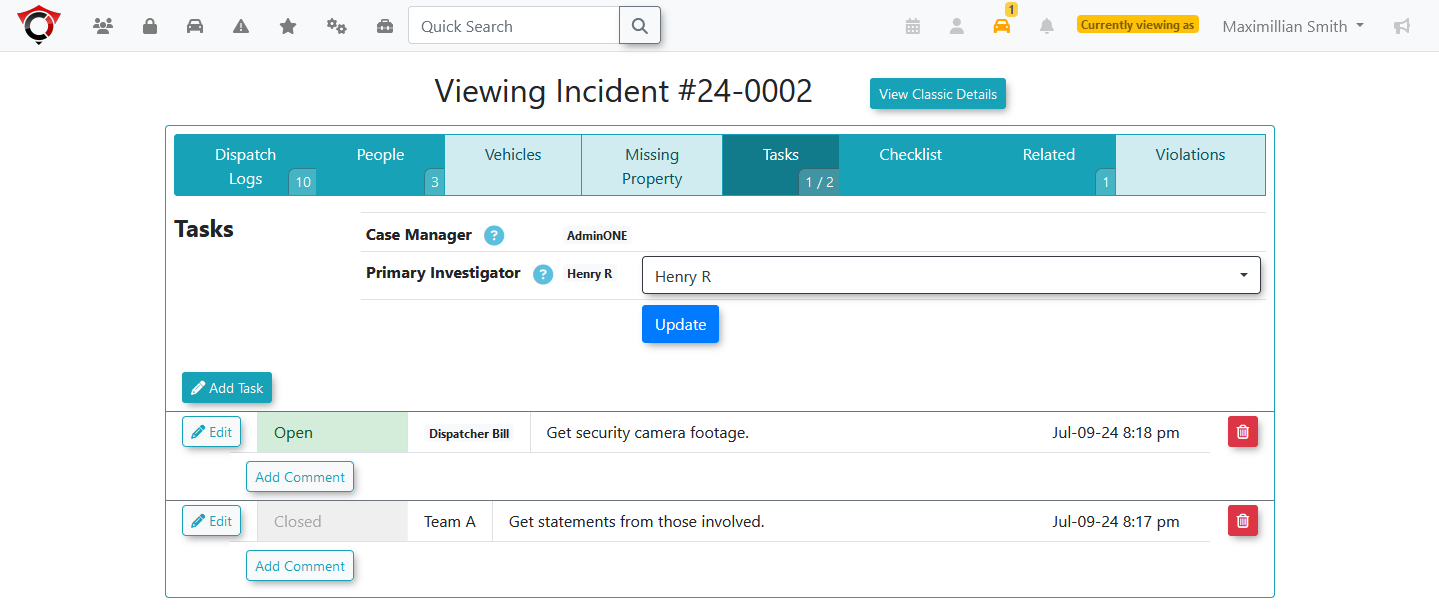
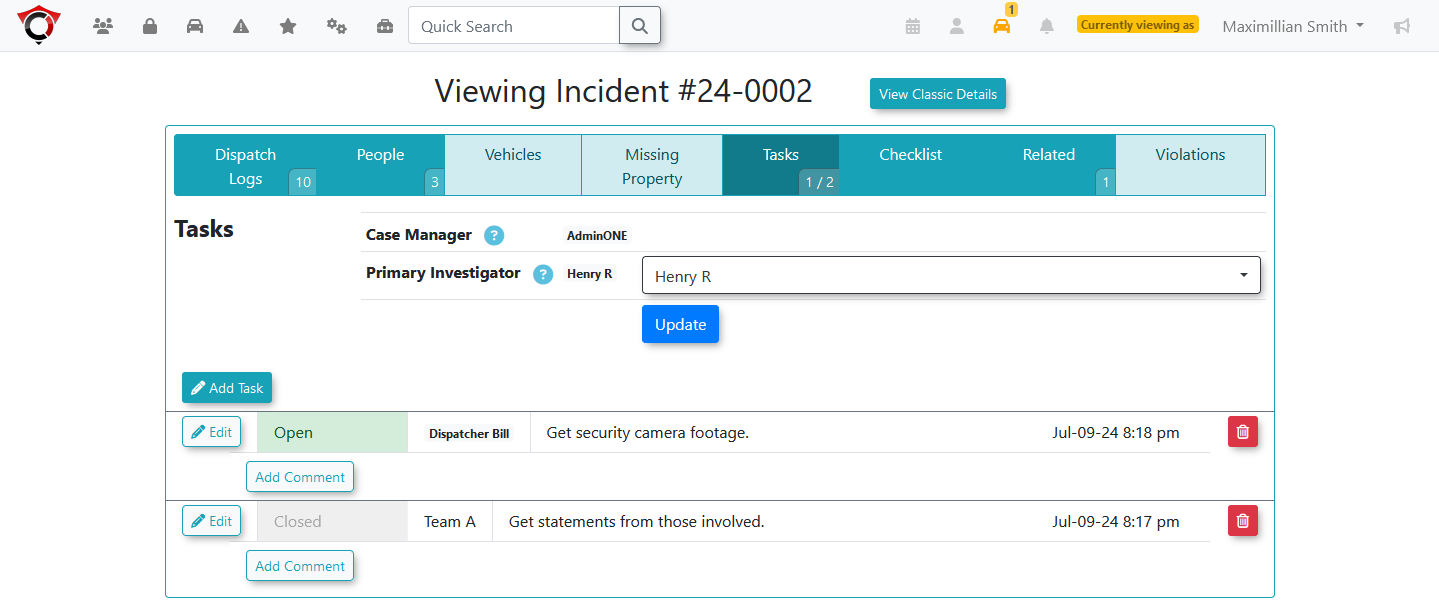
Case Manager
assignmentAssignment:ToAssignassign anthe incident to acasespecificmanager,manager.the admin editing the reportYou must have thepermission “Assign Incident To CaseManager”Managerorpermission.theyThe individual being assigned mustalreadyhavebeeither thecase manager.Further to this, to be able to be the case manager, only the admins with the permission “Is Incident CaseManager”Manager or“Is Incident ShiftManager”Managerwill be available.In the above example, Maximillion Smith is not the case manager, nor do they have the assign permission so they can only view who is assigned the case manager role.Primary Investigator assignmentSimilarly with Primary Investigator, the admin must meet one of the following criteria:Permission:Edit Incident Taskspermission.-
,Permission:Primary Investigator Assignment: Assign a lead investigator to the case. You must have the Edit Incident Tasks, Is Incident Shift Manager or Permission:-
Role:Is the case manager for this incident Scenario:No Primary Investigator is selected and they have the permission Assign Incident to An Investigator
Only admins with the permission “Be Assigned Tasks Directly” will be available.In the above example, Max has the permission Edit Incident Tasks and therefore can change the primary investigator.Editing Tasks and
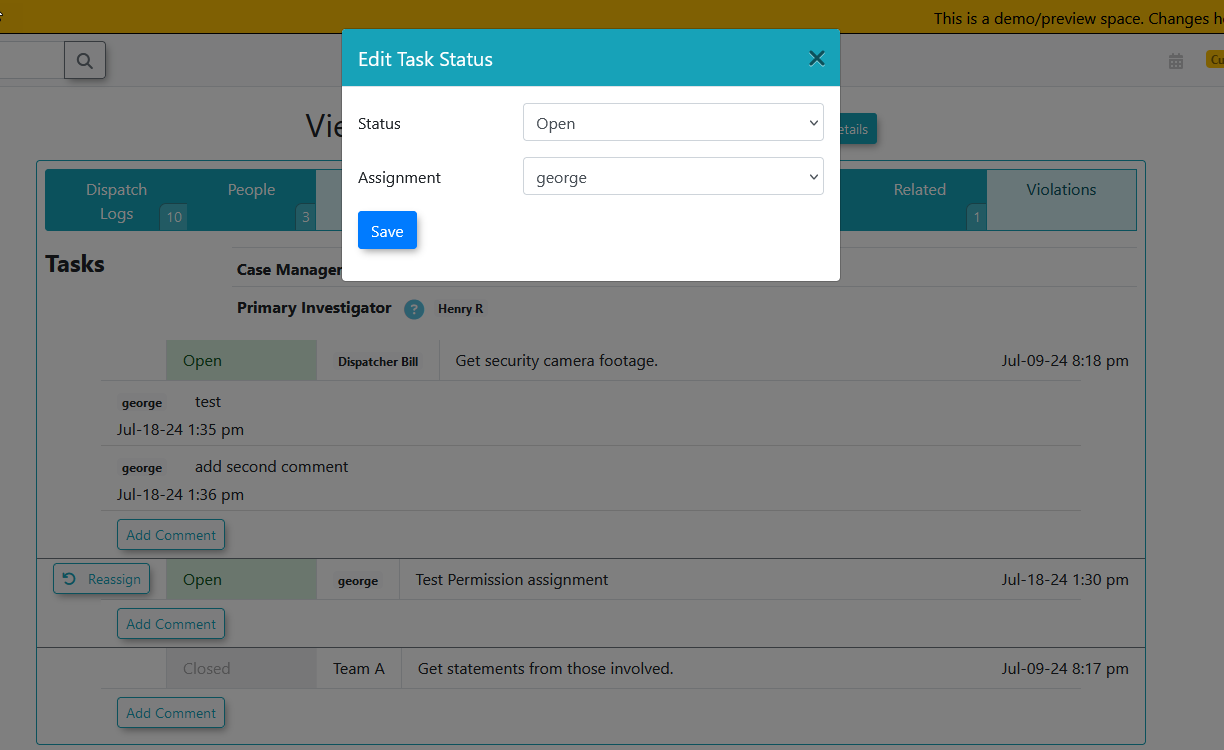
CommentsComments:
investigator/caseIfAdd or edit tasks and their associated text. You must be theadminprimaryis:- manager
- or
have the
Permission:Edit Incident Tasks / Permission:Is Incident Shift Manager permissions. Role:Is the primary investigator or case manager
They can add and edit tasks. They can also edit the text in the task.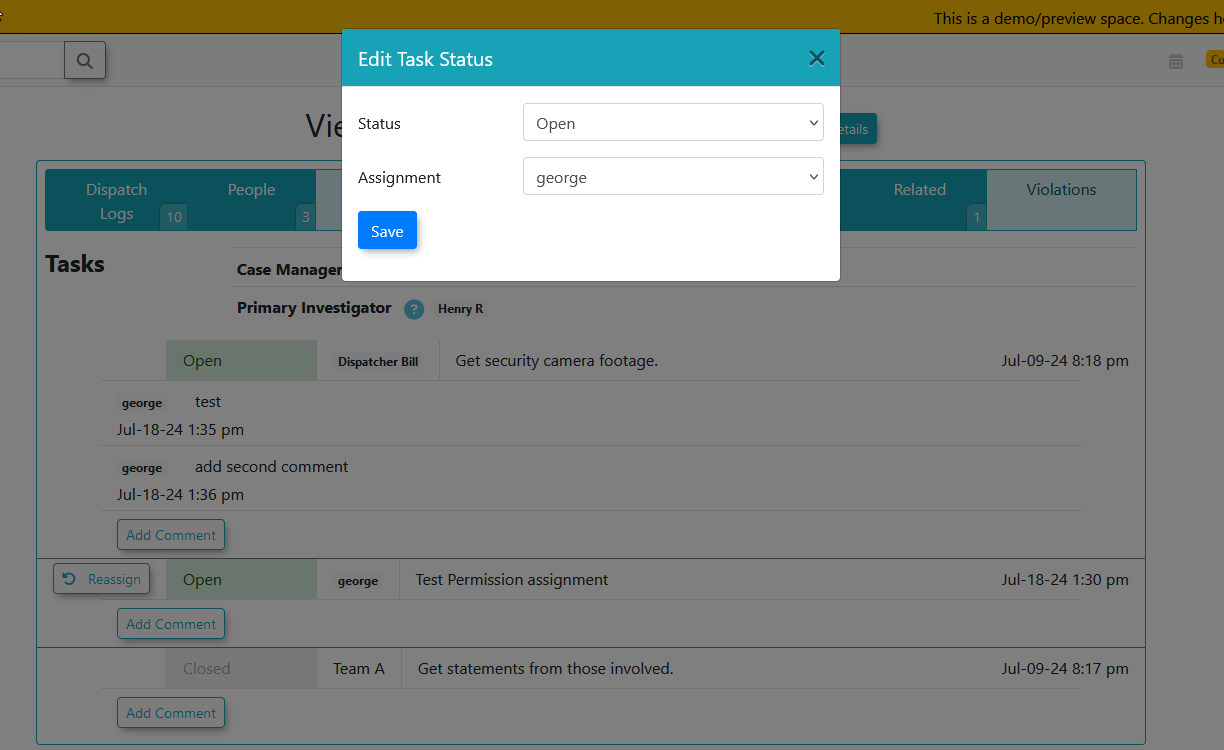
If
theyouadminaredoes not have the permission, but isonly assigned to a taskeitherwithoutdirectlytheseorbroadertheypermissions,areyoupartwillofonly see thetaskoptiongroup, they get theto reassignoption as indicated above.Use of Force FormsThe use of force form is available for clients in the province of Ontario as this is a Government of Ontario form as indicated below. It requires the setting for Use of Force to be enabled.On the view incident page, the use of force forms are read only.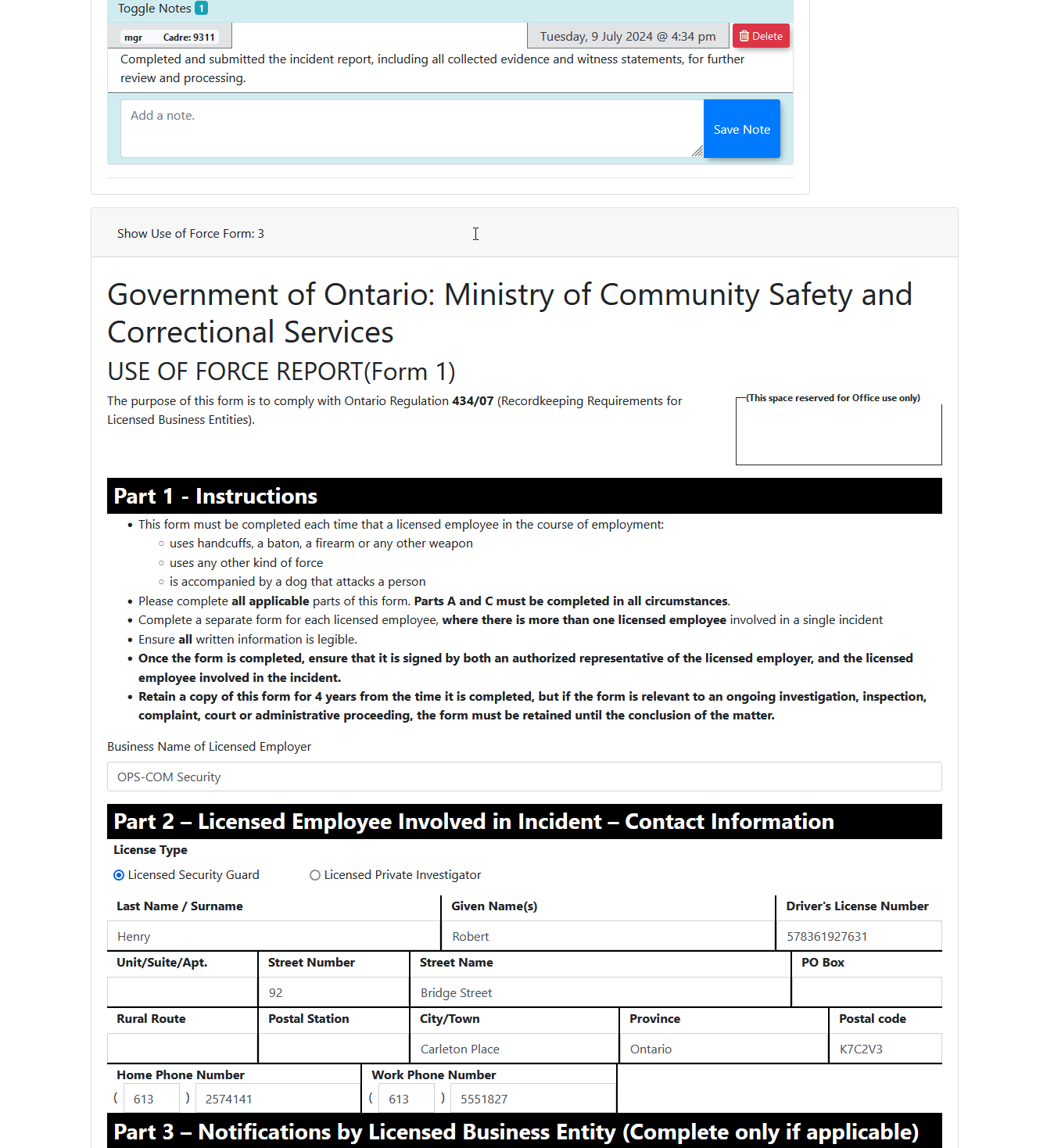
Side Buttons & PermissionsPermission:Custom Permission - Open AllPermission:Edit IncidentsPermission:Edit Incident SummariesPermission:View Incidents - SelfAND you are the reporting adminit.
Side
If the admin also has theIncident Admin permission:AND the incident is open, the admin can edit the incident.AND the incident is closed, the link will take the admin to the edit summary screen.
If the admin has theEdit Incident Summaries permission:AND the incident is locked, they can edit the summary.AND the incident is unlocked, they can edit the incident.
If the incident isopen:They can edit the incident.
If noneside of thescenariosscreenabovedynamicallymatch,changethebasedadminonisyournotpermissionsable to edit this incident, nor the summary.
3. The Distribute & Email buttons are only available to admins with the Incident Admin permission.4. The download incident only requires the admin can view the incident at all.5. The toggling of read status will switchand the state of thereadincident:status-
Close/Open Incident: Toggles the state of the incident. Requires the Open Incidents permission.
-
Edit / Edit Summary / View: Depending on your permissions (e.g., Edit Incident Summaries, Incident Admin) and the state of the incident (Locked, Open, Closed), this button allows you to modify the full incident or just the summary details.
-
Distribute and Email: Allows you to share the incident report. Requires the Incident Admin permission.
-
Download: Downloads a copy of the incident. Available to any admin who has permission to view the page.
-
Toggle Status: Switches the state of the record back and forth between read and unread.
-
6.Delete:IfAppears if theadminincidenthasis eligible to be purged and the administrator possesses the Delete Incidentpermission,permission.then
theycan
seeBest Practices and Considerations
-
Audit Permissions Regularly: Organizations should strictly control editing and deletion permissions to maintain the
nextintegritybutton.of incident reports and preserve accurate historical data for legal or security audits. -
IfCompletetheChecklistsIncidentPromptly:canEnsureberequireddeleted,checklistsaaredeletefilledoptionoutwillfullyappear.beforeReferattempting tothisclosewikianarticleincidentfortomorepreventdetailsadministrativeaboutbottlenecksPurgingandIncidents.ensure compliance with organizational reporting standards.
-