Viewing and Editing LPR Events
GoPlate Recognition (LPR) Capture LogThe Licence Plate Recognition (LPR) Capture Log is a tool designed to track, filter, and audit real-time and historical license plate reads. The system supports automatic data ingestion from fixed camera feeds as well as manual or mobile inputs from parking enforcement users.
To find this log go to Violations, then LPR and Chalking, and click View Events.
1. Search and Filtering Interface
The top section of the log provides comprehensive query filters to locate specific plate records.
Filter Fields
- Plate: Allows for full or partial plate number inputs.
- Exact Match: Enclose the query in quotation marks (e.g.,
"ABC123") for strict matching. - Fuzzy Search: Selecting the Perform Fuzzy Search checkbox enables approximate string matching to catch optical character recognition (OCR) anomalies or close variations.
- Exact Match: Enclose the query in quotation marks (e.g.,
- Make: A dropdown selector to filter by specific vehicle manufacturers (e.g., NISSAN, HYUNDAI, FORD). Defaults to "Any".
- Colour: A dropdown selector to filter results by vehicle color. Defaults to "Any".
- Start Date / Up To and Including: Date pickers to define a strict search window.
The Start Date and Up To and Including parameters only restrict results generated by Pay Station data and LPR records. These filters do not retroactively filter out base vehicle profiles based on their original database creation date or account history.
Clicking the Toggle More Options button expands the interface to reveal advanced metadata filters. These options allow administrators to isolate specific hardware feeds, integration streams, and capture events.
-
Cameras: A
listmulti-selectofscrollEventsmenuwillusedappear.toThefilterfollowinglogsinformationby specific physical entry or exit lanes. This isdisplayed:critical for tracking a vehicle's exact movement pattern. Options default to ANY or can be filtered by specific installations, including:PlateImagePlatePointsNumber-
ProvinceExit Points
Entry
Score(relatesEvent Type: A dropdown menu used to
howfilteraccuratelogs by:-
Entry
- Exit
- Patrol
- Tracking
-
-
Device Type: A multi-select scroll menu to filter entries based on the
systemsoftwareanalyzesagent or integration platform delivering thecaptureLPRtodata.be)Options include:-
ANY: Broad system-wide search.
Km/h(Speed,PL8RDR
as/wellVaxtor:asSpecificdirectionintegrated-LPRapproachingsoftware engines.-
User/Other: Manual enforcement inputs orgoingunclassifiedawaymobilefromdevices.the camera) Recorded (Date and Time of capture)Events (How many times this plate has been captured)Status (Valid or Invalid)Lot GroupViolations
-
- Plate: Allows for full or partial plate number inputs.
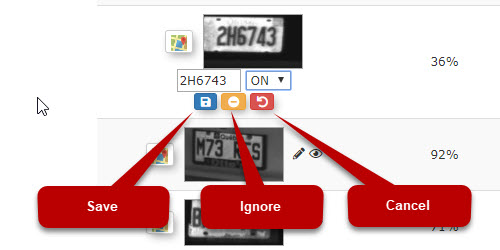
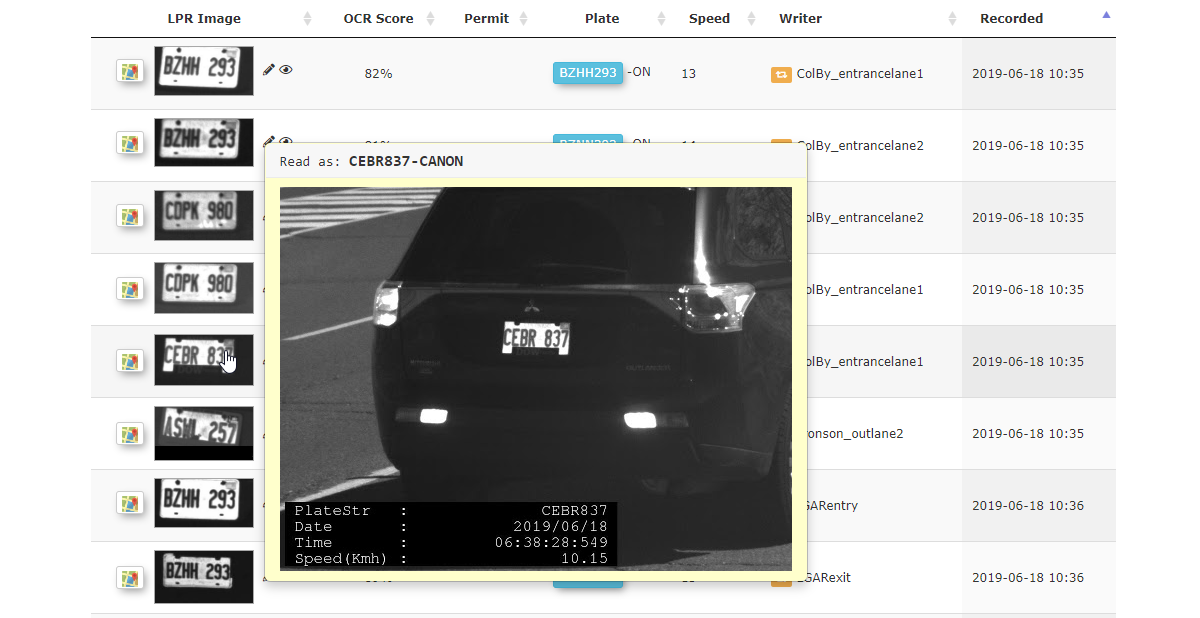
IfLPR Captures Results TableTo search for partial plates, turn on the Perform fuzzy search option then enter the partial plate into thecaptured licenseplateplate.ThePermit adminDisplays hasantheactiveabilitypermittobadgecorrecticonplate reads that are wrong or partial. To correctif the platenumber,isclicksuccessfullyoncross-referenced with a valid parking permit.- Entry - Green >> arrows
- Exit - Red << arrows
- Tracking - Yellow 🗘 arrows
- Patrol - Blue star
Enterplate.SelectClick theBlue Iconto save the changes.Hover over thethumbnail in the recordand the full image capture can be displayed.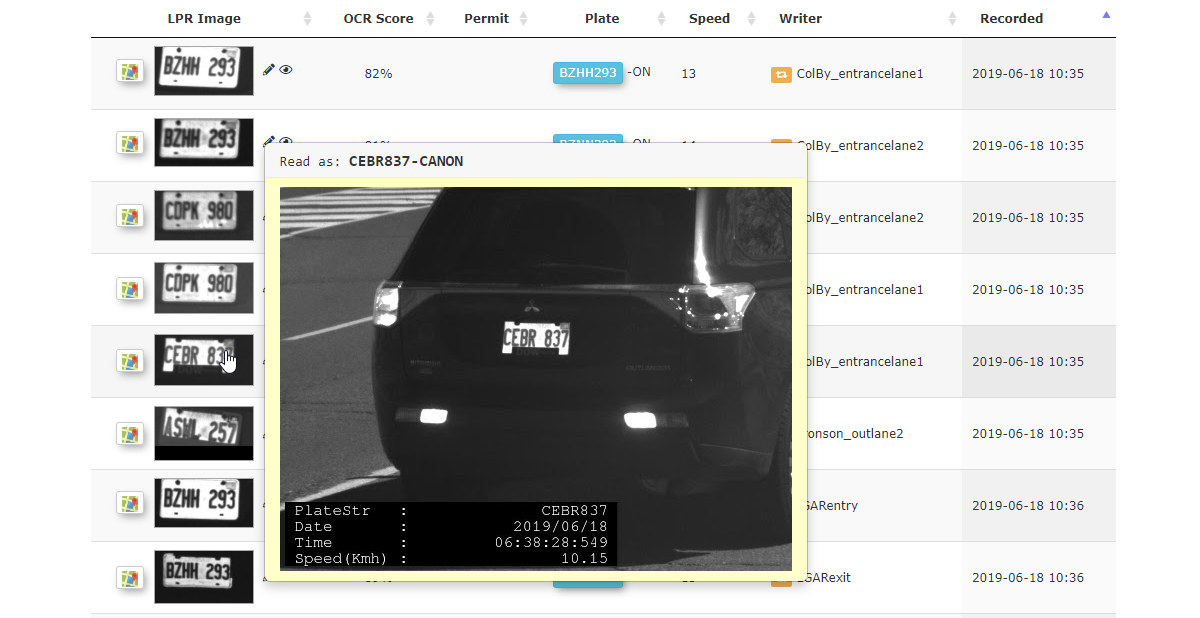
Licence
2.
Table Columns Breakdown
| Column Name | Description |
| Actions (Icons) | Map/Location icon (for viewing GPS Location) and an Edit/Pencil icon (for updating plate information). |
| Licence Plate Image | An image of the |
| Plate | The licence plate number detected by the camera. |
| Declared vehicle descriptors (e.g., NISSAN / WHITE, FORD / SILVER). | |
| Writer | Identifies the intake route. Shows a directional tag (e.g., Entry, Exit) or an assigned user badge for manual/handheld entries.
A fixed camera tracks:
A human writer has one type:
|
| Source | Identifies the software module or entity passing the data. |
| Device | Dictates hardware source classification, such as a fixed camera mounted at entry/exit gates or the device name of the handheld used to |
| Recorded | Exact timestamp log of the |