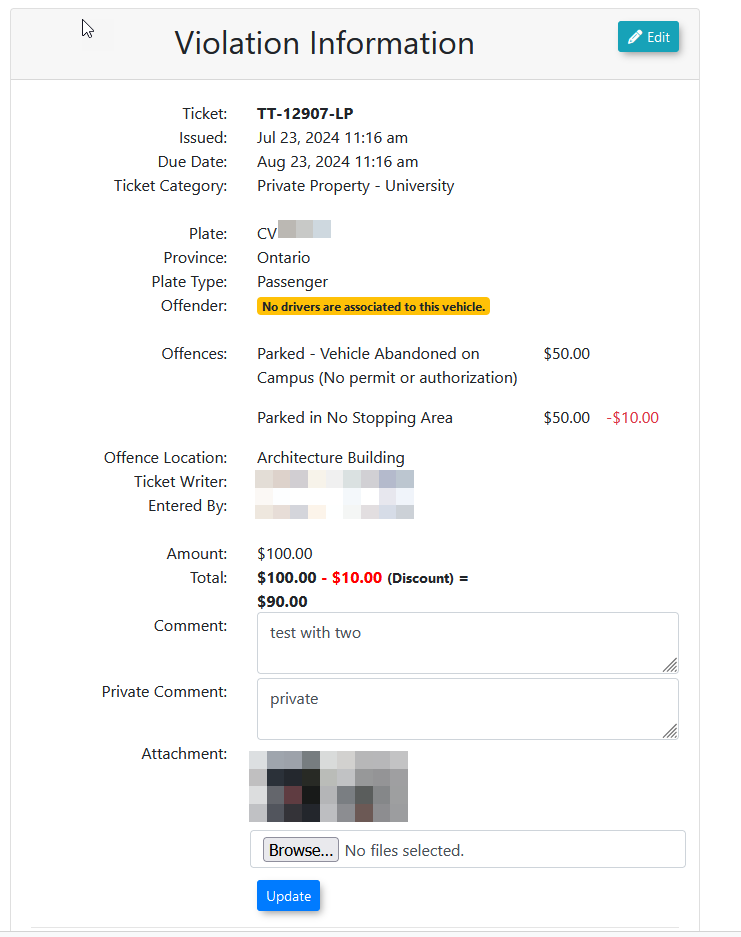
Violations From Static Cameras / Mailout Violations
Violations/InfractionsThe Violations From Static Cameras feature allows administrators to generate parking infractions based on chalk records captured by static License Plate Recognition (LPR) cameras. Its primary purpose is to automate the identification of unauthorized or overtime vehicles, streamlining the workflow for issuing mail-out violations. This article is intended for OPS-COM administrators.
Setup and Configuration
Before you can beactively createdgenerate violations from astatic reportcamera logs, there are system prerequisites that looksmust atbe chalkmet records.and Beforeinitial this can work, ensuremapping that OPSCOMmust be configured.
Ensure that the OPS-COM support team has setconfigured your static cameras up with the necessary settings to report on the correct lot group and gpsGPS locationlocation. ofAdditionally, the camera. Some cameras report on more vehicle information than others. This can be helpful in the report later.
Note: Ifif you would likeneed to change theyour default ticket prefix,prefix (i.e. theg., TT- before the ticket in the default configuration)), you willmust contact support@ops-com.com to have tothis contact OPSCOM support.adjusted.
Admin Configuration
-
The next setup would beNavigate tomapyour lot configuration settings. -
Map your specific Lot Groups to the appropriate Offence
Location:Location to ensure incoming camera data is categorized correctly for enforcement.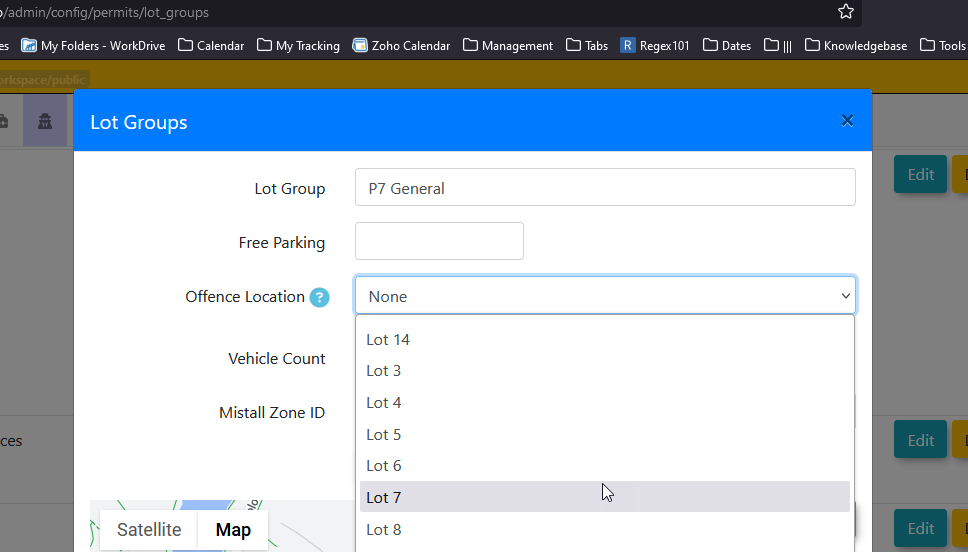
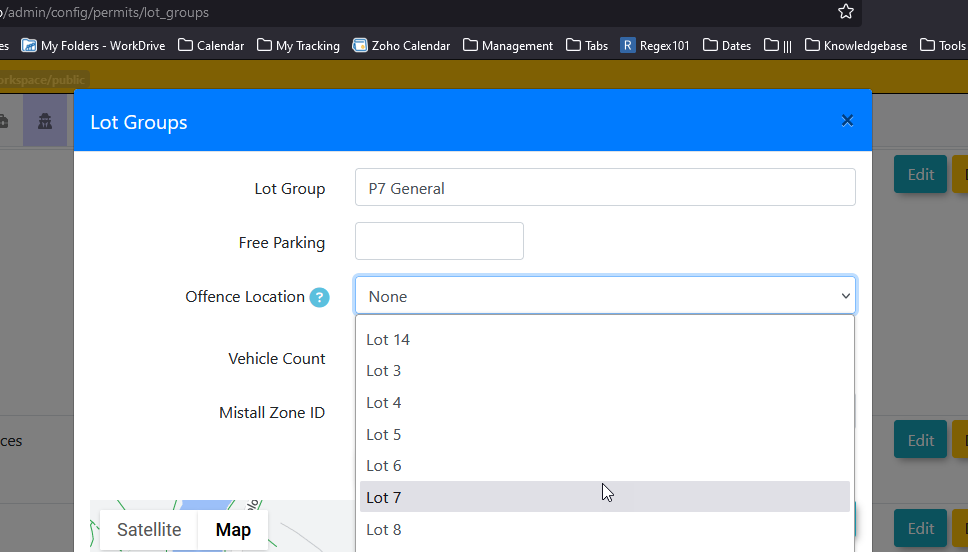
With
Using this setFeature
Once configured, static camera logs will bepopulate availablein the system as they comeare in:
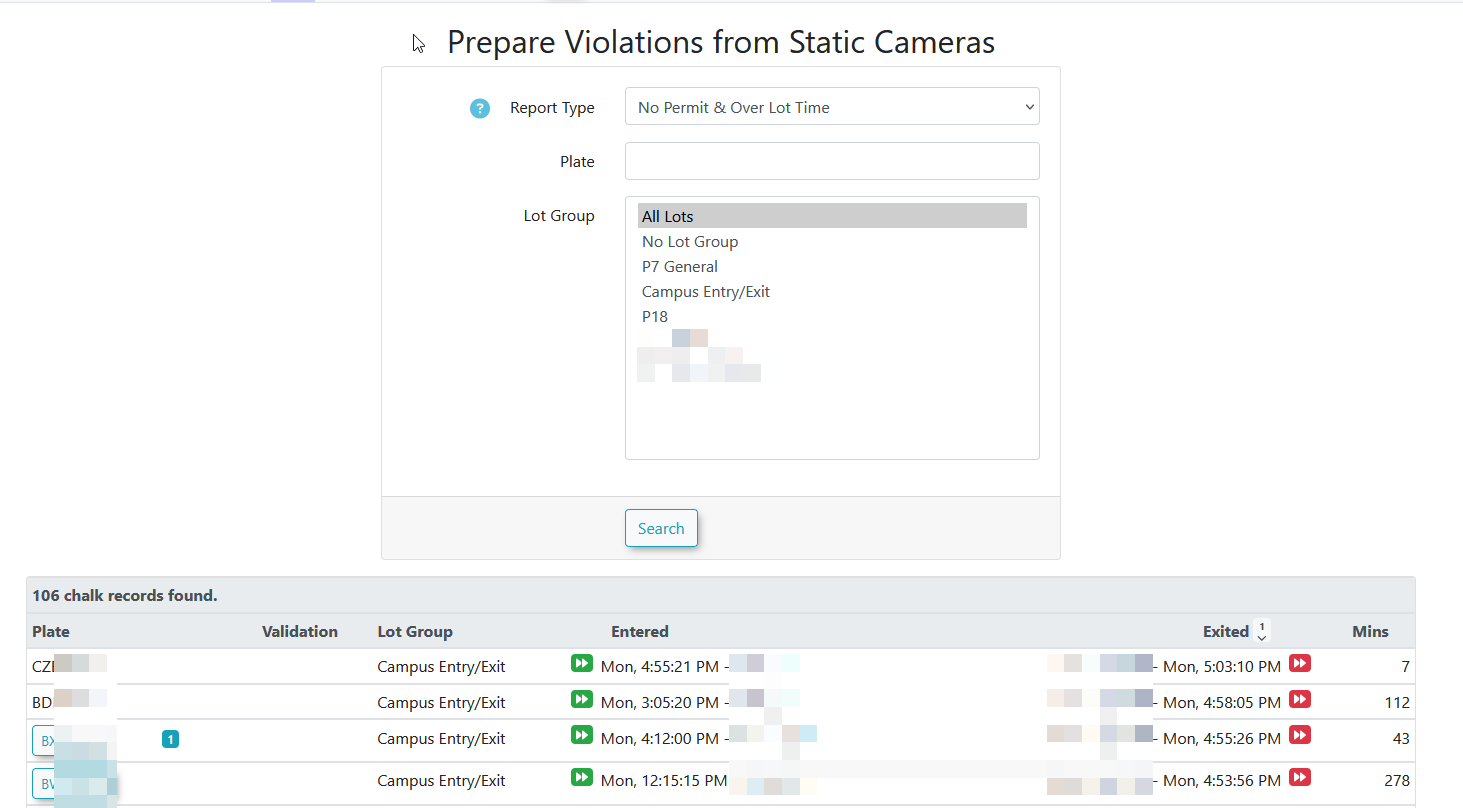
Reportto type will contain all available filters that we support atfilter the time.data and issue violations accordingly.
-
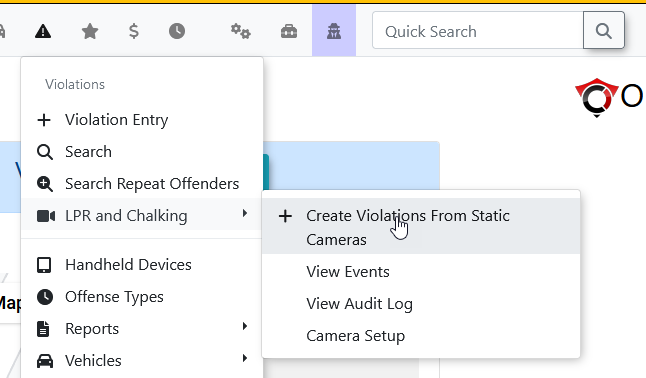
Hover over Violations, hover over LPR and Chalking, and click Create Violations From Static Cameras.
-
Click the Report Type drop-down menu to filter the logs (e.g., choose No Permit & Over Lot Time
- This option willto only list vehicleswhere theythat have no permits andthehaveduration exceedsexceeded the lot group's free parkingtime.duration).
FilteringClick by Vehicle Status
To streamline your workflow, athe Vehicle Status dropdowndrop-down filter can be appliedmenu to allow admins tofurther segment the search results based on whethersystem registration.
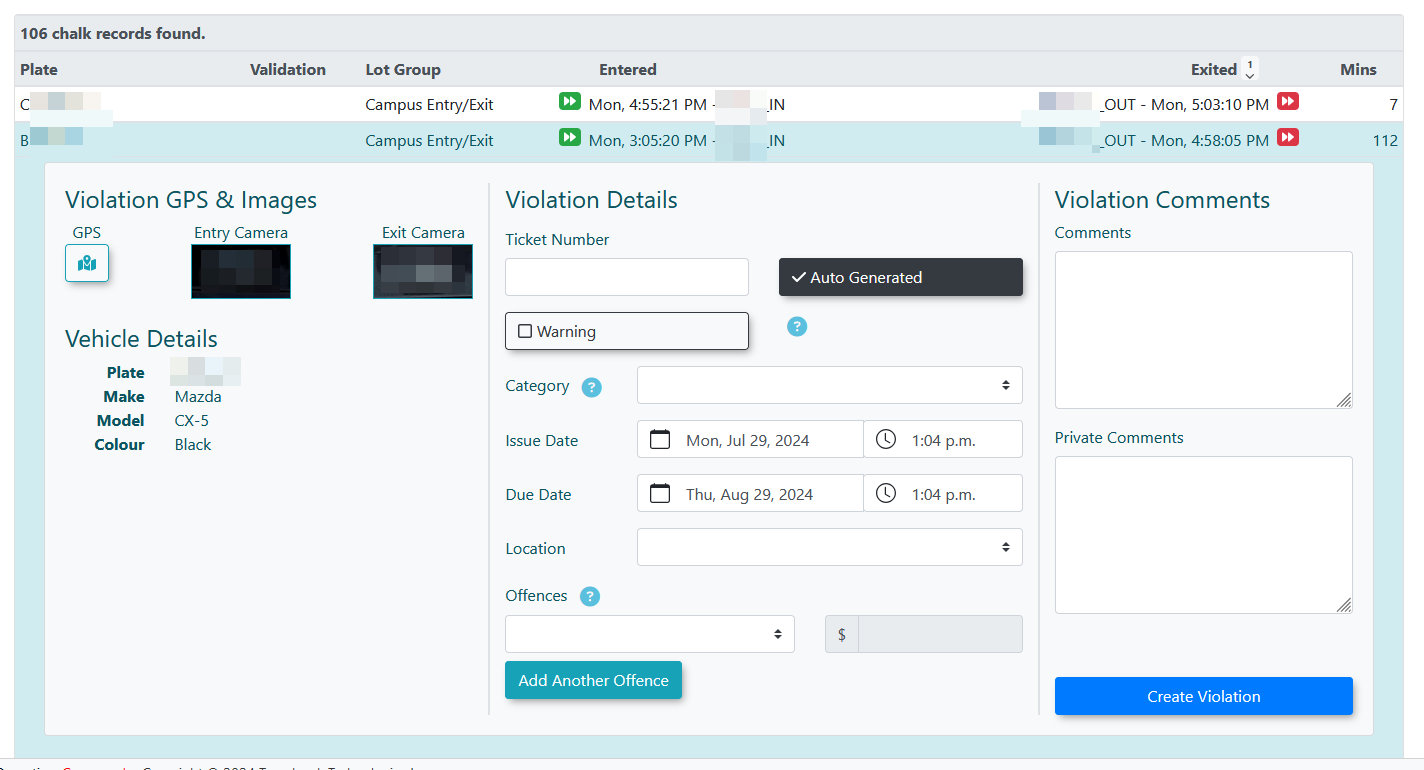
Click a capturedspecific licenselog plate is already registered within the OpsCom system.
Admins can chooserow from the followinggenerated threelist optionsto indisplay the dropdown:violation entry form.
Review the entry and exit camera images provided to verify the chalk record.
Enter the required infraction details into the form and submit the violation.
Key Information Displayed
-
Vehicle Status Filters:
-
AllAll::Returns all captured plates, regardless of their registration status in the system (default)this is the default setting). -
In
SystemSystem::Filters the results to only showvehicles/vehicles or plates that currently exist in the database. -
Not in
SystemSystem::Filters the results to only show unknown or unregisteredvehicles/vehicles and plates.
The -
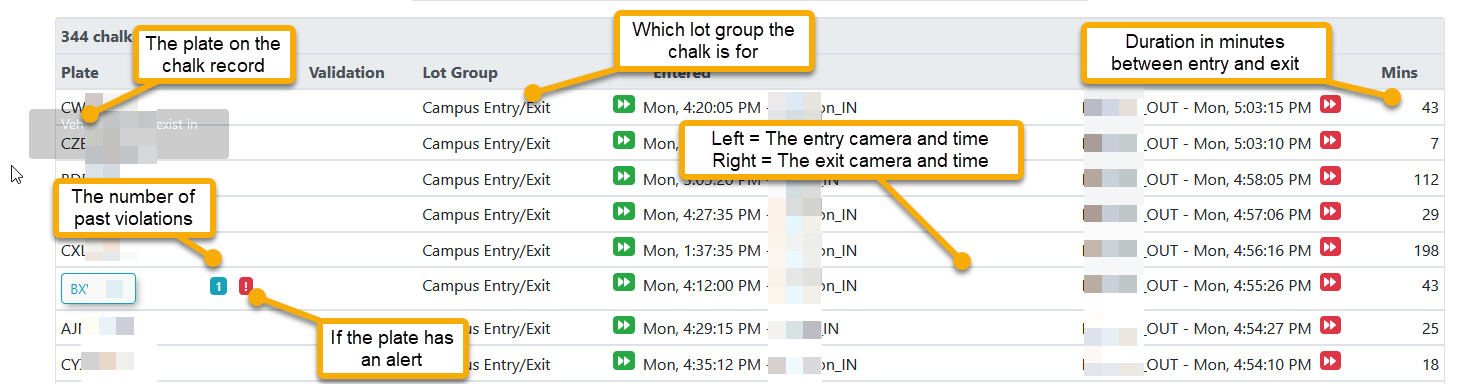
-
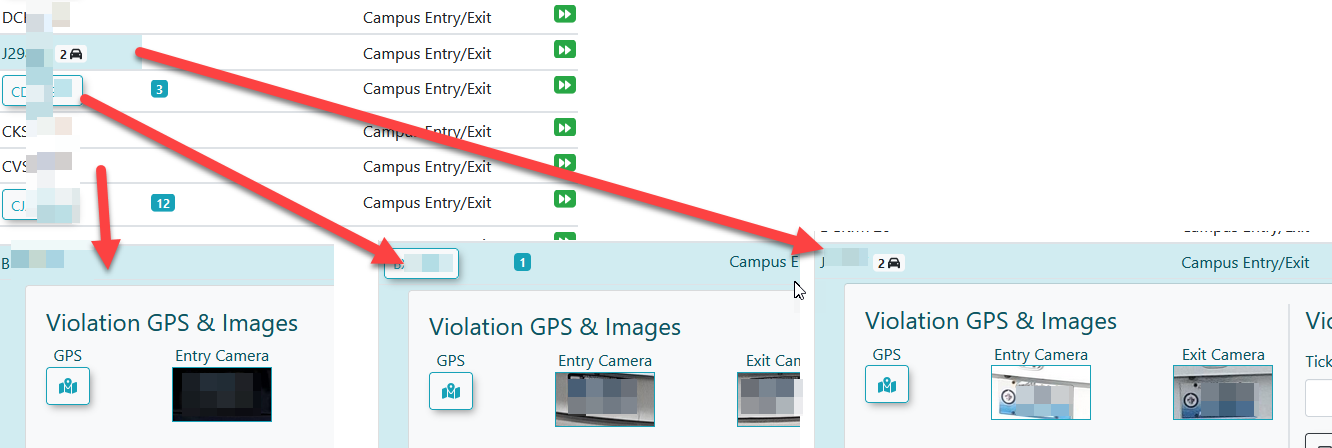
Vehicle Record Formats: Vehicles can appear on the creation screen in one of three
formats.formats:Nono existing vehicle record, a single vehicle record, or multiple vehicle records.They will change theThe violation creation screenaswillfollows:dynamically adjust based on which format is detected.
Best Practices and Considerations
-
ClickingVerifyaPhotographicrowEvidence:willAlwaysdisplayreview theviolation entry form.Theentry and exitcamerascamerawillimagesshowcarefully before finalizing a violation. Confirming that thechalkLPRimagetextassociatedaccuratelytomatchesthistheentry:physical license plate in the photo prevents easily appealed administrative errors.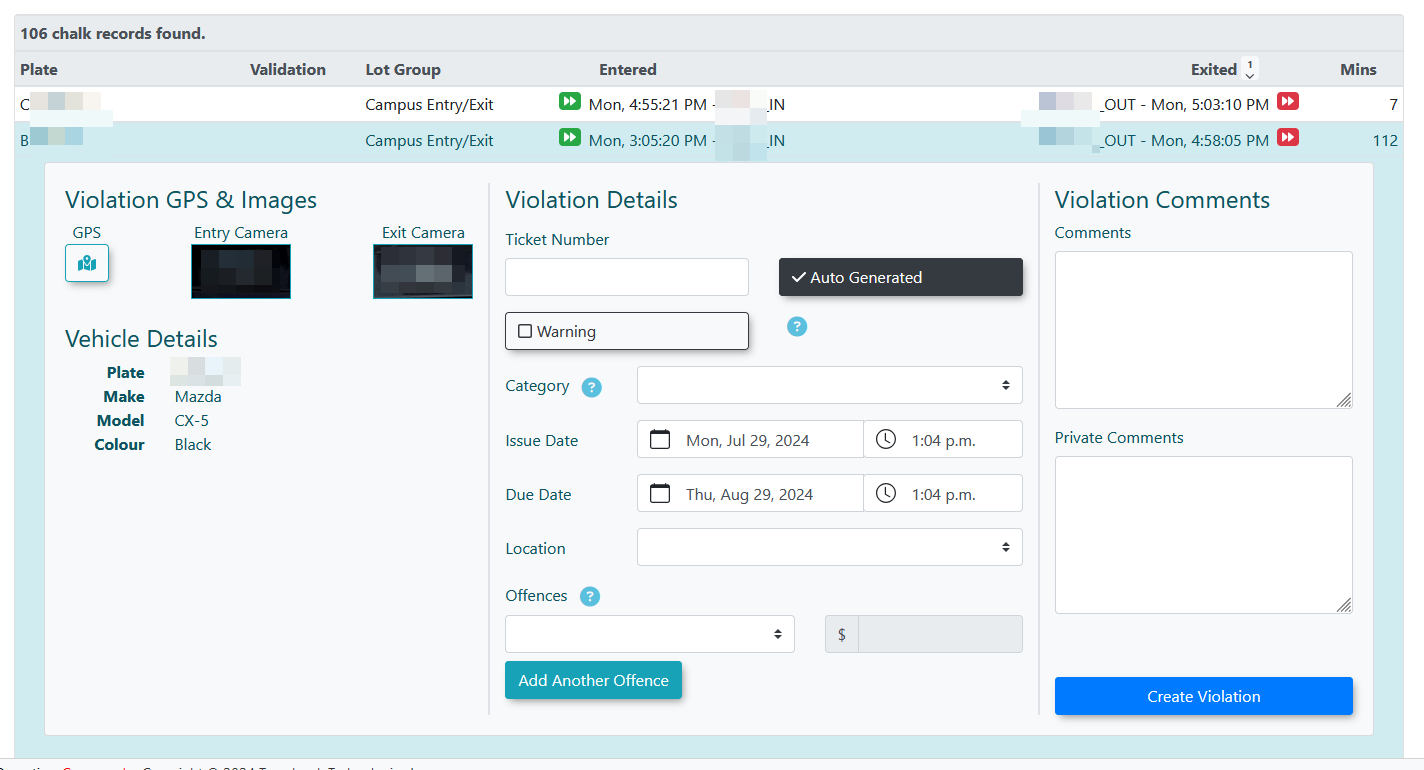
-
Automated Log Management: Once the violation details are
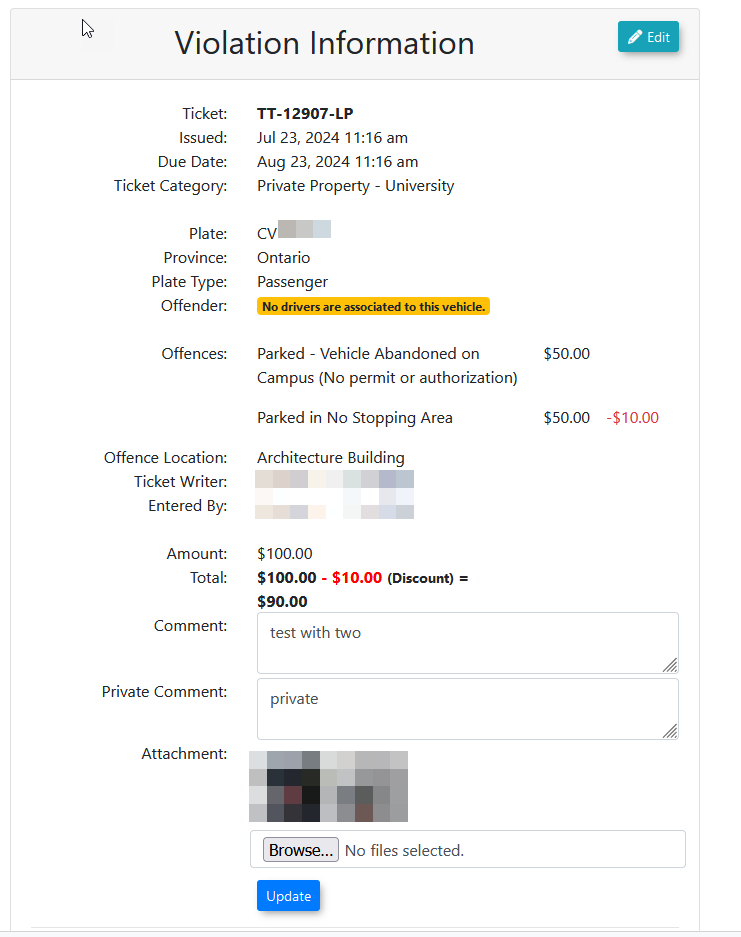
entered,entered and successfully submitted, the chalk record will automatically disappear from thelistprocessingandlist.theThe newly created violation can then be foundbyandsearchingmanagedforusingit:standard system search tools.