Application Logout
The Application Logout process safely secures the legacy OPS-COM Android application and triggers an automatic synchronization of field data with the main database. Its primary purpose is to protect user accounts and ensure all citations, chalks, and vehicle updates captured during a patrol shift are uploaded to the central server. This article is intended for OPS-COM administrators and field enforcement personnel using the legacy Android application.
ShutdownSetup Processand Configuration
ItThe logout process is verya importantcore thatfunctionality built into the tabletsapplication and requires minimal backend setup.
Admin Side: Administrators must ensure user credentials and permissions are shutproperly downmaintained properlyin the central portal so field officers can log back in for subsequent shifts.
User Side (Enforcement Staff): Enforcement officers must ensure the handheld unit has an active Wi-Fi or cellular network connection prior to initiating the logoff process to guarantee complete data synchronization.
Using this Feature
Enforcement personnel must complete the logout procedure at the end of every shift.shift Thisor ensureswhenever thathanding off a device to another officer.
Executing the OPSCOMShutdown softwareProcess
-
(aTap
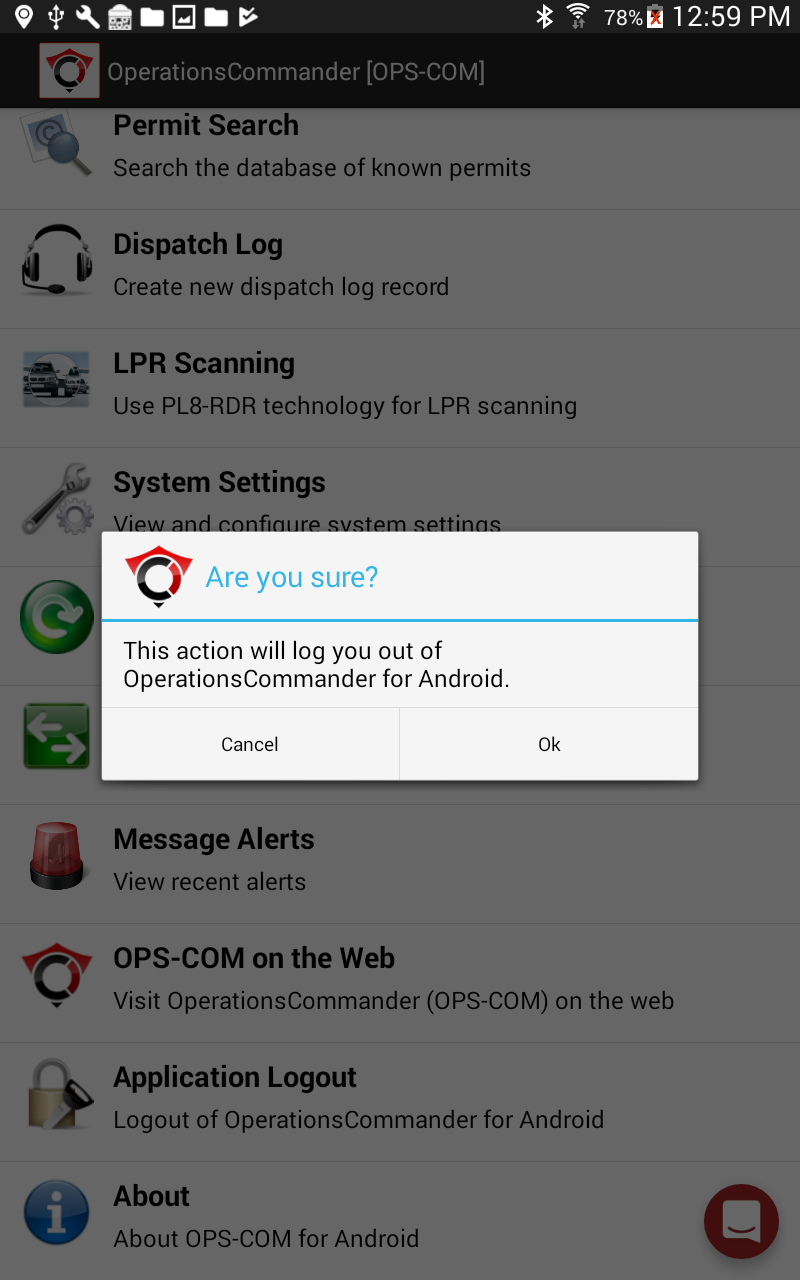
passwordApplicationisLogoutrequired to log back intofrom thesoftware)mainand that allmenu of theinformationOPS-COMrecorded from that shift has been properly synchronized with the main database (i.e. uploading of violations and new vehicles created during your session).application.Before -
Tap OK on the
Application Logout option.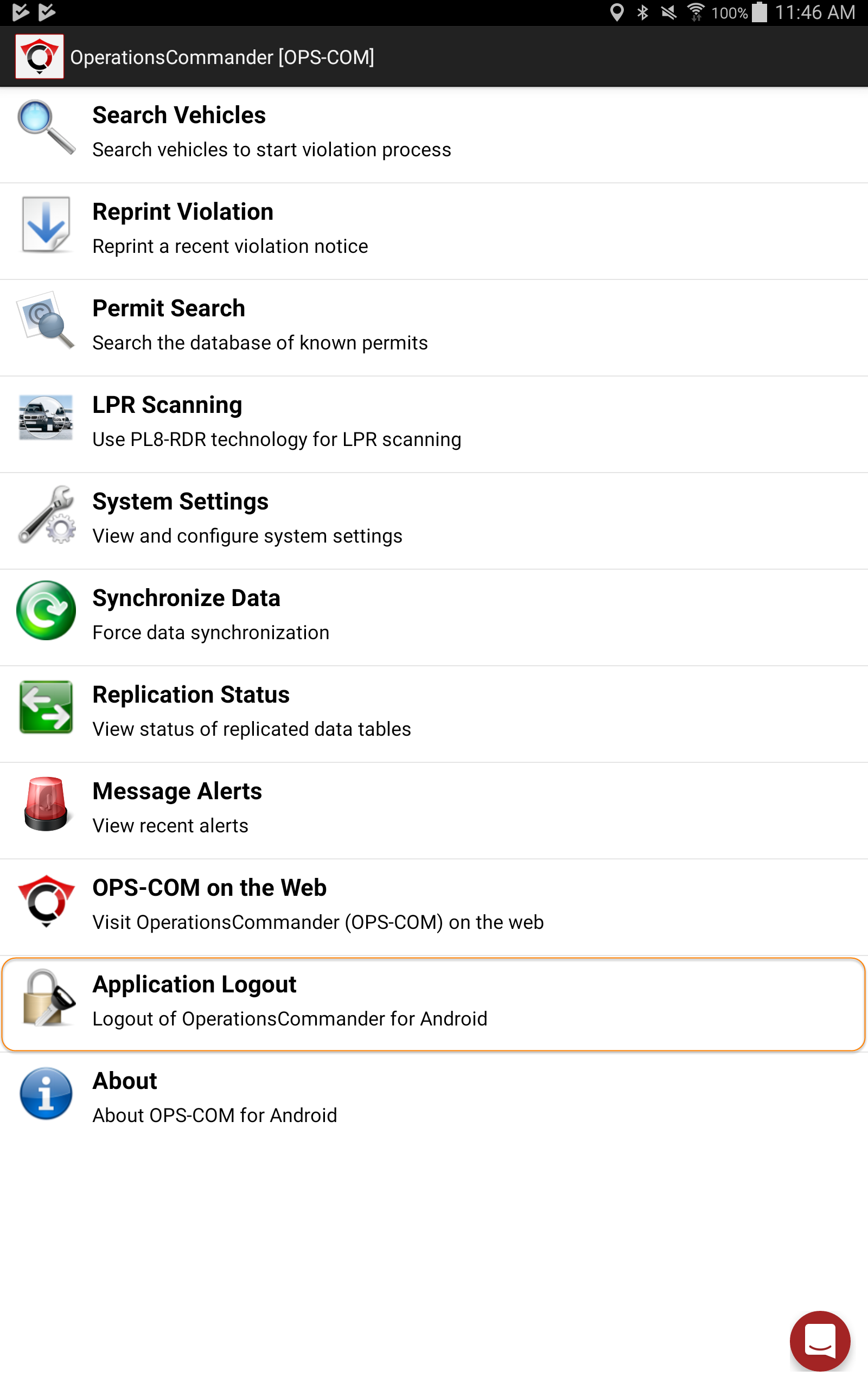
This will bring up aconfirmation pop-up messageasking the userto confirmthatlogoff.you -
wantAllow the application to
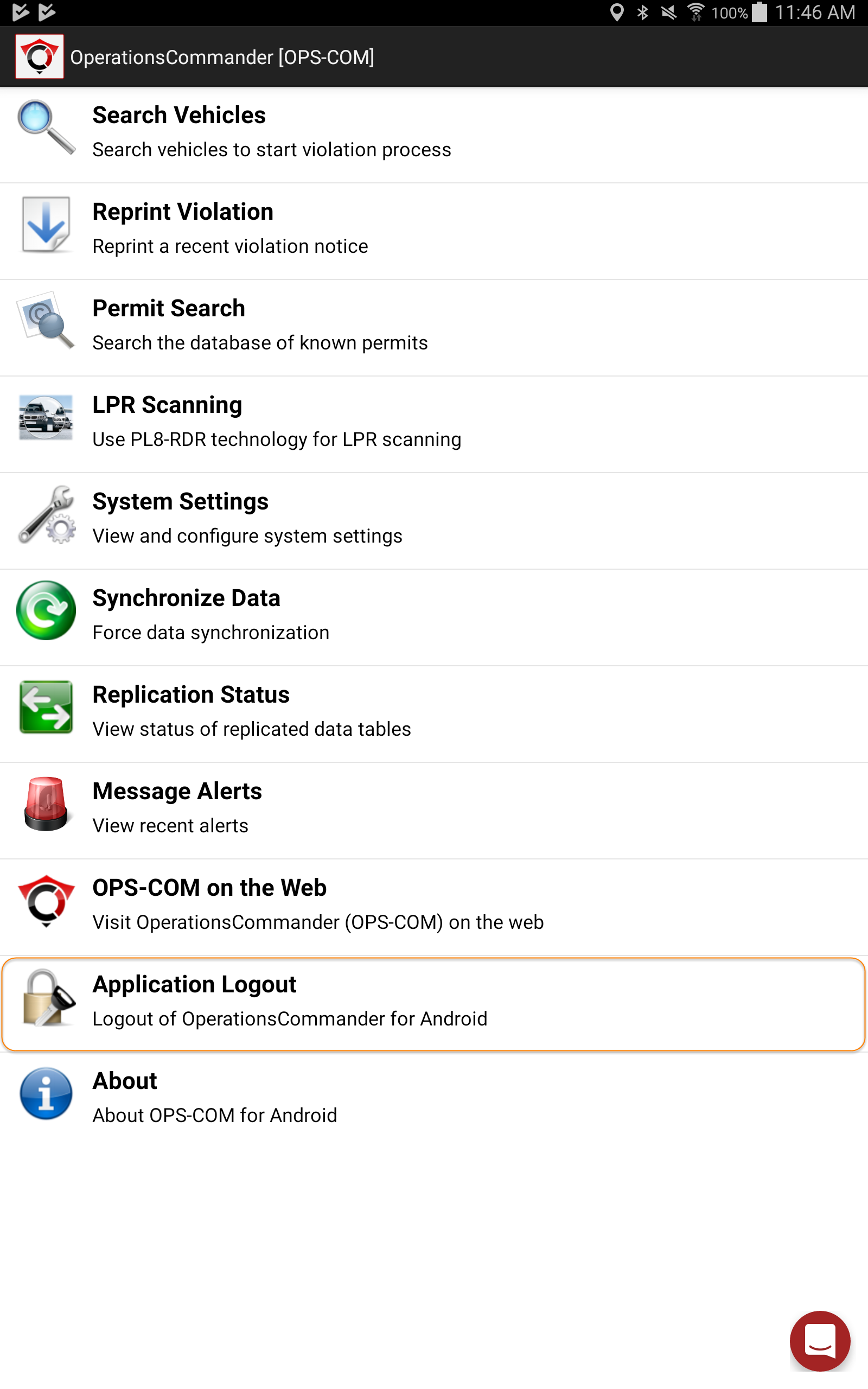
log offperform theprogram.When you select the OK option, the program will automatically synchronize allautomatic datawithsynchronization before returning to the maindatabaseloginbefore closing the program.screen.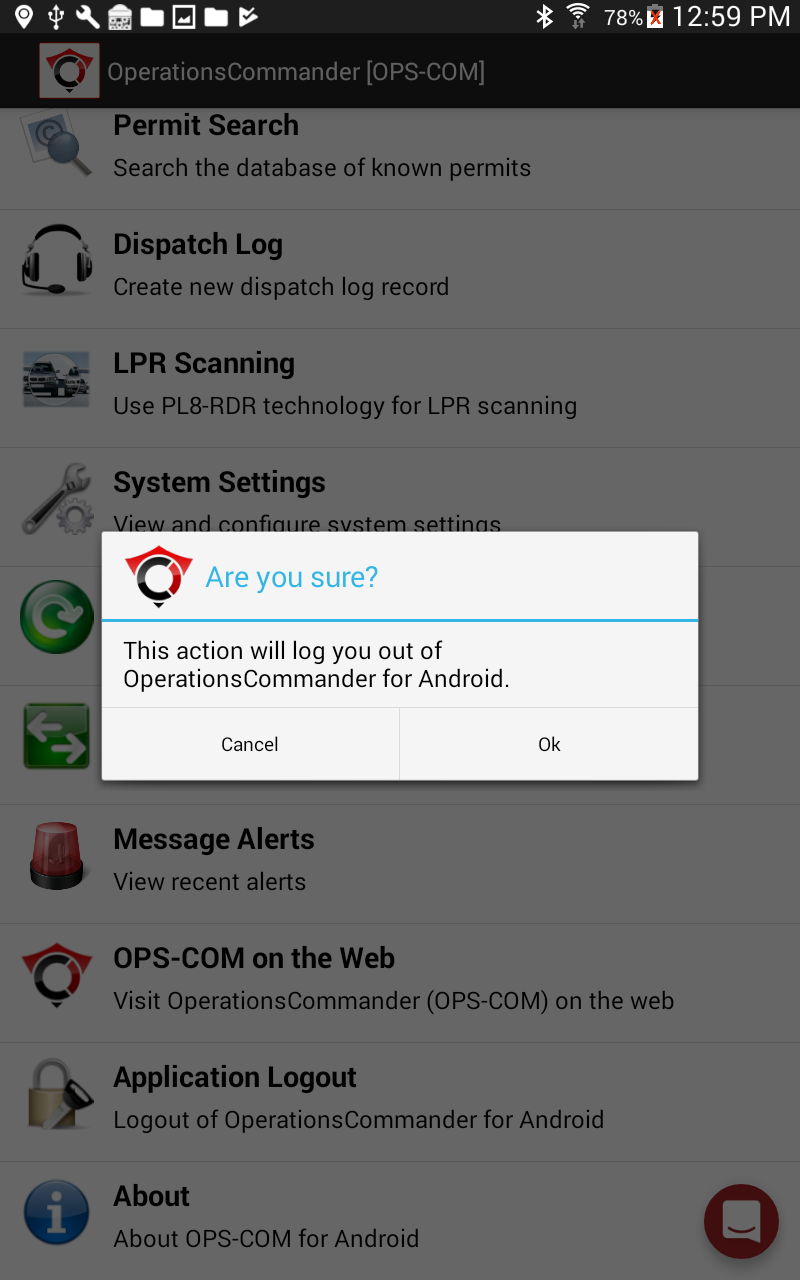
Logout Without Connectivity
If you log off in aan locationarea that does not havewithout internet access, the software will bestill securelock securely (requiring a password is required to logsign back into the software)in), and theall shift data will be savedsave locally on the tablet.
TheHowever, the data itself will not beupload synchronized withto the mainserver database. In this case, users will want to ensureuntil a manual or startup synchronization occurs when theyconnectivity signis into the OPSCOM program.restored.
Confirming Data Synchronization
-
BeforeTaplogoutSynchronizesynchronizeDatadataprior toensureloggingthat all data is in sync with the main database.Upon logoutoff if you receive an errormessageorifsuspectitrecentseems like theshift datawasdid notsynchronizedsyncusers can force a synchronization using the Synchronize Data option.automatically.newlyallConfirmtheTap
dataReplicationhasStatusbeento verify that all pending records have successfully replicated to the maindatabasedatabase.bychecking
Best Practices and Considerations
-
Ensure active connectivity before logging off: Always verify your device has an active internet connection before initiating the
optionlogoffforprocess.ReplicationThisStatus.ensures
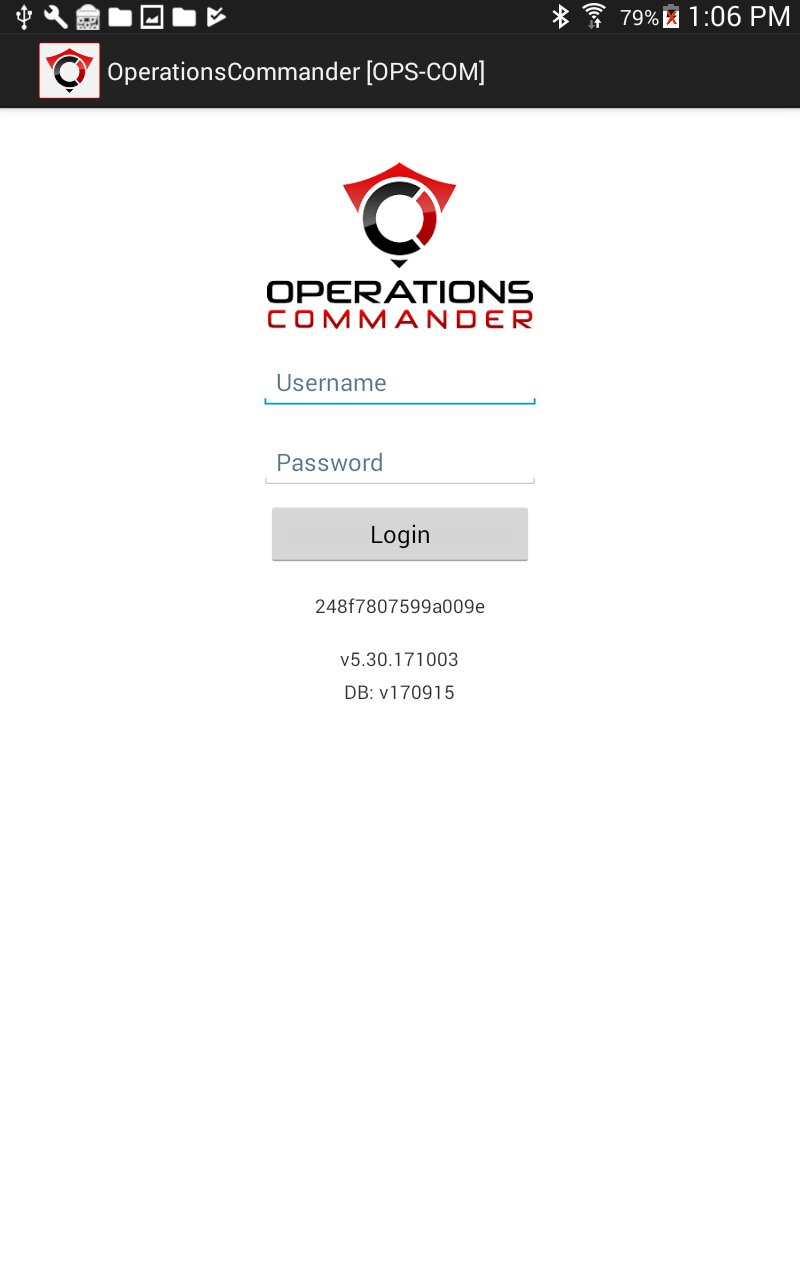
violationsLogincreatedScreenWhenandyouvehiclelogrecordsoffimmediatelythe program will automatically go backsync to thesigncentralin screen.server. -
-
Verify replication status: Check the Replication Status screen if you experience network drops during logoff. Confirming that zero unsynced records remain ensures no data is left stored exclusively on the handheld unit.