Issuing a Plate Violation
The Issuing Violationsa Plate Violation feature allows parking enforcement officers to look up vehicle license plates and record parking infractions using the legacy Android application. Its primary purpose is to streamline the ticketing process by Plateutilizing existing database records or easily capturing details for new, unknown vehicles. This guide is intended for OPS-COM administrators and field enforcement personnel.
Setup and Configuration
WhenIn order to issue violations effectively in the field, administrators must ensure the backend environment is fully configured, and users must prep their hardware.
Admin Side: Administrators must ensure that all ticket types, offense locations, default fee amounts, and zone rules are properly configured within the main OPS-COM administrative portal.
User Side (Enforcement Staff): Before starting a patrol, ensure your mobile device is fully charged, logged into the OPSCOM Parking Enforcementenforcement app, tapand onactively paired with your Bluetooth printer (if issuing physical citations).
Using this Feature
Enforcement personnel can use this feature to issue citations to both known vehicles and vehicles that have never been entered into the system.
Issuing Violations to Known Vehicles
-
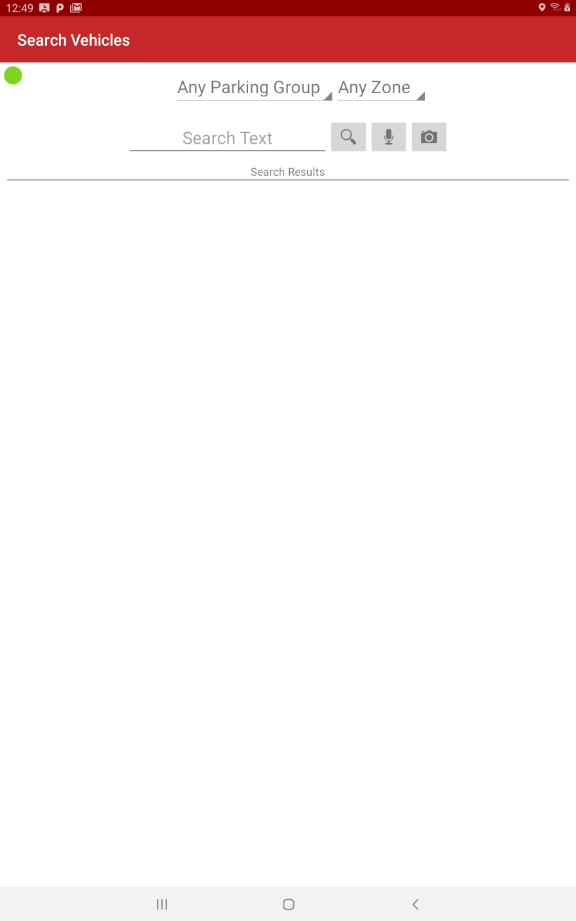
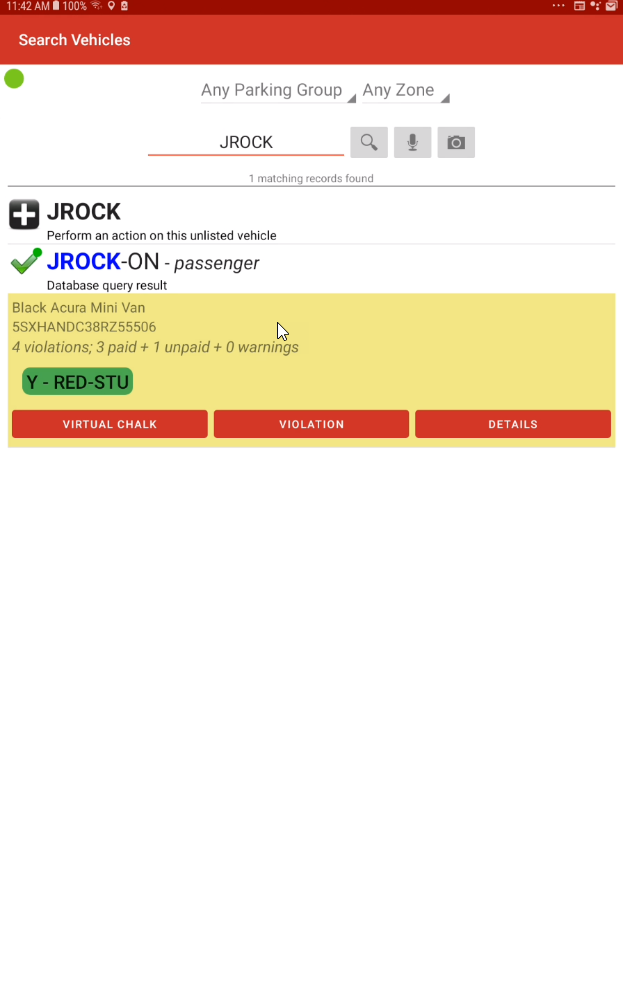
Tap Search
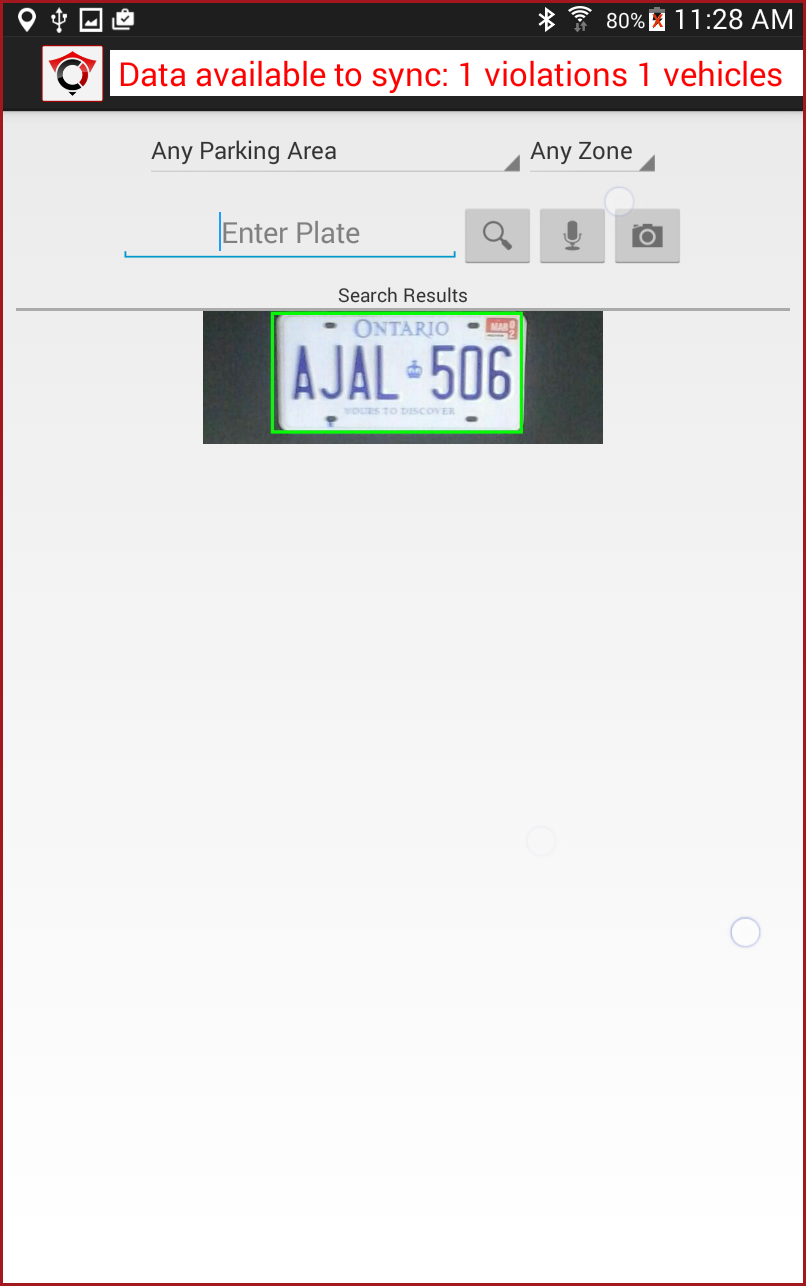
VehicleVehicles from the main application menu.Afterentering -
Enter the plate number
byusing OCR,voice,voice command, ortyping,by typing on thescreen will refresh with a list of possible plate numbers.keypad. -
TheReview the search results list. A red X icon indicatesthisthe vehicle is currently in violation.The -
indicates thatTap the plate
isn't in the system yet.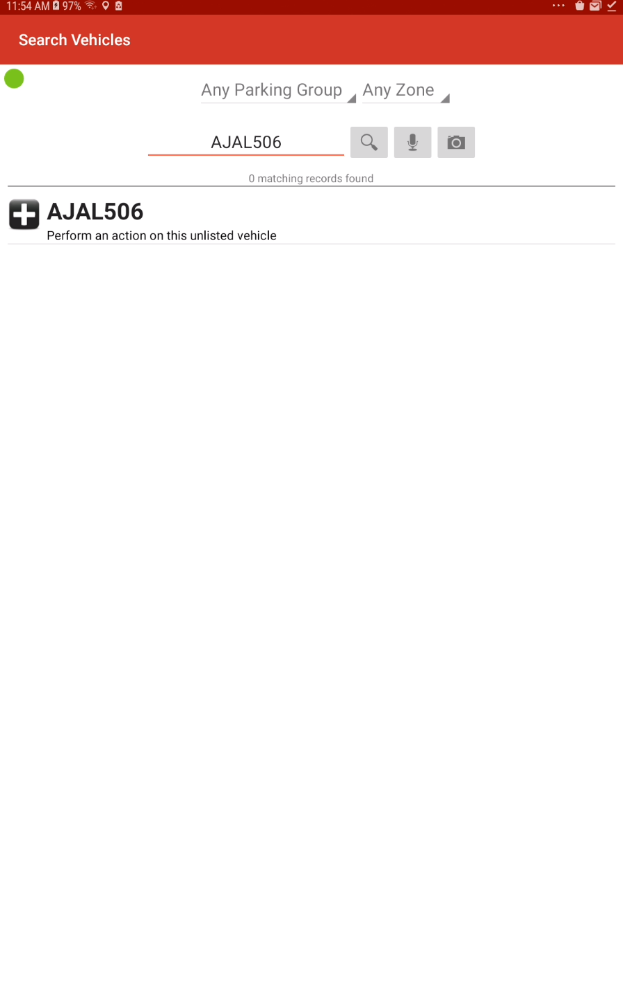
After searching the vehicle, tap the platerecord that is inviolation. This will give you more optionsviolation toperform, such as chalking, violations, details, and more.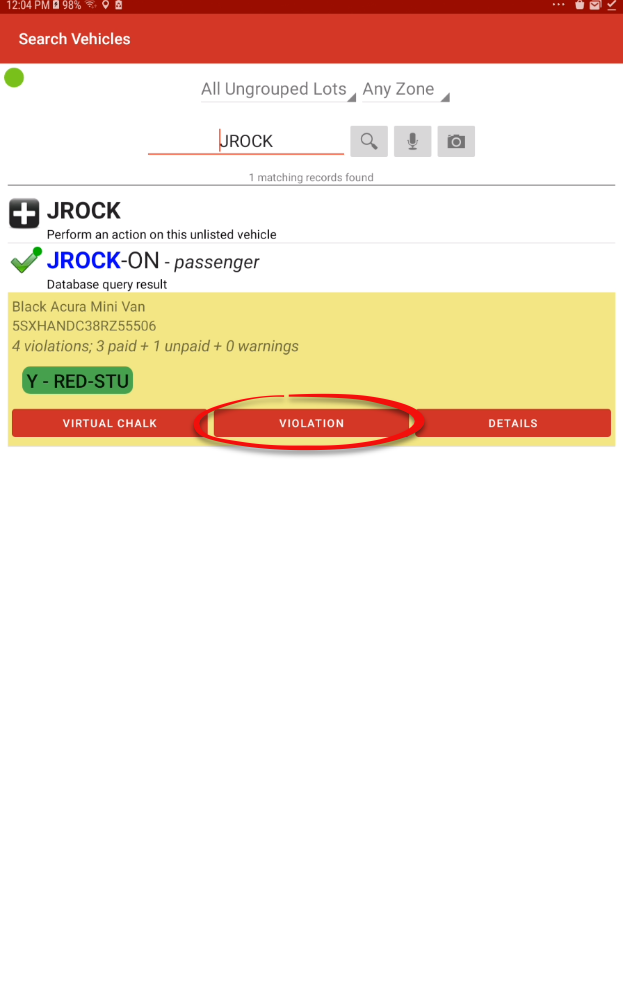
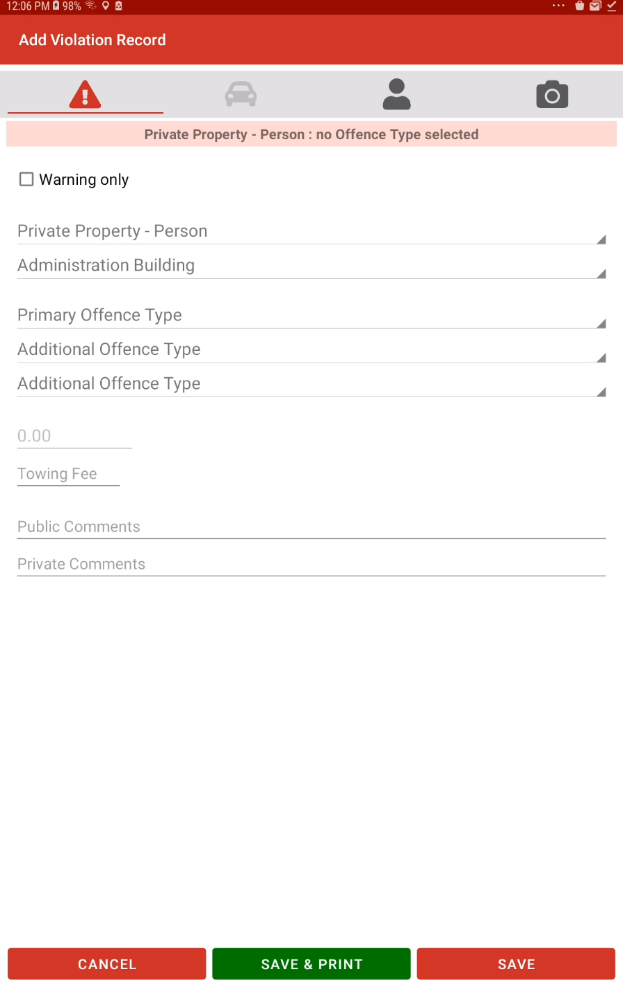
This will take you toopen the Add Violation Recordscreen where you can add the vehicle details as well as add any images associated with the violation. If the user has a DNTT or a valid permit, then a warning message will appear before allowing you to write the violation.
screen.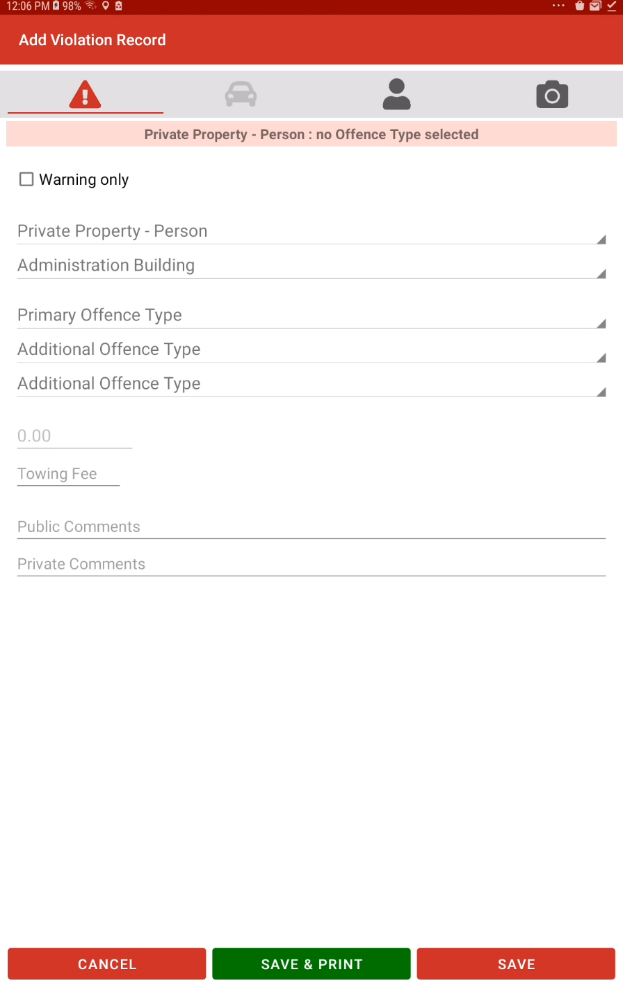
-
If the plate is known in the system, then the vehicle information will be automatically completed and you can eitherTapSaveorSave & Printthe ticket.Tap theSelect OffenceLocation. A drop-down menu appears for you to select the appropriate response.Tap to select an Offence Type,Location anda drop-down menu appears for you tochoose the appropriateresponse.locationTofromchangethe drop-down menu.-
Tap Offence Type and choose the specific infraction. You can tap the fee
fromamount to manually override the default fee if necessary. -
Tap Towing Fee and enter an amount
decided byif theoffencevehicletypesrequiresyoutowing.can -
Capture pictures of the
feevehicleamount.and Tap on Towing Fee to add one if required. The cursor blinks to indicate you are in input mode. Enter an amount.Take picturesinfraction for proof in case of a dispute.
select -
ForTapanSaveexample&ofPrintwhatto print the ticketwouldandlookreturnlike,toseethe search screen, or tap Save to log the violation without printing.
Issuing Violations to New Vehicle Violations.
New Vehicle Violations
Vehicles
ToIf a scanned plate is unknown to the system, it will be indicated by a + icon in the search results. You must manually add the vehicle description to issue a violationcitation.
-
unknownTap
vehicle,theyouplatejustrecordneedwithtothemake+sureicon.that -
completeTap the vehicle
informationdescriptionyourself.fieldThisandwill add them toenter thesystemvehicle's make, model, and color. -
Complete the
nextviolationtimedetailsyou sync your handheld.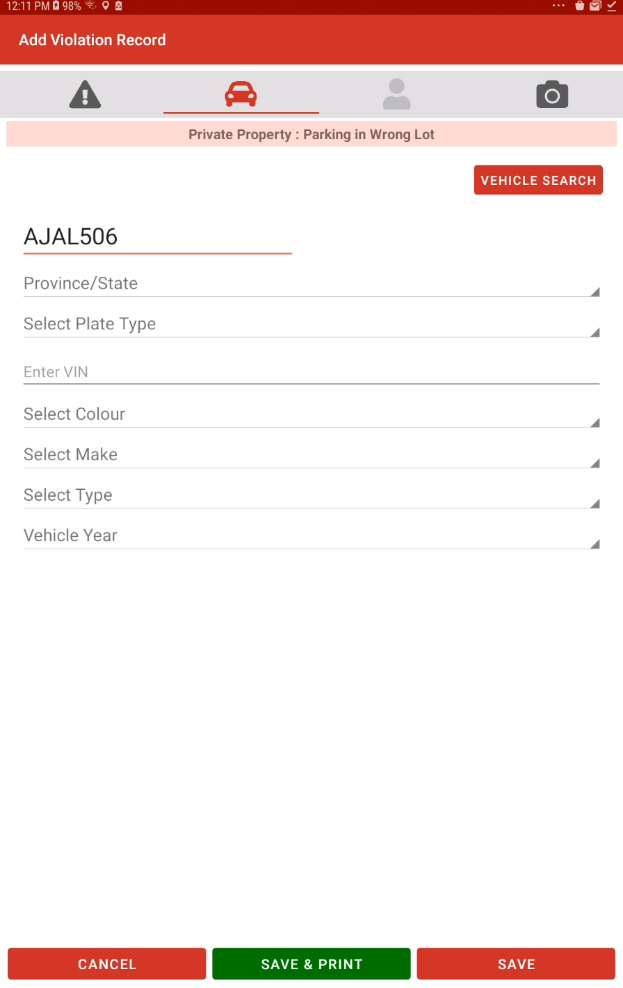
To continue issuing the violation:Add vehicle details. Tap to add a vehicle description.Tap the Select(OffenceLocation. A drop-down menu appears for you to select the appropriate response.Tap to select anLocation, Offence Type, Towing Fee, andaphotos)drop-downasmenuoutlinedappears for you to choosein theappropriatestepsresponse.above.To change the fee from the default amount decided by the offence types you can select the fee amount.-
Tap
onSaveTowing Fee to add one if required. The cursor blinks to indicate you are in input mode. Enter an amount. Take pictures for proof in case of a dispute.Tapor Save & Print.EnsureThethatnewthe printer is powered on and connected. A ticketvehicle willprint,automaticallyandbethe handheld device will returnadded to theVehicle Search screen.
If you do not use a printer, tapSaveinstead ofSave & Print. Tappingdatabase theSavenext&timePrintyourbuttonhandheldwill trigger an error if no printer is connected, but it will still issue the violation to the database.synchronizes.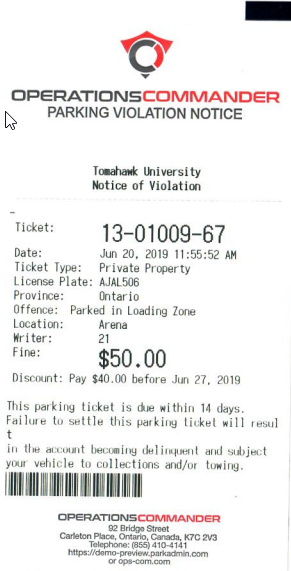

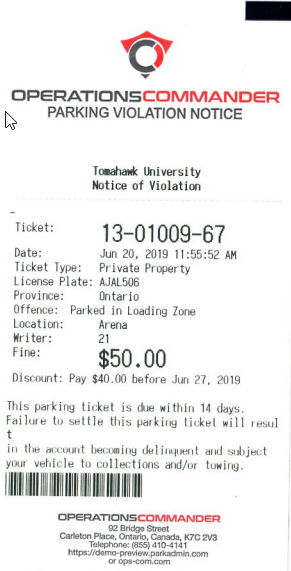
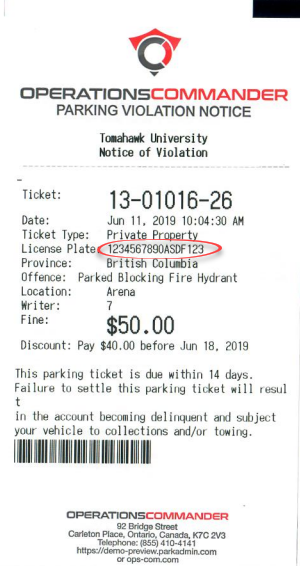
VIN-Only Vehicles If a violation is entered on a plate,vehicle using only a VIN, the VIN number will notautomatically appear on the ticket unless the vehicle only has a VIN number, then the VIN number will appear on theprinted ticket in the licenseLicense Plate field.
Filtering by Groups and Zones
You can focus your plate field.
searching and vetting by applying specific group and zone filters, which is particularly useful for virtual lots or reserved parking areas.
-
-
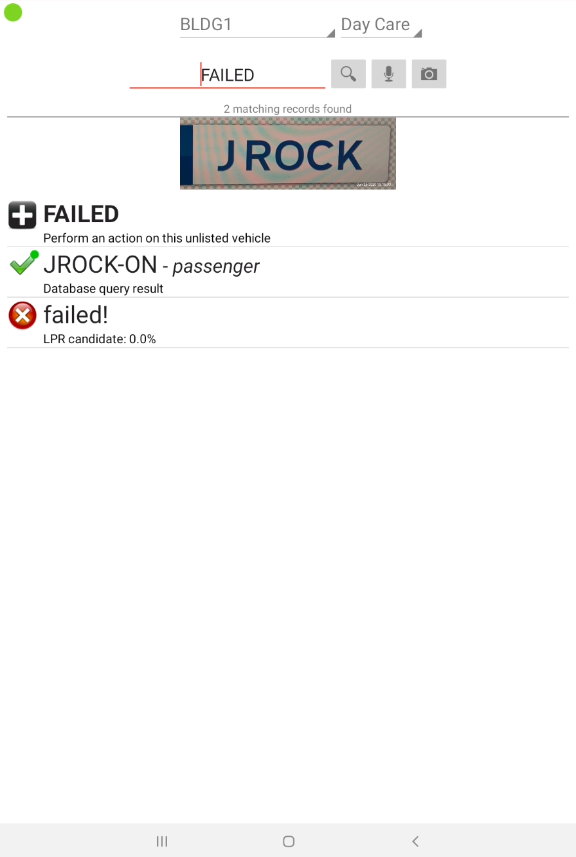
AfterTapprintingAny Zone and select the specific zone you areablepatrolling (e.g., Day Care). -
Scan plates using the LPR/OCR functionality. A green check mark will explicitly indicate if a vehicle is permitted to
addparkadditionalinimagesthattospecified group and zone combination.
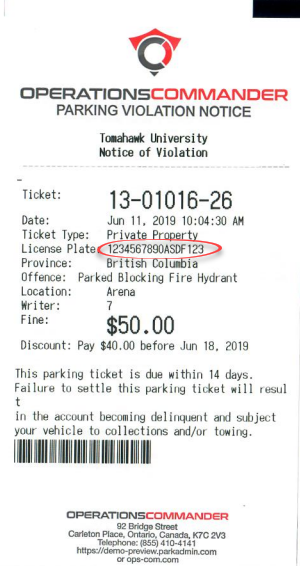
Understanding the vehiclePrinted recordTicket
Explanation of the Front of the Ticket/WarningWarning:
| Field | Description |
| Ticket Number |
|
| Date | |
| Ticket Type | |
| License Plate | |
| Province | |
| Offense Type | |
| Location | |
| Writer | |
| Fine | |
| Towing | |
| Comments |
Explanation of the Back of the Ticket/Warning
The back of the ticket provides details about the organizationissuing thatorganization, issuedoffice the tickethours, and theclear policiesinstructions and procedures regarding the ticket. The back clearly identifieson how the violator can pay or formally appeal the ticketticket. withIt also includes a section for the violator to identify themselves and sign offoff.
Best Practices and Considerations
-
Monitor your sync status: Always note the
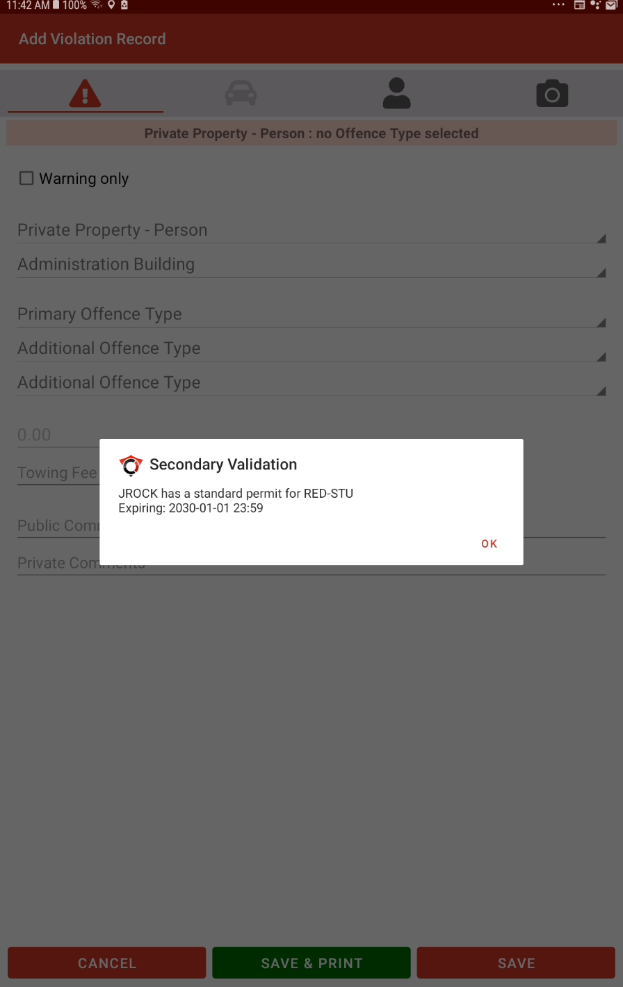
ticket. The back also identifies where to find additional information on the organization and the office hours.Important Note:Best Practice TipNote thesync reminder bar at the top of thescreenscreen.indicating there is data to sync.This is especially important at the end of a shift. You don't have to sync whenWhile yousee the flashing bar immediately.Youcan continueworking.workingIt'swhenjustita reminder. Butappears, ifitthe bar is flashing,officersensureshould make sure theyyou sync your data before poweringdowndown.orToattriggerleastangoauto-sync,backsimply return to the main menu andstay there forwait 30seconds.seconds, or manually tap Synchronize Data.Heed secondary permit warnings: Pay attention to secondary checks when issuing a ticket. The handheld unit will
warningauto sync at that point.It will also auto-sync whenalert youexit the app.Officers can also select synchronize data from the main menu to forcewith async.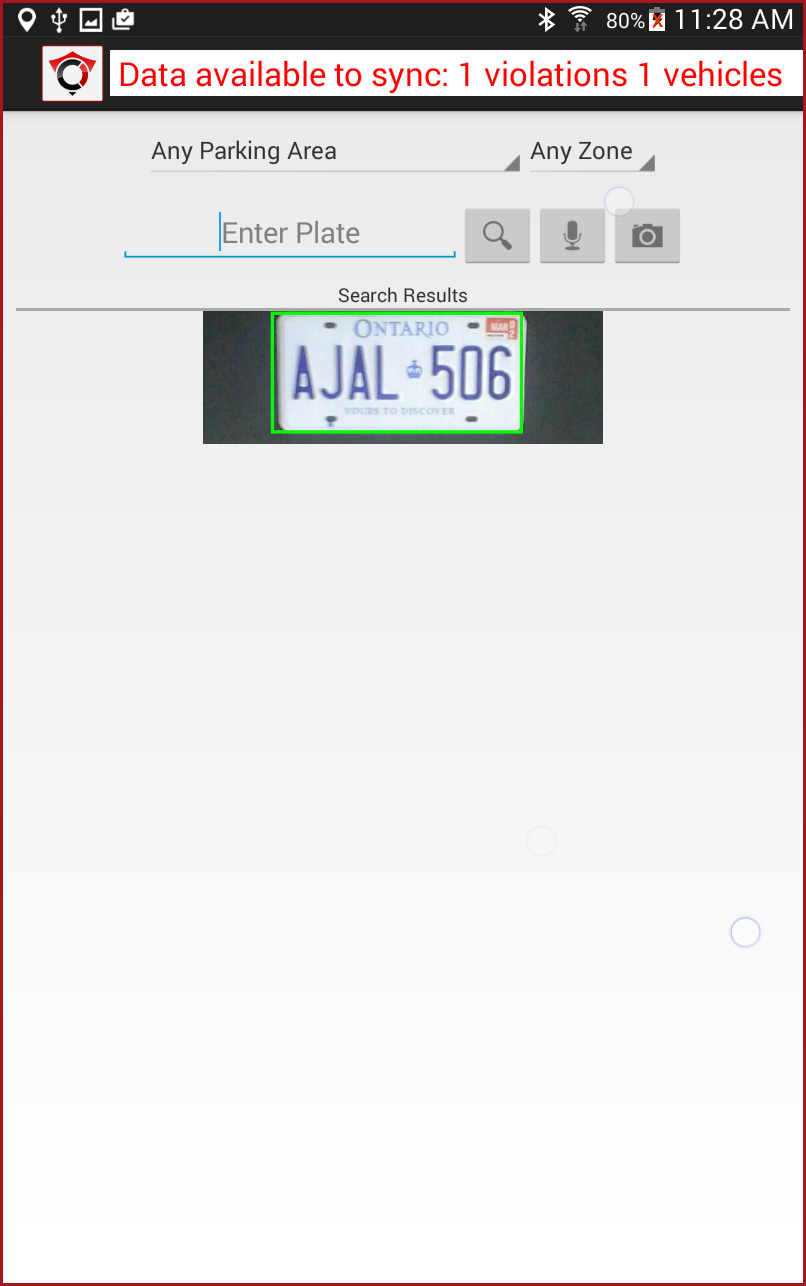
Using Groups and ZonesPlate searching and vetting can be focused on using groups and zones.When using virtual lots, you can specify groups and specific zones within the group.For example, there may be parking available closer to a building that could be reserved for specific groups of people.In our example, Building 1 has spots forDay Careparking.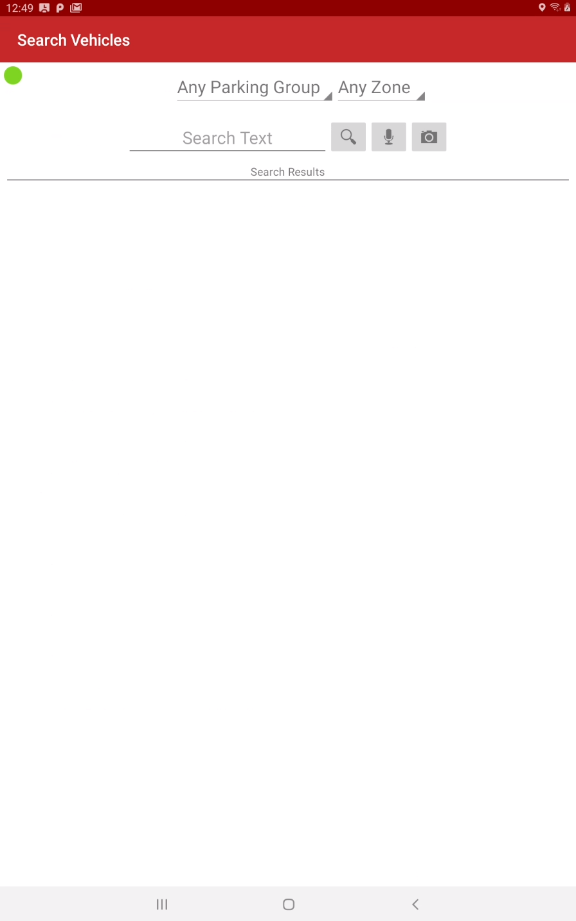
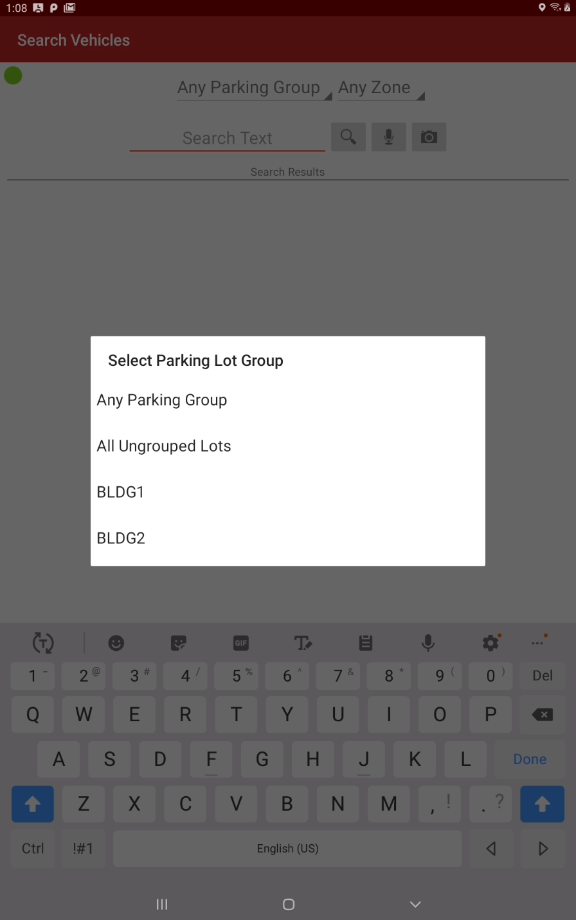
Tap onAny Parking Groupto access a list of groups. Here we selectBLDG1for example.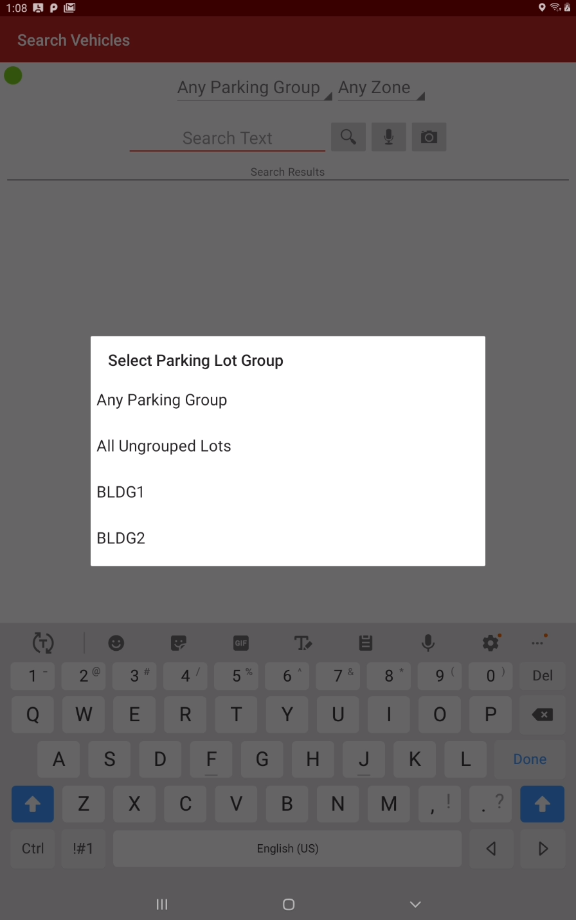
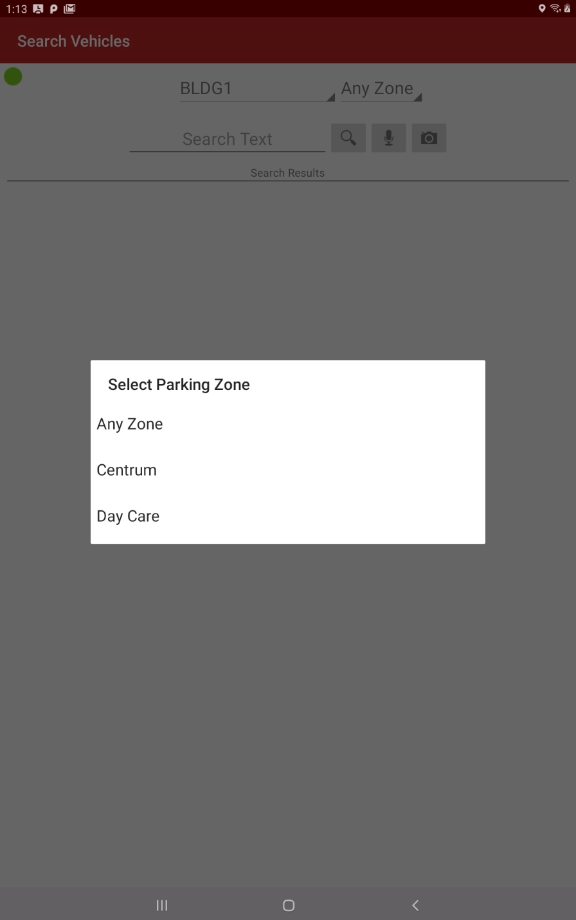
TapAny Zoneto select the specific zone you are patrolling. In this example, we are going to patrol theDay Carezone.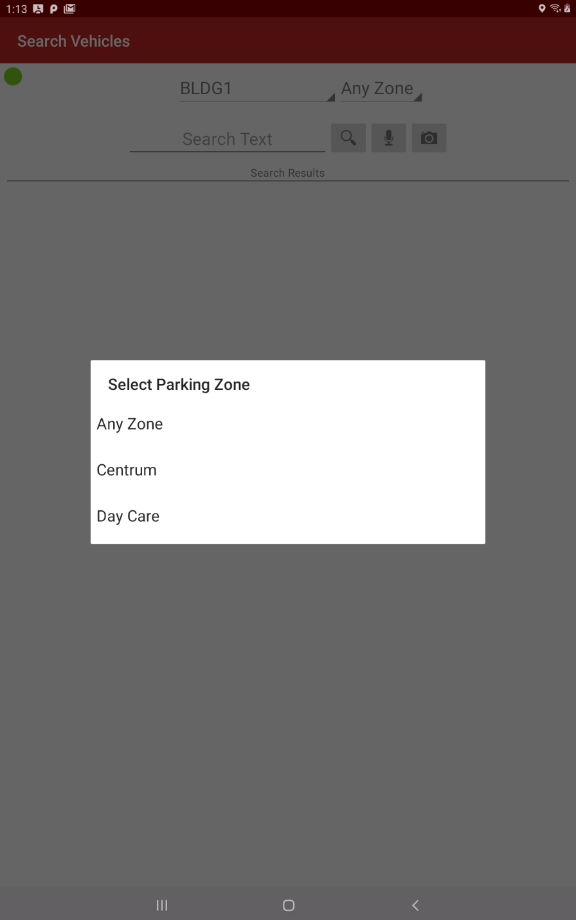
The following is an example of a vehicle permitted to use daycare parking after 12:00 pm.With the handheld unit set up as described above the plate was scanned using theLPR/OCRfunctionality.TheGreen Check Markindicating the vehicle is permitted to park in the specifiedGroup and Zone.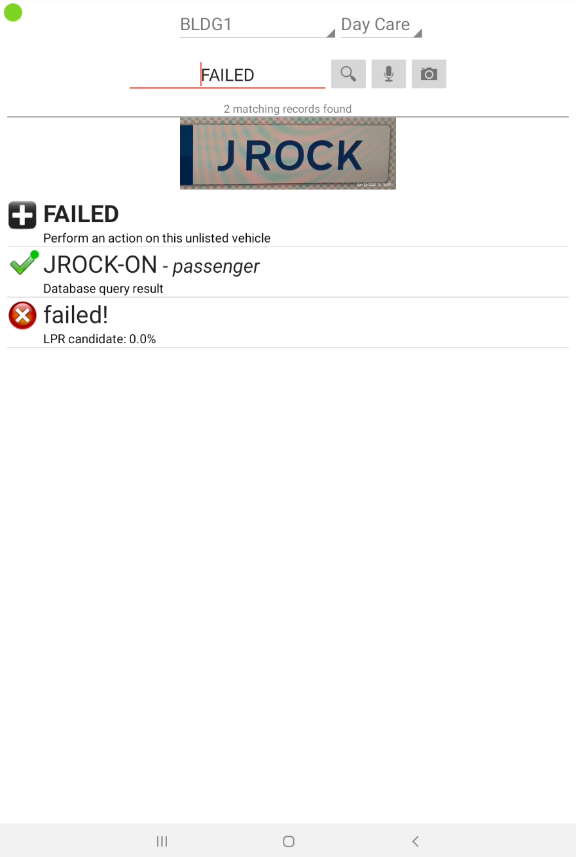
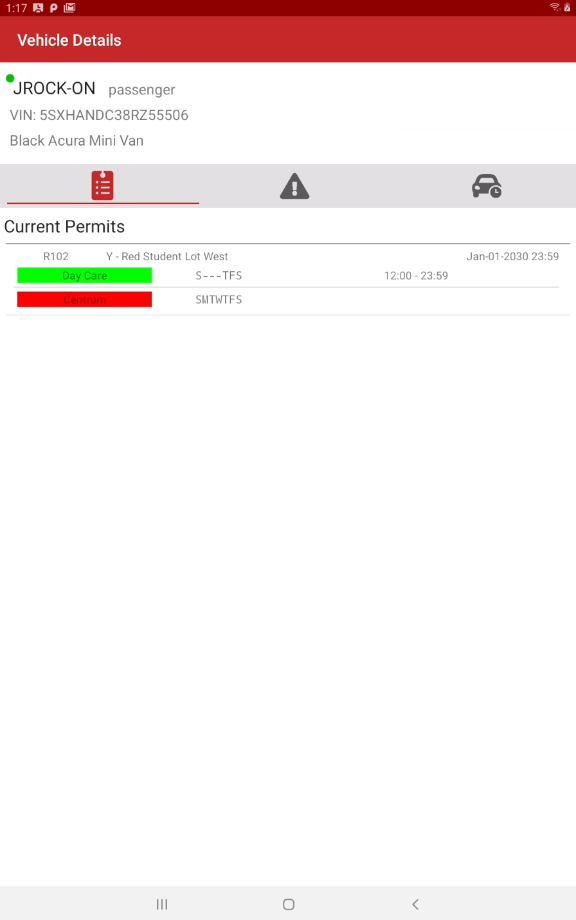
Tapping the vehicle and viewing theVehicle Detailsshows you extended permit information.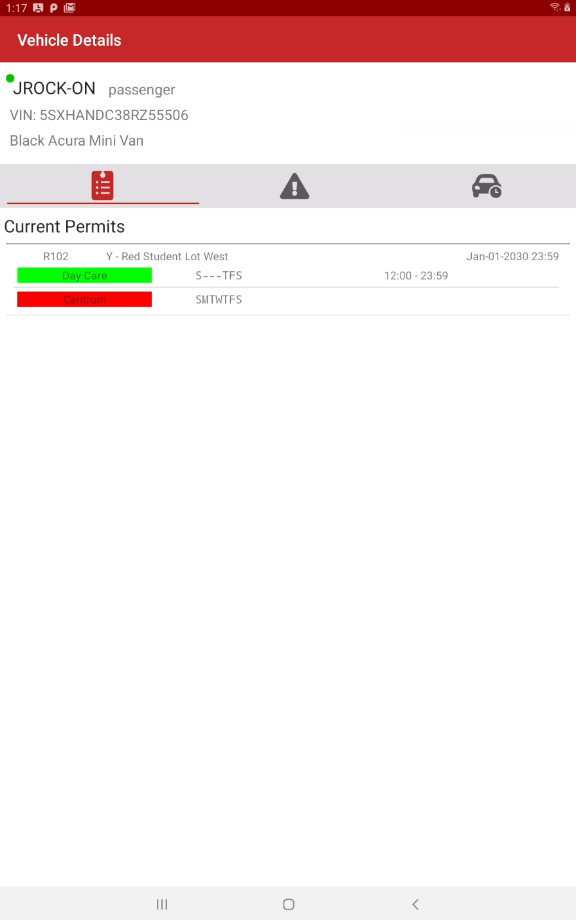
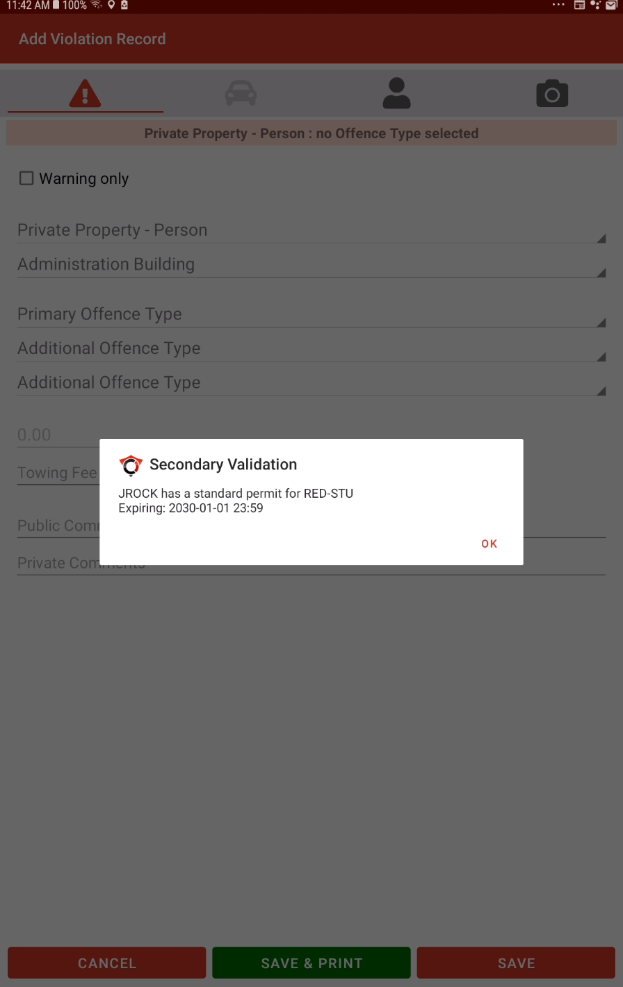
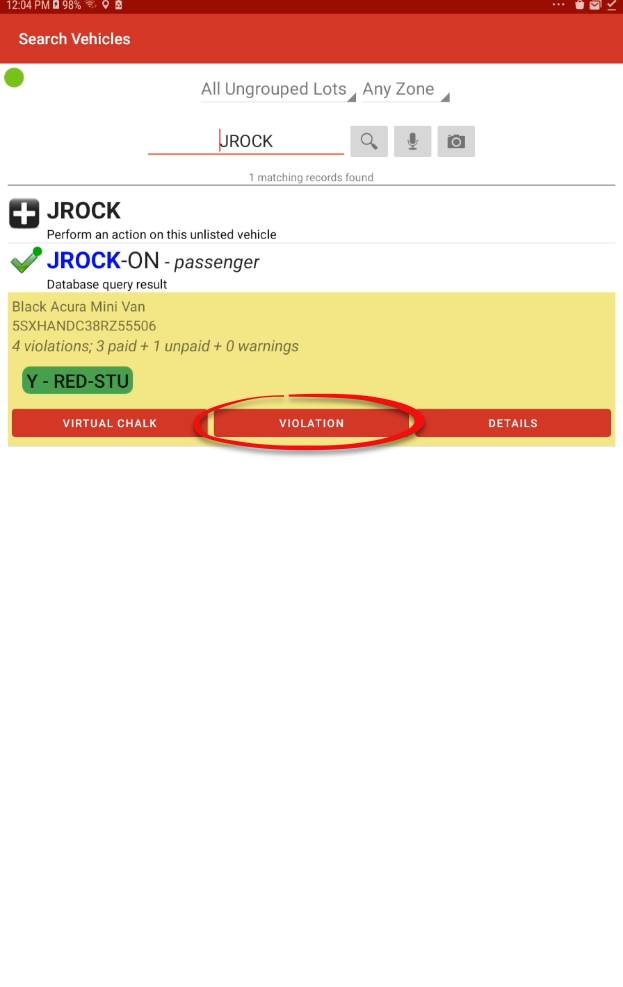
Secondary Check On Permit ValidityWhen creating violations, the handheld units will perform a secondary check on the vehicle to alert the patrol officermessage if the platehasactuallya valid permit.In our example, the plate JROCK has a valid monthly permit in the Red Student Lot Yearly (Y-RED-STU).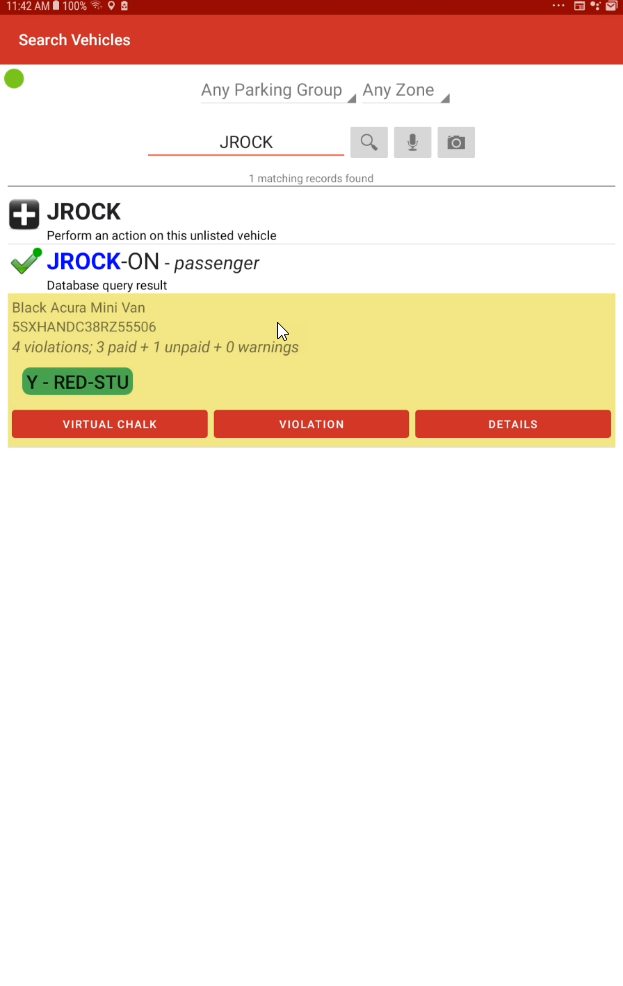
If the officer proceeds to Issue a Violation, the unit will issue a warning that the plate hasholds a valid permit.ItYouwillmay stillallowproceedawithviolation to be created at the officer's discretion in the case thatcreating the violation at your discretion if the infraction is for somethingotherunrelatedthanto permit validity (e.g., parked in avalidfirepermit.
lane). -
-
Do not force prints without hardware: Never tap Save & Print if a printer is not actively connected. Doing so will trigger an application error, though it will safely log the violation to the local database as a fallback.