
Manual Update or Installation
Open
The Manual Update or Installation process allows users to install or update the legacy Android enforcement application directly from the Google Play Store. Its primary purpose is to ensure field officers have the latest software version on their handheld devices for optimal performance and access to new features. This article is intended for OPS-COM administrators and field enforcement personnel.
Setup & Configuration
OnTo use the software, the officer's user profile must have the proper permissions granted in the core OPS-COM system before they attempt to log into the mobile application.
Admin Side: Administrators must ensure that field users have the "Wireless handheld" permission enabled.
-
Hover over System Config and click Manage Roles.
-
Click Permissions beside the specific Administrator Role you wish to edit (e.g., Patrol Officer).
-
Click the Violations tab.
-
Enable the Display as Ticket Writer checkbox.
User Side (Enforcement Staff): Ensure the Android handheld device Appsis screen,connected locateto a stable Wi-Fi or cellular network before attempting to download or update the application.
Using this Feature
Field personnel can manually check for and install updates using the native Android app store.
Installing or Updating the Application
-
Tap the
app.app on the device's Apps screen.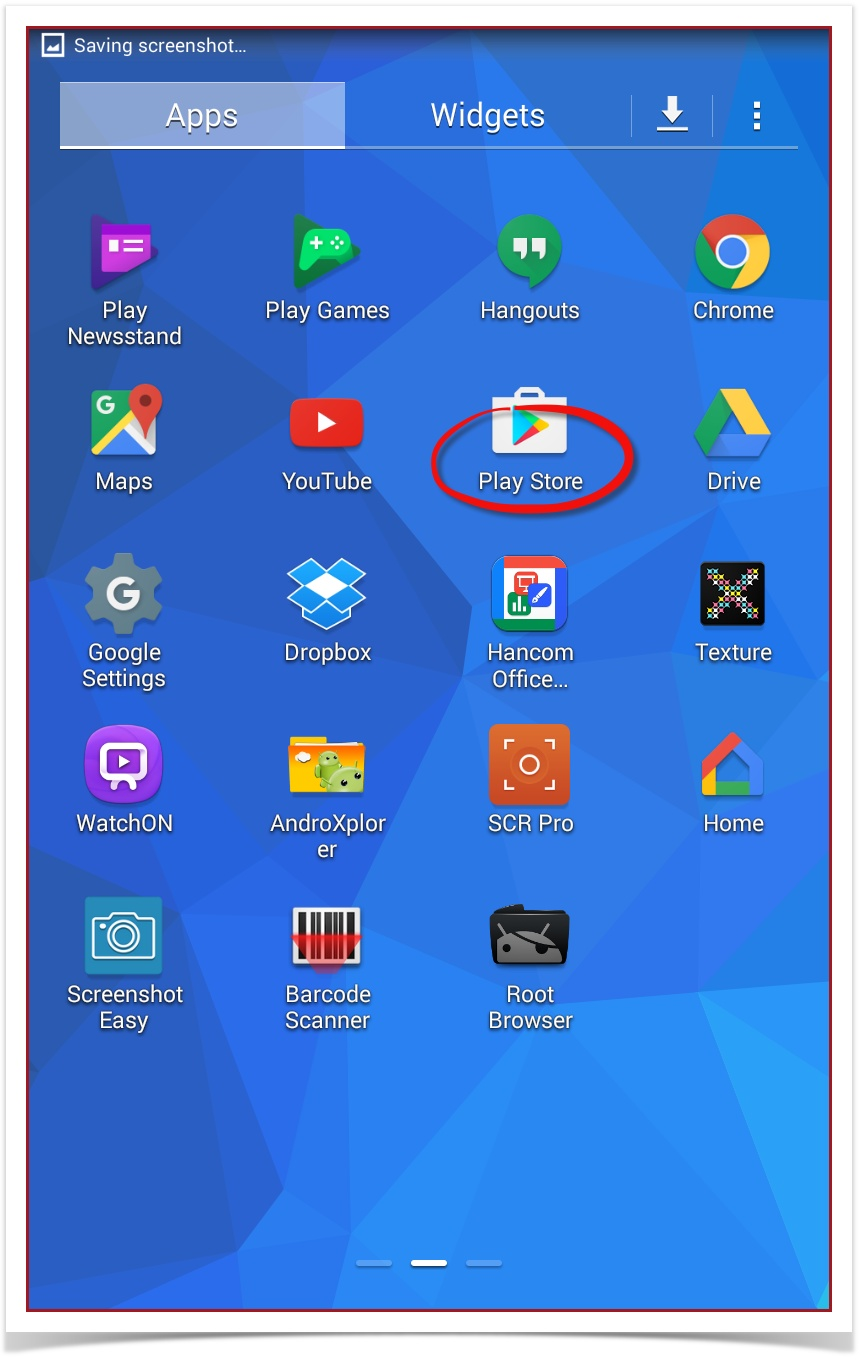
-
Tap
to opentheappsearch bar andsearch forenter OperationsCommander or OPSCOM. -
Tap the OperationsCommander app icon to
startopen theinstallinstallation/ update process.page.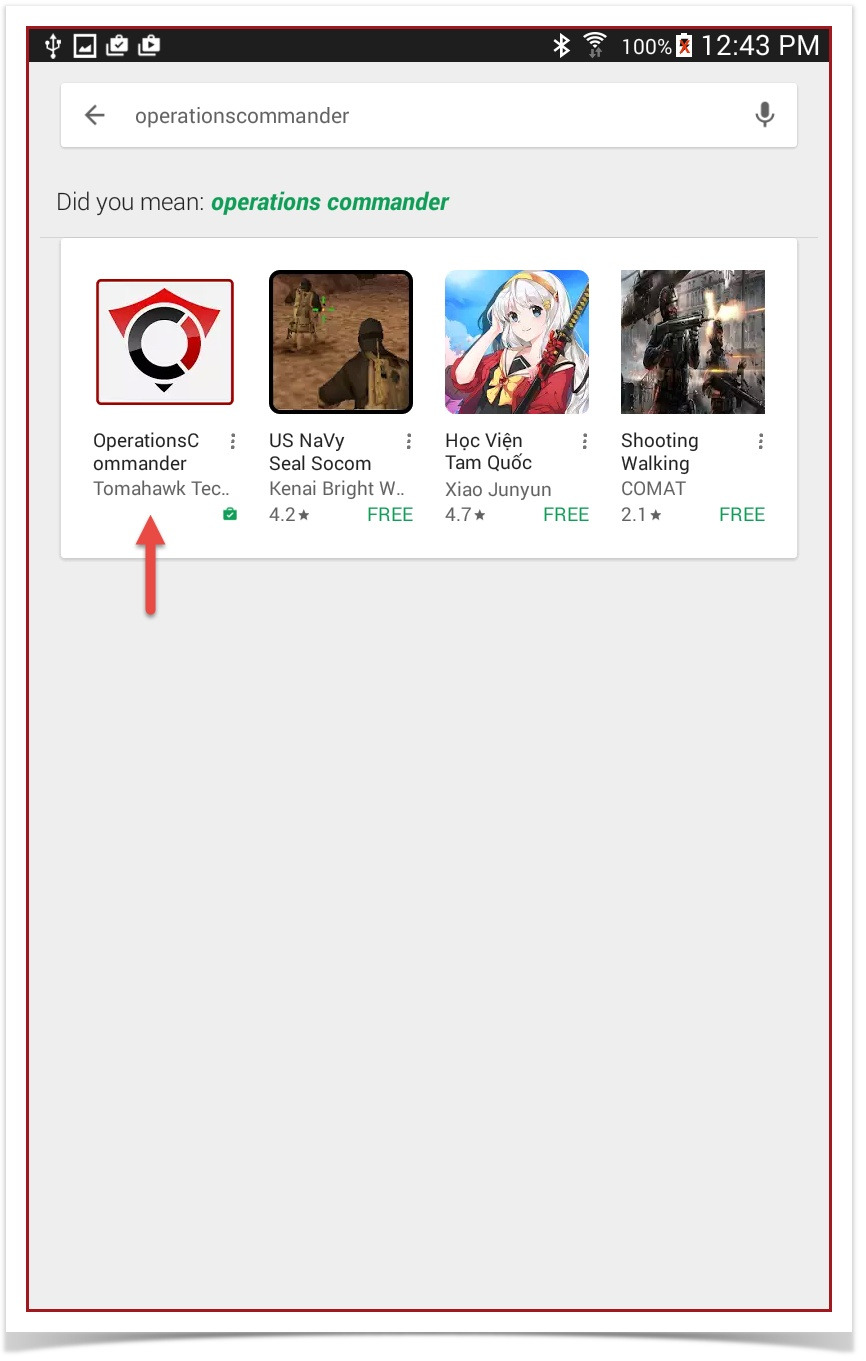
-
tapIfTapyouthesee aInstall buttonlabelledtoInstallyou are doingperform a freshinstallinstallation, orre-install.shortcut will be createddatabase will be created
-
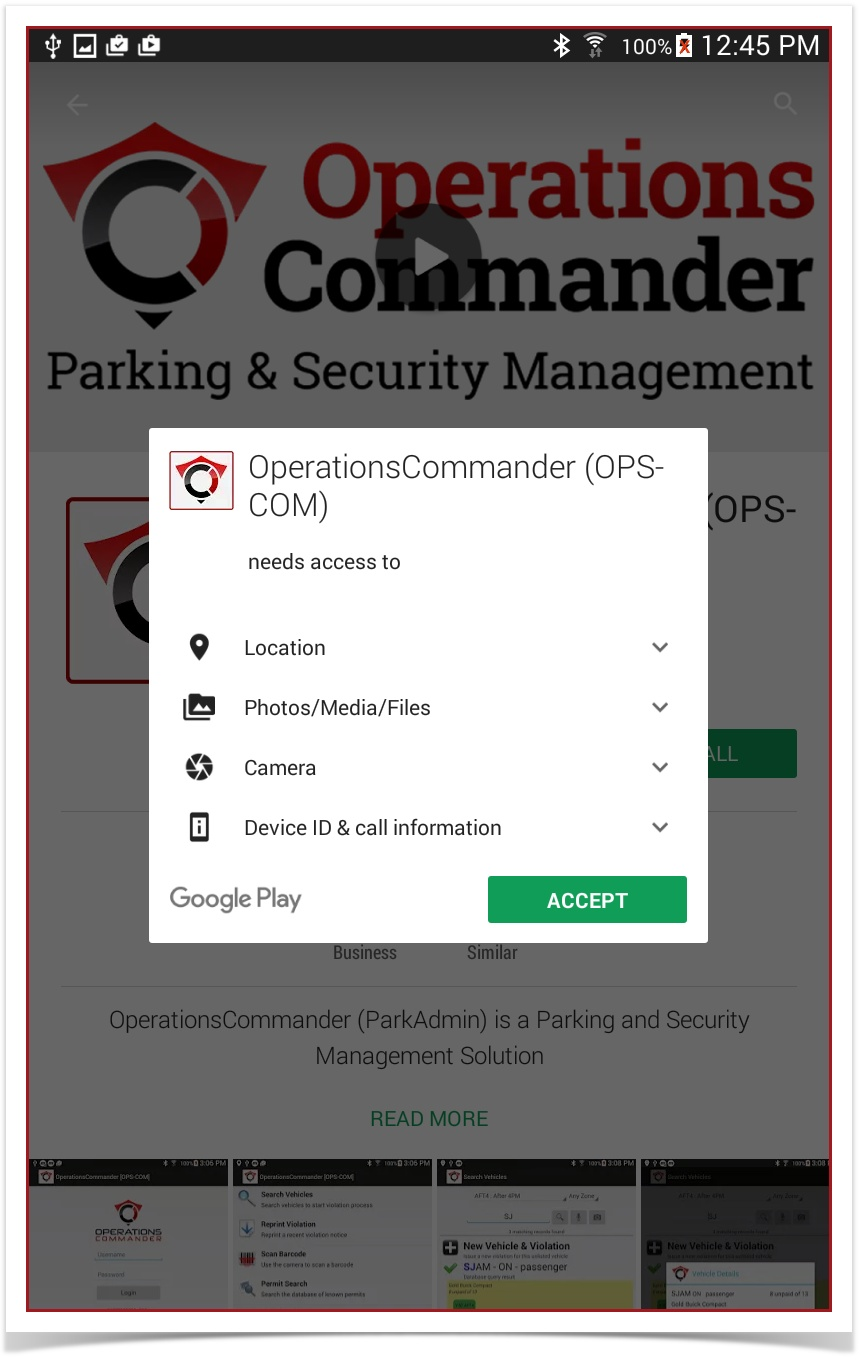
Tap Accept when the settings window pops up requesting access to integrated device features. (Note: On newer tablets, these permission requests may appear during the initial startup of the application instead).
-
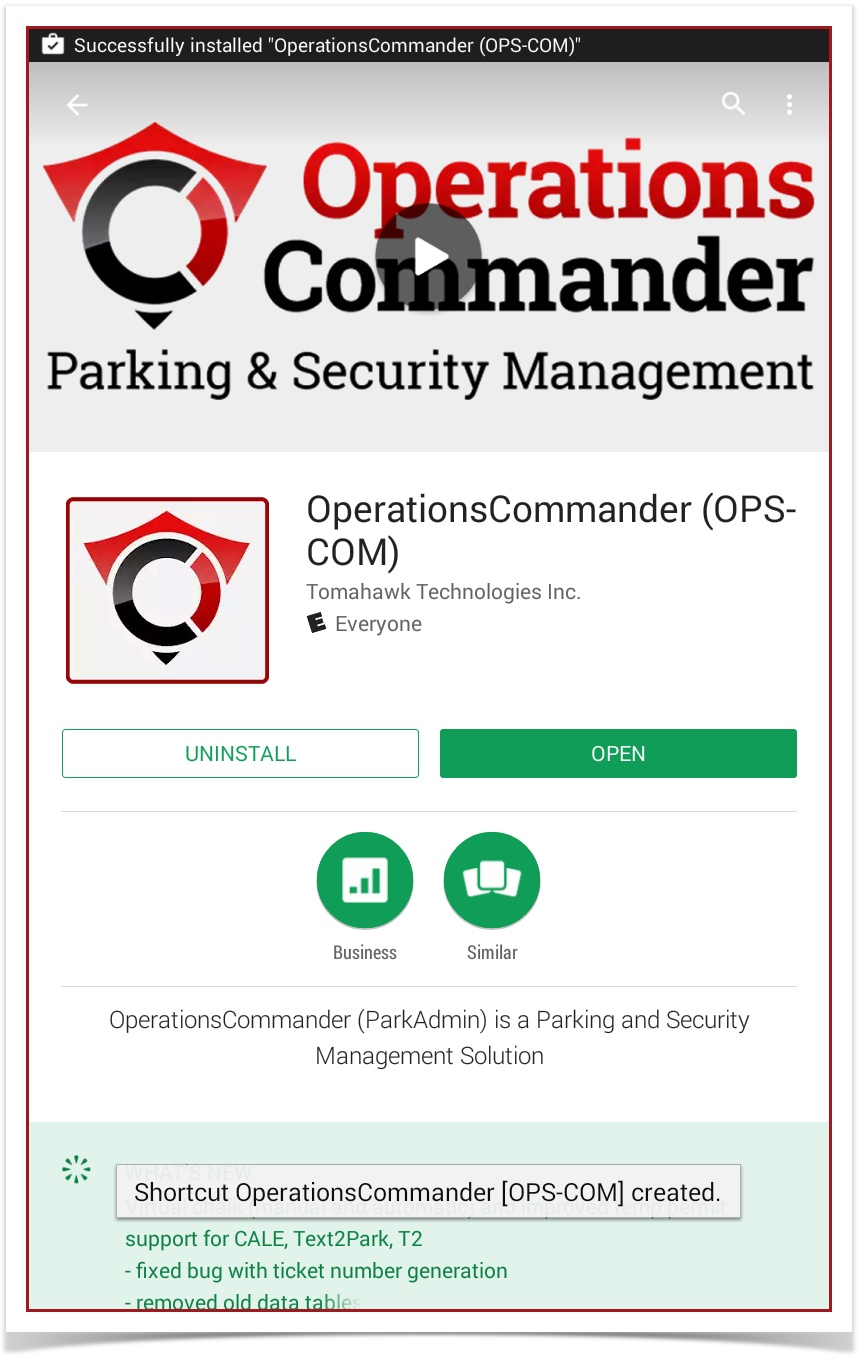
Tap the Open button directly within the Play Store, or return to the device's home screen and tap the newly created shortcut to launch the application.
Search for OperationsCommander for Android
Options Install and Update
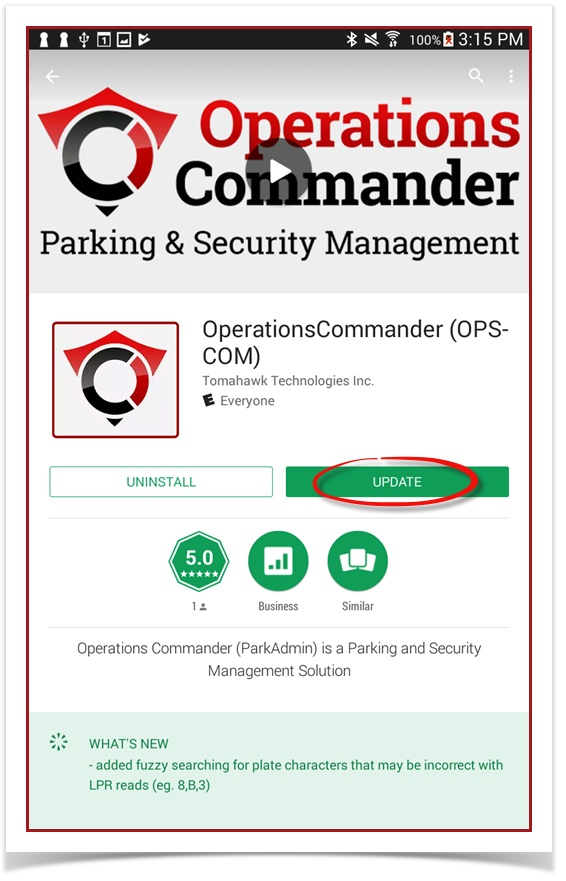
Install vs. Update Tapping the Install button performs a fresh installation where a new shortcut and a fresh local database are created. Tapping the Update button performs an in-place update, meaning a new database is not created and your existing local data will not be createddisrupted.
Best dataPractices should& notConsiderations
Always Inbefore mostupdating: cases, an update will not disrupt your existing data but itIt is alwayshighly wiserecommended to doperform a full manual data sync before proceeding with any kind of update.
Application and Device Permissions
AtGrant theall install/updaterequested stage, permissions relate to the access granted by the operating system to the application.
This settings window will pop up to allow access to integrated apps on the handheld device.
Tappermissions: Accept
In newer tablets, permissions will be displayed during initial startup of the application.
It is importantcritical to grant access forto all requested permissions during installation or initial startup. The OPS-COM application requires these integrations (such as camera, location, and storage) to function correctly in the software to work correctly.field.
Open or Start the Application
To launch the application, use the Open button, or go to the device's main screen and start the app from the shortcut.
Note: To use this software, your user profile must have the OPSCOM "Wireless handheld" permission.
If your account login does not work, please contact the OPSCOM high-level administrator for your organization.
This is accessed through, System Config > Manage RolesSelect one the Administrator Roles you wish to add this ability to. Logically it would be something like Patrol Officer.Click on Permissions beside the specific role you wish to edit.Go into the Violations tab.Select Display as Ticket Writer.