
OPSCOM Parking Enforcement Admin System Settings
Administrator
The OPSCOM Parking Enforcement Admin System Settings feature allows administrators to configure core global variables that synchronize directly to the mobile enforcement handhelds. Its primary purpose is to ensure all printed tickets and app interfaces consistently display the correct organizational details, locations, and legal footers. This article is intended for OPS-COM administrators.
Setup and Configuration
ThereThese arefoundational settings that will need tomust be populatedconfigured inwithin orderthe tocore haveadministrative portal before the handheld units workcan withbe commonproperly core settings.
There settings include:
Organization NameCountryTicket footer
Setting the Organization Name and Country
To access the settings godeployed to the field.
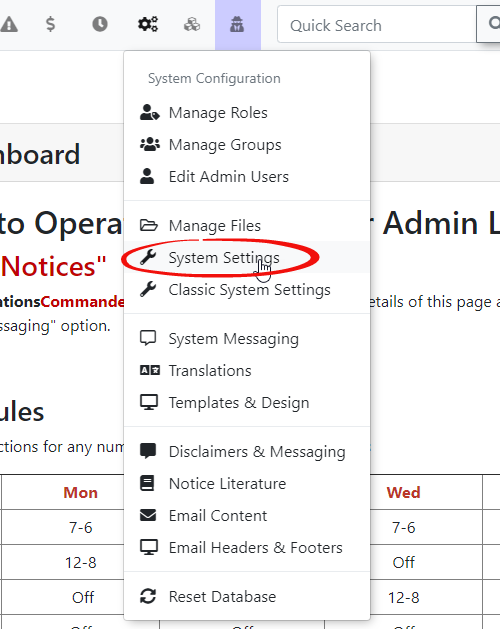
Admin Side: Hover over System Configuration and click on System Settings.Settings
to access the main configuration portal.
Using this Feature
OnceAdministrators incan systemuse settingsthis clickinterface onto update the organization's core identity details and customize the legal text that prints at the bottom of physical citations.
Setting the Organization Name and Country
-
Click General System Settings
infrom the list ofcomponents.components on the left side of the screen.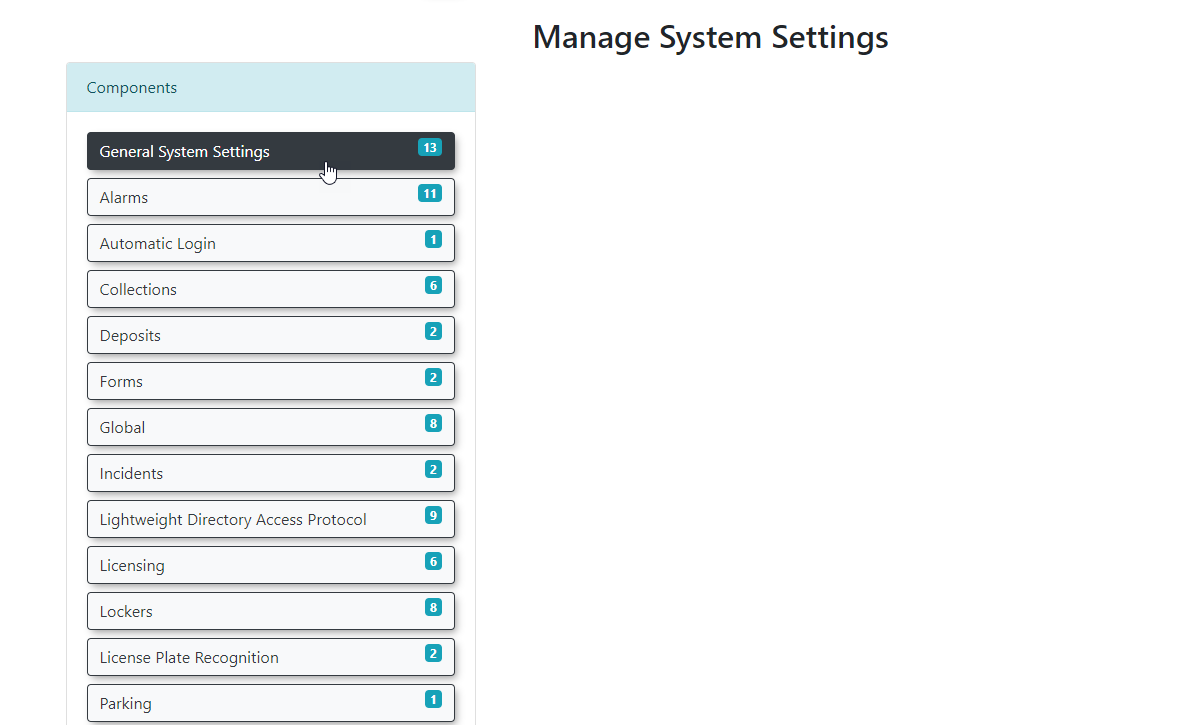
-
EditType your organization's official title into theandfield. -
Type your location into the Country
Countryfield. -
Click Save Settings to
reflectapplyyourthespecific location.Click Save Settingschanges toproceed.the database.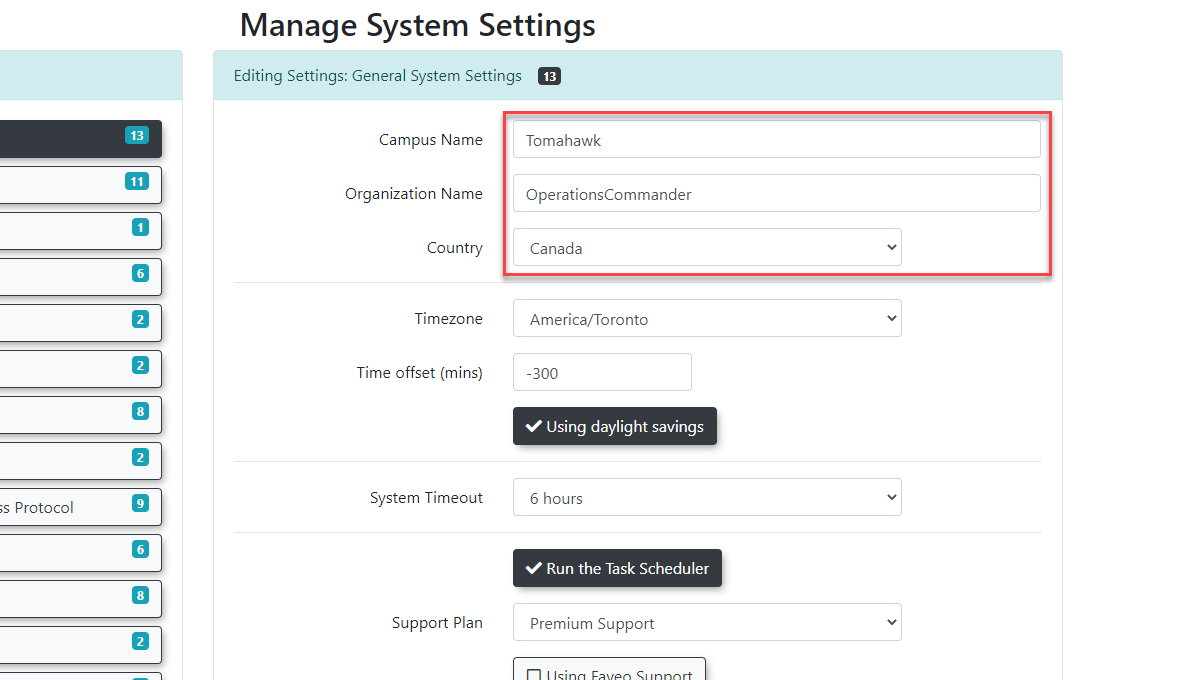
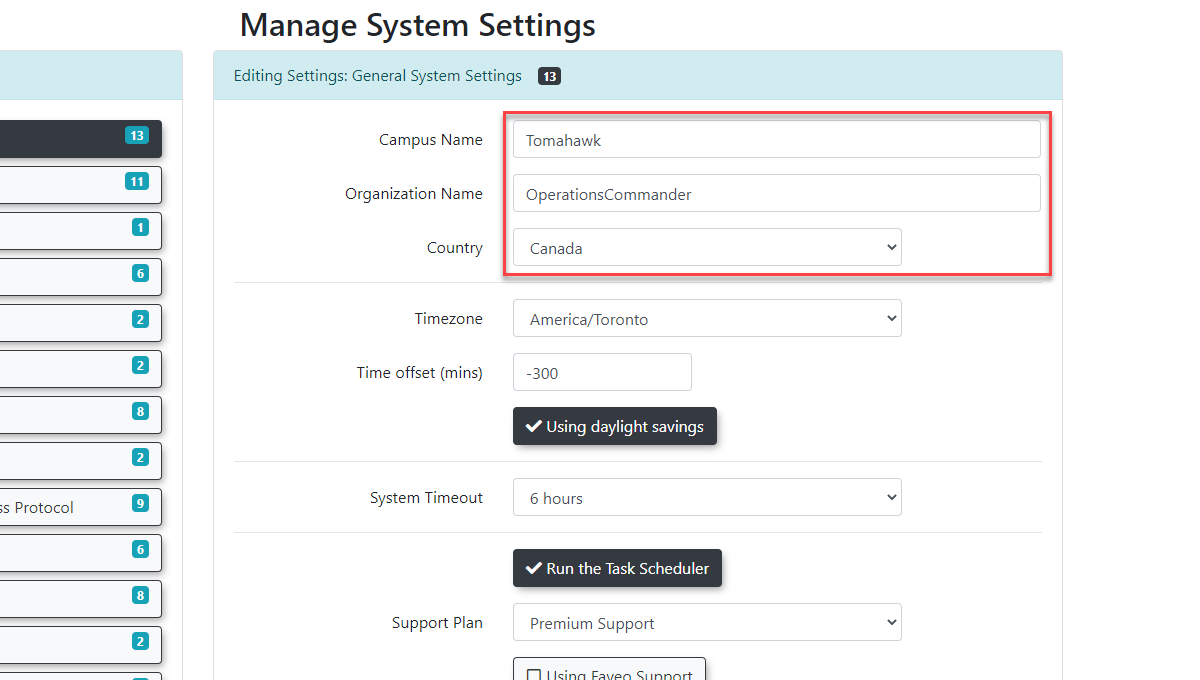
Editing the Handheld Footer
-
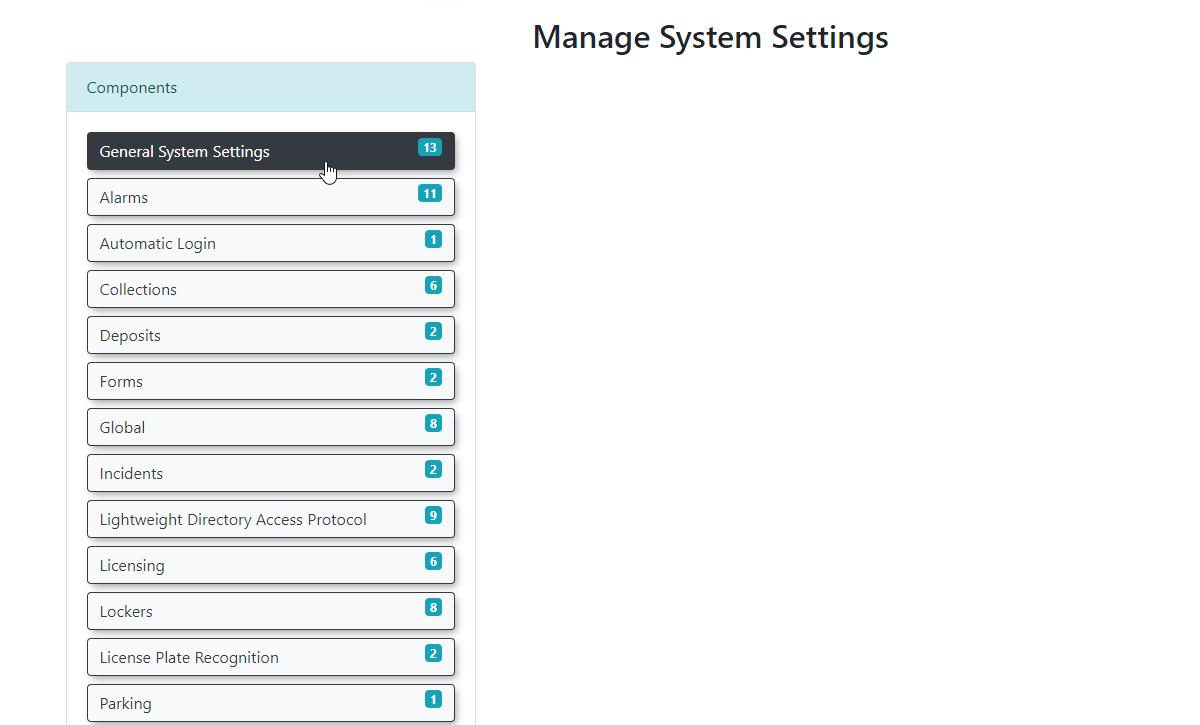
Click
oninfrom the list ofComponents.components on the left side of the screen.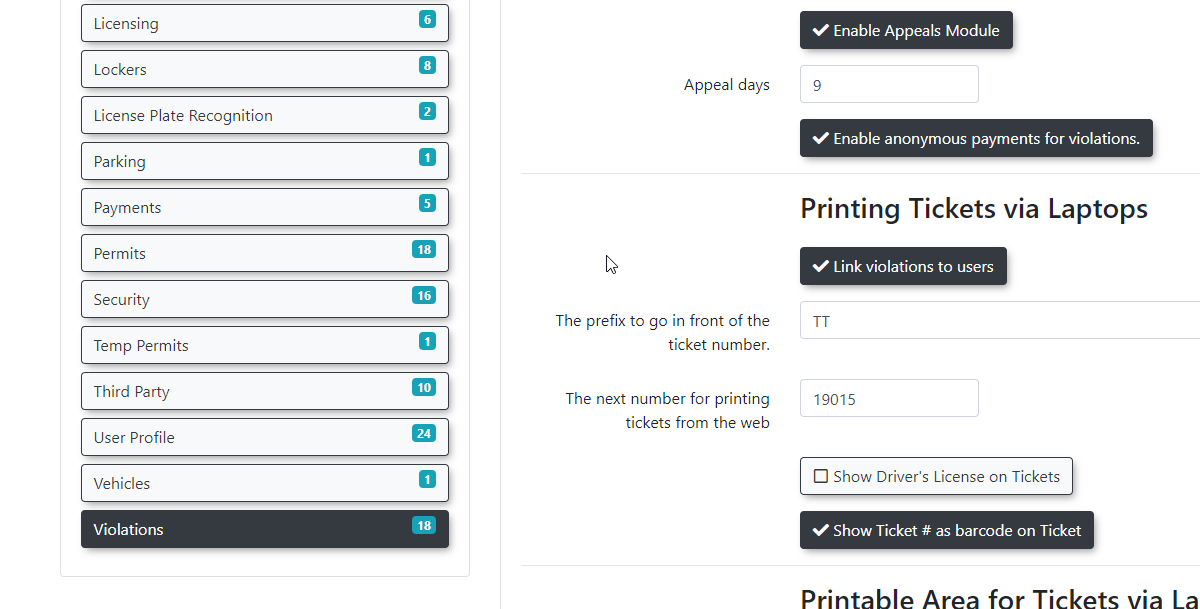
-
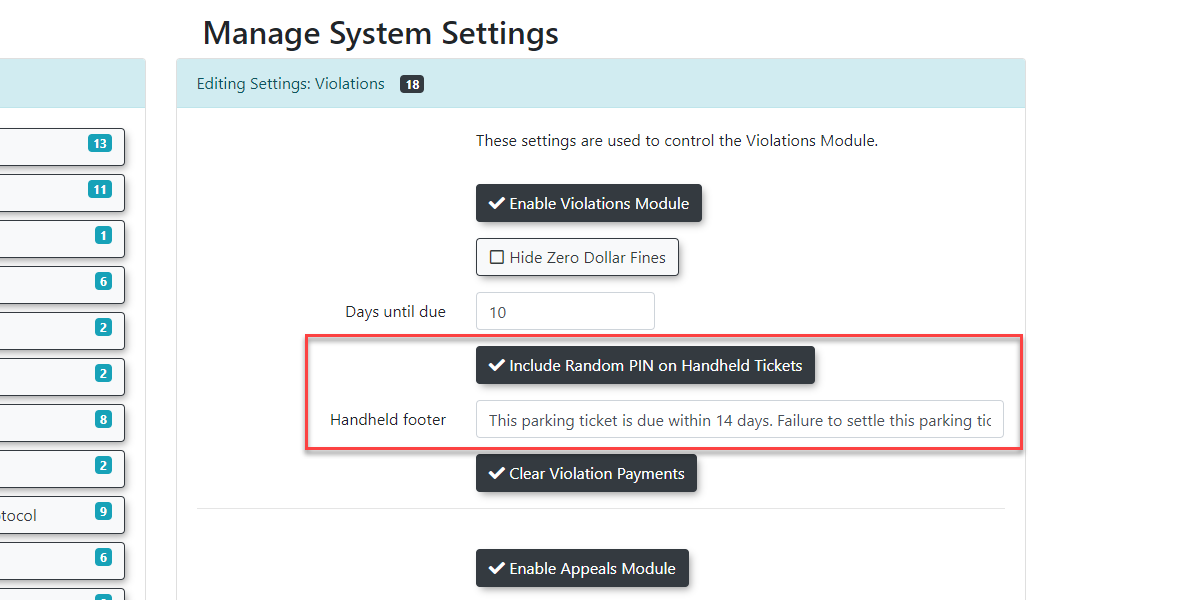
InLocate the Handheld Footer field in the top portion of theformconfiguration form. -
Type the exact legal or instructional text you
willwantseeprintedaatfieldthelabeledbottom of all physical parking tickets. -
Toggle the appearance of the
HandheldpinFooternumbers.Editon the violation in thisfieldsame area, depending on your organization's payment portal requirements. -
Click to
displaysavewhatyouryouconfigurationwouldchanges.like
The message should look something like this:
This parking ticket is due within 14 days. Failure to settle this parking ticket will result in the account becoming delinquent and subject your vehicle to collections and/or towing.
You can also toggle the appearance of the pin numbers on the violation in this area as well.
HandheldBest SettingsPractices and Considerations
-
TheConfiguresettingsacross proper environments: Administrators must be aware thatyou setup for your device aresettings pushed tothea specific site environment (preview orproductionproduction)sitedo not automatically sync to the other. If youusedconfigure a handheld device while connected tosetup.theThisproductionmeans that if you setup your device on production,site, it will not be configured for the preview site, andifviceyouversa. -
Follow the recommended device setup
yoursequence: Always add and configure the handheld deviceonthrough the preview environment first, and then set itwillupnotonbetheconfiguredproductionforenvironment.production.ThisThespecificproperdeploymentmethodsequenceforensuresadding devices would be to first addthat the devicethroughsettingspreview.areAndproperlythenwrittensetup your device on production which will addto thesettingsPA_Commontotables for boththeenvironmentsproductionsimultaneously,andpreventingpreviewfuturePA_Commonsynchronizationtables.conflicts.