Reset Settings for OPSCOM Parking Enforcement
FromThe timeReset Settings feature within the legacy Android application allows users to timeclear youlocal maydevice beconfigurations toldand force the handheld to performpull fresh data from the server. Its primary purpose is to troubleshoot and resolve synchronization or configuration issues on the mobile device. This article is intended for OPS-COM administrators and field enforcement personnel acting under the guidance of support staff.
Setup and Configuration
This troubleshooting feature is natively built into the application and does not require any backend configuration to activate.
Admin Side: Before initiating a reset, ensure the handheld device is connected to a stable Wi-Fi or cellular network, as the application will need to download a fresh batch of data upon the next login.
Using this Feature
Enforcement personnel should only use this feature when experiencing specific device issues and only under direction from the support team.
Resetting the Application Settings
-
Log in to the OPS-COM Parking Enforcement app.
-
Tap System Settings from the main menu.
-
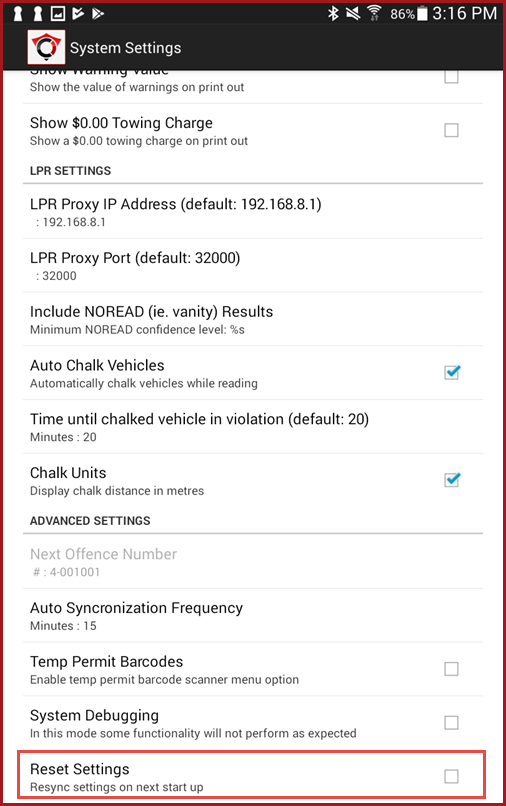
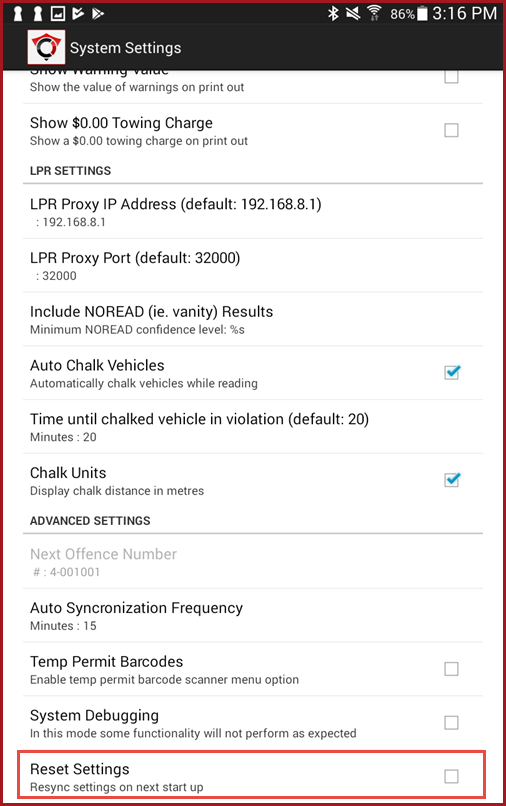
Scroll down to the bottom of the settings list and tap the Reset Settings
functioncheckbox to select it. -
Tap the device's back button and log out of the application completely.
-
Fully close the application from the Android recent apps menu.
-
Restart the tablet or handheld device.
-
Log in to the
OPSCOMOPS-COM Parking Enforcement app.SaidThesettingsystemcanwillbeautomaticallyfoundre-downloadin theall system settingsareaandofrelated data during this initial login.
Best Practices and Considerations
-
Ensure a stable network connection: Always verify your device has a strong cellular or Wi-Fi signal before logging back in. Because the
app.reset clears local data, a stable connection is required to successfully pull the fresh settings from the database and resume normal operations.
Authorized Use Only Do not perform a settings reset as a standard troubleshooting step. The reset settings function should only be performed if you have been explicitly told to do so by us.an OPS-COM Support representative.
Step-by-step guide
Log in to the OPSCOM Parking Enforcement app.ClickSystem Settings.Scroll down and checkReset Settings.Log out of the app (back, logout).Fully close the application.Restart the tablet/handheld.When you next log in to the app, it will re-download all system settings related data.