
Virtual Chalking
What
The is E-Chalking (Virtual Chalking) in OPSCOM?
Virtual chalkingChalking (or e-chalking) feature in the legacy OPS-COM Android application is an electronic process that mirrorshow an officer wouldmanuallychalkchalking a vehicle'stire, in order to see how long they have been parked.Virtual chalking creates aTime-Stampedimage, of both the license plate & the entire car, in ordertire to trackhowparkinglongdurations.they'veItsbeenprimaryparkedpurpose is to provide enforcement officers with a time-efficient way to manage time-limited parking areas and grace periods, automatically generating time-stamped photographic evidence for potential violations. This article is intended for OPS-COM administrators and field enforcement personnel using the legacy Android application.Setup and Configuration
Virtual chalking is a native feature of the enforcement application.
Admin Side: Administrators must ensure that parking lots with timed parking or permit grace periods are properly configured within the core OPS-COM administrative portal.
User Side (Enforcement Staff): Enforcement officers must have the legacy OPS-COM Android app installed, be logged into an active account, and have granted the application permission to use the device's camera.
Using this Feature
Enforcement personnel can use the handheld application to record a vehicle's presence at a specific time. Note that vehicle plates are automatically chalked when initially searched via LPR, but officers can perform a manual chalk to add contextual information and specific images.
Performing a Manual Virtual Chalk
-
Tap Search Vehicle to open the vehicle search window.
-
Enter a plate number and tap the search icon.
-
Tap and Hold the listed vehicle in the search results to access the advanced information screen.
-
Tap the Virtual Chalk button to access the chalking function.
-
Tap the image icon to open the camera and snap a picture of the vehicle.
-
Tap Save on the thumbnail view to record the chalking timestamp.
Visual Cues and Status Indicators
-
Elapsed Time Indicator: If you search for the same vehicle again later, the screen will refresh and display red text indicating exactly how many minutes ago the vehicle was last chalked.
-
Time and Date Stamp: Tapping the information box on the advanced listing screen will display a full-frame view of the captured image, complete with a visible time and date stamp located at the bottom right corner of the image.
Court-Admissible Evidence Virtual chalking provides
anphotographicimageproof thatcanisbeseamlessly attached totheaviolationviolation.andThis evidence is generally acceptable in acourt-of-law,court of law or formal appeal, provided thedate/date and time stamp is clearly visible&onclear.the image. The chalked imageisremains a permanent part of theviolation,violation unless the patrol officer manually deletes it.
Best Practices and Considerations
-
Capture contextual images for manual entries: If you enter a plate via text or voice when chalking, you must manually take a contextual image to record the
imagetime stamp. The system only captures these automatically when using LPR/OCR camera mode (which automatically grabs both a close-up of the plate and a contextual full-back image).. -
Take multiple images when issuing violations: When
LPRcapturingsoftwarethe plate a second time to issue the actual violation, take multiple images. Using both the timestamped chalk image and the time printed on the ticket allows you to definitively prove the time the vehicle was parked. There iscapturingnoplates,limitofficersto the number of images you cansimplyattach.click "Virtual Chalk"to create/save the image.
-
Why "Chalk" a Vehicle?
There are some situations whereLeverage chalking is very useful, for example:
- periods:
IfUse virtual chalking to manage grace periods fairly. For example, if a vehicle is parked and the owner isgoingwalking to a pay station to purchase a permit,therechalkingcanthebevehicle allows a fair grace periodtoforallow the clientthem to obtainthe permit and return to the vehicle to display the permit.Alternately, in areas where parking is provided on a timed basis where a vehicle can park free for 2 hours, the officer can virtually chalk the vehicle on a first pass earlier in the day and then be able to check the vehicle later in the day to determine ifithas been parked longer than the permitted time frame.
Chalking vehicles manually is time consuming, so being able to virtually-chalk vehicles makes a time-efficient solution for a necessary aspect of parking management.
Chalk records stored with a violation help when dealing with Appeals as a time-stamped image is available as "proof" of the infraction.
How to "Chalk" a Vehicle on the Handhelds
Vehicle plates are auto-chalked when searched. However, you can perform a manual chalk to add additional information—see below:
On the OperationsCommander for Android application, tap theSearch Vehiclemenu item to open theVehicle Searchwindow.Enter aPlate Numberand tap thesearchicon. In this case, we are searching for AAWXY410.
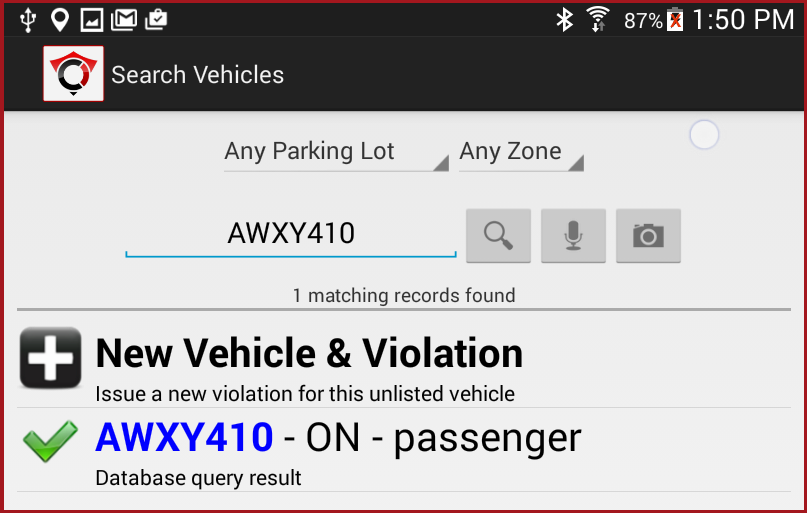
The screen will refresh with a list of valid vehicles. Long press the listed vehicle to access the advanced information screen.

Note theVirtual Chalkbutton. TapVirtual Chalkto access the chalking function and information screen.
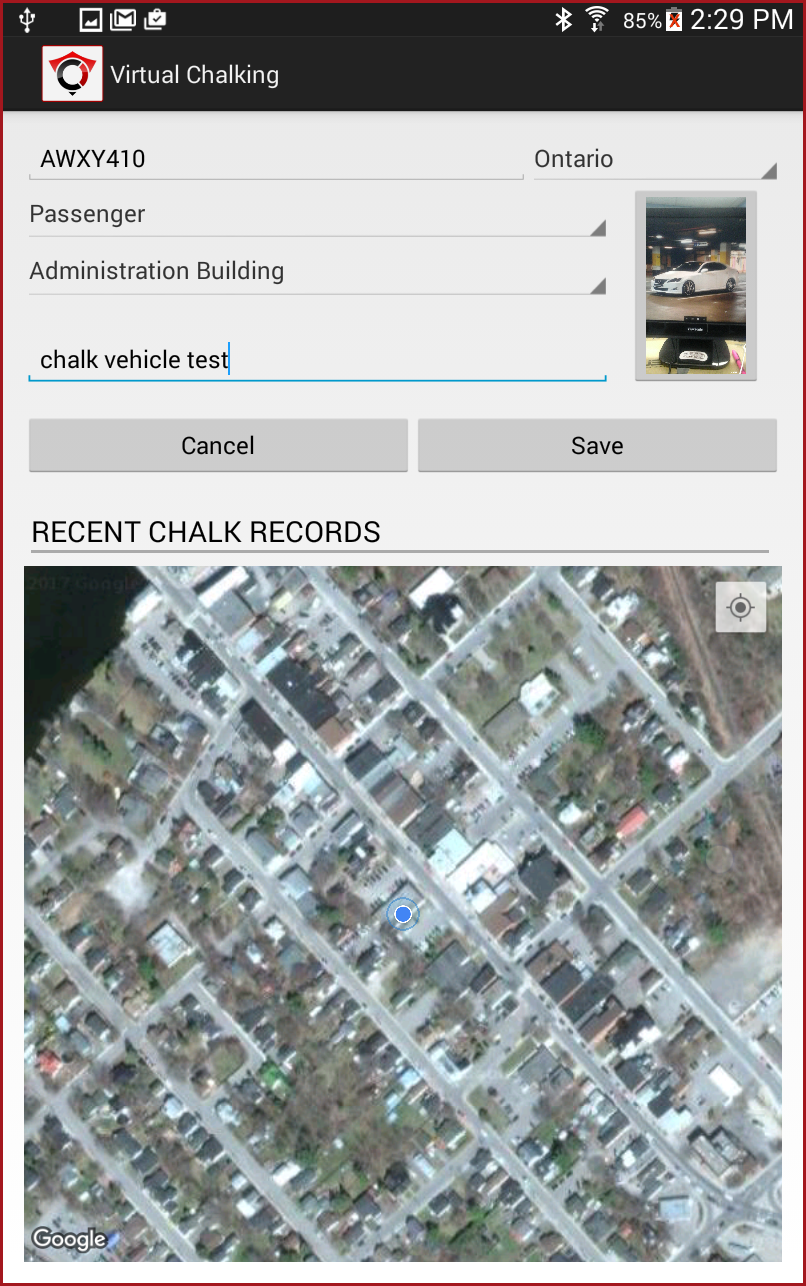
To capture an image, tap on theimage iconto enter camera mode. Snap an image. The screen refreshes with the image of the vehicle in a thumbnail view. TapSaveto save the chalking timestamp.Allow 10 minutes to pass and compare the chalking captures. Repeat steps 1 through 3 above. The screen will refresh, and we can see in the red text, a note indicating the vehicle was chalked 10 minutes ago.
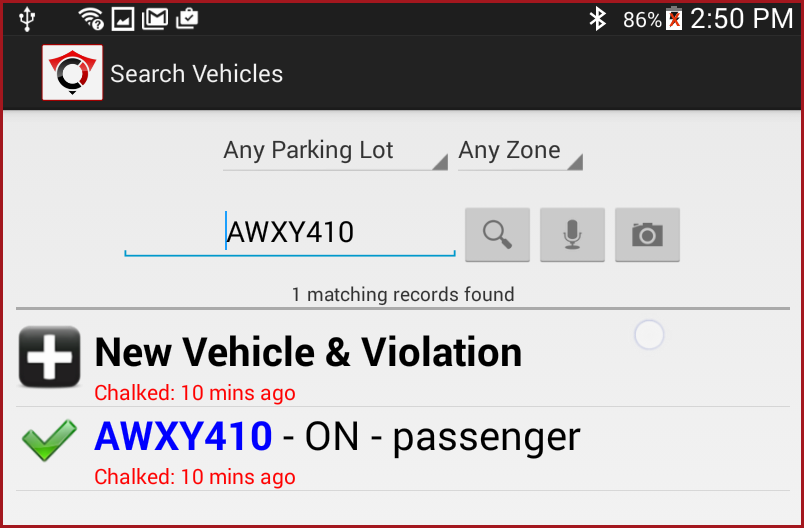
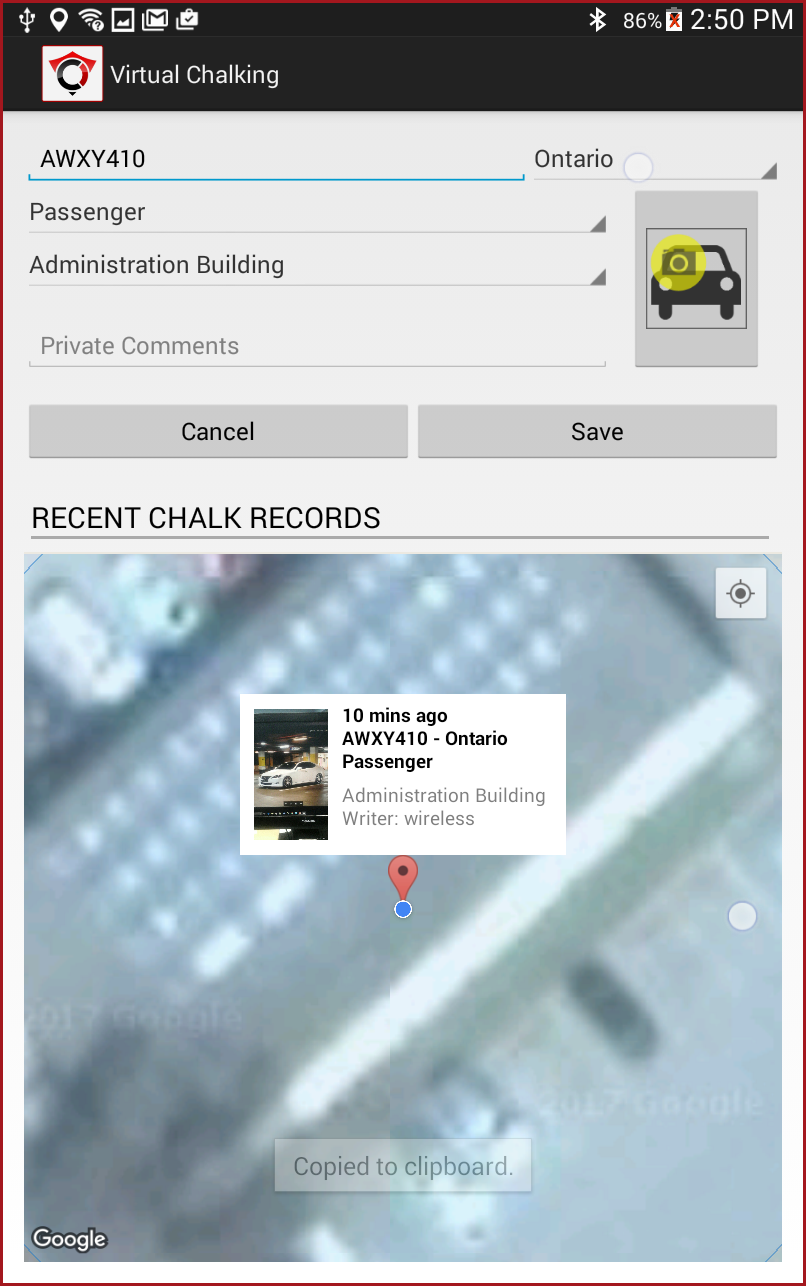
Long tap on the listing to bring up the advanced information again.
Note: If you tap the information box, you will see a full frame view of the image captured.
Verifying the vehicle chalking in the event of a dispute/appeal?
The question has come up often, as to what proof we'd be able to show for when a virtual chalking has occurred. The first important rule when chalking is to be sure to capture an image. If you read the plate using the camera LPR/OCR capture, the image will automatically attach the the chalking record with a date stamp in place. Ifbefore a violation is subsequently written upissued on thea vehicle,subsequent thispatrol chalking image will also be saved with the violation information. pass.
If
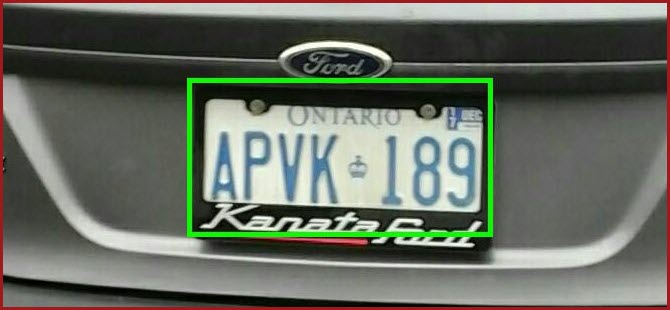
Here is a sample of the plate read image:
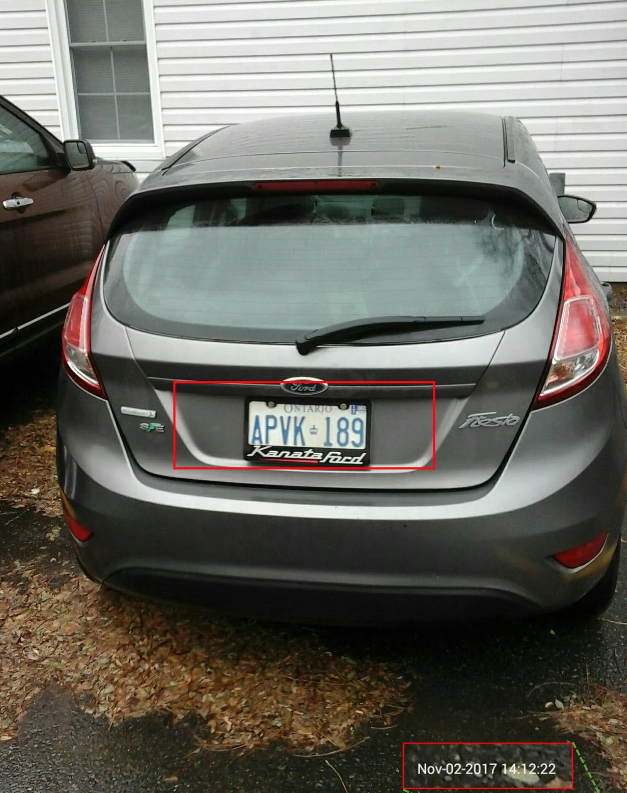
Along with that cropped image taken when performing a virtual chalk, the handheld unit will store a full frame image, with the date stamp at the bottom right of the image.
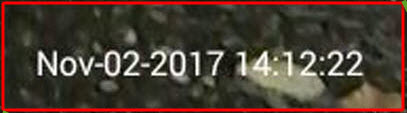
Here's a close up of the Time and Date stamp:
NOTE:
Chalking can be done in a couple of ways. If you are photographing the plate to read it through character recognition the system automatically captures a close up image of the plate as well as a contextual image of the full back of the vehicle. Both are time stamped.
If you enter in a plate via text or voice when chalking you will want to take a contextual image so that you record the time stamp.
The same is true when you actually capture the plate a second time and then issue a violation. It's advisable to take a couple images at least, plus you have the time on the ticket that the violation was written so using both methods (timestamp and time on printed ticket) you can calculate the time the vehicle was parked. There is no limit as to how many images you can take.