
Active Permits Report
The Active Permits Report provides administrators with a comprehensive overview of all currently valid parking permits within the system. This report is essential for auditing permit distribution, verifying active revenue streams, and monitoring permit lifecycle statuses.
NavigatingSetup & Configuration
There are no specific configuration steps required to enable this report, as it is a core system feature. However, administrators should ensure that User Types and Allocation Types (lots) are correctly defined in the Lot Administration and User Management sections to ensure the filtering options return accurate data.
Using this Feature
Accessing the Report
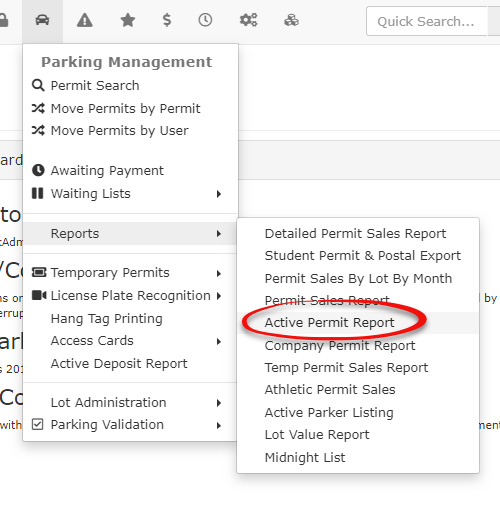
In Parking Management, hoverHover over the Permit Management icon and, click Reports, and then click Active Permit Report.
Searching
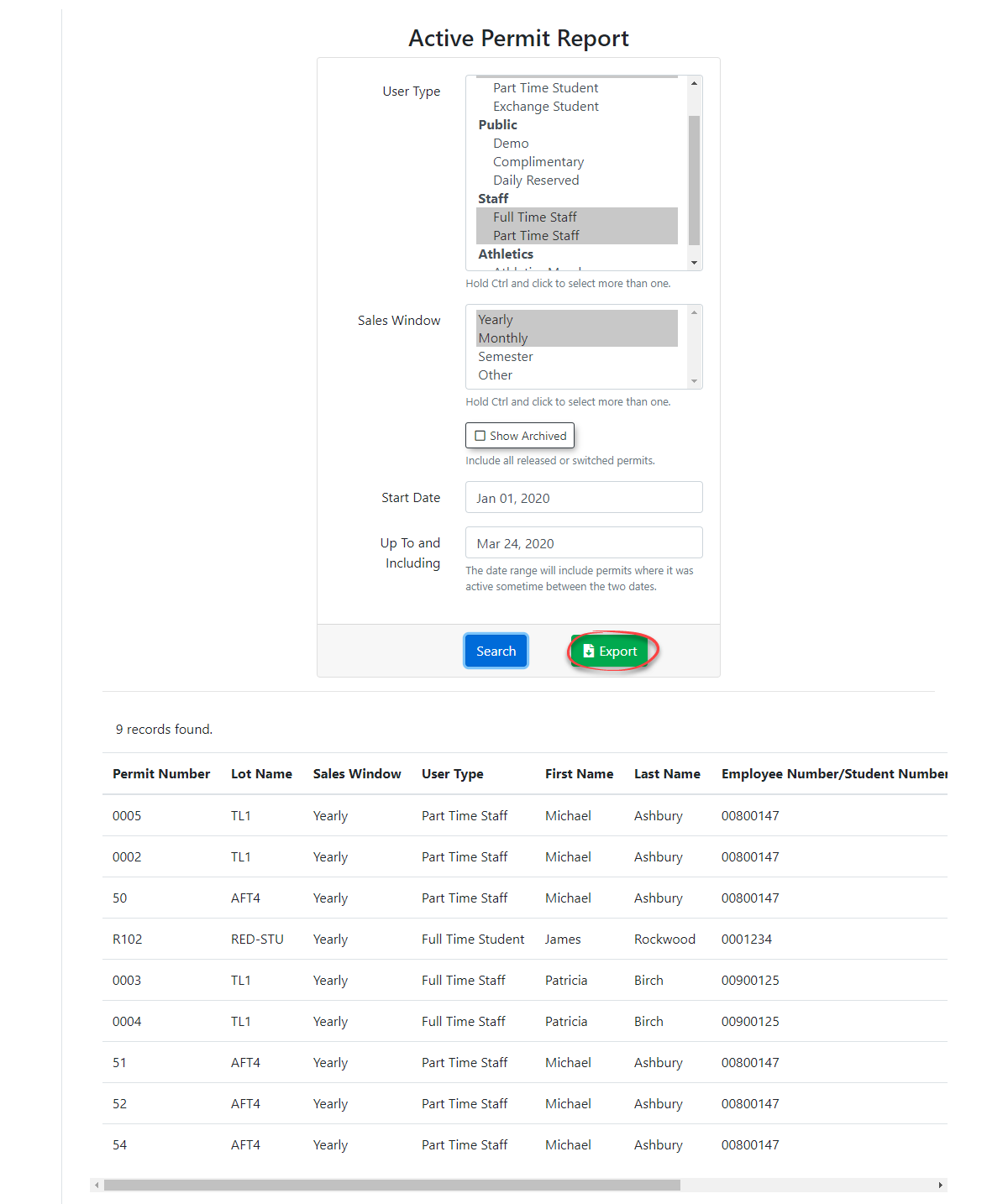
The Active Permit Report screen willallows display.you to narrow down results based on specific criteria:
Searching
the Report
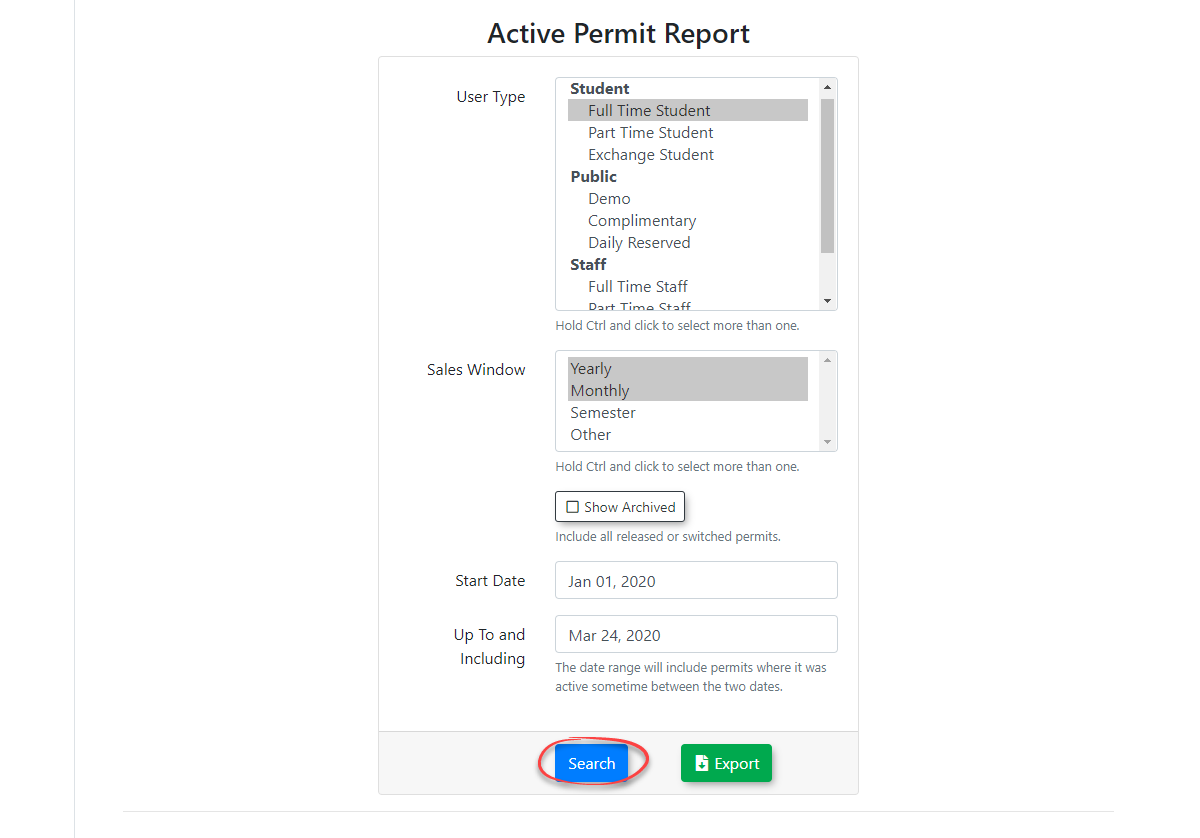
Select the user type(s) and allocation type(s) you want to include in the report. Hold Ctrl and click toTo select moremultiple thanitems onesimultaneously, itemhold atthe aCtrl time.key while clicking the desired options.
Enable the Show Archived checkbox if you wantwish to show archivedinclude sales (thisthat includesare allno longer active, such as permits that have been released or switchedswitched.
Choose a Start Date and End Date to define the starttimeframe datefor andthe endpermit daterecords.
Click the Search button.button Theto generate the results.
Key Information Displayed
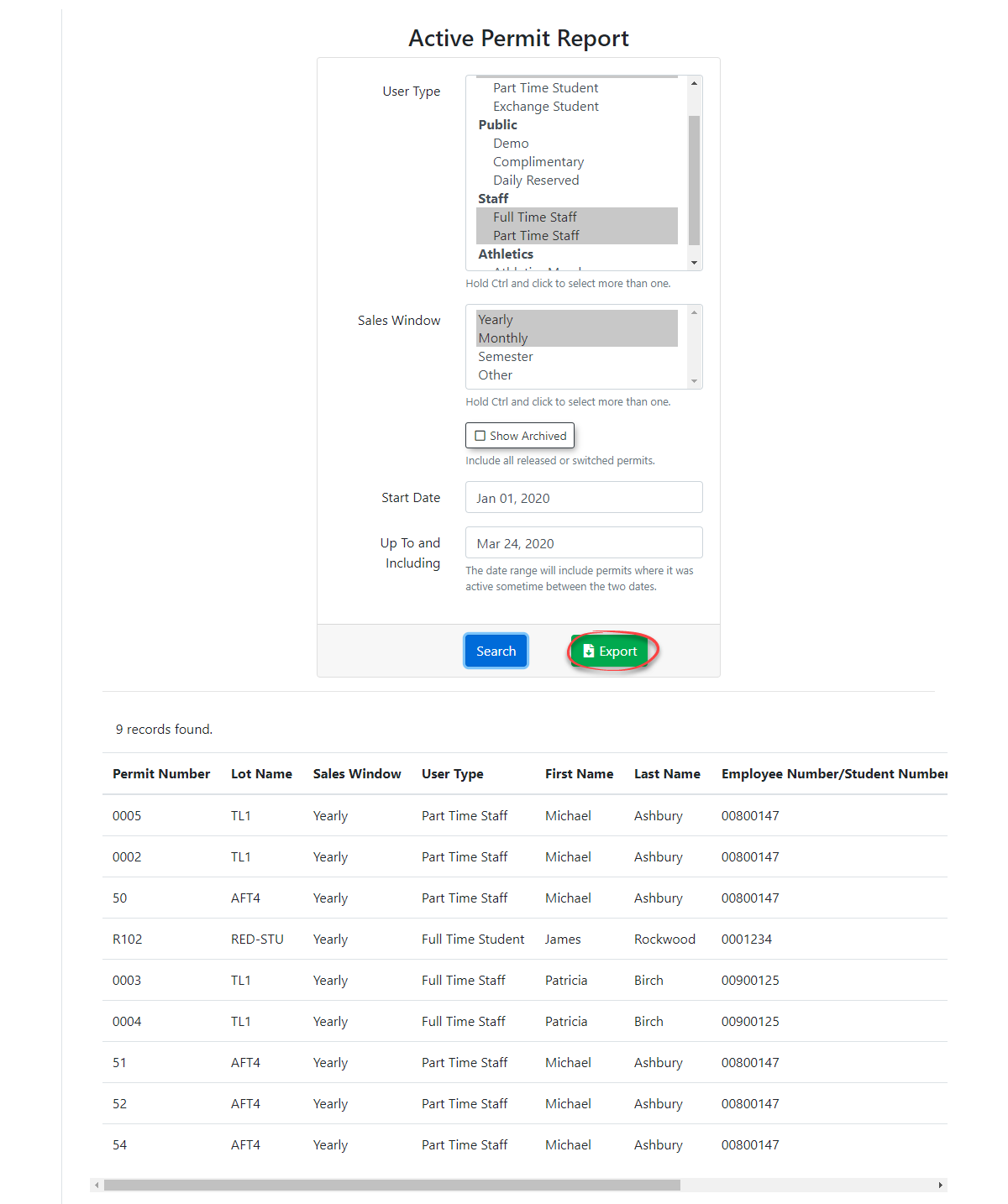
Once the search is executed, the report willpopulates displaya undertable below the search criteria. Key data points typically include:
-
User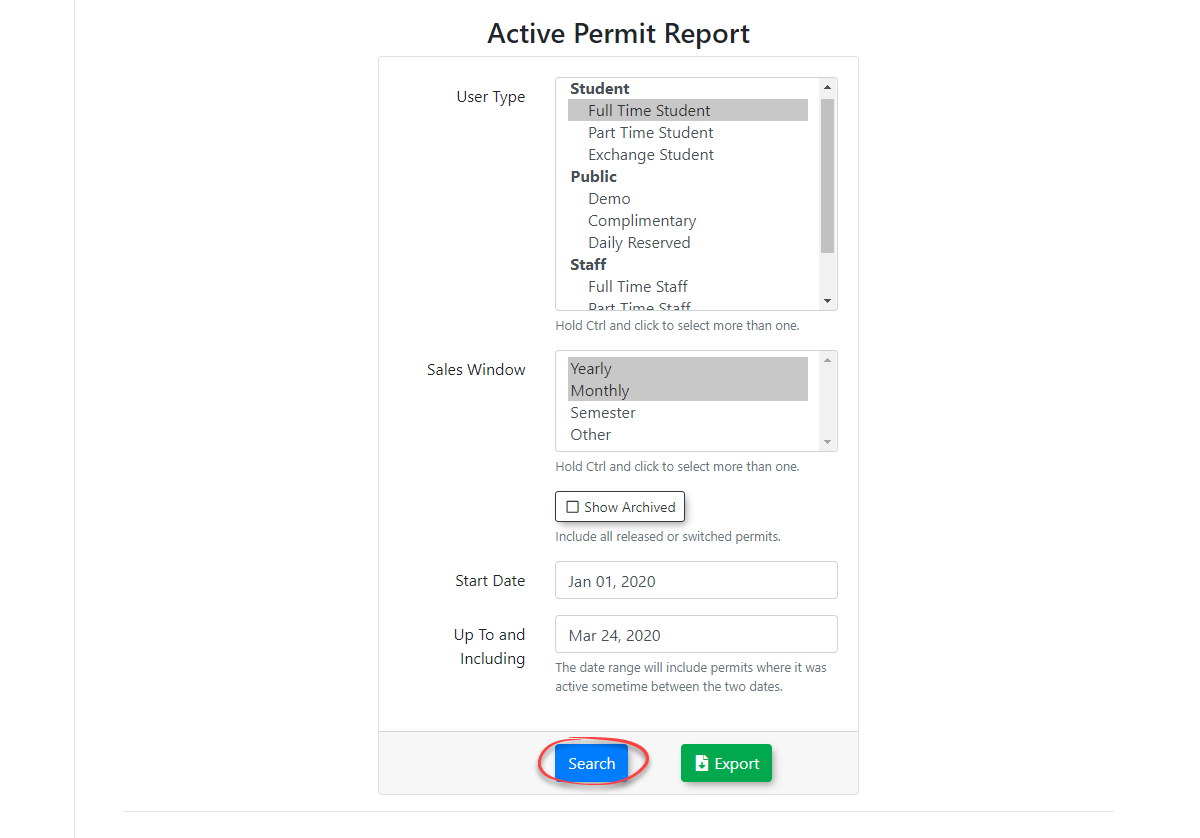
: Identification of theExportingName and IDDetailspermitintoholder.Excel -
SimplyPermitclickNumber: The unique identifier for the specific permit. -
Lot/Allocation: The specific area where the permit is valid.
-
Effective and Expiry Dates: The duration of the permit's validity.
-
Status: Indicates if the permit is currently active or archived.
Exporting Results
To perform further data analysis or share the report with stakeholders:
-
Click the Export button to
exportdownload the displayed report details into anexcelExcel (.xls) file.
Best Practices & Considerations
-
-
Date Range Precision: When running reports for specific billing cycles, ensure your Start Date and End Date align exactly with your organization's fiscal or academic terms to avoid counting overlapping permits.
-
Multi-Select Efficiency: Use the Ctrl + Click method to run reports across multiple lots at once, which is useful for comparing the density of active permits between different campus zones.
The Active Permits Report reflects real-time data. If a permit is cancelled or expires during the business day, it will immediately move from the active list to the archived list.