
Adjusting a violation to zero dollars
Adjusting
This thearticle outlines how OPS-COM administrators can adjust a violation fine amountto byzero editingdollars, theconvert ticket:
To adjust the fine amount on thea ticketgoto a warning, or process a financial adjustment for a paid citation. These tools allow administrators to correct billing errors, grant leniency, or override existing citations directly from a user's profile.Setup and Configuration
Adjusting a violation is a core administrative function that requires no special system setup or configuration. All adjustments and edits are performed directly from the user's profile
and locatewithin the administrative portal.Using this Feature
There are multiple ways to adjust a fine to zero dollars. The method you choose depends on whether the ticket has already been paid and whether you want to maintain the ticket as an active offense or convert it to a warning.
Editing the Ticket Fine Amount
Use this method to reduce the fine to zero before the ticket is paid, while keeping it registered as an active violation.
-
Locate the specific violation you wish to
reduce.
reduce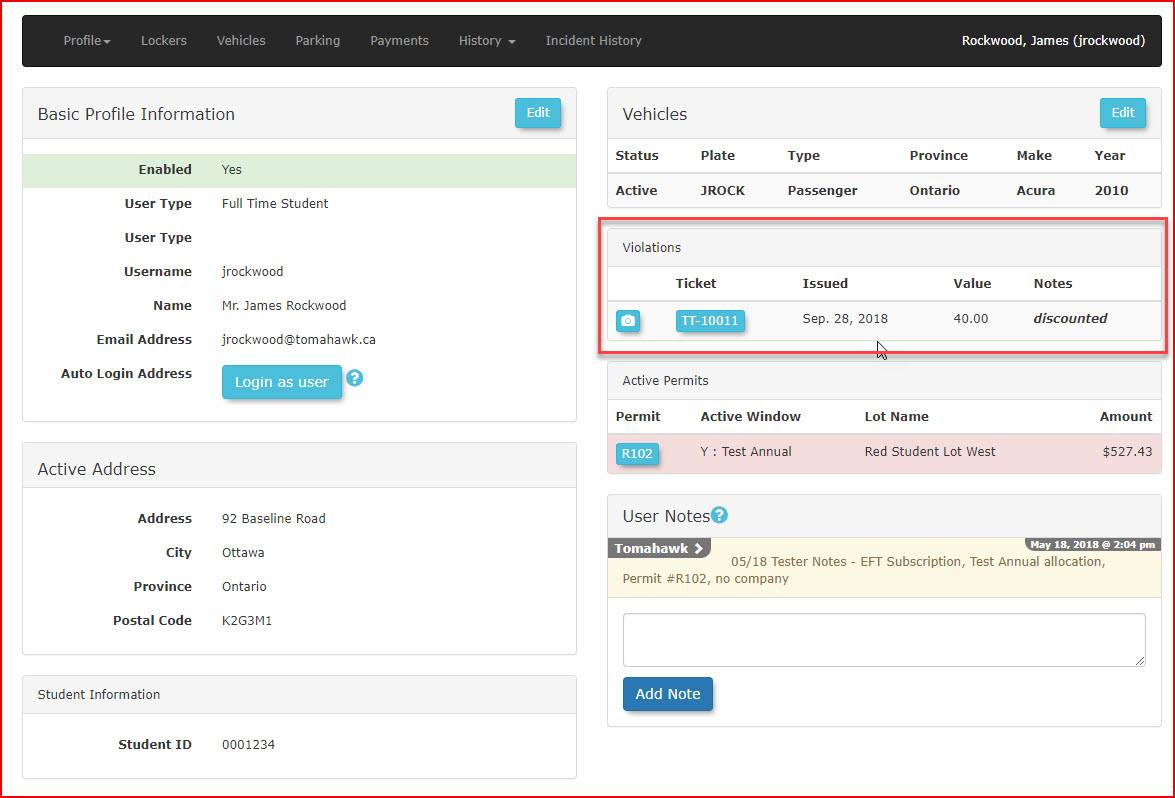
-
Click
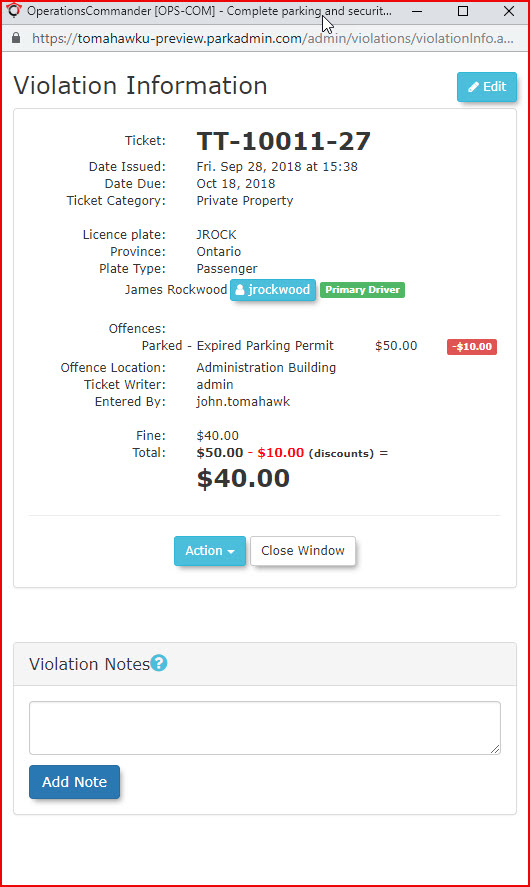
onthe specific ticket number to access the Violation Information detail screen.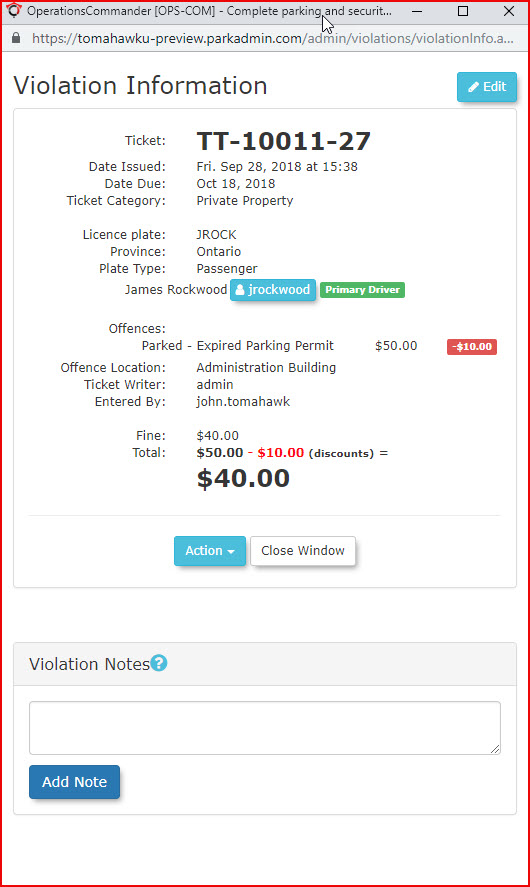
-
Click
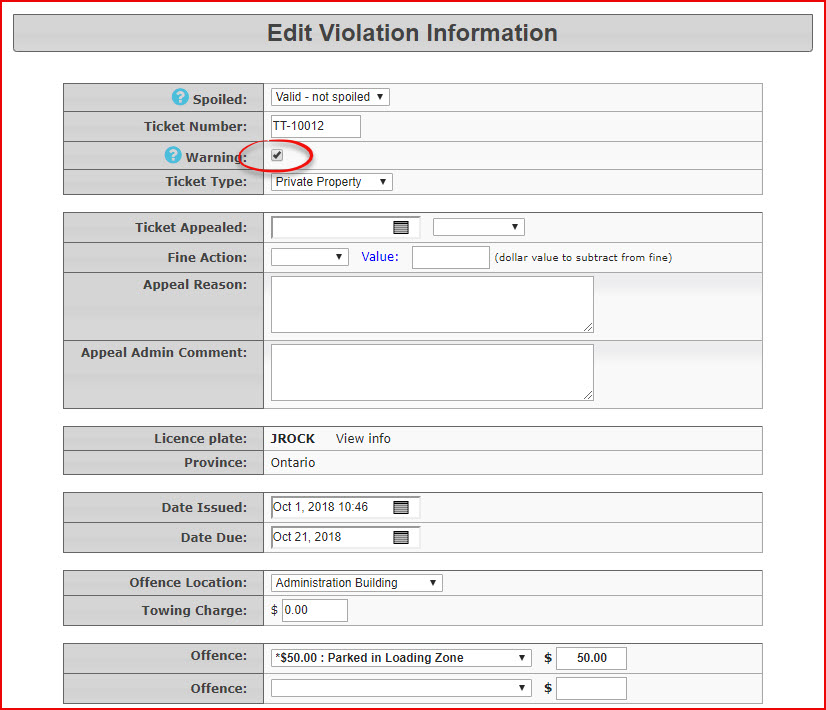
onthe Edit button in the upper right corner toaccessopen the Edit Violation Information page.Halfway -
Scroll down
the page you will seeto theoffencelistedasoffensewellandas the amount of the violation.Editchange the dollar value of the fine to00.00. -
Click
onUpdate this Violation to save your changes.
The violation will now appear in the user profile as a zero dollar fine.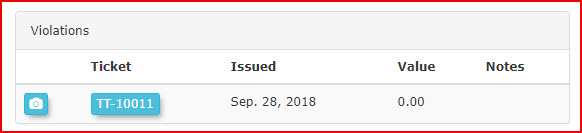
CancellingChanging the Ticket to a Warning
Use this method to cancel the fine completely by changing the state of the ticket to a
warning:An admin can change a ticket to a warning which will result in cancelling the fine amount.warning.TodoLocate
sotheeditspecific violation within the user's profile and click the ticketasnumber.described above.CheckClick the
boxEditnextbuttontoin thewordupper right corner.-
Enable the Warning checkbox to change the state of the ticket.
-
Click
onUpdate this Violation to save your changes.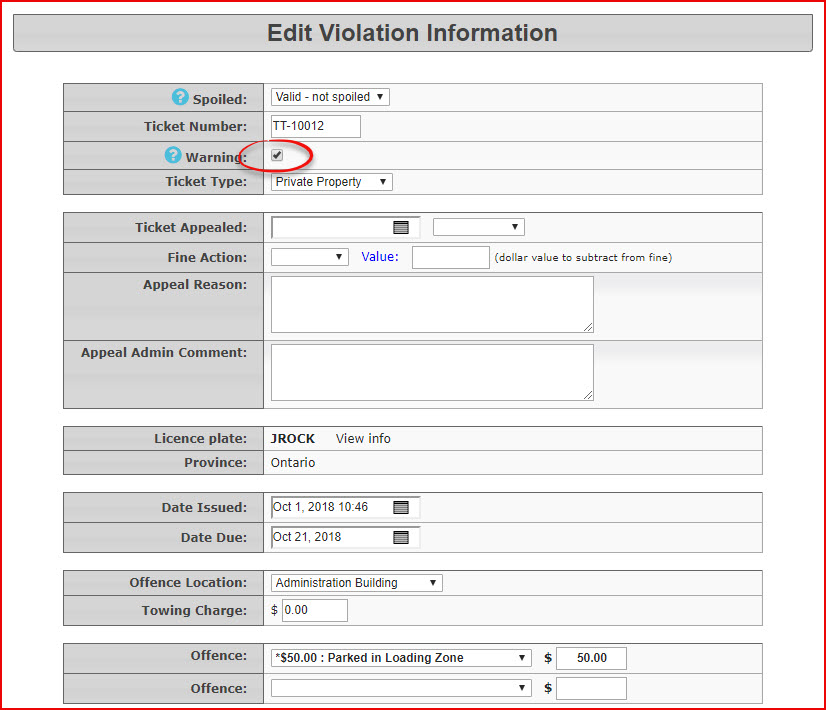
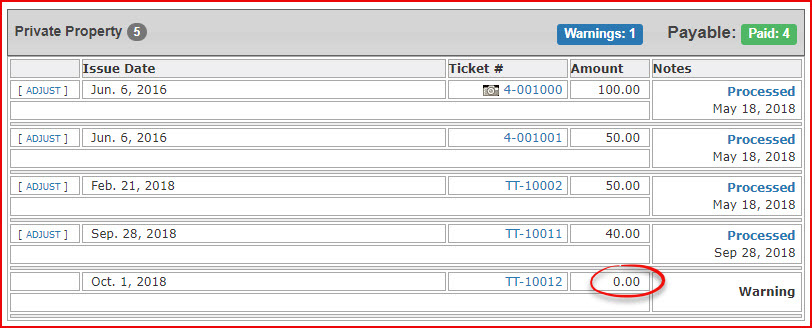
The ticket will appear as follows in the user history. (Captured here from the admin side.)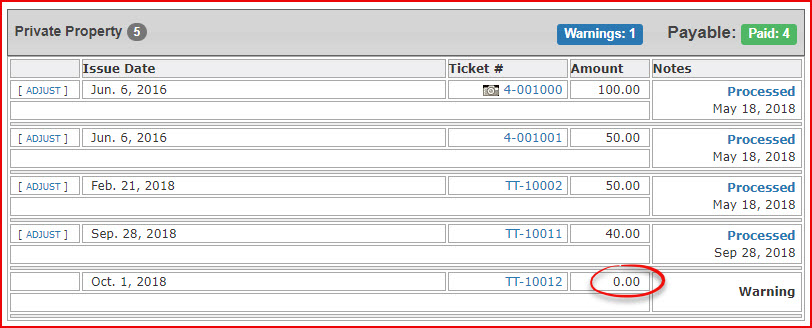
This is how it would appear on the user side:
AdjustmentAdjusting the fine amount by processingProcessing an
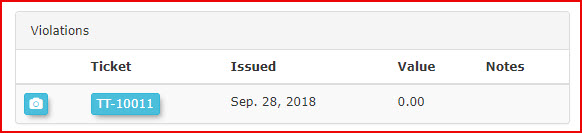
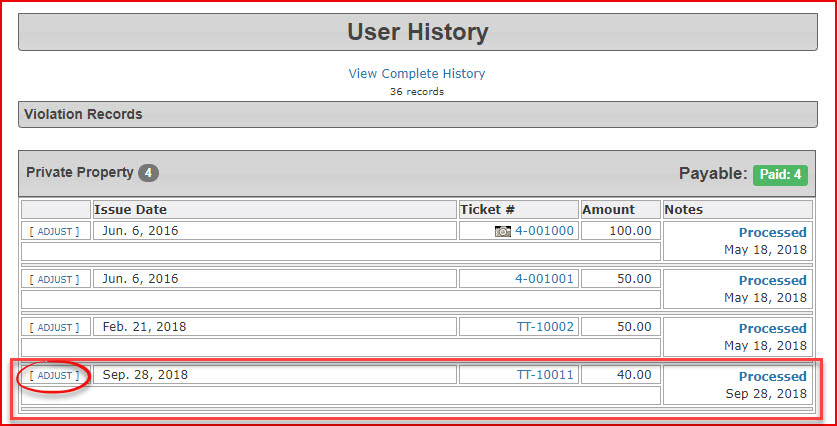
adjustment:This scenario is slightly different as adjustmentsAdjustments to fines aredoneperformed after the initial fine has already beenpaid for.paid.Tobegin, goNavigate to the user's history and locate the paid violation you wish to zero out.
Inour-
we are using Ticket numberTT-10011.Click
onthe Adjust link on theleft.
left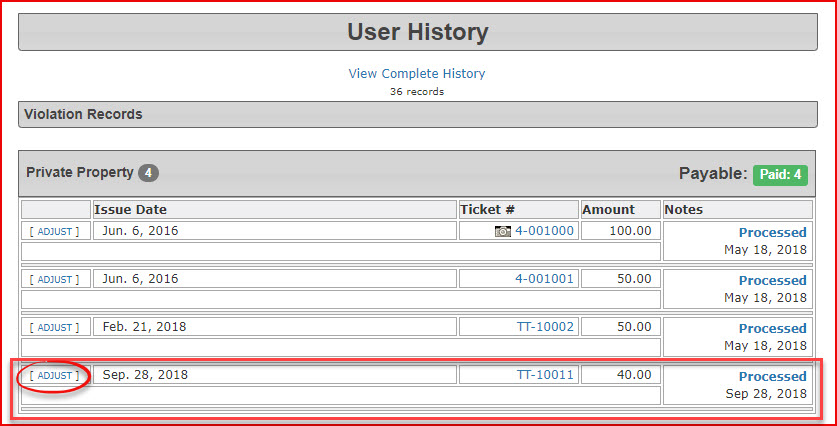
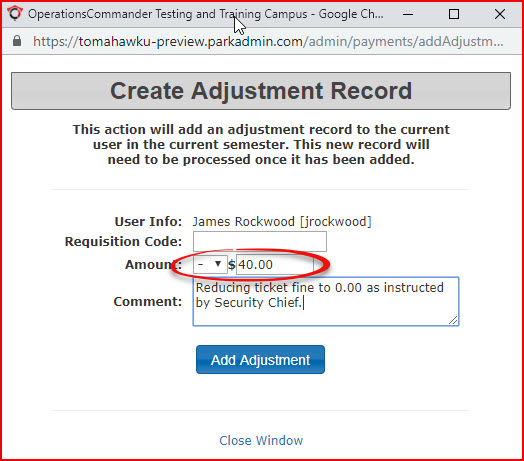
TheCreate Adjustment Recordwindow will open.Enter the specific amount you wish to reduce the fine
by.byIn this casein thecurrentCreatefineAdjustmentisRecord$40.00window.(For example, if theviolationuserhadpaid afinediscounted rate of $40.00 for a $50.00,00butticket,wasenterpaid40.00.within-
Enter a detailed reason for the
widowreductionwherein thediscountcommentsoffield.$10.00 -
isSave
advisablethe adjustment toenterapplyathecomment ascredit towhythefineuser'sisaccount.being
exampleapplied)Itreduced.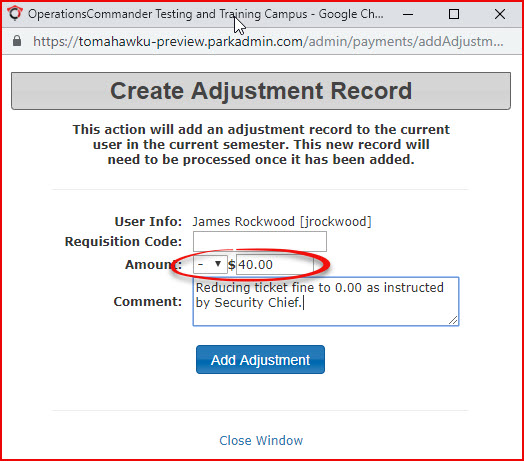
-
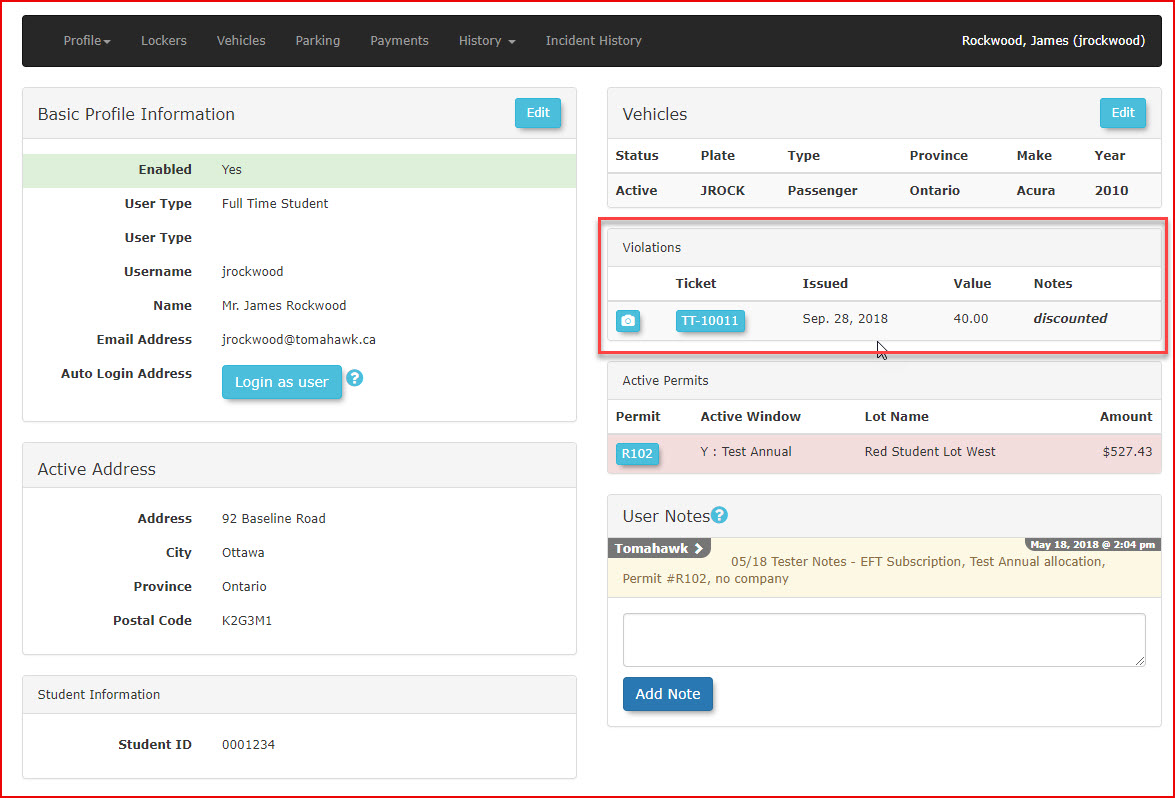
This method will placeProcessing an adjustment creates a credit on the user'saccount. This is what it will look likeaccount in thepaymentsPayments tab.
This adjustment balance can be applied to a future payment orbeprocessedprocessedfully as a system refund.



Adjusting theThrough fine through the appeals process
Appeals
A fine can also be adjusted or reduced to zero through the formal appeals process, which allows users to contest the citation before an administrator makes a final ruling.
Best Practices and Considerations
-
Document all changes: Always include a detailed comment when processing an adjustment or editing a ticket amount. This ensures transparency and maintains an accurate financial audit trail for future review.
-
Establish organizational policies: Organizations should establish clear business rules defining when it is appropriate to issue a warning versus when a user must go through the formal appeals process.
-
Understand post-payment workflows: Remember that adjusting a paid ticket does not automatically return funds to the user's credit card or bank account. The adjustment sits as a credit on the user's account until an administrator actively processes a refund.