
Adjustments
Making
The Transaction Adjustments feature allows OPS-COM administrators to modify the financial balance of an Adjustmentexisting astransaction by adding a charge or applying a partial reimbursement. Its primary purpose is to correct payment discrepancies or issue partial credits without canceling the entire transaction. This guide is intended for OPS-COM administrators responsible for financial processing and user account management.
Setup and Configuration
Making a transaction adjustment is a core administrative function that requires no additional system setup. It is accessed entirely through the individual user's profile within the administrative portal.
Using this Feature
Administrators can initiate an Adminadjustment directly from the transaction record. Adjustments can be made before a transaction is completed or after the payment has been processed.
Step-by-Step Instructions
-
1.VerifyNoteyouthatare working in the correct user profile by checking the name displayed in the top right-hand cornerwill always identify the nameof theuser file that is being worked in.screen.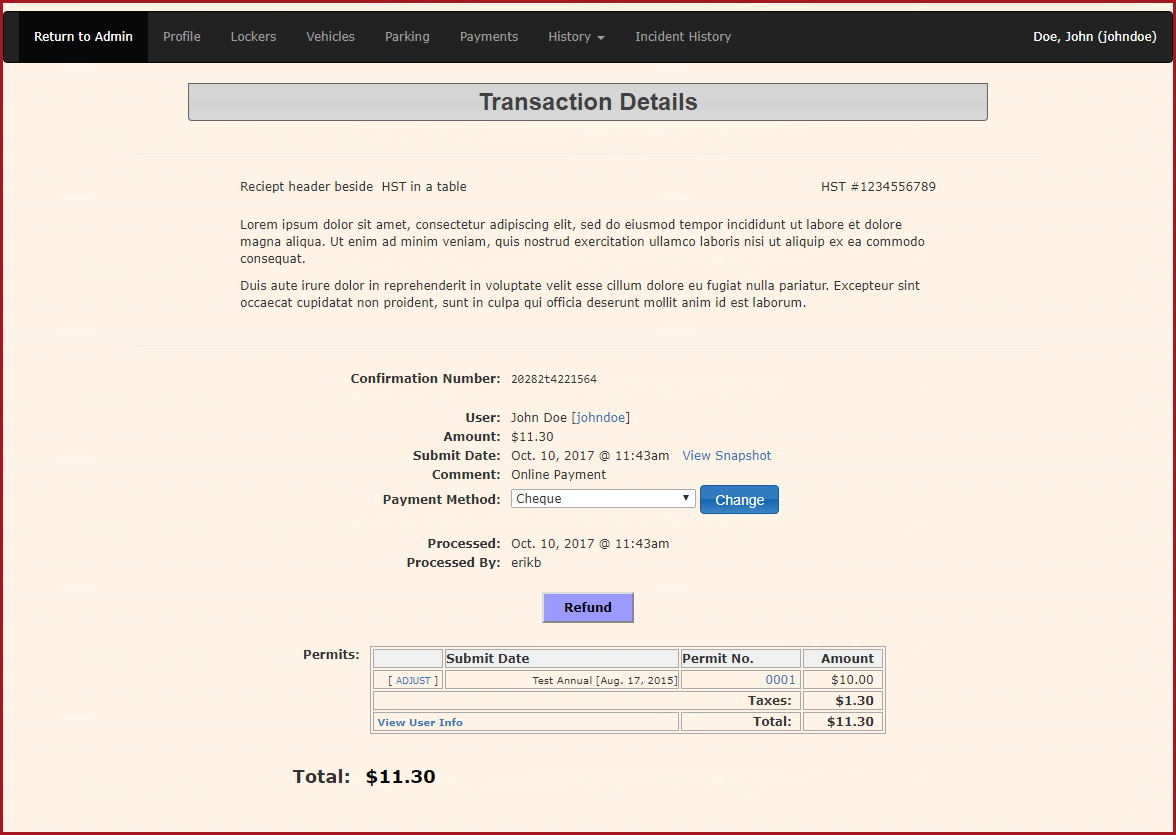
-
2. For this example, when finished going through the payment process, onOpen the Transaction Detailsscreen,screenselectfor the specific item you need to modify. -
Click the Adjust
link.(Notelink located on theprocesstransactionisrecordthetosame if you selectopen the adjustmentlink before a transaction is completed.)window. -
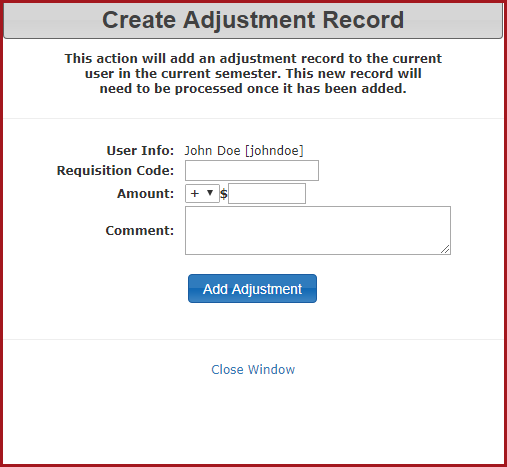
This will bring up theCreate Adjustment Recordpop-up screen.Enterin theyour internalorganizationorganization's Requisition Code,changein the associated field, if applicable. -
Set the amount sign to positive
iftoyou are chargingcharge the usermorean additional amount, or change the amount sign to a negativeiftoyouapplyareareimbursingreimbursement. -
Enter the
user, enter thespecific dollar amount of theadjustment,adjustment.enter -
Enter a detailed explanation in the comments field to
be associated withdocument theadjustmentreasonandforselectthe financial change. -
Click the Add Adjustment button at the bottom of the screen.
ThisYou willbringbeyou backreturned to the Payment Detailsscreenscreen,withand the new adjustment will be listed below the original transaction.Note, at this point, the adjustment is not processed.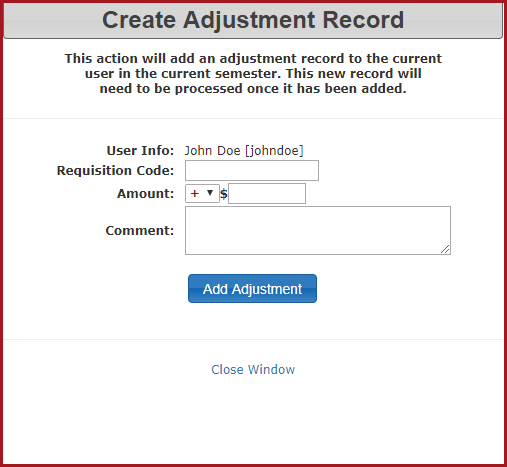
-
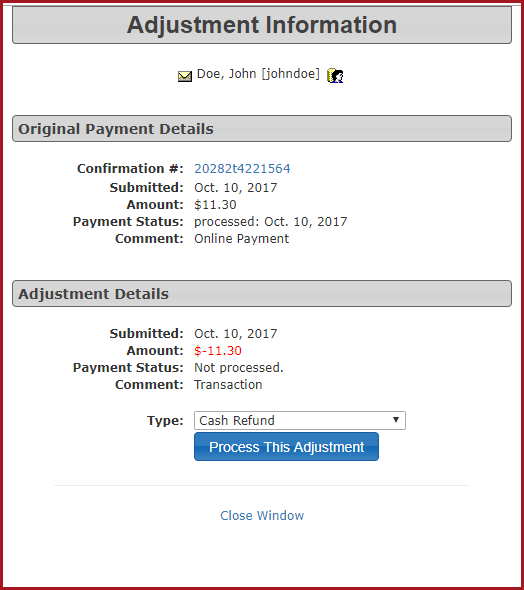
3. SelectClick the Not processedlink.linkThisnextwill bring upto theAdjustmentnewInformationentrypop-uptoscreen where you verifyopen the adjustment verification window. -
Verify that all adjustment details and amounts are correct.
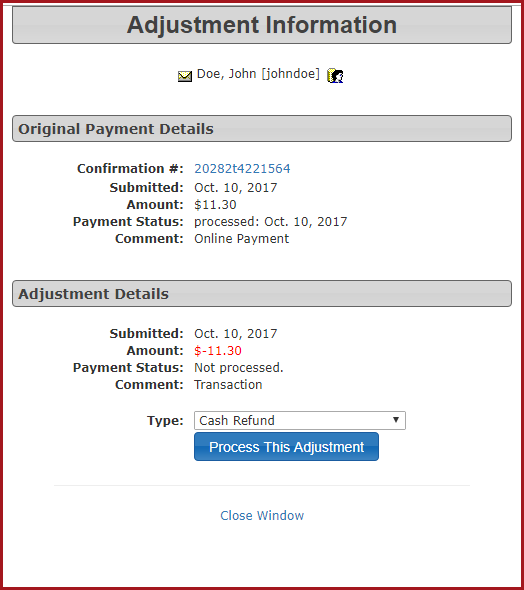
-
4. If the adjustment details are correct, selectClick the Process this Adjustment button at the bottom of thescreen.screenYoutowill noticefinalize the change.
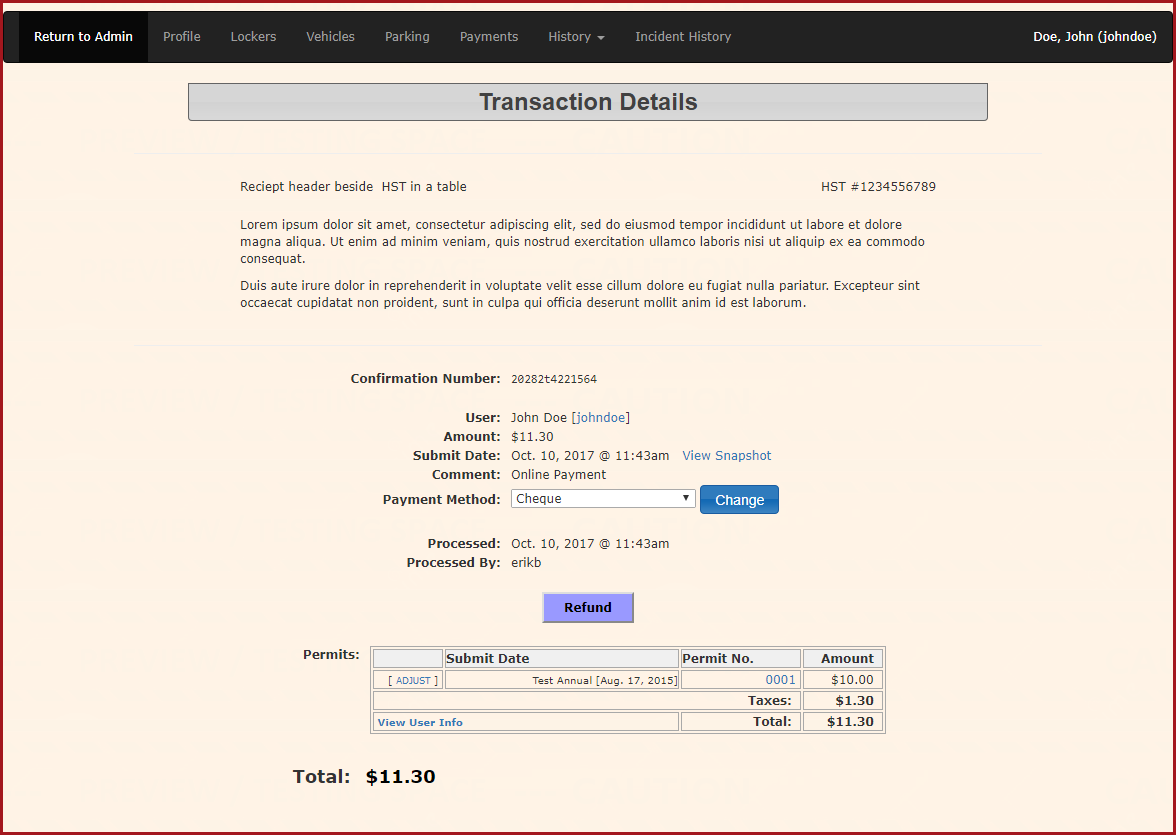
The adjustment process does not release items back into the system inventory. If an item (such as a permit or locker) needs to be released and made available for another user to purchase, it must be done separately using the system's refund or release functionality.
Visual Cues and Status Indicators
-
Payment
StatusStatus: Once the adjustment is processed, the status line willchangeautomatically update from NotProcessedprocessed to Submitted,andaccompaniedthebydate.a date stamp. Thiscompletesindicates the adjustmentprocess,hasalteringsuccessfully altered the dollar amount associated with the item.Note,
Best Practices and Considerations
-
Always provide detailed comments when creating an adjustment record. A clear justification is critical for maintaining an accurate and transparent financial audit trail for future reviews.
-
Organizations should establish clear guidelines on when to use an adjustment versus a full refund. Adjustments are
releasedidealbackforintopartialthecredits,inventorywhereassystemfullusingrefundstheareadjustmentnecessaryprocess.whenIfreversing anitementireneeds to be released back into the inventory, this will need to be done separately.transaction.Adjusting