
Admin Portal Cash, Cheque or Debit Payment
Purchasing
The Admin Portal Manual Permit Payments feature allows administrators to process in-person, offline transactions—such as cash, cheque, money order, or debit card—when assigning a Permitparking permit to a user. Its primary purpose is to facilitate front-desk permit sales while ensuring these off-gateway payments are securely and accurately logged within the system's financial records. This article is intended for OPS-COM administrators.
Setup and Configuration
ToThere beginis let'sno havespecific system configuration required to use this feature, provided your manual payment types and permit inventory are already established. Processing a lookmanual payment is a standard administrative action available to users with the appropriate user management and payment processing permissions enabled on their account profile.
If you need to add or edit the manual payment methods available at purchasingyour front desk, instructions can be found on the Managing Payment Types page.
Using this Feature
Administrators can navigate the assignment and checkout process for a manual permit forpurchase in just a few steps.
-
Navigate to the specific user's dashboard on the admin portal.
Select -
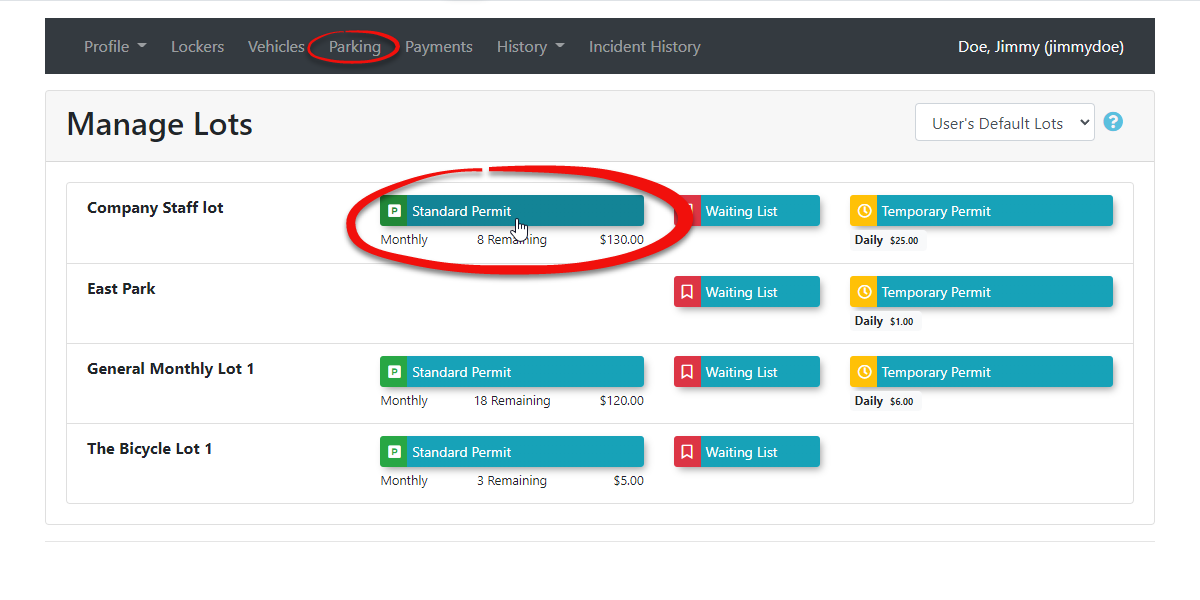
Click the Parking
Tabtab andtheclick the Standard Permit button to access the permit purchase screen.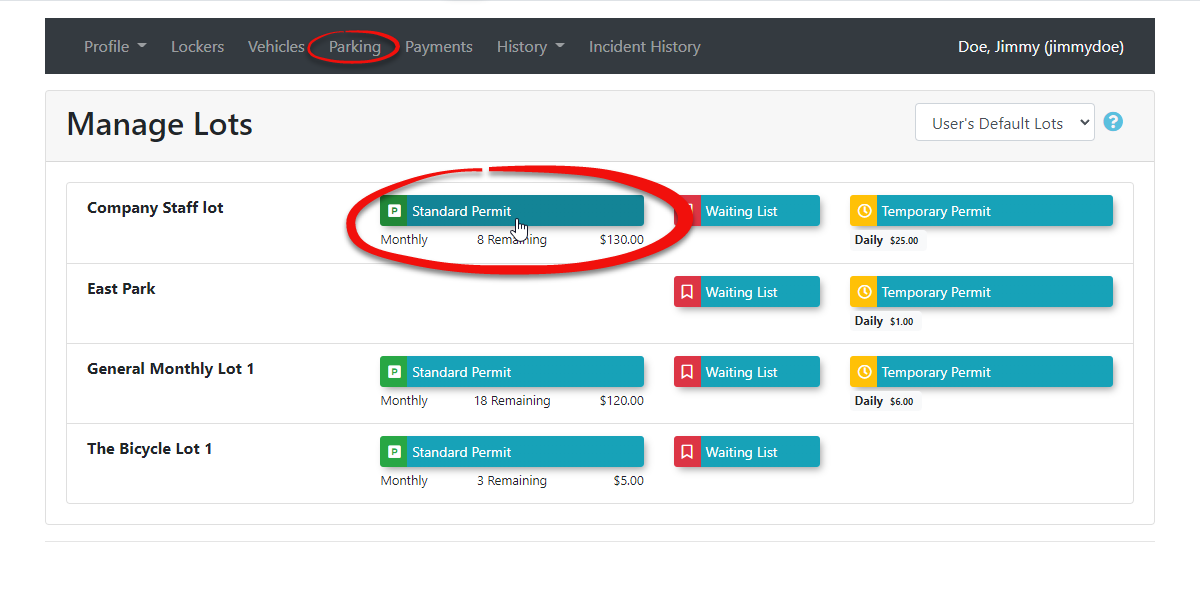
-
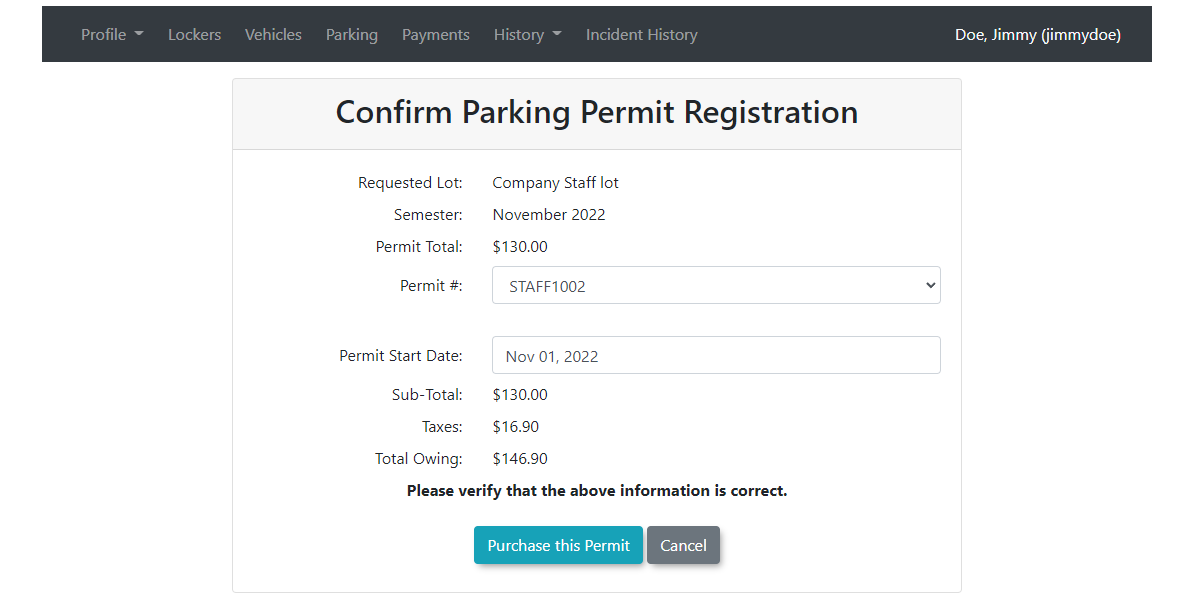
TheChooseConfirm Parking Permit Registrationpage appears. An admin can simply useeither the next permit available or select a specific permit to assign to theuser.Theusercost ofon thepermitConfirmwillParkingshowPermitinRegistrationthispage.interface. -
Click
onthe Purchase this Permit button to proceed.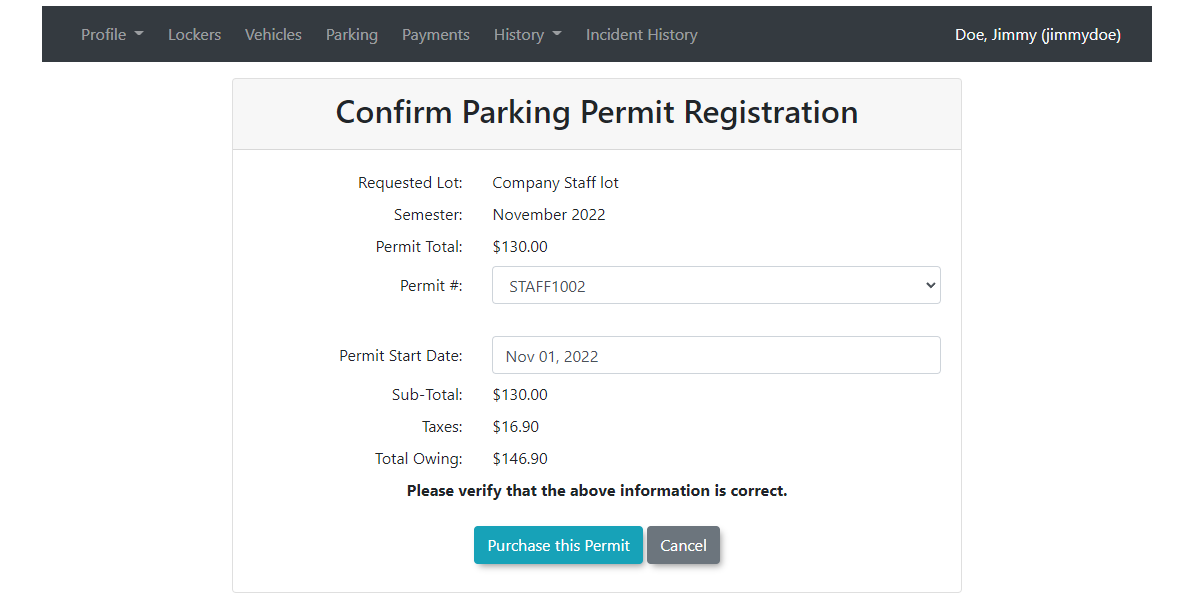
-
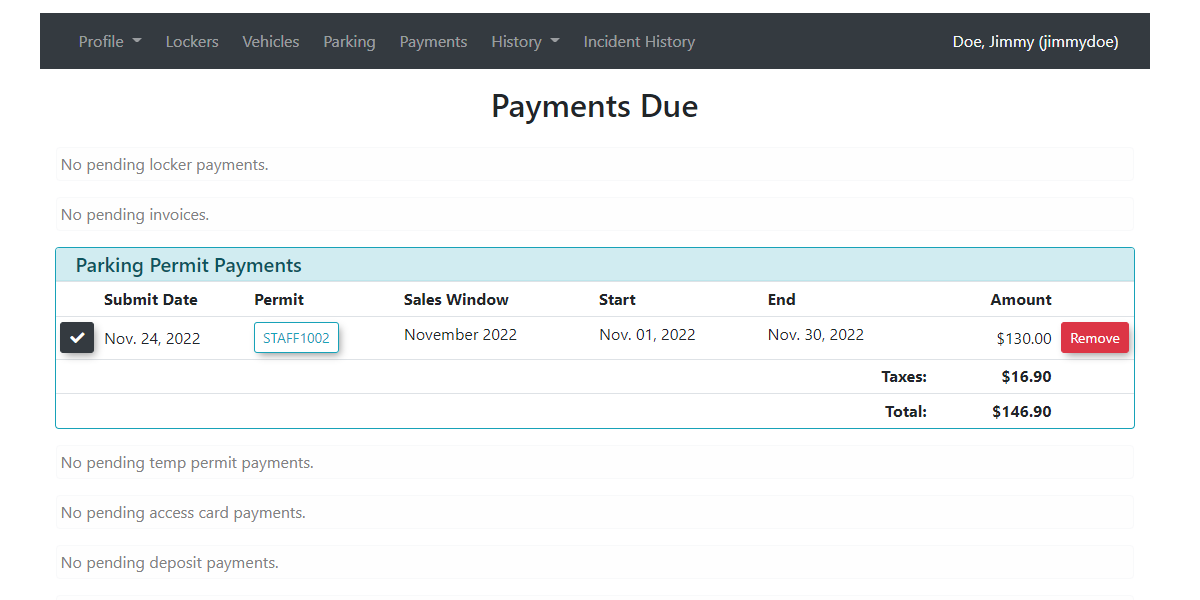
This will then take you toSelect theConfirmdesiredParking Permit Registrationpage.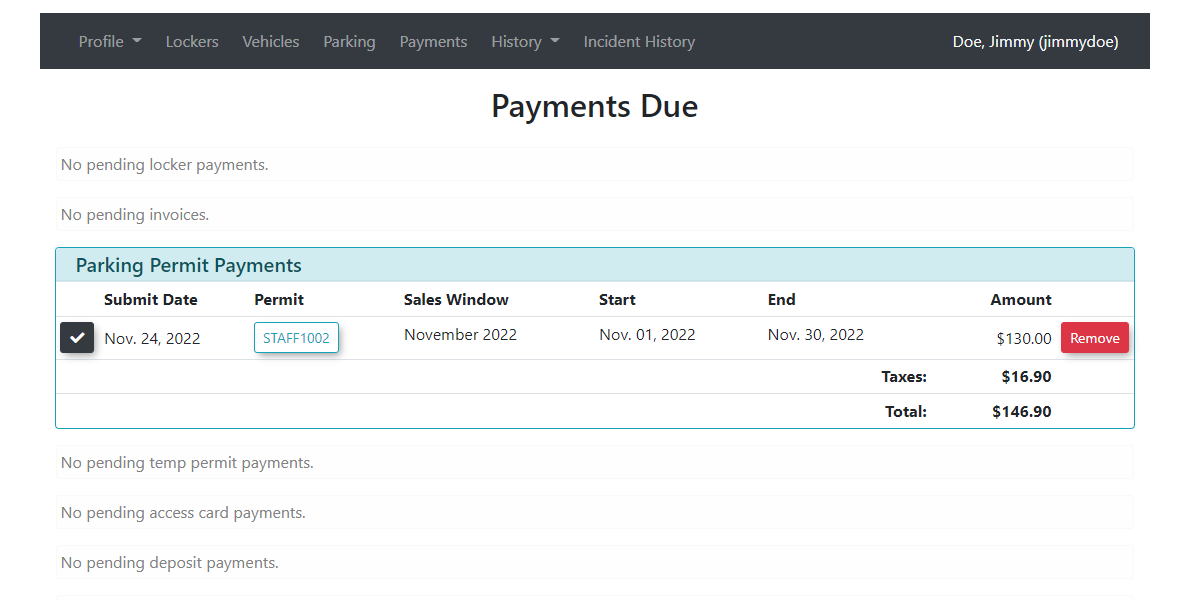
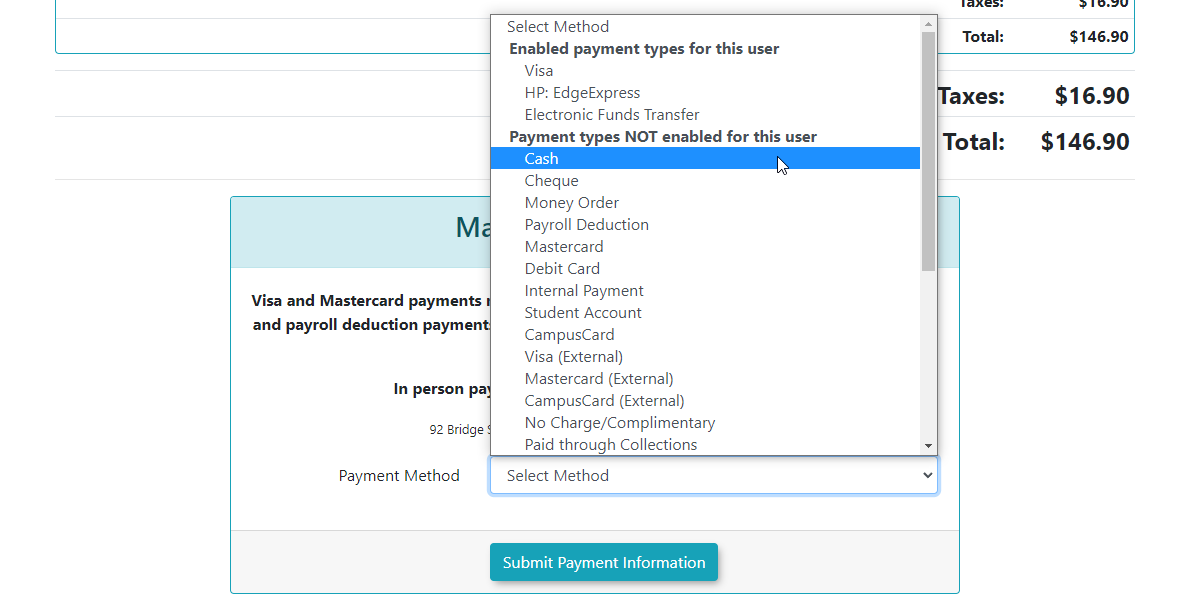
If everything looks good as far as what you expect the payment to be you may then select themanual payment typeyou(e.g.,wishCash,to use.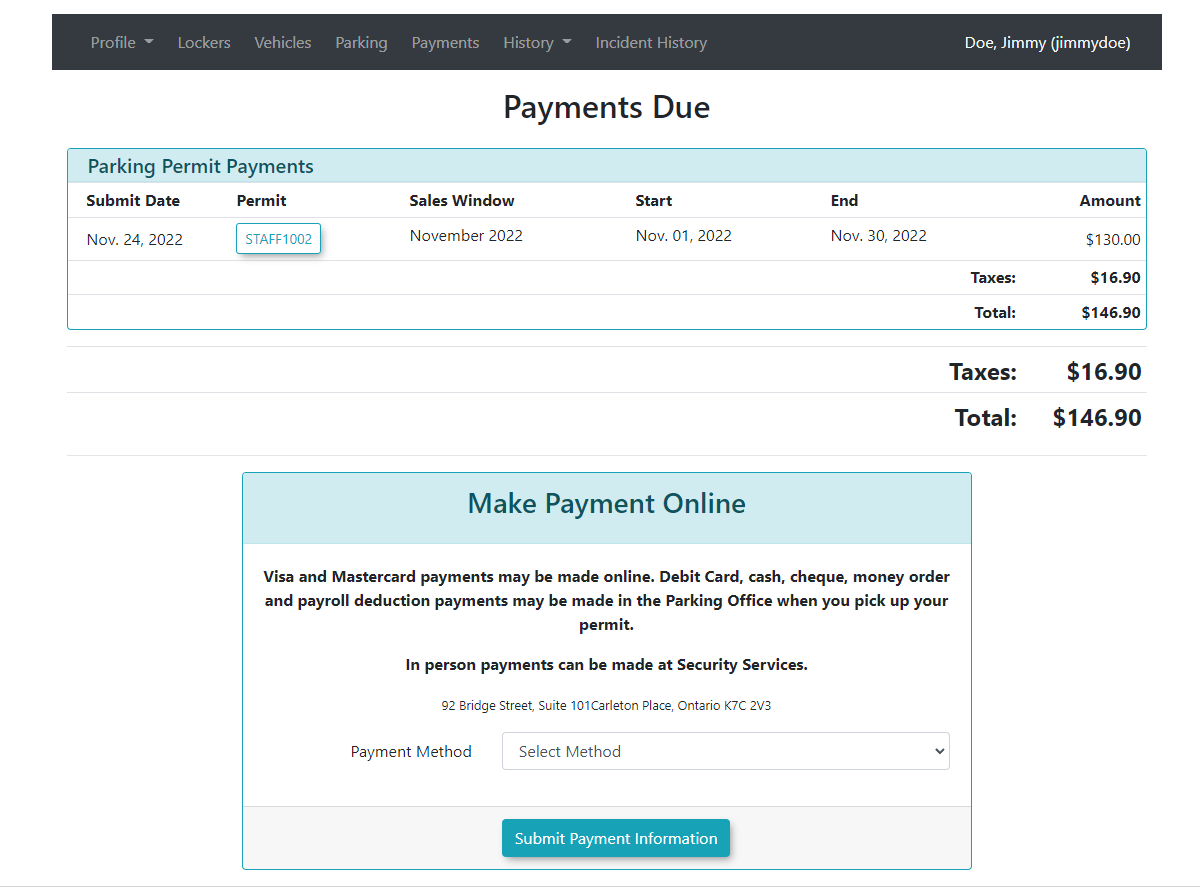
In our example we will chooseCashhoweverCheque, MoneyOrderOrder,andor DebitCardCard)work infrom thesameavailablemanner.options.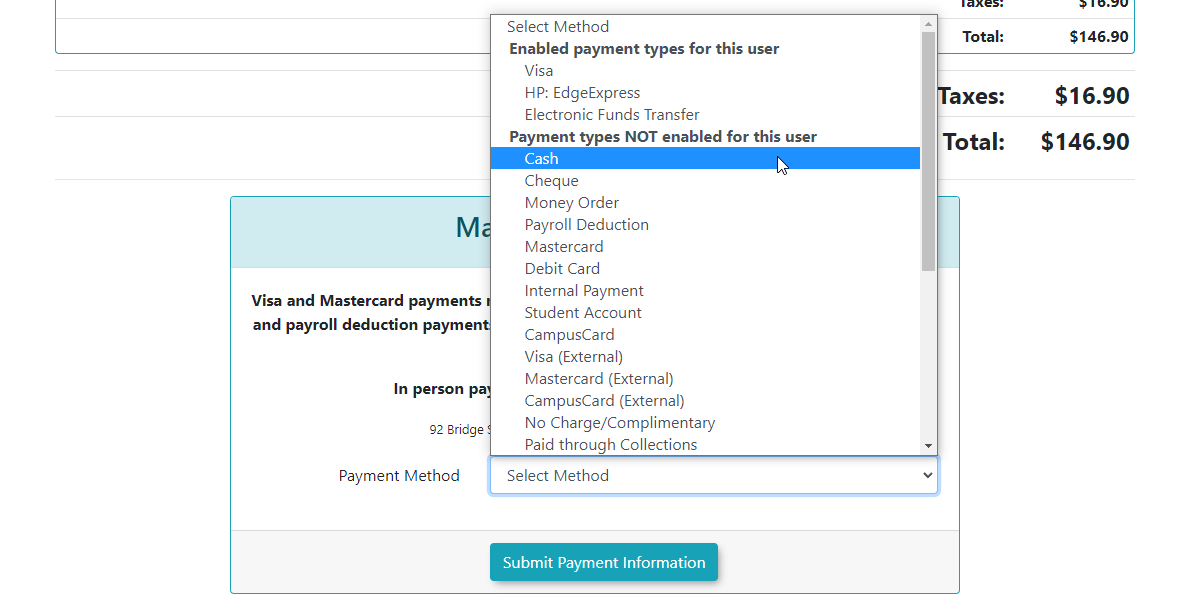
-
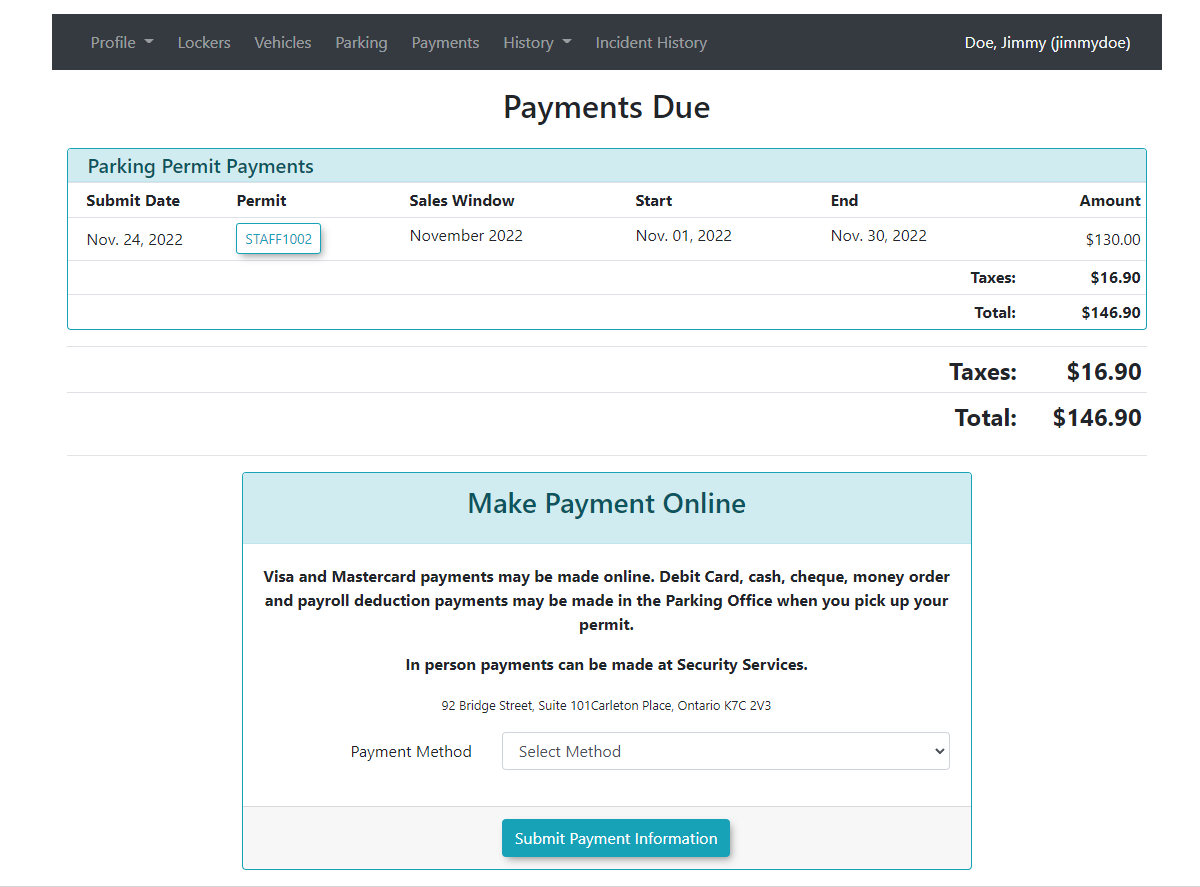
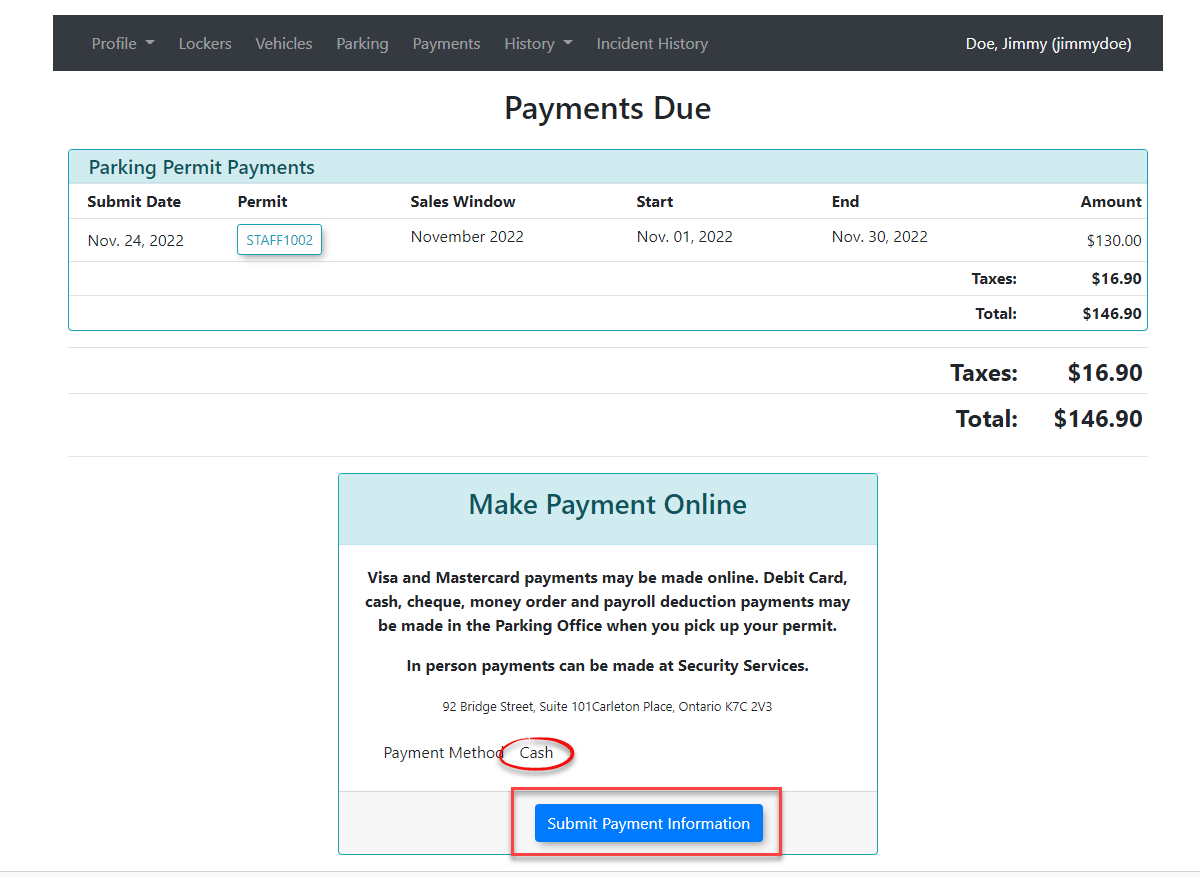
OnceClick thepayment type is selected you will be directed to thePayment Duescreen where you will see the important information of what you are paying for and what payment type was selected.ClickSubmit Payment InformationInformationbuttonto proceed withon thepurchase.Payment Due screen. -
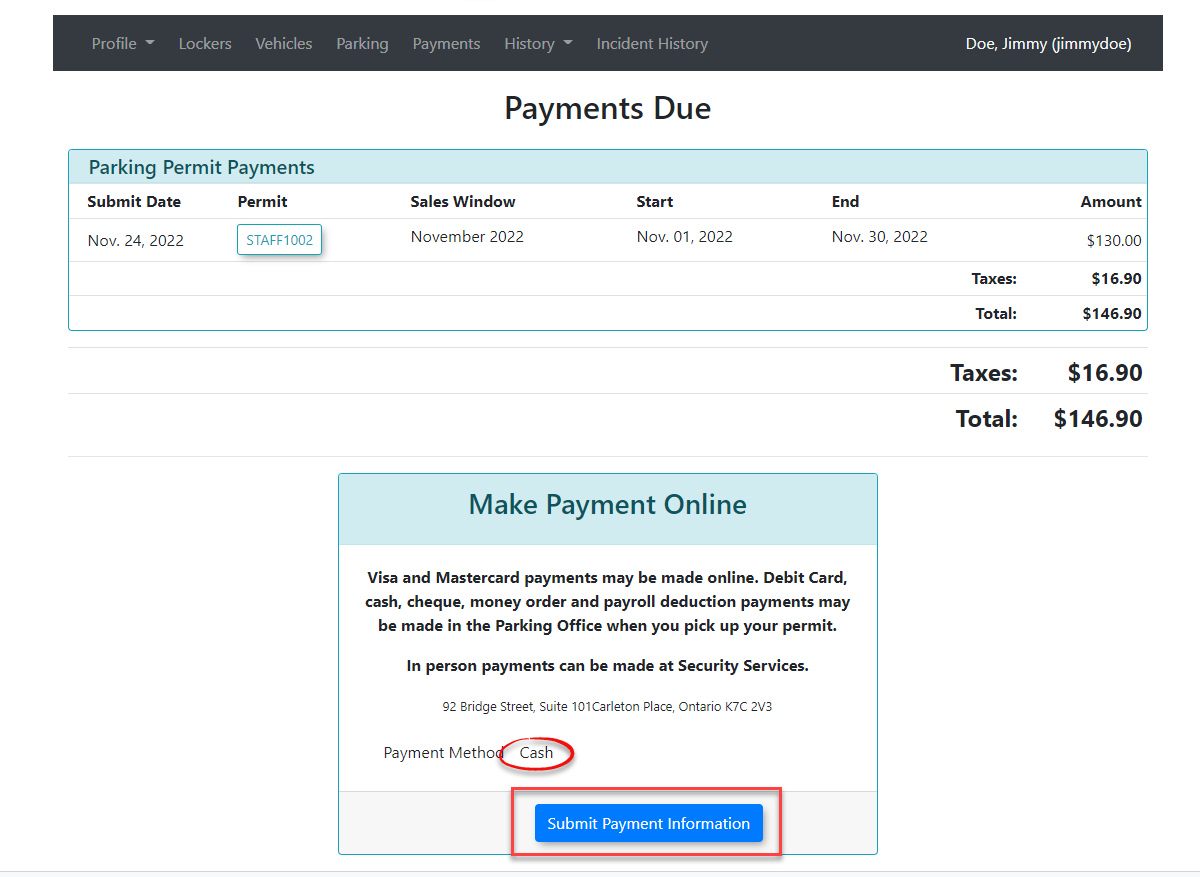
-
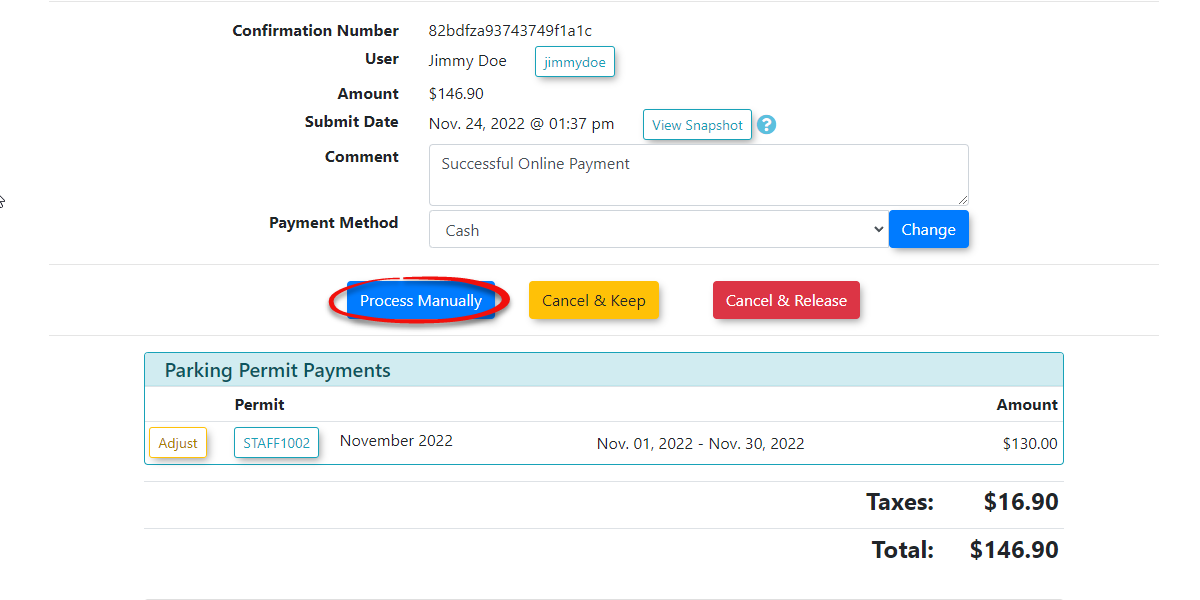
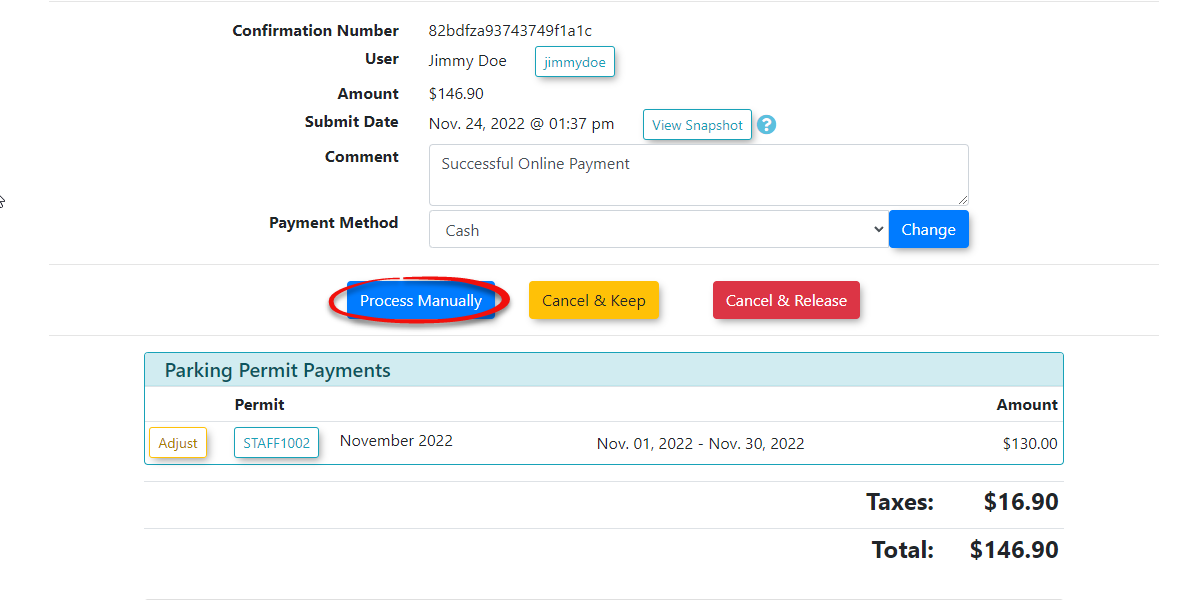
TheProcessscreenManually: This option willrefreshcompletewiththethreetransaction.choicesYouthatshouldcanselectbethismadeoption atthis point.Process Manually- which will processthepayment.exactIt is at this pointmoment youwouldphysically collect the cash, cheque, money order, or process the external debitcardcard.to -
Cancel and
KeepKeep:-ThisThisoption will terminatethisthe transaction but keep the permit in an awaiting paymentstatus.
status on the user's profile. -
Cancel &
ReleaseRelease:-ThisThisoption will terminatethisthe transaction and immediately release the permit back into the pool of availablepermits.Ininventory.our
process.examplewe -
-
selectClick the Process Manually button to complete the transaction.
Visual Cues and Status Indicators
-
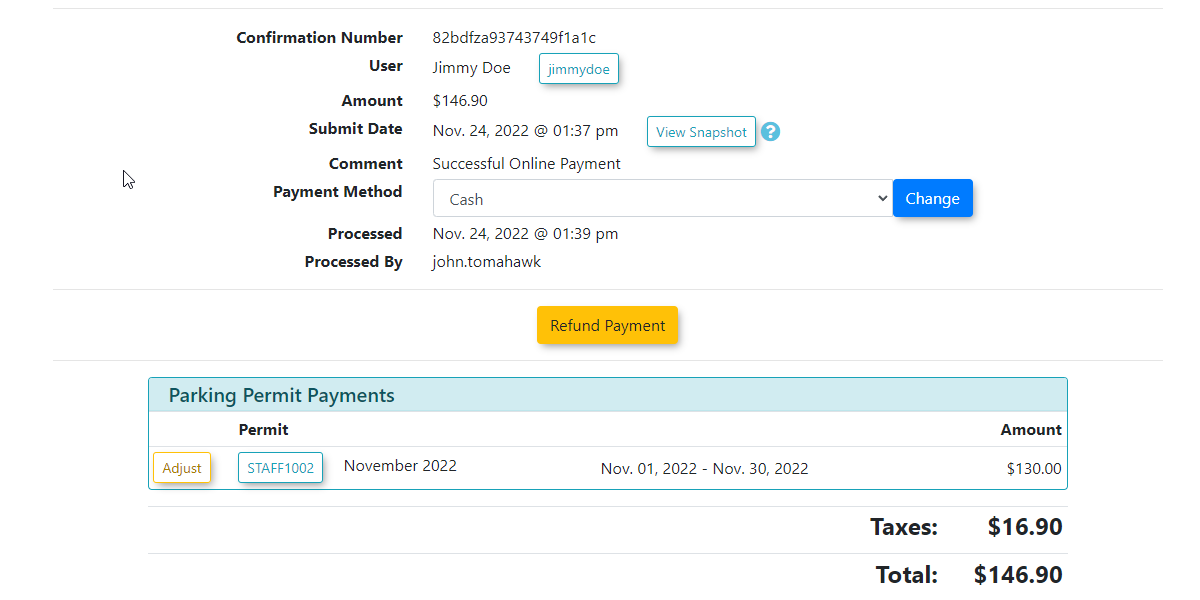
TheReceipt Generation: Once the manual payment is successfully processed, the screen will refreshwithto display a final confirmation screenrecordandoftransaction record, confirming thepurchase.purchase is complete and the permit is active.
Best Practices and Considerations
-
Physical Collection: Always collect the physical funds or process the debit terminal transaction before clicking Process Manually. Clicking this button tells the OPS-COM system that the money has been successfully secured.
-
Releasing Inventory: If a user changes their mind at the final checkout step and no longer wants the permit, ensure you click the Cancel & Release button so that the permit immediately becomes available for other users to purchase.