
Admin Portal Violation Payments with Credit Card
PayingThe Admin Portal Violation Payments with Credit Card process allows administrators to manually process parking ticket payments using a Violationuser's credit card directly through the administrative portal. Its primary purpose is to seamlessly facilitate over-the-phone or in-person electronic payments while securely processing the transaction through your integrated payment provider. This article is intended for OPS-COM administrators.
Setup and Configuration
There is no specific system configuration required to use this feature, provided your third-party payment provider is already established and credit card payment types are enabled in your environment. Processing a payment is a standard administrative action available to users with Visathe appropriate violation management and payment processing permissions enabled on their account profile.
Using this Feature
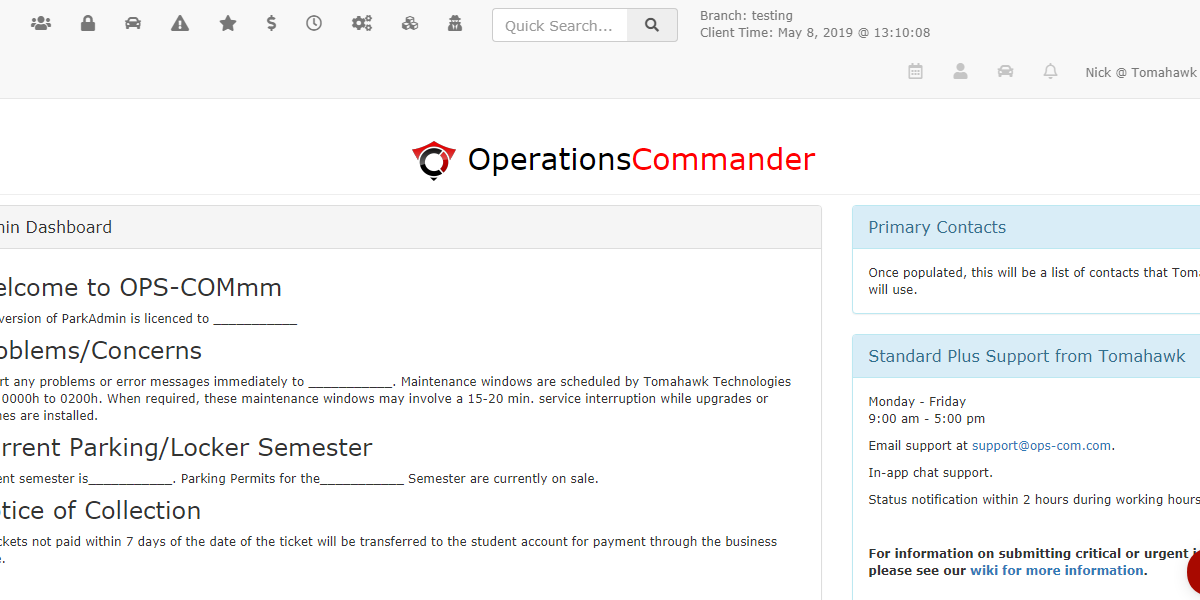
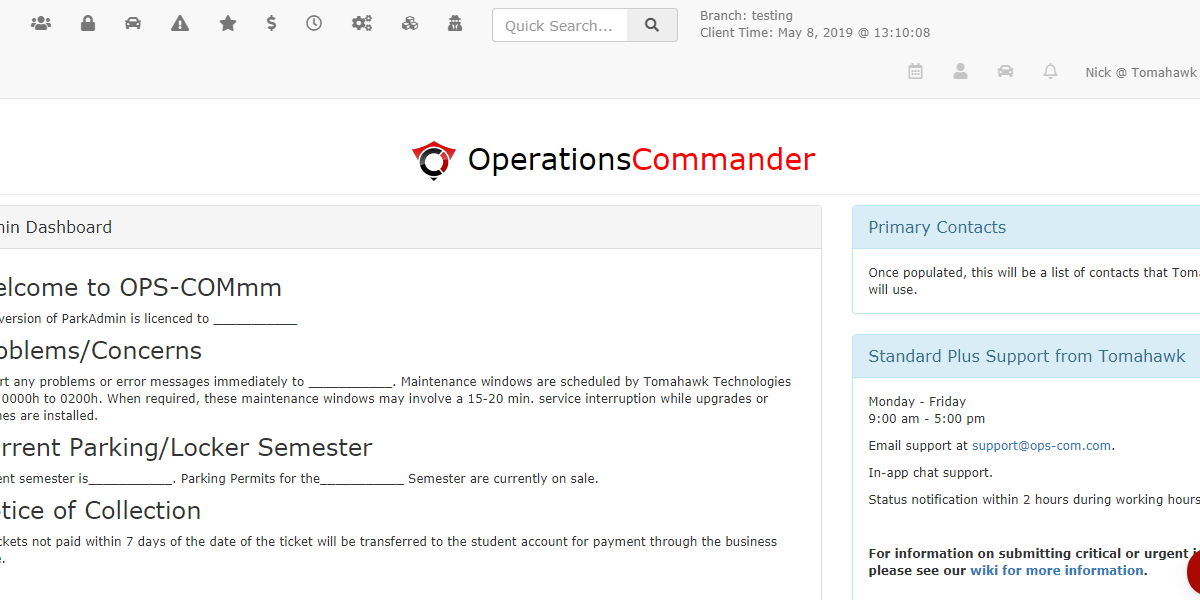
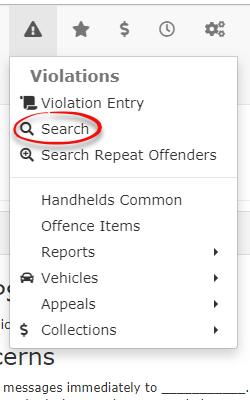
LogAdministrators can locate an unpaid violation and process a credit card payment in withjust youra adminfew credentials on the admin side.
steps.
-
-
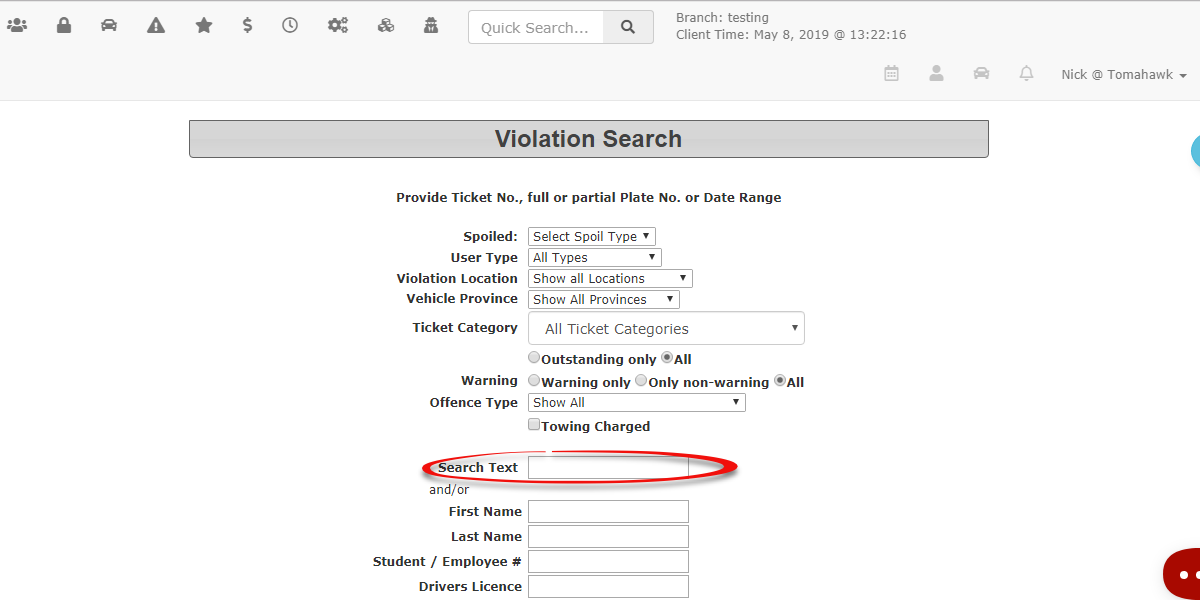
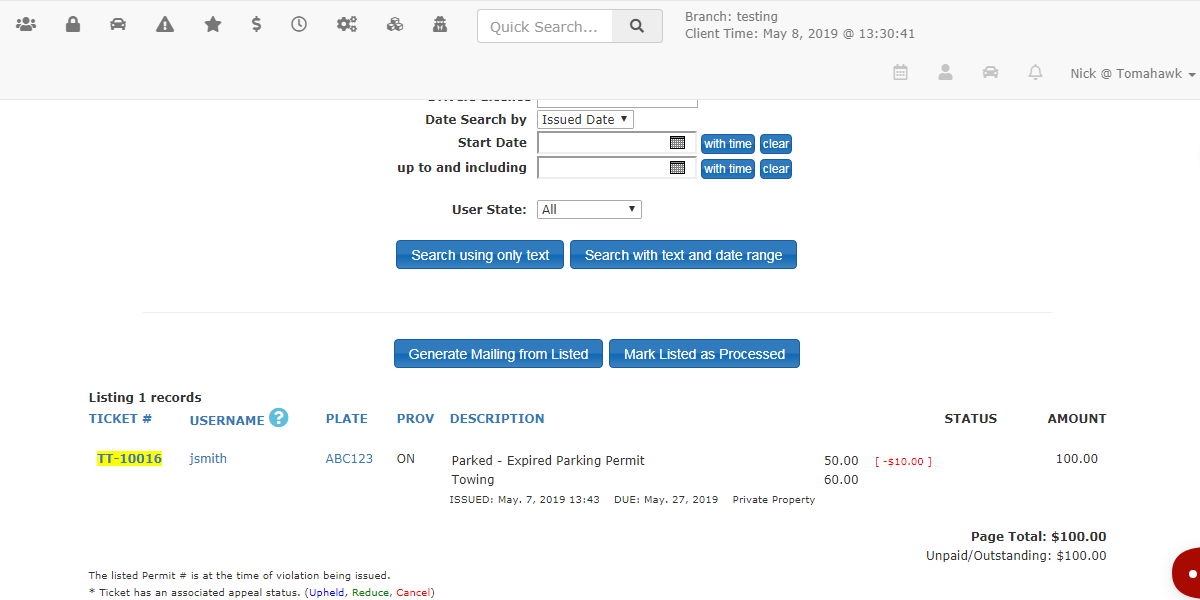
Type the specific ticket number into the
searchSearchtextTextbox.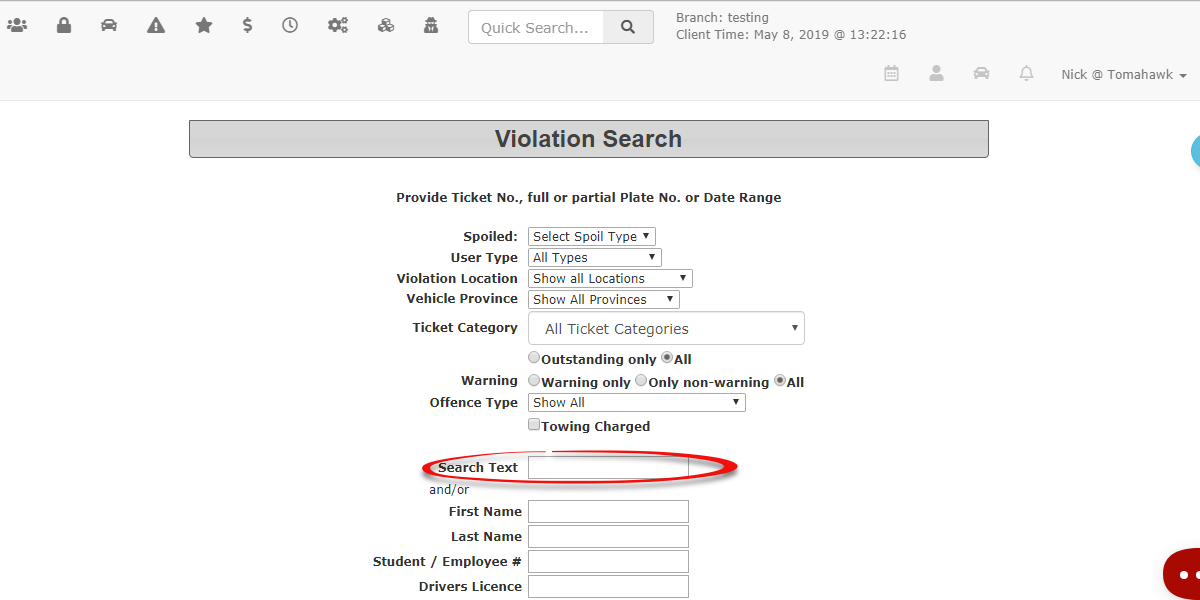
In this case we looked up ticket TT-10016box andfoundperformthattheit belongs to user jsmith with a plate that is ABC123.
search.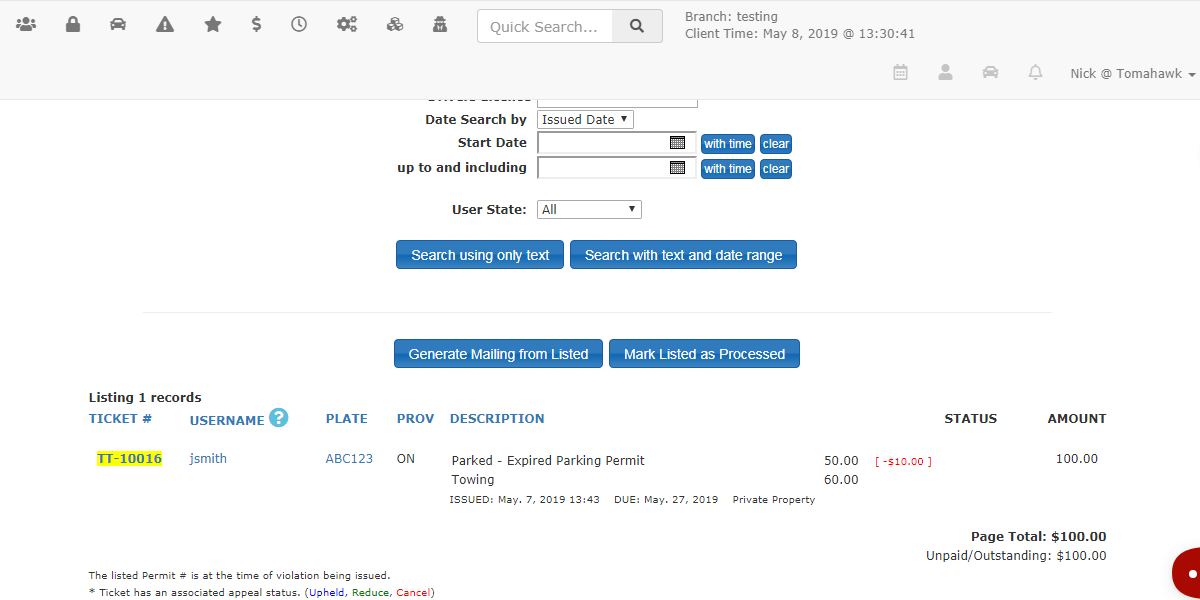
-
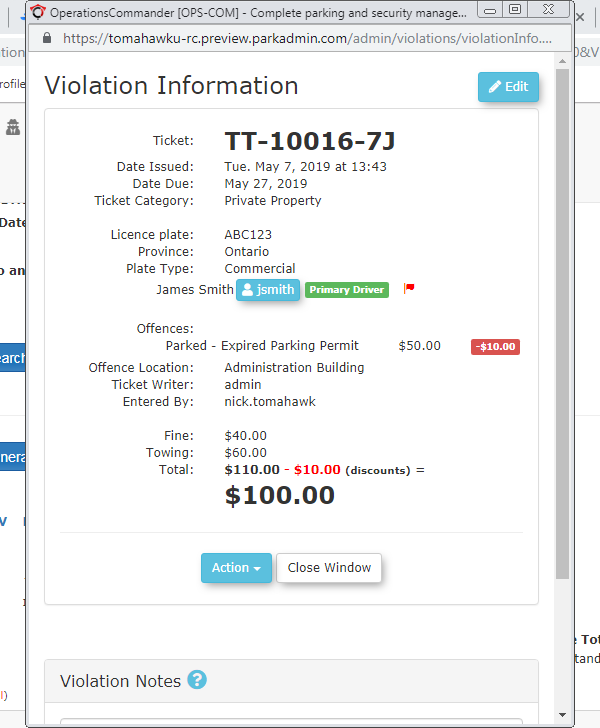
andfromyouthewillsearchbe broughtresults to open the Violation Informationtab
window.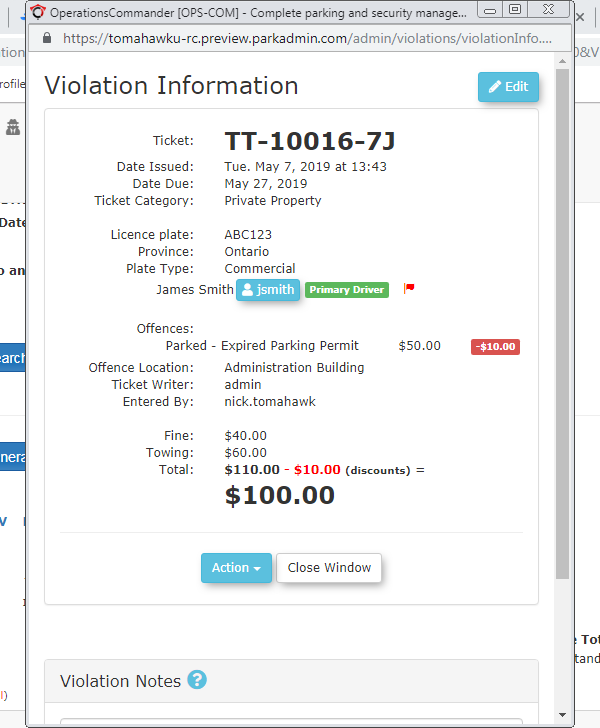
-
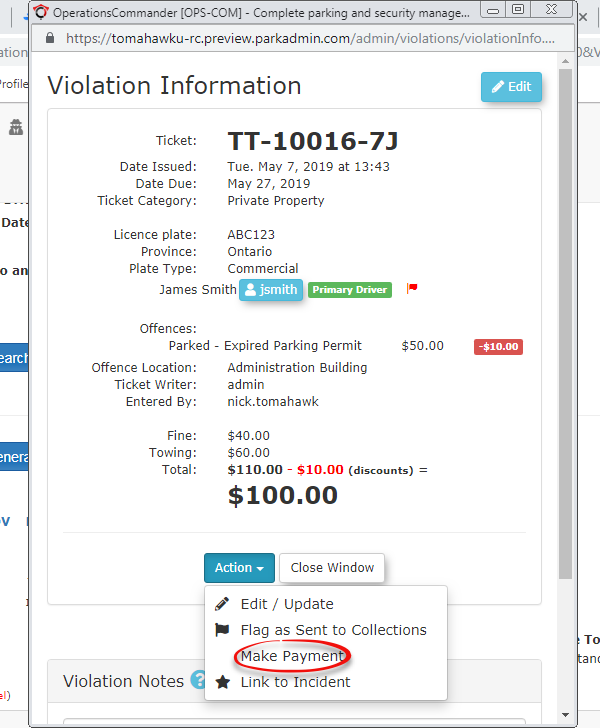
Afterwards click onClick theactionsActionstabdrop-down menu andclickchoose Make Payment. -
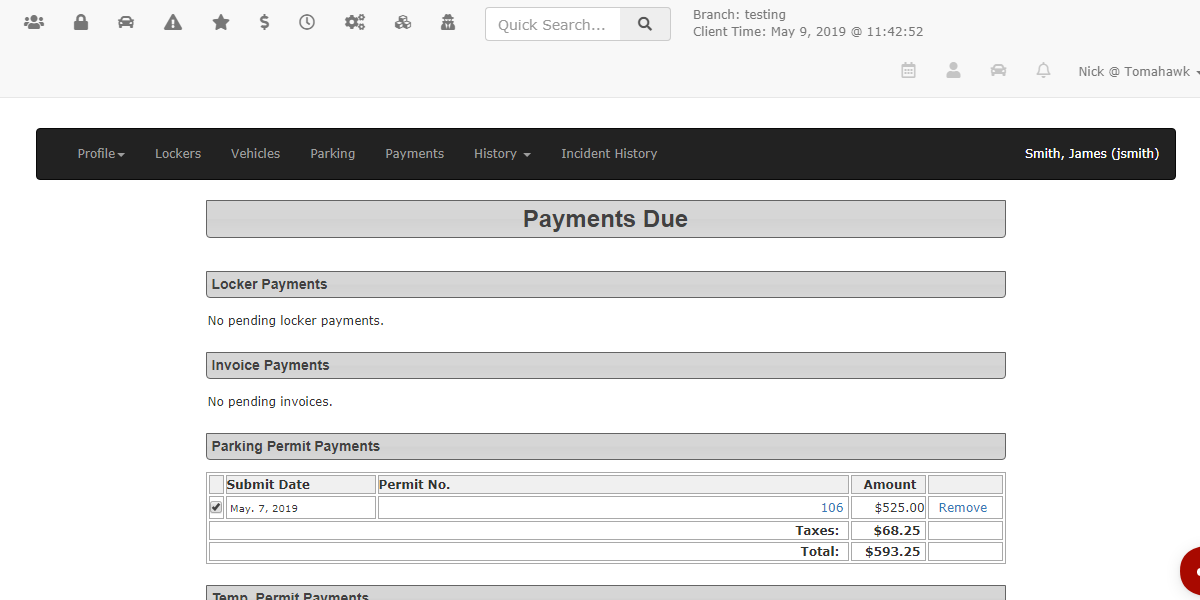
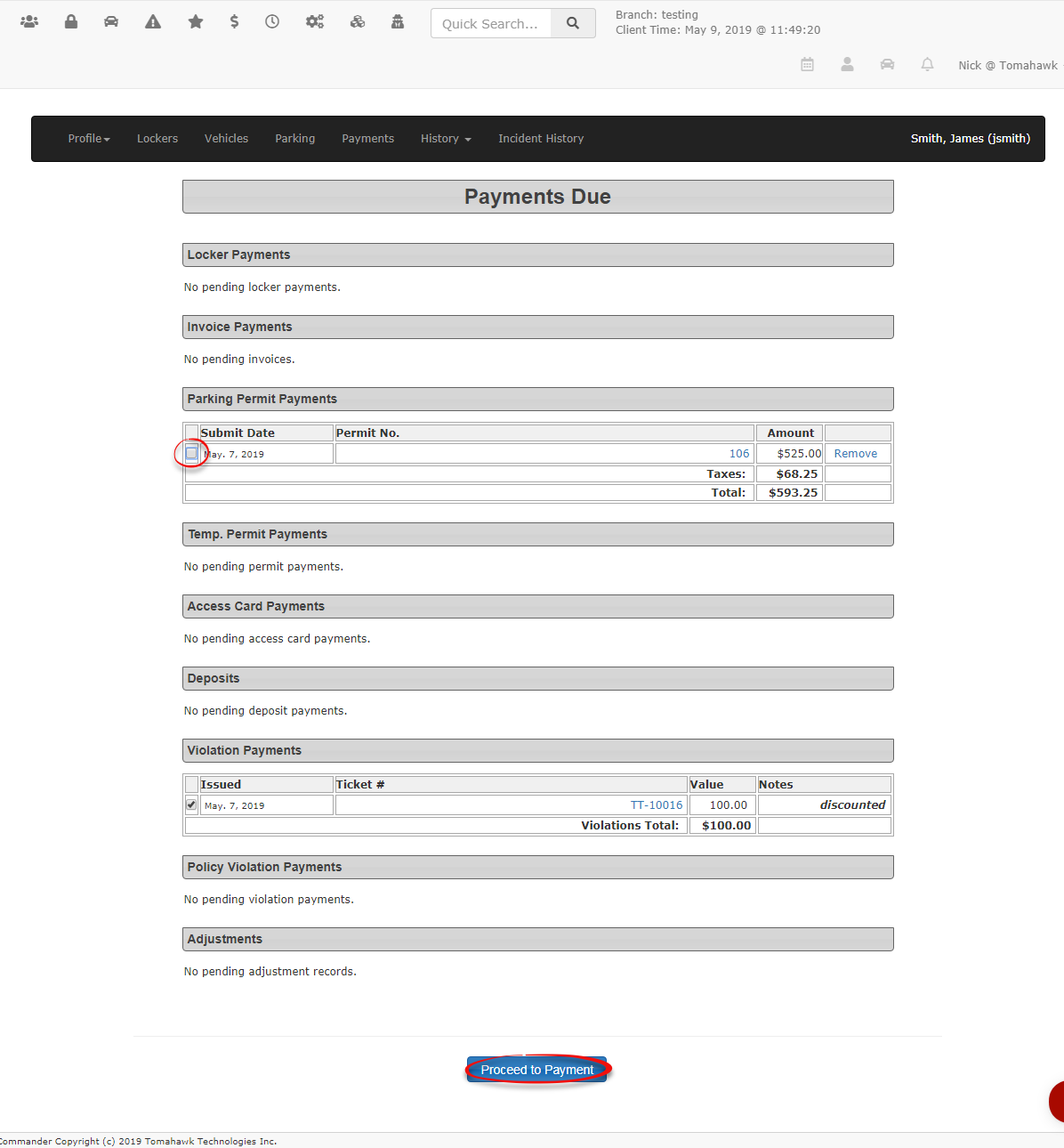
Review the awaiting items displayed on
Make Payment.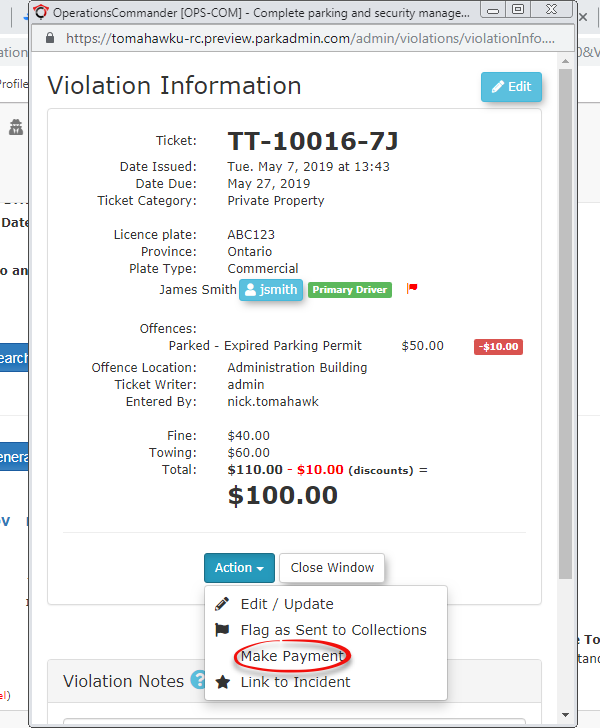
itemsThis will bring you tothe user's paymentpagescreen.soDisableyouthecancheckboxesprocessforsaidanyviolation.
the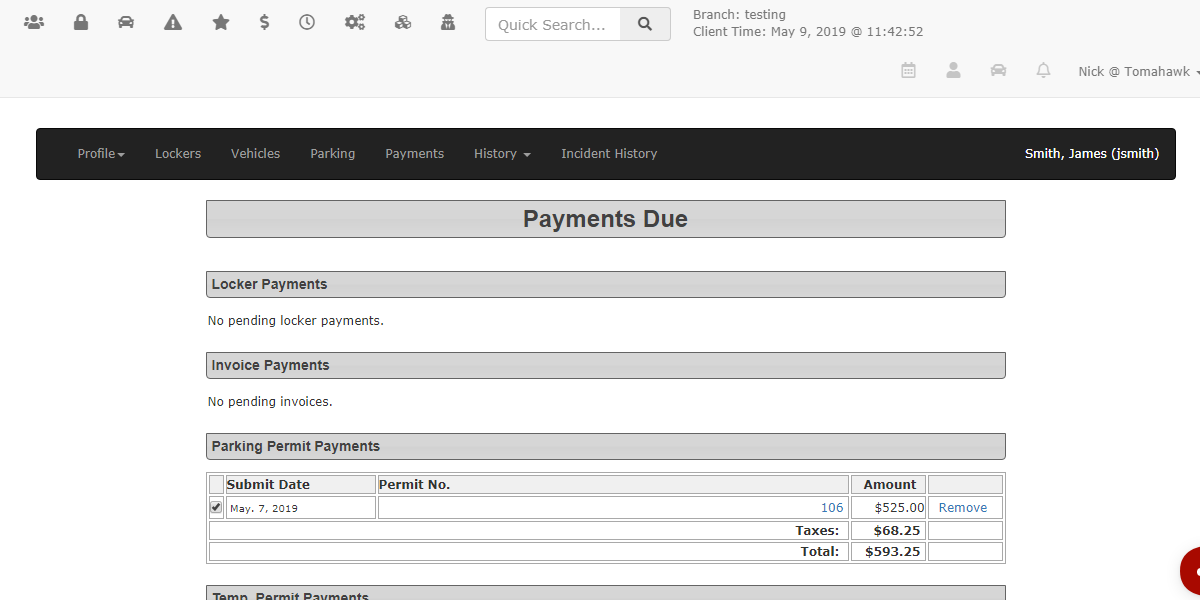
user
Indoesthisnotcase you wantwish todeselect any other objects that are not being paidpay for atthethismomenttime (insuchthisascaseunrelated permits or deposits). -

-
Click the
permit) and click proceedProceed topayment.
Payment button.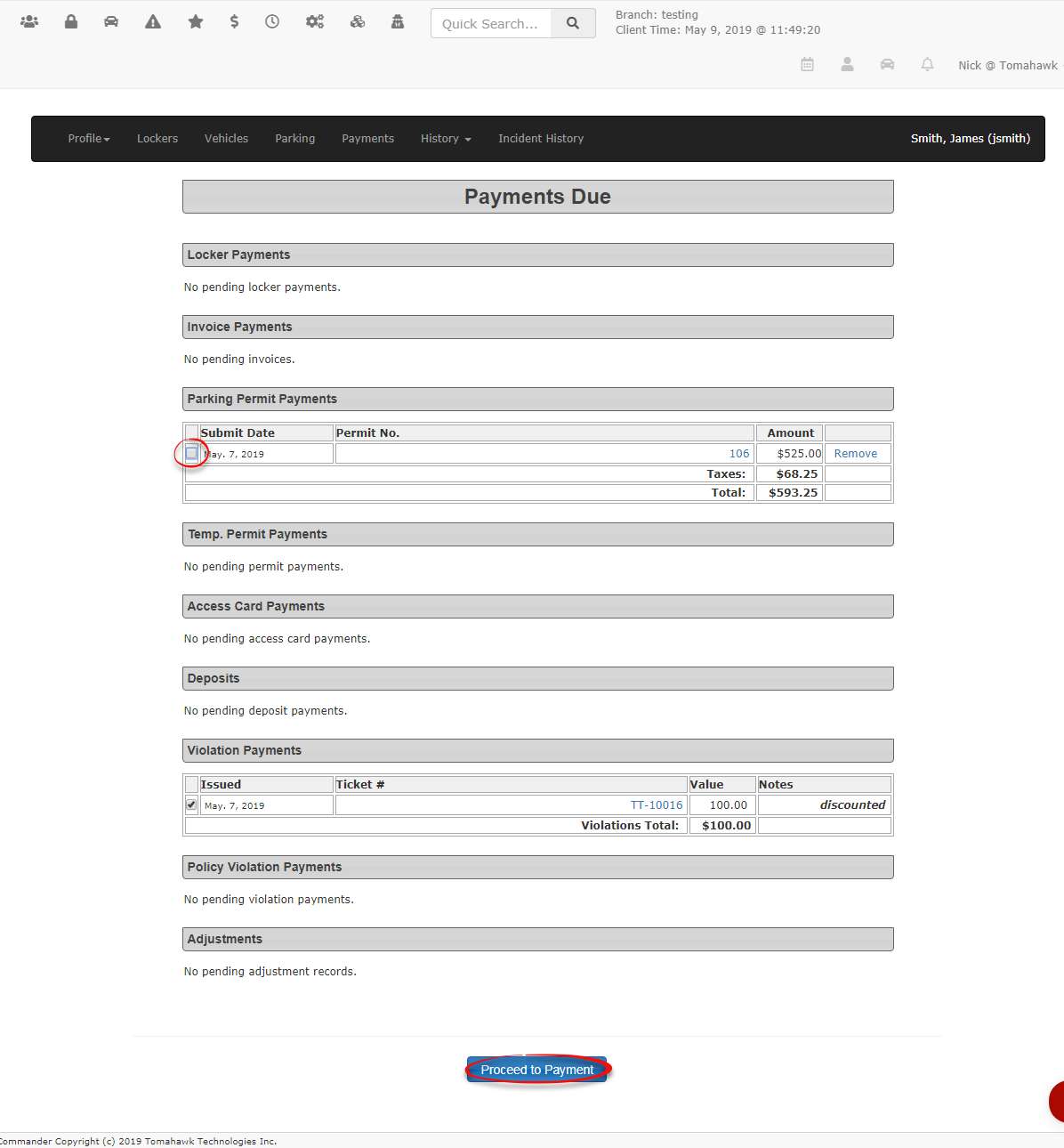
-
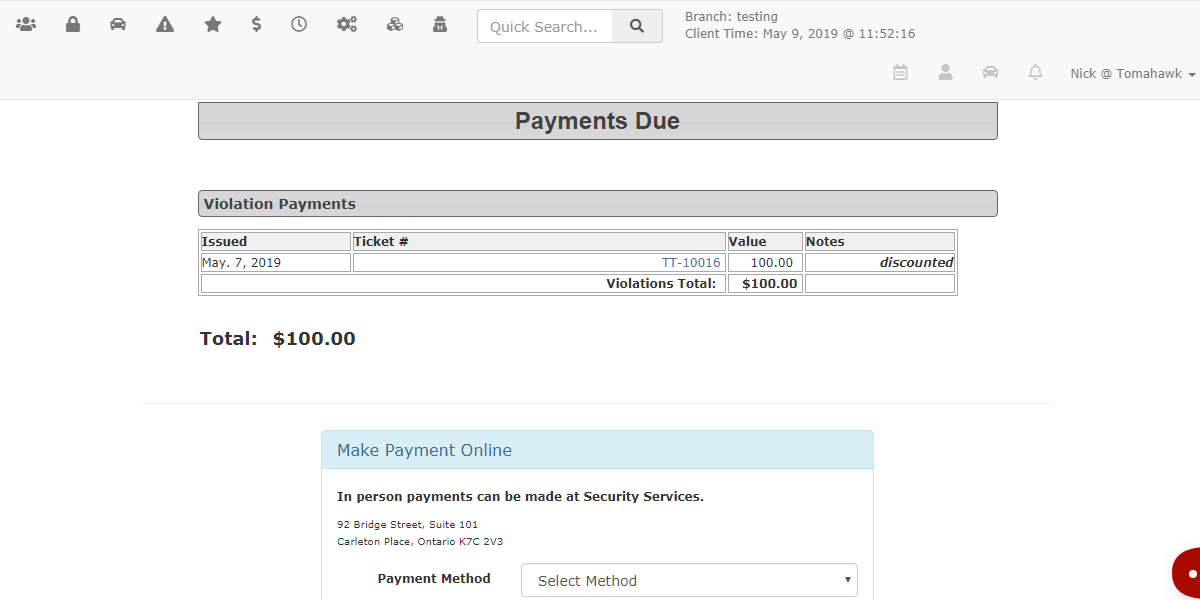
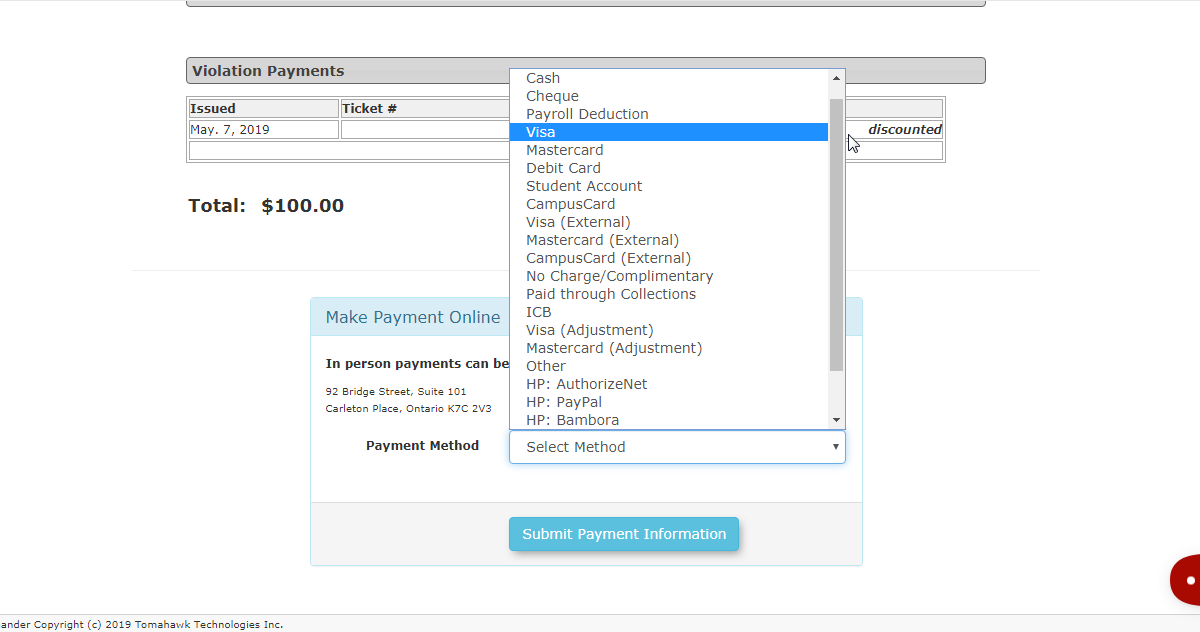
This brings you toSelect thecheckoutapplicablepagecreditwherecardyouoptionhave(e.g.,threeCreditwaysCard,youMasterCard,canorhandleVisa)thisfromdetailedthebelow.
payment type drop-down menu. -
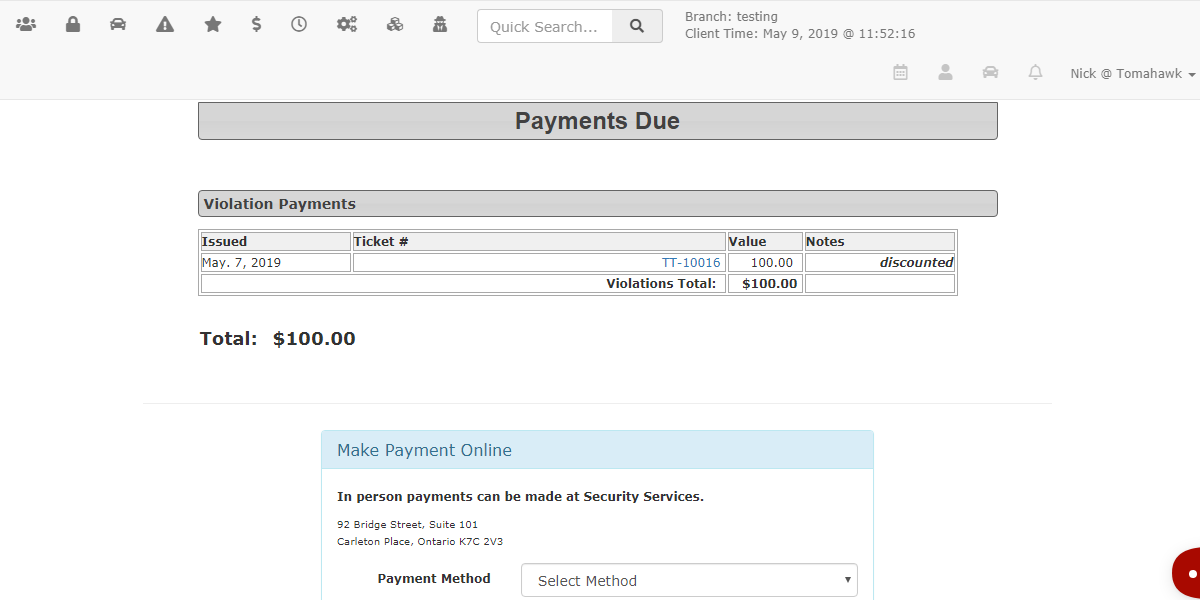
-
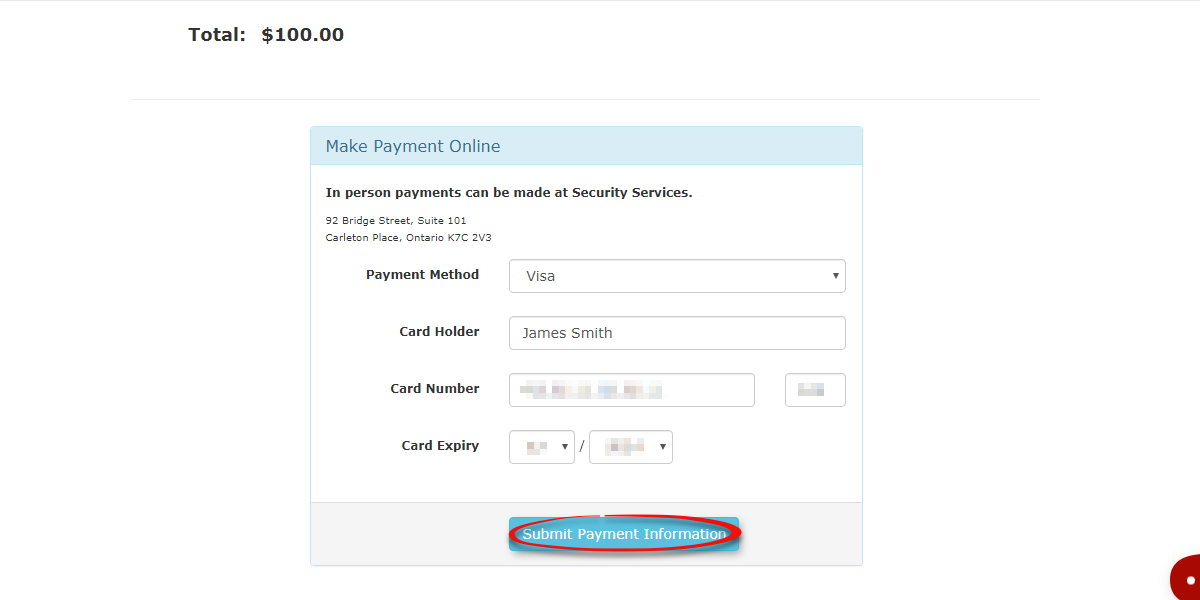
Click the Submit Payment Information button.
-
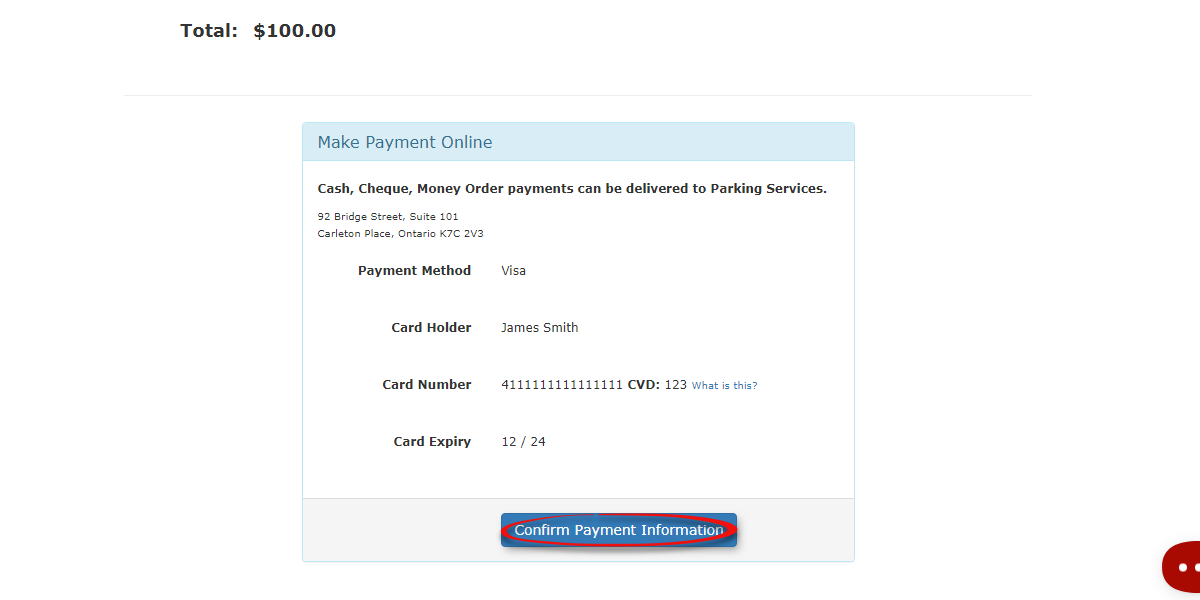
Click the Confirm Payment Information button on the
dropconfirmationdown menu in orderscreen topickfinalizeCredittheCard, MasterCard or Visa. In this case we're going to use Visa.transaction.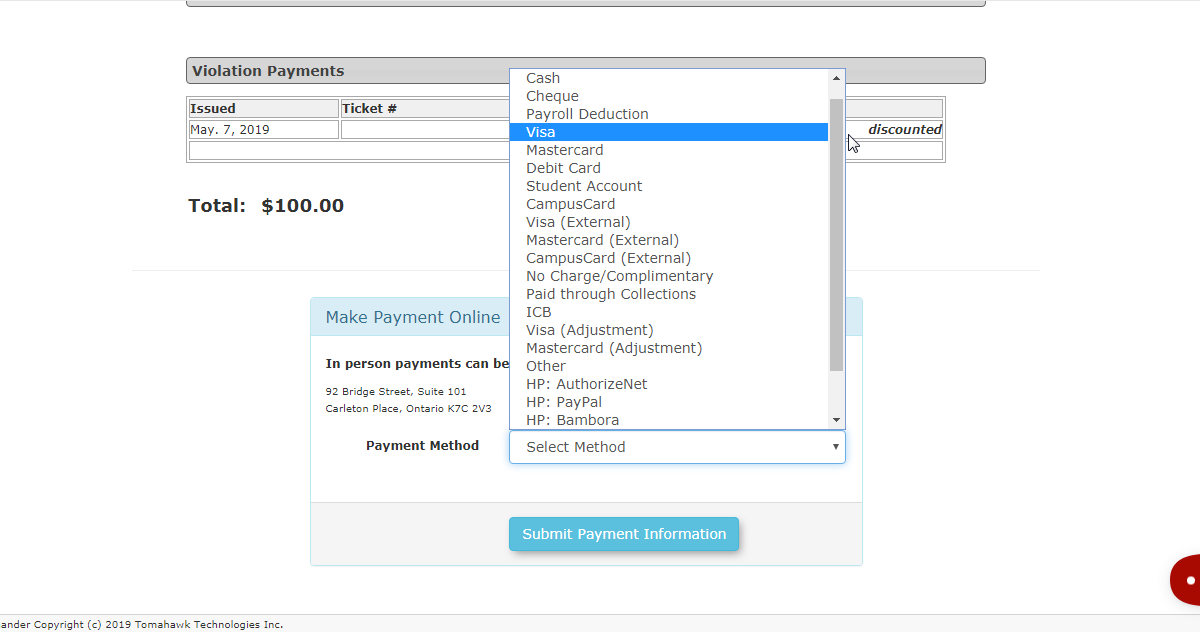

Visual Cues and Status Indicators
-
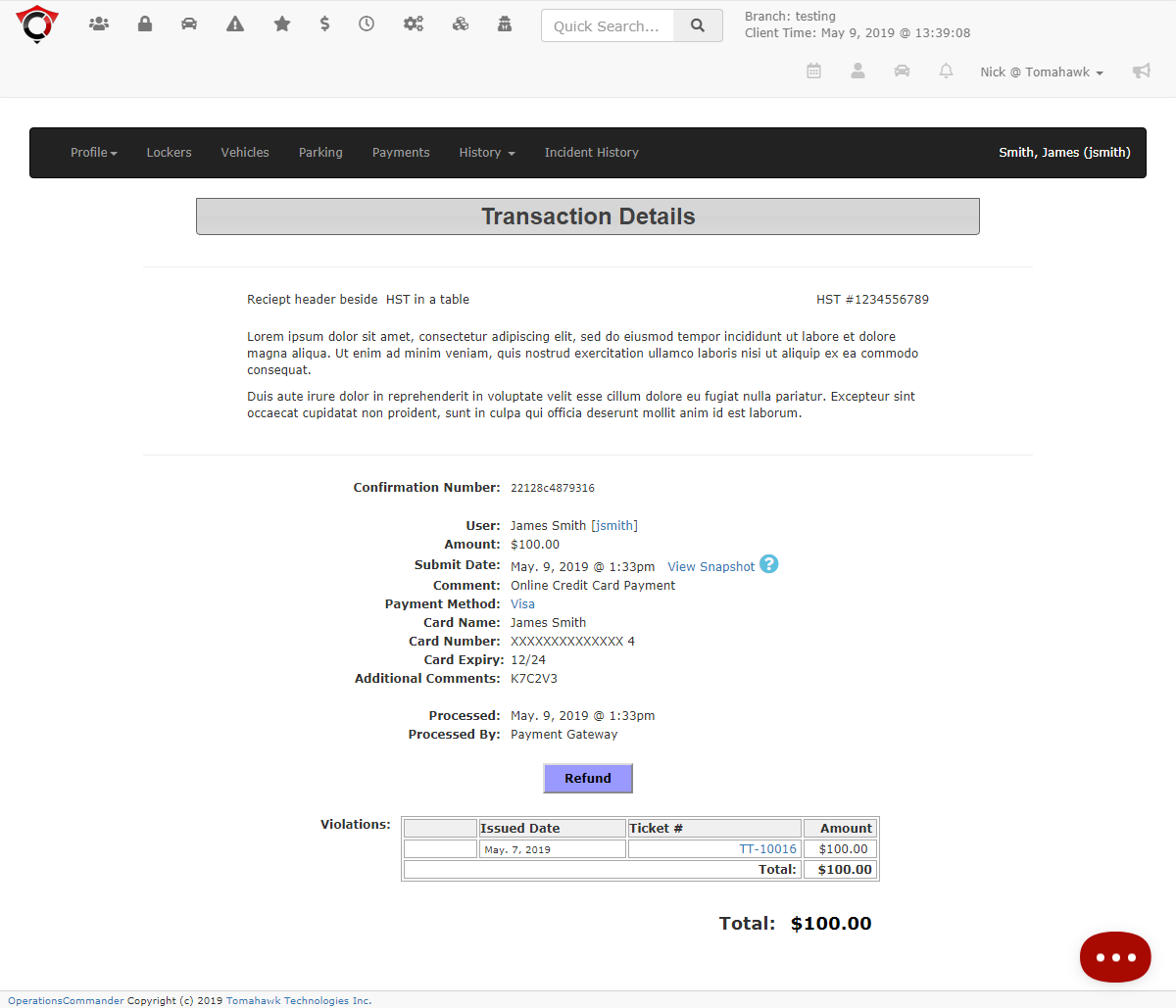
Transaction
ItDetails: Once the payment successfully processes, the system willbring up the proper options for you to enter in credit card information and click 'Submit Payment Information'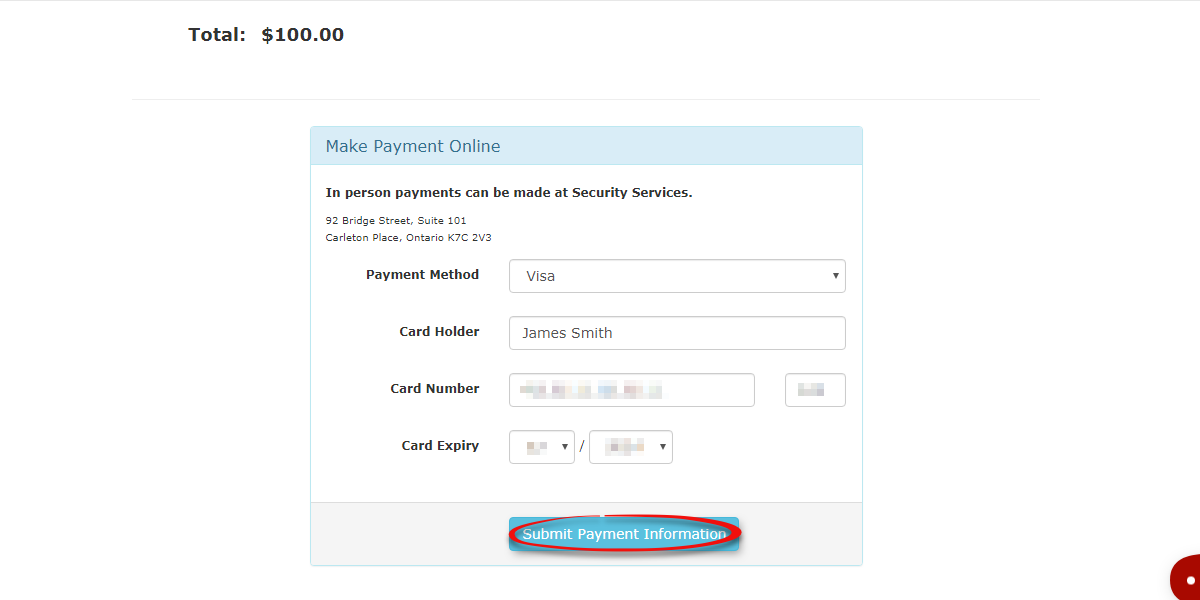
This will bring youredirect to apayment type confirmation page, to continue press the 'Confirm Payment Information' button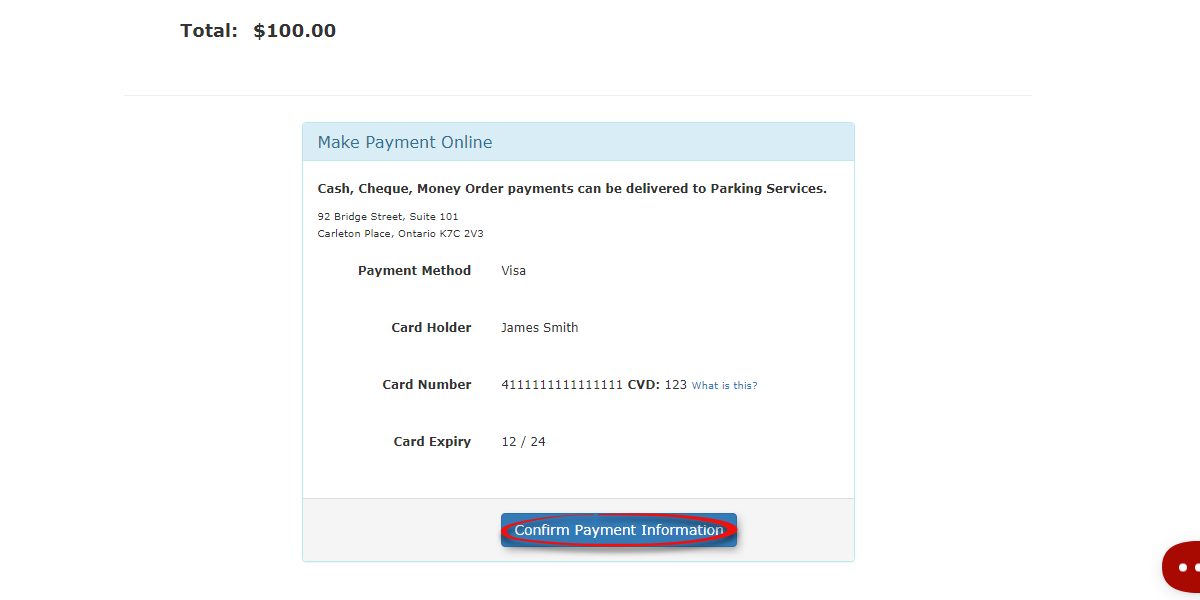
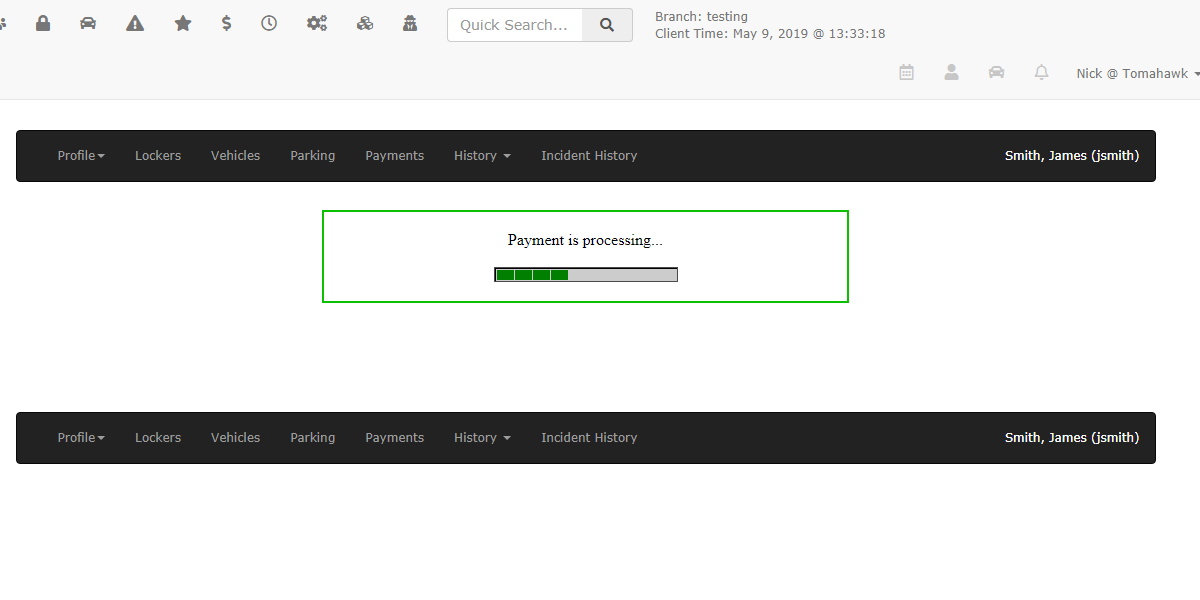
The payment processes.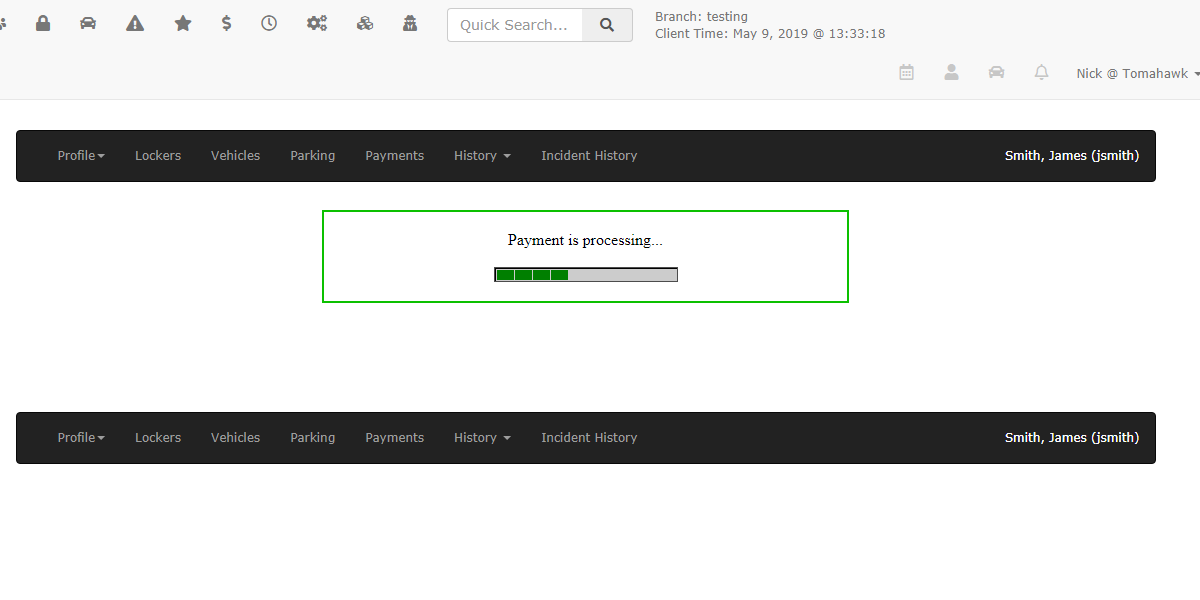
Then you get brought to afinal transaction details page
displaying a generated receipt for the purchase.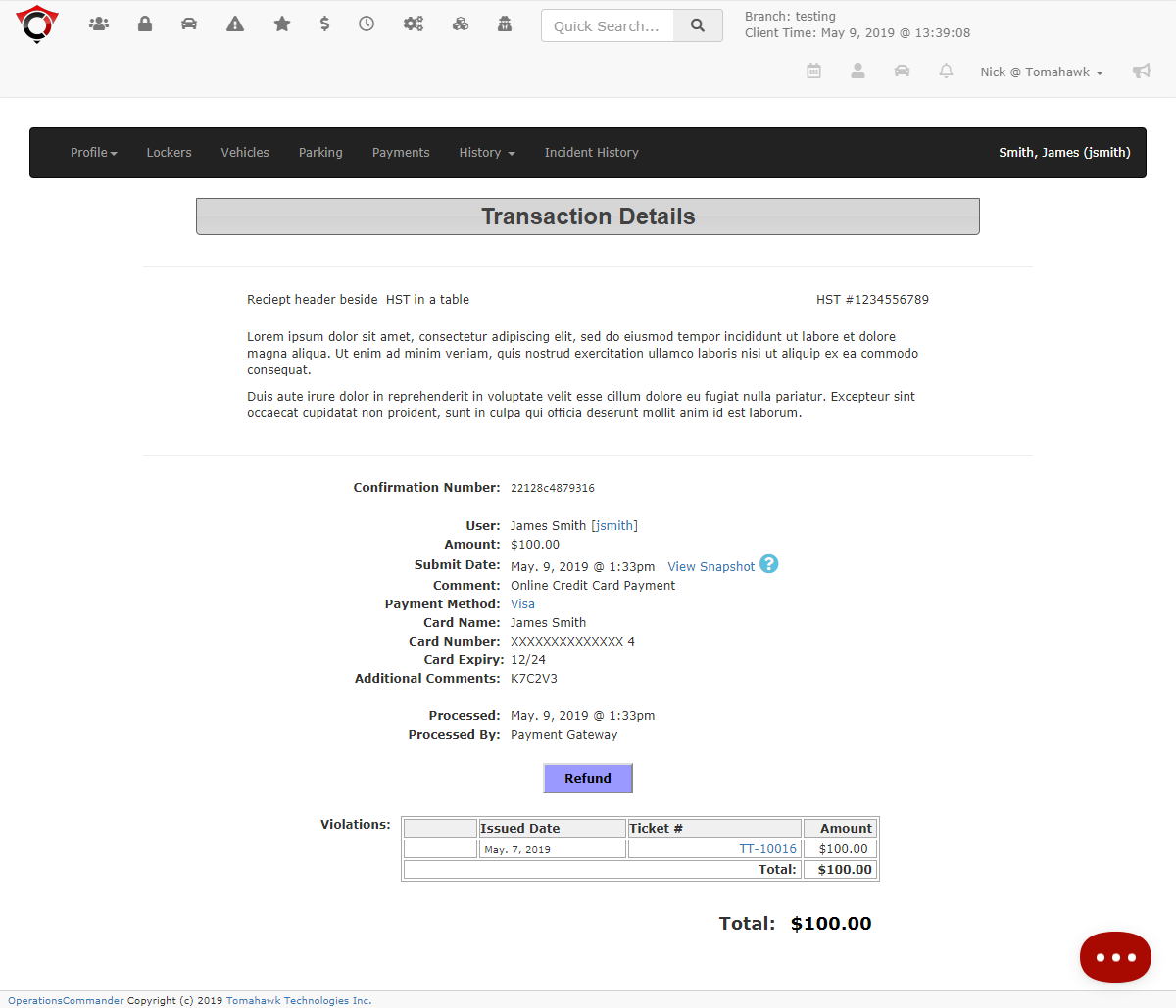
Paying
Available VisaAction (External)for External Payments
-
ThisExternalpaymentCredittypeCardisTransactions:usedIfwhen thea customer chooses to pay by credit card in person at the parking officewhereusing a physical pin pad or standalone cashregisterregister, you should select an external payment type (e.g., "Visa (External)"). This action bypasses the online payment gateway form and simply logs the transaction as paid in the OPS-COM financial records.
Payment Security: When taking a credit card payment over the phone, never write down or permanently store the user's credit card information. Always enter the details directly into the payment provider's secure gateway in real-time to maintain strict PCI compliance.
Best Practices and Considerations
-
Verify Selected Items: Always double-check the selected items on the checkout page before clicking the proceed button. Because all of the user's pending items will appear, you must manually deselect any permits or other violations the user is
used.not actively paying for to avoid overcharging their card. -
Confirming the User: Verify that you are processing the violation on the correct user profile by matching the license plate and user details before submitting the final payment to prevent complex refund scenarios.