
Cancel Transaction
The Cancel Transaction feature allows OPS-COM administrators to void an incomplete or erroneous payment directly from a user's profile. Its primary purpose is to provide flexibility in managing user accounts by either reserving a permit for future payment or releasing it back into the system's inventory. This guide is intended for OPS-COM administrators responsible for financial processing and user account management.
Setup and Configuration
Canceling a transaction is a core administrative function that requires no additional system setup or configuration. It is accessed entirely through the individual user's profile.
Using this Feature
Administrators interact with this feature by locating the transaction in the user's history and selecting the appropriate cancellation method.
CancellingStep-by-Step Instructions
-
OnSearch for and select the target user to open their profile. -
Hover over the History tab and click All Records.
-
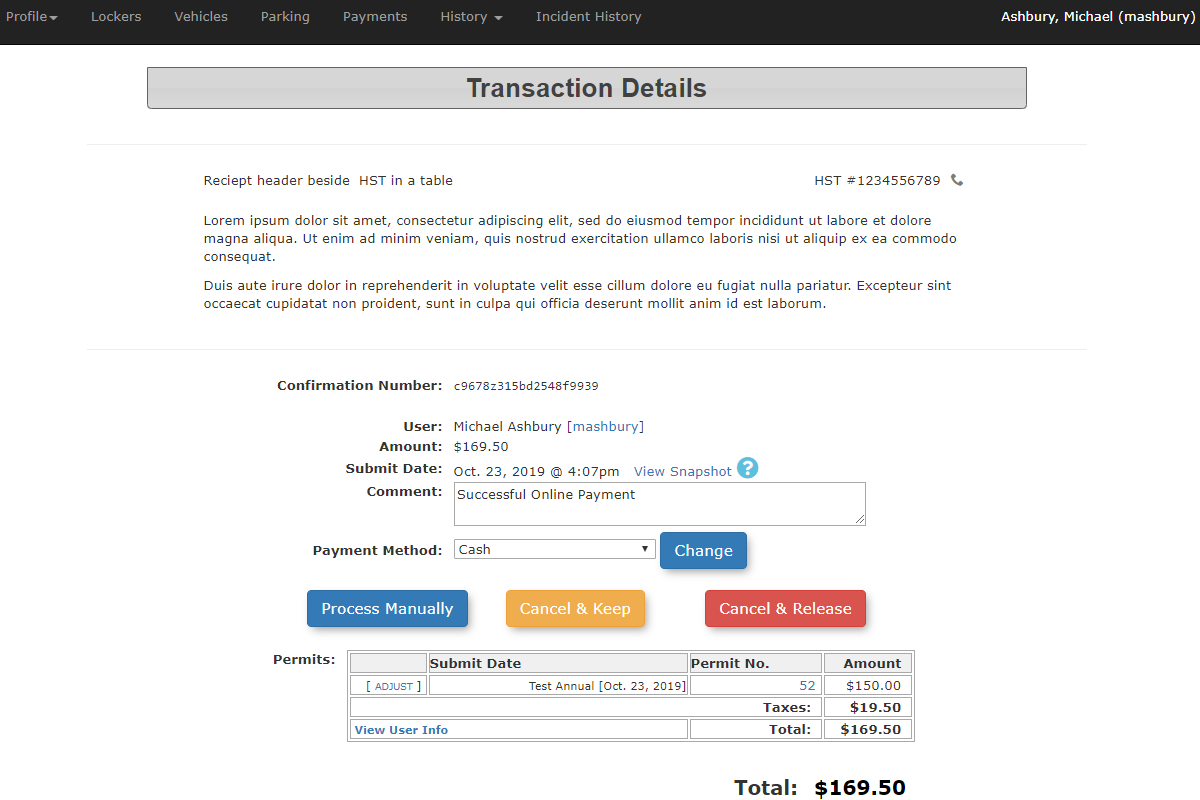
Locate the specific transaction and click the associated link to open the Transaction Details
screenscreen.you -
seeClick either the
different options available. You can choose toCancel & Keep or Cancel & Release.button based on the required outcome. -
Click OK on the confirmation prompt to finalize the cancellation of the transaction.
Available Actions and Buttons
On the Transaction Details screen, you are presented with two distinct options for handling the cancellation:
-
Cancel & Keep:
willClick this button to cancel the transaction but keep the transaction detailsandonreservethe user's account. This action reserves the permit so that you can process the payment at another time. -
Cancel
and& Release:willClick this button to cancel the payment and immediately release the permit back into thesystemsystem.
Best Practices and Considerations
-
Verify user intent before releasing items: Always ensure the user no longer needs the permit before selecting Cancel & Release. Once an item is released, it returns to the active inventory and can be immediately purchased by another user.
-
Manage reserved permits: Organizations should develop a business rule for how long a permit can remain reserved under a Cancel & Keep status (e.g., 48 hours) before it must be either paid for or manually released to prevent inventory hoarding.
ACancel pop-up& messageRelease action is final for that specific transaction. Once the permit is released back into the system, you will ask that you confirm. Click OKneed to confirmprocess a completely new transaction if the cancellationuser ofdecides they want the transaction.permit after all.