
Clearing Items Awaiting Payment - Midnight List
The Midnight List and its associated system tasks allow administrators to view and automatically clear unpaid permits and lockers sitting in user shopping carts. Its primary purpose is to free up unpaid inventory by returning items to the system after a specified timeframe. This article is intended for OPSCOM administrators responsible for inventory management and system configuration.
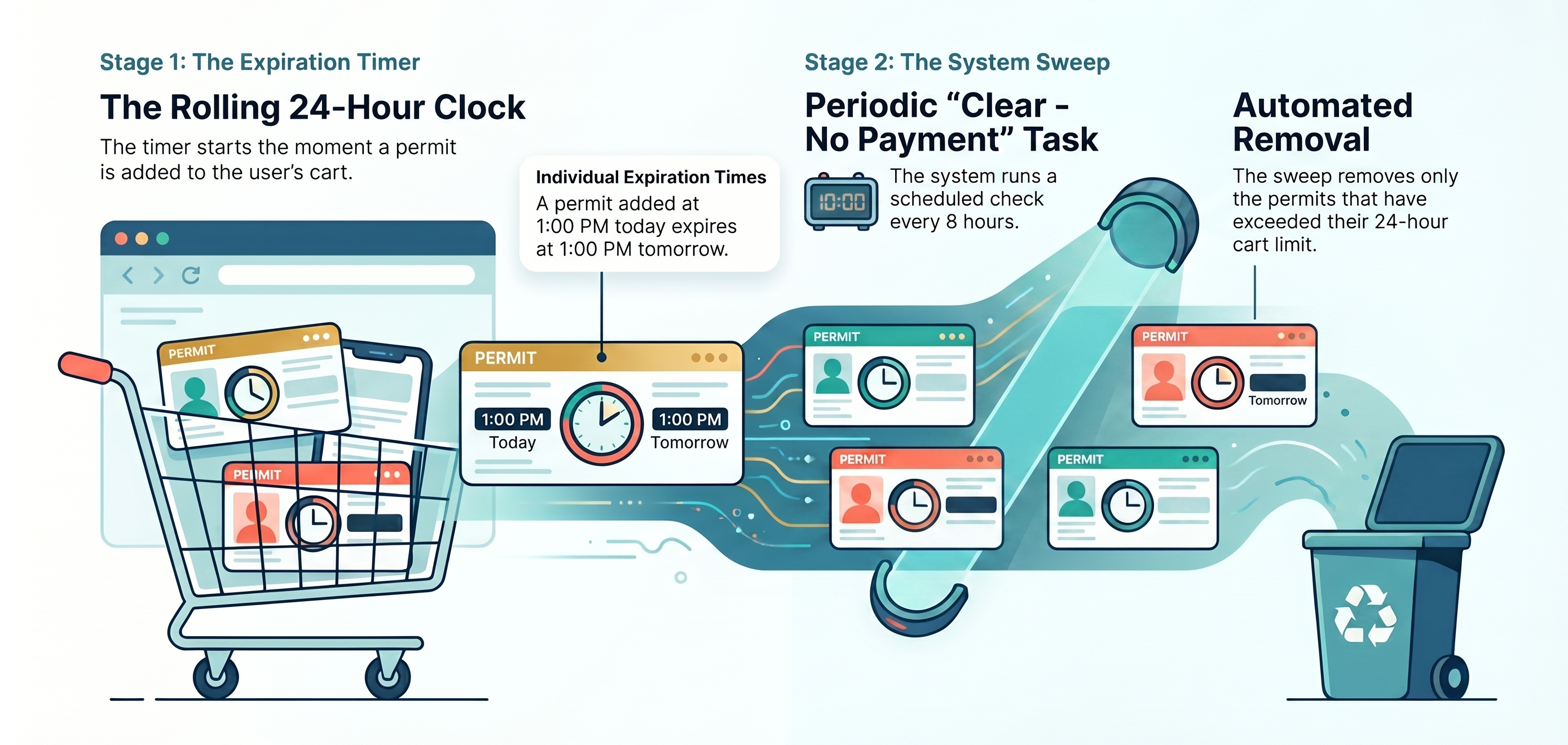
SetupHow andthe ConfigurationClearing Process Works:
ToThe automateautomated clearing process operates in two distinct stages to ensure unpaid inventory is returned to the clearing process, you must configure the timeframe for both permits and lockers within your system settings.system:
Setting Up to Automatically Clear Permits
-
locker)HoverIndividualoverItemSystemExpirationConfiguration(The Timer):,clickTheSystemmomentSetting,ananditemthen(permitclickorPermits.is Clickadded toenablea user's cart, a rolling clock starts. The item expires based on theCleardurationUnpaidsetPermitstoggle.ClickPayments.Enter the desired number of hours intoin the Clear Payments After X Hoursfieldsettingusing(fornumbersexample,only.an item added at 1:00 PM with a 24-hour setting will expire at 1:00 PM the following day).-
TogglePeriodiconSystemtheSweeps (The Task): The Clear - No Payment scheduledtask.taskInstructionsrunsforperiodicallythis can be foundbased on your configured schedule. When theScheduledtaskTasksexecutes,wikiitpage.scans all active shopping carts and automatically removes only the items whose individual expiration timers have passed. Unexpired items remain in carts until the next scheduled sweep.
Setting Up to Automatically Clear Lockers
Hover overSystem ConfigurationSetup and
clickSystem Settings.- Configuration
ClickLockers.
toggle,Click toTo enable the automated clearing process for permits or lockers, contact support@ops-com.com to have the initial backend settings enabled for your environment (requires Primary Admin authorization). OPSCOM Support will configure the Clear Unpaid Permits toggle, Clear Unpaid Lockers at Midnighttoggle.Enter the desired number of hours intoand the Clear Payments After X Hoursfieldtimeframeusingonnumbersyouronly.behalf.Once Support has enabled these underlying settings, administrators can manage and schedule the clearing task directly within the portal:
Once Support has enabled these underlying settings, administrators can manage and schedule the clearing task directly within the portal:
-
Click Tools, and then click View System Task Logs.
-
Toggle onLocate the Clear - No Paymentscheduledtask.
-
-
If you do not seeClick thesettingstogglementioned above, please contactsupport@ops-com.comswitch tohavesetthemitenabledtoforEnabled.you. -
will needClick the
permissionpencilof(edit) icon next to the task to open the Edit schedule — Clear - No Payment pop-up modal. -
Select your
PrimarydesiredAdmin.Schedule type (e.g., Daily at a set time) and set the execution time in the Run at field. -
Click Save.
Using this Feature
Administrators can manually review the Midnight List for both permits and lockers to see which items are pending removal.
Viewing Permits without Payments
-
Hover over Parking Management, click Reports, and then click Midnight List.
-
Review the report displaying all users with permits in their cart that do not have an associated payment.
Viewing Lockers without Payments
-
Hover over Locker Management and click Midnight List.
-
Review the report displaying all users with lockers in their cart that do not have an associated payment.
Available Actions
From either Midnight List report, you can perform the following actions:
-
See items to be cleared: View the specific inventory sitting in the user's cart.
-
Email the affected users: Send a communication to users reminding them to complete their purchase.
-
Clear their flag: Remove the user from the Midnight List and update the queue.
Best Practices and Considerations
-
Excluded Inventory: Permits that have been rolled over (renewed) or assigned through a managed waitlist are excluded from the automated clearing process. These must be managed manually.
-
Zero Dollar Items: Zero-dollar items cannot be cleared using the Midnight List task. Instead, you must use the Mark Items as Paid functionality to clear these specific transactions from a user's cart.