
Daily Payments - Itemized
The Daily Payments - Itemized pagereport allows administrators to view a detailed breakdown of all submitted and processed payments within a specific date range. Its primary purpose is to help track individual transaction items, such as permits, deposits, and violations, for financial tracking and daily reporting. This article is intended for OPS-COM administrators.
Setup and Configuration
There is no specific system configuration required to access this report. Running the daily itemized report is a standard administrative function available to users with the appropriate financial and payment management permissions enabled on their account profile.
Using this Feature
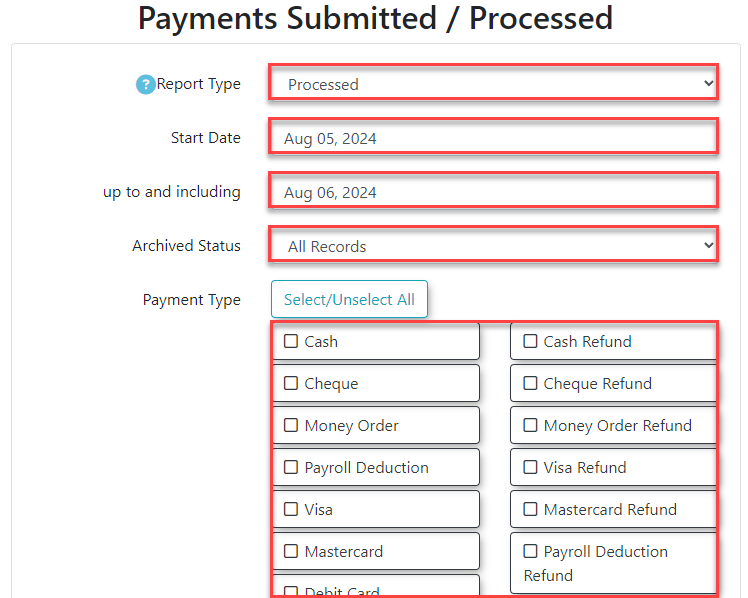
Administrators can befilter foundthe underdaily payments by date range, payment status, and payment type to generate a highly specific financial report.
-
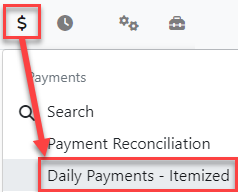
Hover over Payments
->and click Daily Payments -Itemized.Itemized.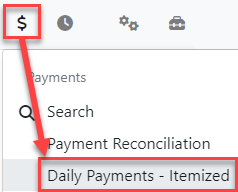
-
On this pageSelect yourcandesired date range using the provided date fields. -
Filter the results by choosing specific payment types from the drop-down menu.
-
Choose to filter
forthe report by either submitted or processedpaymentspayments.based -
Click the List Payments button to generate the results.
Key Information Displayed
-
Daily Grouping: Once generated, the results will be displayed directly below the search criteria, automatically organized and grouped by day.
-
Processed Orders Breakdown: A comprehensive table breakdown summarizing all daily processed orders is displayed at the bottom of the page for quick reference.
Available Action & Button
The report offers two distinct Excel export options depending on ahow dateyou rangeneed andthe paymentdata type:
Two optionsorganized for excelexternal export exist:

-
Export to Excel (Group):
:Click this button to generate a file where payment items (such as permits, deposits, violations,lockers,andetclockers) that are part of the exact same transaction are grouped together into a single block.

-
Export to Excel (Line): Click this button to generate a file where payment items that are part of the same
paymenttransaction aregroupedseparatedtogether.Example:
out
Export to Excel (Line): payment items such as permits, deposits, violations, lockers, etc that are part of the same payment areand listed onseparateindividuallines/rows.Example:

Best Practices and Considerations
AfterReconciliation clickingTasks: "ListWhile Payments"this resultsreport willprovides thenan beexcellent displayeditemized below the search criteria, grouped by day:
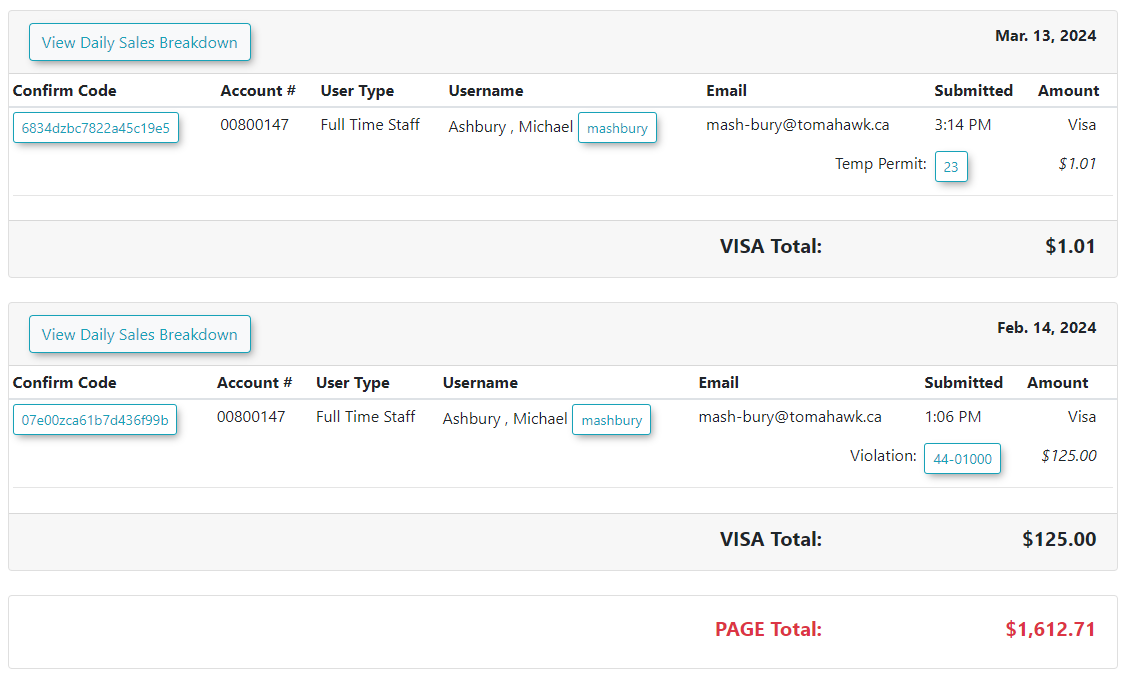
Additionally along the bottom of the page a table breakdownview of daily processedtransactions, ordersit is shown: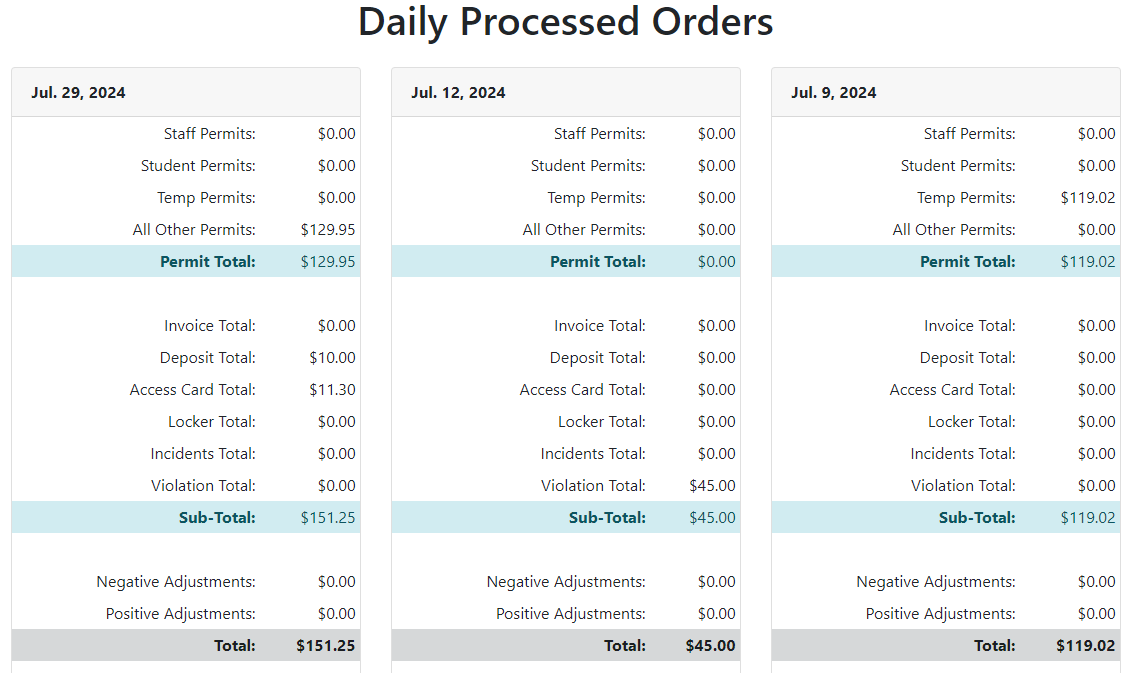
-
Export Formats: Choose the correct export format based on your external accounting software. If your financial department imports this data into a third-party accounting system, verify whether their software requires grouped transaction totals or individual line-item separation before running your export.