Failed Payments Report
The Failed Payments Report allows administrators to search and review a list of unsuccessful payment transactions within a specific date range. Its primary purpose is to help identify exactly why a user's transaction did not process by providing access to detailed transaction records and specific payment provider error codes. This article is intended for OPS-COM administrators.
Setup and Configuration
There is no specific system configuration required to access this report. Running the failed payments report is a standard administrative function available to users with the appropriate financial reporting and payment management permissions enabled on their account profile.
Using this Feature
Administrators can generate a list of unsuccessful transactions and drill down into the specific error details in just a few steps.
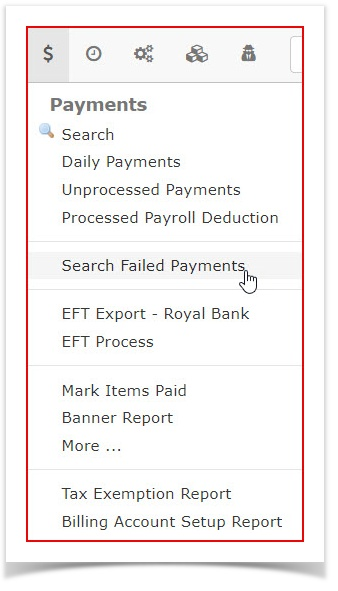
ToaccessHover
the report go to theover Paymentsdrop down menuandselectclick Search Failed Payments.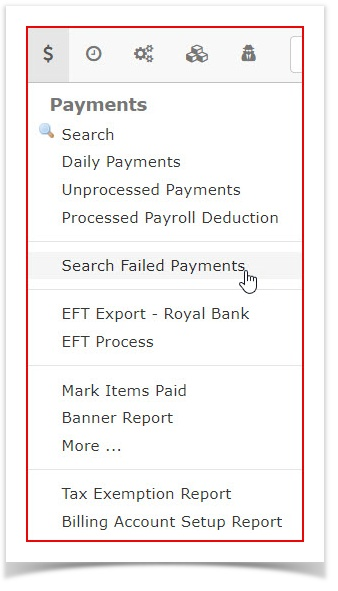
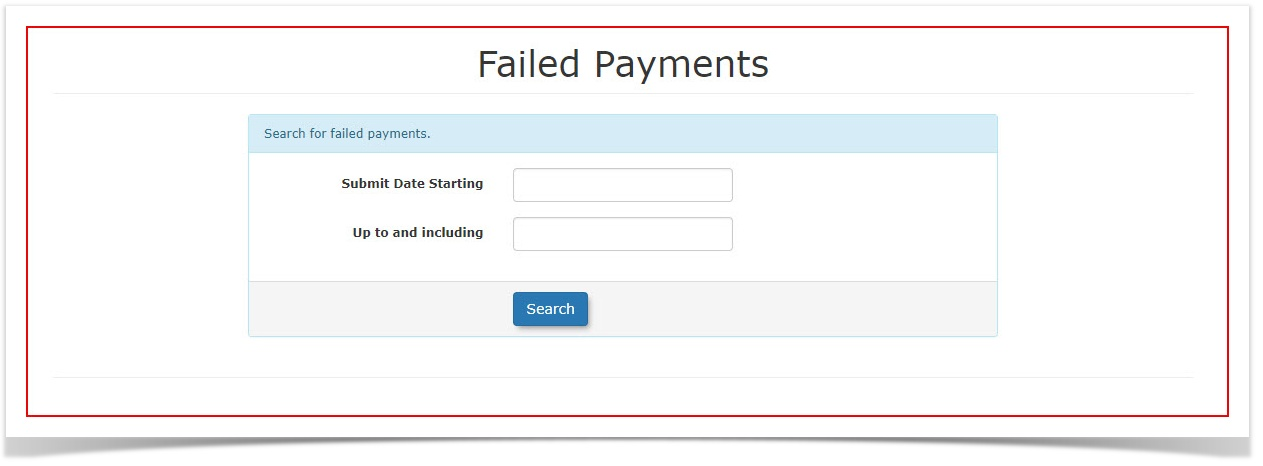
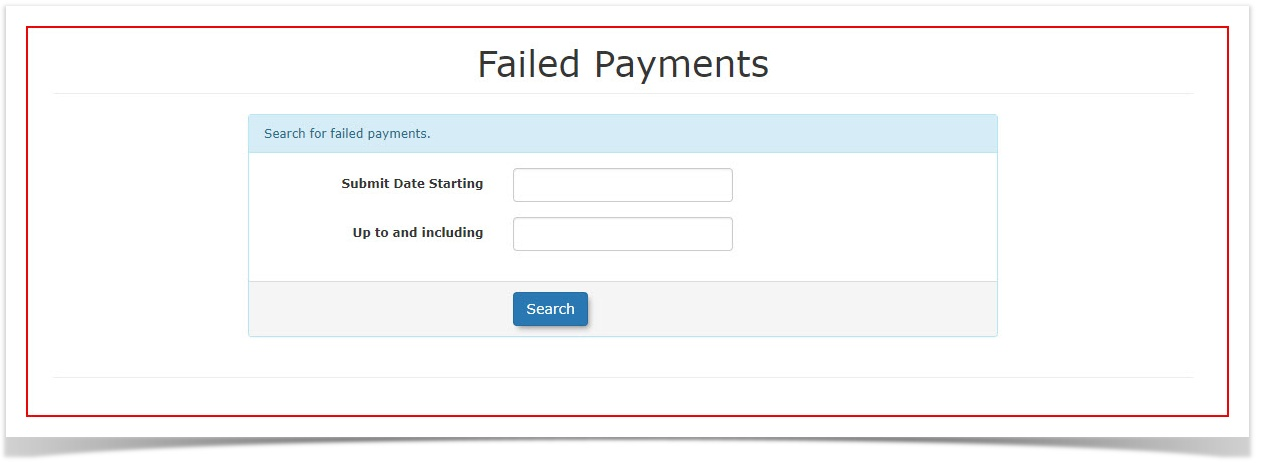
TheFailed Payments Reportscreen will open.Enter
athe specific date range you wish to report onandusingclickthe provided date fields.-
Click the Search
.
ThescreenReview
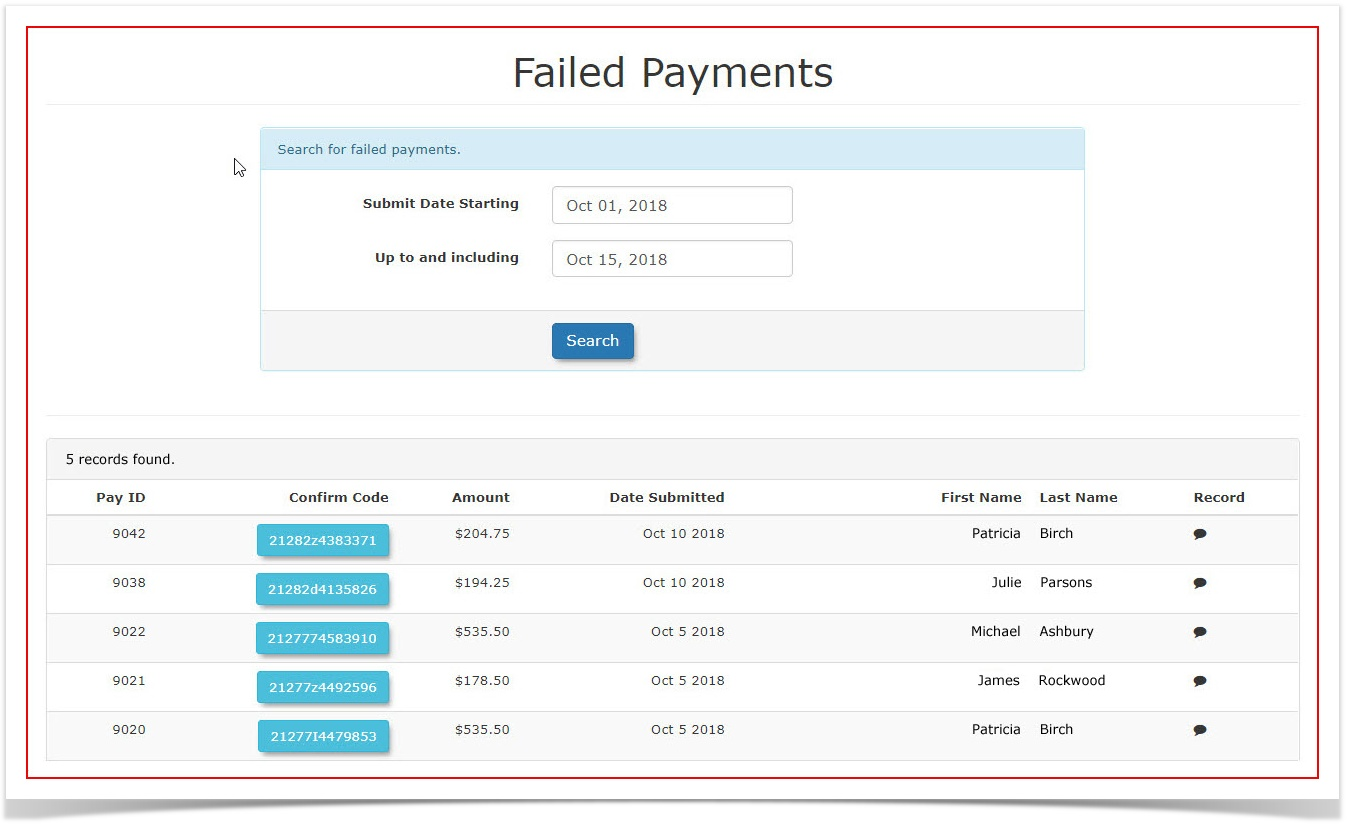
willtherefresh with agenerated list of failedpaymentpayments displayed forthatthedateselectedrange.timeInperiod.our-
weClick
arethelooking atspecificOctoberConfirmation1st,Code2018link to open the full transaction record and view detailed failure information.
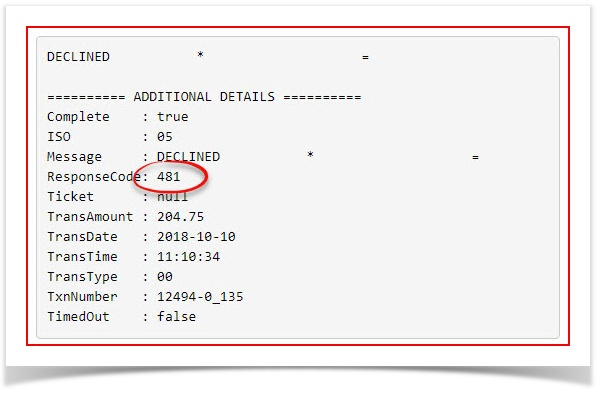
OctoberUnderstanding 15th,Provider 2018.Error Codes:During thatWhile timesome periodpayment theregateways werereturn a detailed text explanation indicating exactly why a payment failed, other providers will simply supply a numerical error code (e.g., Response Code 481).
Key Information Displayed
-
Failed
5Payment List: The initial search results display a high-level overview of the failedpayments.attempts,The list showsincluding thepayPayId,ID, confirmation code, total amount of the payment, the dateof the failed payment and the user name associated with the payment.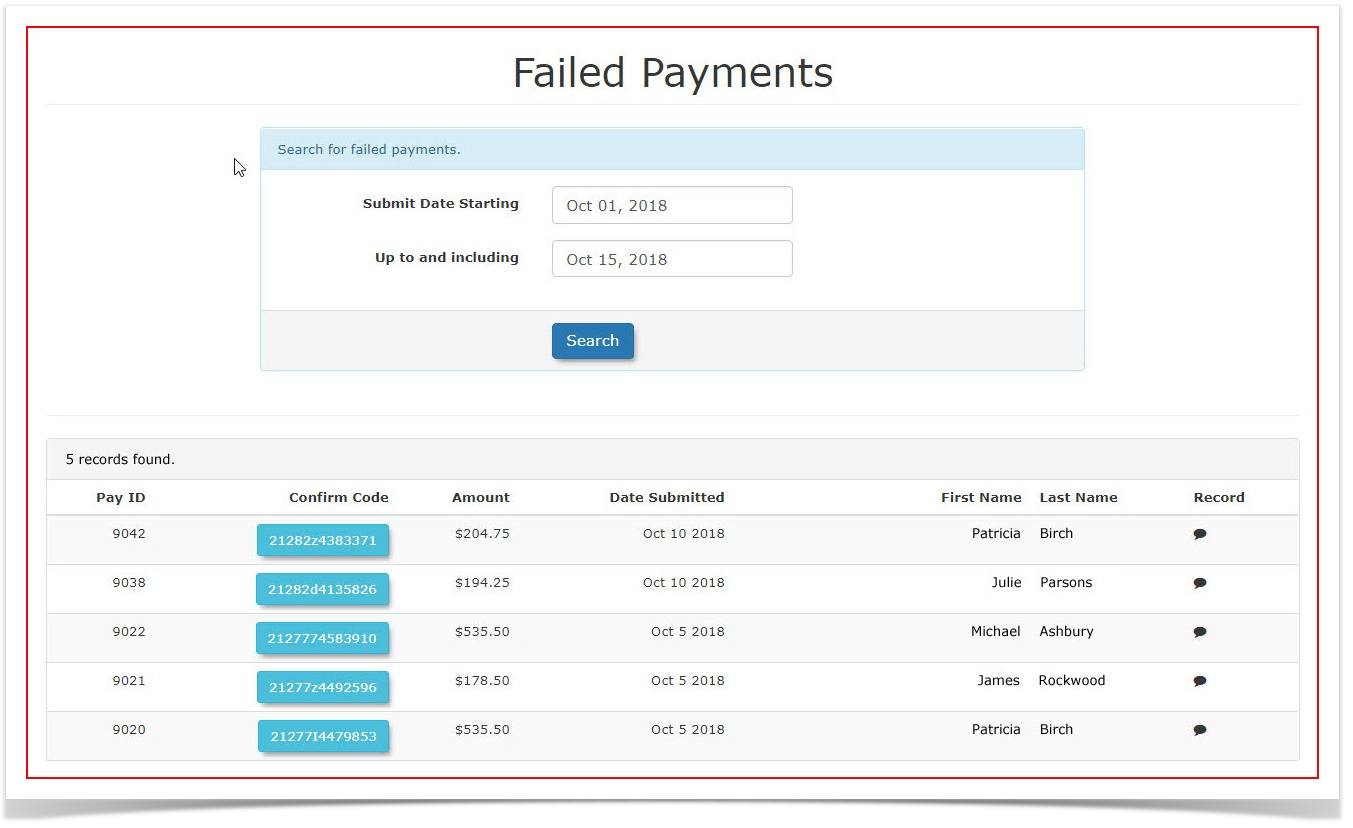
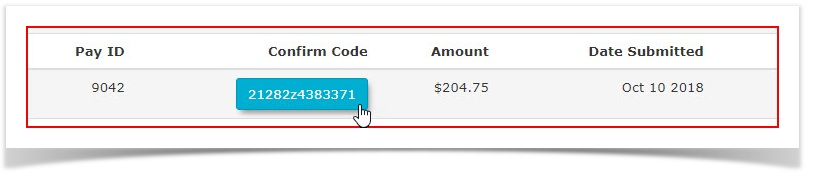
To drill down further click on theConfirmation Codebutton to access the transaction record.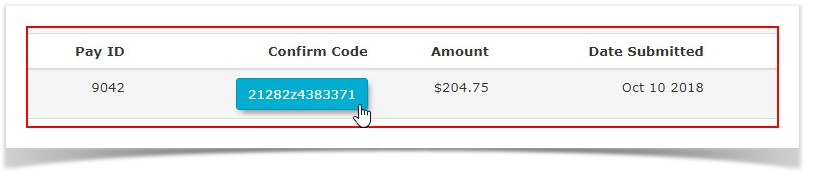
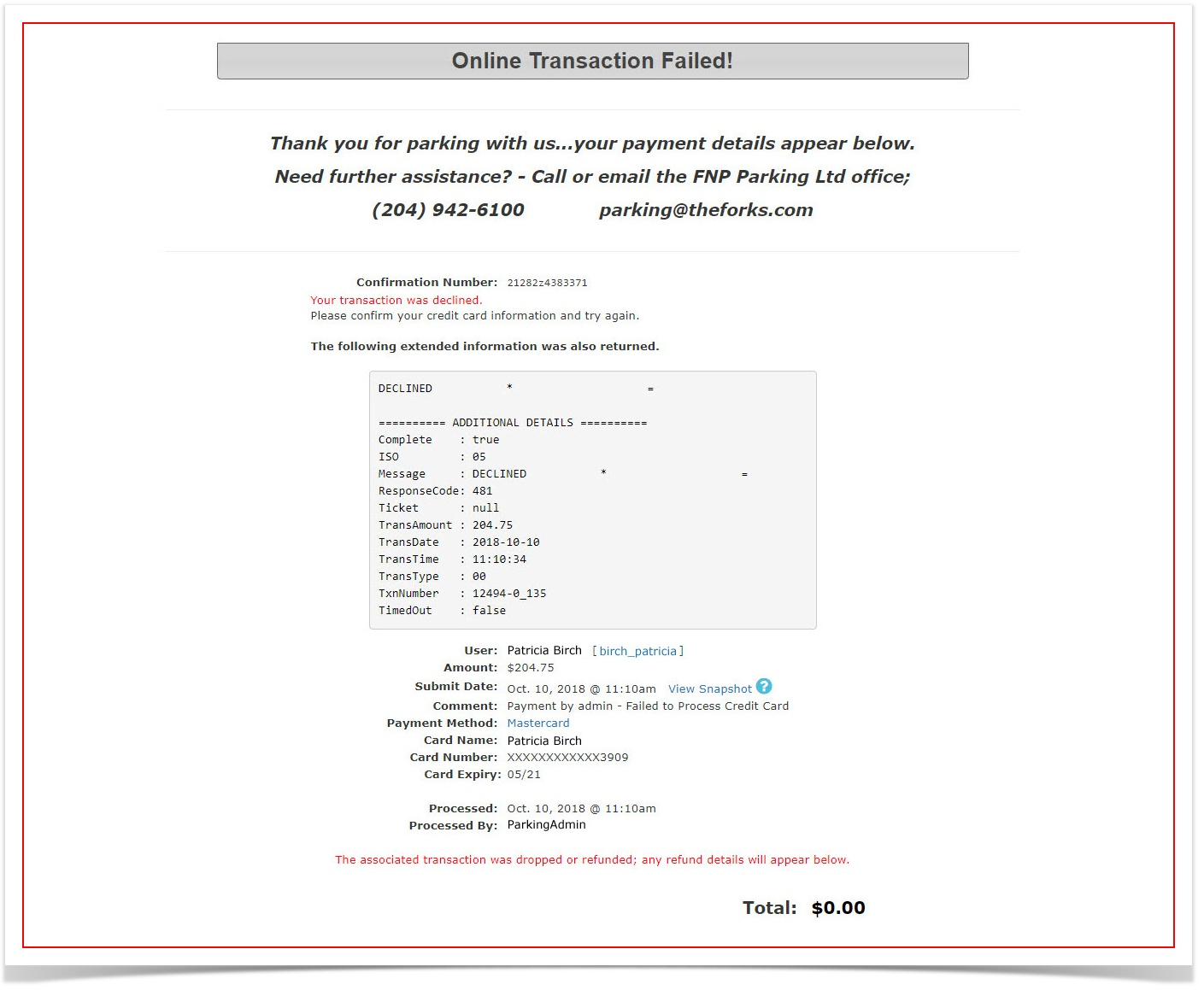
The transaction record screen will open where you can see details about the failed transaction.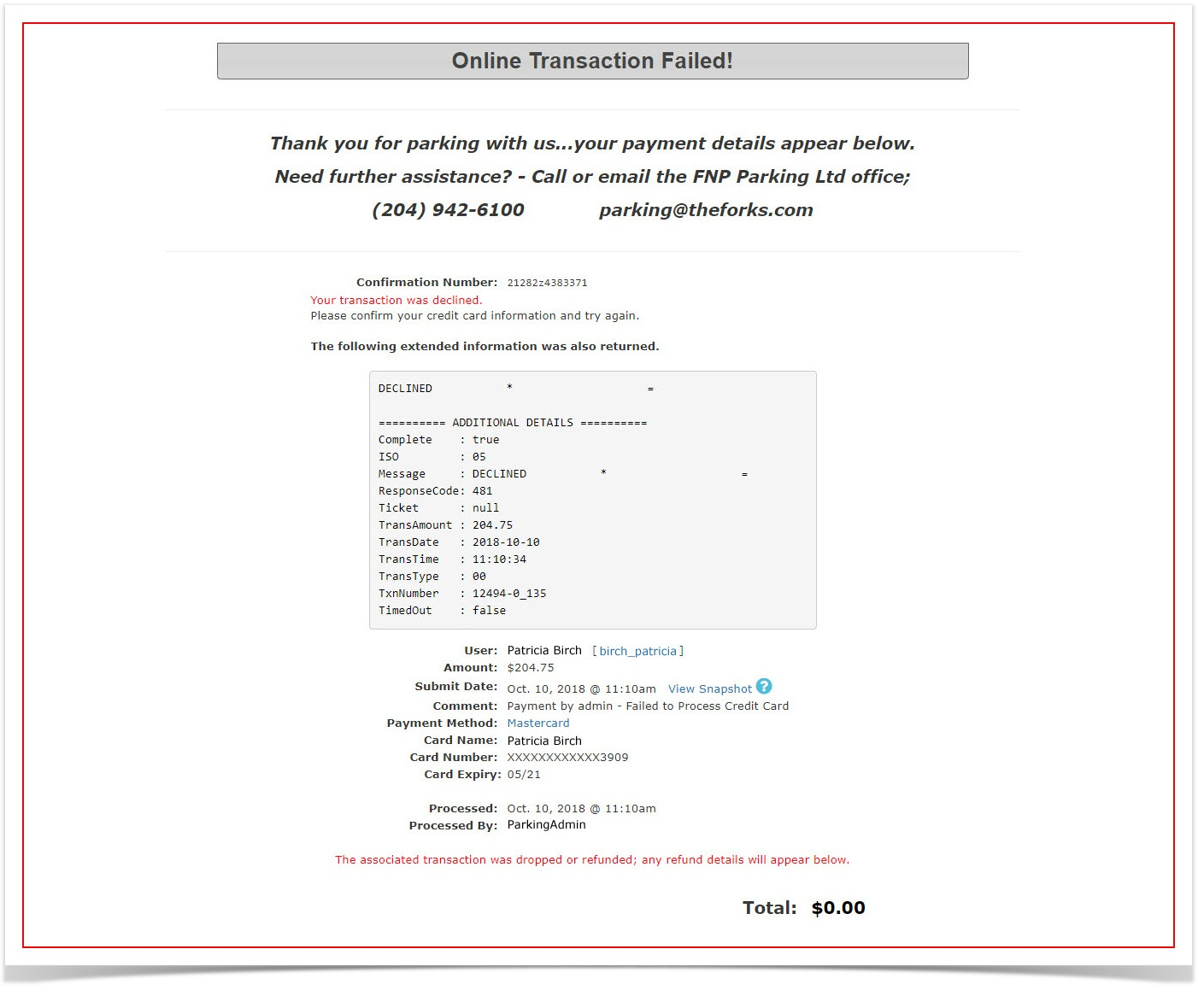
Some payment providers will return detailed information with an explanation as to whythe payment failed,whileandothertheprovidersassociatedwilluser'ssimplyname.supply-
errorTransaction
code.InRecordthisDetails:caseDrillingnotedownthat there isinto a specific confirmation code reveals the full transaction record. This includes any detailed information or response codes returned directly by your third-party payment provider.
Best Practices and Considerations
-
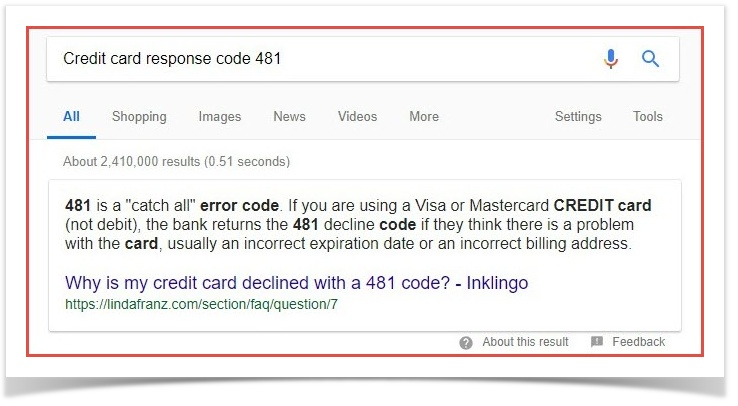
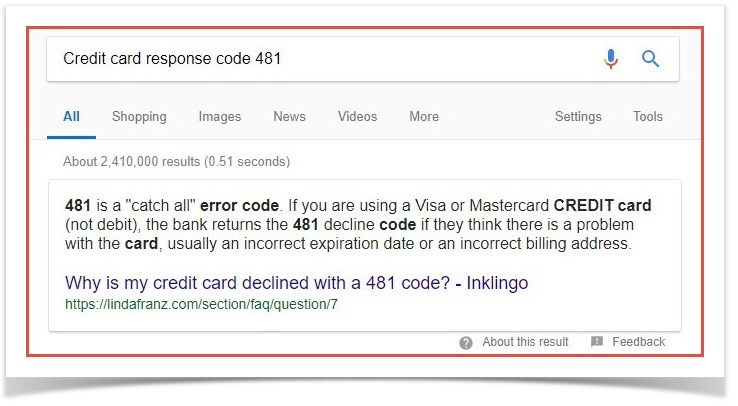
Investigating Codes: Perform a quick web search for the specific credit card response code if your gateway only provides a number. For example, searching for "Credit card response code
of481"481willindicatedquicklyinrevealthe information.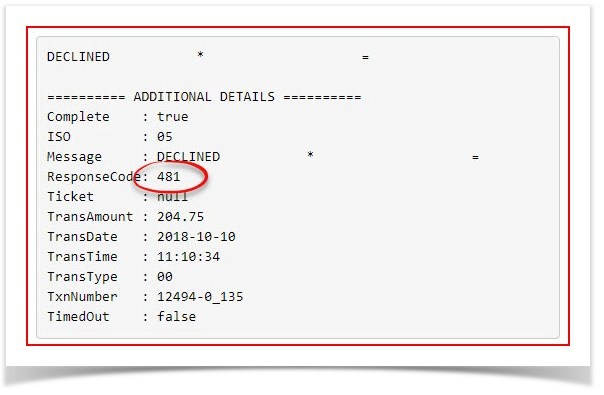
A481code indicatesthat there is an error in the informationprovided.providedUsuallyby the user, usually an incorrect expiration date or an incorrect billing address.Thedefinition -
theseUser
codesSupport:areUseeasilythe information found inathewebtransactionsearch.recordIntothisproactivelycaseassistauserssearchwhoforcallCreditincardregarding payment issues, guiding them to double-check specific fields (like their postal code or CVV) based on the gateway's responsecode 481provided the explanation.
code.