Flex Payments
Configuring a Lot For
The Flex Payments process allows administrators to create a prepaid credit balance on a user's account by issuing a zero-dollar placeholder permit and applying a manual negative adjustment. Its primary purpose is to provide flexible funding options for specific user groups, allowing them to apply this prepaid credit toward future parking purchases on the user portal. This article is intended for OPS-COM administrators.
Setup and Configuration
To beginutilize createflex payments, administrators must first configure a dedicated zero-dollar lot and allocate placeholder permits to it.
Configuring the Flex Payment Lot
-
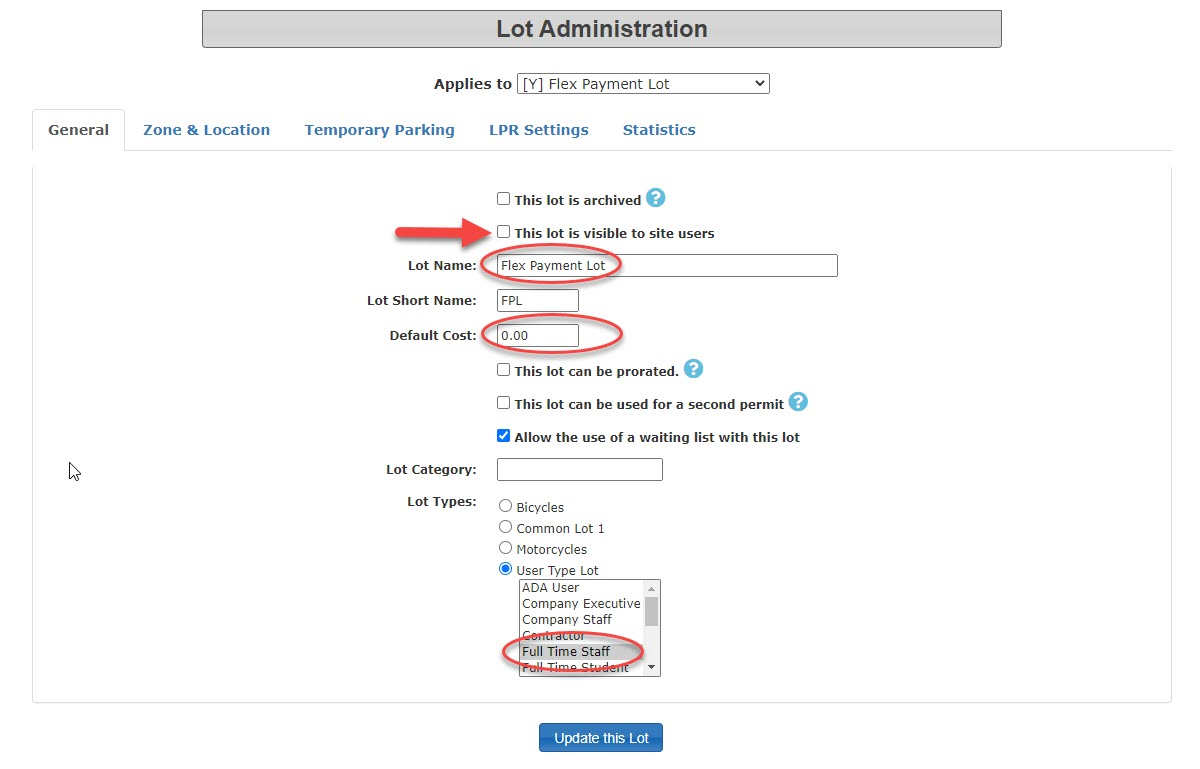
ToHoverdo so first go toover Lot Administration andselectclick Pricing & LotAdmin.Admin.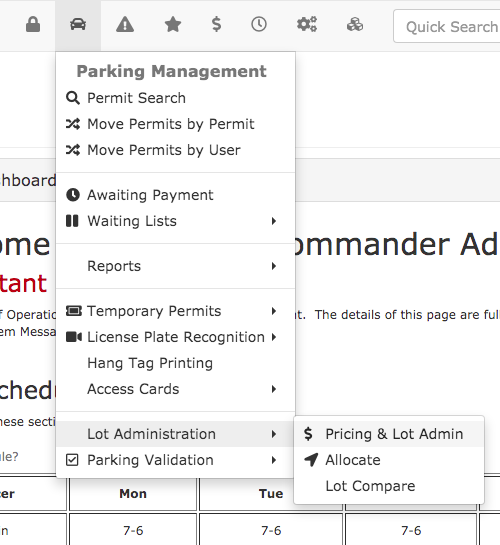
-
NameCreatethea new lot and enter a descriptive name (e.g., Flex PaymentLotLot).or -
you consider appropriate.Set the cost
atof the lot to $0.0000. -
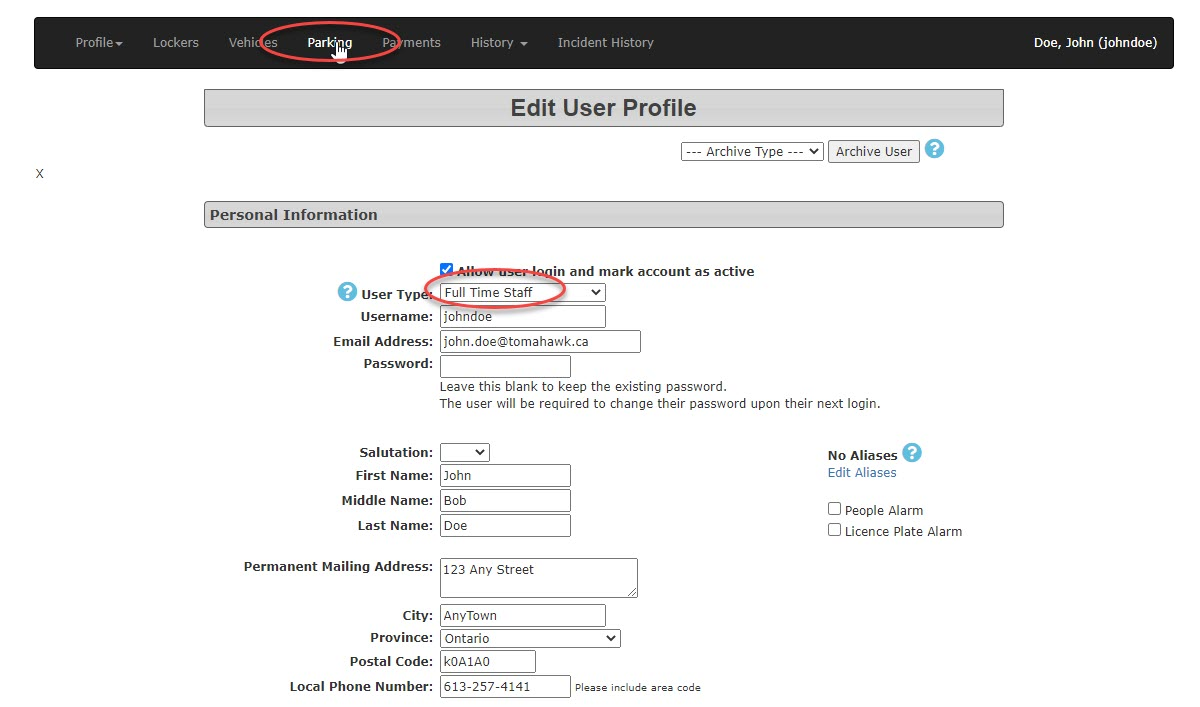
Select the specific demographic utilizing flex payments from the Usertype
drop-down menu (e.g., Full Time Staff). -
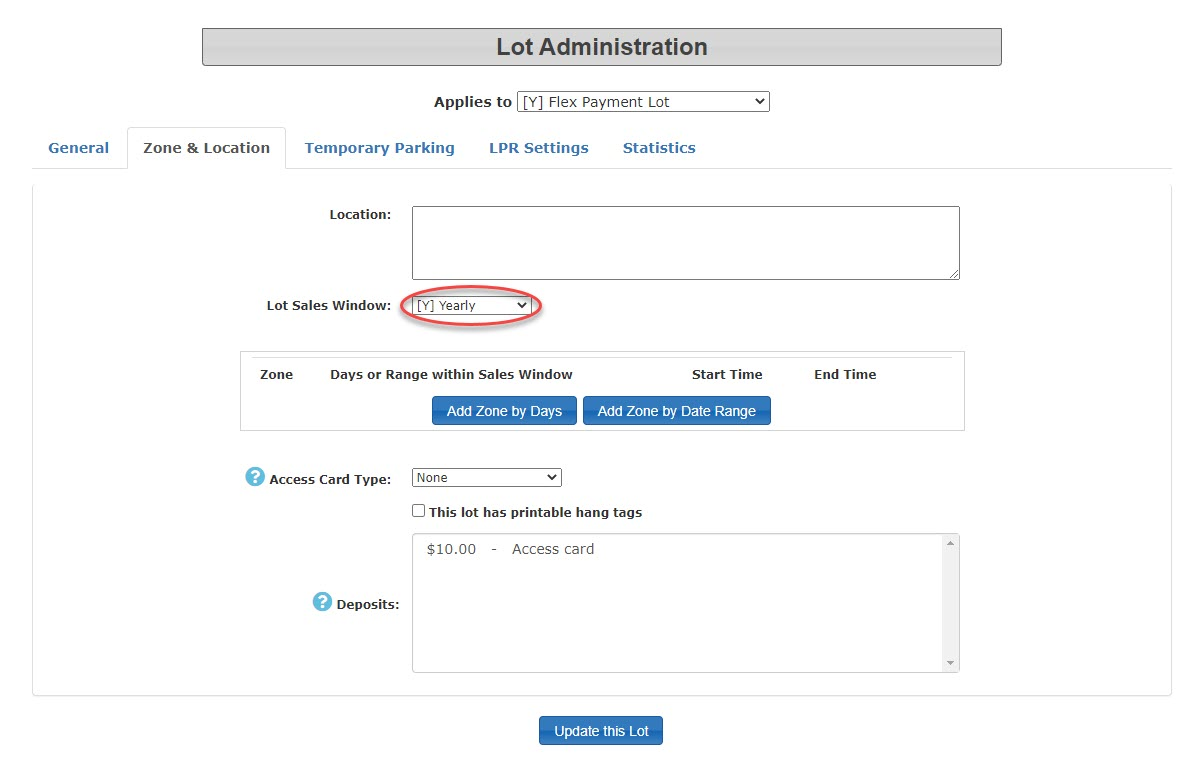
Set the Sales
UsertypeWindow totheYearly.users -
willSave
beyourusinglotFlexconfiguration.Payments. -
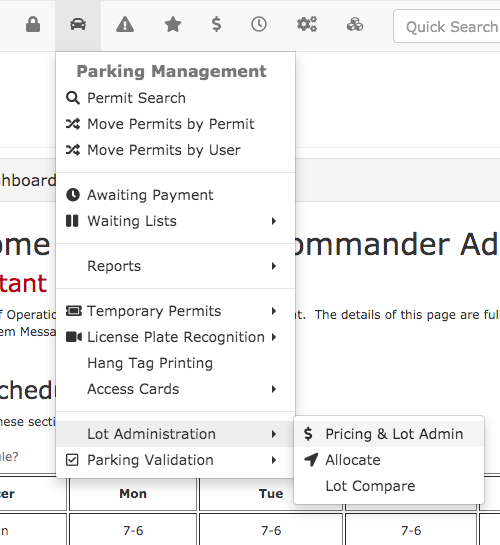
ourHover
example we are usingoverFullLotTimeAdministrationStaffand click Allocate. -
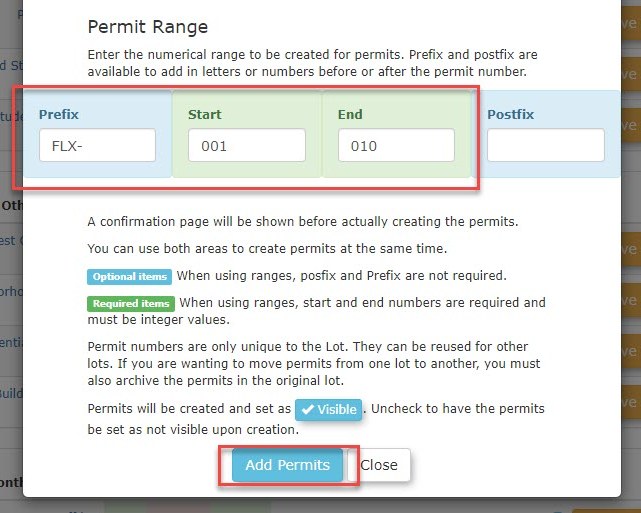
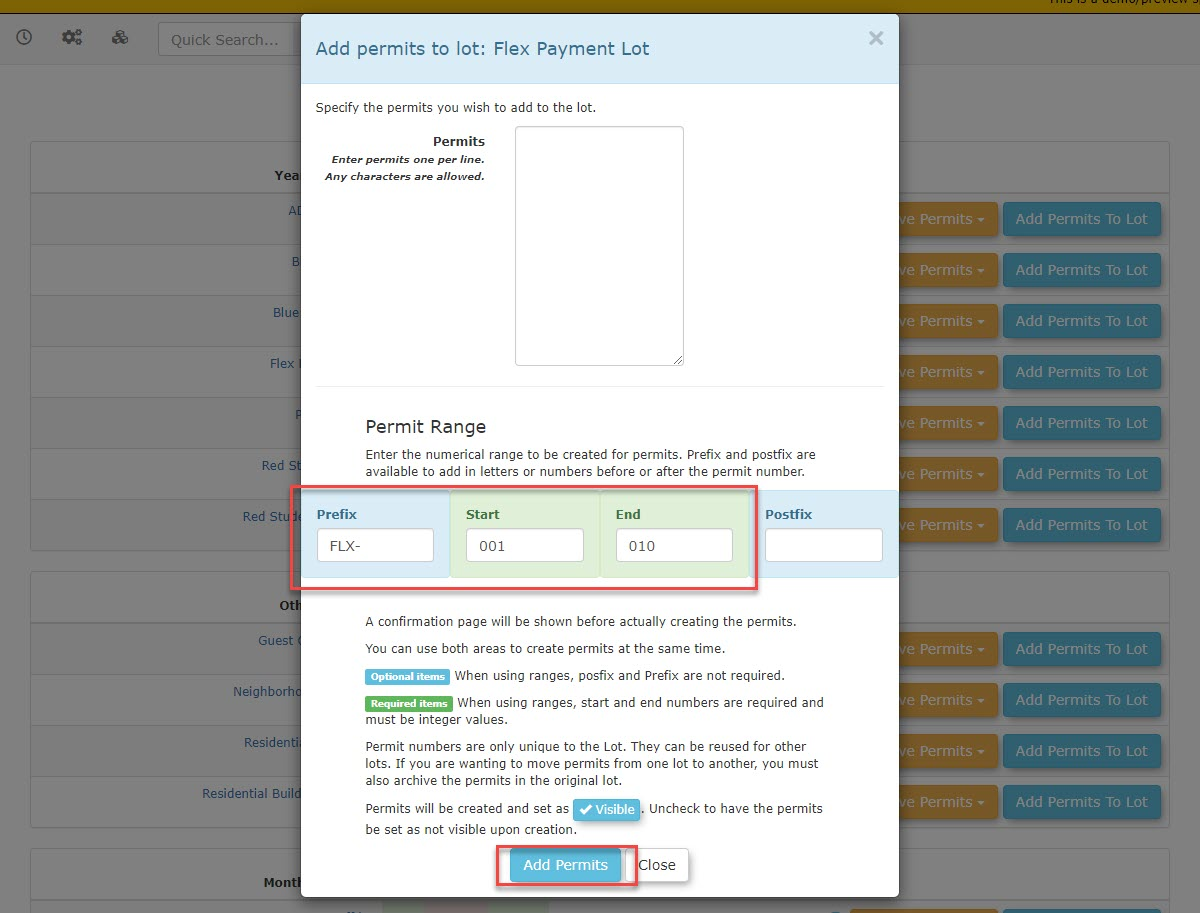
Add a block of dummy permits to this new lot (e.g., FLX001 through FLX010).
Note:Lot theVisibility: This placeholder lot does not haveneed to be set to visible to usersstandard users, as this functionality willis onlyexecuted beexclusively used onfrom the Adminadministrative Portalportal. You can safely hide this lot from public view in the lot settings.
Using this Feature
SetOnce the Salesplaceholder Windowlot is established, administrators can apply a flex credit to Yearlya user's account by "selling" them one of the zero-dollar permits and adjusting the transaction total.
Applying Addingthe Flex PermitsCredit
-
Navigate to the
LotspecificGouser'stoAllocateprofile andadd your ten permits.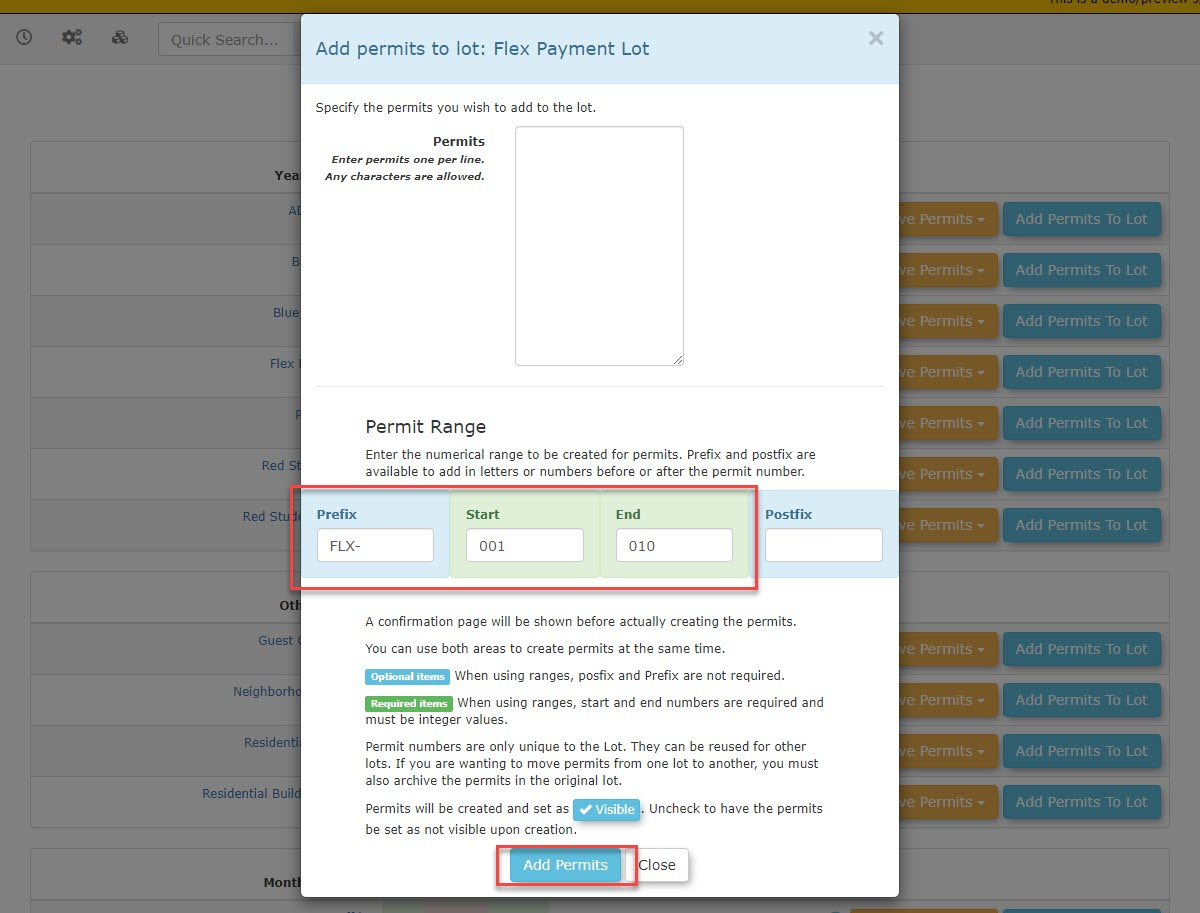
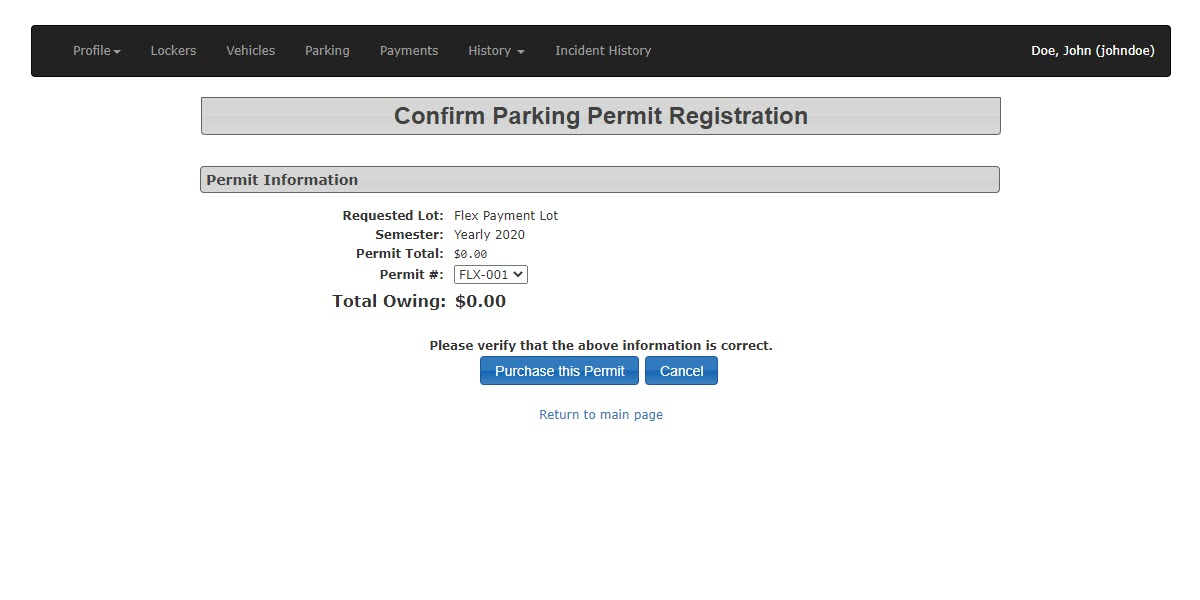
Testing Flex PaymentsTo test find aFull Time Staffuser with a vehicle in our example we are usingJohn Doe.Click onclick the Parkingtab to begin the purchase process.tab.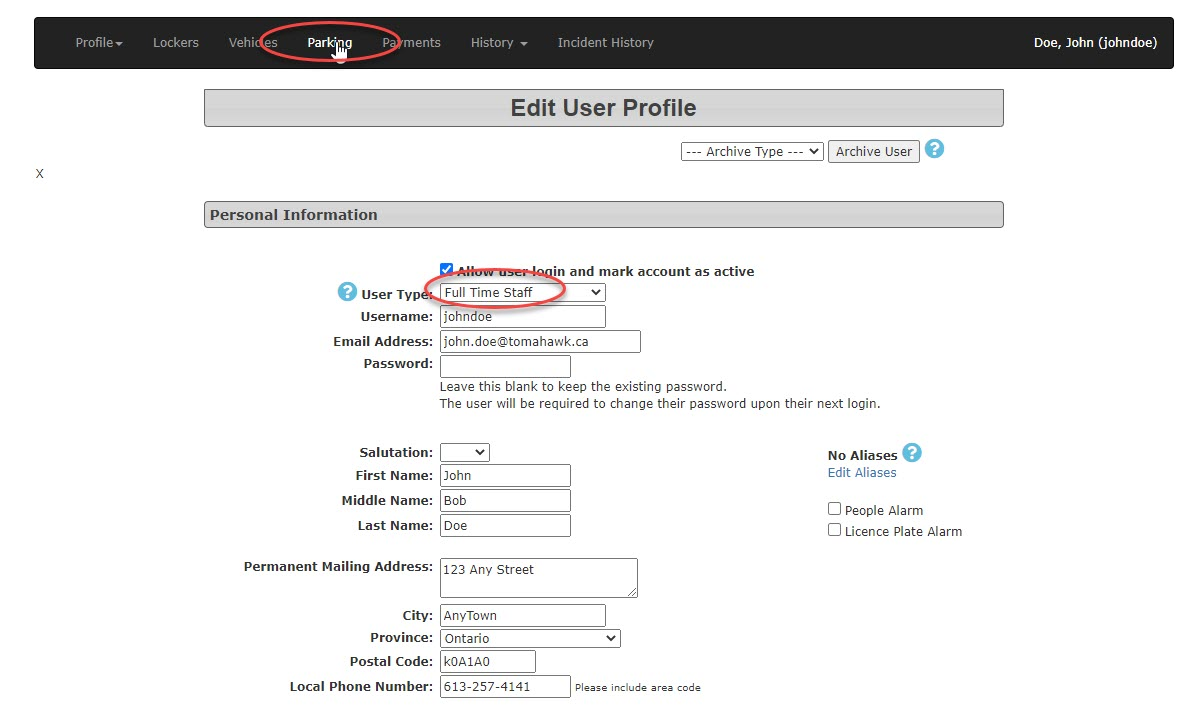
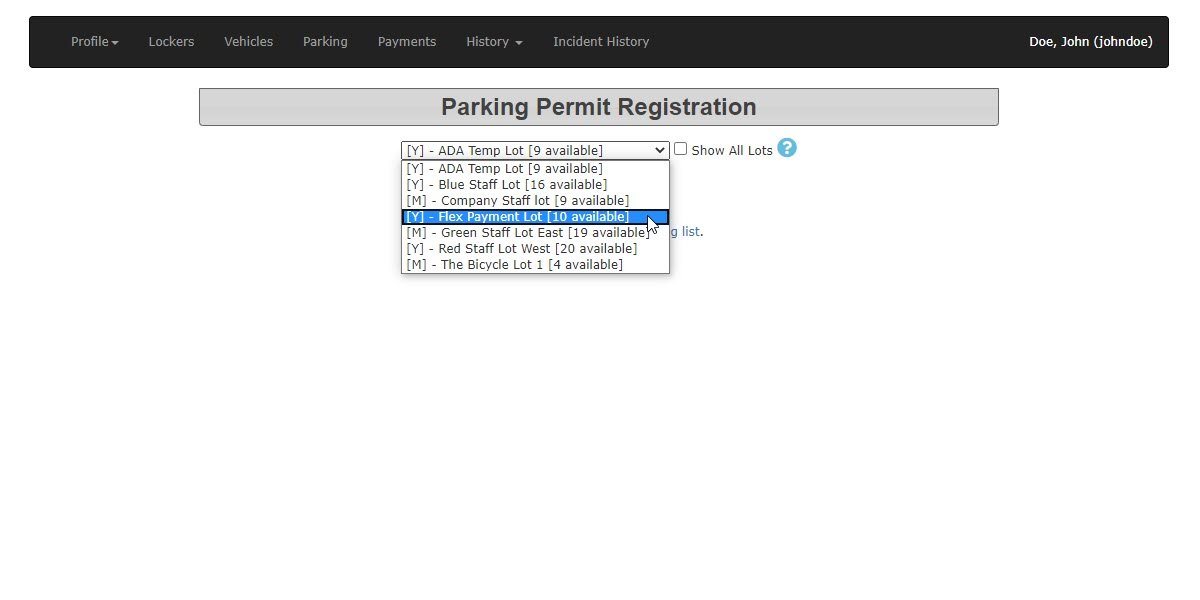
-
PurchaseSelect a permit from the newly created Flex PaymentLot.Lot. -
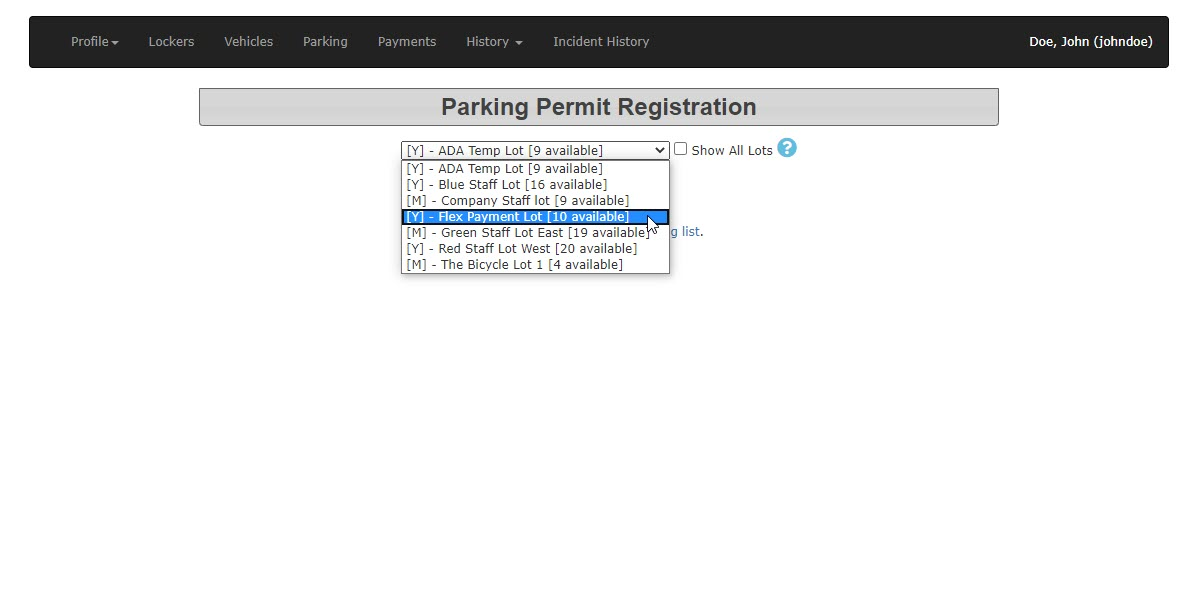
Process -
Click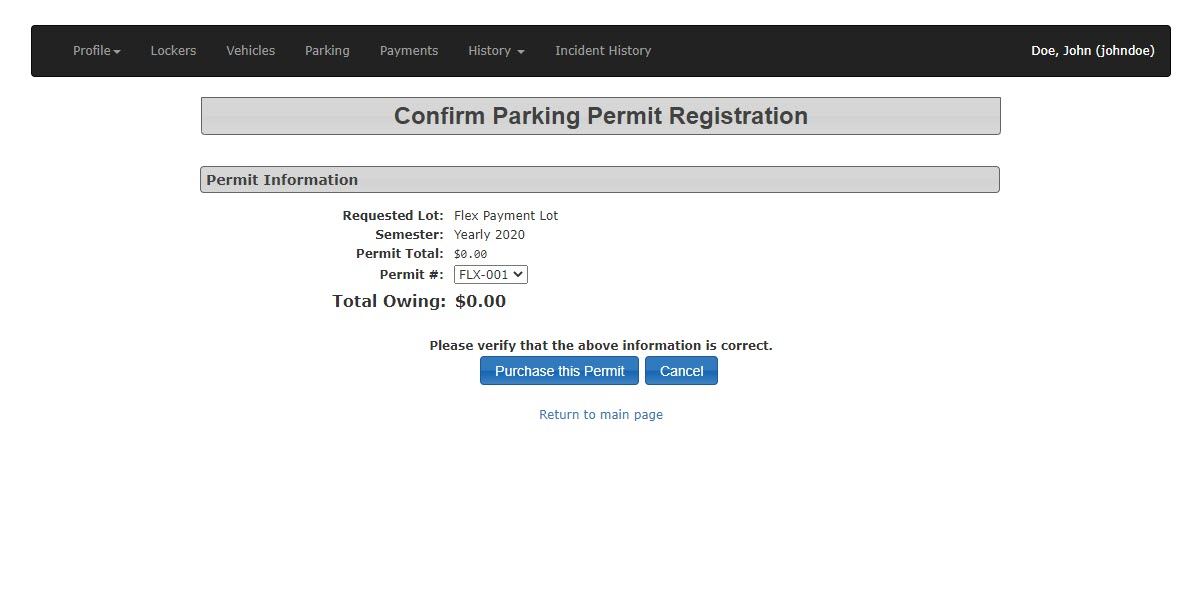
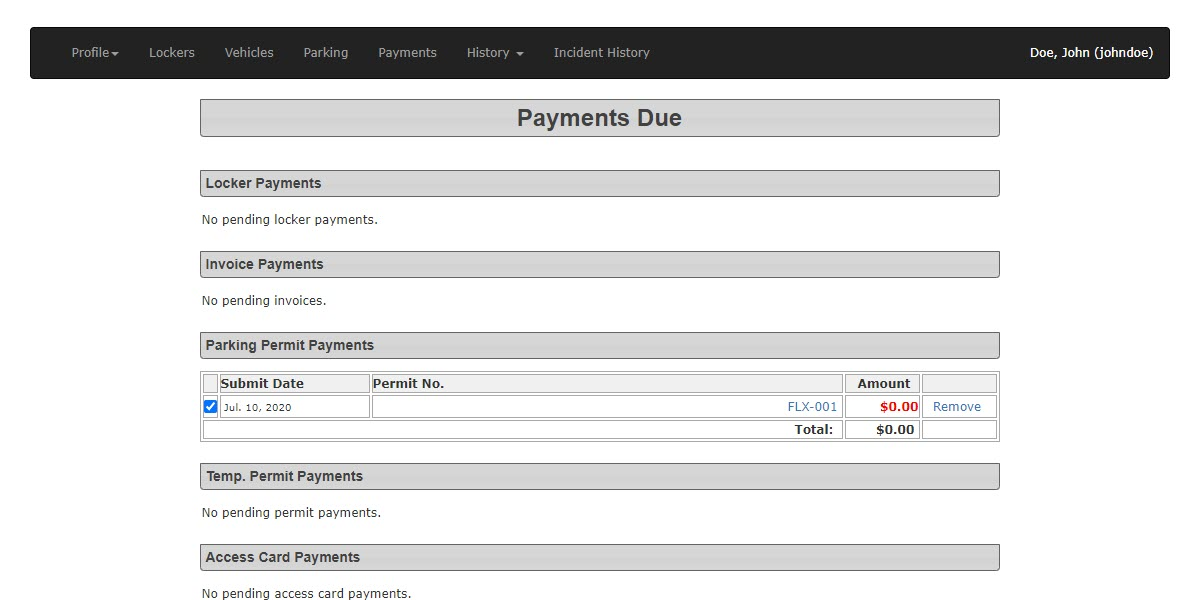
ThePayments Duescreen will open. Selectthe Proceed to Paymenttobuttoncontinue.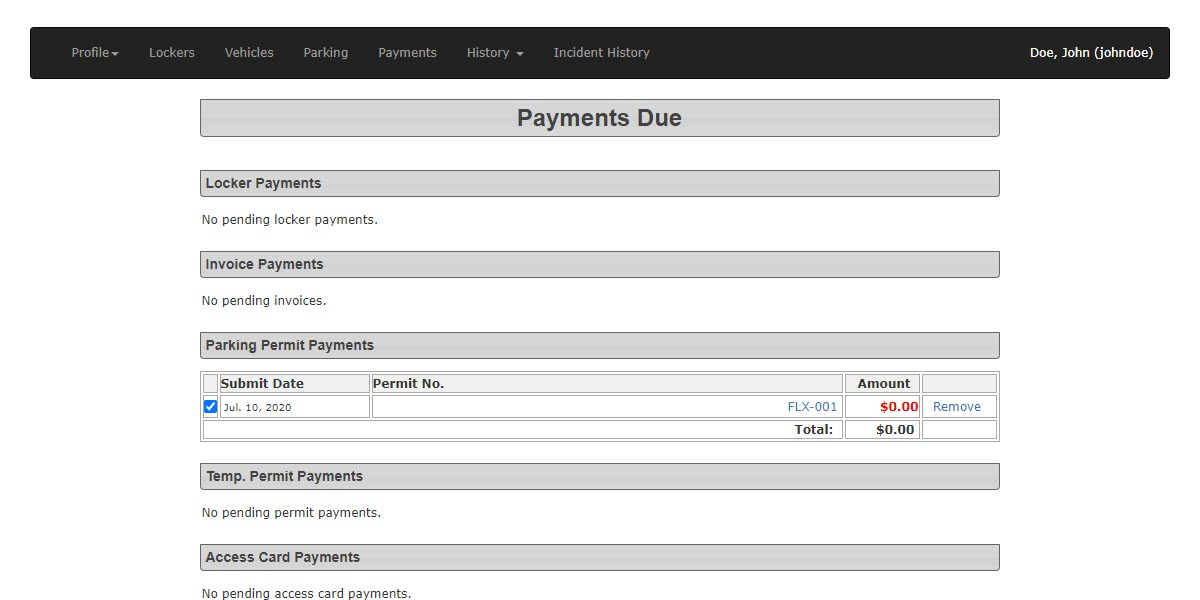
Onon theveryPaymentslastDue screen. -
Select a manual payment type, such as Cash, and process it as a zero-dollar purchase.
-
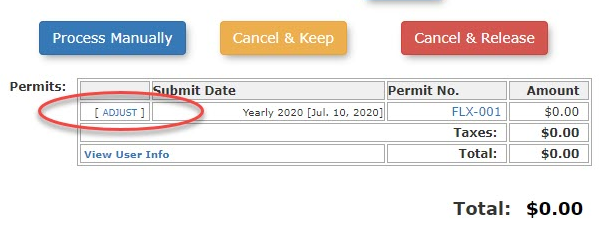
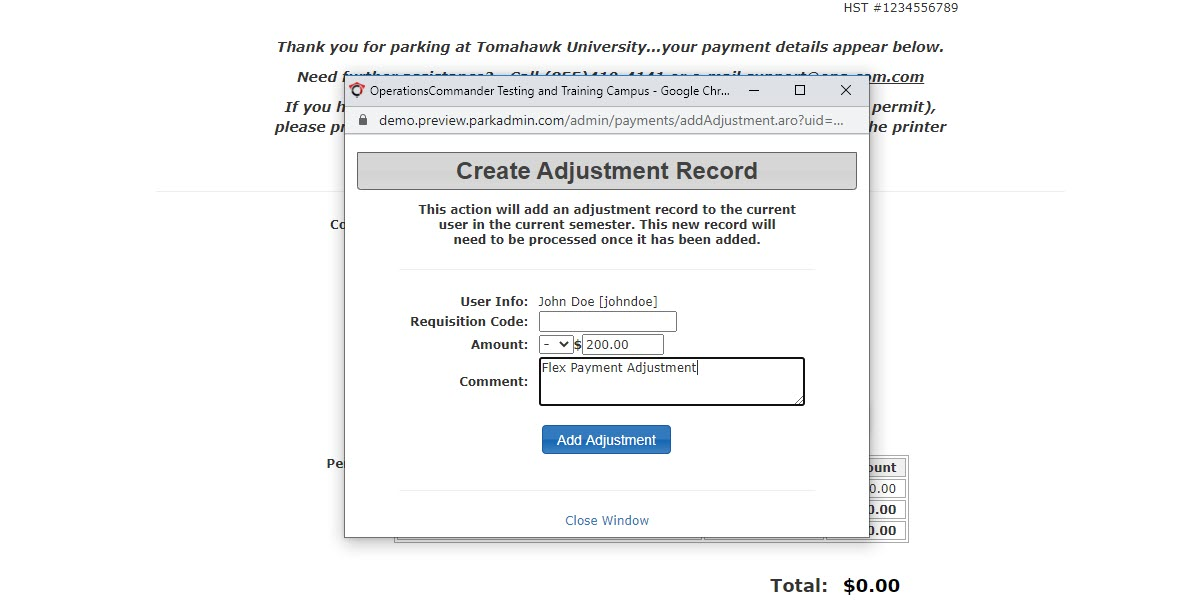
Click the Adjust button on the final confirmation screen
click onAdjustbring upopen the adjustmentscreen.
interface. -
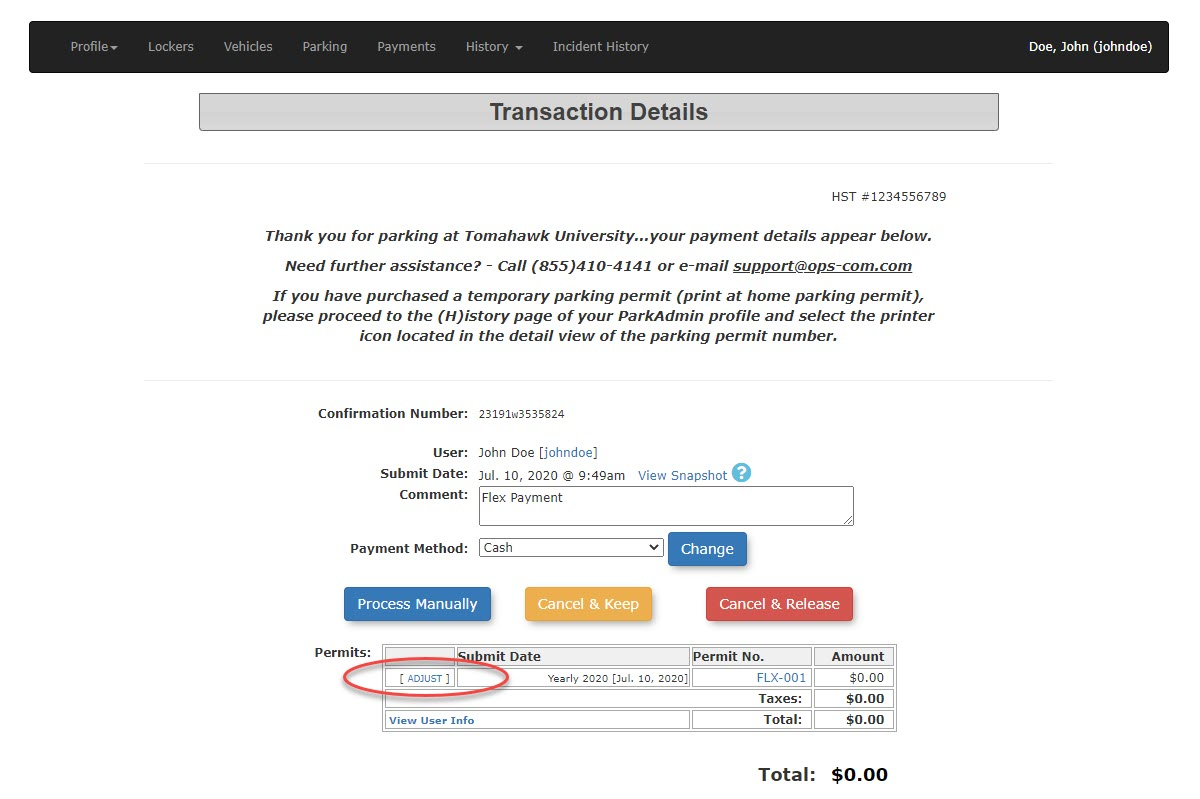
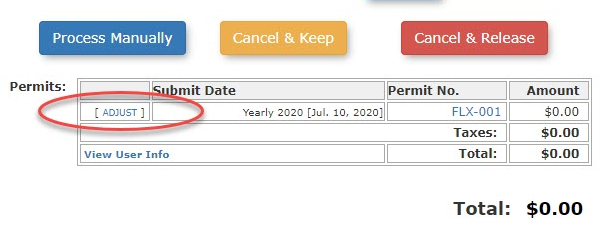
-
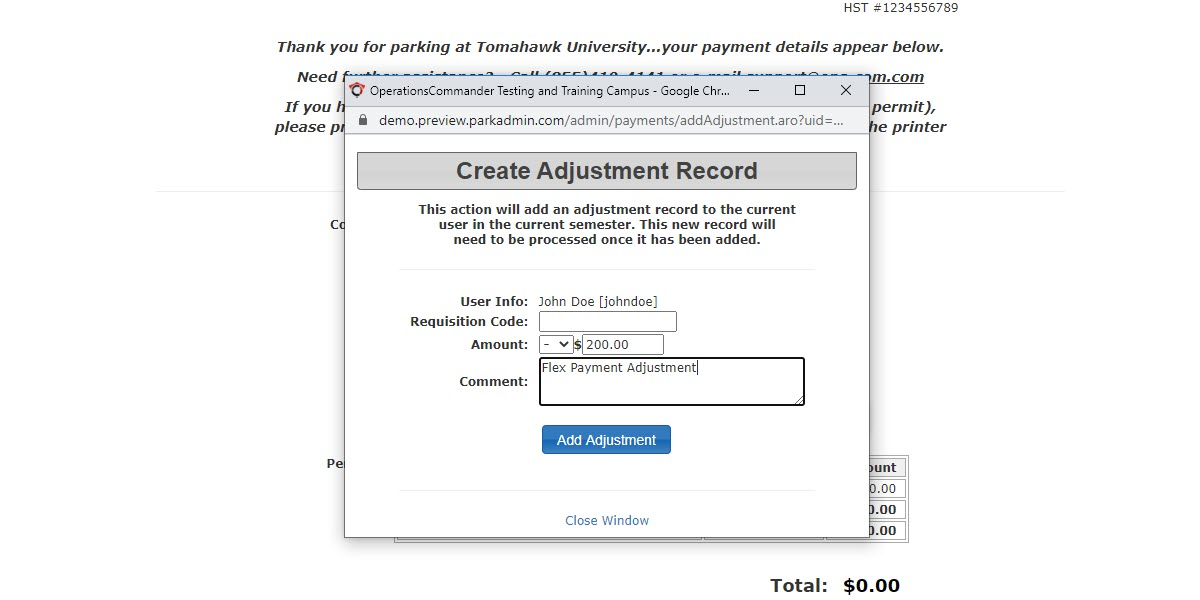
SetEnter a-200.00negative value to represent the credit amount (credit)e.g., -200.00).Added -
Enter a
commentclear description in the Comment field (e.g., Flex Payment Adjustment).and -
onClick the Add Adjustment
.button.
Key Information Displayed
-
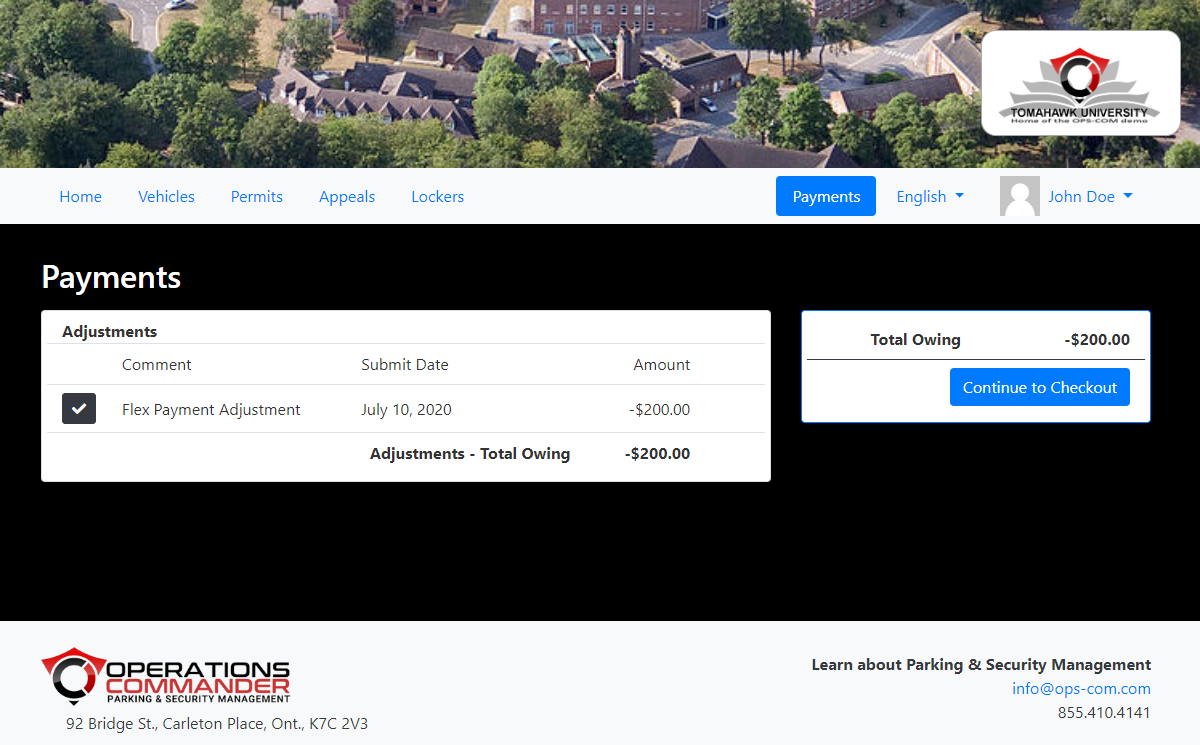
How
Do Not Process the Credit: After adding the negative adjustment, do not attempt to process a refund or payout for the credit isbalance. displayedLeave the negative balance on the useruser's Portalaccount
Do not processso the creditsystem yetrecognizes it as itavailable willfunds appearthey ascan apply toward future permit purchases.
Best Practices and Considerations
-
Audit Trails: Always use clear and standardized comments when adding the negative adjustment (e.g., "Fall Semester Flex Funding"). This ensures your financial team can easily identify why a
credit on the users account.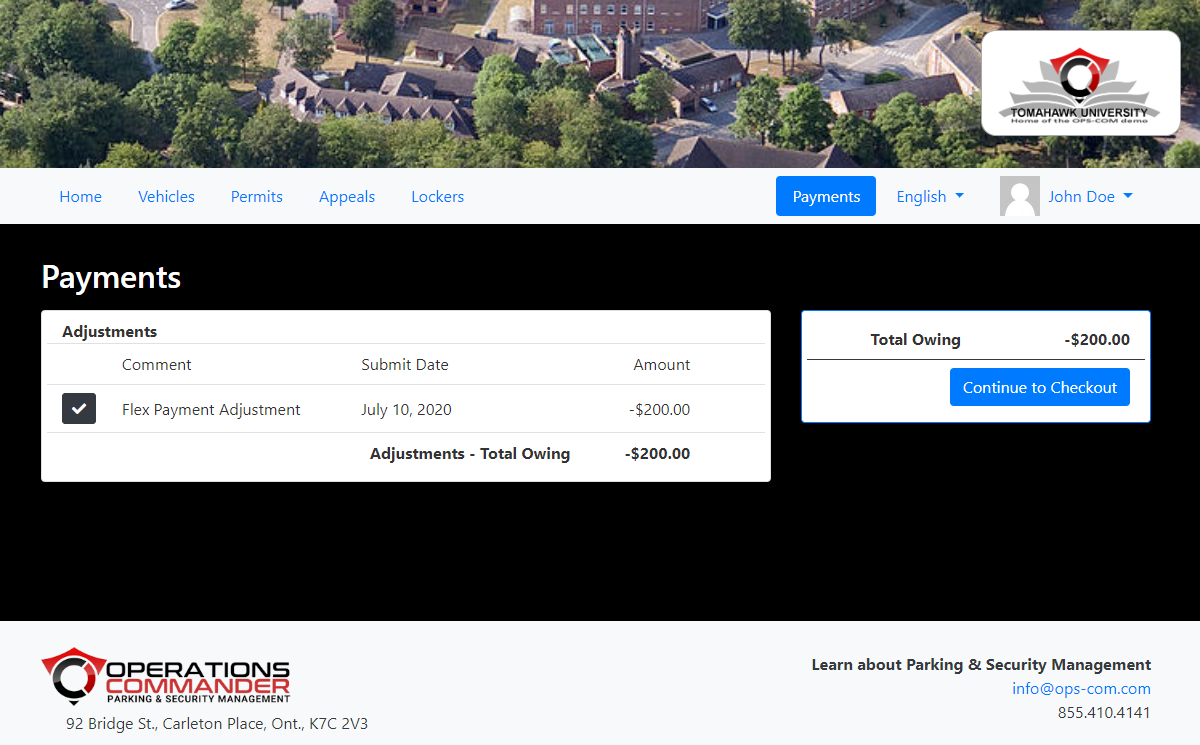
Thismanual creditcan now bewas applied toathepermituser'spurchase.profile during an audit.