Mark Items as Paid
The Mark Items as Paid feature allows administrators to efficiently update the payment status of outstanding items in bulk. Its primary purpose is to streamline administrative workflows when resolving unpaid balances for specific user demographics, item types, or lists of recovered violations returned by a collection agency. This article is intended for OPS-COM administrators.
Setup and Configuration
There is no specialized system configuration required to access this tool. Processing bulk payments is a standard administrative function available to users with the appropriate financial reporting and payment management permissions enabled on their account profile.
Using this Feature
Administrators can execute bulk payment updates either by defining broad system criteria or by entering a specific list of ticket numbers.
Marking Items Paid Menuby OptionCriteria
This method is useful for clearing out legacy balances or waiving fees for specific groups up to a certain date.
-
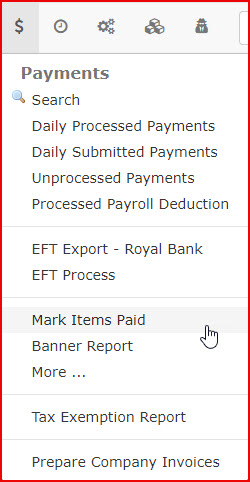
Hover over Payments and click Mark Items Paid.
-
Select
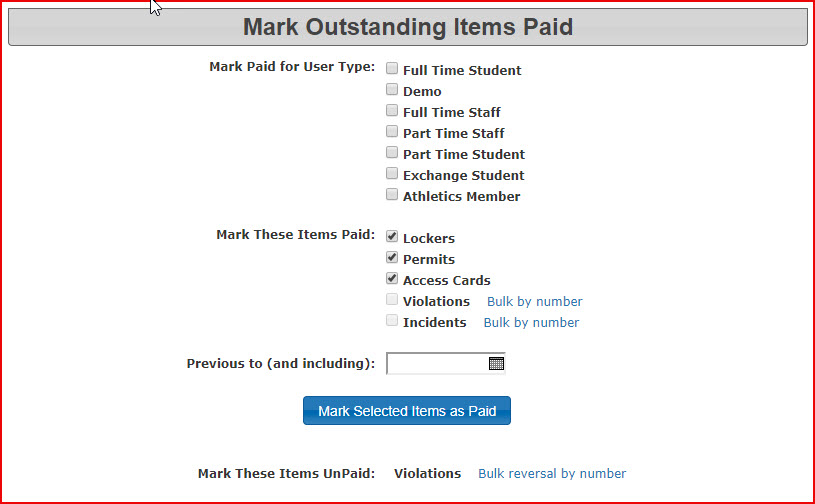
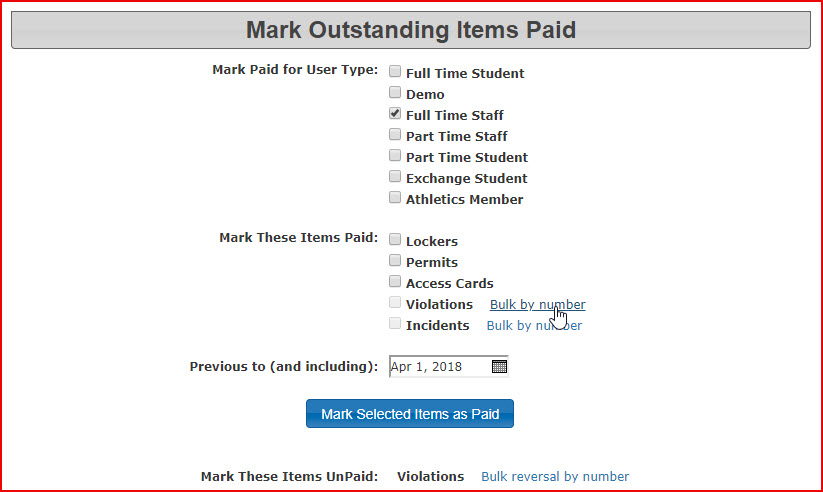
fromItemsthe target demographic you wish toMarkupdatePaidThetheMarkUserOutstanding Items PaidTypescreendrop-downdisplays.menuYou(e.g.,can select different parameters such as user type, item type and time period.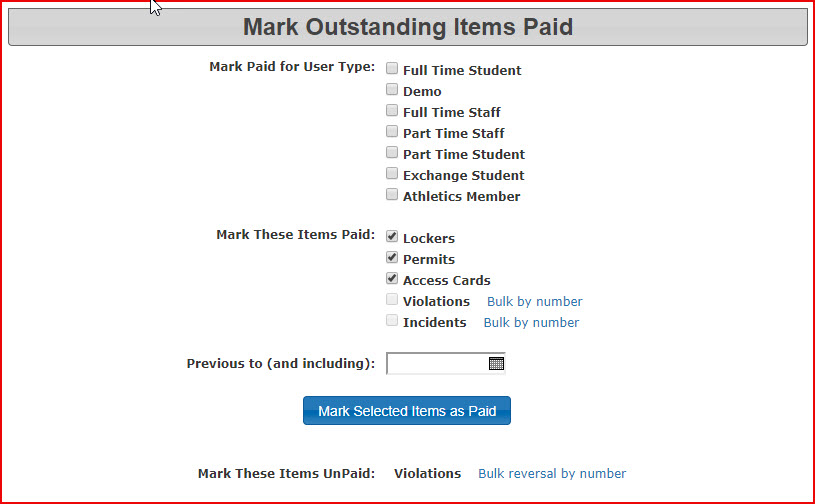
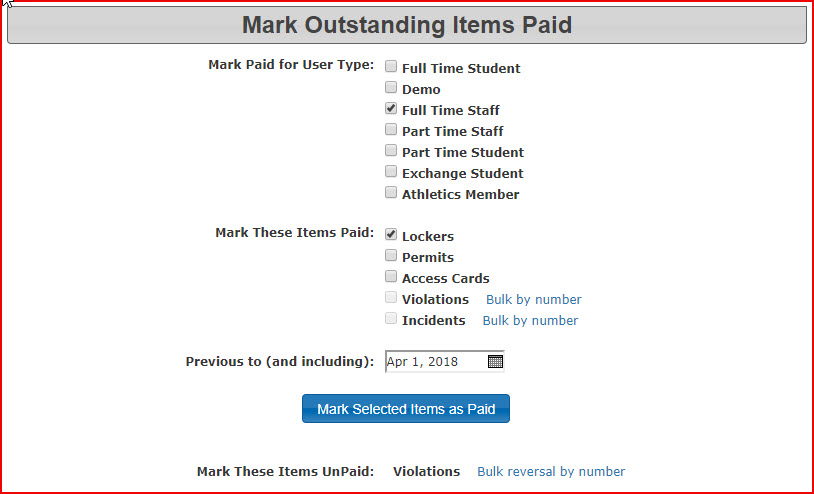
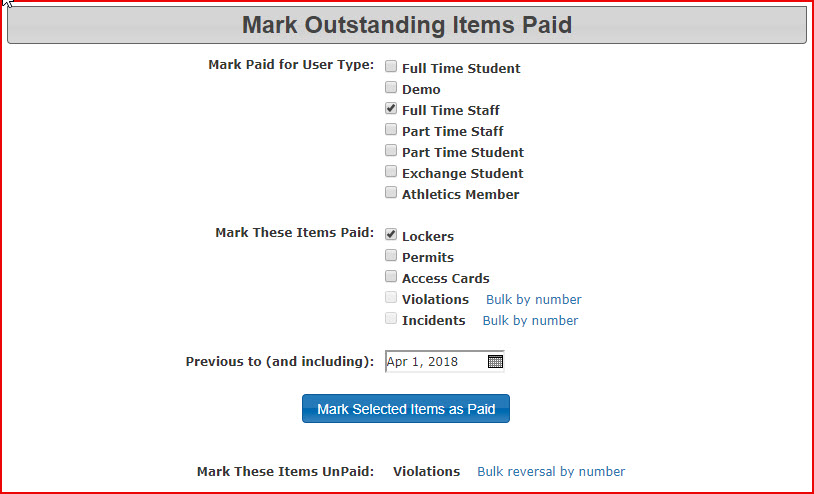
As an example, this setting will mark all locker rentals forFull TimeStaff,Staff).purchased -
AprilSelect
1st,the2018specific item you are marking aspaid.paid from the Choose Item Type drop-down menu (e.g., Locker Rentals). -
-
Click the corresponding action button to process the bulk payment update for all items matching your selected criteria.
Bulk MarkMarking Violations Paid
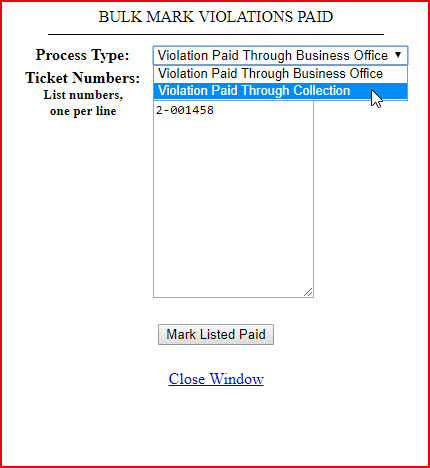
InThis casesmethod whereis primarily used when outstanding violations have been sent forto collection,collections, and the adminadministrative wouldoffice getreceives a return list backof successfully retrieved payments from the collection agency as to what payment have been retrieved.agency.
The
-
ToHoverdooversoPayments and clickonMark Items Paid. -
Click the Bulk by Number
besidebuttonViolations.located next to the Violations option.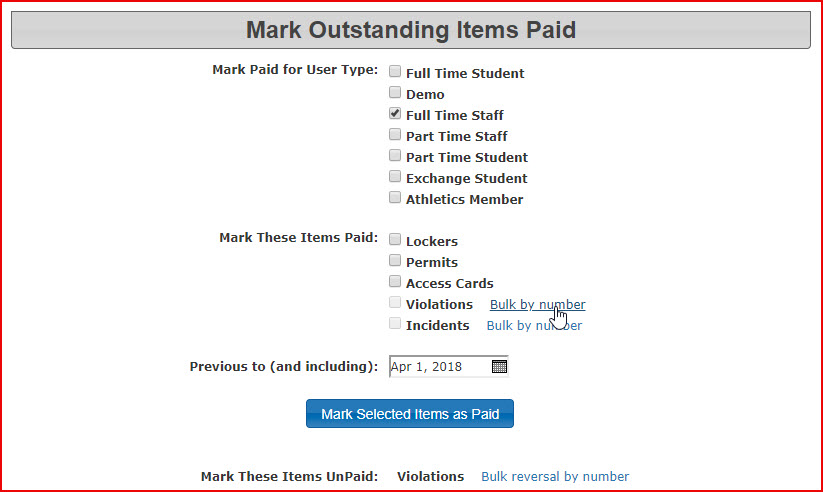
-
Enter the
violationsspecificinviolation numbers into thetooltext tool, ensuring each ticket number is separated by a line return.Keep -
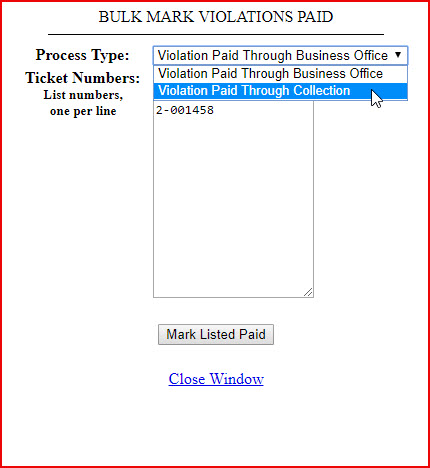
Select Violations Paid Through Collection (or the most appropriate payment type) from the drop-down list.
-
Click
onthe Mark Listed Paid button to complete theprocess.process and apply the payments.
eg. 2-001345-92 (92 is the PIN in this case)
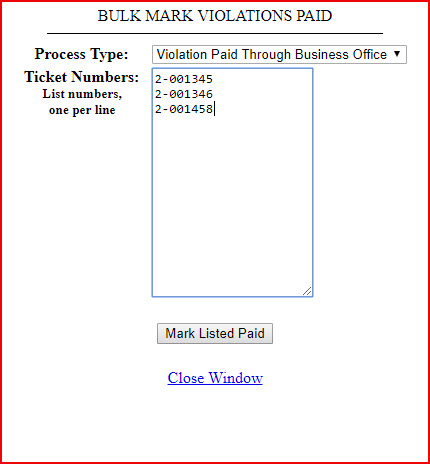
Exclude PINs from Violation Numbers: When entering violation numbers into the bulk tool, you must not include the PIN associated with the ticket. For example, if a ticket is listed as 2-001345-92 (where 92 is the PIN), you should only enter 2-001345.
Best Practices and Considerations
-