
Moneris Hosted Paypage

Setup and Configuration
Setting up this integration requires you to retrieve unique keys from your Moneris Gatewayaccount, provide them to OPS-COM, and configure specific callback URLs within the Moneris portal.
-
account[StepLog1]- Loginin to your Monerisaccount:using the Development
/TestingLogin:portal ([https://esqa.moneris.com/mpg/
](https://esqa.moneris.com/mpg/)) or the Production/LiveLogin:portal ([https://www3.moneris.com/mpg](https://www3.moneris.com/mpg)).mpg -
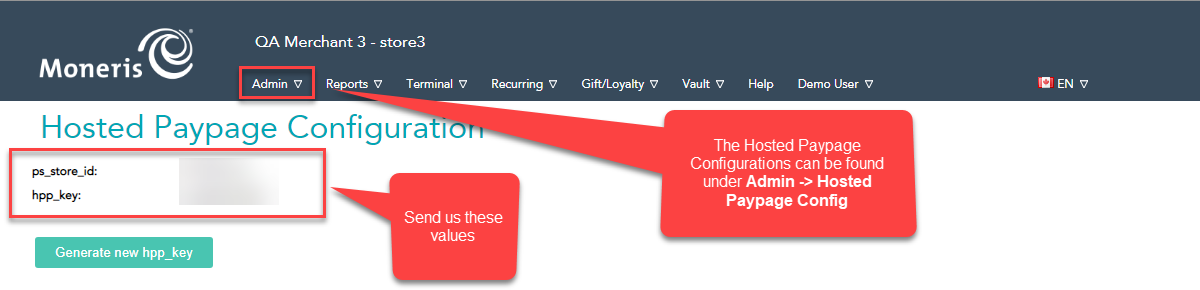
[StepHover2]- Once logged into your Moneris account selectover Admin>and click Hosted Paypage Config. -
to[Step 3]- AlongCopy thetop of the Hosted Paypage Configuration you should see yourspecific ps_store_id and hpp_key.Pleasedisplayedcopyatthesethedetailstop of the configuration page andsendprovide them to yourOperationsCommanderOPS-COM(OPSCOM)representativecontact.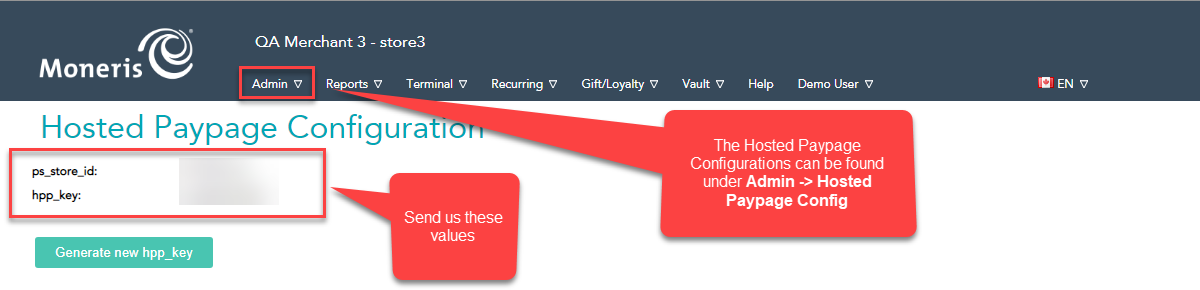
[Step 4]- Onconnect theHostedsystems.Paypage -
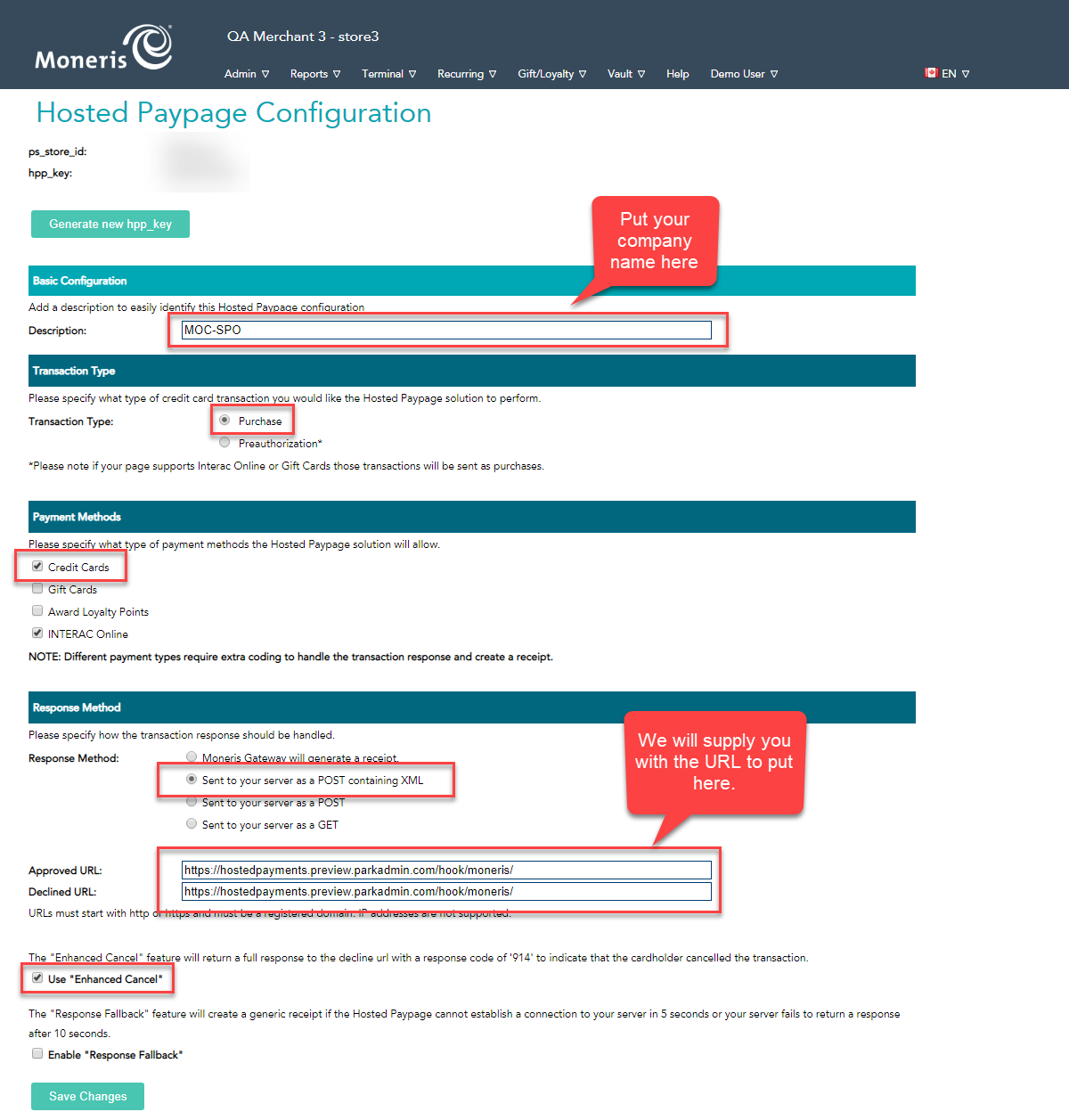
page selectEnter the
settingsrequiredshownOPS-COMincallback URL into thebelow screenshot.*Note: We will send you the correctApproved URL and Declined URLtofieldsuse. That being said, the URLs are listed below. If you do not know what URLs to use (DevelopmentorProduction) please consult yourOperationsCommander(OPSCOM) contact.Development/Testing:Approved URL:https://hostedpayments.preview.parkadmin.com/hook/moneris/Declined URL:https://hostedpayments.preview.parkadmin.com/hook/moneris/Production/Live:Approved URL:https://hostedpayments.parkadmin.com/hook/moneris/Declined URL:https://hostedpayments.parkadmin.com/hook/moneris/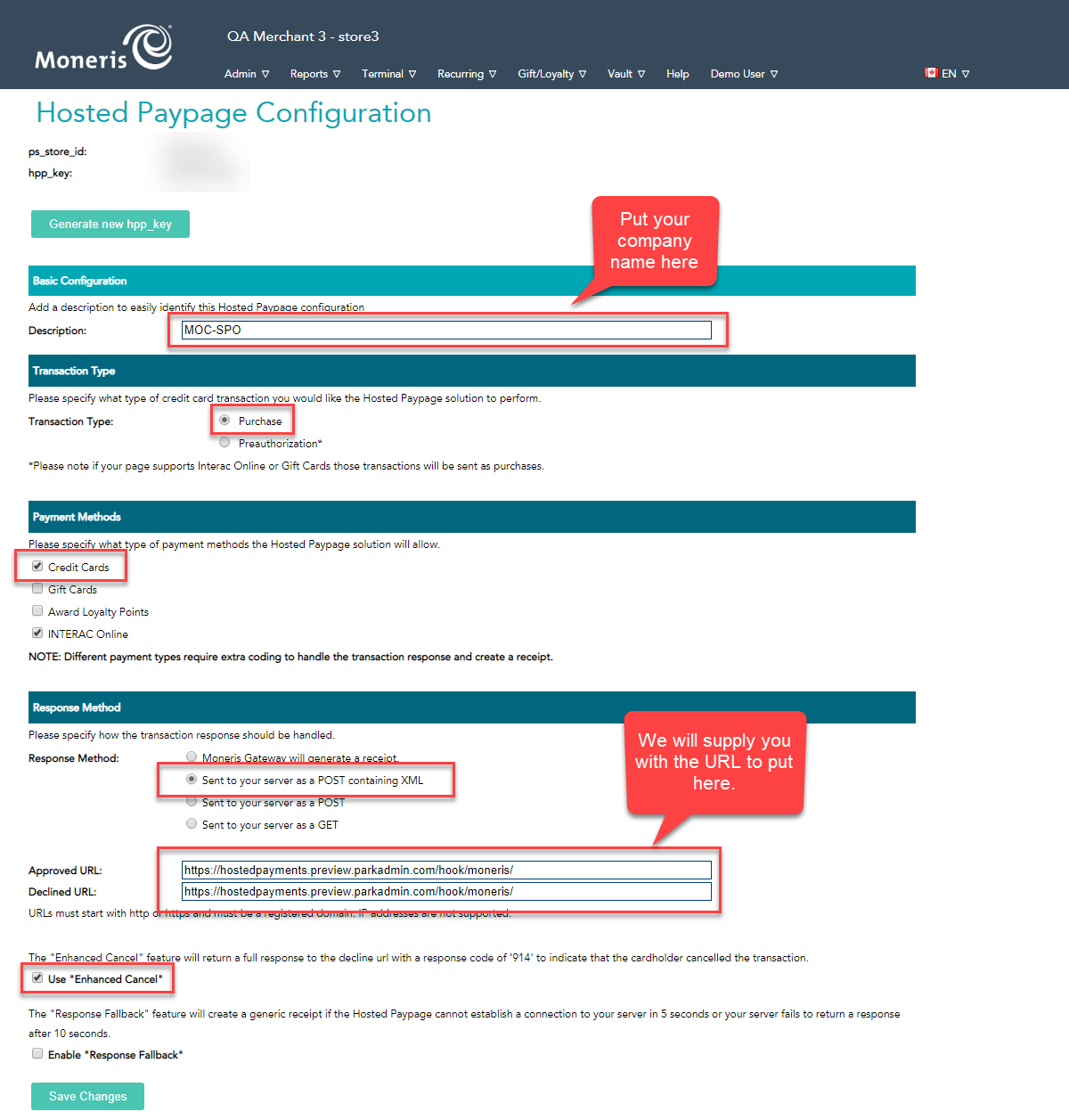
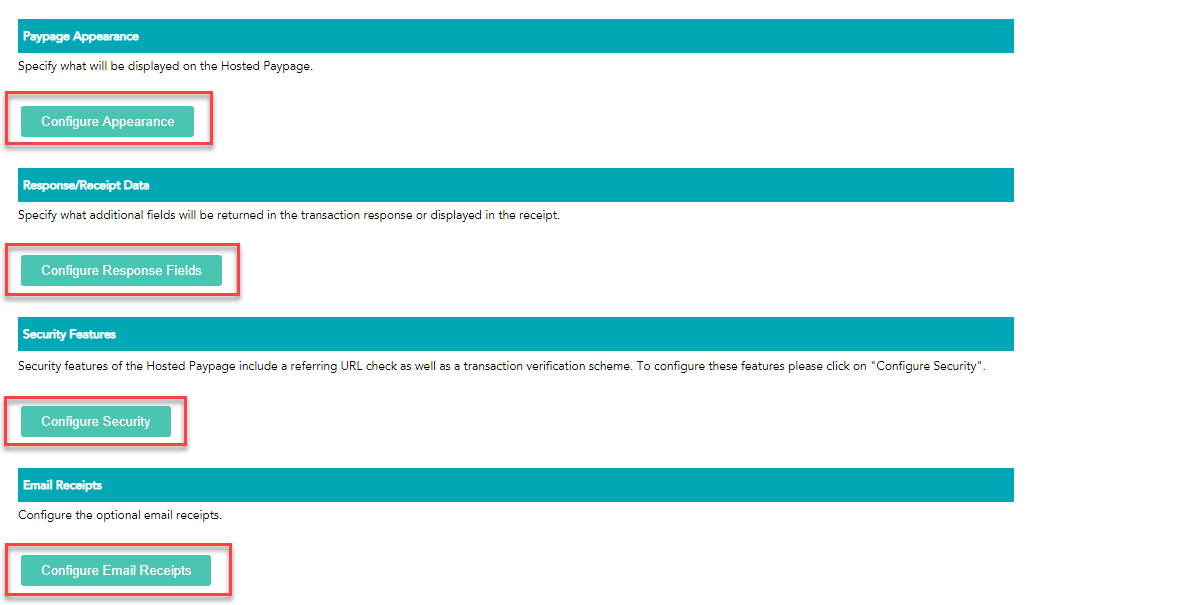
*Note: The following[Steps]are related to the additional configuration pages along the bottom ofon the mainHostedconfigurationPaypage Configuration:page.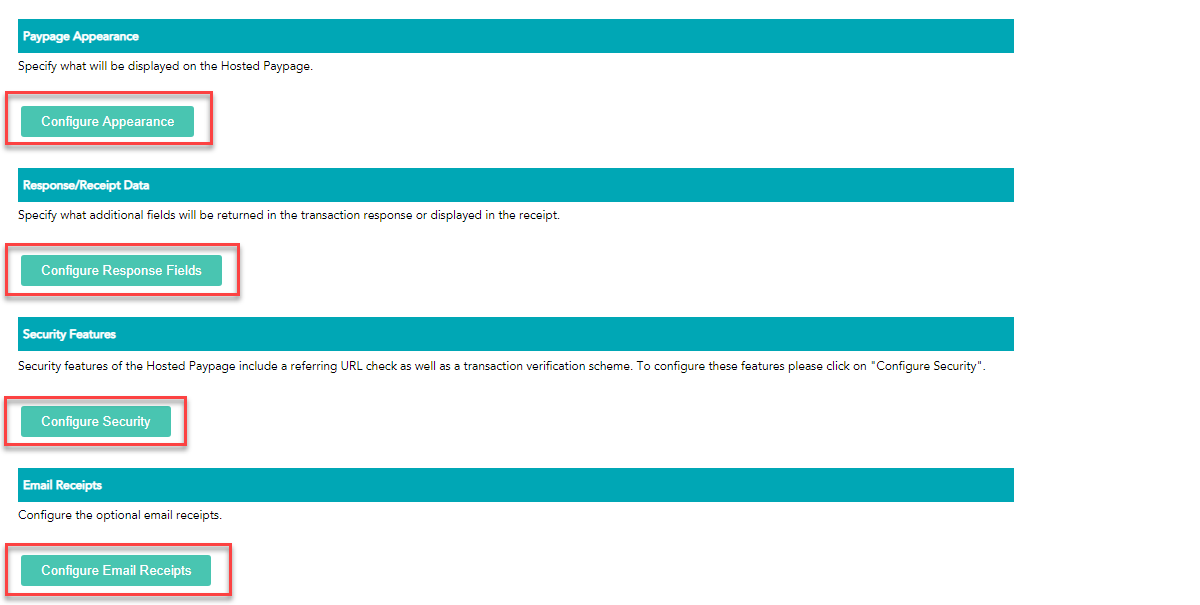
-
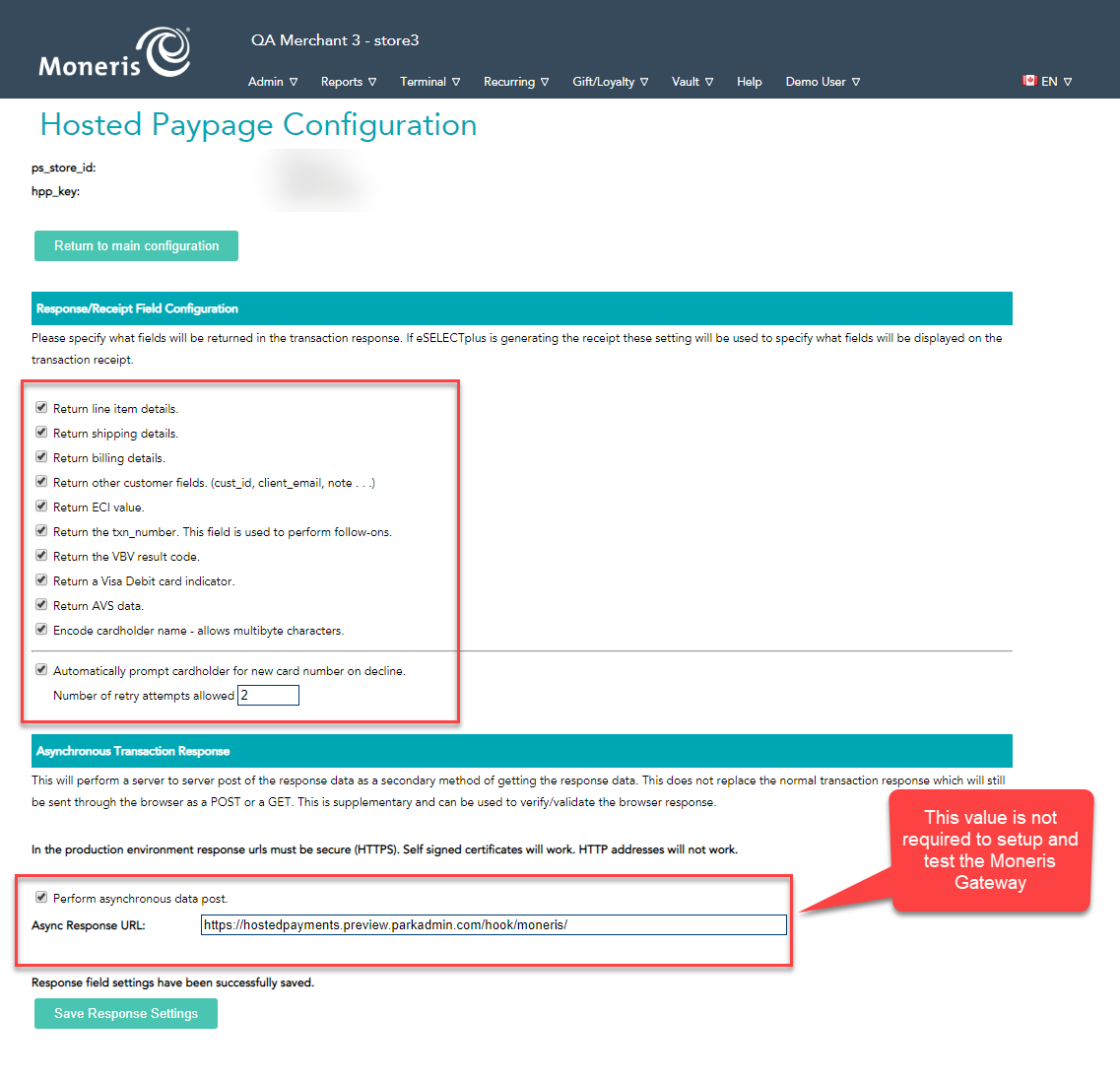
[Step 5]-Paypage AppearanceThese are all optional settings related toEnter theappearancerequiredofOPS-COMyourcallbackMonerisURLHosted Paypage. There is a preview button that allows you to view changes. This will beinto thepage that your customers see when supplying their payment details during the checkout process throughOperationsCommander(OPSCOM).[Step 6]-Response/Receipt DataSelect the settings shown in the below screenshot.*Note: We will send you the correctAsync Response URLtofielduse. That being said,within theURLsResponse/Receipt Data configuration section. -
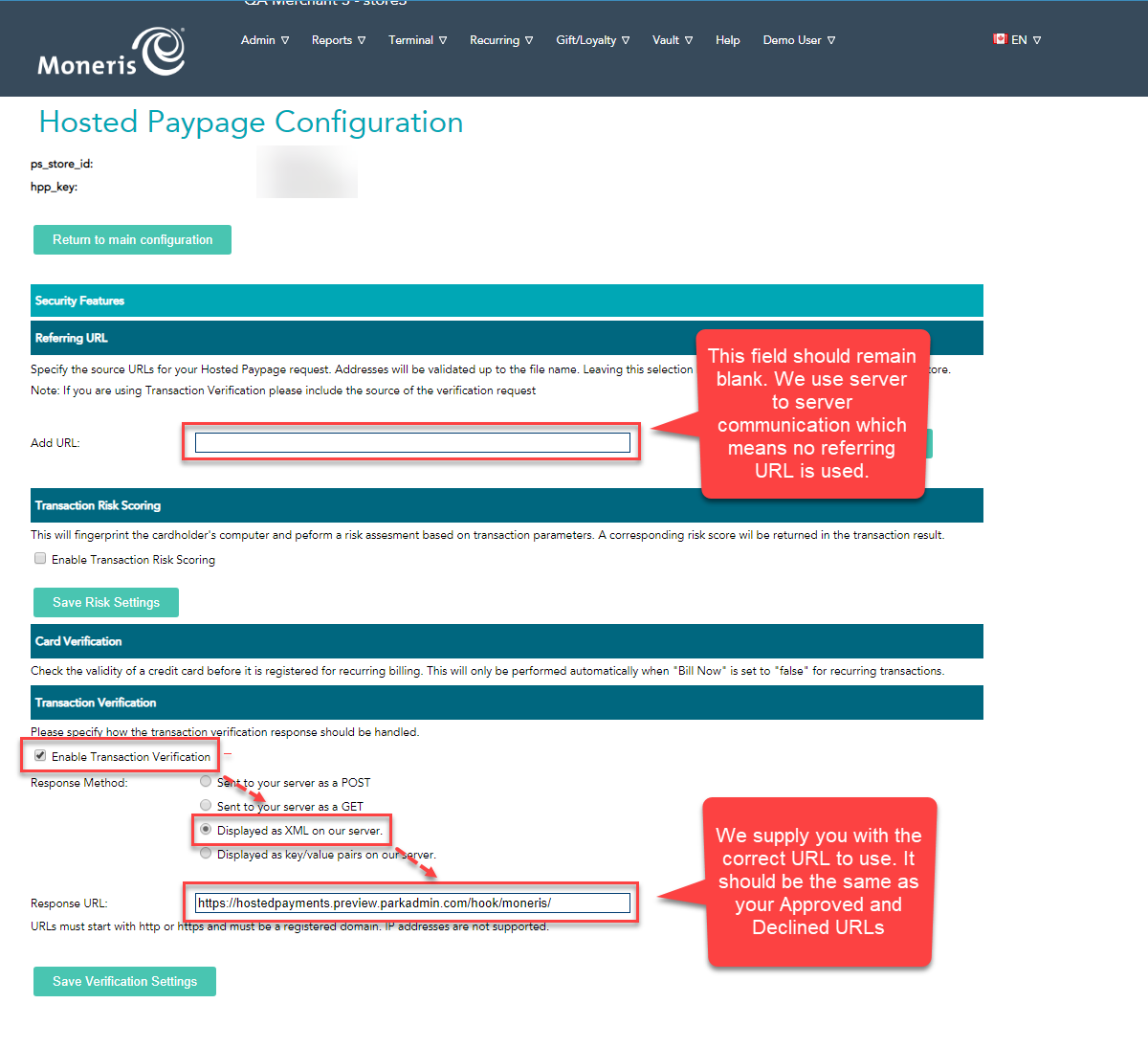
Enter the required OPS-COM callback URL into the Response URL field within the Security Features configuration section.
-
Modify the settings within the Paypage Appearance section to customize the visual design of the checkout page your customers will see. Use the preview button to verify your changes.
-
Enable the desired options within the Email Receipts configuration section.
Environment URLs: The callback URL you must enter into the Moneris configuration fields depends entirely on the environment you are listed below. If you do not know what URLs to use (Development or Production) please consult your OperationsCommander (OPSCOM) contact.configuring.
DevelopmentProduction/Live:/Testing:Async ResponseUse URL: https://hostedpayments.preview.parkadmin.com/hook/moneris/
Production/Live:Async Response URL: [https://hostedpayments.parkadmin.com/hook/moneris/
[Step 7] - Security Features
Select the settings shown in the below screenshot.
*Note: We will send you the correct Response URL to use. That being said, the URLs are listed below. If you do not know what URLs to use ](Development or Production) please consult your OperationsCommander (OPSCOM) contact.
Development/Testing:Response URL: https://hostedpayments.preview.parkadmin.com/hook/moneris/
Production/Live:Response URL: https://hostedpayments.parkadmin.com/hook/moneris/
[Step 8]Development/Testing: -Use Email Receipts[https://hostedpayments.preview.parkadmin.com/hook/moneris/](https://hostedpayments.preview.parkadmin.com/hook/moneris/)
TheseYou arewill optionaluse settingsthis relatedexact same URL for the Approved URL, Declined URL, Async Response URL, and Security Response URL fields.
Using this Feature
Because this is a backend payment gateway configuration, administrators do not manually interact with this feature on a daily basis. Once fully configured, the Moneris Hosted Paypage automatically handles electronic routing when users process transactions on the user portal.
During checkout, the user is securely redirected to sendingthe customerscustomized emailMoneris receipts.payment OperationsCommander (OPSCOM) doesn't currently send email receipts so you may wishpage to enableenter thistheir functionality.card Bydetails. defaultOnce OperationsCommanderthe (OPSCOM)payment willsucceeds displayor afails, receiptMoneris automatically redirects the user back to usersthe afterOPS-COM aportal successfulwhere oran failedon-screen receipt is displayed and the transaction andis allowlogged successful payments to be reviewed at a later date underin the usersuser's account history.
MonerisBest TestPractices Creditand CardsConsiderations
Simulating Payment Declines: When testing your integration in the development environment, Moneris provides a listPenny ofValue creditSimulator cardchart numbersin youtheir maydeveloper usedocumentation. toUse test against during yourspecific penny testing
Payments Declined
If you are having payments declined issue after you have set up please make sure that you are checking your total against the penny value simulator. This chart allows youamounts to force certain callback responses based(such onas thean amountexpired paidcard byor insufficient funds error) from the test visagateway gateway:to https://developer.moneris.com/en/More/Testing/Penny%20Value%20Simulatorensure OPS-COM handles the declined payments properly.
-
Enable Email Receipts: It is highly recommended to enable email receipts within the Moneris portal. While OPS-COM displays a secure on-screen receipt and logs the payment to the user's history, OPS-COM does not currently send automated email receipts for this specific gateway integration.
-
Test Credit Cards: Always use the official Moneris test credit card numbers provided in their developer documentation when performing your initial penny testing in the development environment. Do not use real credit card data until you are fully configured in the live production portal.