Notice Letter Report
Introduction
The letterNotice reportLetter pageReport showsallows aadministrators listto ofidentify and manage users within the system who are eligible to be sent a notice letter, also known asreceive a Notice of Impending Conviction (NIC)NIC) letter.
NoticeIts lettersprimary arepurpose partis to facilitate the Ministry of theTransportation MTO(MTO) process,workflow andby aregenerating sentphysical outnotice to let a user know of an impending convictiondocuments for any outstanding violations onbefore theirthey account,are escalated to be collected through the Ontario court system.
Noticefor letterscollections. printedThis fromarticle this page areis intended tofor beOPS-COM printedadministrators.
Setup and physicallyConfiguration
Before generating letters, administrators must enable the report and configure how the system consolidates these notices.
-
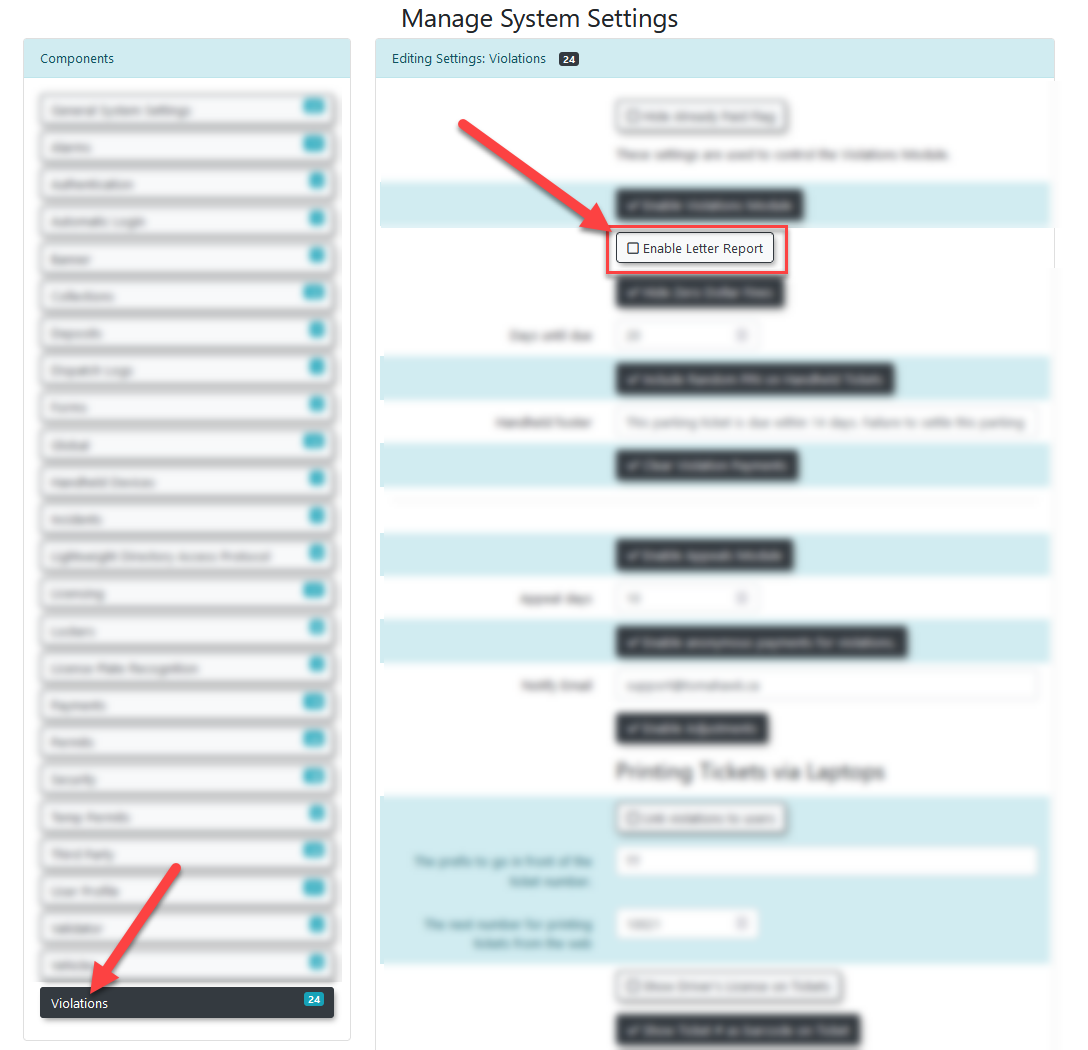
Hover over System Configuration and click System Settings.
-
Click the Violations tab.
-
Enable the Enable Letter Report checkbox to
the user who incurredmake theviolation.Page LocationThe letterreport pagecan be found under theviolationsmenu, within thereportssub menu.If the letter report tab is not presentavailable in themenu,mainitmenu.will -
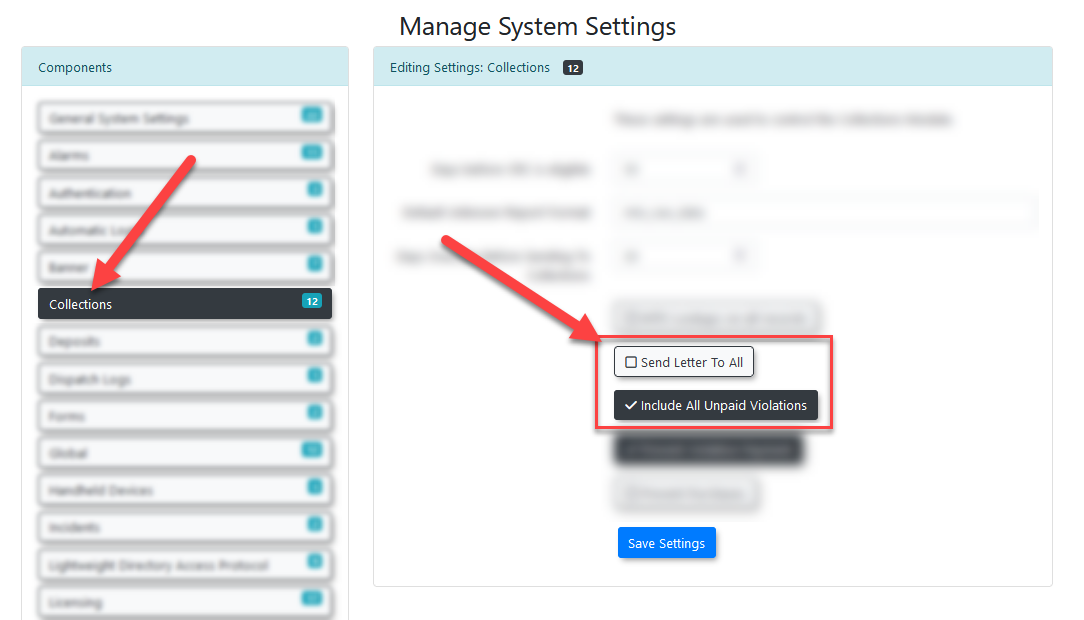
Click the Collections tab to
beconfigureenabledadditionalwithinnotice settings:-
Enable the
systemSendsettings.LetterTheToenableAlllettercheckbox to include users in the reportoption is located under the violations tab.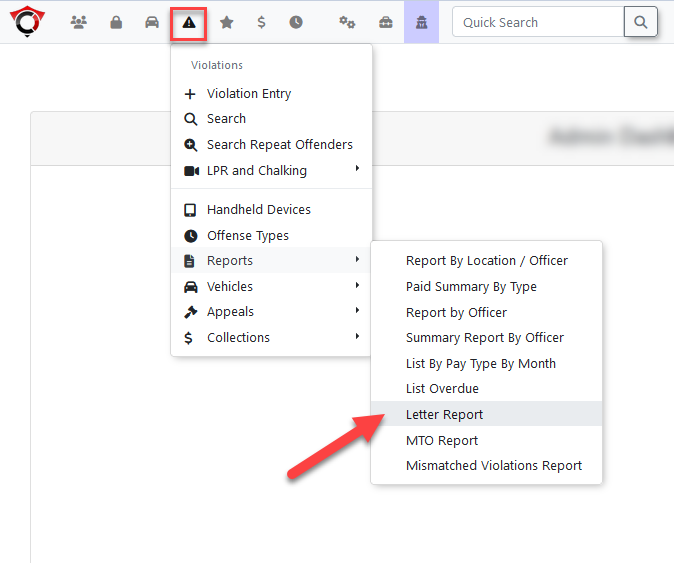
Letter Reports PageThe letter report page consists of two sections, listing the notice reports that can be printed, and those that cannot be printed.Printable Violation Notice ReportThis section contains alistof all violations within the system that are able towho have already had a notice letterprinted.sent to them via email.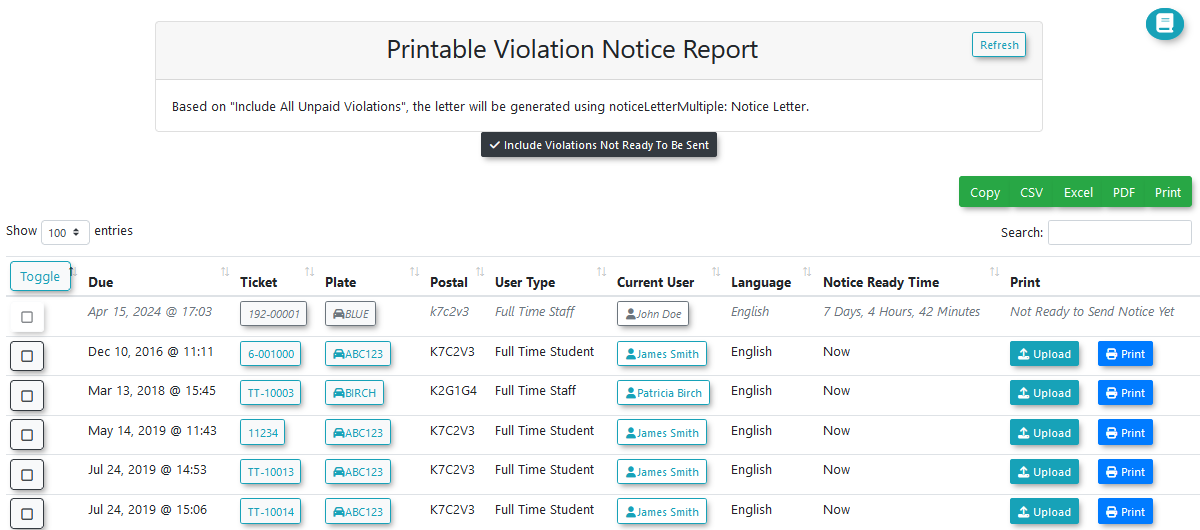
-
A notice atEnable thetopInclude All Unpaid Violations checkbox to consolidate all oftheasection notes which template will be used for the print-out, based on the value of the system setting “Include alluser's unpaidviolations”.Having this setting enabled will make allviolationsfor a user be printed ononto a single notice letter.Otherwise,If this is disabled, the system will generate a separate letter for each individual violation.
Selected Template -
-
Save your configuration changes.
Using this Feature
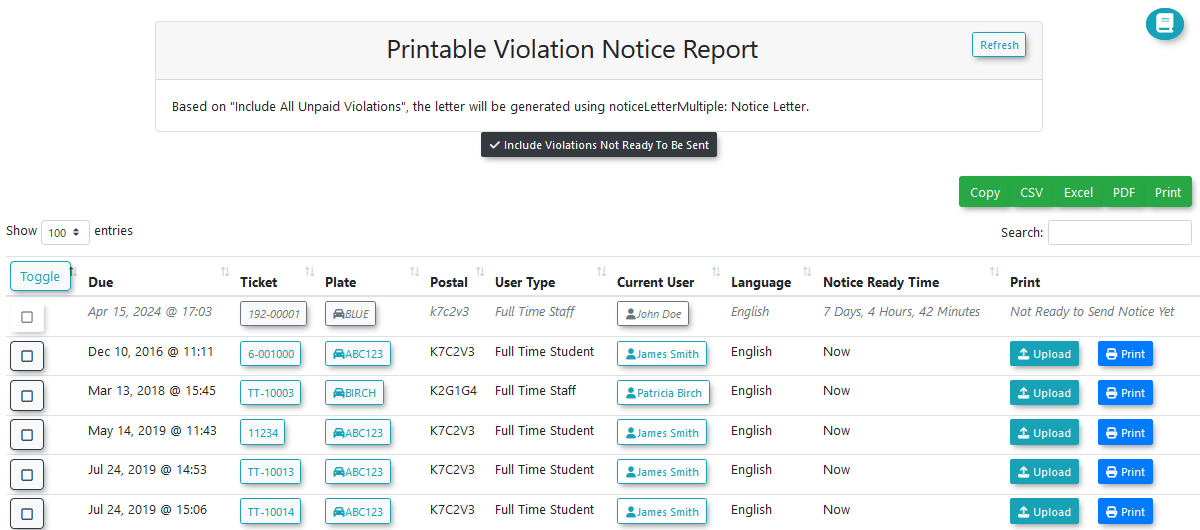
The Letter Report page is divided into printable and unprintable sections based on whether the system has the required user details to generate the document.
Generating Notice Letters
-
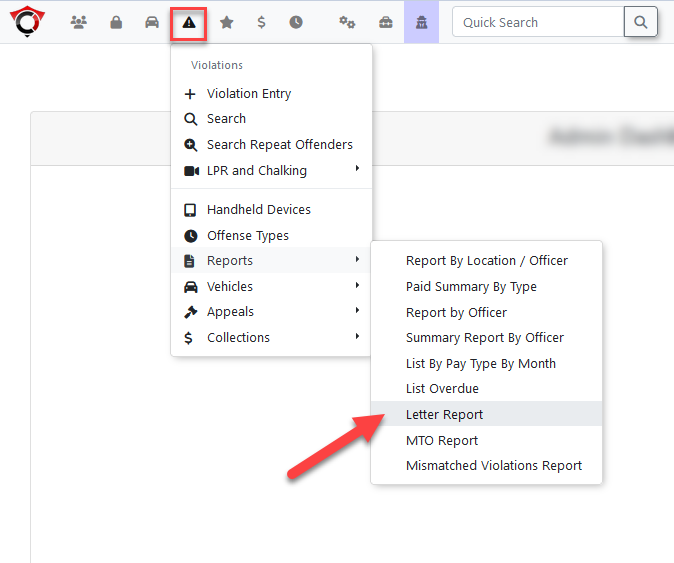
Hover over Violations and click Reports then Letter Report.
-
Review the Printable Violation Notice Report section to see all violations currently eligible for a notice letter.
-
Click the Print button next to a single
noticeviolation,letterorwillselectbe created for each violation.Not Ready to be SentEnabling this setting will causemultiple violationsthat are not ready to have their notice letter sent to appear within the list. These violations will have greyed-out text.The notice-ready column will display the amount of time left before a notice letter is able to be sent for the violation.By default, notice letters are able to be sent 7 days after the payment for a violation is past due.Printing the Notice LetterThere are two locations from which a notice letter can be printed; a single notice letter can be printed using theand printbuttonthemtosimultaneously.the right, or multiple notice letters can be selected and printed at once.The notice letters will be generated as a PDF file and downloaded by
theyour web browser.Uploading -
Click the Upload button to manually attach a
NoticedocumentLetterIt is possible to upload a notice letter in place of generating one.This is used whenif a letteror document haswas alreadybeensent to the userin placeoutside ofathesystem-generatedstandardnoticesystemletter,generationenablingprocess.it
Managing the violation as if it were system-generated.
Un-PrintableUnprintable Violation Notice Report
-
Key Information Displayed: This section lists violations that
arecannotunablecurrentlytogeneratehave notice letters printed.Aa notice letteris considereddue tobe unprintable when the associated vehicle ismissing userdetails.detailsThis(e.g.,cananhappenunregisteredwhenvehicle).a -
hasMTO
notDatafilledImport:outForallthesetheirunknowndetails,vehicles,oryouwhenmusta user is not present withinexport thesystem.In the latter case, the unknown vehicledatamust be exported and sentto the MTOforandinformation lookup usingimport theVehiclereturnLookupfile.Export.TheMTOwill returnOnce thedata lookup in the form of a file, which must then be imported back into the system using the Vehicle Lookup import. After theMTO datahas beenis imported, the user details willbetemporarilyautomatically entered into the systempopulate, and the notice letterscanwillbeimmediatelyprintedbecomeright away.printable.The -
Status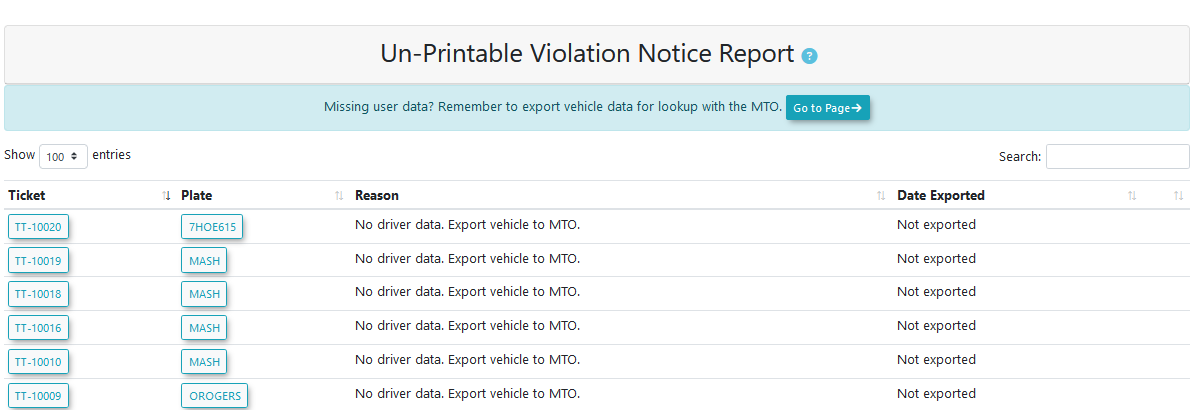
VariousReminders:details are listed for the affected violations, including the reason the notice letter is unable to be printed, and if the vehicle has had its data exported yet.A reminder will
bedisplaylistednextfortotheany vehicleif itthat has had its data exported to the MTO,buthasn’thas not yet haditsthe return data imported back into thesystem yet.system.
Viewing and Regenerating Issued NoticeLetters
-
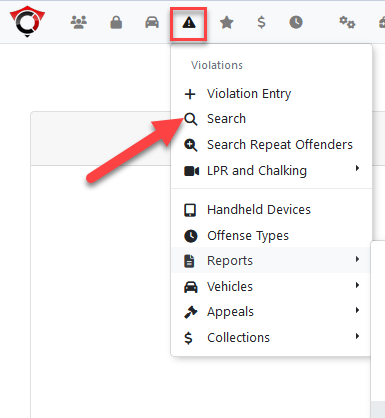
NoticeHoverlettersoverthatViolationshaveandbeenclickissuedSearch.previously -
be viewed fromClick the
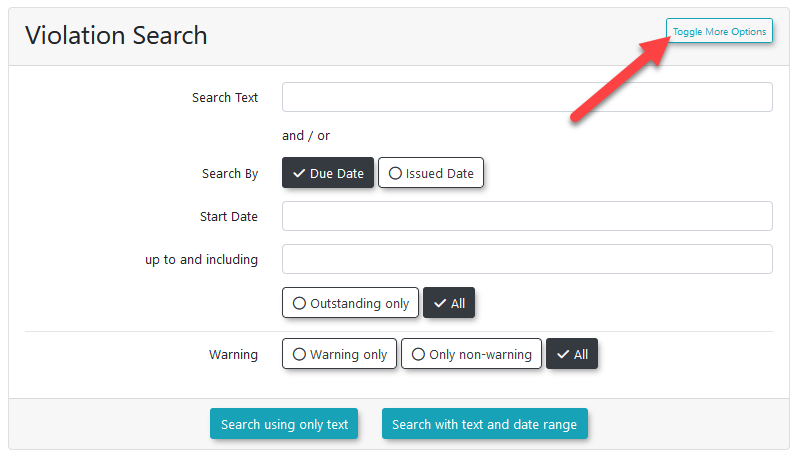
violation search page.The violation search page can be found under the violations menu.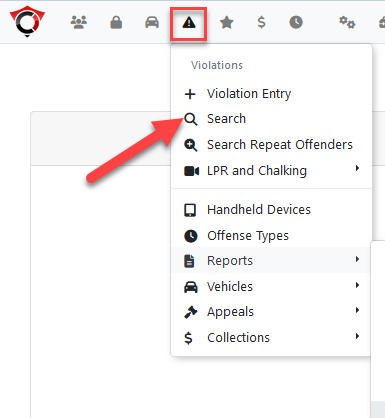
rightFrom the violations search page, additional search options can be found by clicking the toggleToggle additional options buttonlocatedin the topright.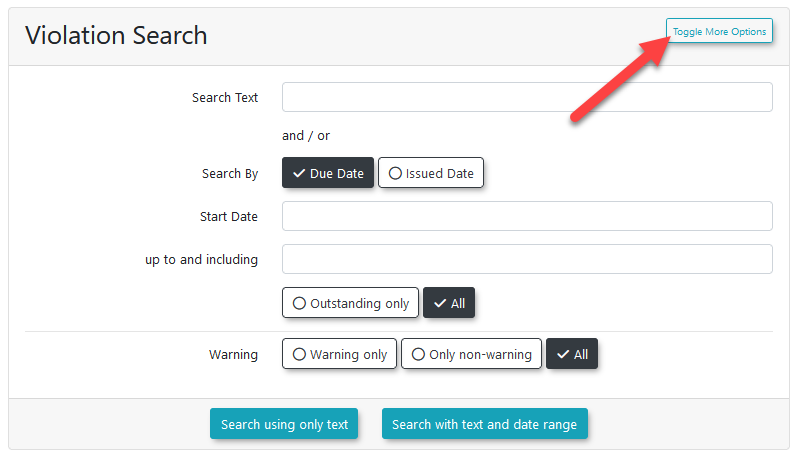
This willto expand the searchbox with additional search options.parameters. -
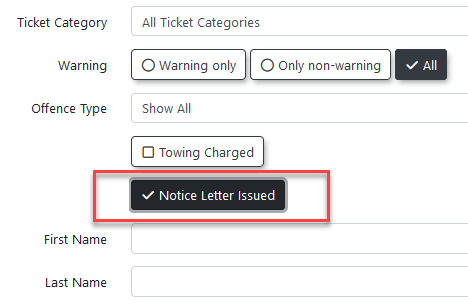
TheEnablerelevantthesearch option here isNotice LetterIssued.Issued checkbox and perform your search.By -
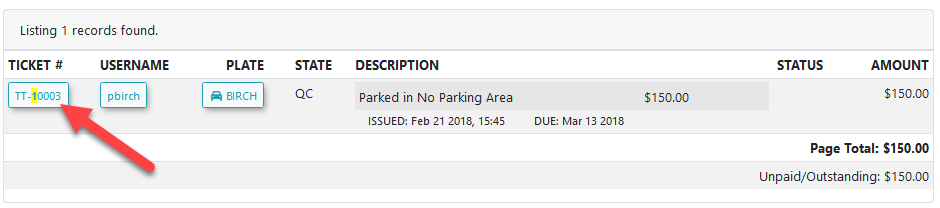
Click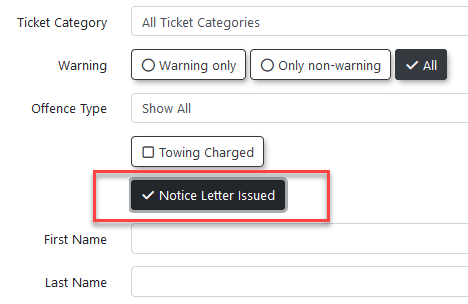
NoticethelettersspecificcanTicketbeNumberviewedtofrom withinopen the violationinfoinformationwindow, found by clicking on the ticket number of a violation in the results screen.window.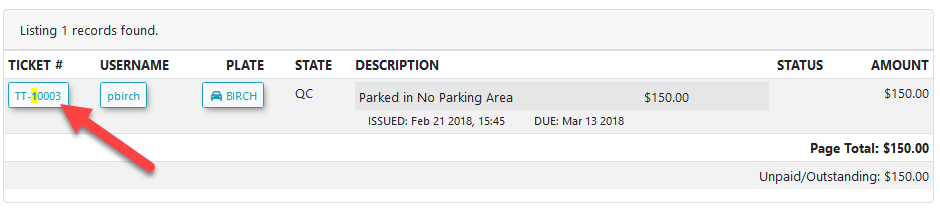
-
TheScrollnotice letters for the violation are listed nearto the bottom of thewindow.window to view the attached notice letters. -
Click the Print button to re-download the letter, or click the Trash icon to archive it.
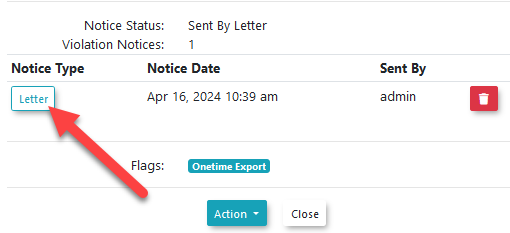
ThisArchiving will open thea notice letter viewdoes window,not delete it from which the noticesystem. letterIt contentsimply canflags be viewed, or re-downloaded by pressing the print button.
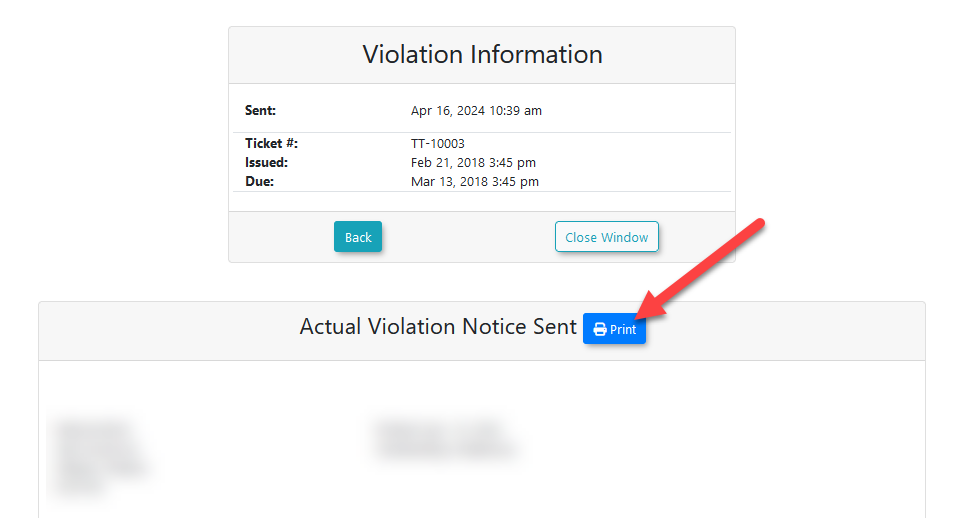
Regenerating A Notice Letter
In the cases such as when the template of the notice letter is changed, there may be a need to regenerate an existing notice letter.
The existing notice letter for the violation can be archived by clicking on the trash icon next to it. This will flag the notice letterit as archived, allowing the violation to reappear on the lettermain reportLetter Report page so ita new notice can be printedgenerated again.
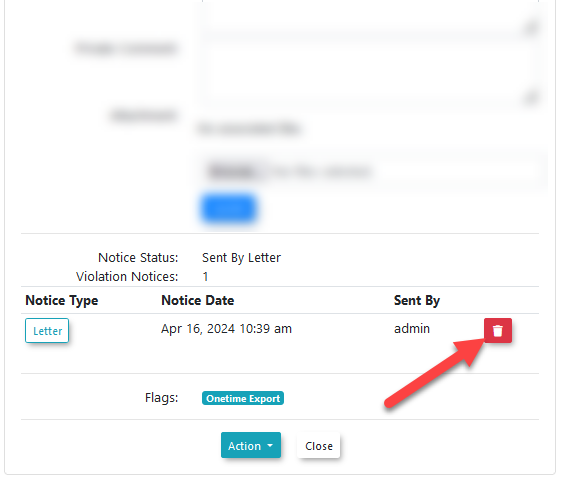
Archiving a noticeyour letter willtemplate notwas deleterecently itupdated).
Best system,Practices and it will continue to appear on the violation info page, with a notice indicating it has been archived.Considerations
Notice Templates
Letter Templates:
The visual appearance andThehover templatesover pageSystem forConfiguration noticeand lettersclick can be found under the system configuration menu, within the contentContent & designsDesigns submenu.
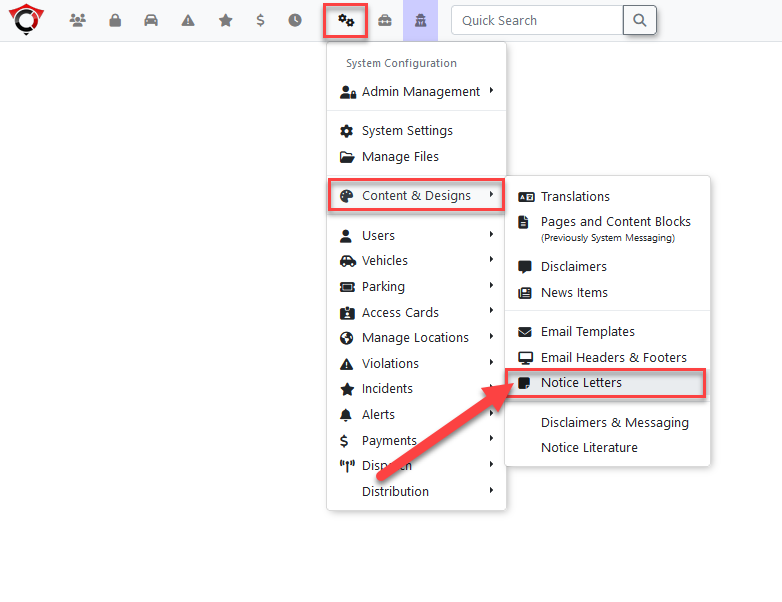
SystemLetter Settings
There are several settings associated to notice letters.
There is one setting located under the violations tab.Templates
-
EnableMTOLetterDataReportSecurity: Be aware that imported MTO user data is temporary. For security reasons and strict compliance with MTO regulations, this imported data will be automatically cleared from the system once all violations associated with that specific vehicle have been resolved (either paid by the driver or officially sent to collections). -
IfReviewingthisPendingsettingLetters:is enabled,Enable theletterNot Ready to be Sent checkbox on the main report pagewilltobeviewmade available for use.
There are two settings located under the collections tab.
Send Letter To AllIf this setting is enabled,upcoming noticelettersletters. These violations will appear inthegreylisttext,for users who have already hadand thenoticenotice-ready column will display a countdown timer indicating the amount of time left before the lettersentcantobethemofficially generated (byemail.default, notice letters are available 7 days after a violation payment becomes past due).
Include All Unpaid ViolationsIf this setting is enabled, all unpaid violations for the user will be included on a single notice letter. When disabled, each notice letter will be limited to a single violation.