
Notice Letter Report
The Notice Letter Report allows administrators to identify and manage users who are eligible to receive a Notice of Impending Conviction (NIC) letter. Its primary purpose is to facilitate the Ministry of Transportation (MTO) workflow by generating physical notice documents for outstanding violations before they are escalated to the Ontario court system for collections. This article is intended for OPSCOM administrators.
Setup and Configuration
Before generating letters, administrators must enable the report and configure how the system consolidates these notices.
-
Hover over System Configuration and click System Settings.
-
Click the Violations tab.
-
Enable the Enable Letter Report checkbox to make the report page available in the main menu.
-
Click the Collections tab to configure additional notice settings:
-
Enable the Send Letter To All checkbox to include users in the report list who have already had a notice letter sent to them via email.
-
Enable the Include All Unpaid Violations checkbox to consolidate all of a user's unpaid violations onto a single notice letter. If this is disabled, the system will generate a separate letter for each individual violation.
-
-
Save your configuration changes.
Using this Feature
The Letter Report page is divided into printable and unprintable sections based on whether the system has the required user details to generate the document.
Generating Notice Letters
-
Hover over Violations and click Reports then Letter Report.
-
Review the Printable Violation Notice Report section to see all violations currently eligible for a notice letter.
-
Click the Print button next to a single violation, or select multiple violations and print them simultaneously. The notice letters will be generated as a PDF file and downloaded by your web browser.
-
Click the Upload button to manually attach a document if a letter was already sent to the user outside of the standard system generation process.
Managing the Unprintable Violation Notice Report
-
Key Information Displayed: This section lists violations that cannot currently generate a notice letter due to missing user details (e.g., an unregistered vehicle).
-
MTO Data Import: For these unknown vehicles, you must export the data to the MTO and import the return file. Once the MTO data is imported, the user details will temporarily populate, and the notice letters will immediately become printable.
-
Status Reminders: A reminder will display next to any vehicle that has had its data exported to the MTO but has not yet had the return data imported back into the system.
Viewing and Regenerating Issued Letters
-
Hover over Violations and click Search.
-
Click the Toggle additional options button in the top right to expand the search parameters.
-
Enable the Notice Letter Issued checkbox and perform your search.
-
Click the specific Ticket Number to open the violation information window.
-
Scroll to the bottom of the window to view the attached notice letters.
-
Click the Print button to re-download the letter, or click the Trash icon to archive it.
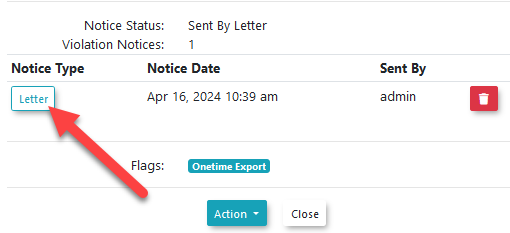
Archiving a notice letter does not delete it from the system. It simply flags it as archived, allowing the violation to reappear on the main Letter Report page so a new notice can be generated (useful if your letter template was recently updated).
Best Practices and Considerations
Notice Letter Templates: The visual appearance and layout of your notice letters are configured separately from this report. To design or edit the content of these templates, hover over System Configuration and click Content & Designs then Notice Letter Templates.
-
MTO Data Security: Be aware that imported MTO user data is temporary. For security reasons and strict compliance with MTO regulations, this imported data will be automatically cleared from the system once all violations associated with that specific vehicle have been resolved (either paid by the driver or officially sent to collections).
-
Reviewing Pending Letters: Enable the Not Ready to be Sent checkbox on the main report page to view upcoming notice letters. These violations will appear in grey text, and the notice-ready column will display a countdown timer indicating the amount of time left before the letter can be officially generated (by default, notice letters are available 7 days after a violation payment becomes past due).