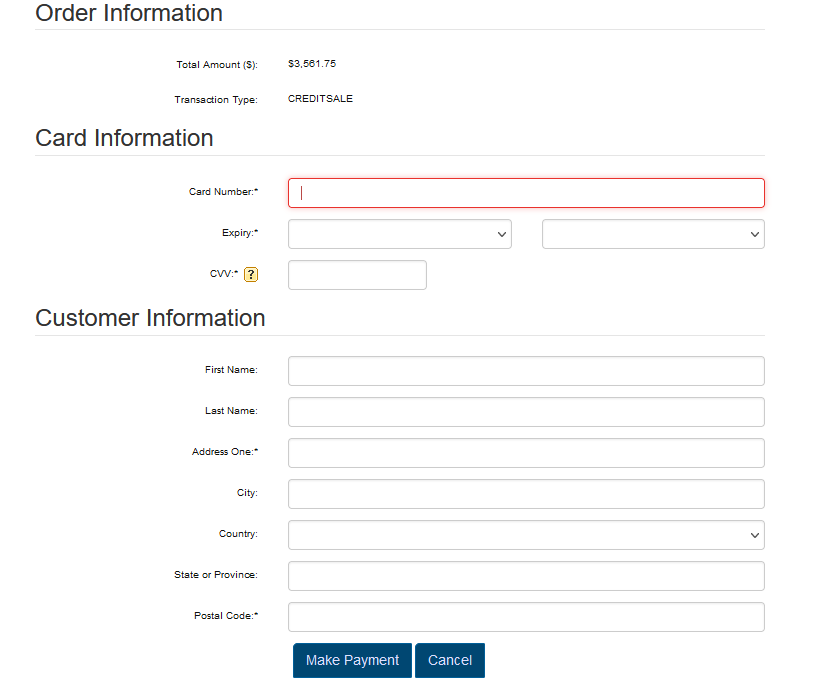
OpenEdge Hosted Payments
Sign
This article provides OPS-COM administrators with instructions for configuring OpenEdge Hosted Payments within the system. Setting up this integration allows you to securely process online credit card transactions for yourpermits, newviolations, and other user fees.
Account Registration and Credentials
Before configuring OPS-COM, you must register for an OpenEdge Accountaccount Here:and OPSCOM / OpenEdge.
Onobtain the signnecessary upAPI formcredentials.
Your OpenEdge Account Manager canwill provide you with thean following information:
- Auth Key
:a(multi-digitstringstring),key - Terminal ID
:a 8(8-digitnumericnumeric),keyand - X-Web ID
:a 12(12-digitnumeric key
This will be given to younumeric) for both a Sandbox and a Production environment.environments.
CreateSetup OpenEdgeand Payment Type:
Configuration
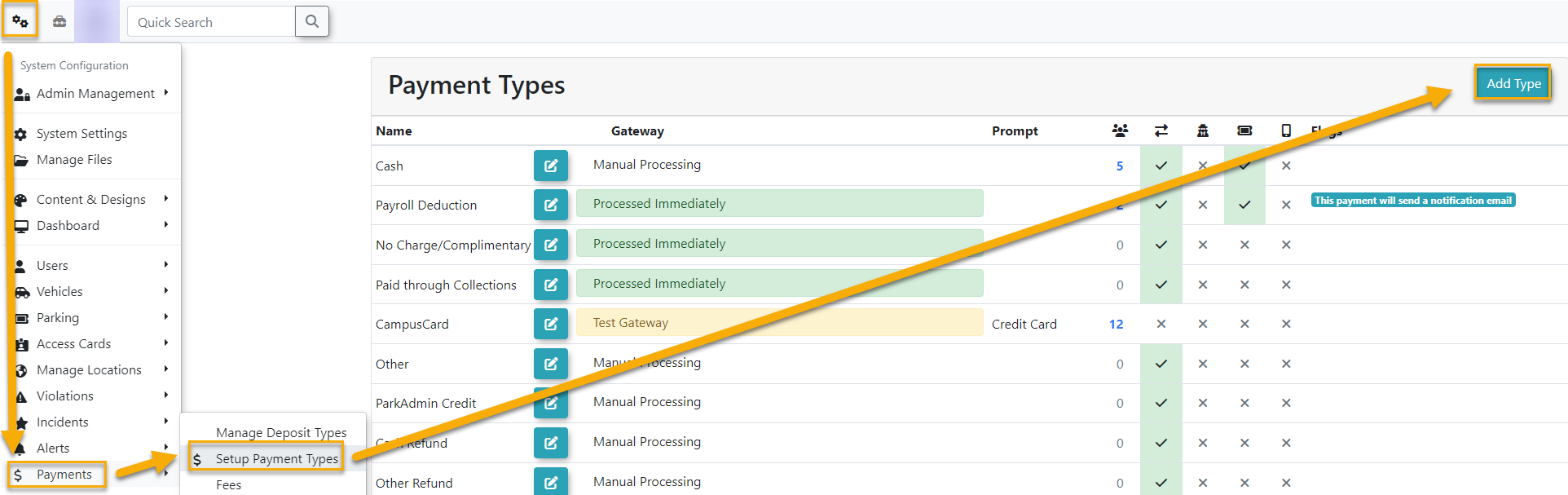
YouOnce you have your credentials, you can create a newthe payment type byin selectingthe administration portal.
-
Hover over System Configuration
(
icon in the OPSCOM admin side menu ) →click Payments→then Setup Payment Types.→ -
Click the Add
Type.Type button.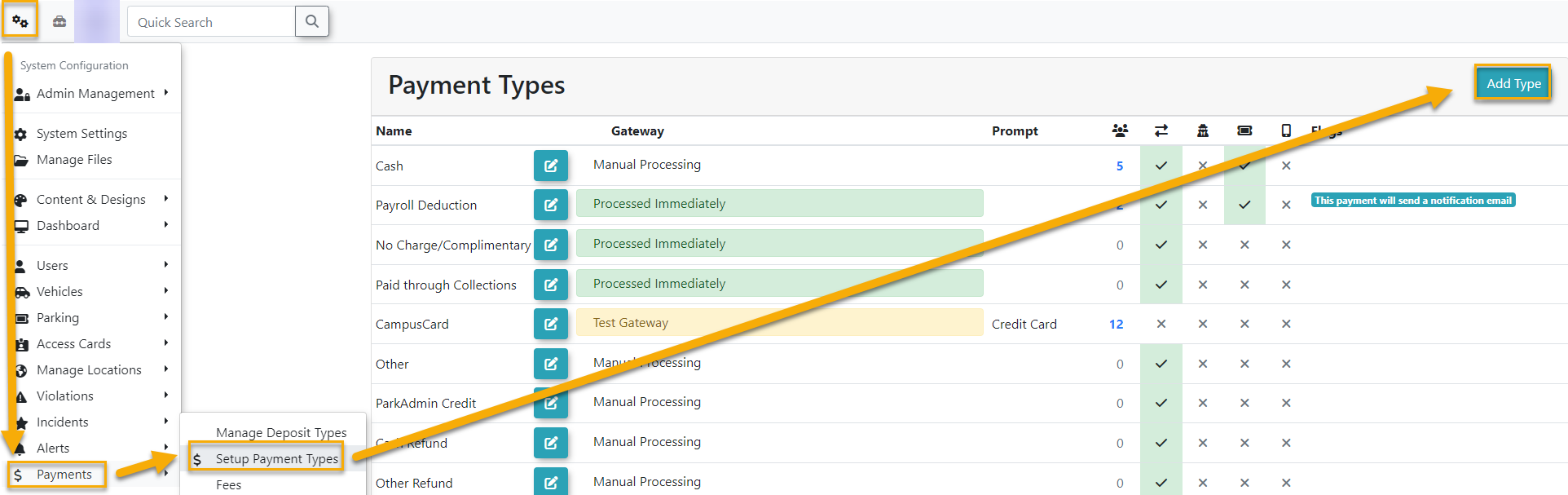
-
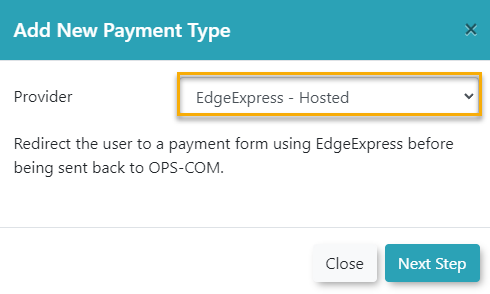
ClickSelectthe"provider drop-down menu and choose EdgeExpress - Hosted".as -
providerClick
→the Next Step.button.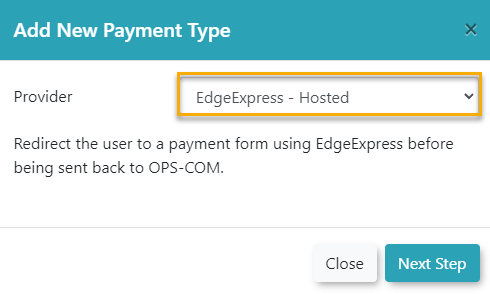
-
YouEntershouldanownamebe brought toin the"Edit Payment Type" page: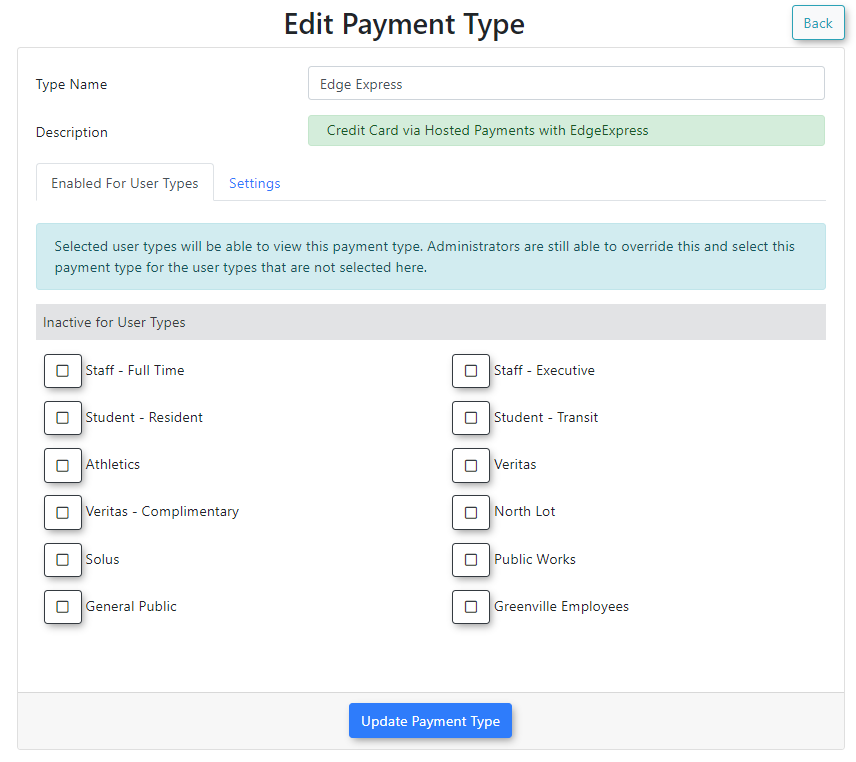
Type
Name:NameThefield.TypeThis namecan be whatever you want it to be, though please note this will also be the nameis displayed to userswhenduringusingcheckout. -
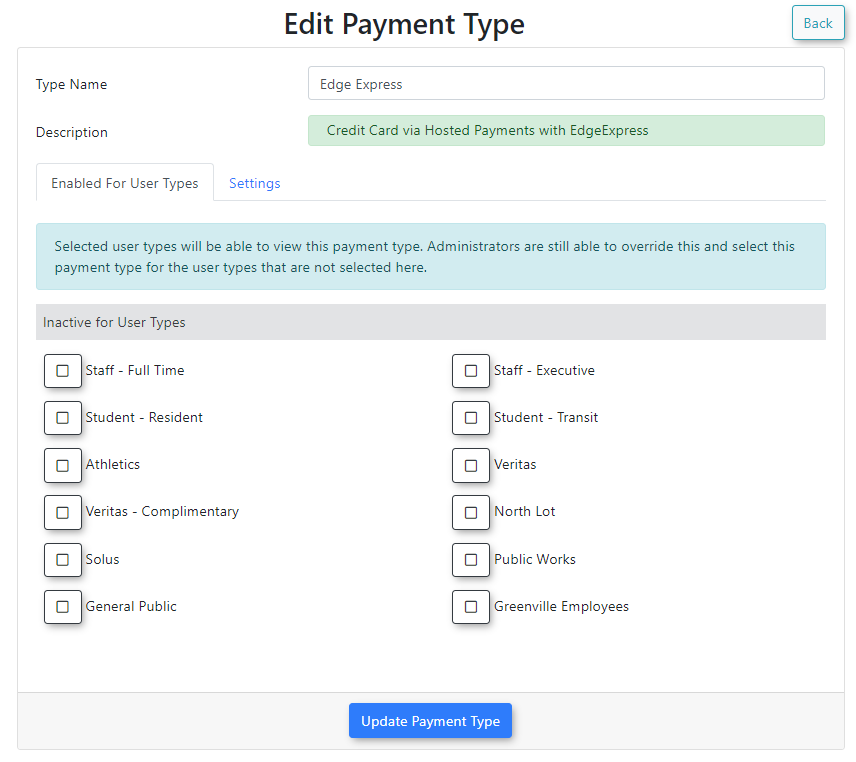
Select the user types you wish to grant access to this payment
checkoutmethodandunderselecting a payment method. You can reference the specific hosted payment provider such as OpenEdge/Edge Express or something more generic such as "Online Credit Card Payment", "Online payment", "Credit Card", etc. Really it's up to you and what you think makes most sense to your site users when making a payment, also might depend on what payment methods your OpenEdge/EdgeExpress.Enabled for User Types
:.Select -
Enable the
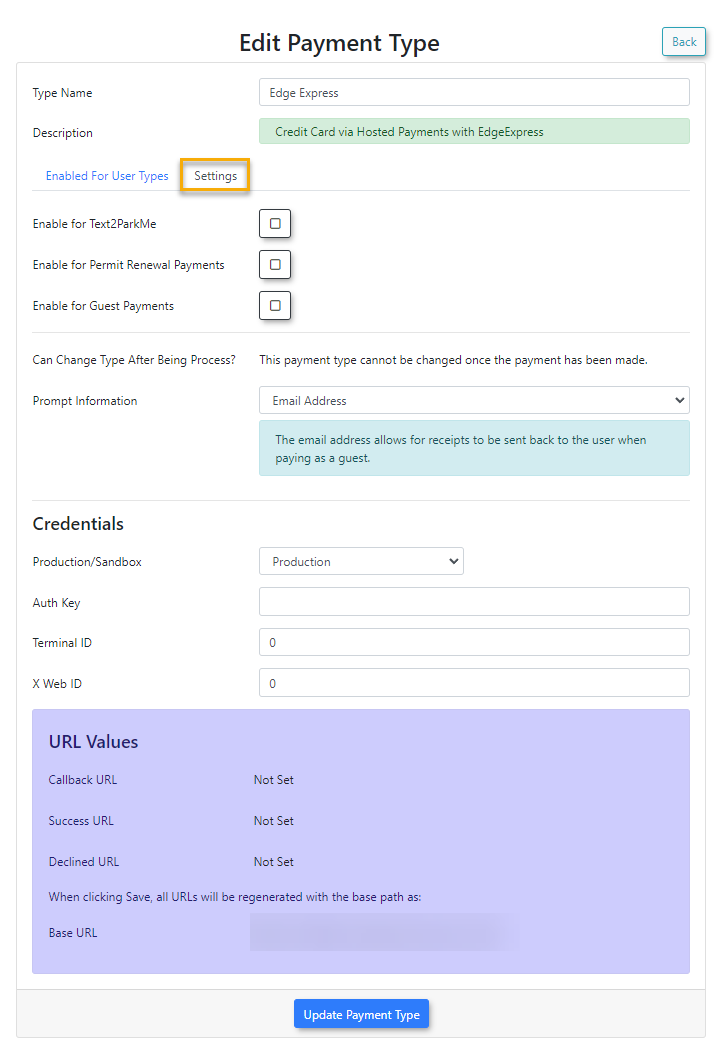
User Types you wish this new Payment Type to be visible to so they can select it during payment checkout. You can change these user types at any timeThere are additional required configuration fields in theSettingsarea: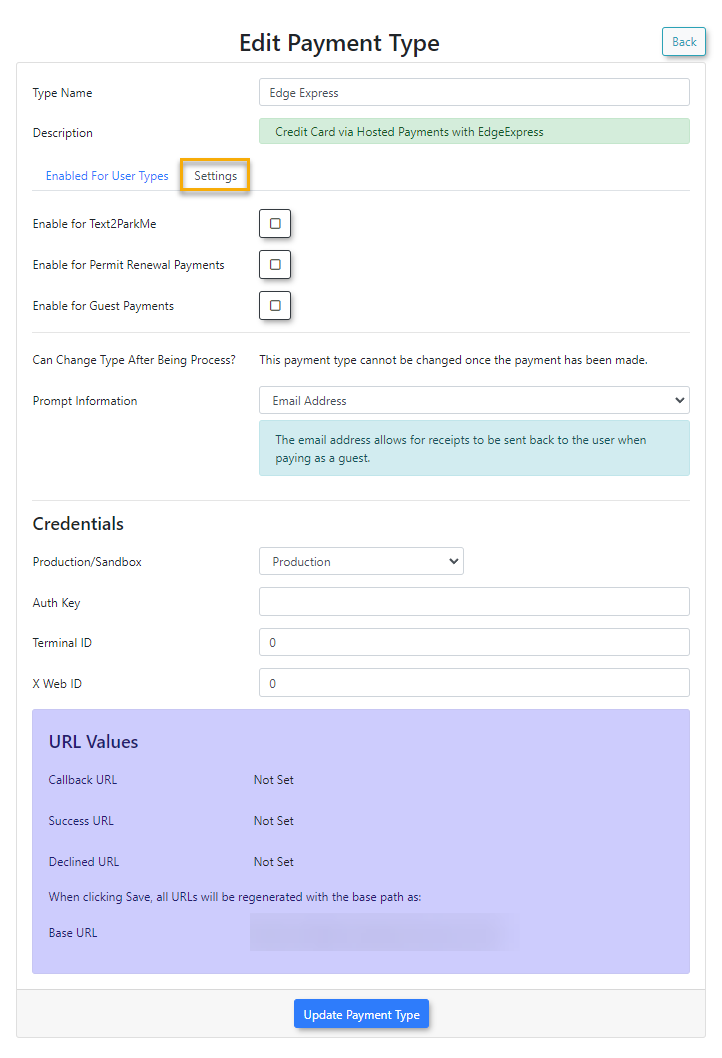
Enable for Text2ParkMe
:checkbox ifyouyouraren'torganizationusingutilizes thismodulemodule.leave -
Enable the
button unchecked.Enable for Permit Renewal Payments
:checkbox if youaren't usinguse thisfeaturefeature.leave -
Enable the
button unchecked.Enable for Guest Payments
:checkbox if youaren't usinguse thisfeaturefeature.leave -
Click the
button unchecked.Prompt Information
:Onlydrop-down"menu and choose EmailAddress"Address, as this is the only supportedwithoption for OpenEdgeHosted Paymentsat this time.Credentials: -
Click the environment drop-down menu and choose
Production/Production or Sandbox:Selecttowhether you are usingmatch yourOpenEdge Production/Live credentials or Sandbox/Testingprovided credentials.Additionally, -
not required you may findEnter your
OPSCOM preview space helpful for testing Sandbox/testing credentials, this way you can keep your production/live OPSCOM data (permits, users, payments, violations, etc) clean/untouched during any testing. - Auth Key
:,a multi-digit string key. - Terminal ID
:,aand8 digit numeric key. - X-Web ID
:ain12thedigitrespectivenumericcredentialkey.fields. -
Don'tClickforgetthe Update Payment Type button to saveyourthenewconfiguration.payment
As referenced above, your OpenEdge Account Manager can provide you with the following credentials:
Using clickingthis Feature
Administrators should verify the "Updateintegration Paymentbefore Type"making buttonit along the bottom of the page:

Done, the new OpenEdge/Edge Express hosted payment type has been addedavailable to your OPSCOM system and you should be ready to test the payment/checkout process using this new payment type. end-users.
-
To test: UsingCreate a testuser,user account and add a vehicleiftononethealreadyprofile.present, -
Navigate to the user portal and purchase a low-value item, such as a $1.00 permit or
violationviolation. -
Select your newly created OpenEdge payment method during checkout.
-
Complete the transaction using
theanewvalidpaymentcredittype.card.Complete -
payVerify
for the transaction. Once completethat the test userwill receivereceives an email receiptshowingconfirming the successful payment. -
Confirm with your finance department that the funds have been successfully deposited into your company
has received the payment into yourbankaccountaccount.
Best Practices and Considerations
-
Test in a preview space: Organizations should utilize their OPS-COM preview environment when testing Sandbox credentials to
verifyensurethatproductionthedatasetupremainsiscleanworkingandcorrectly.For some additional reference/clarification this is what the OpenEdge hosted payment page looks like to website usersuntouched during thecheckout/paymentvalidationprocess:phase. -