Paying for a Violation from the Admin Portal
Searching
The manual violation payment feature allows administrators to accept and process ticket payments on behalf of users directly from the administrative portal. Its primary purpose is to seamlessly facilitate in-person or over-the-phone ticket resolutions, ensuring all offline transactions (such as cash or cheque) are accurately recorded in the system's financial logs. This article is intended for aOPS-COM Violationadministrators.
Setup and Configuration
There areis twono methodsspecific system configuration required to searchinguse this feature, provided your manual payment types are already established. Processing a violation.manual Youpayment is a standard administrative action available to users with the appropriate violation management and payment processing permissions enabled on their account profile.
Using this Feature
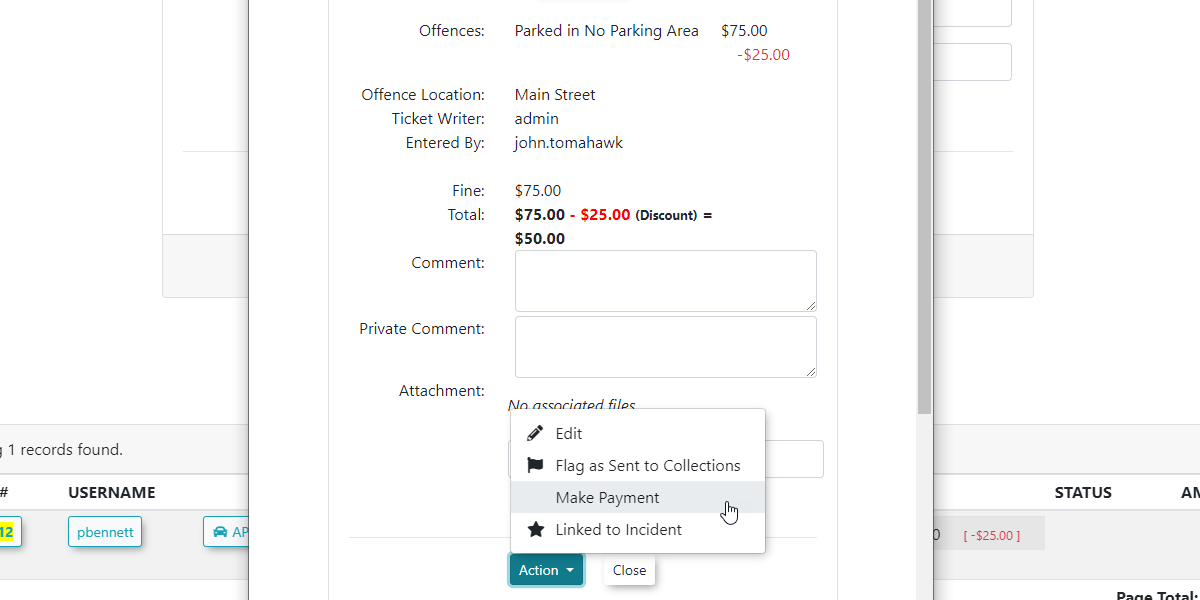
Administrators can placelocate an unpaid violation and guide it through the checkout process in just a few steps.
Searching for the Violation
-
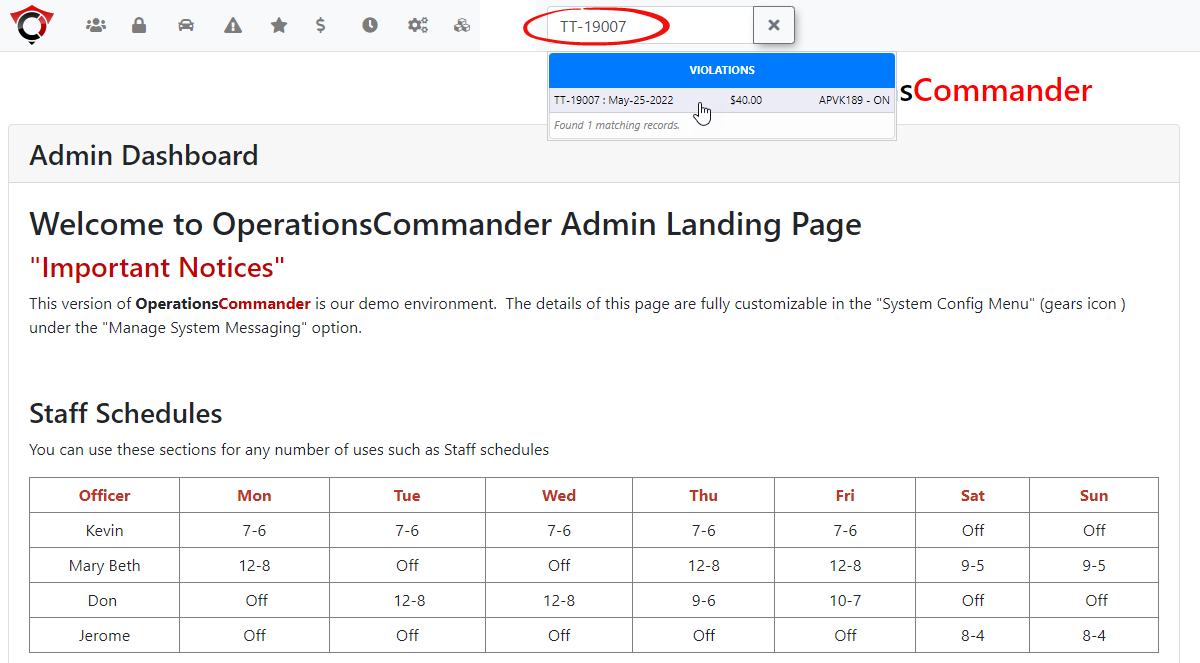
Type the specific violation number
link,ininto the quick search bar and clickonthe resultingdropdrop-downdown.
or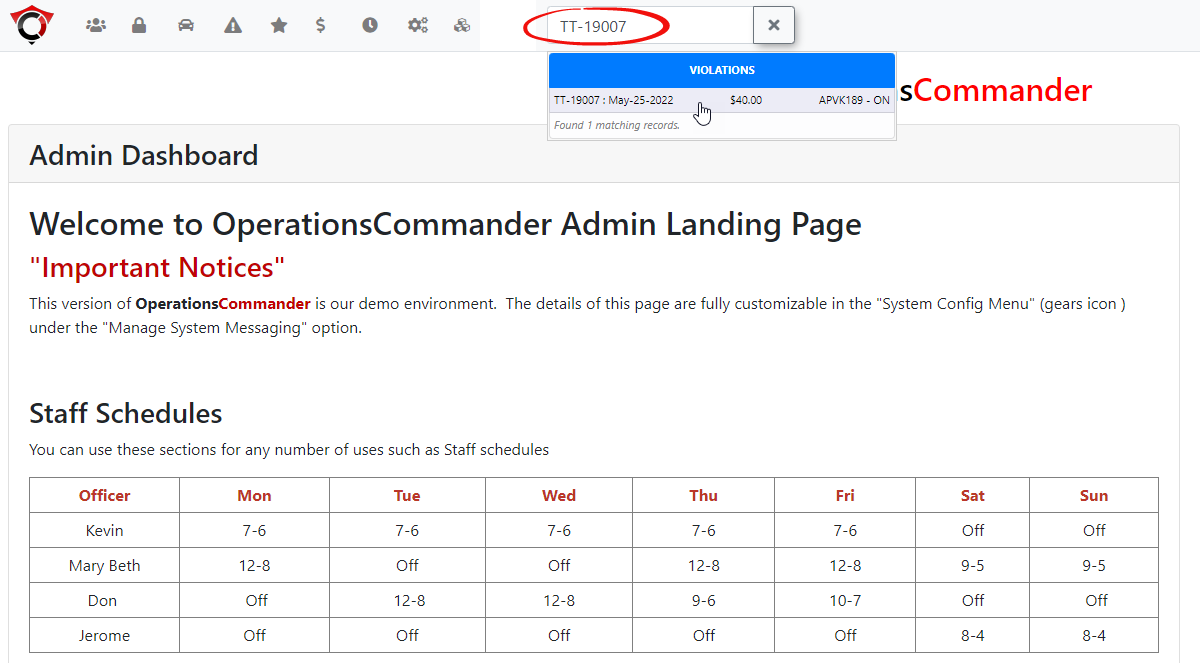
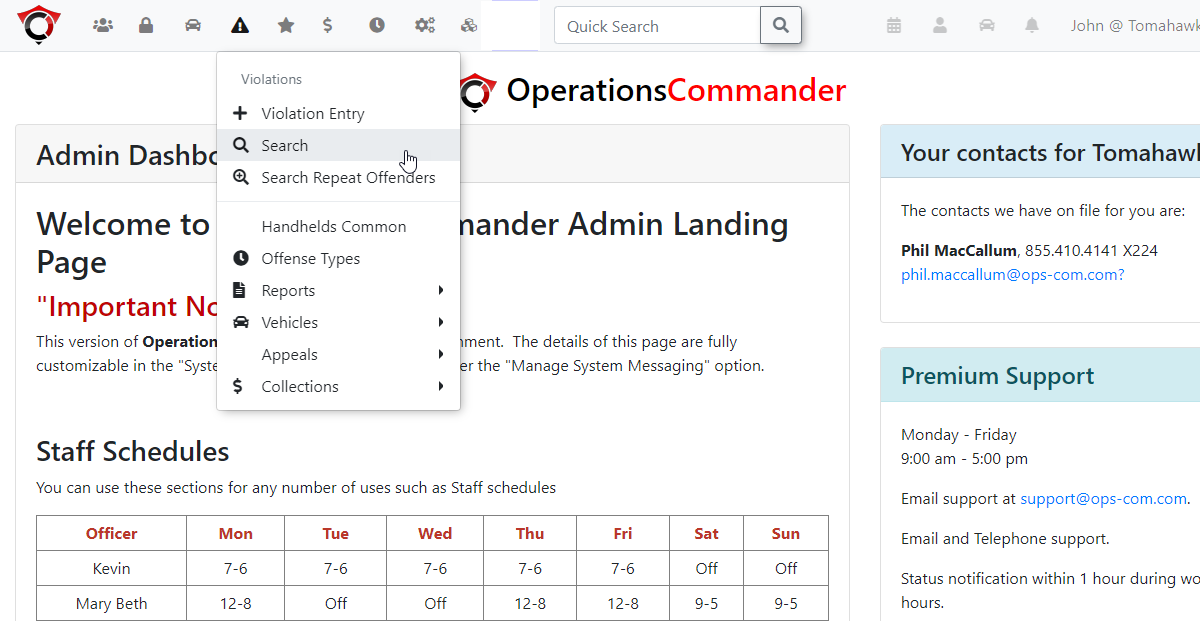
Or...hoverAlternately you can use theViolation Searchfrom theover Violationsmenu.and click Search.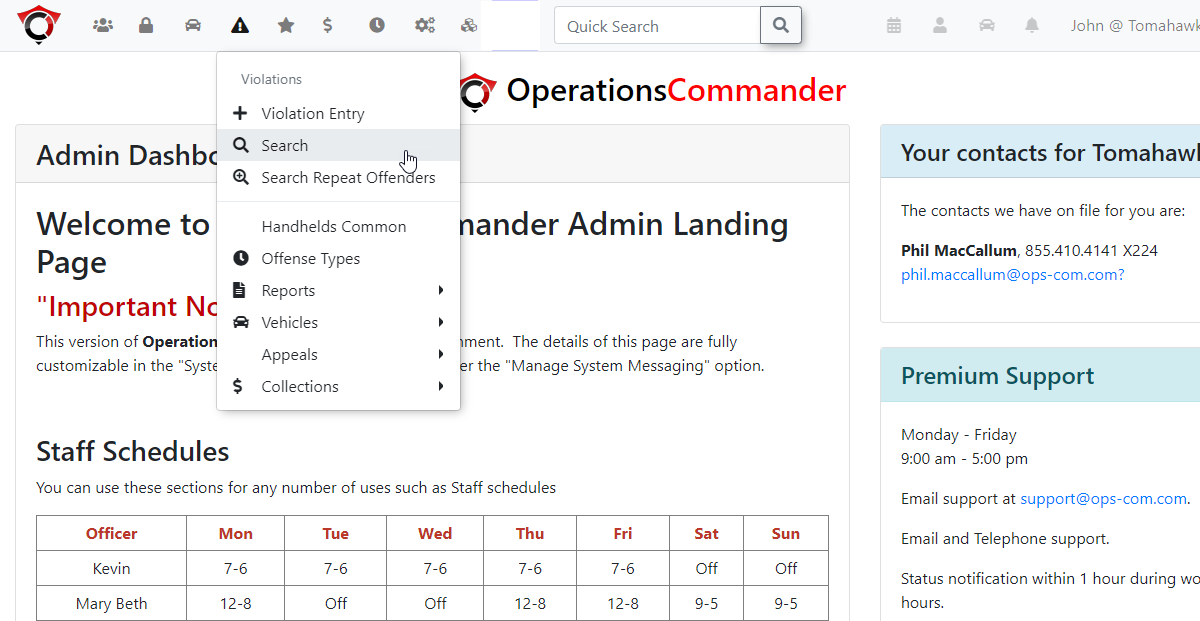
-
Enter the ticket number or license plate number
ininto the Search Textboxfield.and -
onClick the Search Using Only Text
tobutton.retrieve -
list of violations.Click
on theticket numberto proceed.Note: Using the Ticket Number will listthe specificticket.ticketUsingnumber link from thePlatesearchNumberresultswilltolist all tickets associated withopen theplate.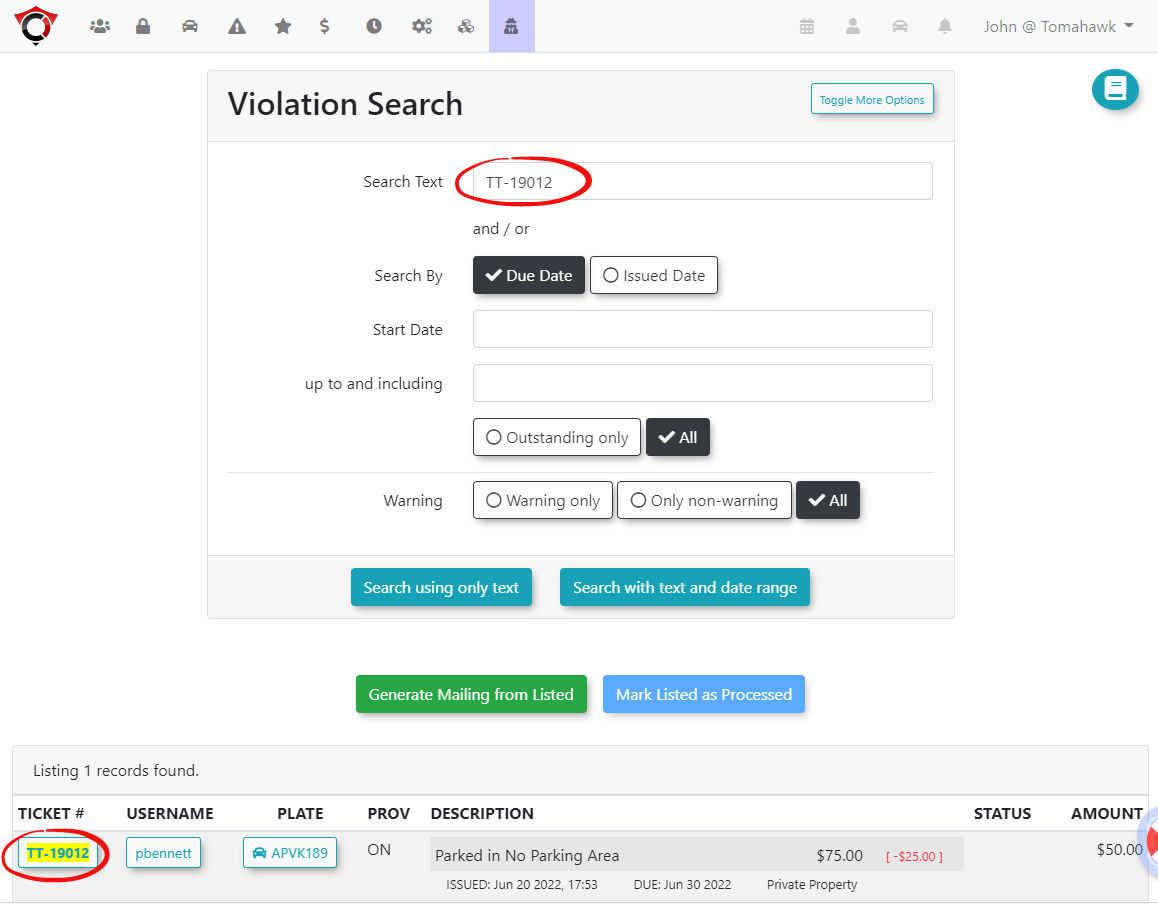
Choosing an ActionTheViolation Informationwindowwindow.will

Processing the Payment
-
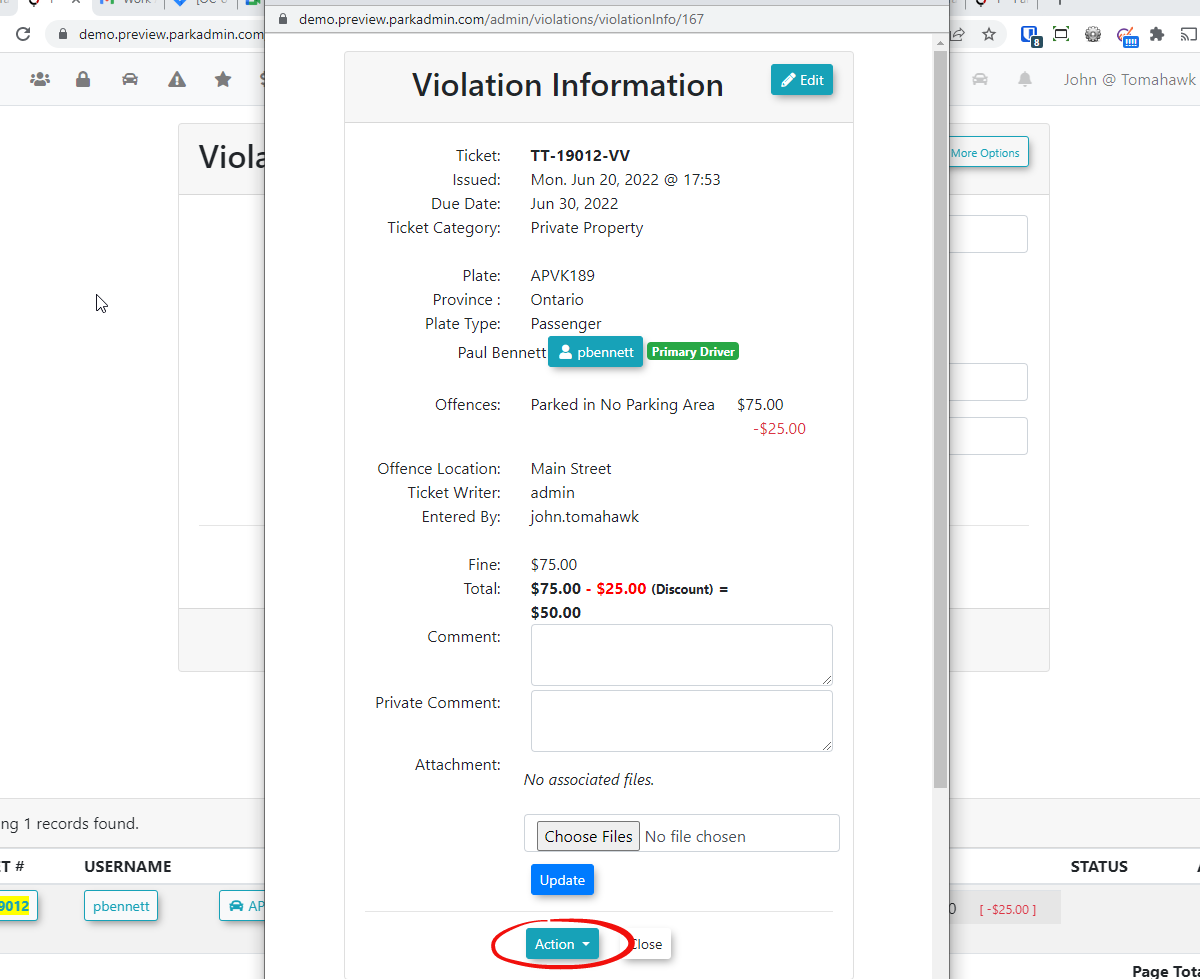
Click
menuonthe Actiontodrop-downproceed.
and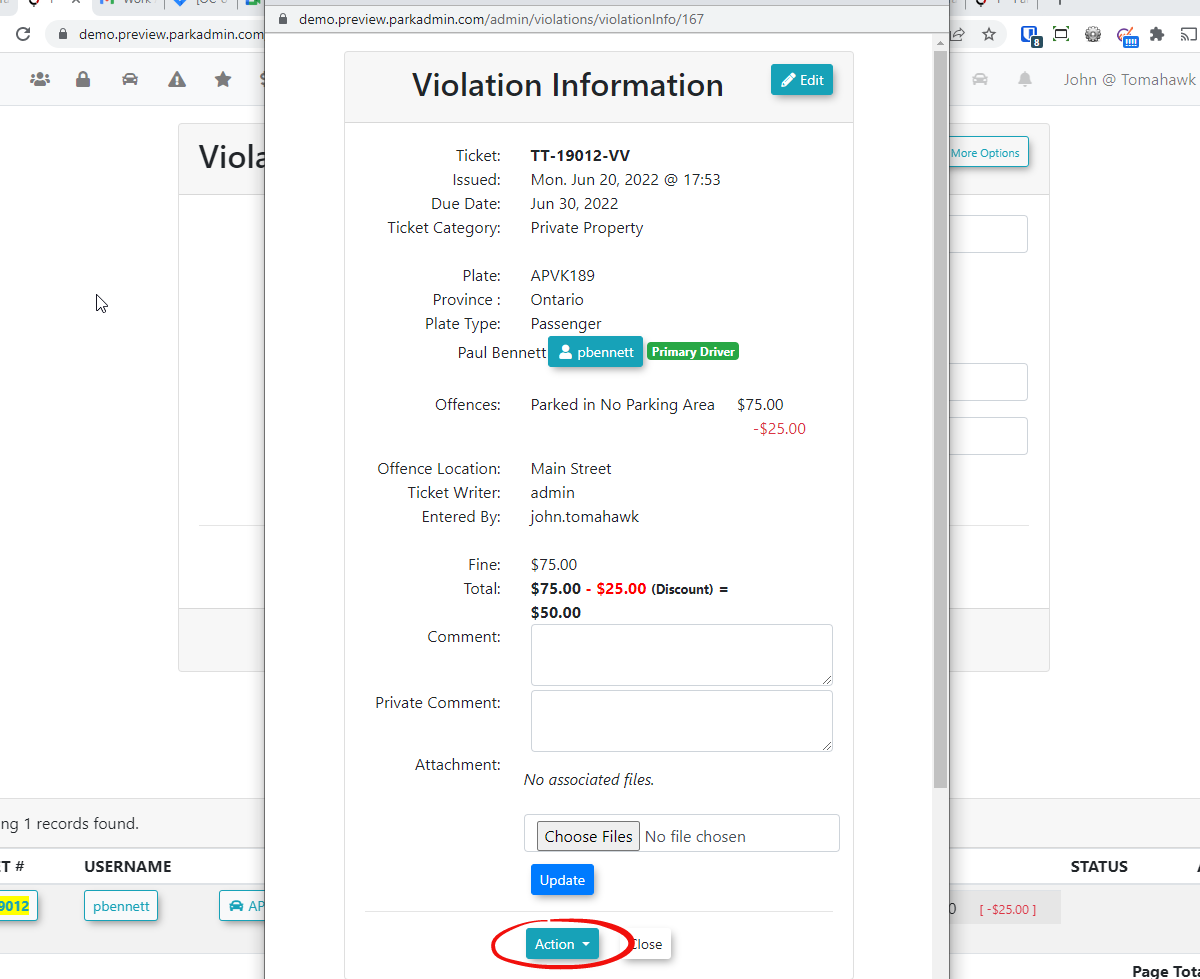
A list of possible actions will appear. Click onchoose Make Payment.to -
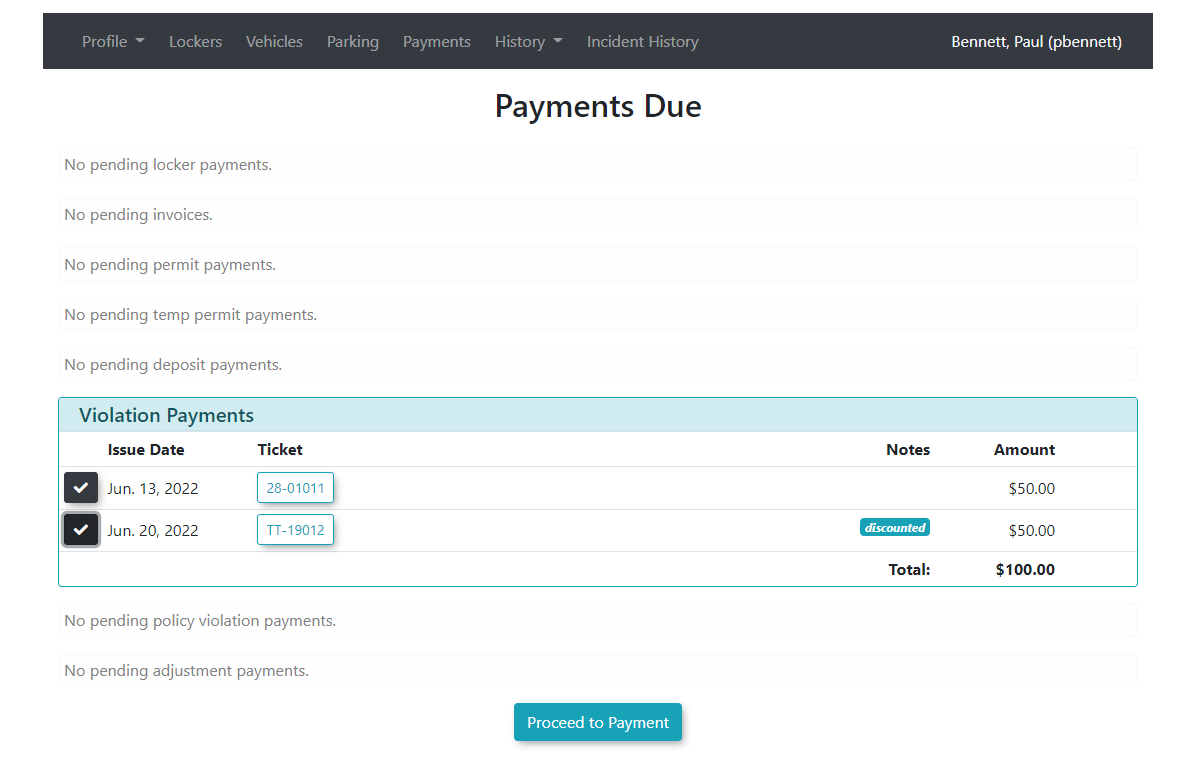
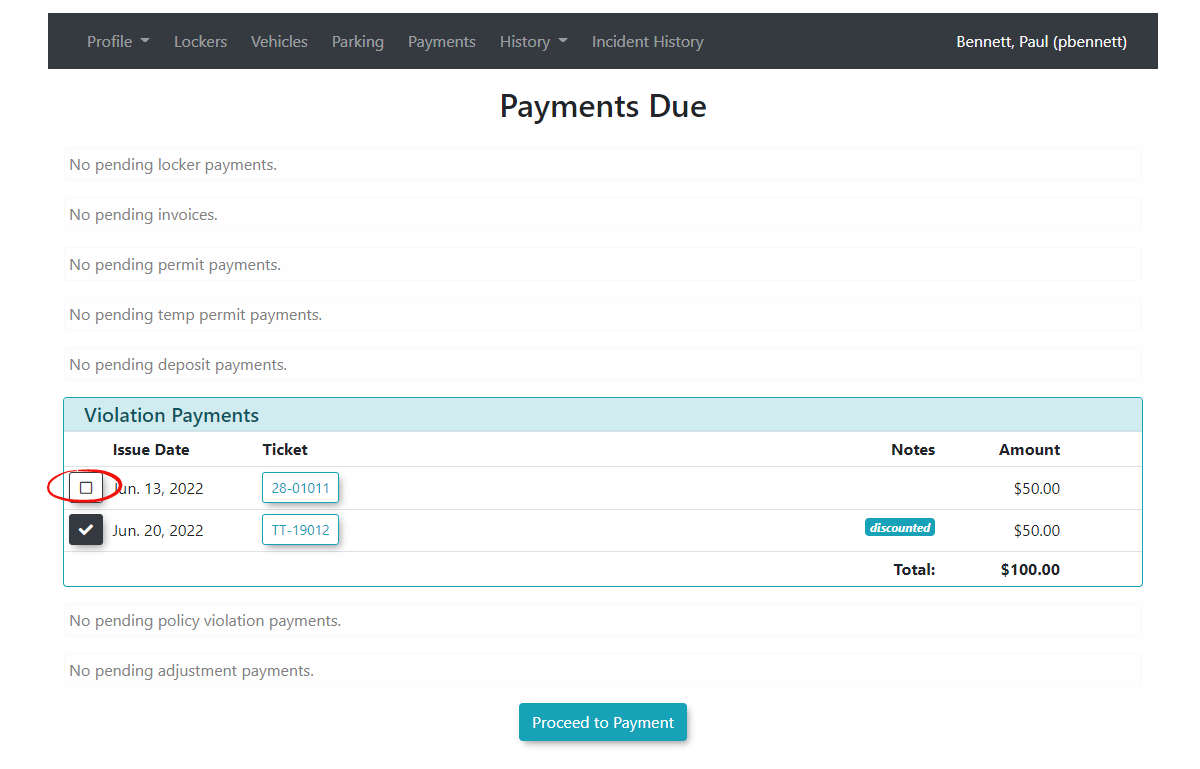
Review the awaiting items displayed on the payment screen.
Disable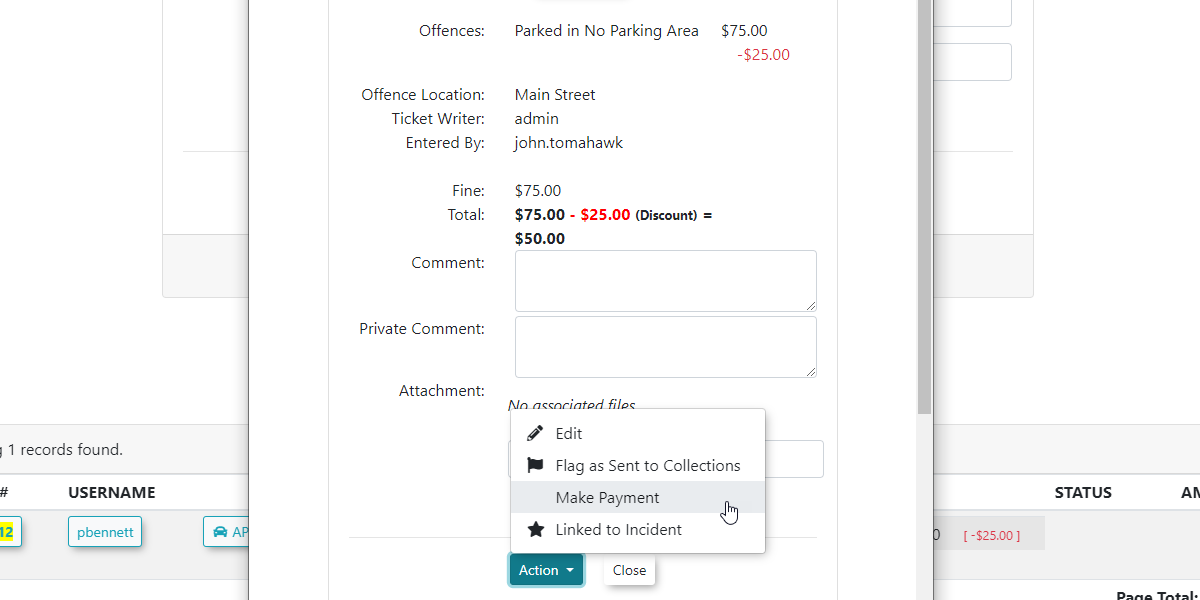
ThethePaymentcheckboxesScreenThe payment screen will displayfor anyitem that is awaiting payment. This could includeViolations, Permits,andDeposits.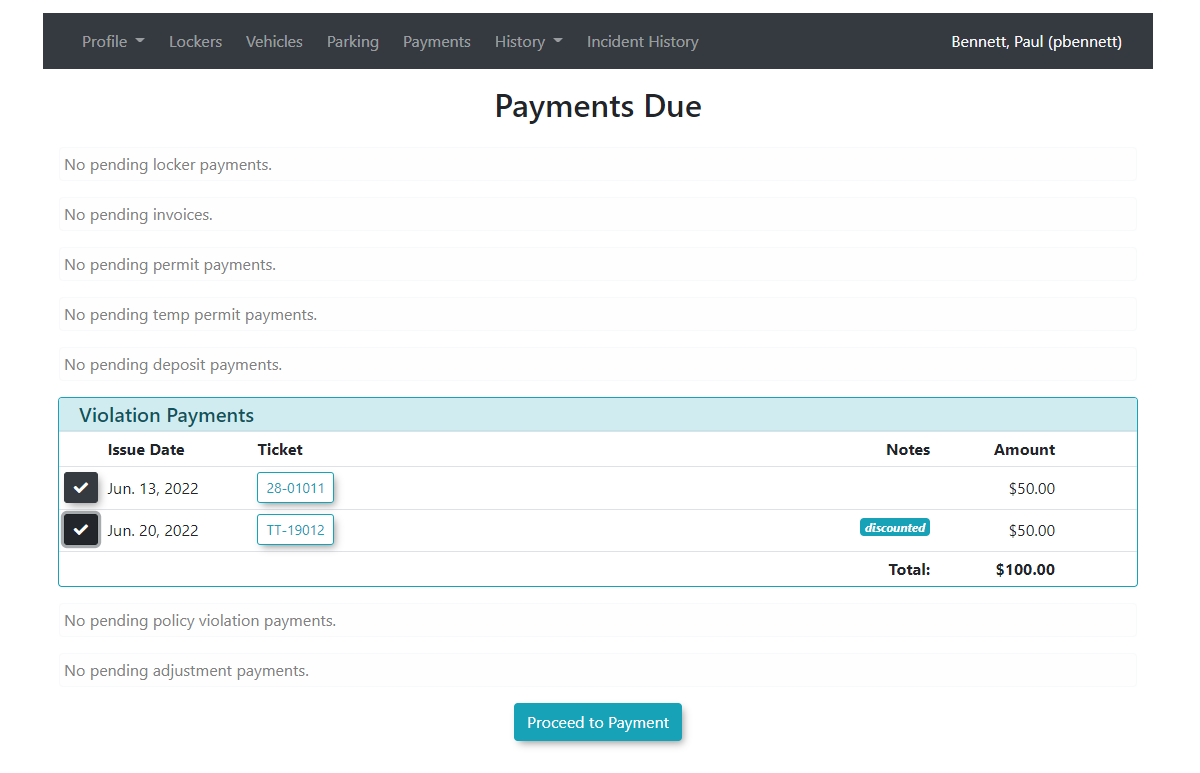
You may opt to pay for allitemsor decide to pay forthespecificuserviolation by toggling off the items you wishwishes to pay for at another time.Note: -
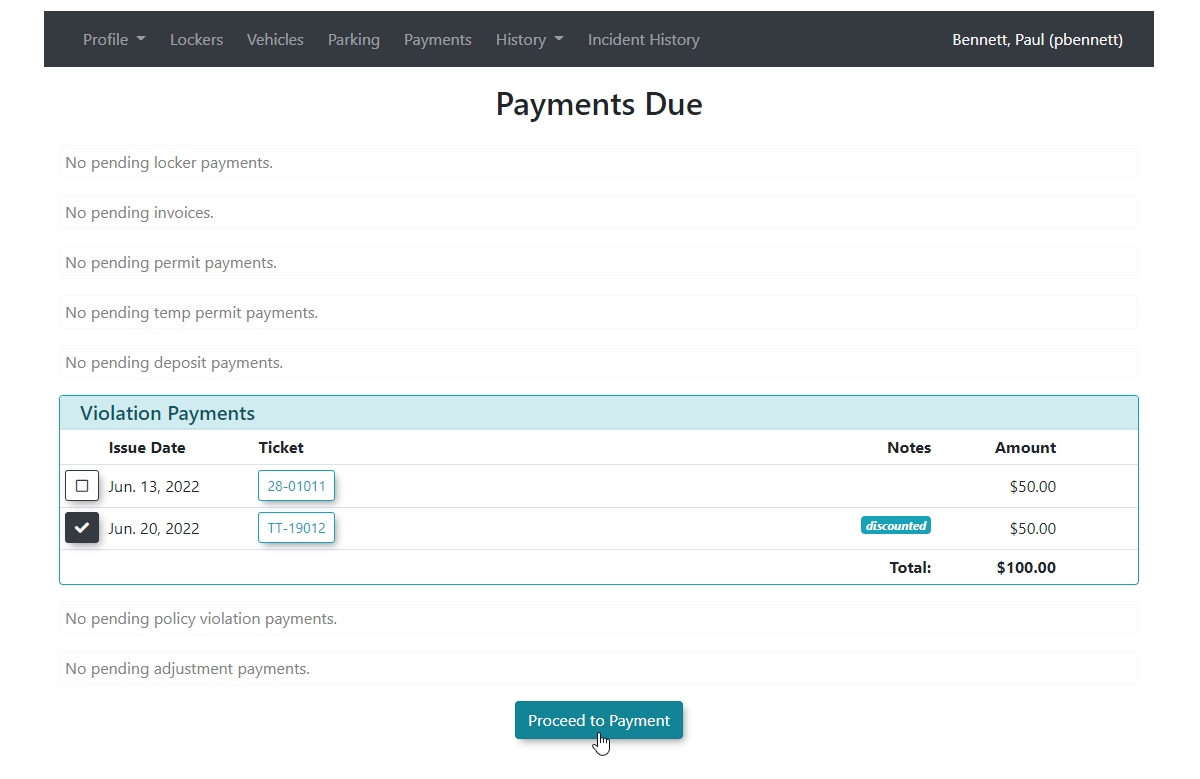
Click the Proceed to Payment button.
-
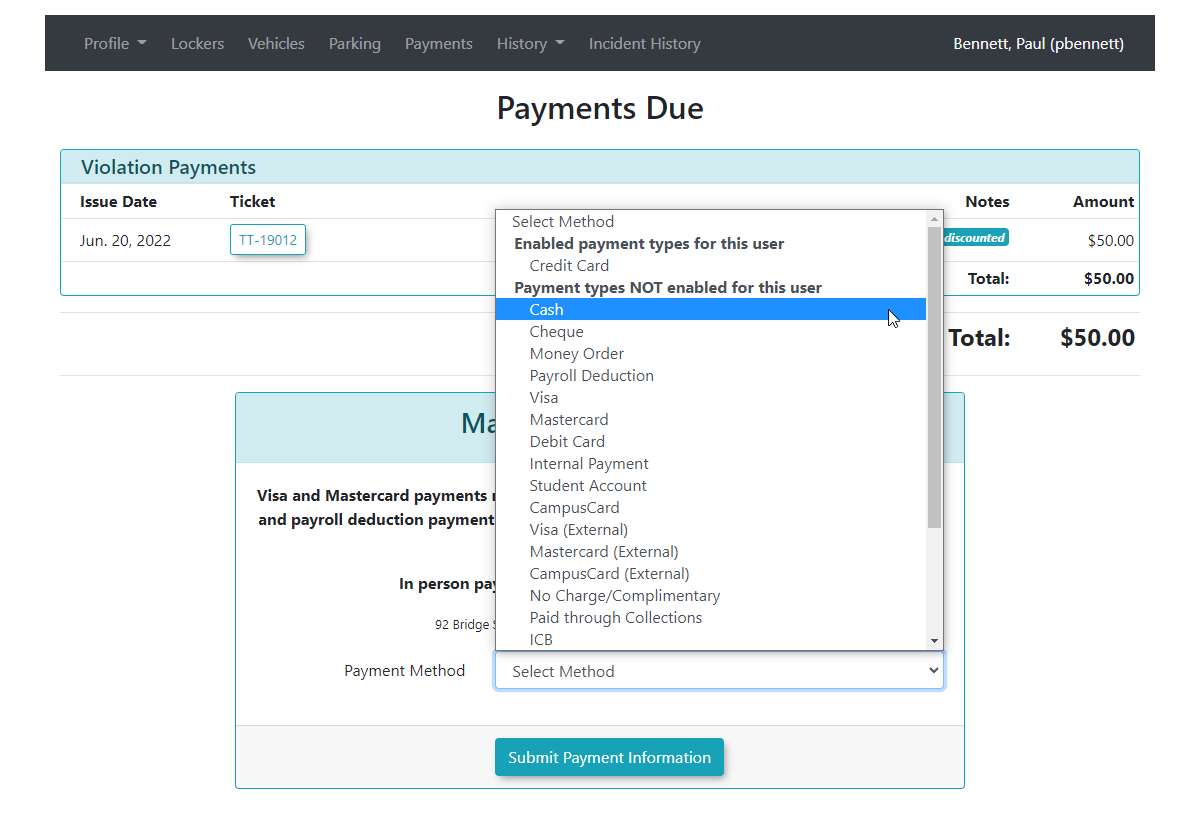
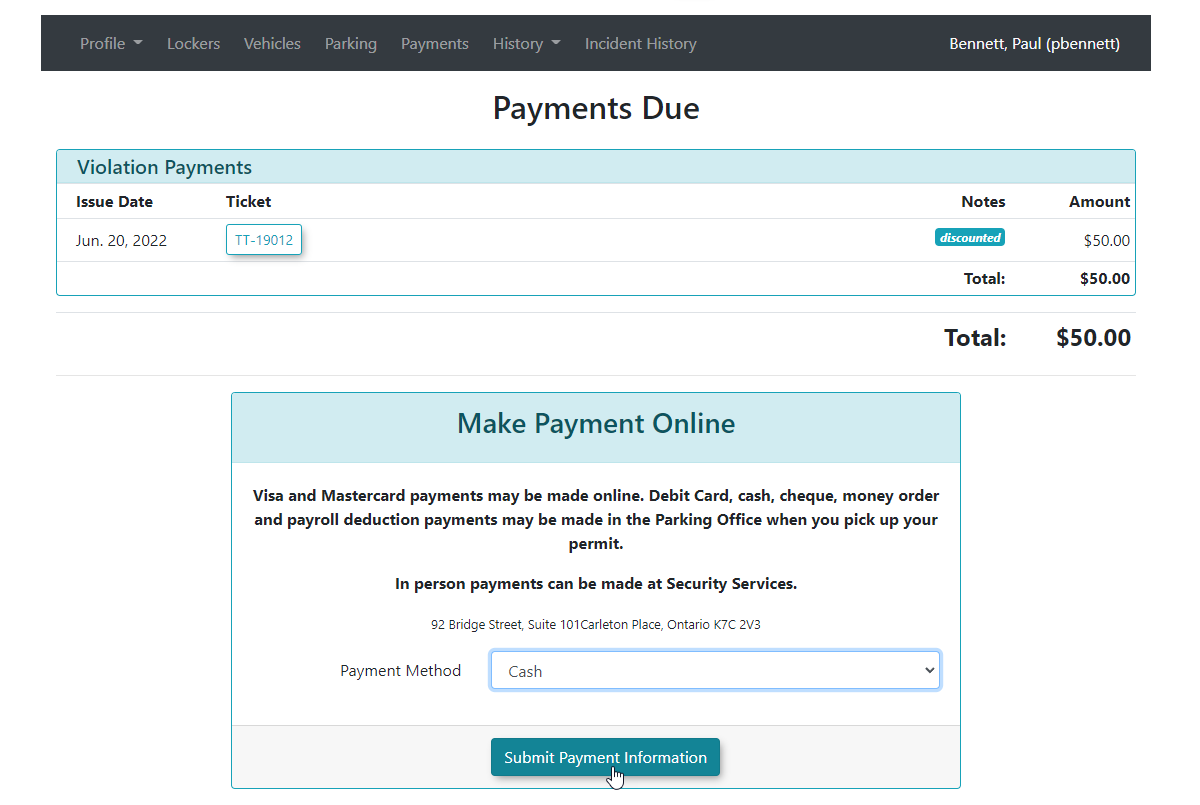
Select the specific payment type you wish to use (e.g., Cash) from the available options.
-
Click the Submit Payment Information button.
-
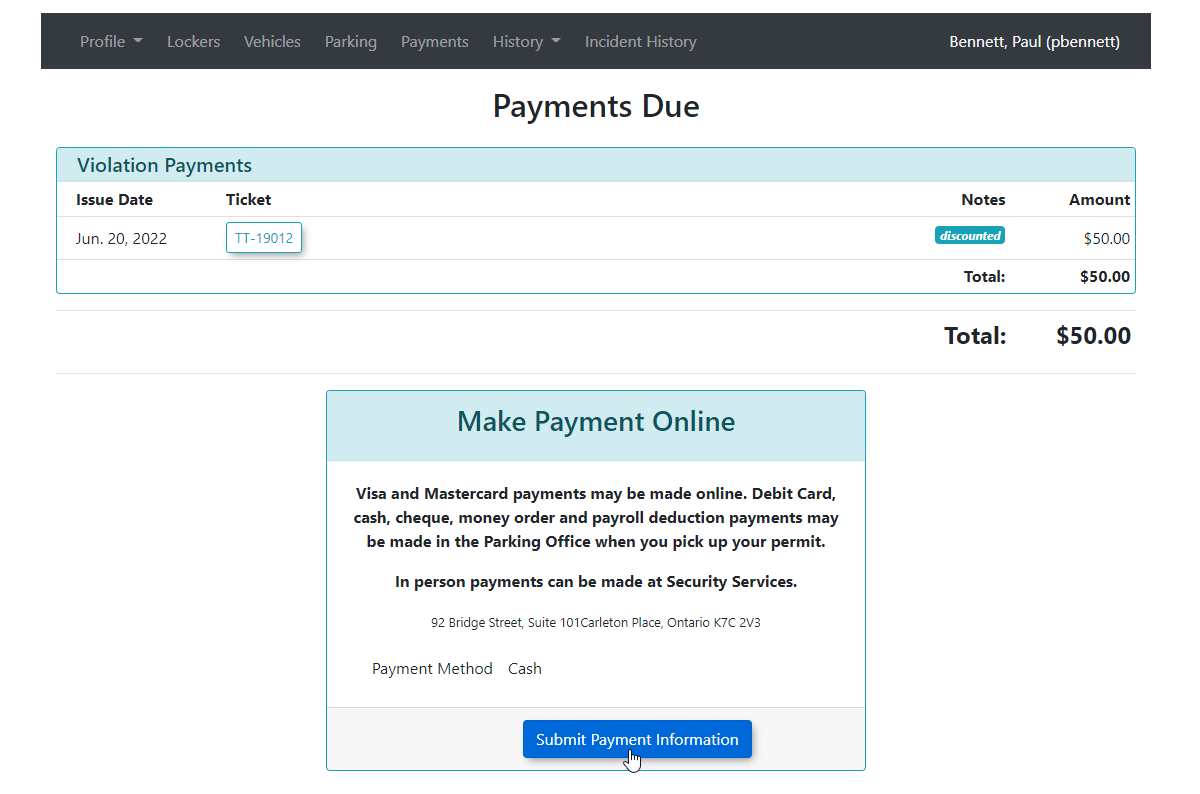
Click the Submit Payment Information button again on the confirmation screen to proceed.
-
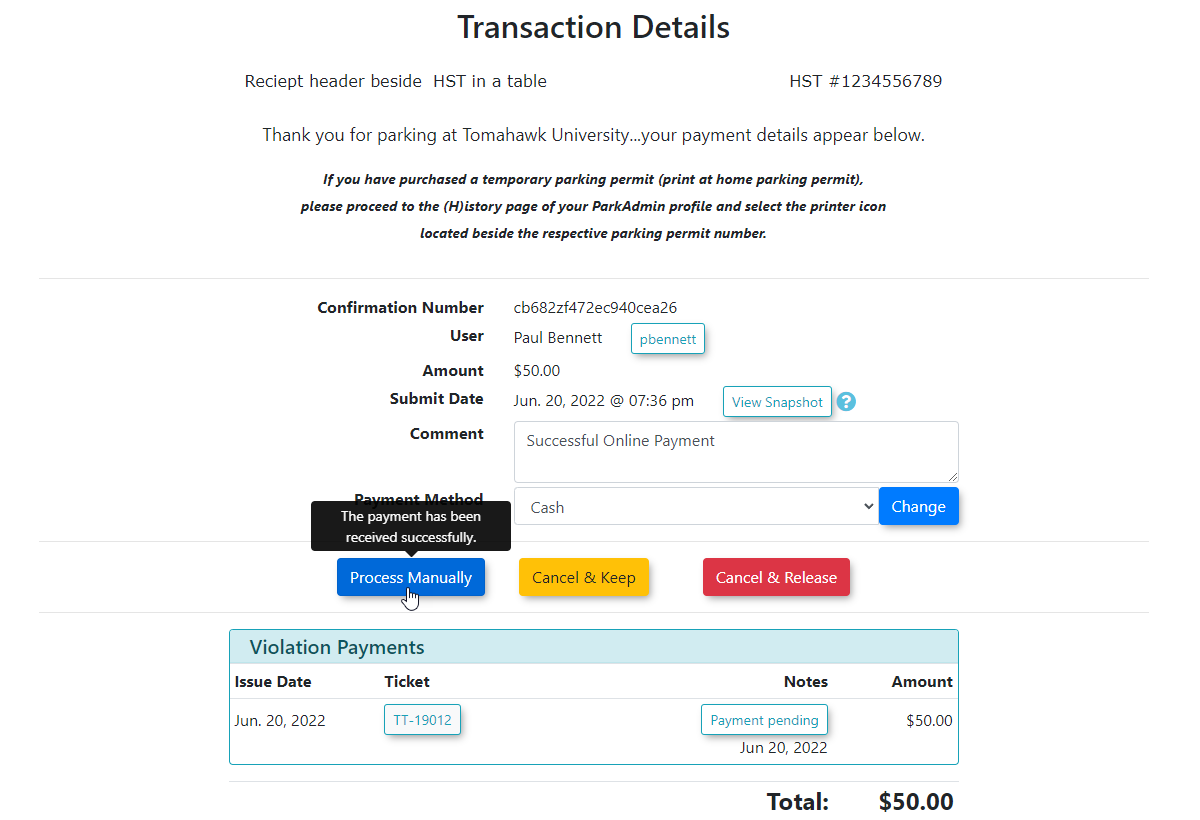
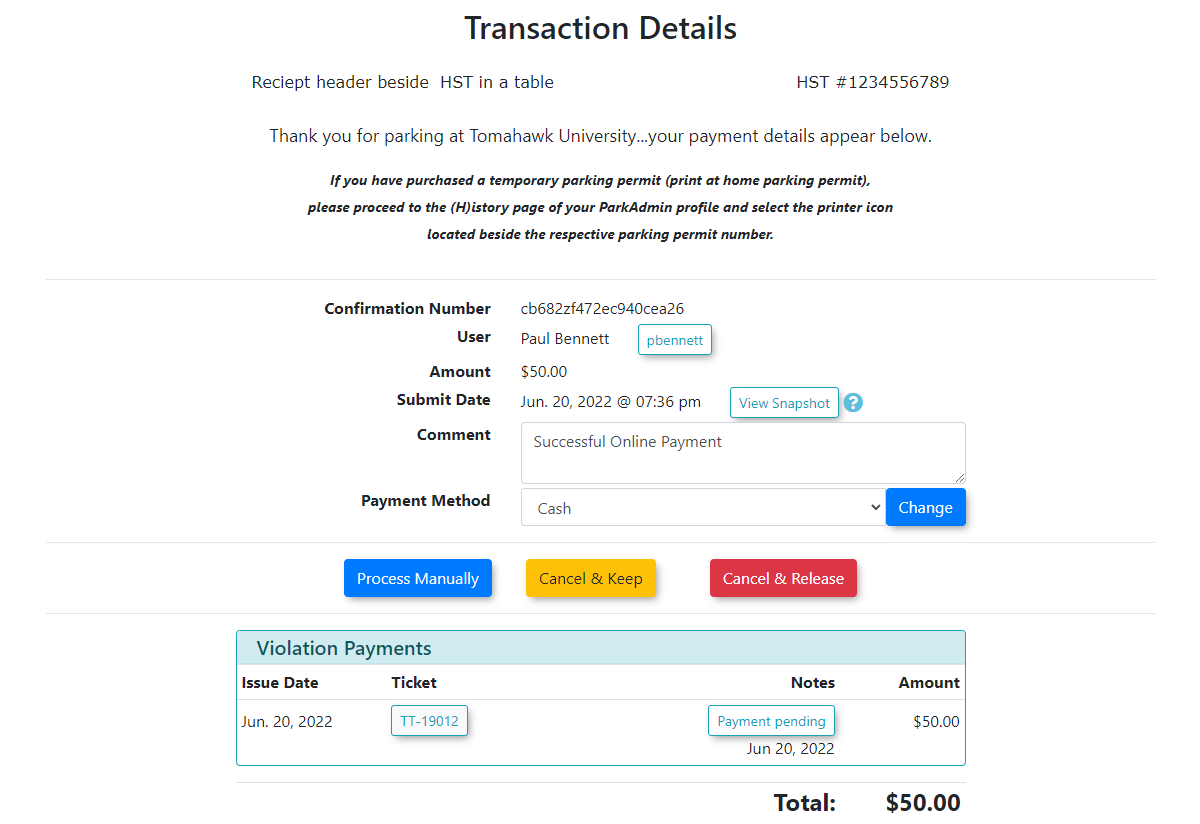
Update the Comment field on the Transaction Detail screen if necessary.
-
Click the Process Manually button to finalize the payment and generate the transaction receipt.
Visual Cues and Status Indicators
-
Past Due Items: The initial payment screen displays all items currently awaiting payment, including violations, permits, and deposits. If any items are past
duedue, they will be locked; you will be required topay forprocess them and will not be able to toggle them off.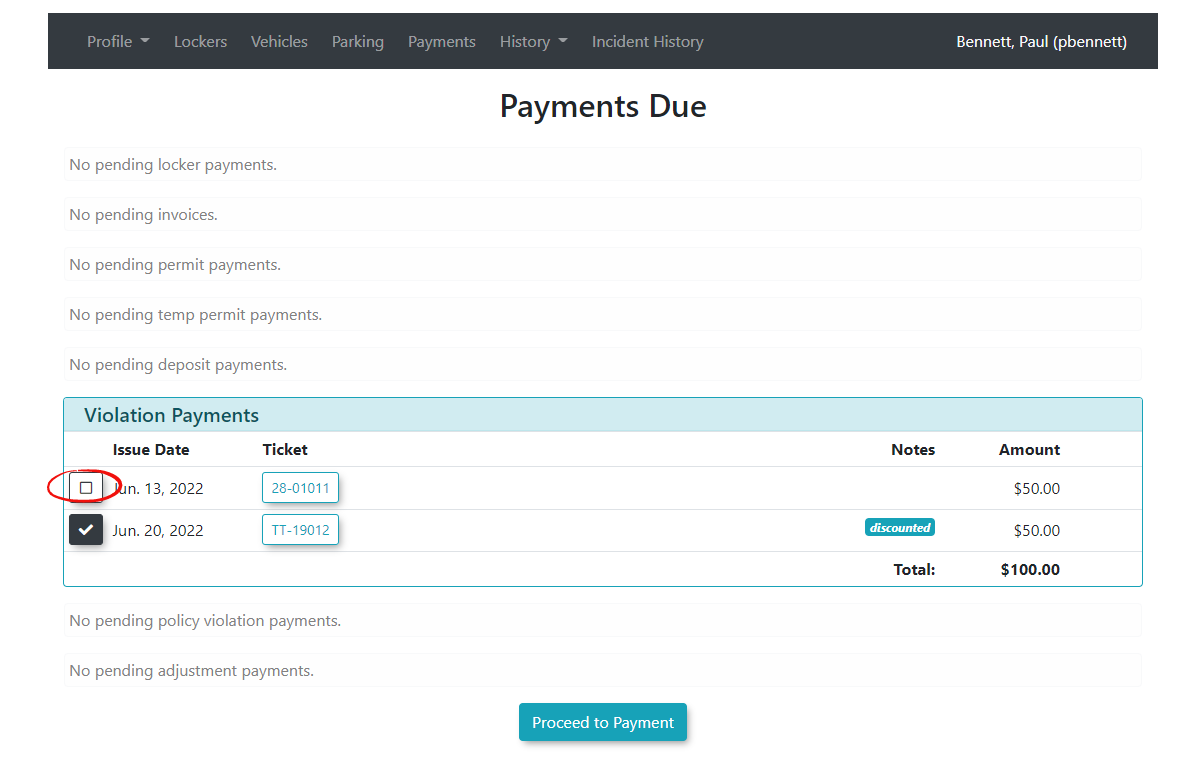
-
ClickProceed to Paymentto continue.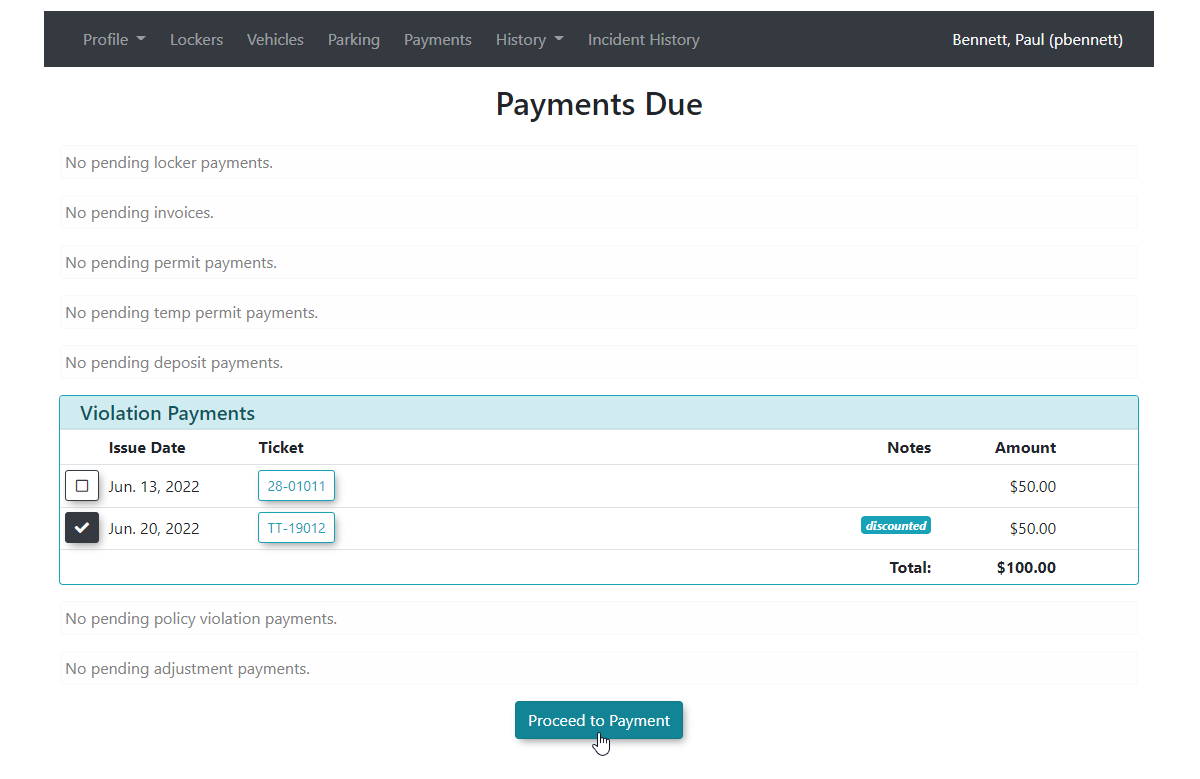
Choosing aAvailable PaymentTypeSelect the payment type you wish to use. In this case we are usingcashTypes:as a payment type. You may also selectchequeordebit cardpayment here.Note:As anadminadministrator, youmaywillchooseseeanyevery payment type available in yoursystem.system during checkout. Remember that users paying from the public portal will typically only see electronic options, such as Credit Card.
Best Practices and Considerations
[!WARNING] Physical Collection: Always collect the physical funds or process the debit terminal transaction before clicking Process Manually. Clicking this button completes the transaction and logs the money as successfully secured in your system's financial records.
-
Managing Incomplete Transactions: If you need to abort the payment
was being made fromon theuserfinalportalscreen, you cansee onlyCredit Cardin this case would be available as a payment type.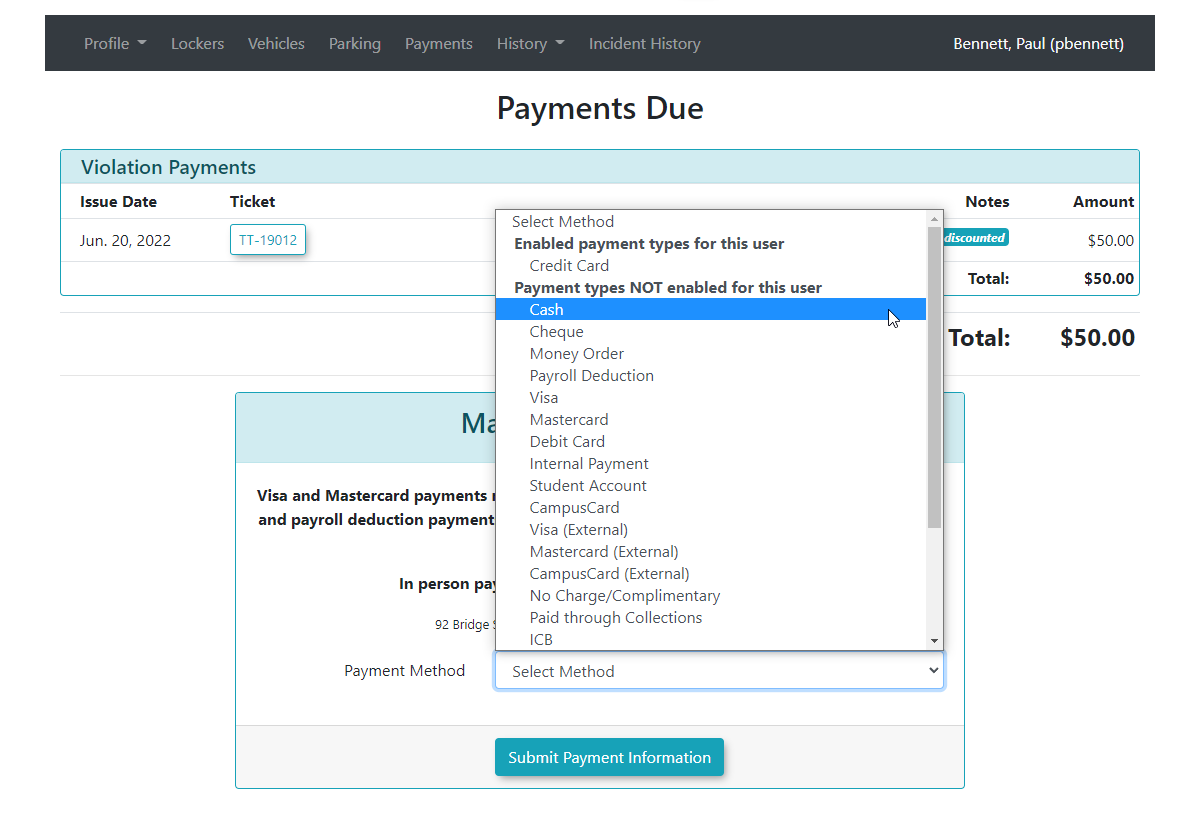
In our example we are choosingcash. Click onSubmit PaymentInformationchoose toproceed.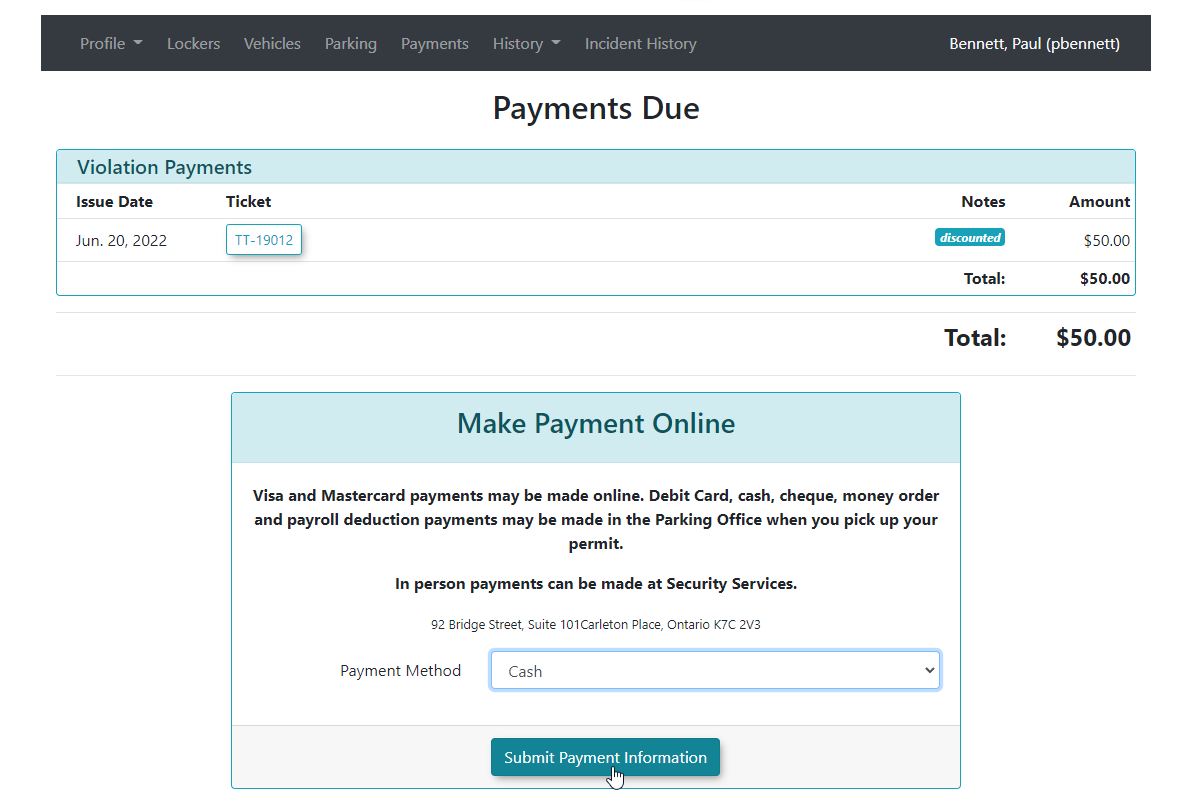
A confirmation screen will appear noting the payment method. Click onSubmit Payment Informationonce again to proceed.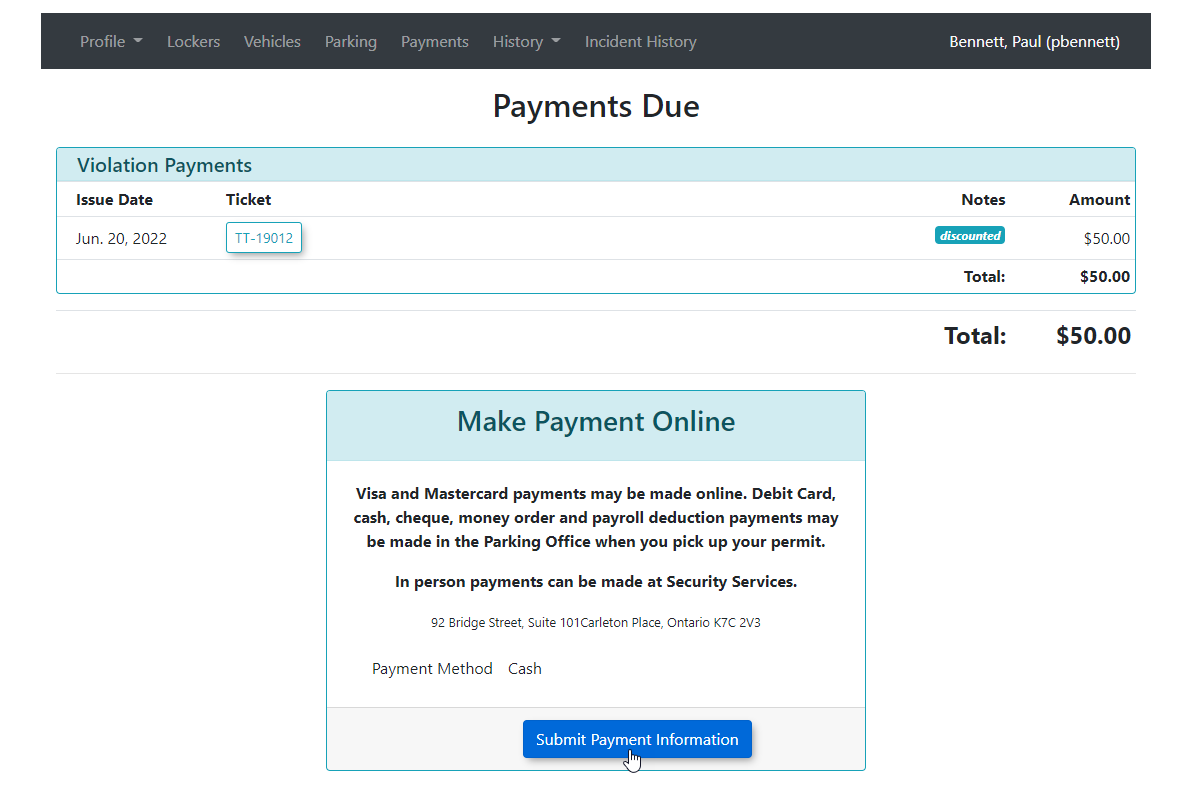
Making the PaymentTheTransaction Detailscreen will appear. You may wish to update theCommentat this point.Note: You may alsocancel the transactionatinsteadthisofpointprocessingifit.there is reason to do so. Be aware that cancelingCanceling a payment for a violation simply places the violation back intoawaiting payment status.For a permit you may opt to cancel the transaction yet keep the permit inan awaiting payment status(Cancel and Keep) or you mayCancel and Releaseon thepermit.user's profile.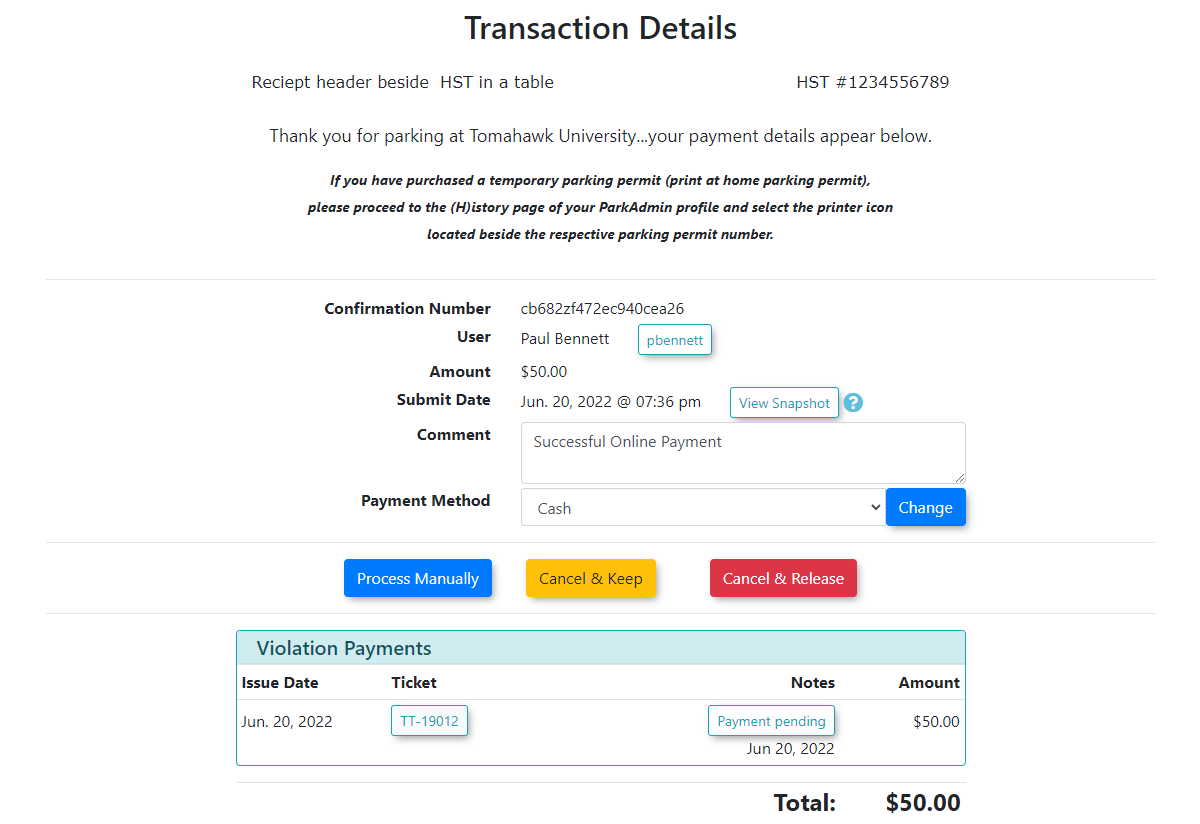
- Search
ourMethods:exampleUsingwethe specific Ticket Number willProcessloadthethatpaymentexactmanuallyticket,andwhereasacceptsearchingthebycashPlatepayment.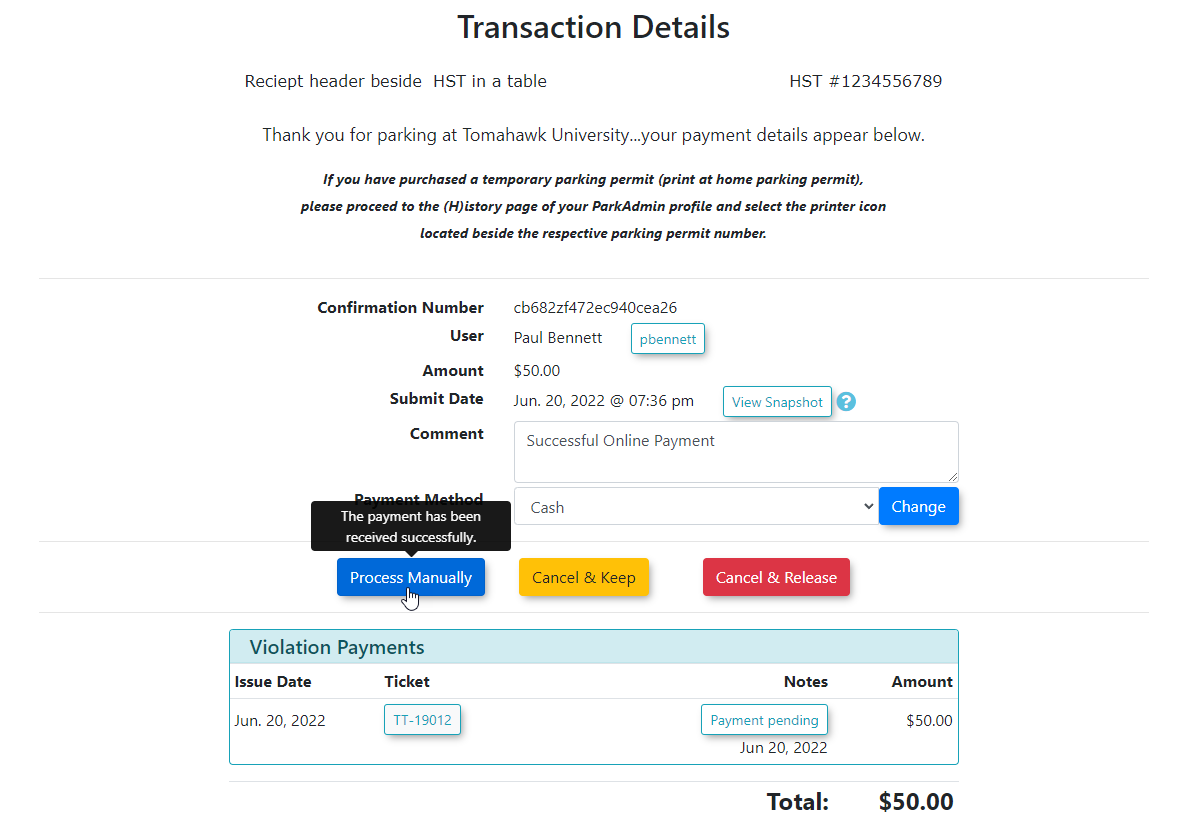
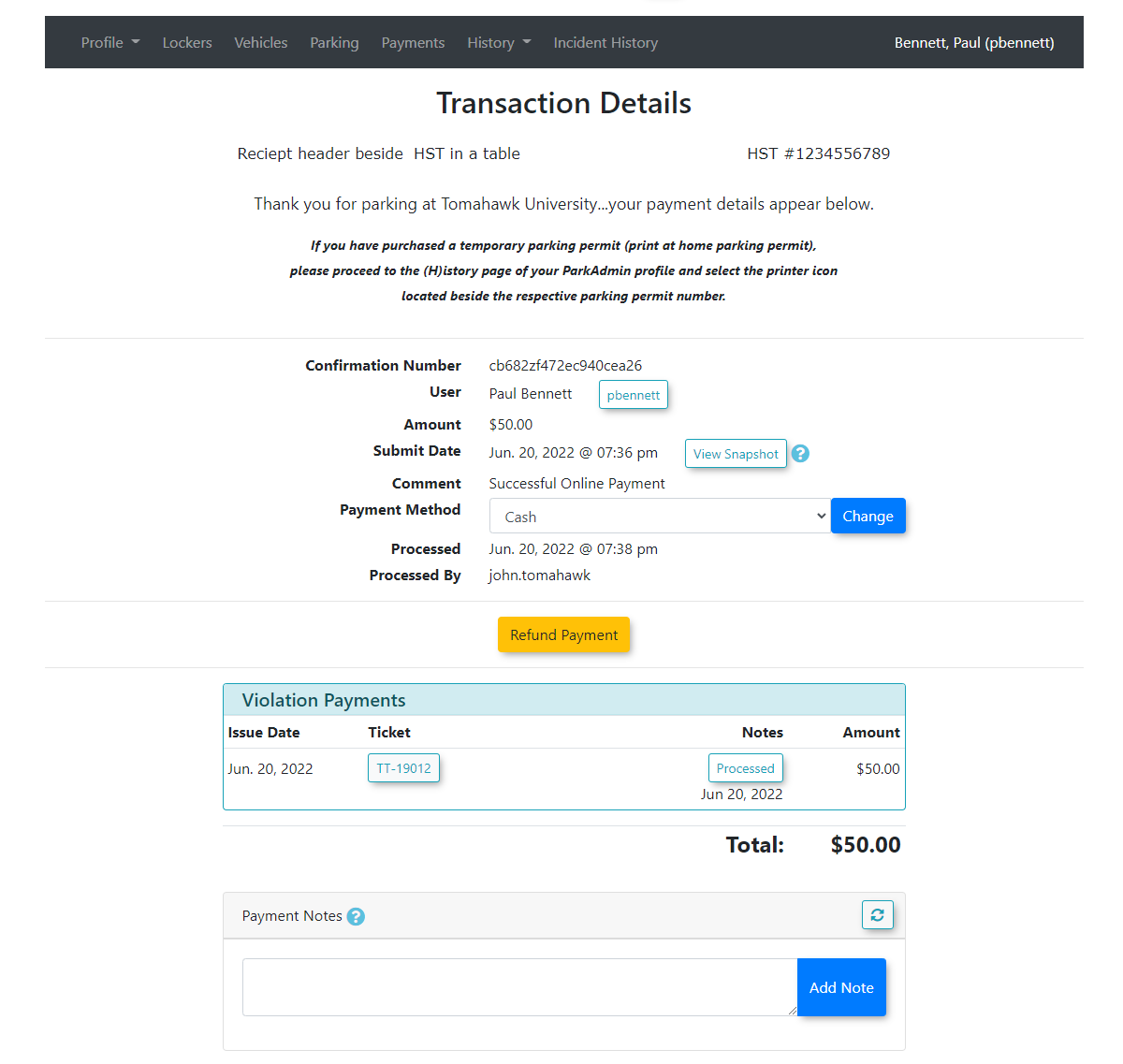
The Final Transaction Detail Screen
ticketsTheTransaction DetailpageNumber willrefreshgenerateshowingathe detailslist oftheallpurchase.
associated with that vehicle.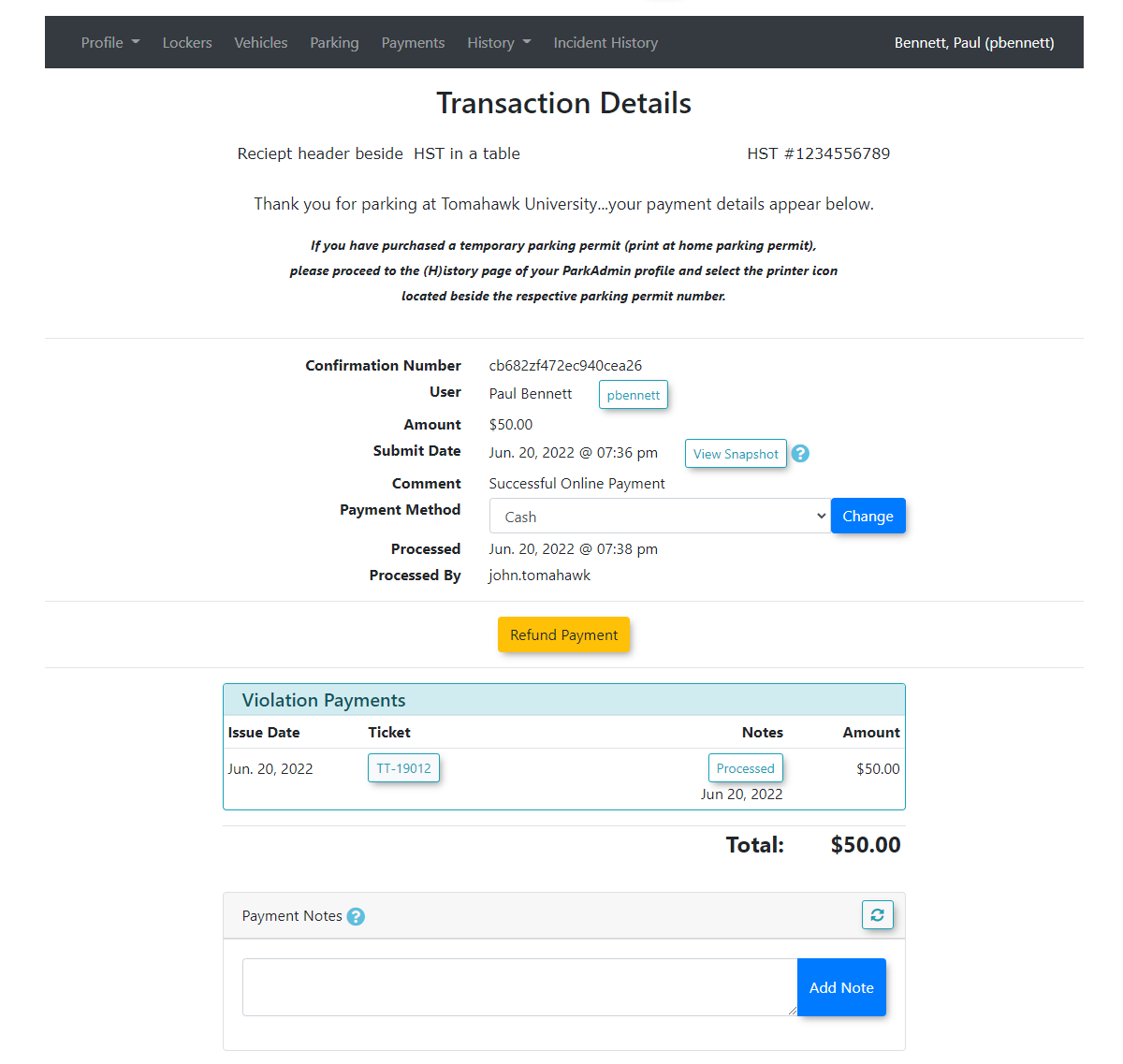
In