
Payment Adjustments
The Payment Adjustments feature allows administrators to process financial refunds, release inventory, and reverse processed transactions for permits, lockers, and violations. Its primary purpose is to correct billing errors or process user cancellations while ensuring accurate financial tracking and inventory management within the system. This article is intended for OPS-COM administrators.
Setup and Configuration
There is no specific system configuration required to access the adjustment and refund tools. Processing payment adjustments is a standard administrative function available to users with the appropriate financial reporting, inventory management, and refund processing permissions enabled on their account profile.
Using this Feature
Administrators can process refunds and release associated inventory directly from a user's transaction history. The process varies slightly depending on the type of item being adjusted.
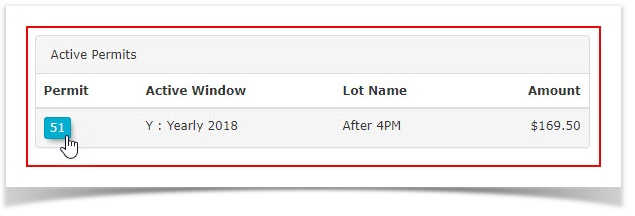
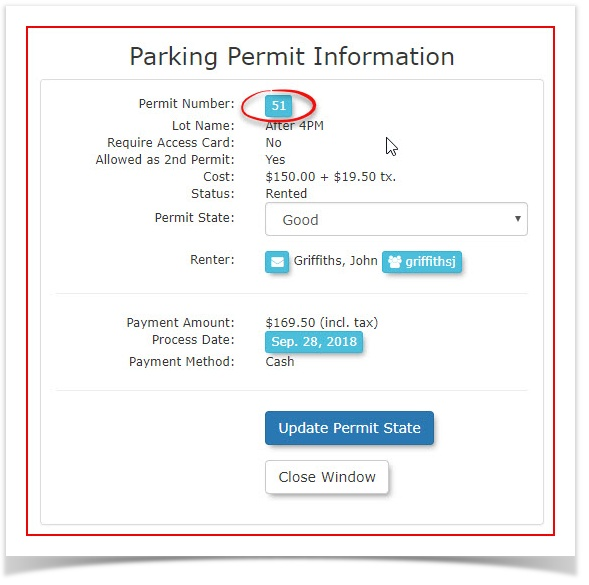
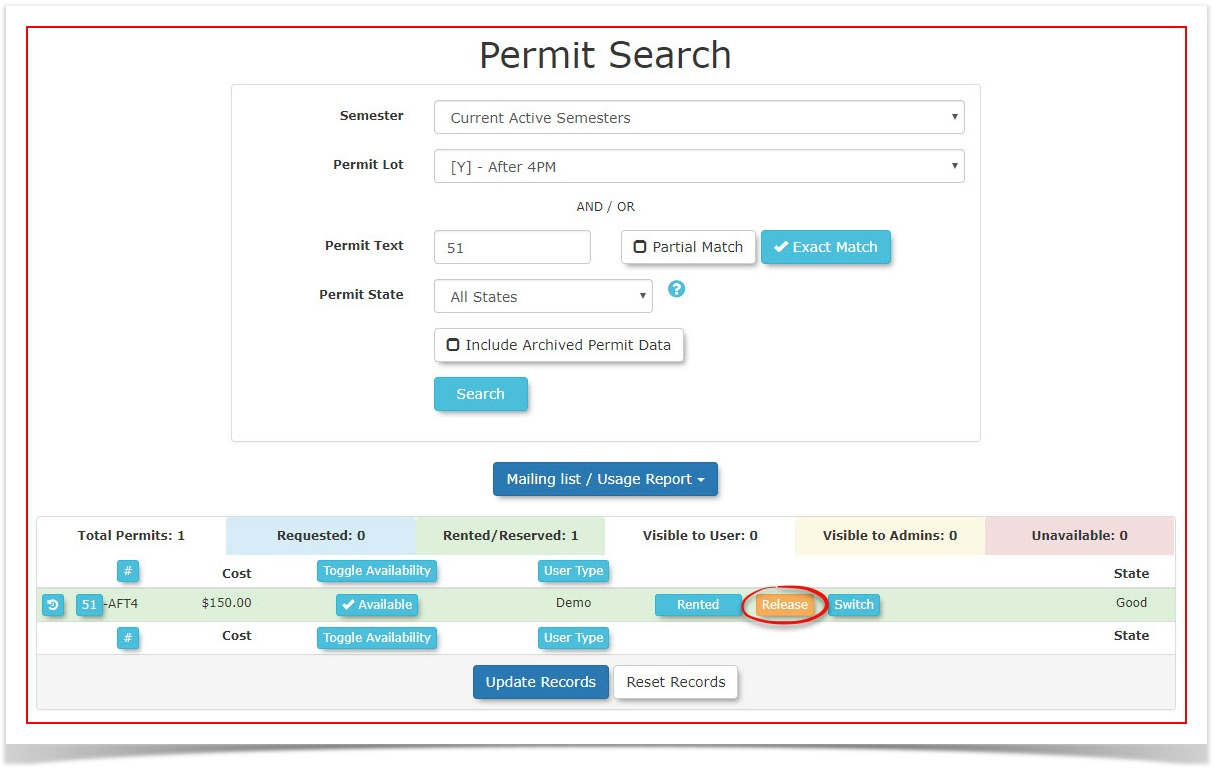
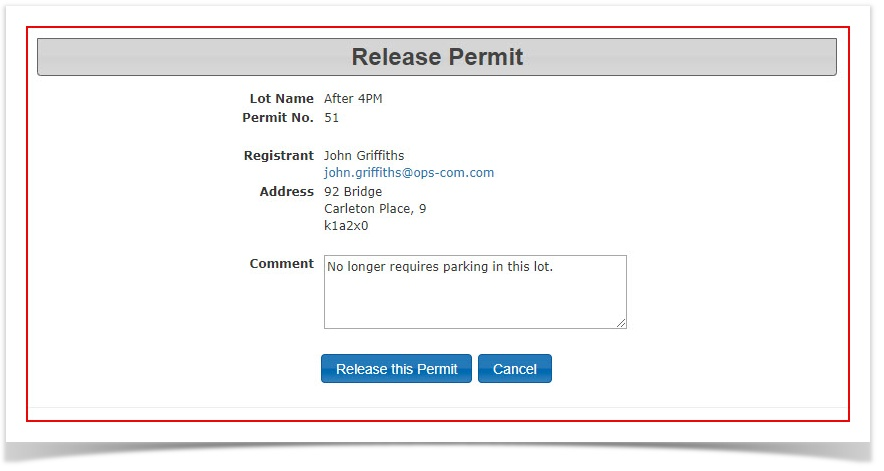
Releasing a Permit.Permit
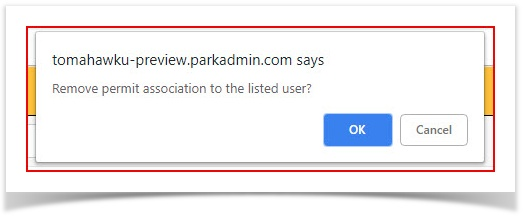
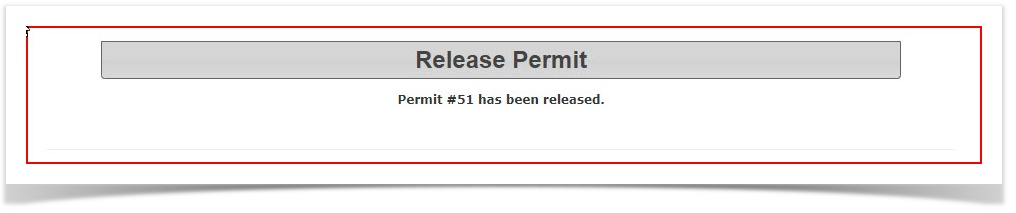
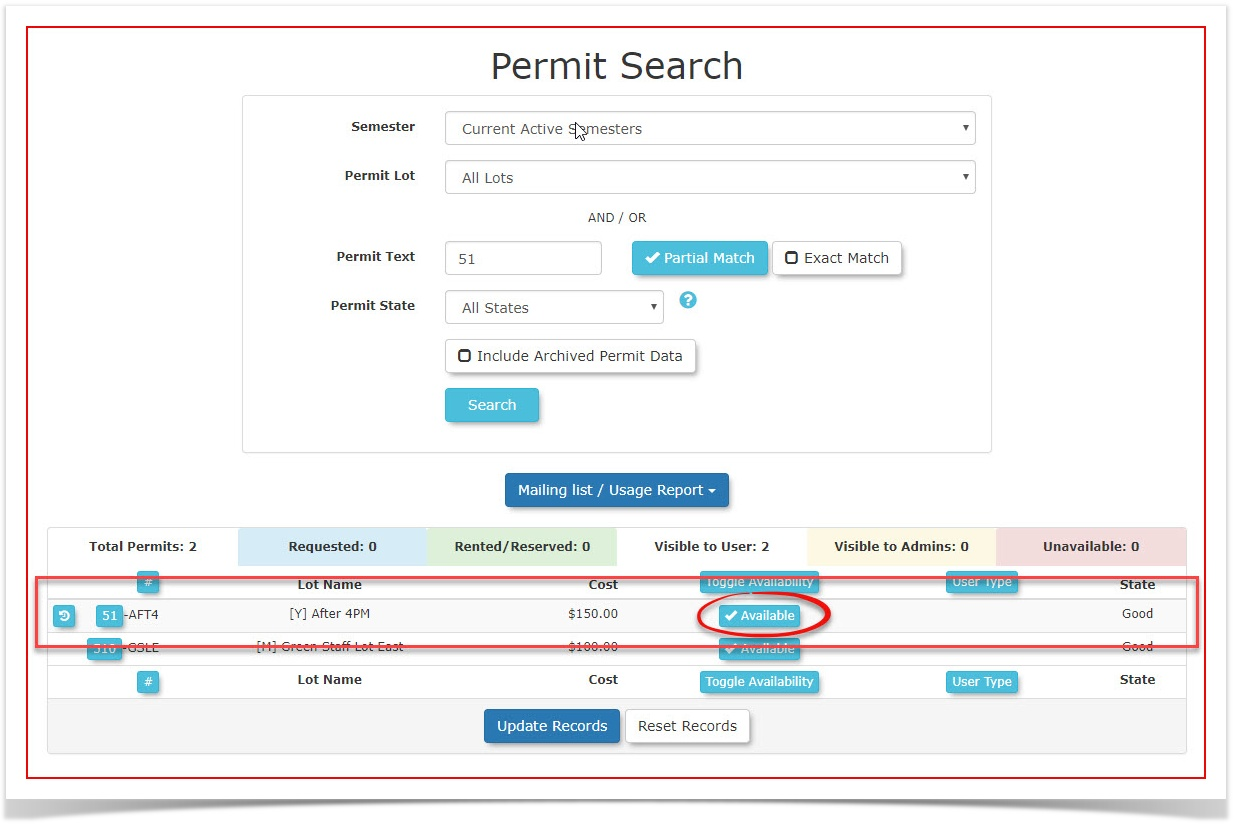
Releasing a permit removes it from the user's account and makes it available in the system inventory, but it does not automatically issue a financial refund.
Refunding a permit.
ClickViolation
Refunding a violation payment reverses the financial transaction and reinstates the fine on the permituser's number on the user dashboard.
Refunding a Violation
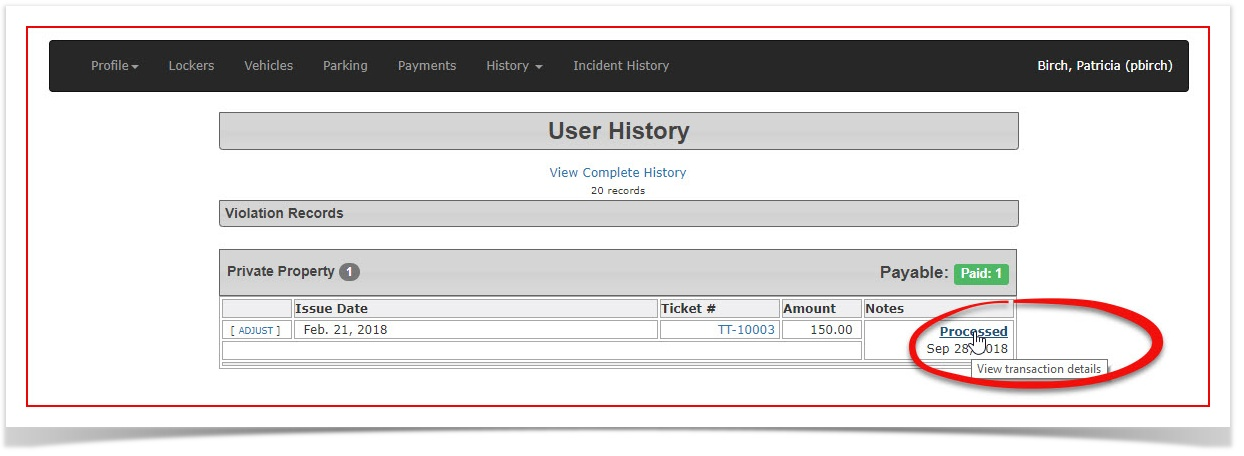
Oncea user has paid a violation it can be refunded and placed back in awaiting payment status.GoNavigate to the user's history and
search forlocate theviolationpaidyouviolation.wish-
Click the Processed link next to
refund. Click onthework Processeditem to access the transaction details.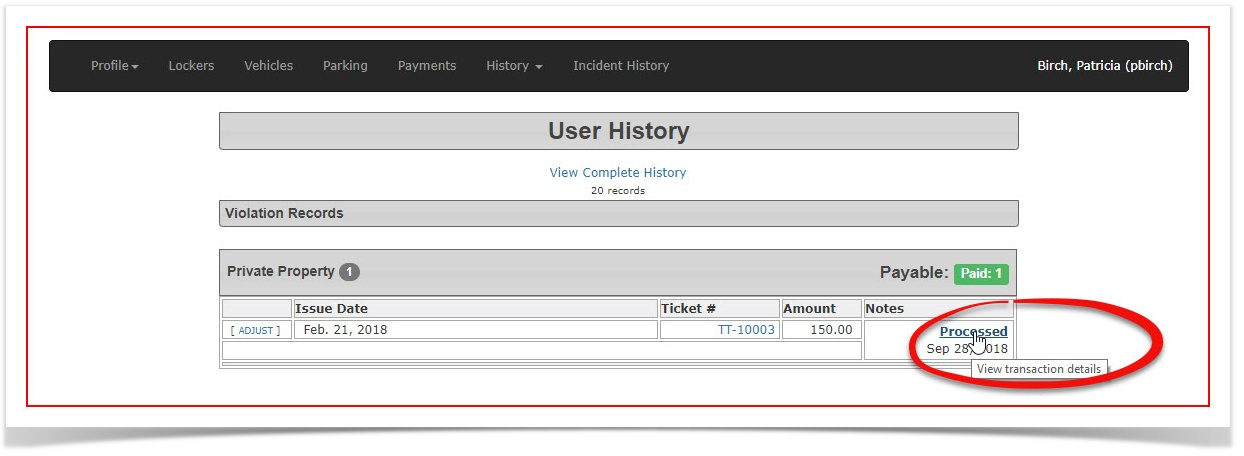
-
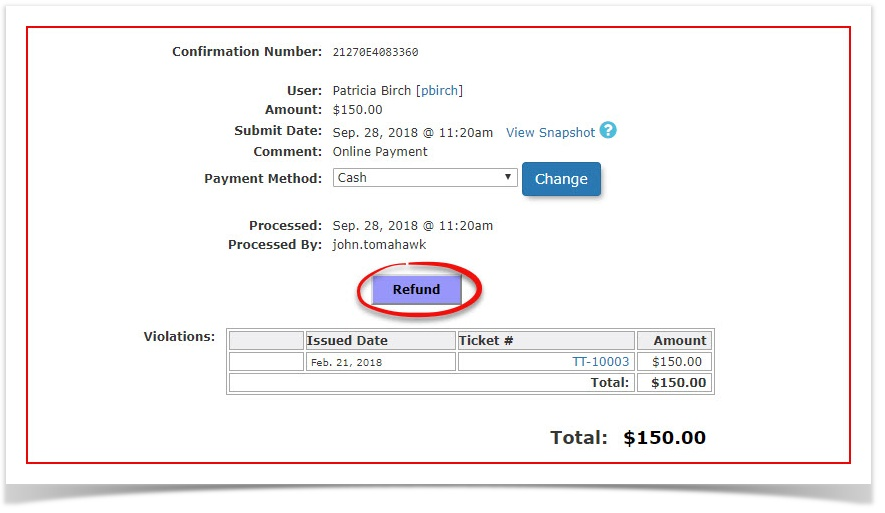
Click the Refund button.
-
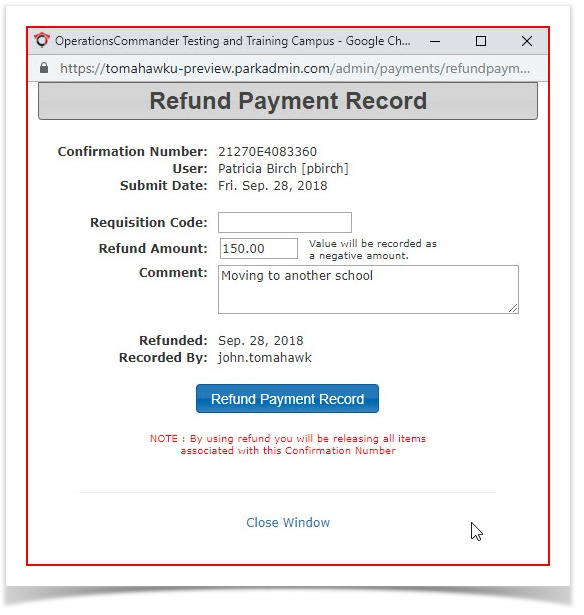
Enter a descriptive reason in the Comment field on the Refund
button to begin the process of refunding the violation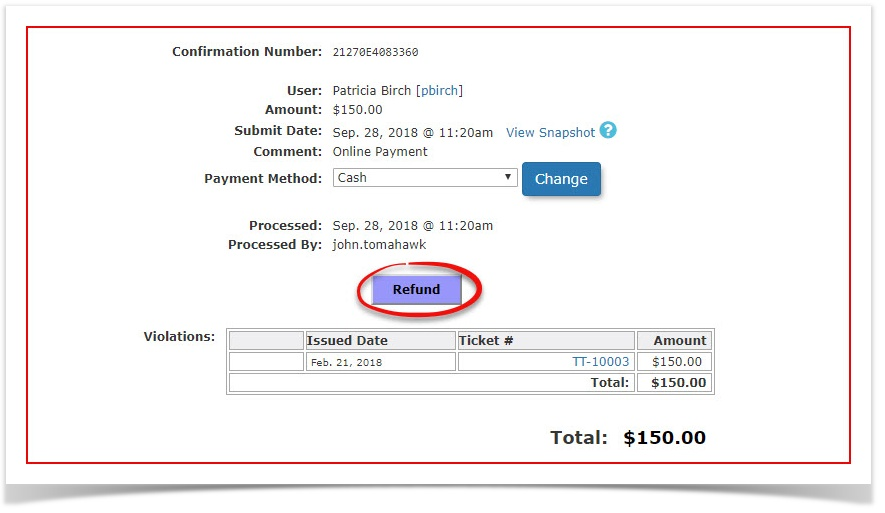
A Refund paymentPayment Recordwindow will open. It is advisable to enter a comment as to the reason the refund is being given.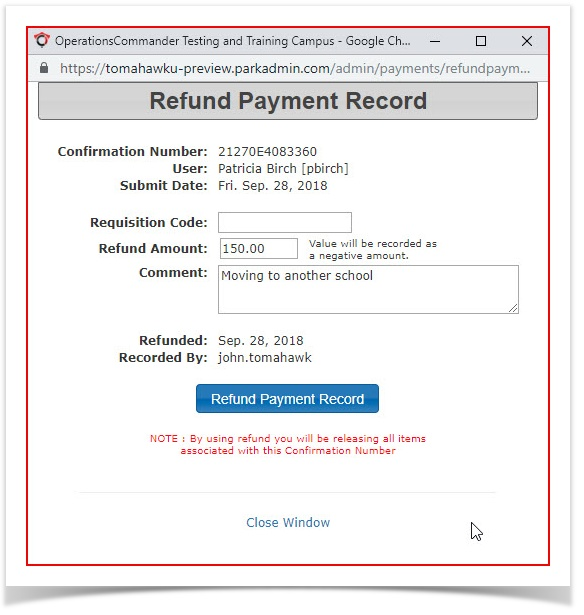
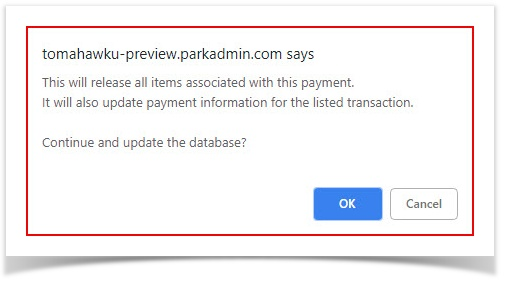
Click on OK in the resulting pop up confirmation screen to complete the process.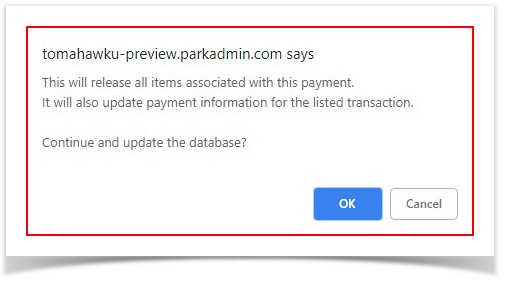
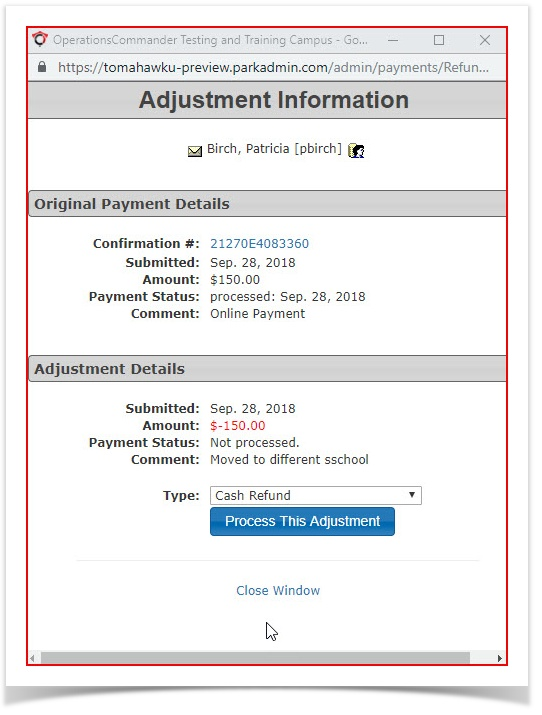
The adjustment Information window will appear. Click on Process This Adjustment.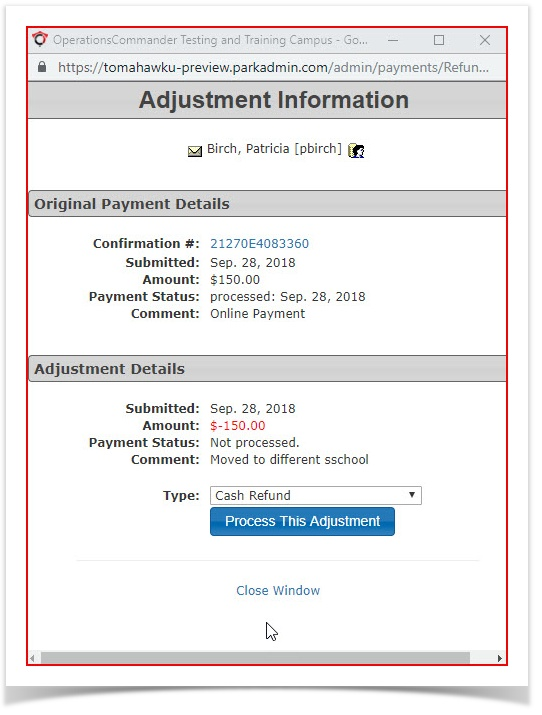
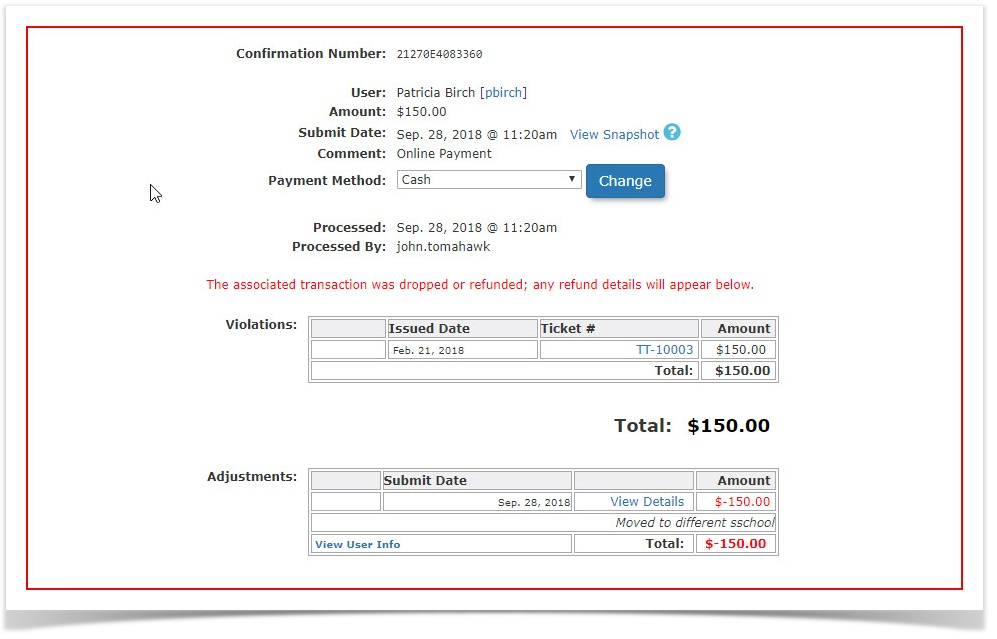
The transaction screen will refresh indicating "The associated transaction was dropped or refunded; any refund details will appear below."Notice the refund appears as an adjustment in the transaction record.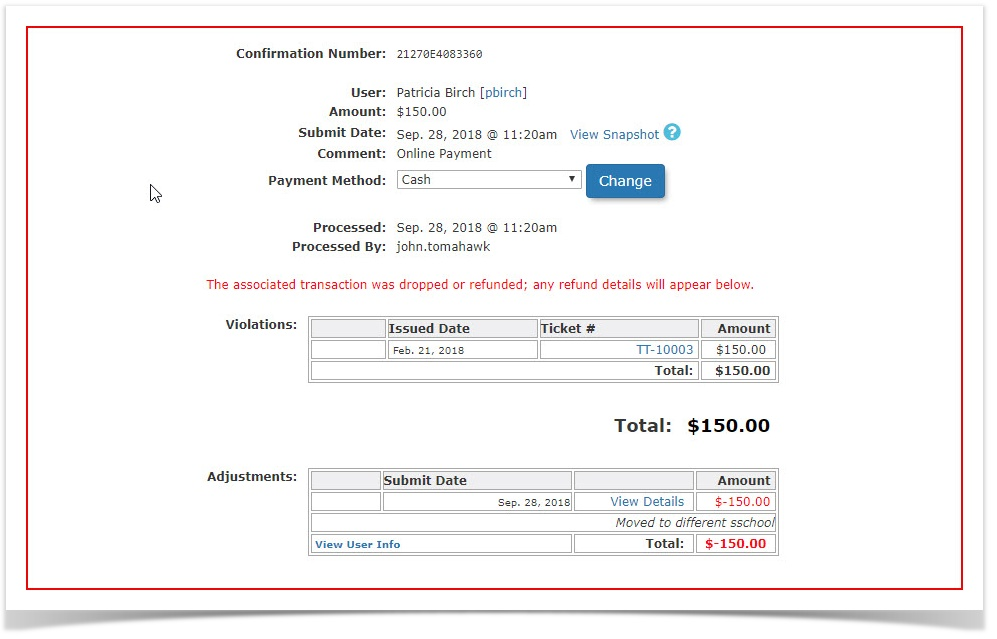
Ifyou were to look atClick the
user'sRefundhistoryPaymentyouRecordwillbutton.see-
Click the
violationProcessisThisbackAdjustmenttobuttonrequiringonathepayment.
Adjustment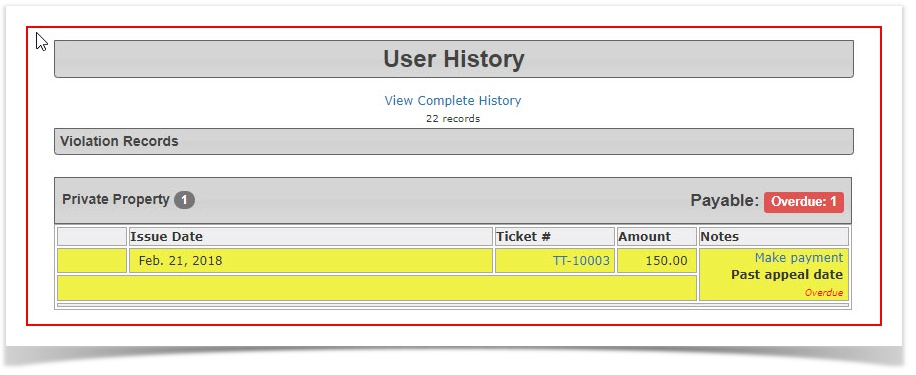
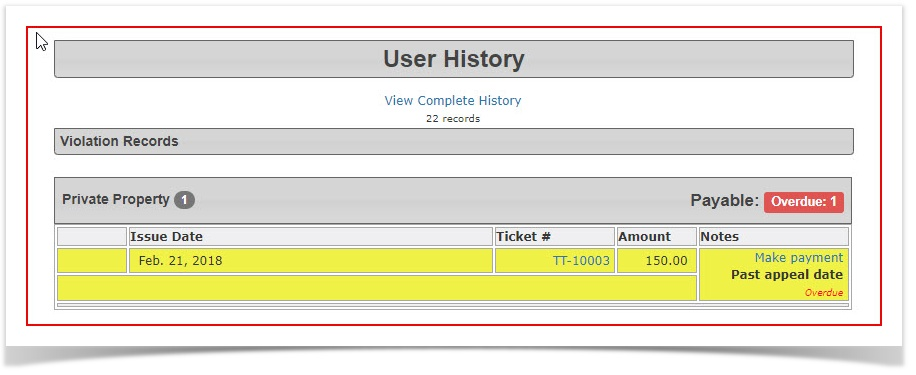
Adjusting Violations to $0: Do not attempt to adjust a violation fine directly to $0 using the payment adjustment tool. If a violation fine needs to be removed or zeroed out, administrators should use the designated warning or appeal workflows to waive the fee properly.
- Key Information Displayed: The transaction record will refresh and display the refund as a logged adjustment. If you return to the user's history, the violation will be placed back into an awaiting payment status.
Refunding a Locker
or Temporary Permit
Refunding a locker or temporary permit reverses the financial transaction and automatically releases the inventory.

TorefundNavigate
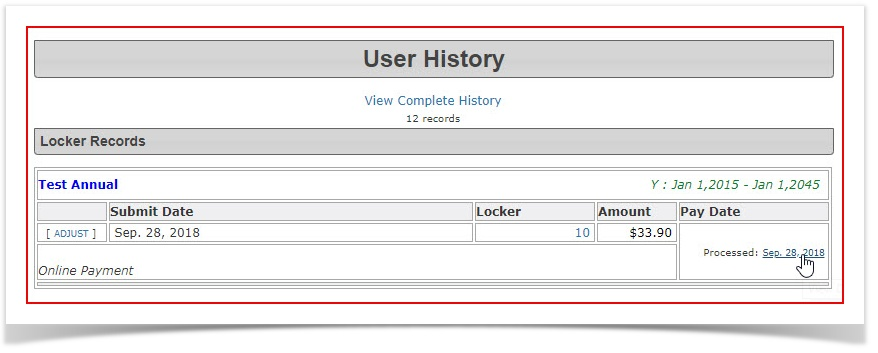
a locker, find the locker into the user's profilehistory.history and locate the locker or temporary permit transaction.-
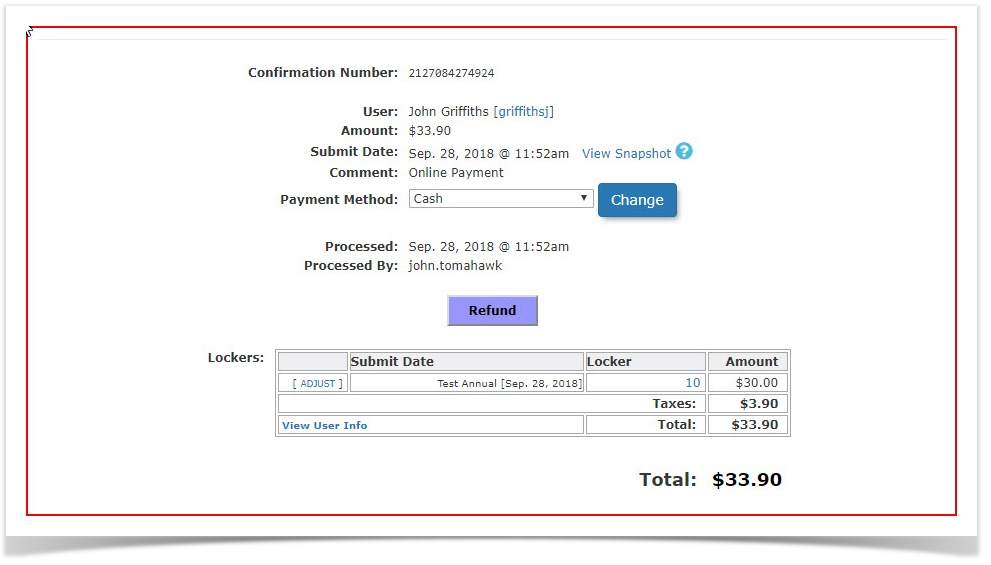
Click
onthe process date link to access the transactiondetail.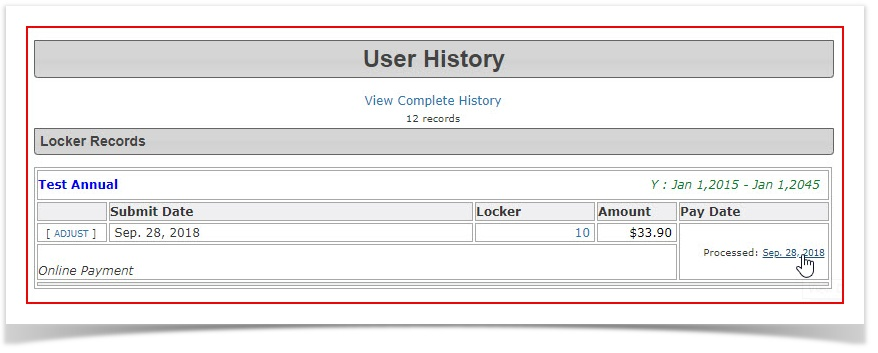
RefundClick the
lockerRefundbybutton.clicking-
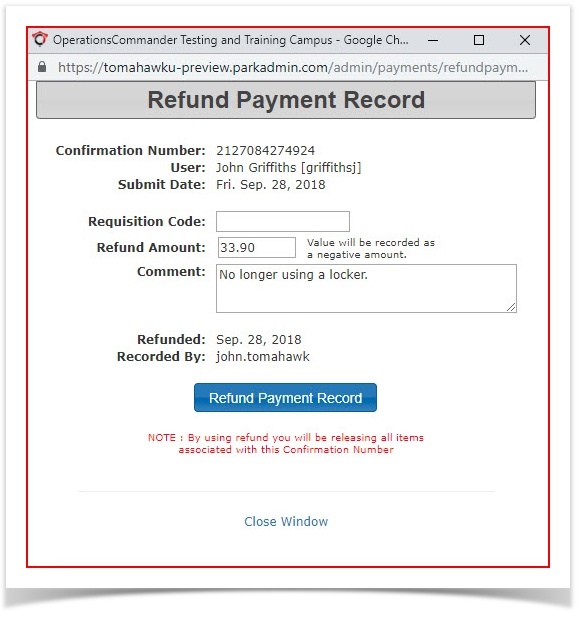
Enter a descriptive reason in the
refundCommentbutton.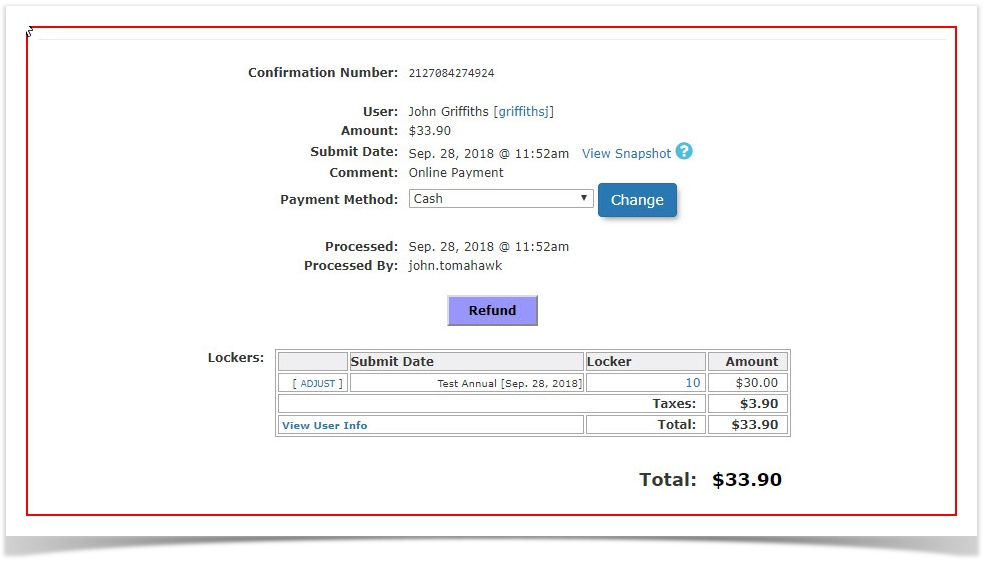
Therefund payment record window will open. It is advisable to enter a comment as to whyClick the
locker is being refunded.ClickRefund Payment Record
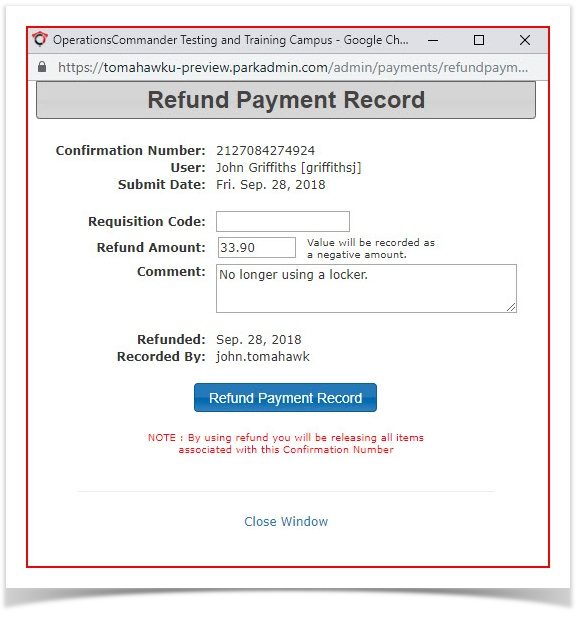
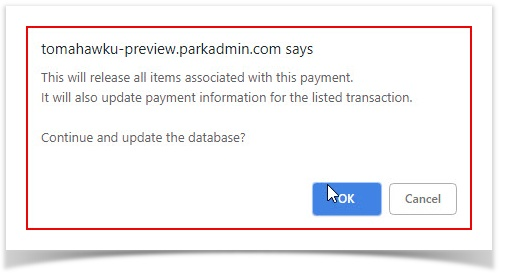
Aconfirmation screen will open.Click
OK to continue.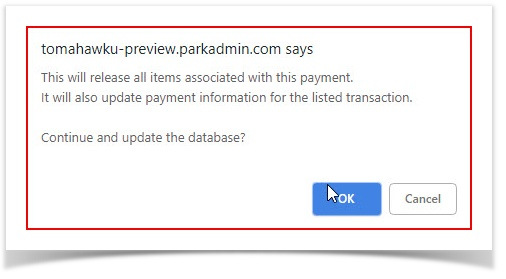
- the
adjustment Information screen will open. Click onProcess This Adjustmenttobutton.complete the process.
-
Status Indicators: In the user's
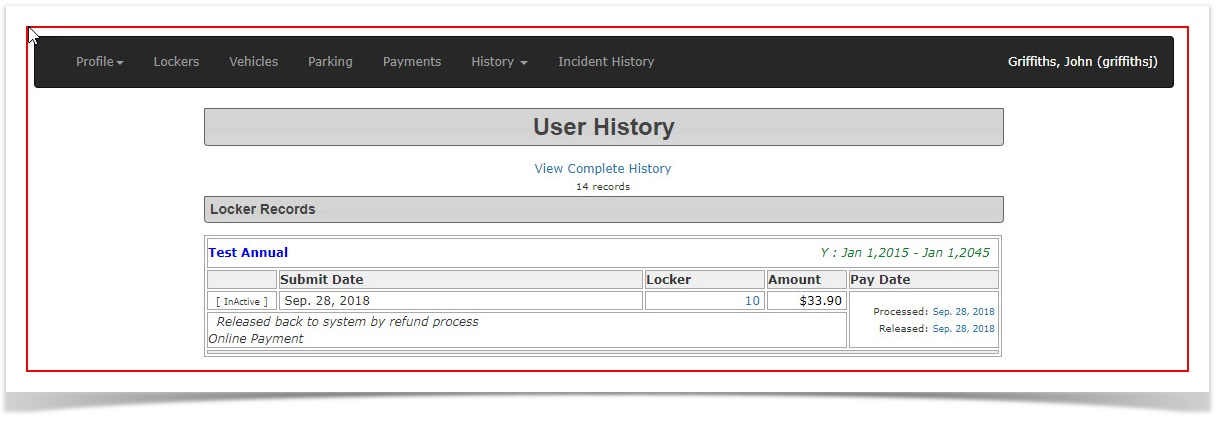
historyhistory, the locker or temporary permit will nowshowsshow as released.
If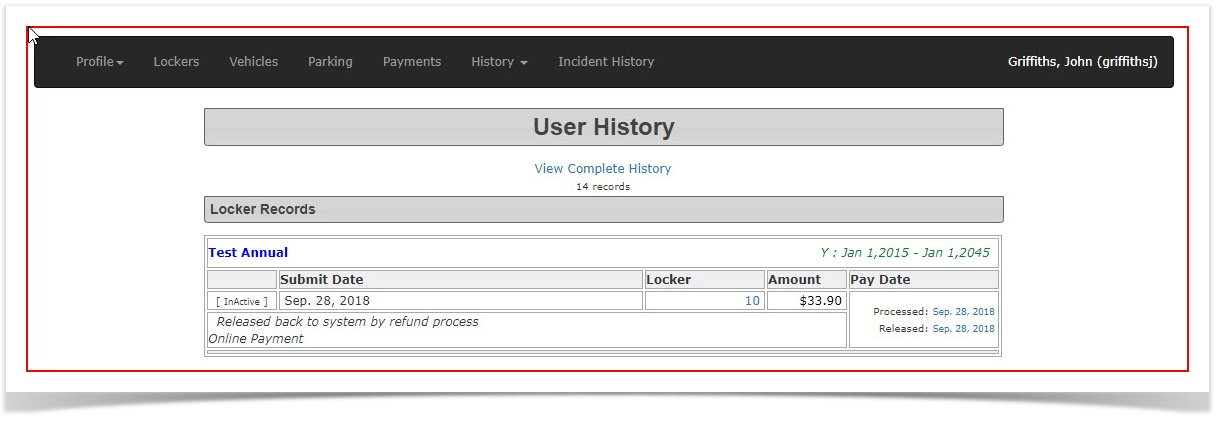 you
you Incheck thelistrespectiveoflotlockersorinbuilding allocation pages, thebuilding area the lockeritem will appear as availableafterinventory.this
Processing Multi-Item Refunds

RefundingIf a Tempsingle Permit
transaction - contains
BuymultipleaitemTemptypesPermitPay Temp PermitRefund Temp PermitTemp Permit is Released
Refunding a Violation and a Permit
Buy PermitGet ViolationPay for Violation and PermitRefund PaymentViolation needs to be paid, permit is now available
Adjusting a violation to $0
CAN'T BE DONEWell I guess it can be done but the process is roughCreate a Payment with(e.g., a permit and a violationAdjustpurchased together), clicking the Refund button on that transaction will process both items according to their business rules. The payment will be refunded, the permittowillcoverbe released back into available inventory, and the violationaswillwellreturnasto an awaiting payment status.
Best Practices and Considerations
-
Provide Clear Comments: Always provide detailed comments when processing refunds or releasing inventory. This ensures a clear, searchable audit trail for your finance department when they reconcile returned funds.
-
Inventory Management: Remember that refunding a physical item (like a locker or permit) automatically releases the
permitinventory Releasefor anyone to purchase. If thepermituser intends to keep the item but simply needs to change their payment method, you must be prepared to reassign the item to them immediately after the refund is processed.
-