
Payroll Deduction Workflow
The Payroll Deduction Workflow allows administrators to process permit payments by assigning the transaction cost directly to a user's internal payroll account. Its primary purpose is to seamlessly facilitate staff and employee parking purchases by logging the transaction for deferred collection through your organization's payroll system. This article is intended for OPS-COM administrators.
Setup and Configuration
Before you can process a purchase using this workflow, ensure that the Payroll Deduction payment method is active in your system.
-
Verify that the Payroll Deduction payment type is enabled for the specific user groups (e.g., Staff or Faculty) permitted to use this feature.
-
Check your global payment settings to ensure the deduction option is not disabled for standard permit purchases.
For detailed instructions on configuring these payment toggles, please refer to the Payroll Deduction Settings page.
Using this Feature
Purchasing
Administrators can process a permit purchase using Payrollthe Deductionpayroll
Indeduction thisworkflow scenariodirectly Patriciafrom Birchthe willadministrative purchaseportal in just a permitfew viasteps.
-
WeNavigate
will coverto the specific user's profile and initiate the permit purchase processonuntilbothyouadmin and user side.
screen.Fromreach theAdminPaymentsWebDueApp -
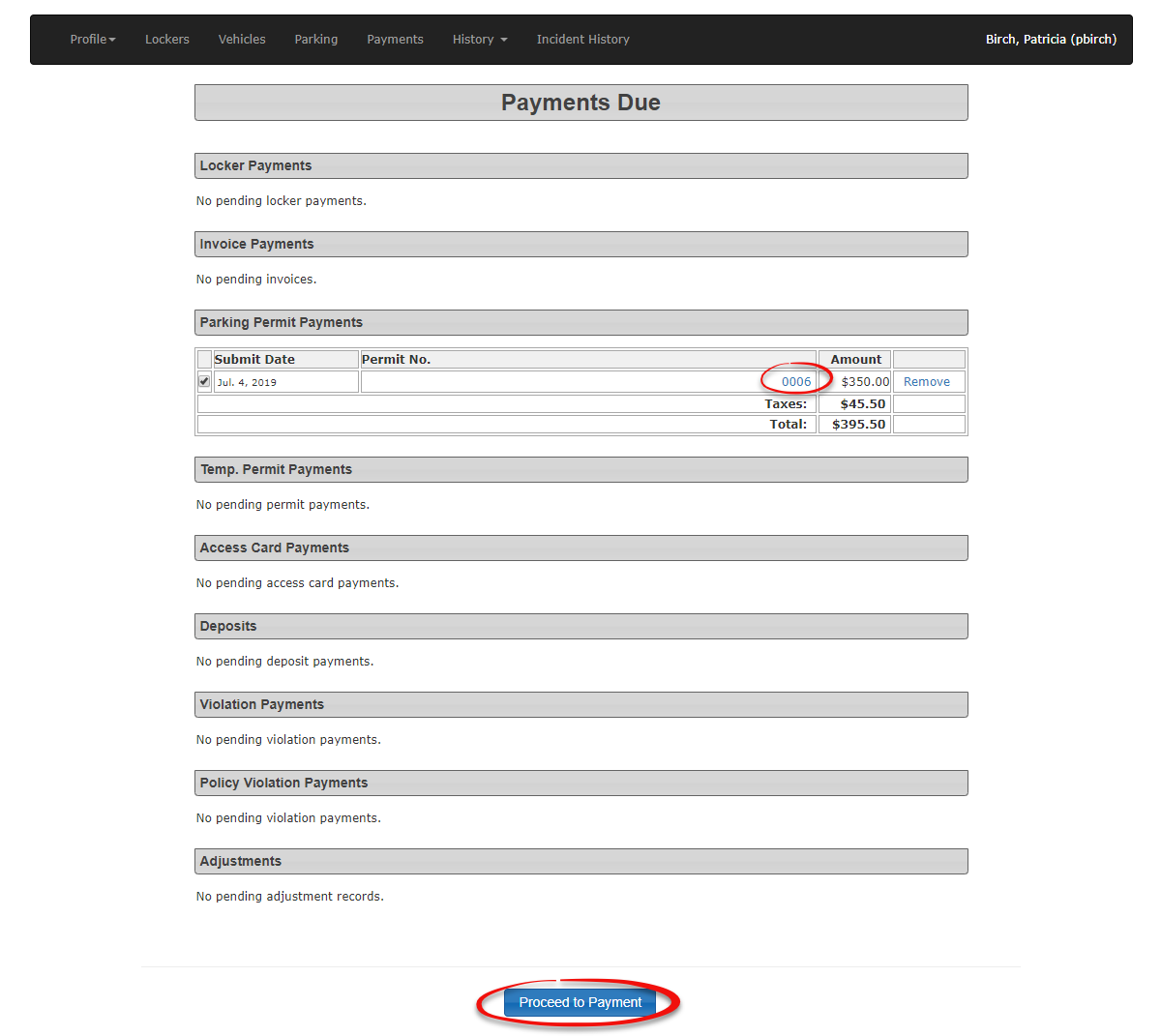
Here isClick thepayment listed in the payments screen. Click onProceed to Payment.
button.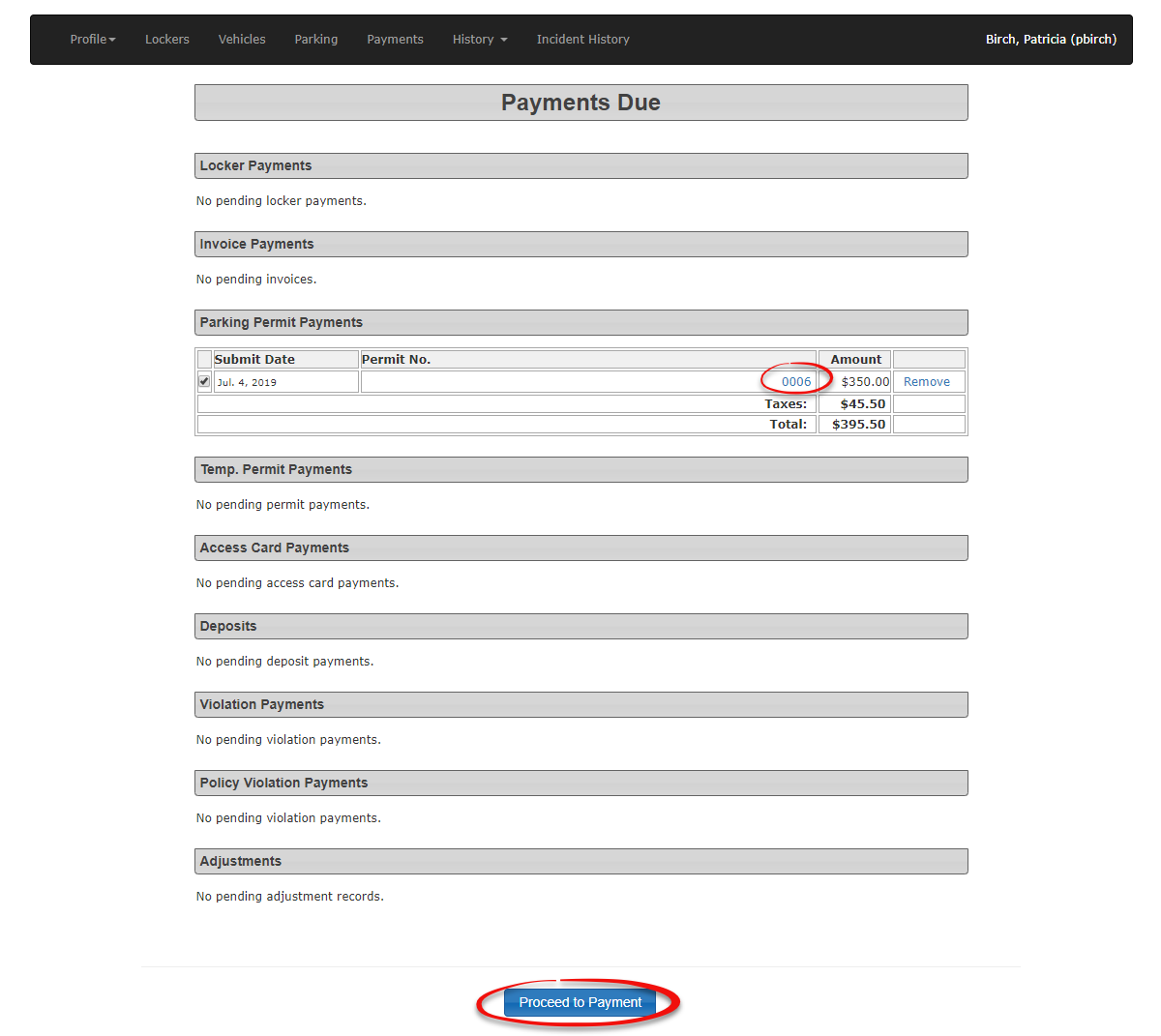
-
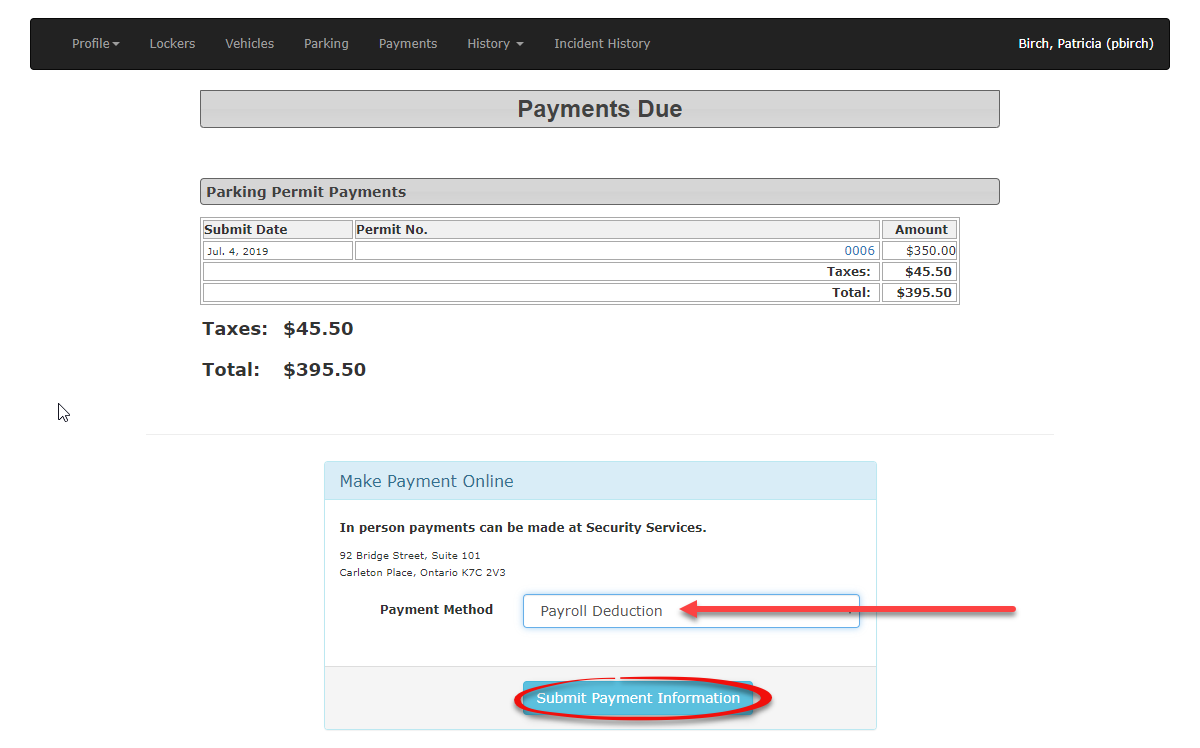
TheSelectscreenPayrollwillDeductionrefresh withfrom the available payment type selection tool.Select -
Click the Submit Payment Information button to continue.
-
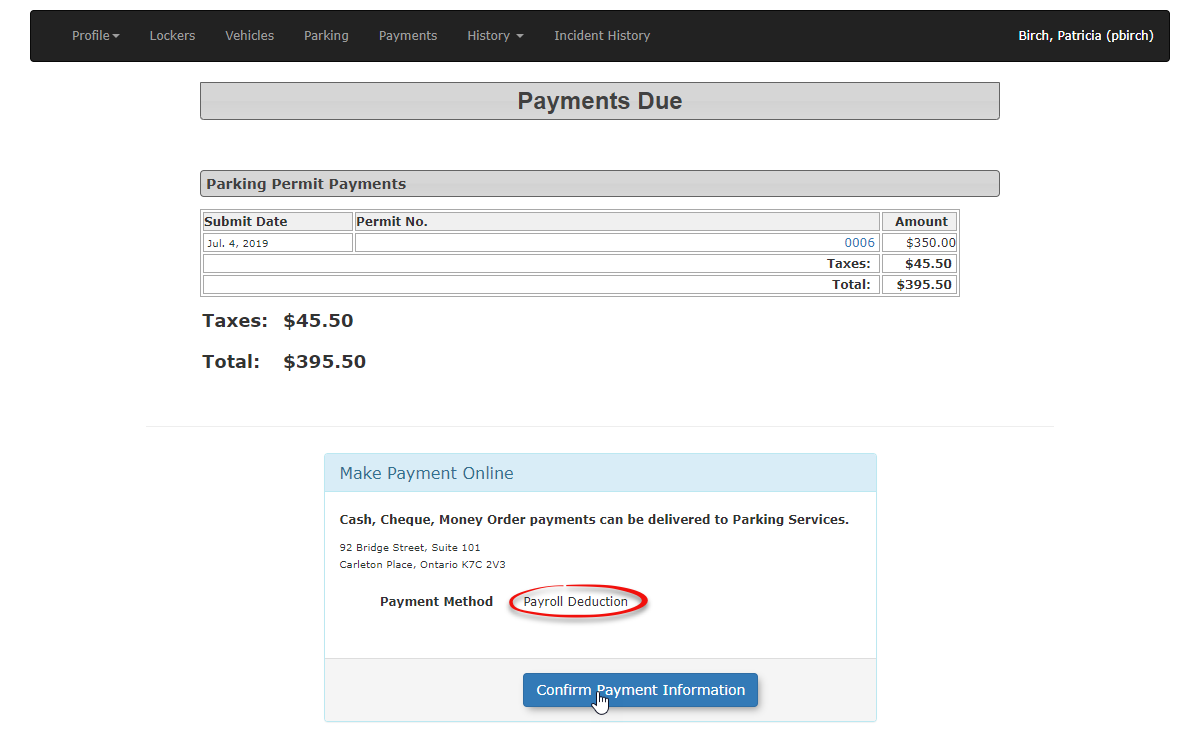
Review the details on the confirmation screen to ensure the purchase amount and permit assignment are correct.
-
Click the Confirm Payment Information button.
-
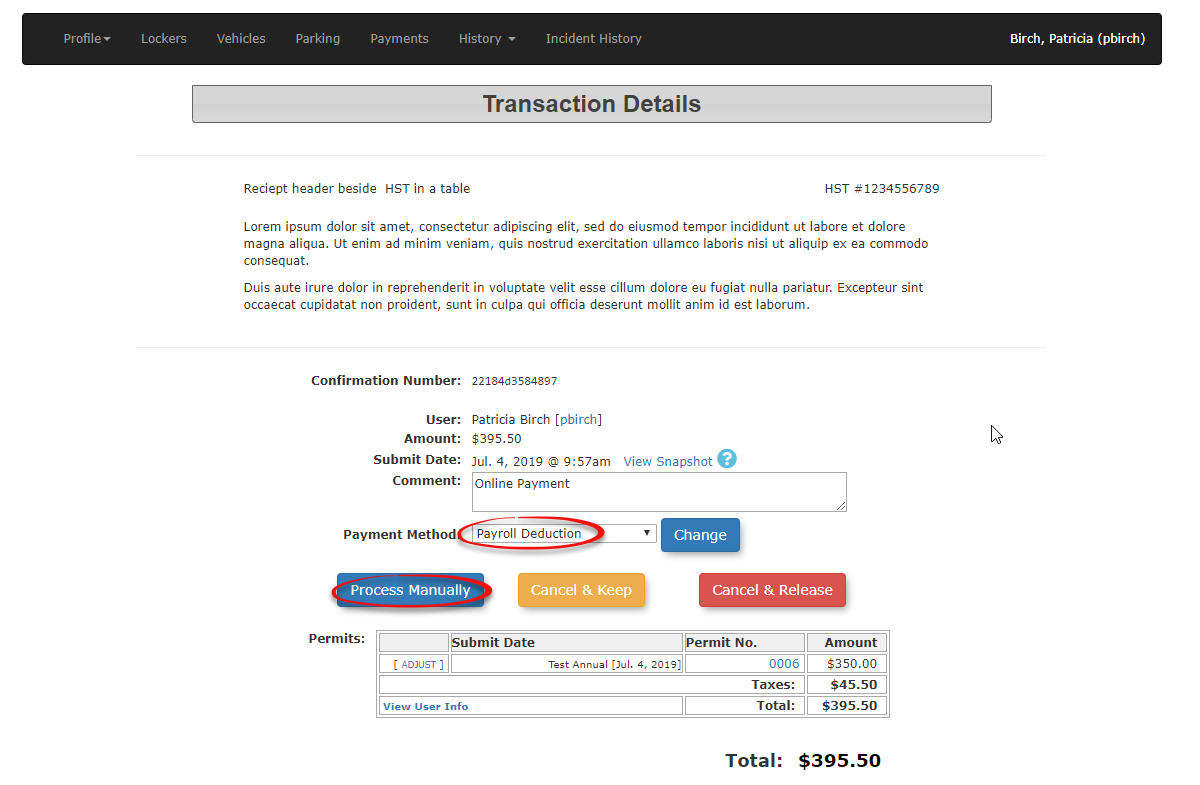
Click the Process Manually button on the Transaction Detail screen to complete the purchase.
Tracking Deductions: Use the Payroll Deduction asReport to accurately track these specific purchases. Generating this report allows you to export the necessary data for your finance or human resources department so they can physically collect the funds from the employees' paychecks.
Visual Cues and Status Indicators
-
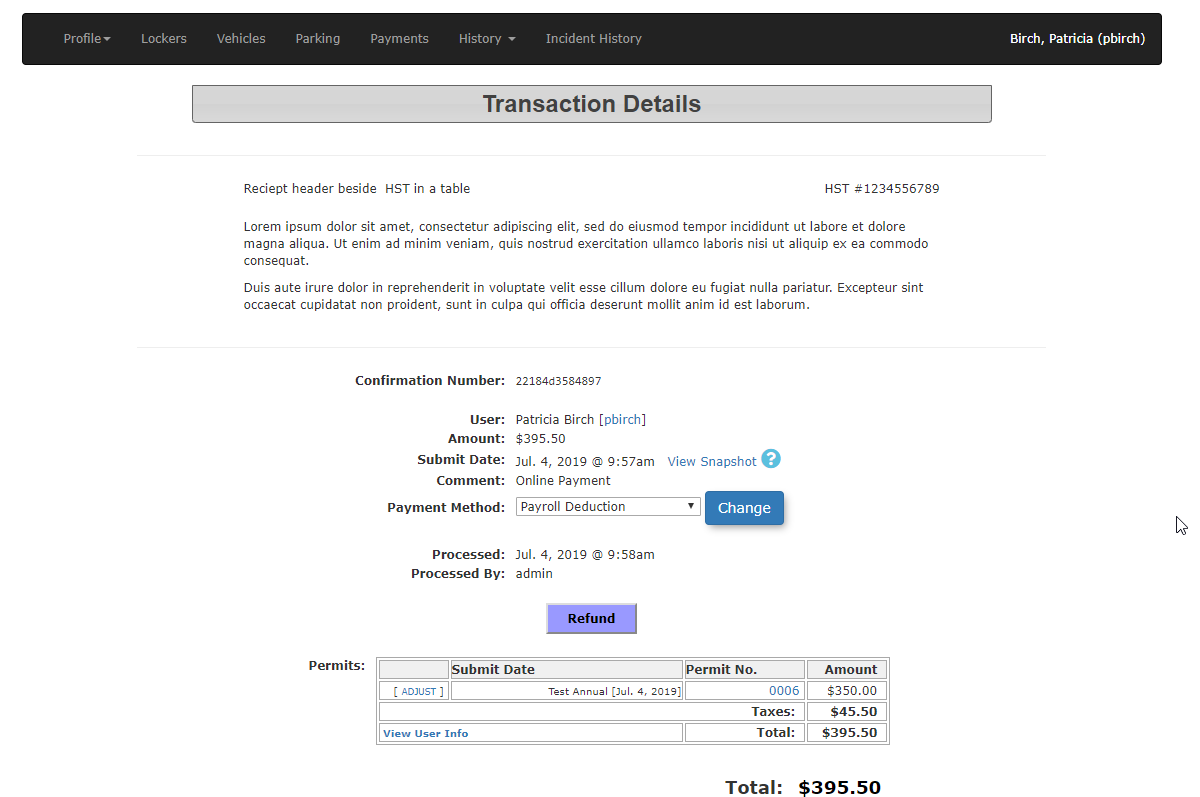
Final Transaction Screen: Once the payment
typeisandprocessedclick on Submit Payment Information to continue.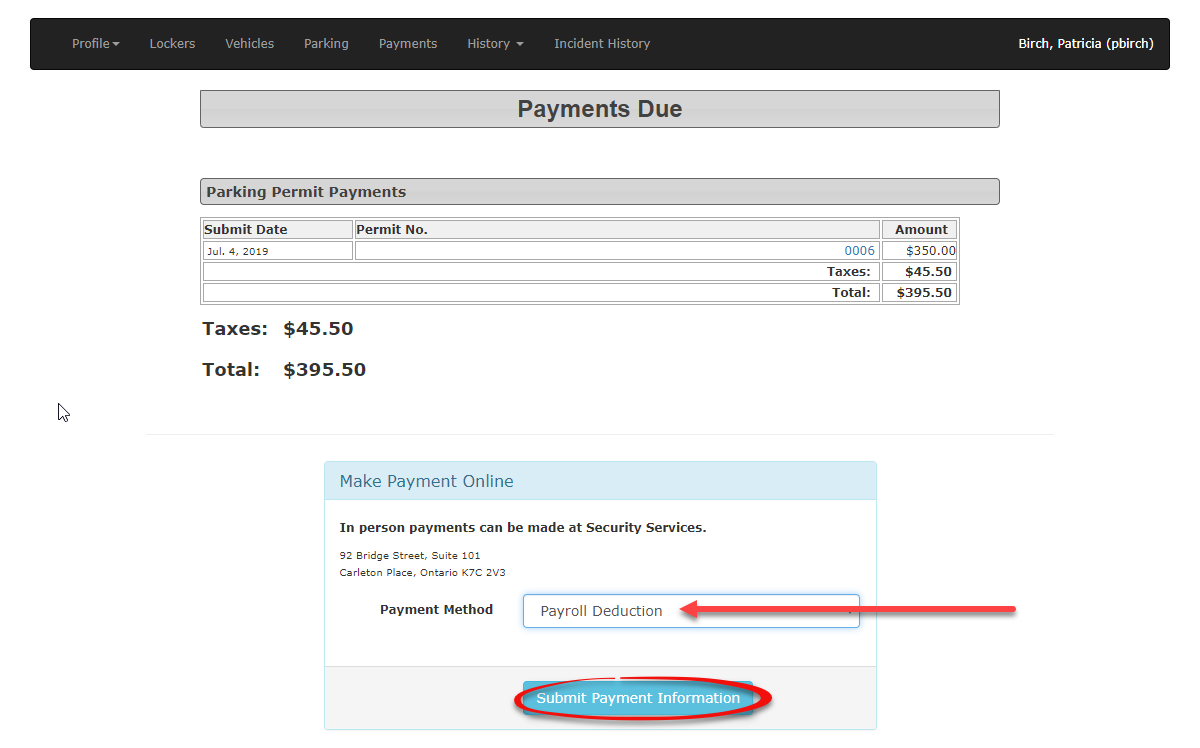
The confirmation screen appears. Please checkmanually, theinformation to ensure it is correct. Then click Confirm Payment Information to continue.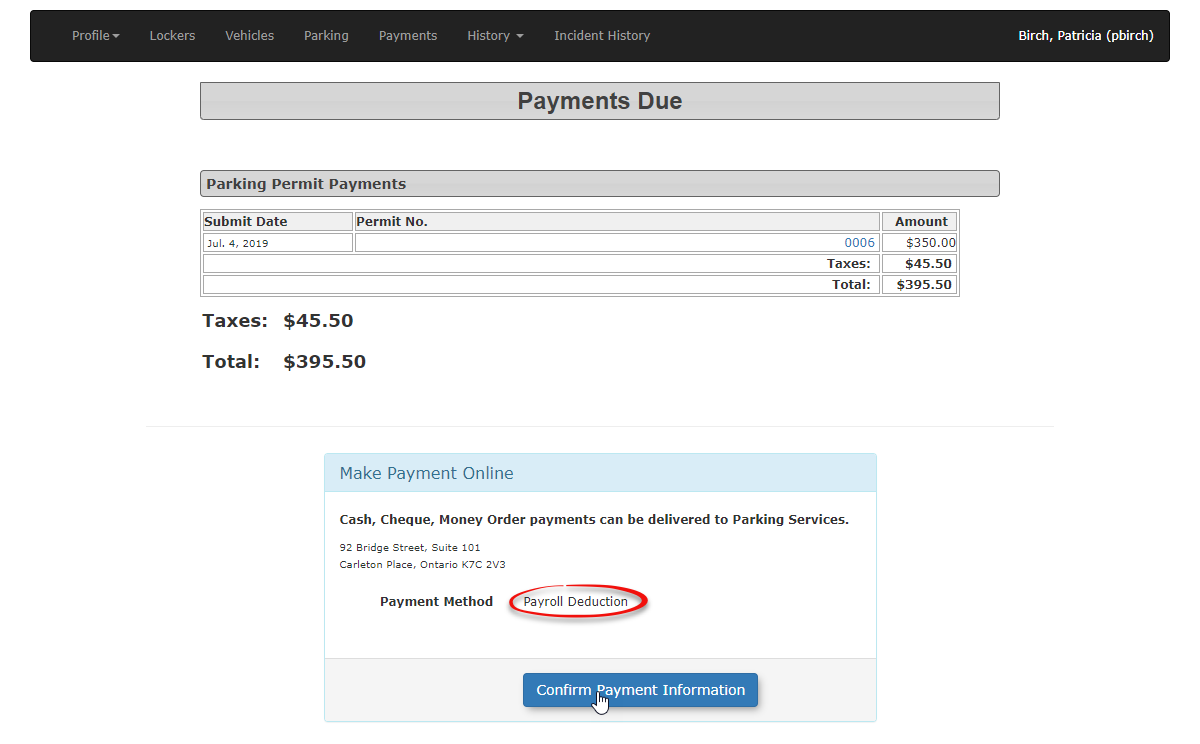
displayThescreen will refreshwith the Transaction Detail screen. To complete the purchase click on Process Manuallytocontinue.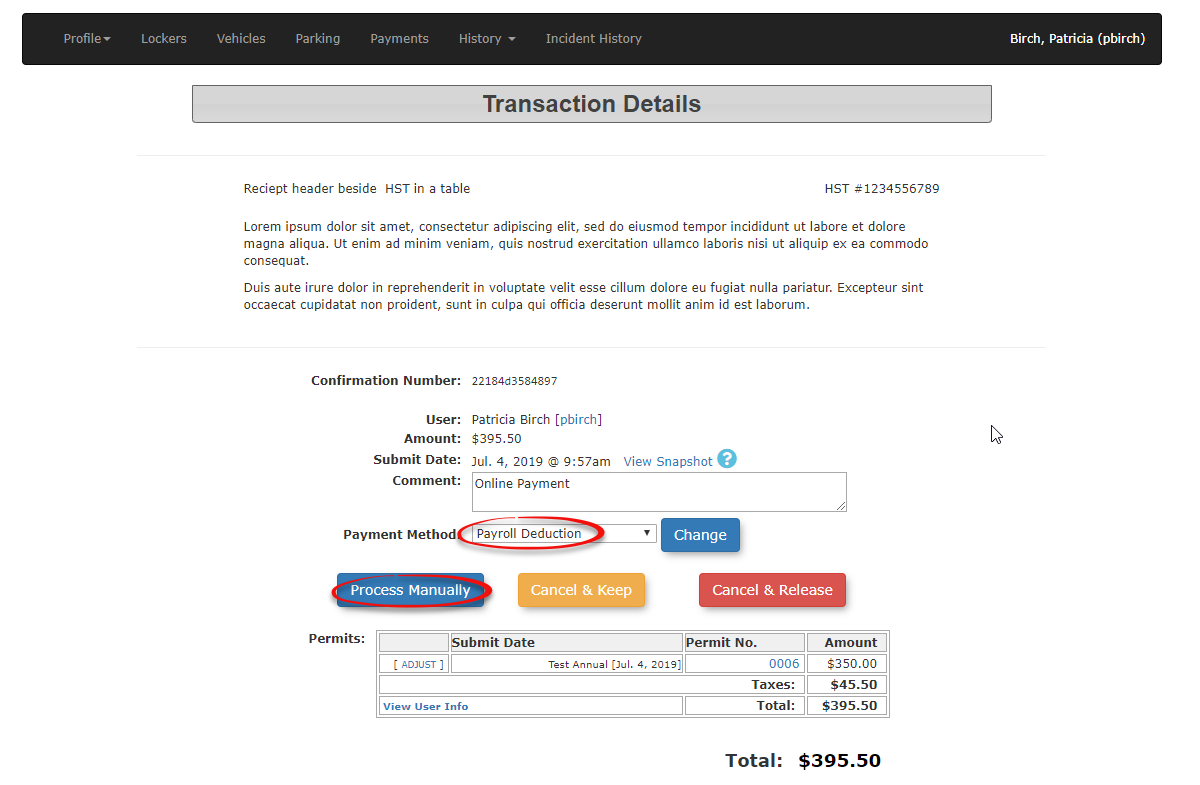
The screen will refresh with thea finalscreenreceipt.inAt this point, thepurchase process. Thesystem considers the permit successfully purchasedatandthis point.active.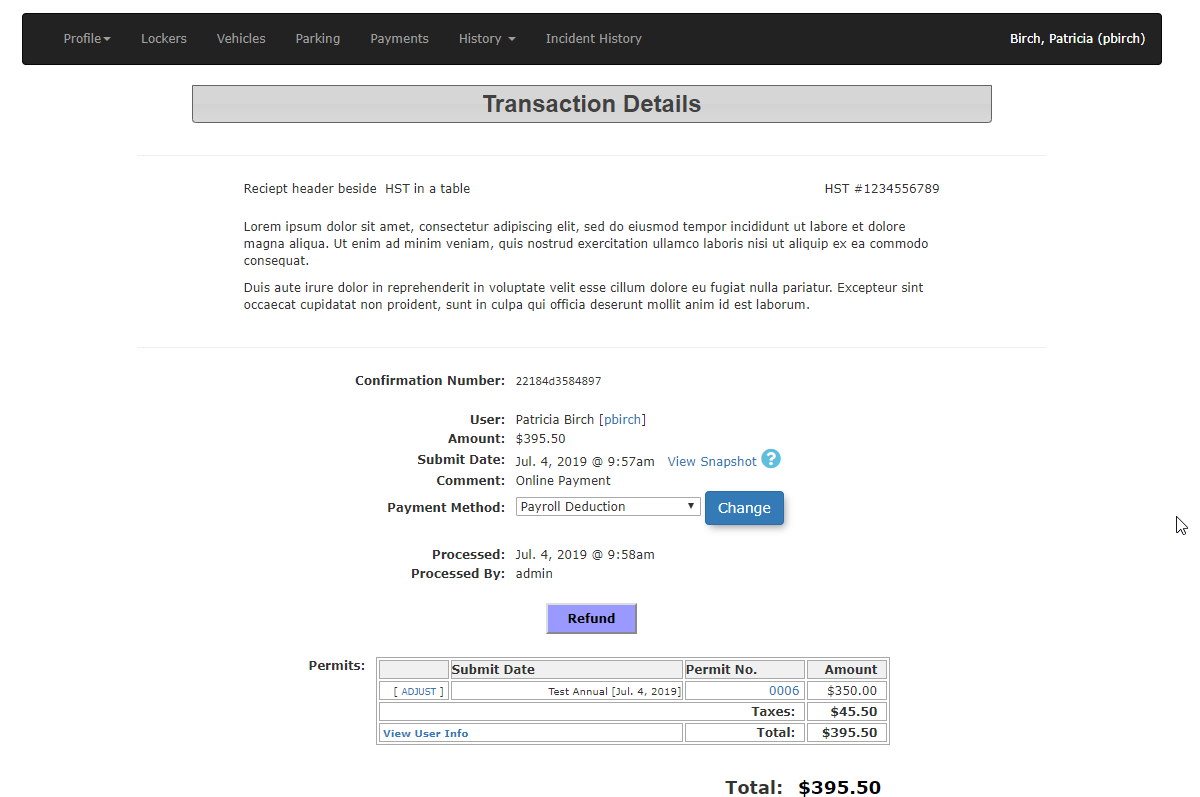
Best Practices and Considerations
-
ToEligibilitycollectVerification:onAlwaysPayrollverifyDeduction purchases, usethat thePayrolluserDeductionisReporteligibletoforhelppayrolltrackdeductionpurchases.before completing the transaction. Processing a deduction for an ineligible user (such as a temporary contractor or student) can create reconciliation errors for your finance department.