Search for a Violation
ToThe Search for a Violation feature allows administrators to locate specific parking citations within the system using text, date, and time parameters. Its primary purpose is to help enforcement teams quickly access, review, and manage ticket records to process payments, handle appeals, or update information. This article is intended for OPS-COM administrators.
Setup and Configuration
There is no specific system setup or configuration required to use this feature. Accessing the search fortool is a standard administrative function available to users with the appropriate violation management permissions enabled on their account profile.
Using this Feature
Administrators can perform broad text-based searches or narrow down the parameters to find violations hoverissued within a highly specific timeframe.
Searching by Text
-
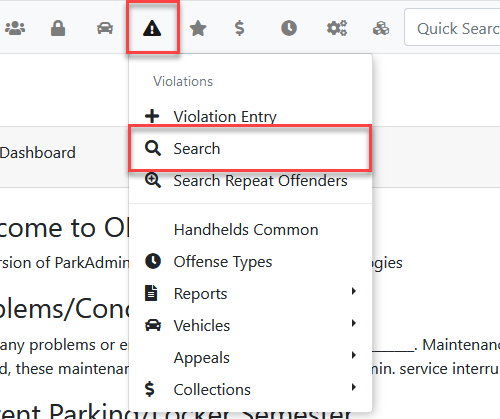
Hover over
theiconand clickSearch.
Search.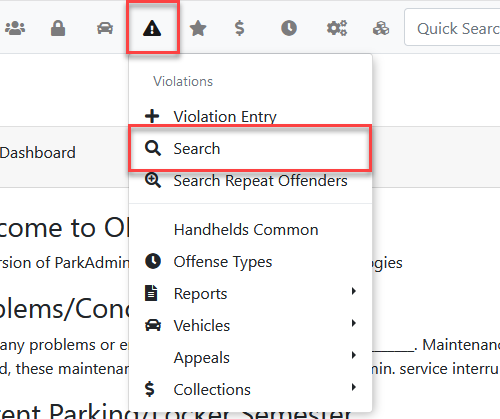
-
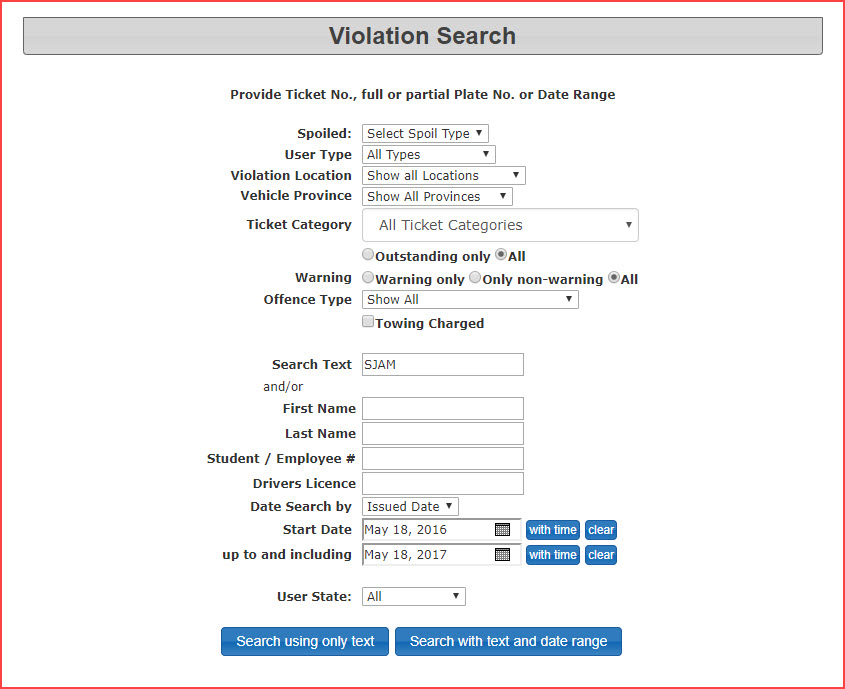
TheViolation Searchscreen is displayed.Type the license plate number or specific violationyounumberwantintotothesearchSearchforTextandfield.click -
Click the Search using only text button.
Ticket
Searching composedby ofDate twoand parts,Time
-
Hover over Violations and click Search.
-
Type your query into the
firstSearchpartText(shownfield.in -
below) isClick the
ticketwithnumber,time link beside the date field to reveal the time selection interface. -
Select the specific date and the
secondcorrespondingpartstart time block (showne.g., 1600 hours for 4:00 PM). -
Set the up to and including date and time block in
blue) isthepinsamenumber. Admins can search using only the first part, but for security reasons, users must enter both parts of the ticket numberfashion tolookupcreatetheiryourticket.time3-001005-11.bracket. -
YouClickcan alsothe Search with text and date rangeif you wantbutton tonarrow downexecute thesearchtargetedparameterssearch.to
Managing Search Results
Once a specific date range. As you can see below, there are a number of search parametersis you can choose from to further enhance your search results.
At the bottom of the 'Violation Search' screen,executed, the returned records will be displayed.displayed at the bottom of the screen.
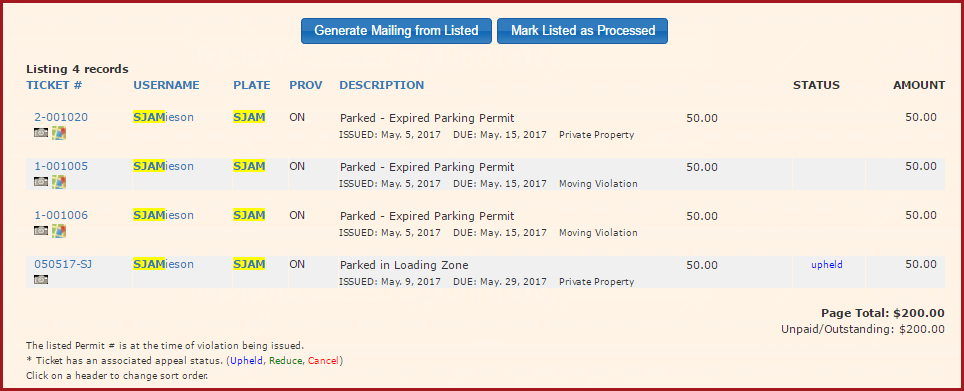
-
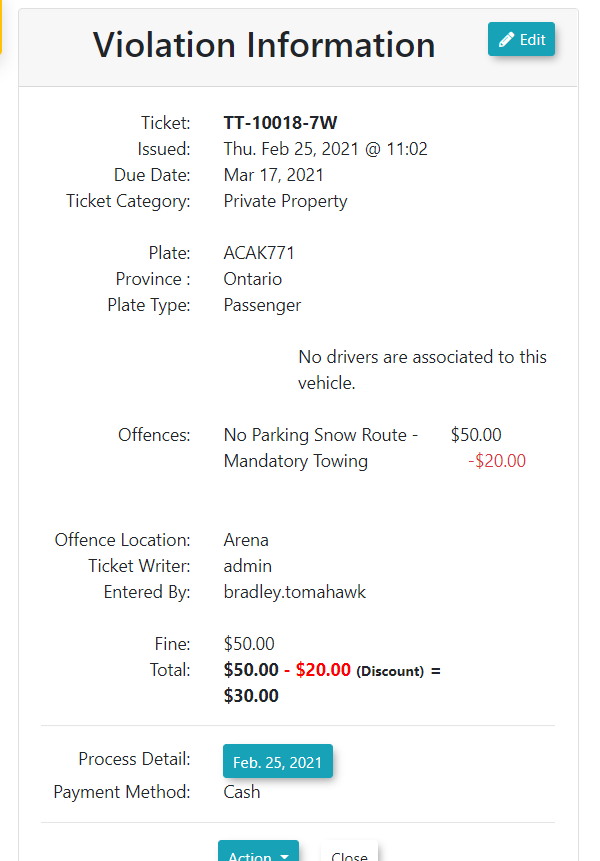
4.Click the specific'Violation Information'window. -
Click
'the Edit/Update'button to display the'Edit Violation Information'modification screentoandmakeadjustchangesthe ticket details if required.
Available Actions From thisthe Violation Information window, youadministrators can alsotake linkseveral actions, including processing a manual payment, adding internal notes to the Violationviolation, or linking the violation to ana specific incident if youyour havesystem utilizes the Incident Modulemodule.
Best youPractices and Considerations
Ticket Number Formats: Ticket numbers are composed of two parts: the core ticket number and the security PIN (e.g., 3-001005-11). While administrators can makesearch ausing paymentonly orthe addcore Notesticket number (the first part), end-users must enter both parts to successfully look up their ticket on the Violation.public
Searching By Time Frame
It is also possible to searchportal forviolationssecurityusingreasons.a-
Time Block Selection: Always double-check your selected time
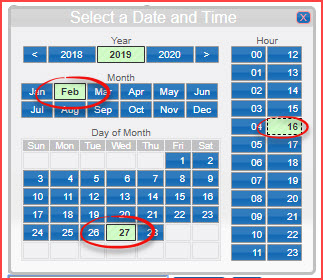
framesegments.filter. In our example here we are searching for any violation written between the hours of 4:00pm and 8:00pm on February 27th.To access the time setting click on "with time" beside the date field.
This will bring up a an interface where you can chose both date and time:In this example for the start time we are selecting Feb. 27th at 4:00pm (1600 hours).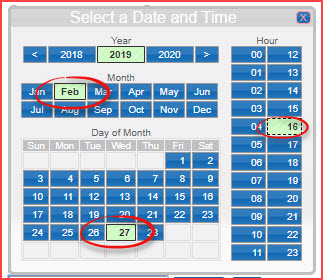
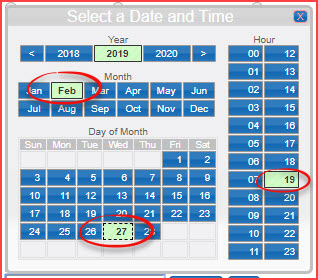
Set the up to and including date and time in a similar fashion. NoteRemember that the time blocksareoperate inoneone-hour increments. To capture violations up to 8:00 PM, you must select the 19:00 hoursegments so to choose 8:00pm you would need to select hour 19block, whichwould includecovers 7:00toPM through 7:59andPM.appear in the date and time field as 19:59 (see above)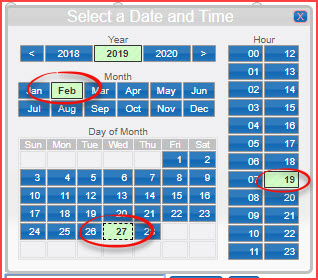
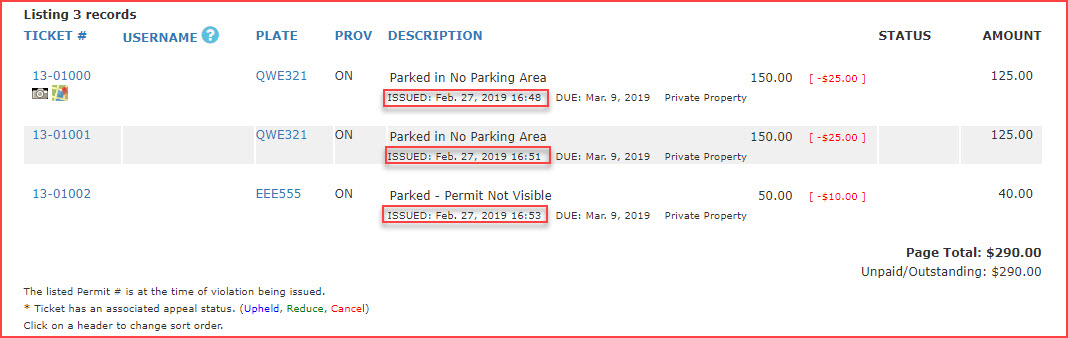
By using this filtering method the search will return only violations that were issued between 4:00PM and 7:59pm on February 27th,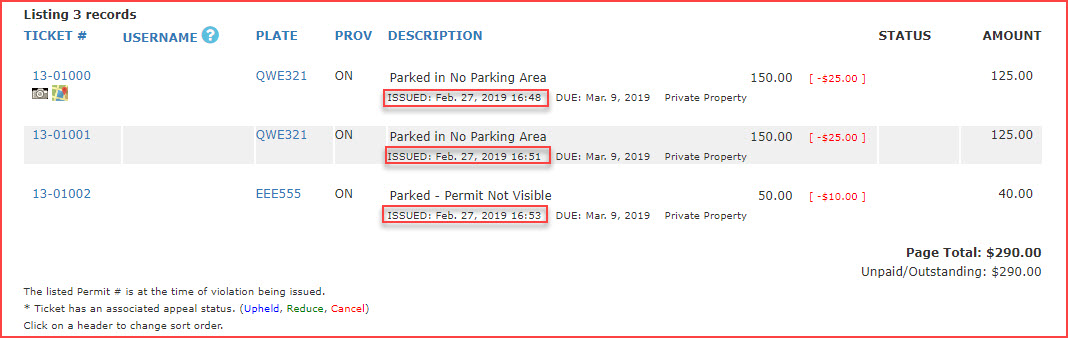
-