Transact Campus/CashNet Hosted Payment Setup
The Transact Campus and CashNet Hosted Payment integration allows institutions to securely process parking and violation transactions through their existing CashNet merchant account. The primary purpose of this configuration is to ensure successful communication and data transfer between the OPS-COM environment and the external CashNet payment gateway. This article is intended for OPS-COM administrators and IT staff responsible for configuring financial integrations.
Setup and Configuration
Setting up this integration requires a coordinated exchange of information between your organization and the PaymentOPS-COM Pagesupport team, followed by specific URL configurations within your CashNet portal.
Information to Provide to OPS-COM Support
To begin the setup process, you must supply specific configuration details from your CashNet system to the OPS-COM support team.
Details you will have to provide to OPSCOM support:
|
| Code: Provide
|
|---|---|
|
Item Code: Create a specific item in CashNet for these transactions and provide the exact code to OPS-COM. This |
|
|
Configuring CashNet Store SettingsOnce OPS-COM support has your details, they will | you
Paymentyour Page
unique - hosted
FoundID.inYou must enter these into your CashNet Store Settings.
|
| the provided
| payment
|---|---|
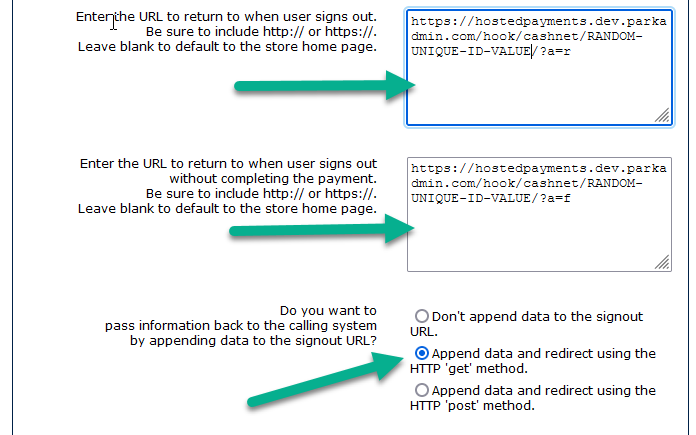
Sign-out & Complete payment field. |
Enter the provided incomplete payment URL into the Sign-out & Incomplete field. Select Append Data using GET from the Pass information to calling system drop-down menu. URL Format Example: The URLs provided by OPS-COM will look similar to |
|
|
| Notifications
| notification data
|
Please replaceso the samplesystem "CLIENTS-UNIQUE-HOSTED-ID"knows inwhen a payment has cleared.
-
Navigate to the
URLsHTTPaboveNotificationswithconfigurationthesectionone provided to you bywithin CashNet.Found -
EnterSetting -
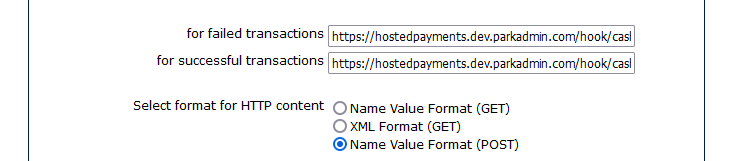
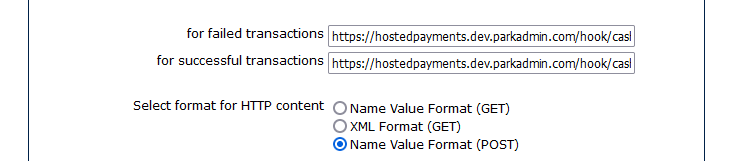
POST)https://hostedpayments.parkadmin.com/hook/cashnet/CLIENTS-UNIQUE-HOSTED-ID/?cb=TO-BE-DETERMINEDexample) Under Store Settings, you will need to configure the following settings based on the URLs supplied by OPSCOM:Go to the "HTTP Notifications" configuration with CashNet.If you would like HTTP notifications, enter the URL next to each category. If you leave the field blank you will not receive notifications for that category.- New outbound connections from
CASHNet.comCashNet will not work until they are explicitly allowed throughthetheirCASHNetsecurity firewall. Please contactContact CASHNet Client Supportif you needto enableathe newconnection.connection before attempting to process live transactions through OPS-COM.-
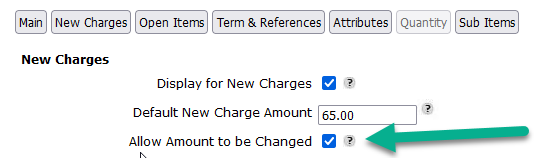
Setting Item codes OnVariable Pricing Configuration: Ensure the specific item code
itself,createdweinneedCashNetthisis properly set to accept variable values. Because parking permits and violation fines fluctuate in cost based on user selections, thefollowing:gateway must be able to accept the dynamic total pushed from the OPS-COM shopping cart.
| provided
| URL |
|---|---|
Successful & Failed Transactions field. |
|
Select format for HTTP content drop-down menu. |
Using this Feature
|
StoreBest SettingsPractices and Considerations
ConfigureAllowlisting:
HTTP Notifications