QR Code User Experience
The
QR Code User Experience
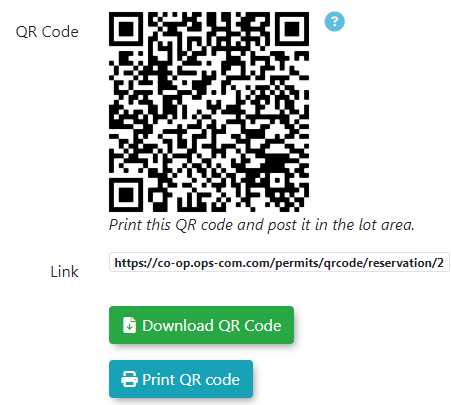
The userQR willCode scanUser Experience allows parkers to quickly purchase a permit for a specific lot by scanning a physical QR code. This feature provides a streamlined checkout process for OPS-COM administrators to offer both guest parkers and registered users, facilitating rapid payments via mobile devices.
Setup and Configuration
To enable this experience, administrators must ensure the following configurations are met:
-
Generate QR Codes: Unique codes or direct links must be generated for each parking lot. Instructions for this can be found on the Lot Administration page.
-
Payment Integration: A payment provider (e.g., EdgeExpress) must be active and integrated.
-
User Accounts: To utilize the accelerated checkout for registered users, ensure the User Login functionality is enabled in system settings.
Using this Feature
The workflow varies slightly depending on whether the parker is a guest or a logged-in user.
Guest Checkout
-
Tap the QR code
withlinktheirorphone
and be taken toscan thePurchasephysicalPermitcodepageusingforathatmobilelot.deviceAlternately,camera. -
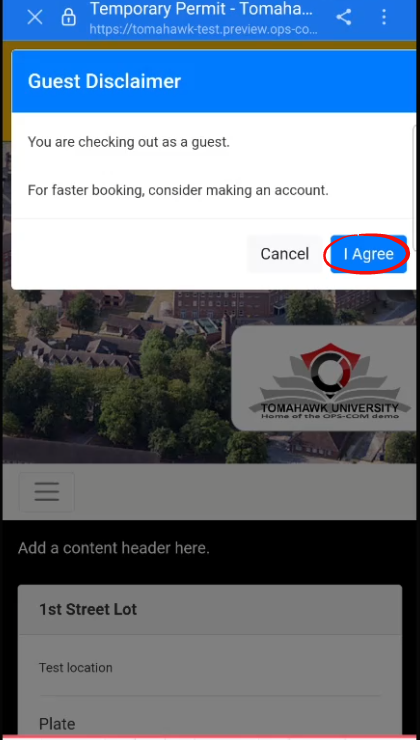
Tap the
userAcceptcanbuttonusewhen prompted by thedirectGuestlinkDisclaimer.associated -
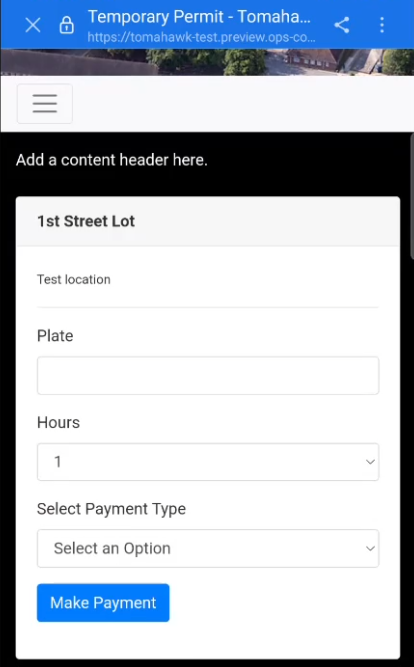
Enter the vehicle information in the Vehicle Plate field.
-
Tap the Duration drop-down menu and select the length of stay.
-
Tap the Payment Method drop-down menu and choose the supported provider.
-
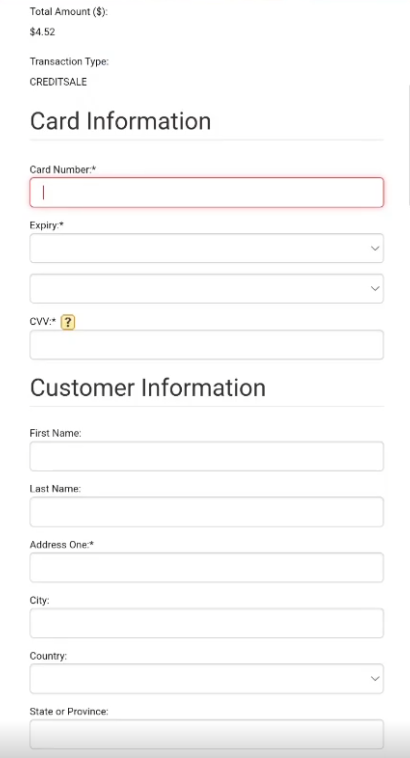
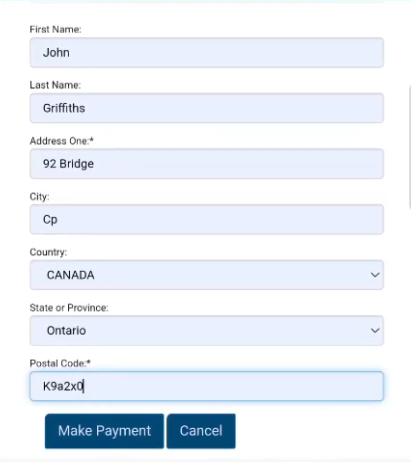
Tap Make Payment after entering credit card details on the secure payment page.
Registered User Checkout (Accelerated)
-
Tap the QR code
(iflinkprovided)or scan the code while logged into the User Portal.
-
Review
theUponpre-populated vehicle and payment information retrieved from yourfirststoredvisitaccount details. -
Tap the Duration drop-down menu to choose your stay length.
-
Tap the
page,MakeyouPaymentwill be promptedbutton toacceptcomplete theGuesttransactionDisclaimer.instantly using stored tokens from the payment processor.
Key Information Displayed
-
Lot Selection: Since the QR code is
specificlot-specific, the lot is pre-selected and displayed at the top of the page. -
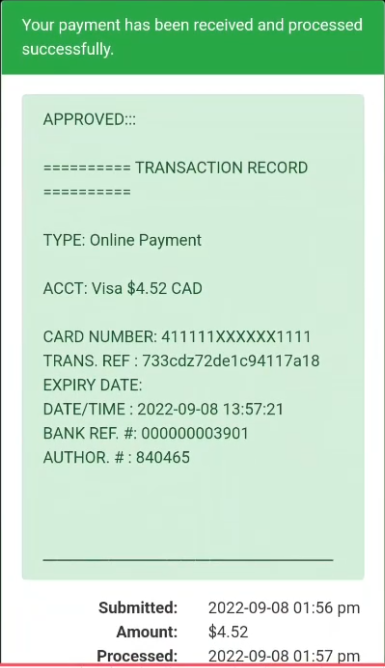
Transaction Record: An on-screen confirmation appears immediately following a successful payment.
-
User Receipt: A receipt is automatically generated and sent to the
lotuser'syouregisteredwishemail address (or the one they are required tomakeenter on checkout, as abookingguestin,user.
Best Practices and Considerations
-
Encourage user registration to allow parkers to take advantage of the
lotacceleratedwillcheckout,alreadywhichbereducesselected.You must then enter your vehicle platefriction andtheimprovesexpected duration of your stay.compliance.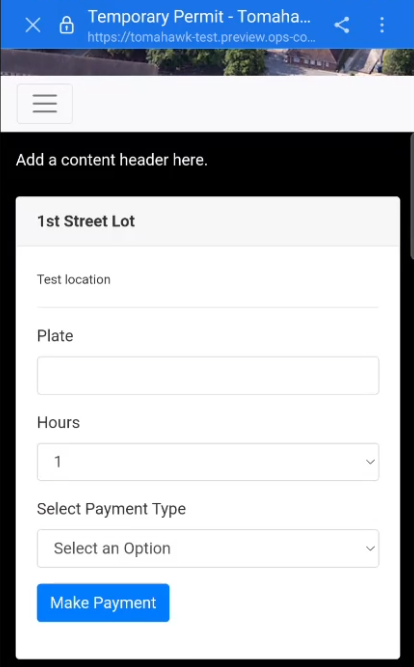
-
OnceVerifyyouphysicalhavesignageselectedregularlythetoplateensure QR codes are legible andduration, you will need to select the payment method. In most cases, the list will only contain the payment provider you are supported by.In this example, the payment method is EdgeExpress.Note: the process from this point may vary slightly from one payment provider to another, but all follow a similar path.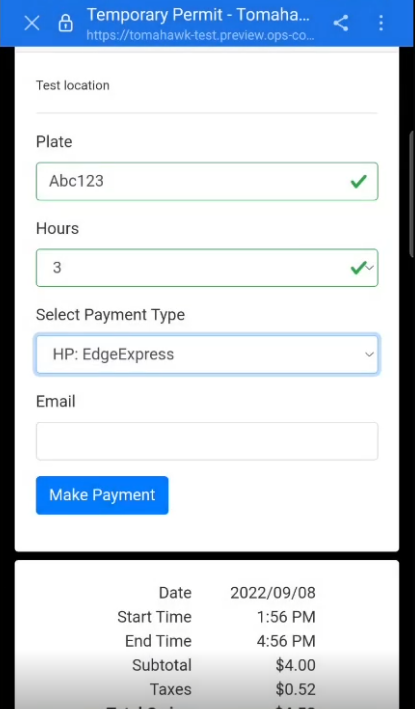
At this point, you will be takenlinked to thepaymentcorrect,provideractivewherelotyou can enter your credit card information.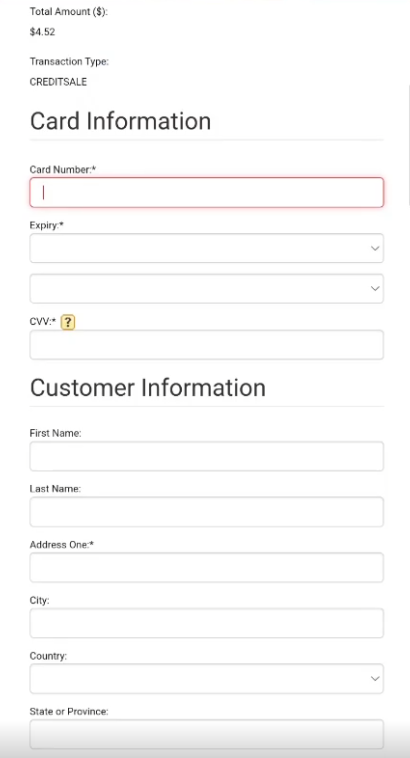
Oncein theneededsystem.information -
beenBusiness
aentered,Rules:tapOrganizationsonshouldMakeestablishPaymenta policy for managing guest refunds, as these transactions are not tied toproceed.
permanent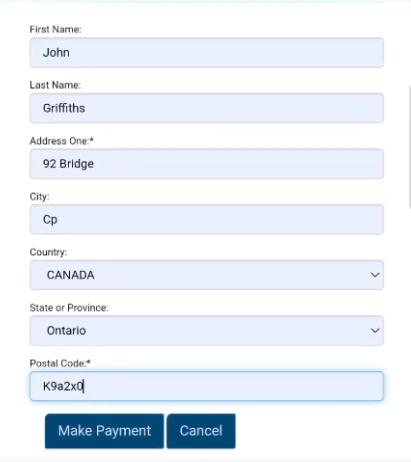
Onceuser profile in thepaymentsamehaswayprocessed,asyouregisteredwill be presented with an on-screen transaction record.accounts.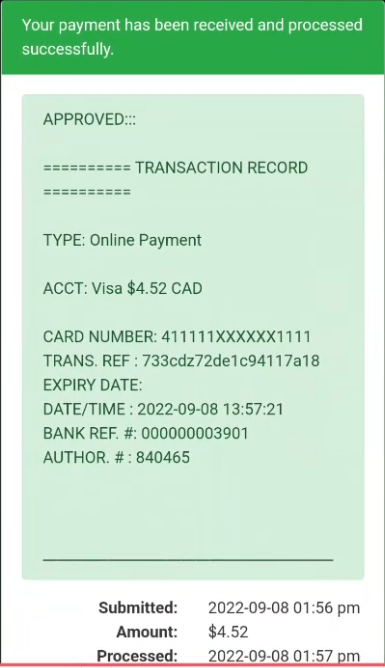

The User Receipt
You will also be sent a receipt by email at this point.