
Rollover: Auto Selection and Automatically Processing Payments
Using Credit Cards on File to Purchase Recurring Permits
There are two prerequisites to this function working correctly for credit card purchases on rollover. The user must have a valid credit card registered in the system, and the card must be designated as the Prime Credit Card.
Note: If you are accepting Credit cards that you wish to charge on rollover, you must have a Gateway that allows you to charge client cards directly. This cannot work for a system that is set for Hosted Payments only.
Performing Permit Rollovers
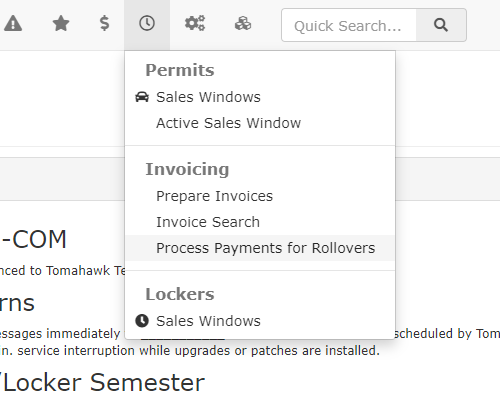
Hover over Permits, then select Process Payments for Rollovers.
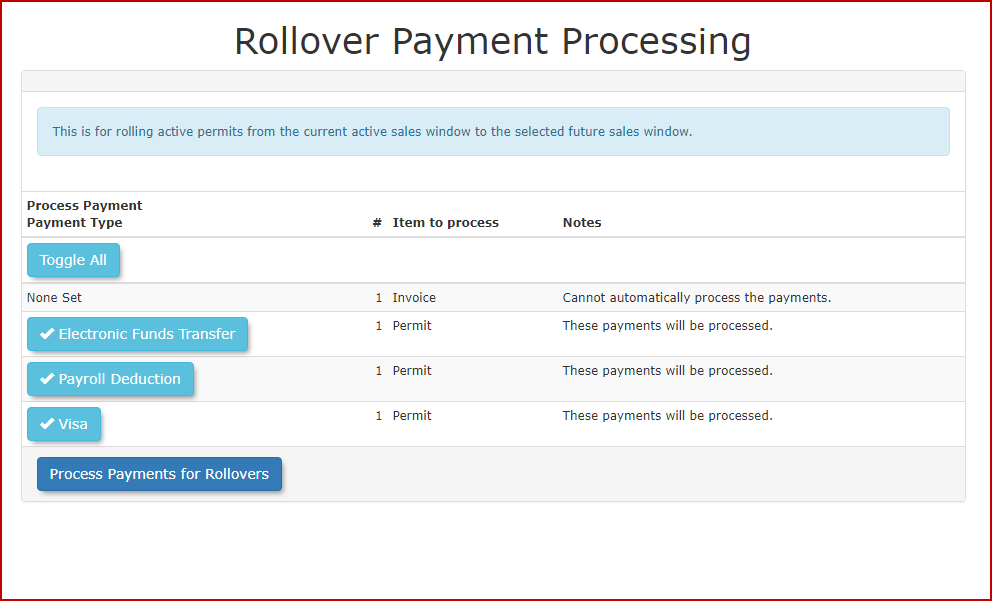
The Rollover Payment Processing page will be displayed as seen in the image below.
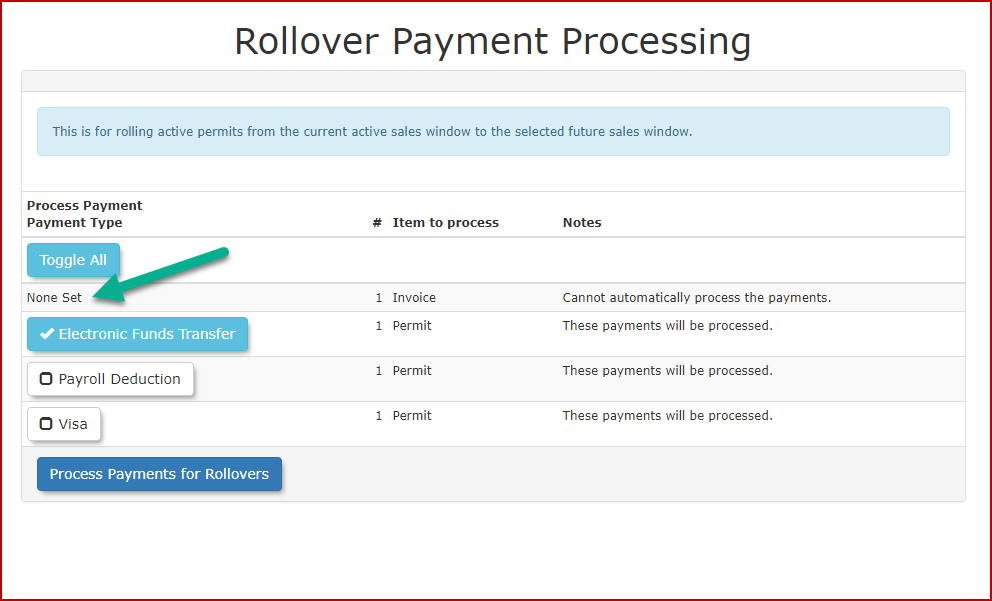
To select which payments will be done click the check box with the payment type. If the invoice or permit says "None Set" then the user must process the payment to get the permit in the next sales window.
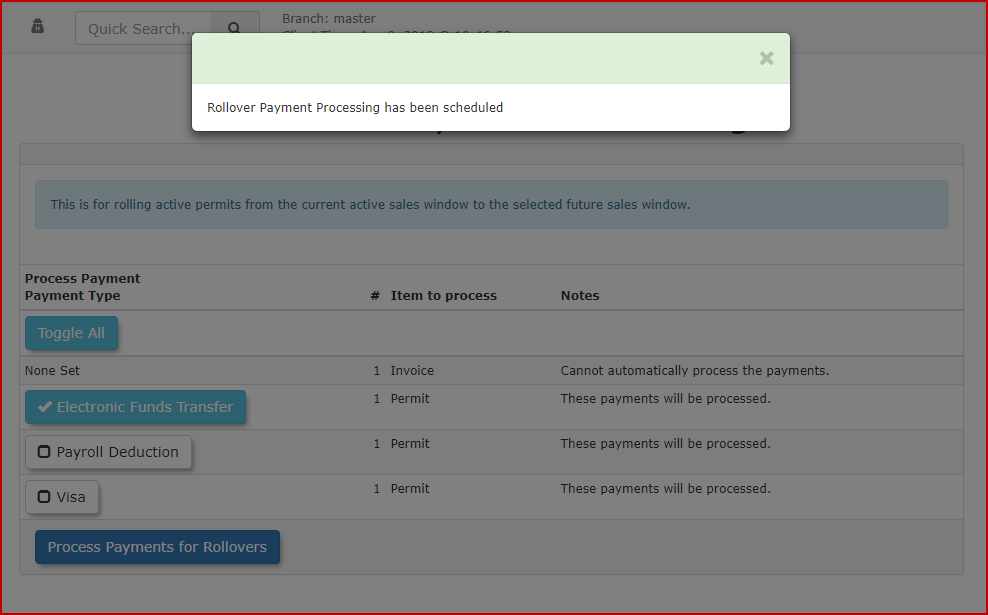
Select the 'Process Payments for Rollovers' button
Visual Cues & Status Indicators
-
Lock Pad Icon: Displayed on the right side of the Process Payments for Rollover screen. This indicates that a previous payment attempt was initiated but did not reach a finalized "Paid" or "Cancelled" state, often due to a Declined - Retry later response from the processor.
Resolving a Locked Permit
If a permit is locked and cannot be processed through the standard rollover screen, follow these steps to clear the lock and complete the transaction:
Best Practices & Considerations
A locked permit indicates an incomplete transaction. Do not attempt to re-process the payment through the rollover screen until the lock has been cleared via the user's account, as this may result in errors.
-
Monitor rollover reports monthly to identify any lock pad icons, ensuring that all recurring permit payments have been successfully captured.
-
Investigate "Declined" messages immediately by contacting the user to verify their credit card information or suggesting they contact their bank.
-
Redirect payment to the User Profile when a lock occurs; manual intervention through the user's cart is the primary method for clearing a processing lock.
-
Allow for processing time if a generic error occurs, as some records may take a short period to clear the payment gateway's communication buffer before they can be re-attempted.
-
Confirm successful payment in the user's transaction history before attempting any further administrative actions on the permit to ensure data integrity.