Viewing and Editing LPR Events
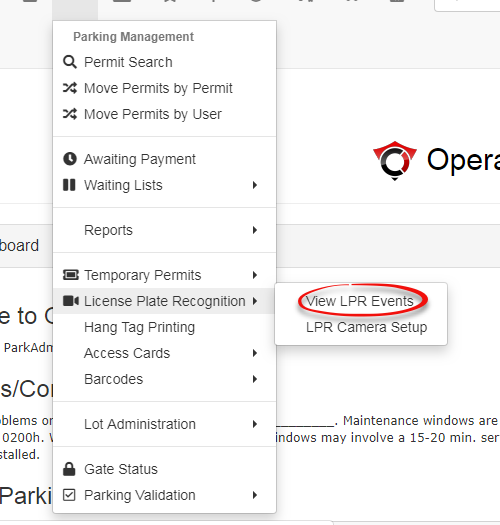
HoverGooverto'Parking Management', then'License Plate Recognition.',Clickand'click View LPR Events'.
-
- Plate Image
- Plate Number
- Province
- Score (relates to how accurate the system analyzes the capture to be)
- Km/h (Speed, as well as direction - approaching or going away from the camera)
- Recorded (Date and Time of capture)
- Events (How many times this plate has been captured)
- Status (Valid or Invalid)
- Lot Group
- Violations
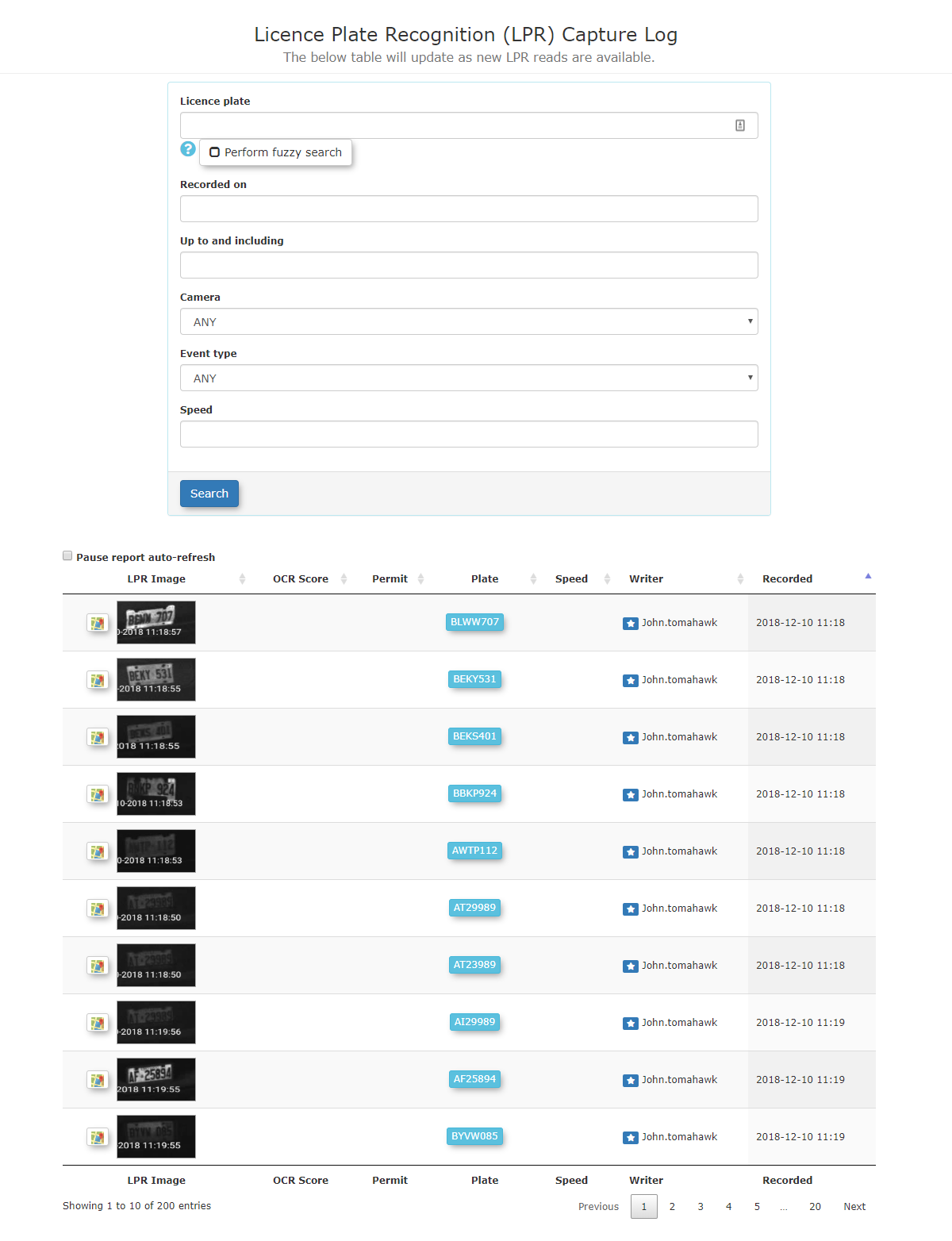
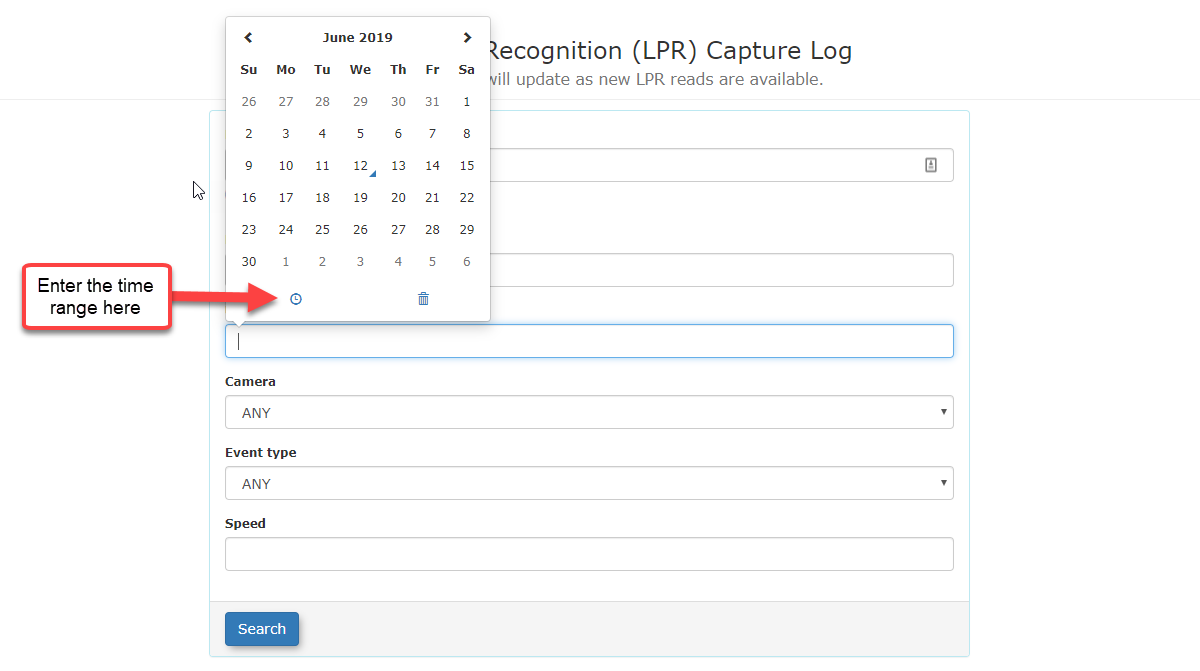
3.2. If the admin wants to refine their search more, they can enter the date and time range that is being reported on, by entering values in the recorded on and Up to and including field.
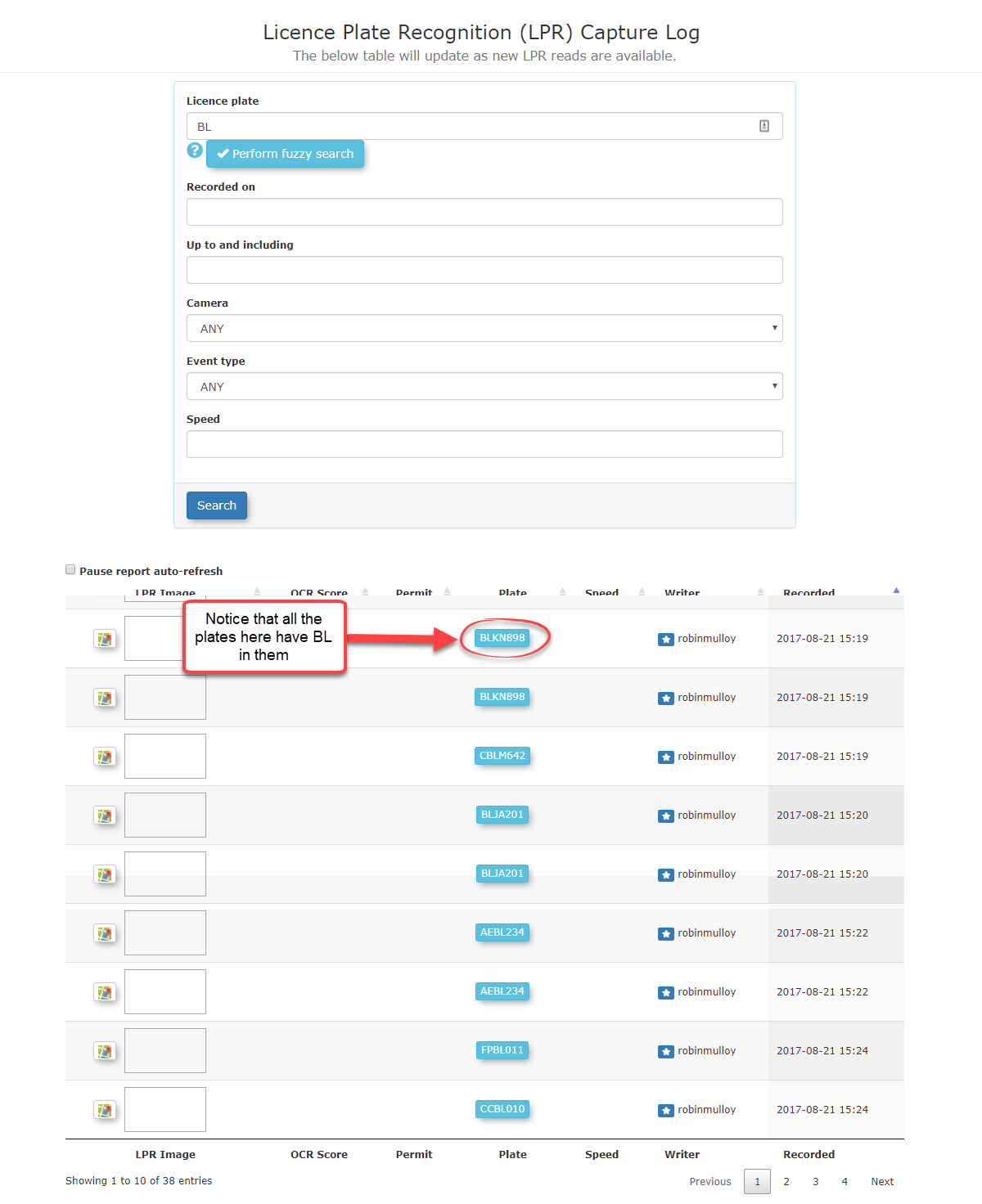
4.3. To search for partial plates, turn on the Perform fuzzy search option then enter the partial plate into the license plate text box.
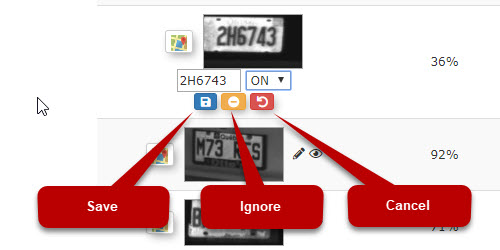
The admin has the ability to correct plate reads that are wrong or partial.
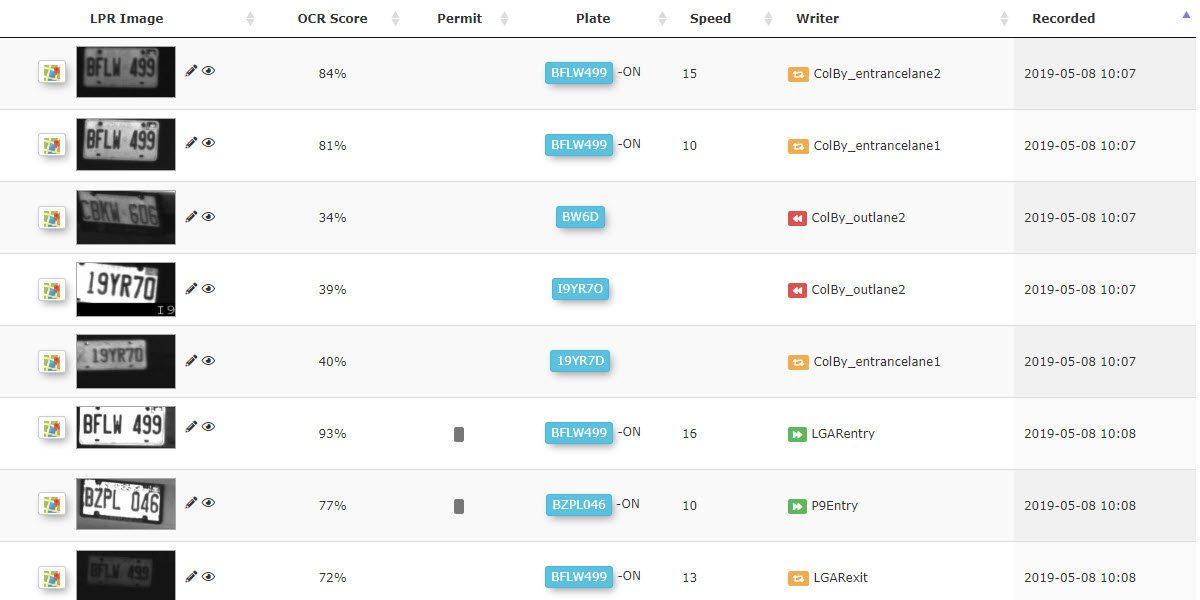
5.4. To correct the plate numbernumber, click on the pencil icon to edit the entry
entry.

6.5. Enter the Correct Plate Number.

7.6. Select the appropriate province
province.
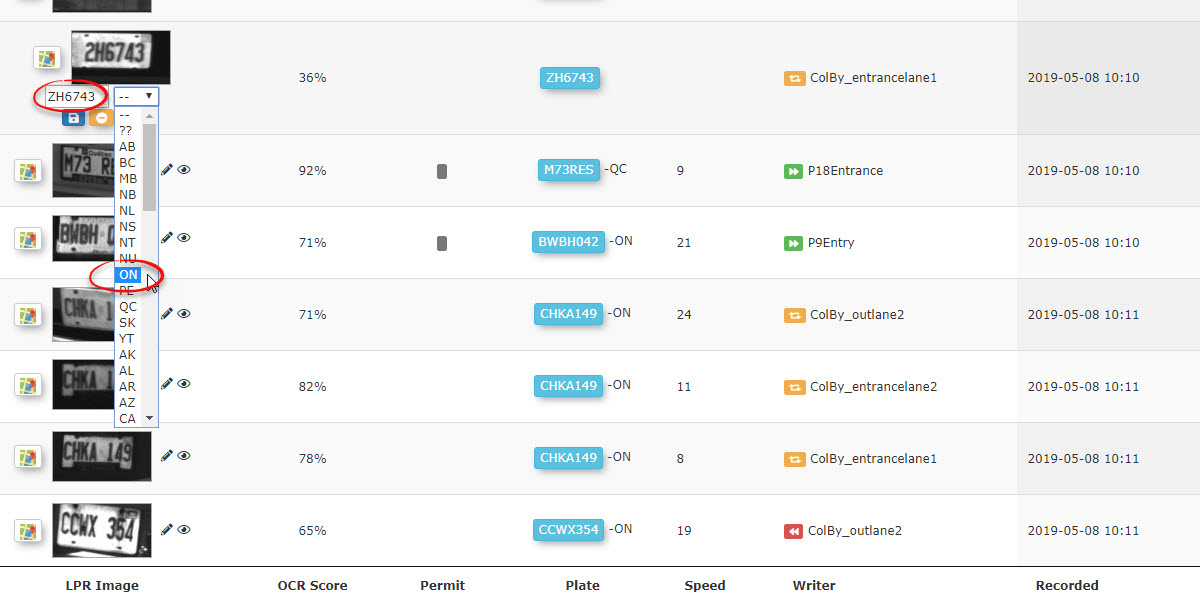
8.7. Click the Blue Icon to save the changes
changes.
Other Information that can be viewed from this interface.
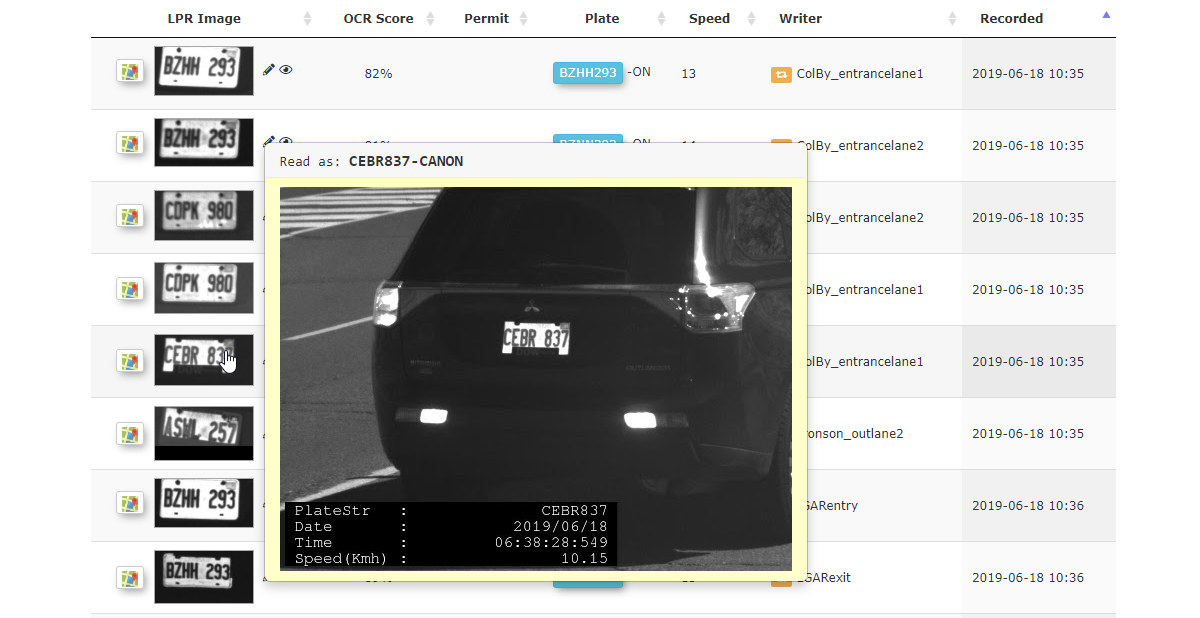
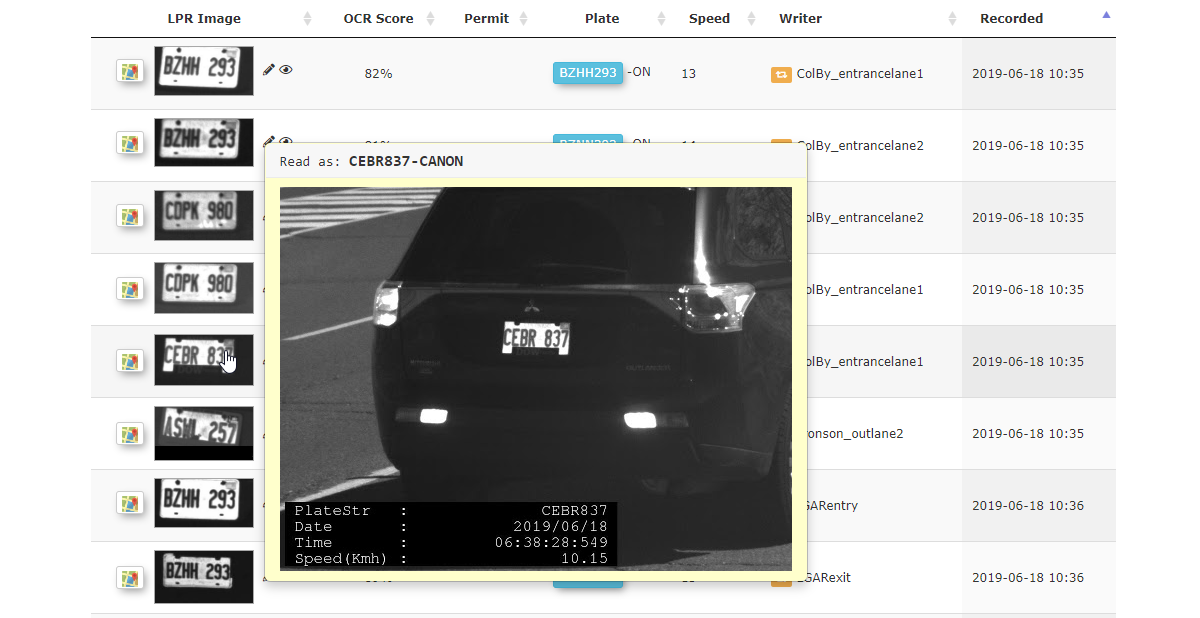
- Hover over the thumbnail in the record and the full image capture can be displayed.