Permit Sales by Lot by Month
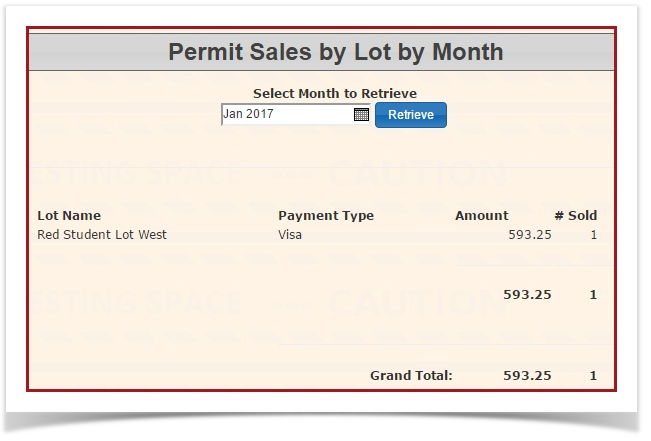
1.The In Parking Management, hover over the 'Permit Management' icon and click 'Reports' then 'Permit Sales by Lot by Month' report provides OPS-COM administrators with a detailed breakdown of permit revenue and volume. It allows users to analyze sales performance for specific months, categorized by parking lot and payment method.
Setup & Configuration
This report is a standard feature of the Permit Management module. No additional configuration is required to enable the report, provided the administrator has the necessary permissions to access Reports.

Using this Feature
2. The 'Permit Sales by Lot by Month' screenreport willis display. The current month will automatically be displayed, but you can choose the month you wishused to reporttrack on.financial Use the drop-down menus to select the monthtrends and yearvolume across different parking areas within a specific timeframe.
-
Hover over Permit Management and click Reports then Permit Sales by Lot by Month.
-
Select the
'desired month from the Month drop-down menu. -
Select the desired year from the Year drop-down menu.
-
Click the Retrieve
'button togetgenerate thenewreport.What
Key do?Information Displayed
Whenaccessed,Lot
itName:displays a form allowing you to select a month and year.- The
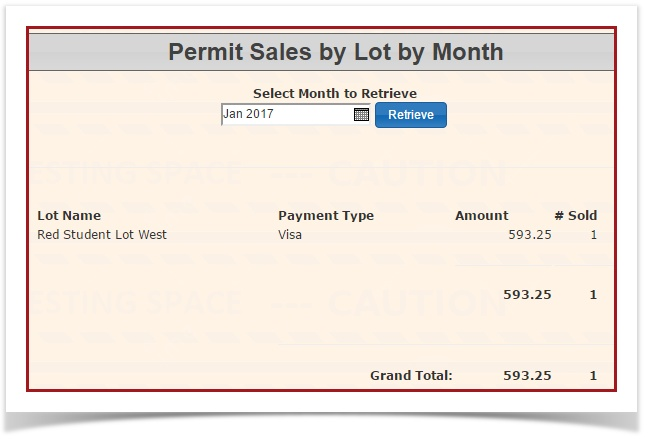
report retrieves statistics about parking permit sales, grouping results byspecific parking lotandorfurtherzonebreakingassociatedthemwithdownthebysales.payment type. Foreach lot, it shows:Lot NamePayment Type: The method used for the transaction (e.g.,
creditCreditcard,Card,payrollPayrolldeduction,Deduction, etc.).-
Amount:
(The total monetary value of permits sold, formatted ascurrency)currency. -
Sold:
(numberThe total count of individual permitssold)sold within the selected parameters.
Available Actions & Buttons
-
Copy: Copies the current table data to the clipboard.
ThereturnedCSV: Exports the report data
is suitable for display ininto atableCommawithSeparatedoptionsValues file.-
Excel: Downloads the report as an .xlsx spreadsheet.
-
PDF: Generates a portable document format version of the report.
-
Print: Opens the system print dialog to
copy,createexportaashardCSV/Excel/PDF,copyorofprint.the data.
Best Practices & Considerations
-
-
Use the Export features to archive monthly data, as this provides a helpful historical snapshot for year-over-year growth analysis.
-
Verify Lot names periodically in Lot Administration to ensure that the data remains organized and easy for accounting teams to interpret.