Paying a Violation Anonymously on the Administrator Interface
ToThe begin,Anonymous goViolation Payment feature allows administrators to process parking ticket payments without tying the transaction to a registered user account. Its primary purpose is to quickly facilitate in-person or over-the-phone payments from guests or unregistered users who wish to resolve a citation. This article is intended for OPS-COM administrators.
Setup and Configuration
There is no specific system configuration required to access this feature, provided your manual and electronic payment types are already established. Processing an anonymous payment is a standard administrative action available to users with the appropriate violation management and payment processing permissions enabled on their account profile.
If you need to configure new payment methods, instructions can be found on the Managing Payment Types page.
Using this Feature
Administrators can search for an unpaid violation and process the transaction anonymously in just a few steps.
-
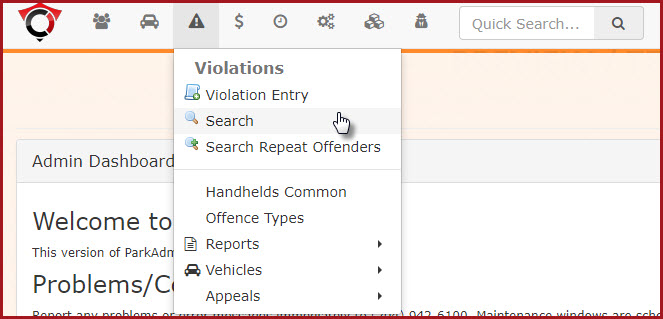
Hover over Violations
MenuandselectclickSearch.Search.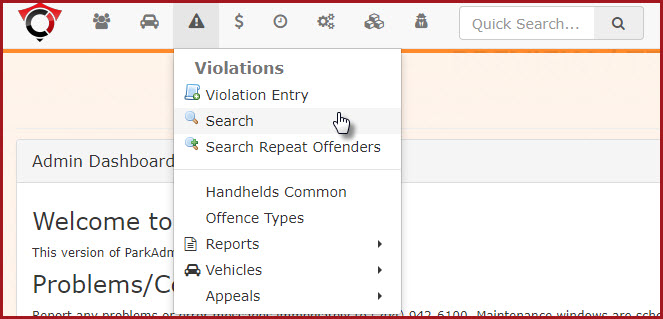
-
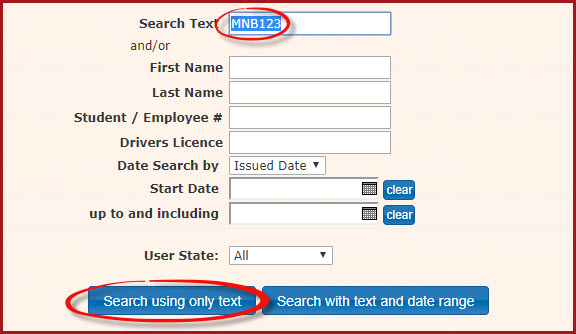
Enter either the specific ticket number or the license plate number into the Search Text field.
-
Click the Search using only text button.
-
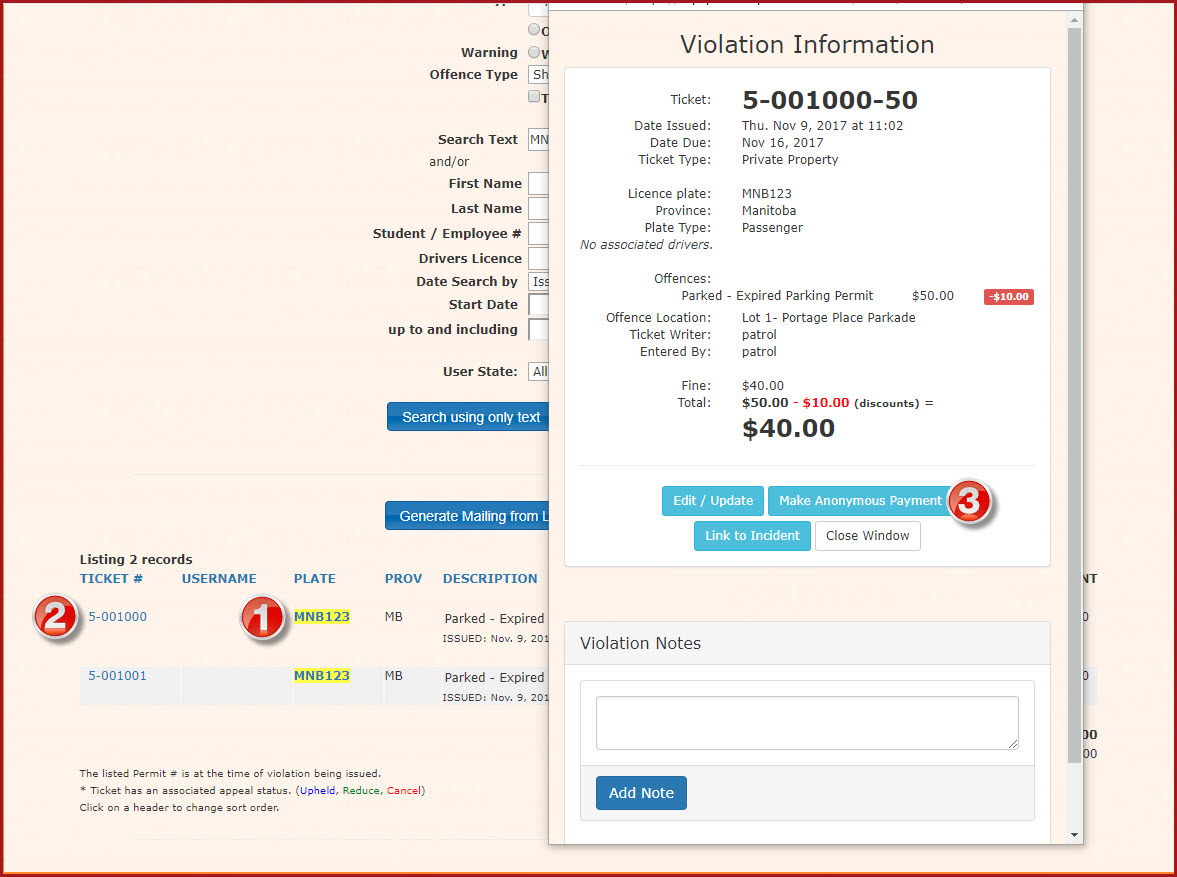
Click the specific Ticket Number
orlink from theLicensesearchPlateresultsnumbertoinopen theSearch Text Field and click onSearchusing only text.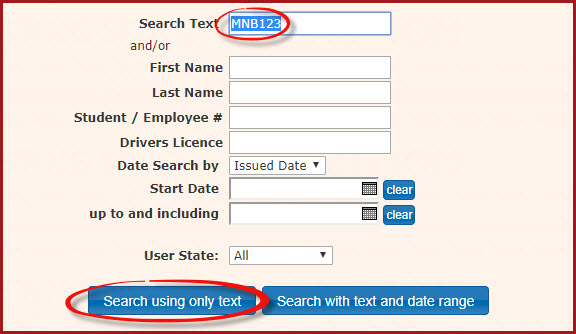
This will return a listing of violations.Note that thePlate Numberhas been found. (1)By clicking on the Ticket Number (2) you will bring up theViolation Informationpoppop-up screen. -
Click
onthe Make Anonymous Payment button to proceed to thePayment Entrycheckout process.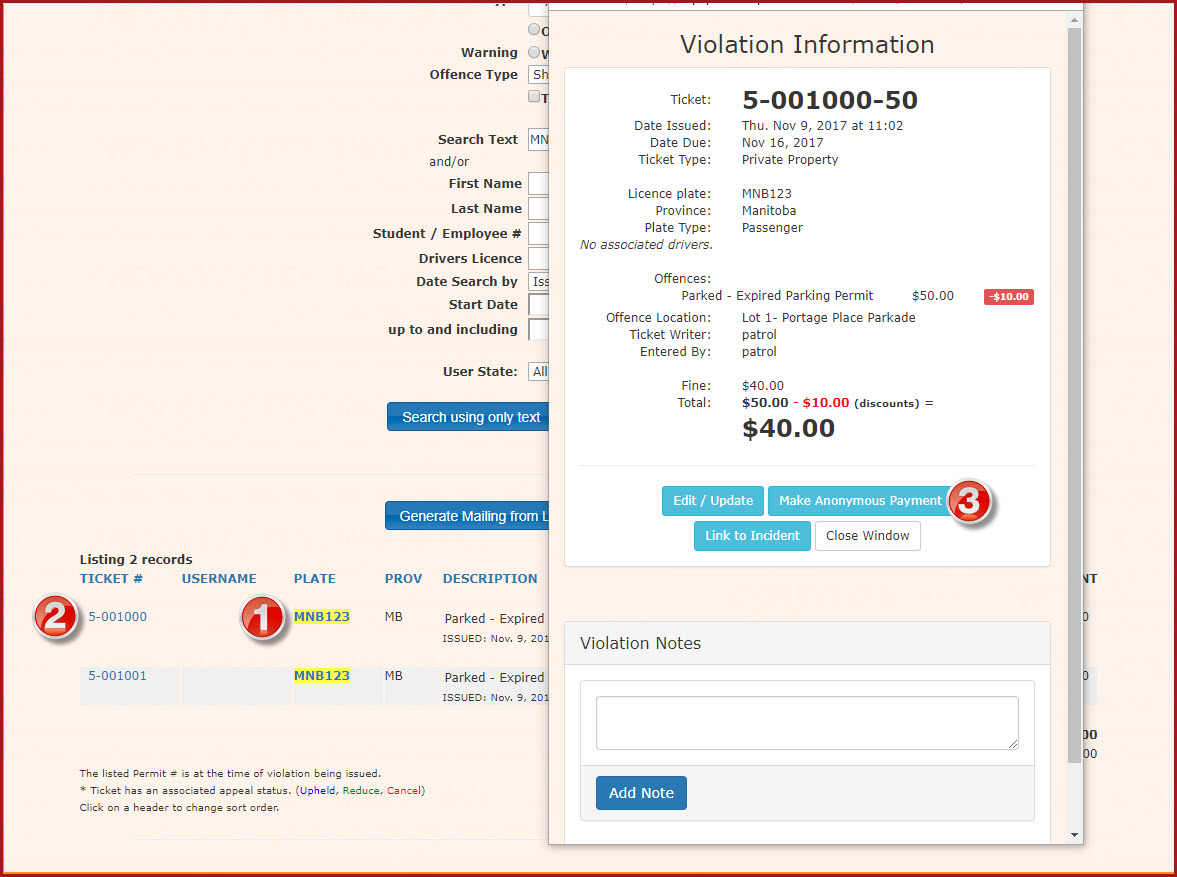
-
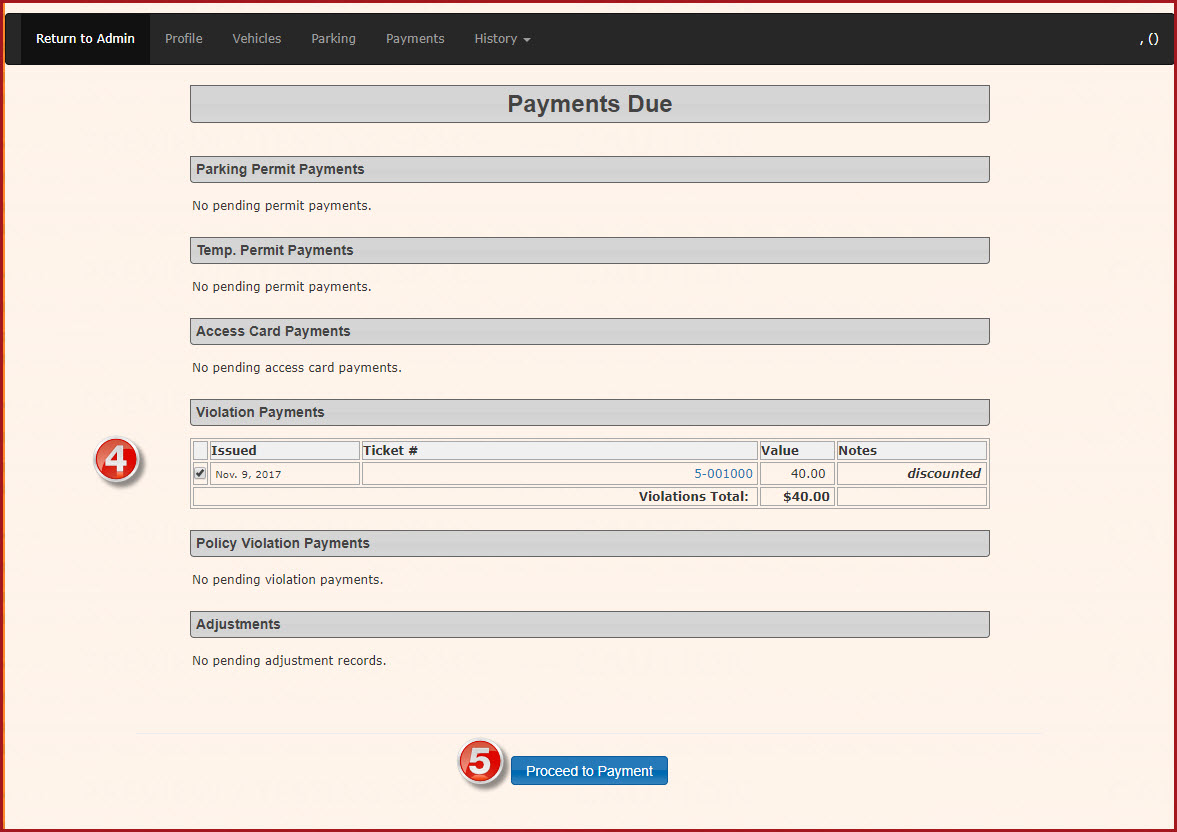
TheEnablePaymentstheDueticketwindow will open allowing you to checkcheckbox to select theticketspecific violation you wish topay.pay(4)
on the Payments Due window. -
Click the
(5)button.in -
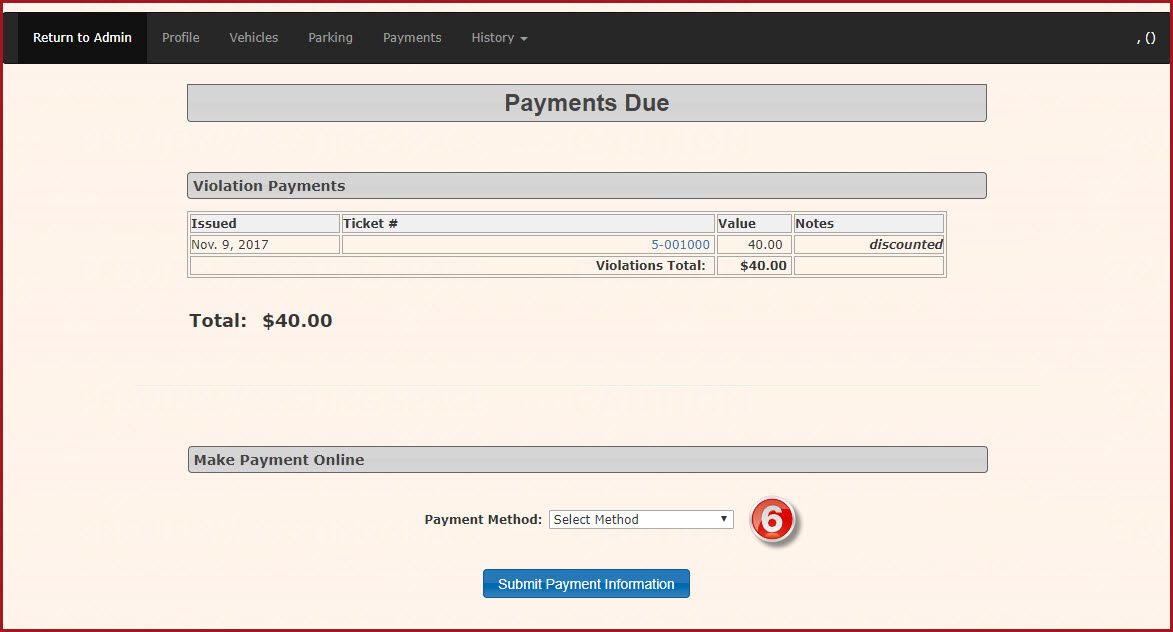
to advance toSelect the
payment due window.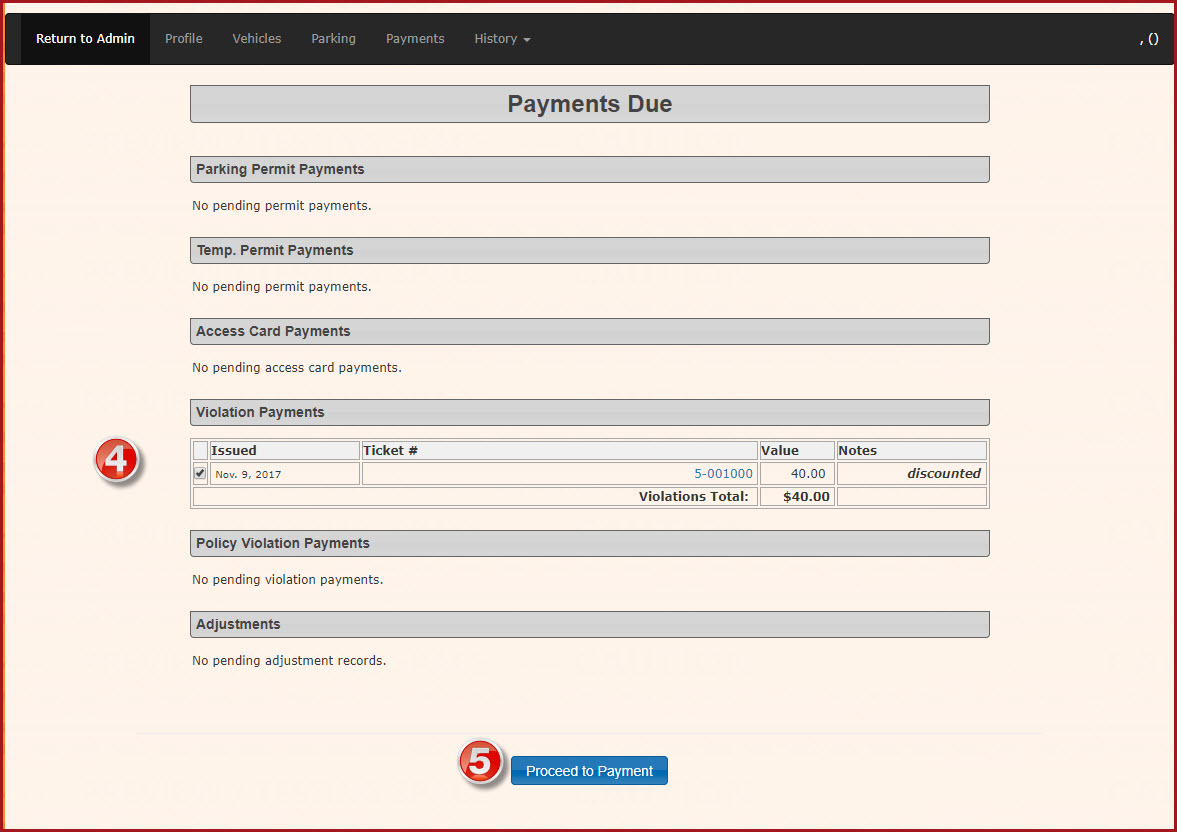
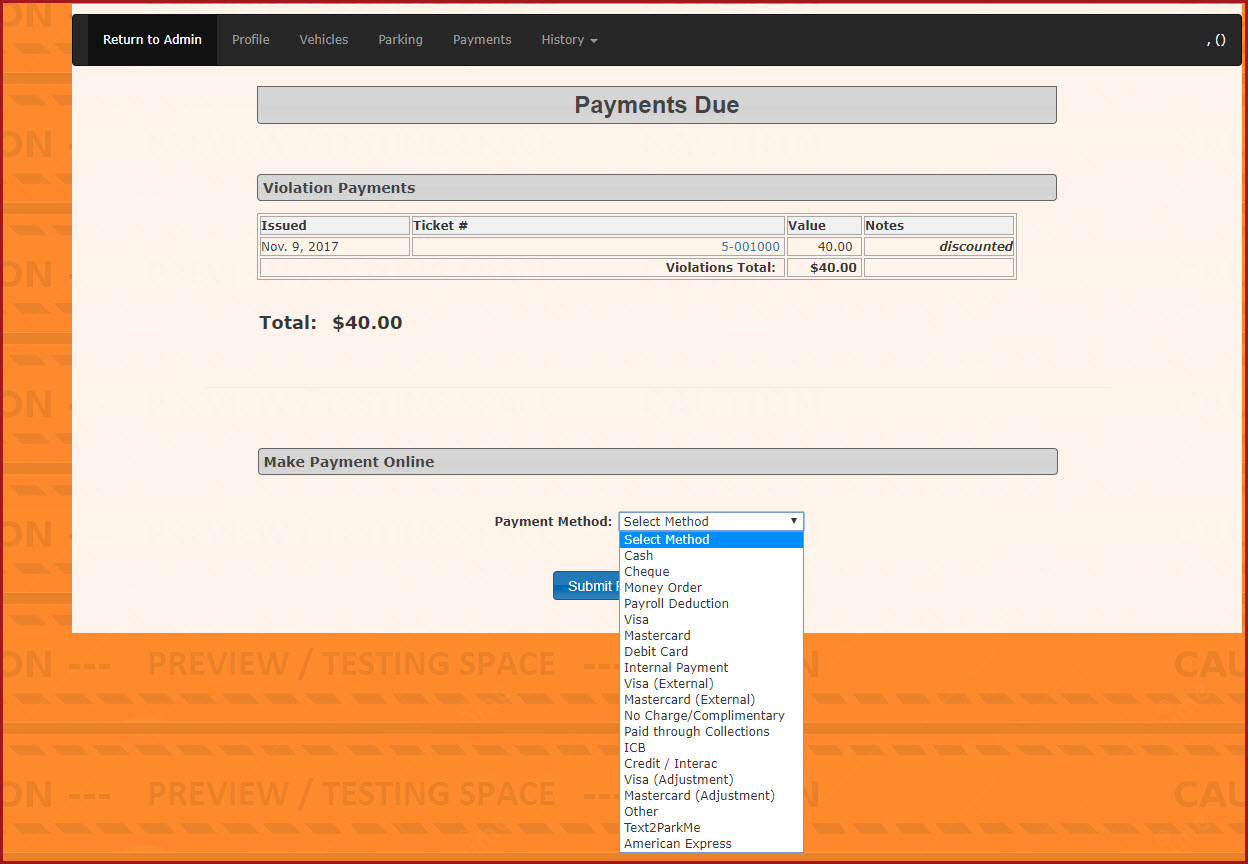
In thePayment Duewindow, you can select theappropriate method ofpayment.payment(6)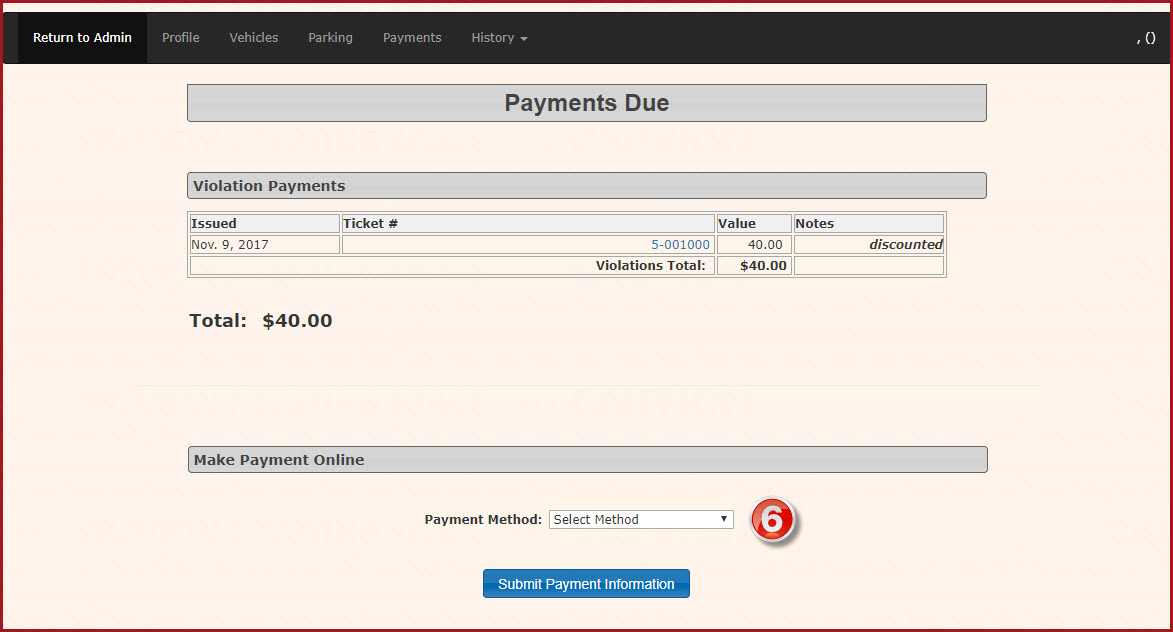
Notefrom thelist ofavailable paymenttypes.type drop-down menu. -
Click the Submit Payment
tobutton.continue -
processClick the
payment.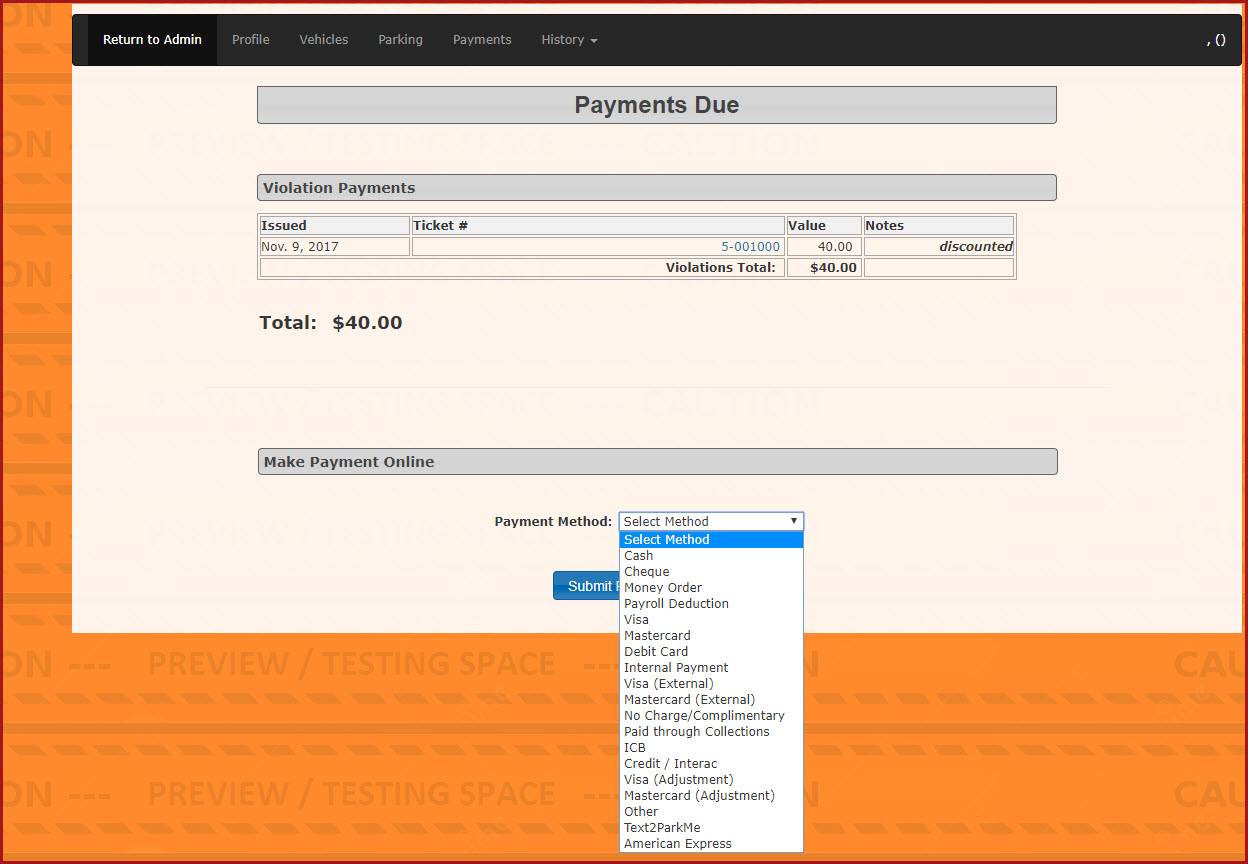
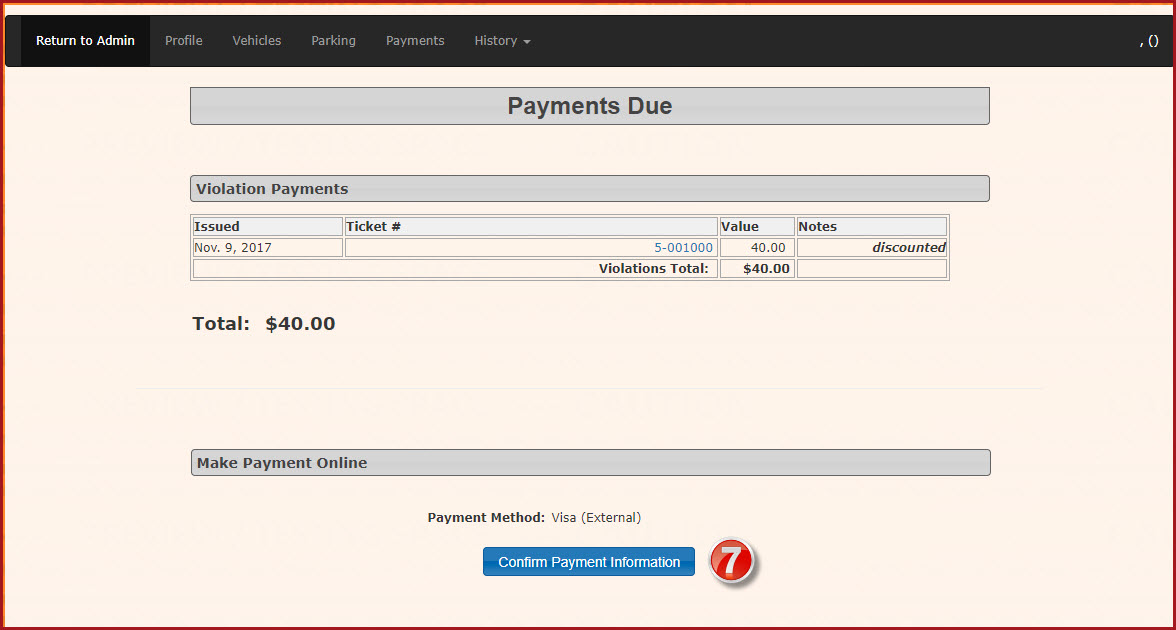
The screen will refresh, listing the transaction you are about to process. ClickConfirm Payment Information(7)button on the final confirmation screen to complete the transaction.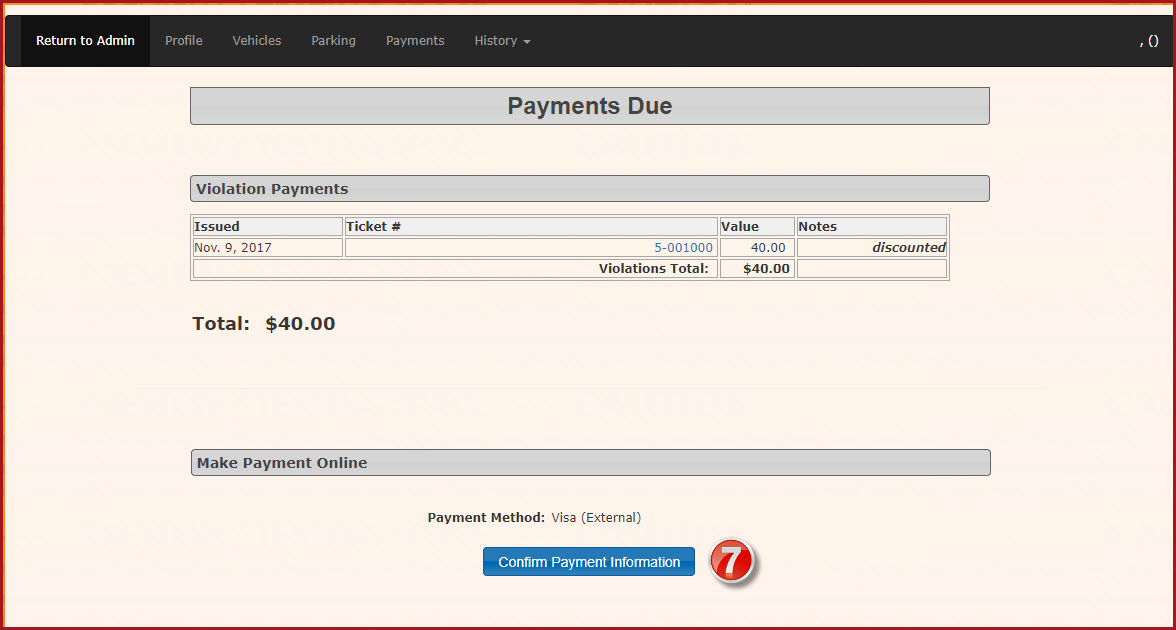
TheConfirm Ticket Details: Always verify the license plate and violation details with the user before clicking the Make Anonymous Payment button. Because the payment willis processnot tied to a searchable user profile, correcting a payment applied to the wrong ticket can be administratively difficult.
Visual Cues and Status Indicators
-
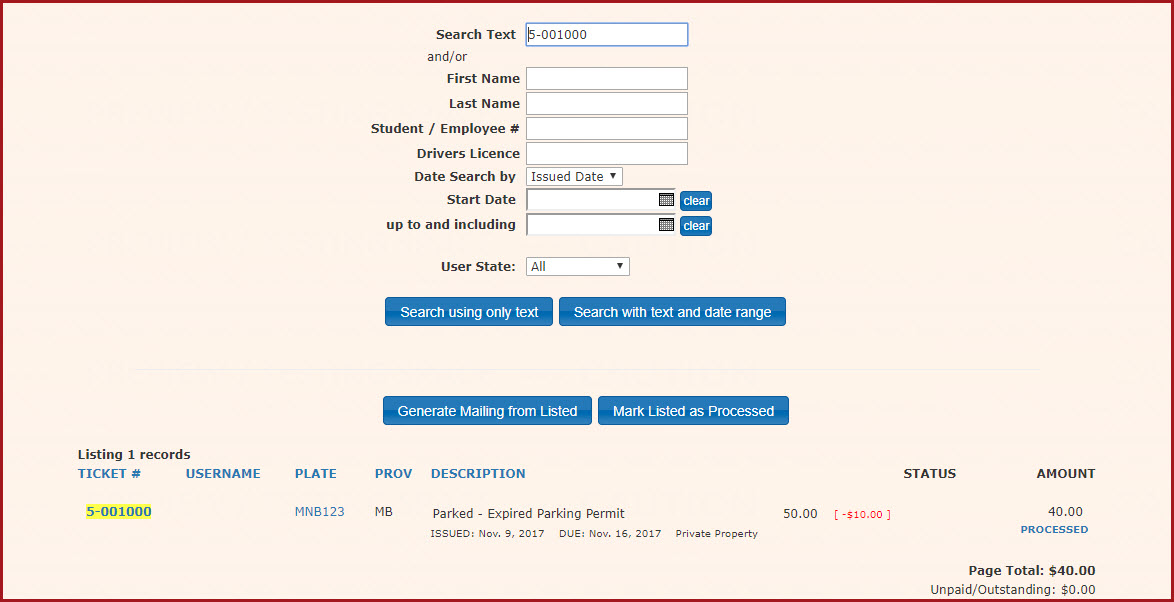
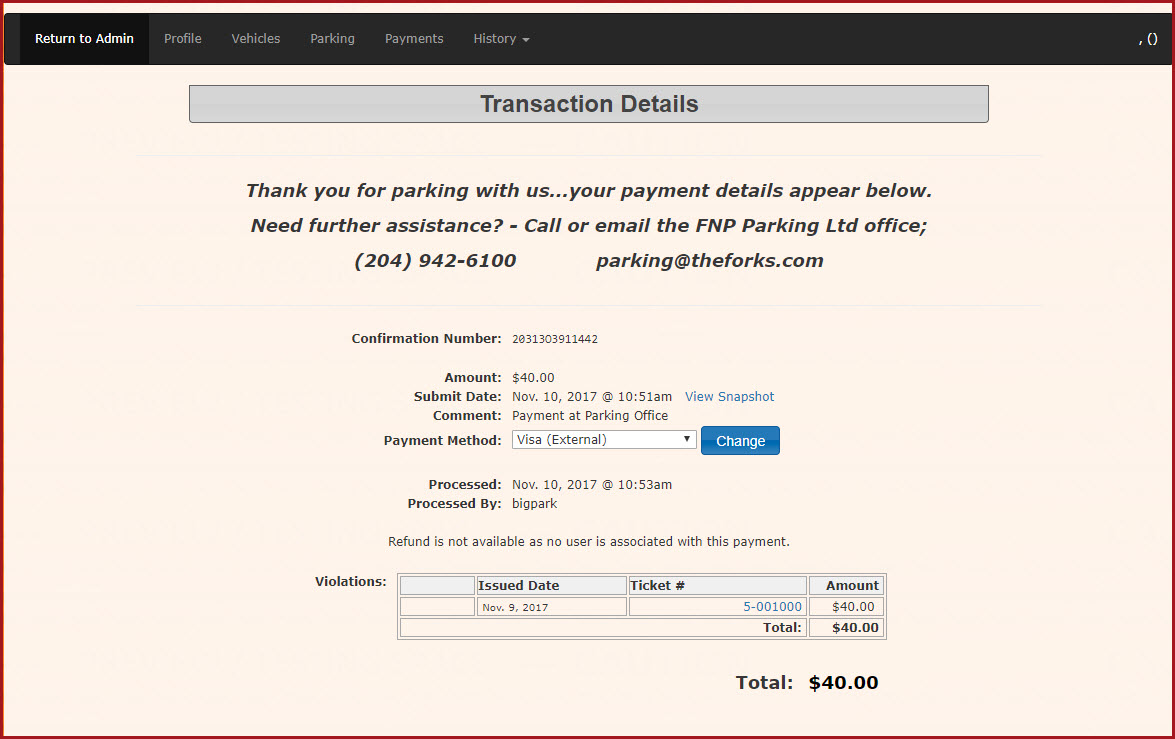
Processed Status: Once the payment successfully processes, the screen will refresh
withto display the final Transaction DetailWindow.window.At this point the transaction is complete.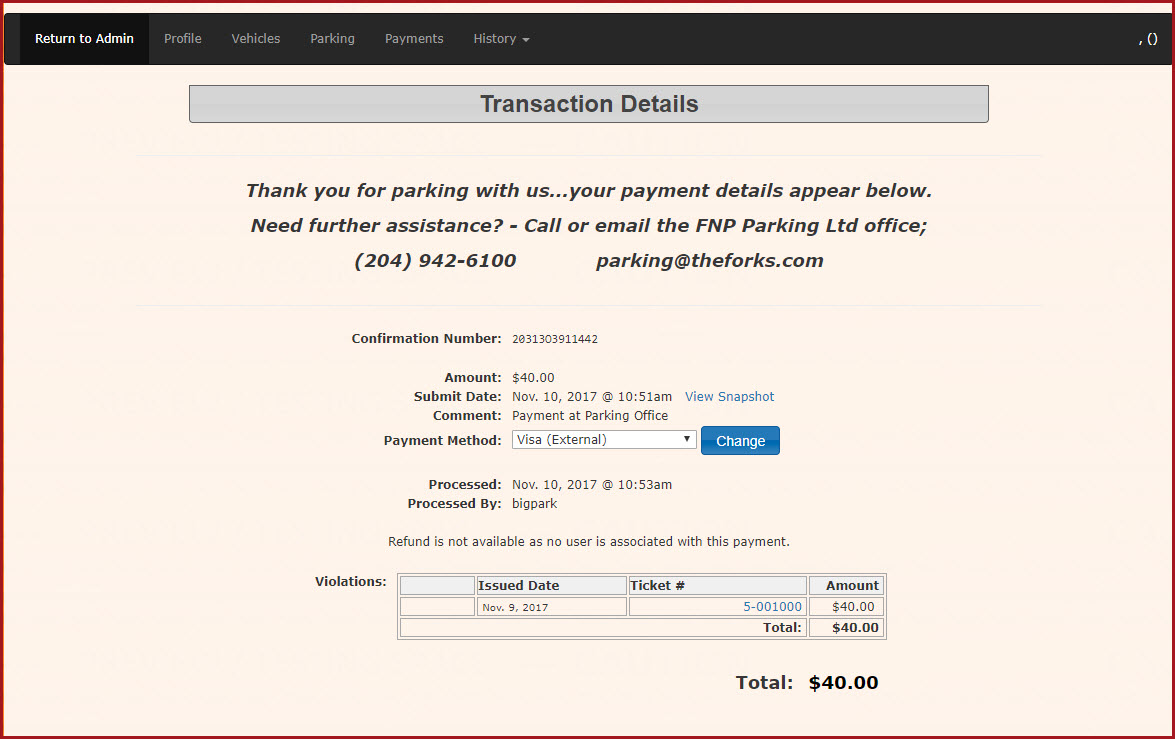
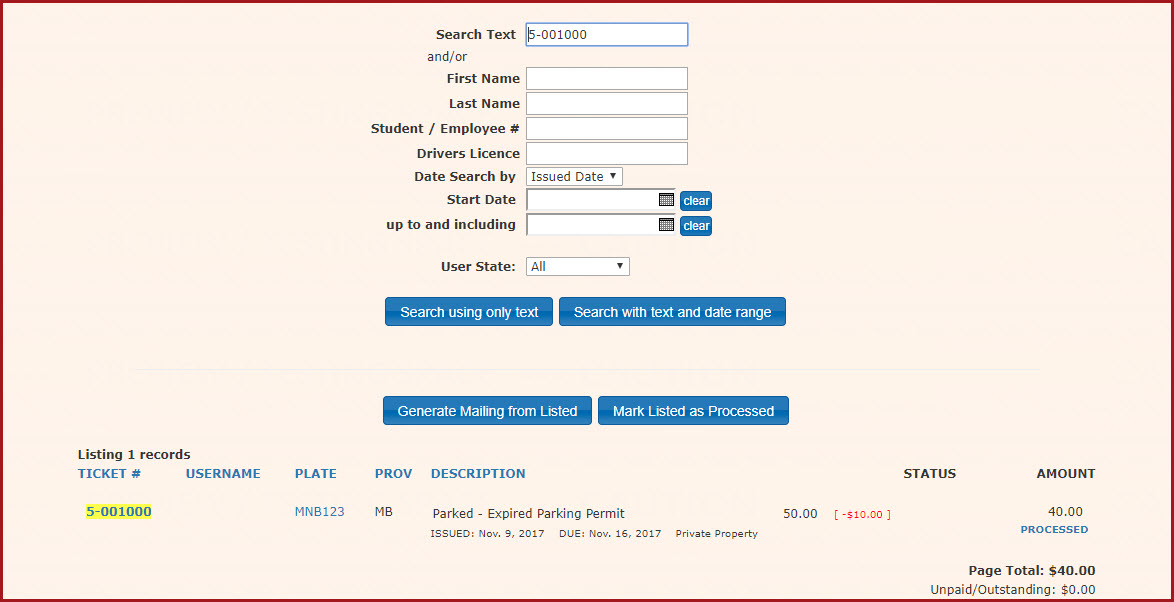
Once the transaction is complete,If youcansearchsearchfor the violationandagainseeinthatthe system, itiswill be marked as "PROCESSED"PROCESSED" to indicate the balance has been cleared.
Best Practices and Considerations
-