
What does a refund look like in the system?
What
The refund process allows OPS-COM administrators to reverse completed transactions directly from a user's profile. This feature helps administrators return purchased items (like permits or lockers) back to active inventory or reverse payments for accounting purposes, such as handling Non-Sufficient Funds (NSF). This guide is intended for OPS-COM administrators responsible for financial processing and user account management.
Setup and Configuration
Processing refunds is a core administrative function that does not require any additional system setup or configuration. It is accessed entirely through the individual user's profile.
Using this Feature
Administrators interact with the refund feature by locating the original transaction in the user's history and initiating a reversal.
Processing a Refund
-
Think of a refund as hitting the "undo" button for a completed transaction. When you process a refund:Money Back: The customer gets their payment reversed.Item Released: The item(s) they purchased become available again in our inventory, ready to be sold to someone else.
Important Note:When you refund an entire transaction,all items within that transaction will be reimbursed, and all of them will be released back into inventory.If only one item needs to be reimbursed,do an adjustmentand release the item separately.1. Locate the user profile for the user you want to refund for.Note: The top right-hand corner will always identify the name of the user that is being worked on. In our example we will refundPermit #1at$395.50but keep in mind the process is identicalSearch for andrefundopensuchtheastargetStandarduser'sPermits, Temporary Permits, Locker rentals, violations etc.
profile. -
2. FromClick the HistoryTabtab and select AllRecords.Records
. -
Locate the specific transaction you wish to refund.
-
For
Standardstandard&permits,TemporarytemporaryPermitspermits, orLockers3. Find the permit you want to refund andlockers, clickontheProcesseddatelink.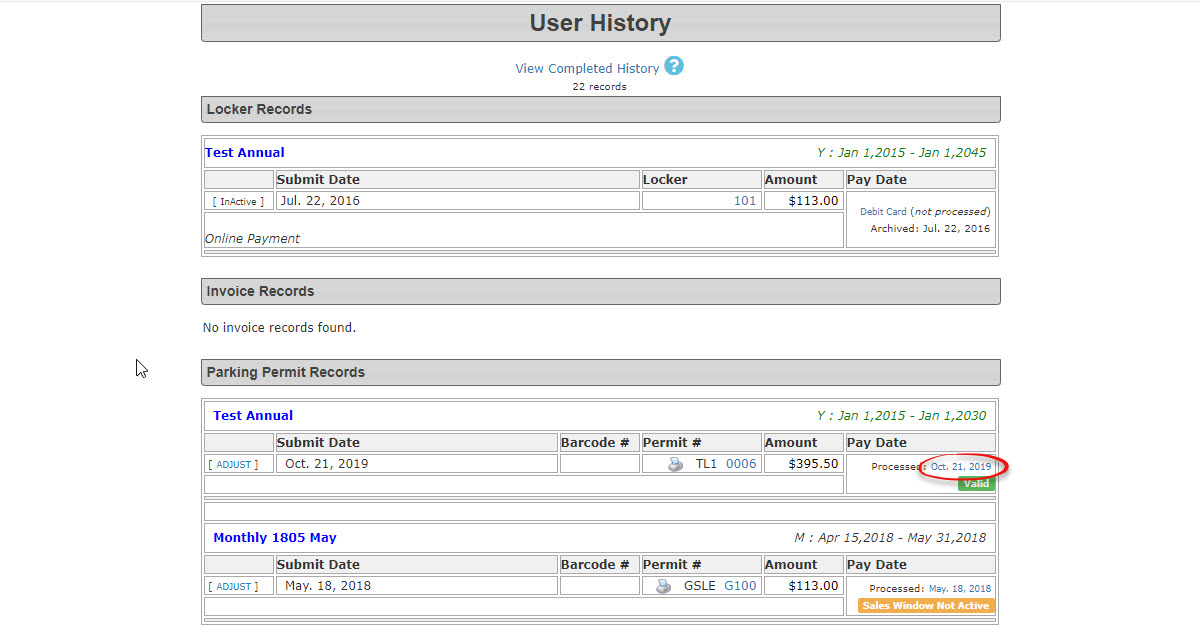
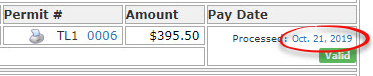
For ViolationsClick on the wordProcessedtodateaccesslink. -
-
For violations, click the
transactionProcesseddetails.
text link. -

-
-
4. TheTransaction Detailsscreen appears.Clickonthe Refund button on the Transaction Details screen tobeginopen the refundprocess.window. -
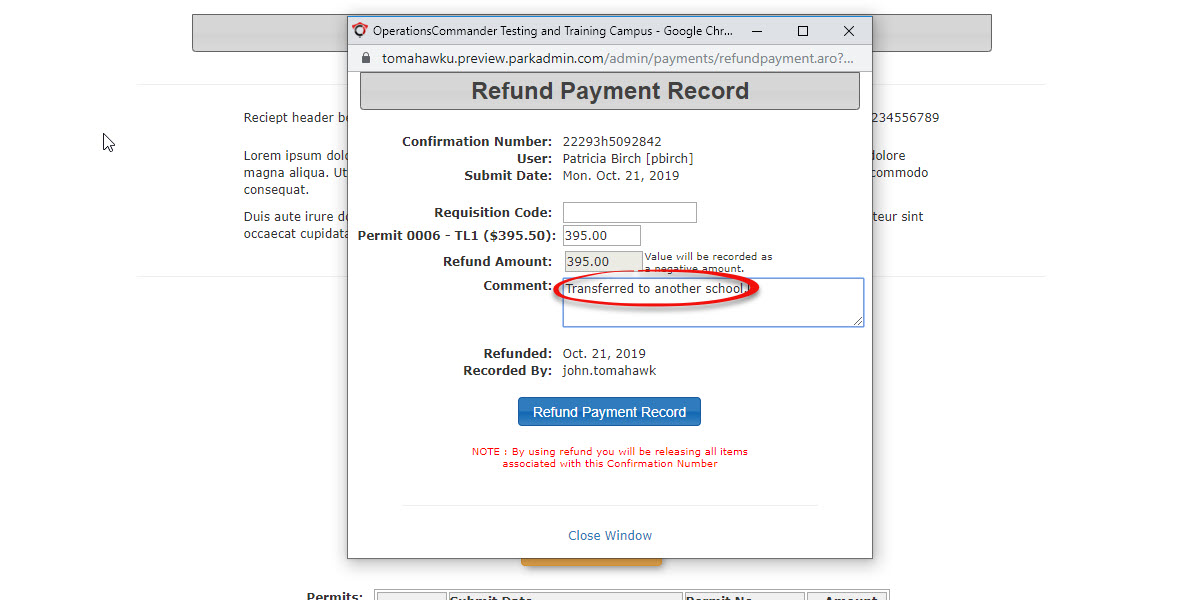
TheRefund Payment Recordwindow will pop up.Enterthean internalorganizationRequisition Code if required by your organization (this is optional).and -
Enter the total Refund Amount,
(includingensuringtaxes).youYouincludeareapplicable taxes. -
Enter a required
tojustificationenterinathe commentin order to proceed.
field.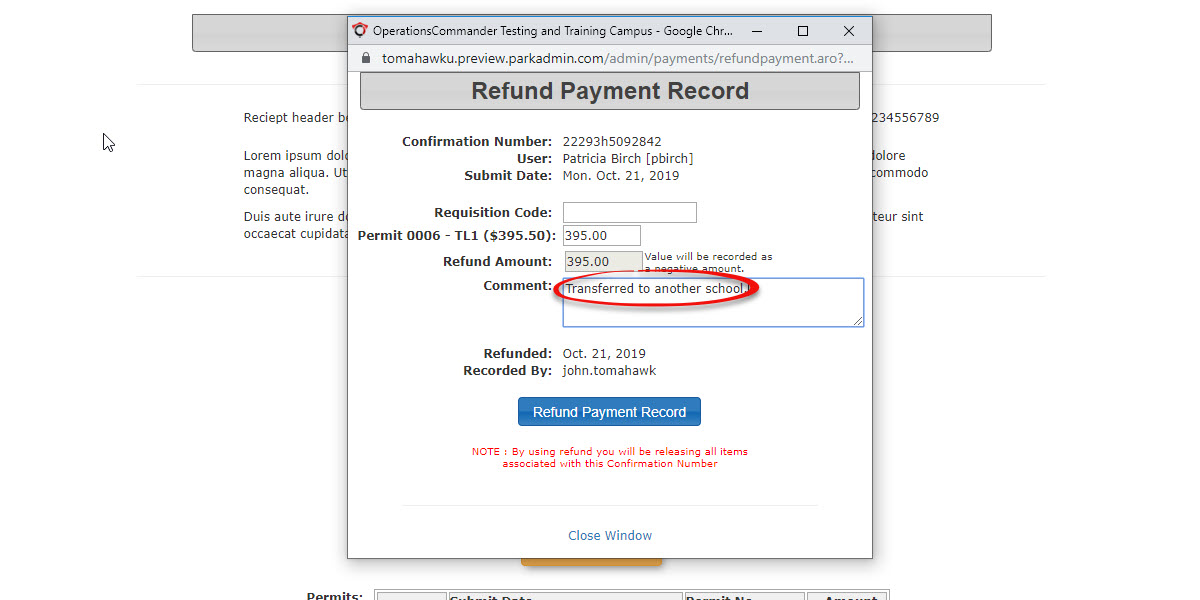
-
5.Click the Refund Payment Record button tocontinue.proceed,Aandconfirmationacceptpop-upanywillon-screenappear. ClickOKconfirmations to continue. -
IMPORTANT:Select theBy usingdesired refundfortypepermitsfromand lockers you will be releasing all items associated with this Confirmation Number.Violations however will simply go back to awaiting payment status.6. Thethe Adjustment Informationpop-up will display showing the refund details. You have the ability to select the type of refund in thiswindow. -
7.Clickonthe Process This Adjustmentto proceed. You will returnbutton totheTransaction Detailwindow showingfinalize thedetailstransaction.of
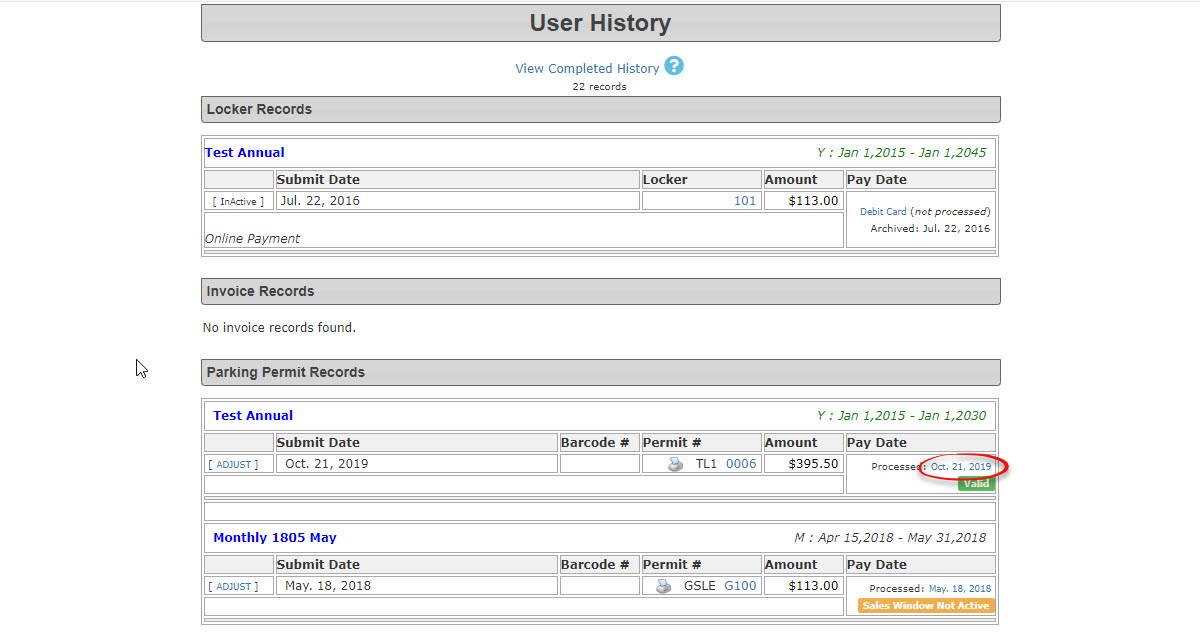
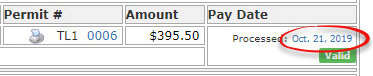

Visual NoticeCues and Status Indicators
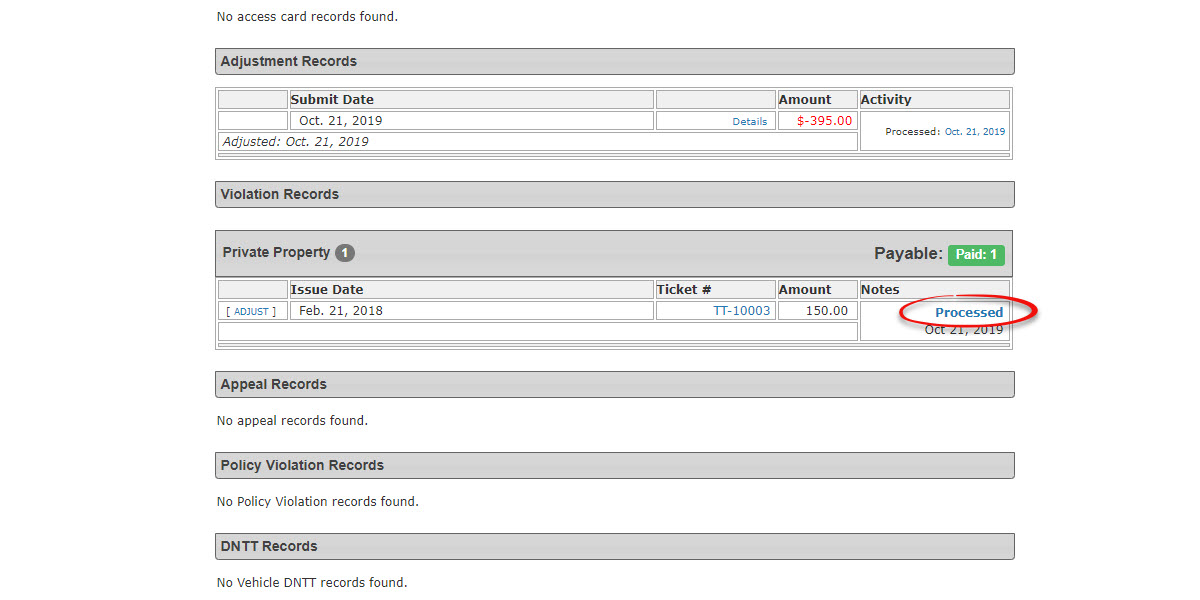
Once the refund amount of $-395.50 is listedprocessed, asthe ansystem adjustment.
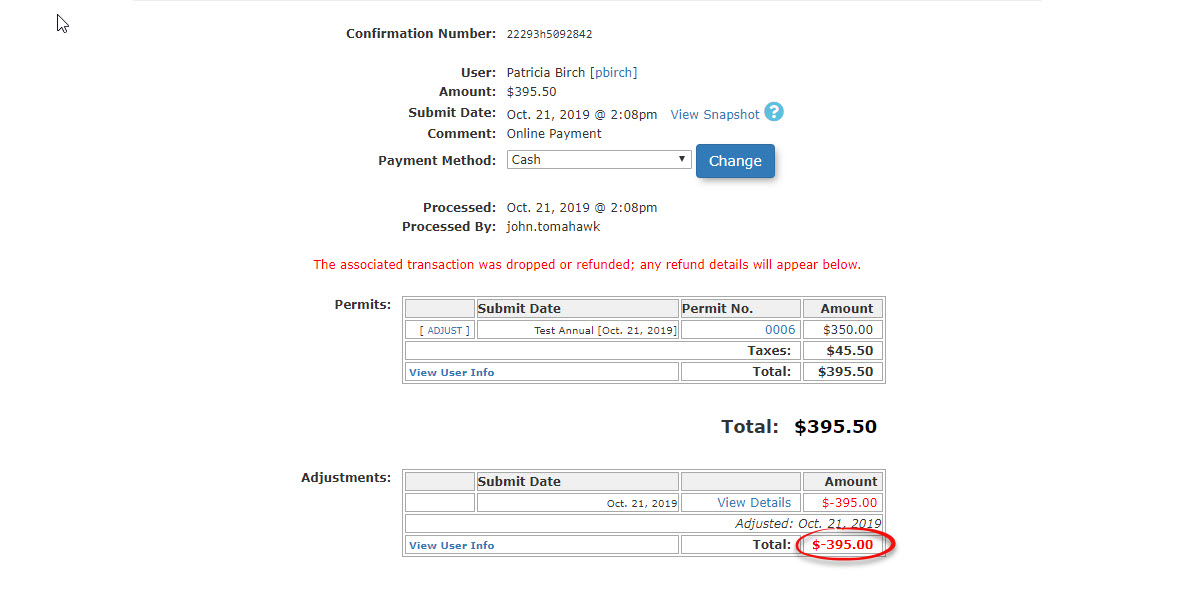
8. To see how this appears inupdates the user's profile to reflect the changes:
-
Transaction Details: The refunded amount will appear as a negative adjustment (e.g., $-395.50) on the
admintransactionside,record.go -
intoUser History: Under the
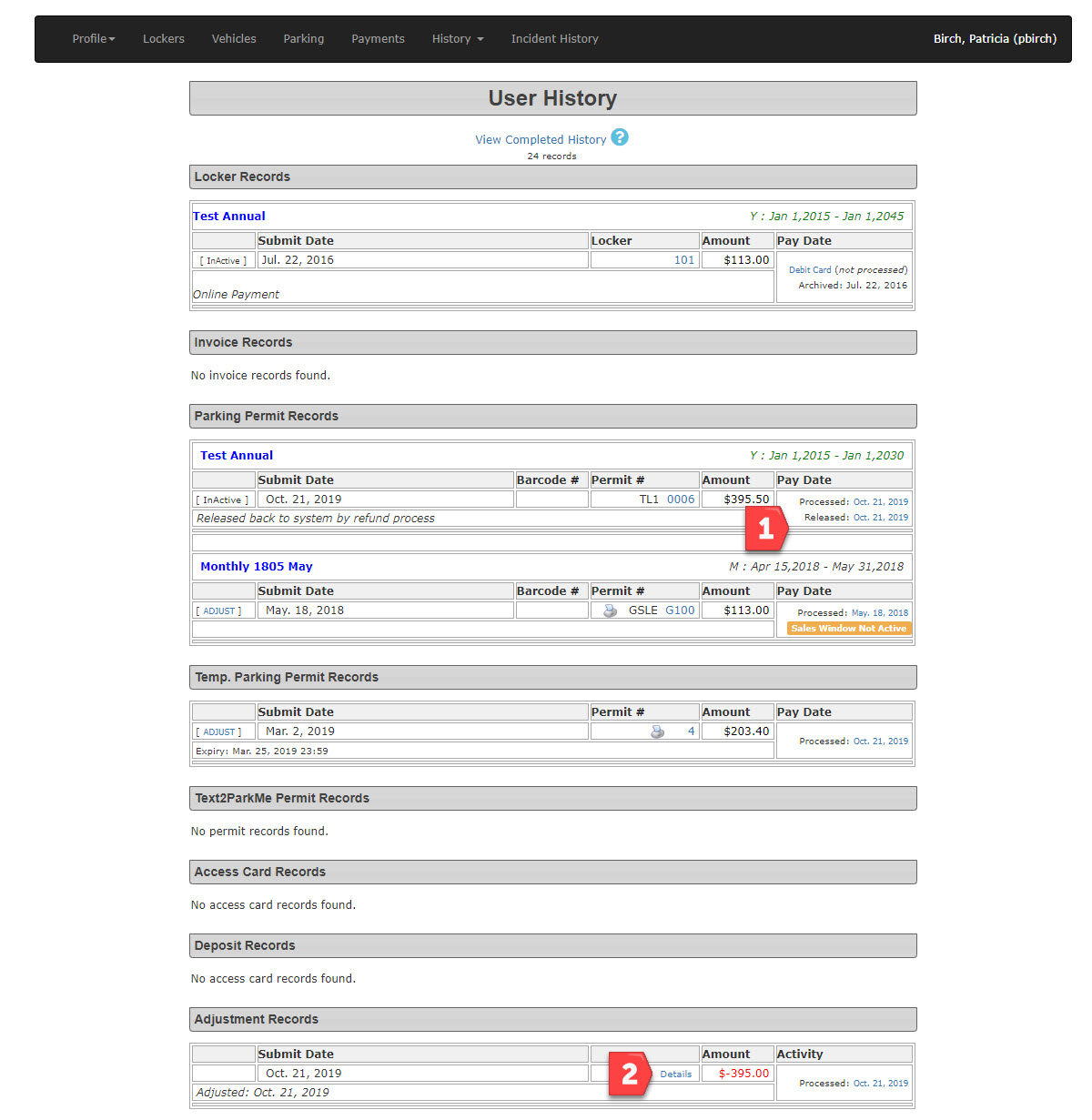
historyHistory taband select(. In the user history we see the record of), the original purchaseaswillwelldisplayas; (1)a Released dateandalongside a note indicating thepermititemiswas "Released back to system by refundprocess"process."andThe(2)financialwetransactioncanwill alsoseebethe refundlogged under AdjustmentRecords.Records
.
Refunding
Handling NSF PaymentPayments
Sometimes, a payment fails after it is recorded (likee.g., a chequebounced bouncing –cheque, known as "NSF" for Non-Sufficient Funds)Funds or NSF). WhenAdministrators this happens, we need tomust "refund" thatthis payment in the system to keep our financial records accurate.
Why do we refund a NSF Payment?
It's essentially a bookkeeping task. Imagine a cheque came in and was recorded as a payment. If that cheque then bounces, we need to remove that "incoming" payment from our system. By performing a refund, we create an "outgoing"outgoing record that balances out the initial "incoming" record ofneutralizes the failed payment. This way, our system accurately reflects that the money never actually arrived.
After you process the refund for an NSFincoming payment, reportskeeping (likefinancial thereporting Processed Payment Report) will show both the initial "payment" and the subsequent "refund." This is perfectly normal and correct! It records the attempt to pay, and then the removal of that payment due to the NSF.
Key Tips for NSF Refunds:accurate.
-
Payment Type:
When you process the refund for an NSF, be sure toAlways select thesameidentical payment type (e.g.,"Cheque")Cheque) as the original failedpayment.payment when processing an NSF refund. Thismakesensuressensethe Processed Payment Report accurately reflects the attempt and the subsequent removal of funds. -
Clear Notes: Always leave comprehensive and detailed notes documenting the failed payment. This creates a transparent audit trail for anyone reviewing
yourtheaccounting.accounting later.
Ensure you are certain about releasing all items on a transaction before clicking the Refund Payment Record button. Once a permit is released back to inventory, it can be purchased immediately by another user.
Best Practices and Considerations
-
Partial Refunds: Refunding an entire transaction reimburses all items associated with that confirmation number and releases them back into inventory. If you only need to reimburse a single item from a multi-item purchase, process an adjustment instead of a full refund.
-
ClearItemNotes:Status After Refund:It'sRefundingsuperaimportantpermit or locker releases the item back toleavethe general inventory to be sold again.clearRefundingandadetailedviolationnotesdoesdocumentingnot cancel thefailedticket;paymentitandsimply returns theexactviolationreasontoforanthe"awaitingrefund.payment"Thisstatus.helps everyone understand the situation later on!