
Troubleshooting - Email Server Communication Errors
This article outlines the process for identifying and resolving email server communication errors within the system. Its primary purpose is to help administrators fix incorrect or missing "From" and "Reply-to" email addresses so that automated system communications, such as password reset confirmations, are dispatched successfully. This guide is intended for OPSCOM administrators responsible for system configuration and troubleshooting.
Setup and Configuration
Resolving communication errors requires access to the global system settings.
Admin Side: Administrators must have the appropriate system role permissions enabled to access the configuration menus and modify global email parameters.
User Side: End-users cannot configure these settings. However, users typically surface these errors when attempting to trigger automated emails through portal actions, such as submitting a password reset request.
Resolving the Error
Administrators can use the following instructions to identify the root cause of the communication failure and apply the necessary email configurations to resolve it.
Identifying a Communication Error
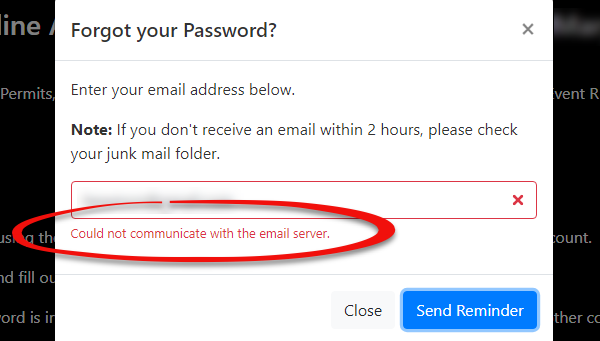
When a user attempts an action that triggers an automated email (such as using the forgot password form), the system relies on predefined sender addresses. If these addresses are missing, the system will fail to send the message, and the user will see a popup stating that the system could not communicate with the email server. This error explicitly indicates that the system lacks a defined "From" or "Reply-to" address.
Fixing Communication Errors
-
Hover over System Configuration and click System Settings.
-
Navigate to the General System Settings tab.
-
Locate the Reply-to Admin Email Address field.
-
Enter a valid, active email address into this field to serve as the system's sender address for automated communications.
-
Click Save to apply the configuration changes.
-
Re-attempt the user action that previously triggered the error (e.g., submitting the forgot password form) to verify the issue is resolved.
Communication errors are almost always symptomatic of missing or incorrectly configured email parameters. If a user reports an email delivery failure or a communication error popup, verifying your global email settings should always be your first troubleshooting step.
Best Practices and Considerations
-
Maintain crucial email fields: The Reply-to Admin Email Address and other sender settings found within the system settings are critical for all automated communications. Ensure these fields are always populated with valid, actively monitored email addresses to prevent widespread delivery failures.
-
Monitor system notifications: Regularly check the inbox of the email address configured as the Default Notification Email. Proactively monitoring this inbox helps administrators catch any internal system alerts regarding failed communications or server errors before end-users report them.
-
Escalate persistent issues: If the issue is still not resolved after configuring these fields, please contact support@ops-com.com for further assistance. When reaching out to support, be sure to provide specific details about the error message and the troubleshooting steps you have already completed.