
Temporary Permit Printing
The Temporary Permit Printing feature allows administrators to search, retrieve, and batch-print temporary parking permits. Its primary purpose is to help efficiently generate physical hang tags or dash passes for users needing short-term parking access. This article is intended for OPS-COM administrators.
Setup and Configuration
There is no specific configuration required to use this feature, provided your administrative user role has the appropriate permit management permissions enabled.
Using this Feature
Administrators can use this tool to print multiple temporary permits at once through a system search, or print individual permits directly from a user's account.
- Hover over Parking Management and click Temporary Permits then Temp Permit Printing.
-
Click the Retrieve drop-down menu and choose the permit types you want to display.
-
Click the Permit Lot drop-down menu and choose the specific lot you are printing for.
-
Enter the Start Date and the Up to and Including date to define your search range.
-
Click the Retrieve button to generate the list of permits below the search criteria.
-
Enable the checkbox for each permit you wish to print from the generated list.
-
Click the print selected hang tags button to generate the physical permits.
Printing from User History
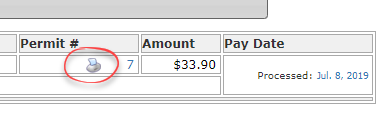
If you only need to print a single permit, it is often faster to do so directly from the user's profile.
Best Practices and Considerations
-
Batch Processing: Utilize the date fields and lot filters when retrieving permits to quickly print daily or weekly batches of temporary permits for upcoming events or short-term visitors.
-
Individual Printing: Print directly from the user's history if you only need to issue a single replacement permit or handle a walk-in user, rather than running a system-wide search.
-
Printer Settings: Ensure your local printer is configured correctly to handle the specific cardstock or hang tag paper dimensions used by your organization before executing a large batch print.